Overview
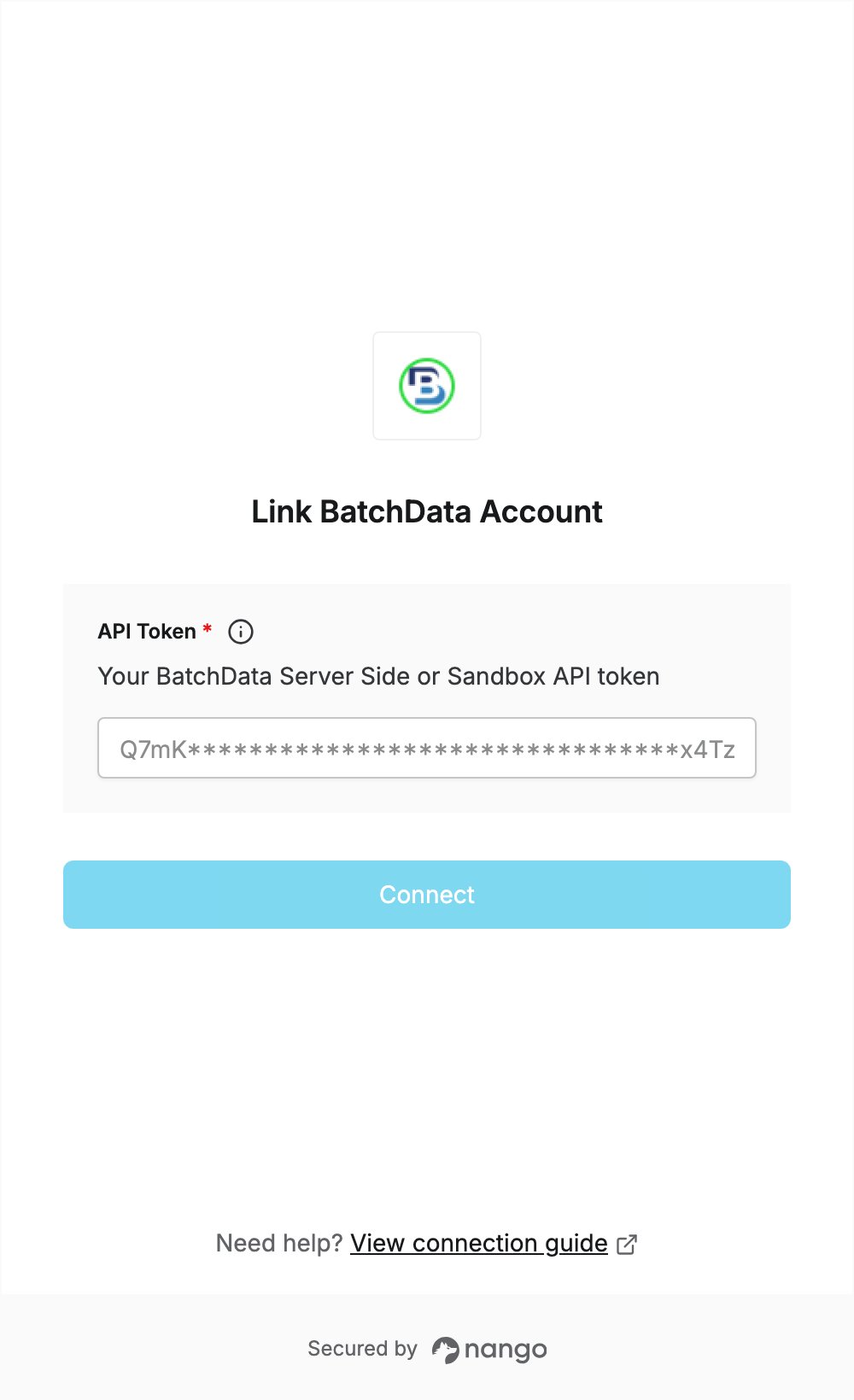
To authenticate with BatchData, you need:- API Token — a Server Side Token or a Sandbox API Token from your BatchData account.
Prerequisites
- A BatchData account. You can register at app.batchdata.com.
Step 1: Create an API token
- Log in to your BatchData account.
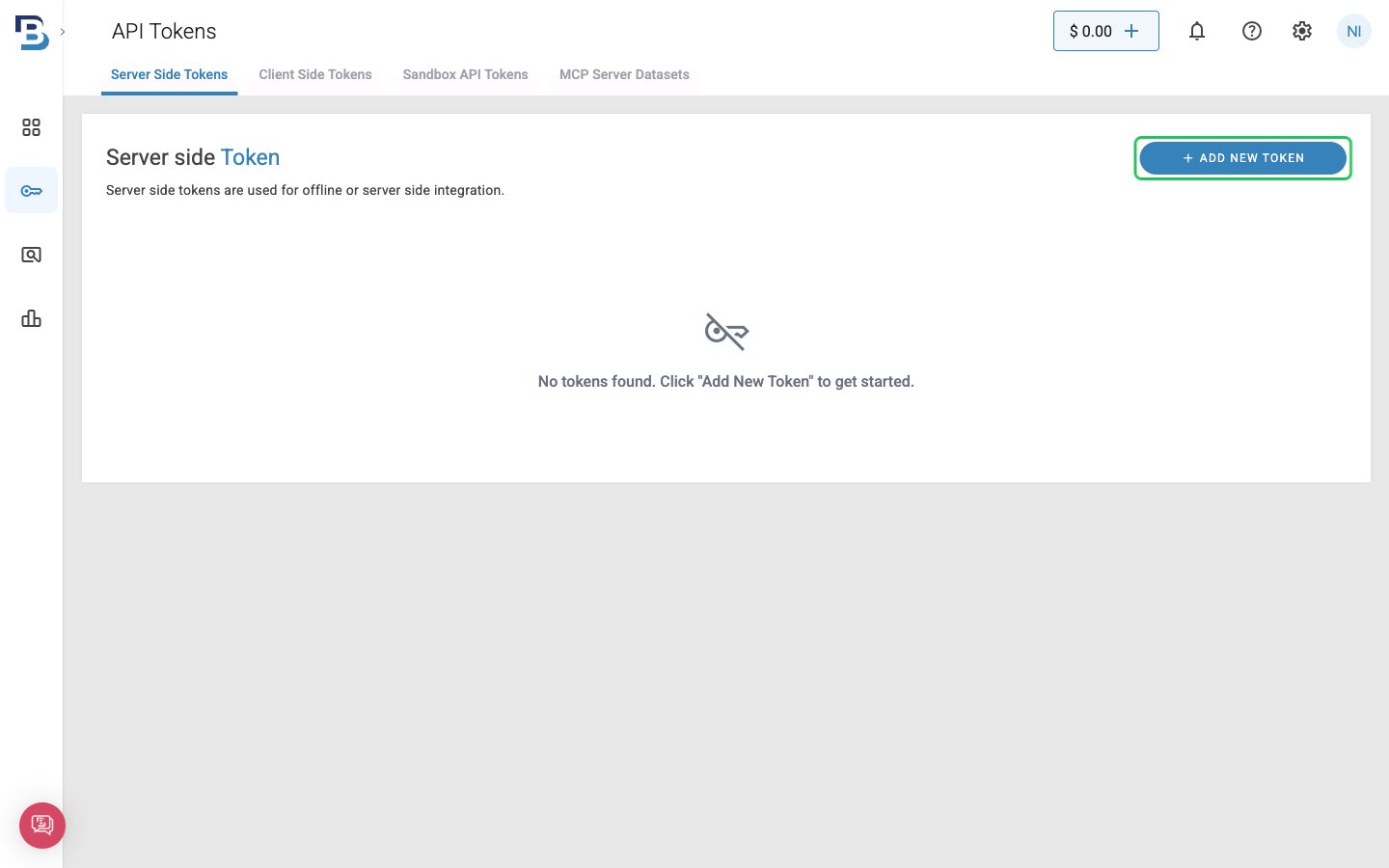
- Click API Tokens (the key icon) in the left-hand menu. The Server Side Tokens tab opens.
- Click Add New Token.
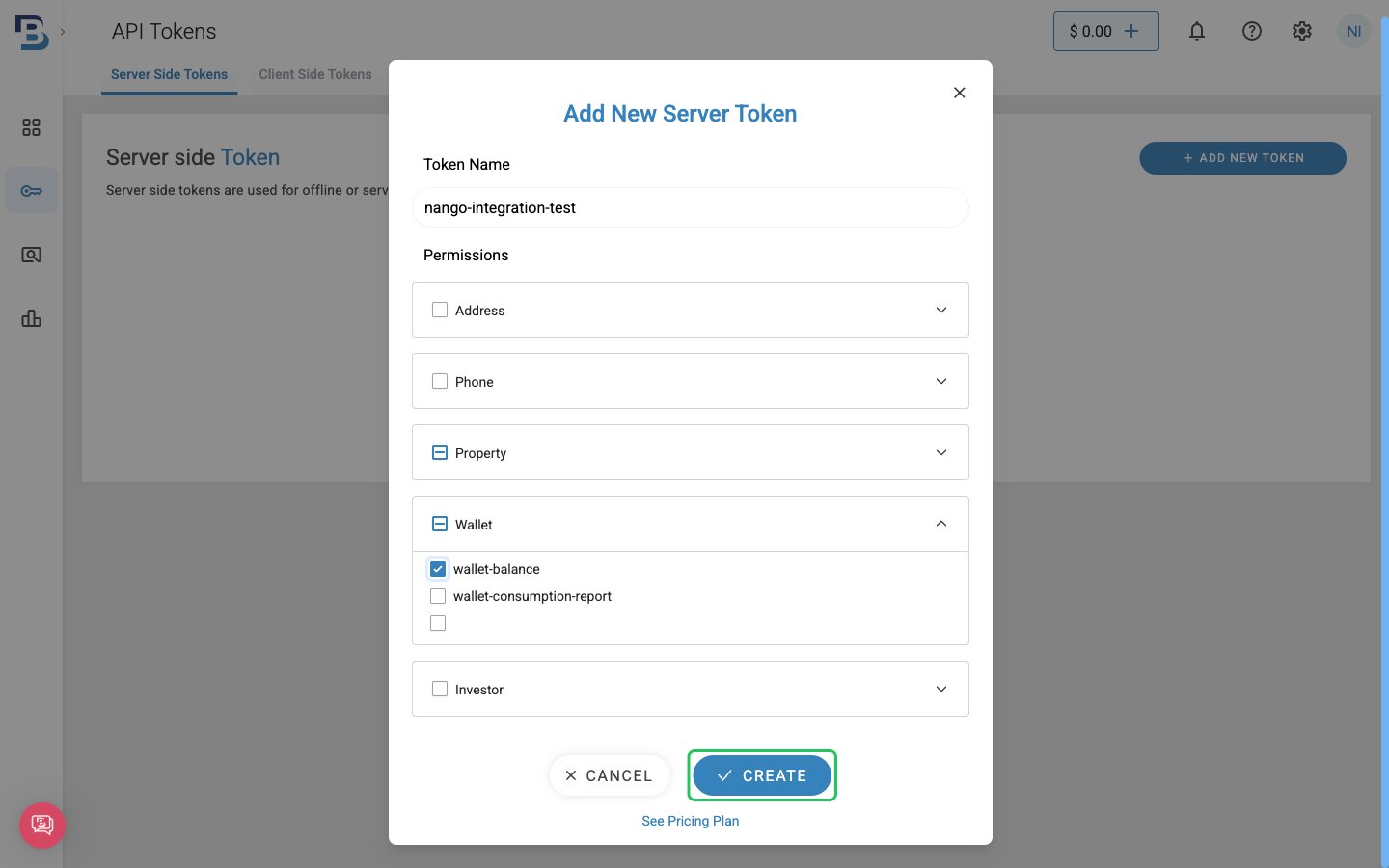
- Enter a token name using letters and numbers only.
- Under Permissions, select the API endpoints the token may call. For Property Search and Lookup, also assign the datasets.
- Click Create.
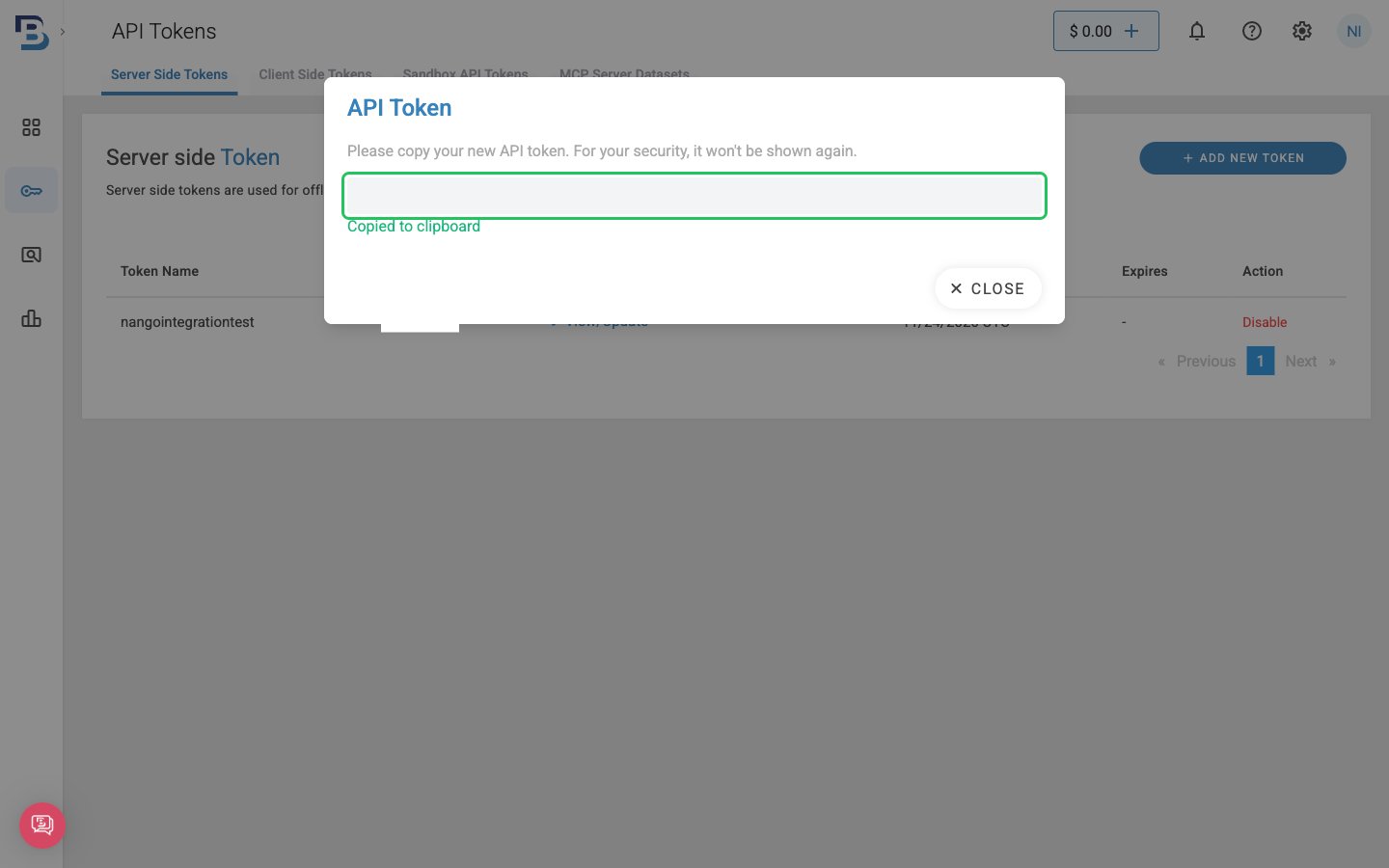
- Copy the token from the API Token dialog. BatchData shows it only once.
Step 2: Enter your API token in the Connect UI
- Open the form where you need to authenticate with BatchData.
- Paste the token you copied in Step 1 into the API Token field.
- Submit the form.