Overview
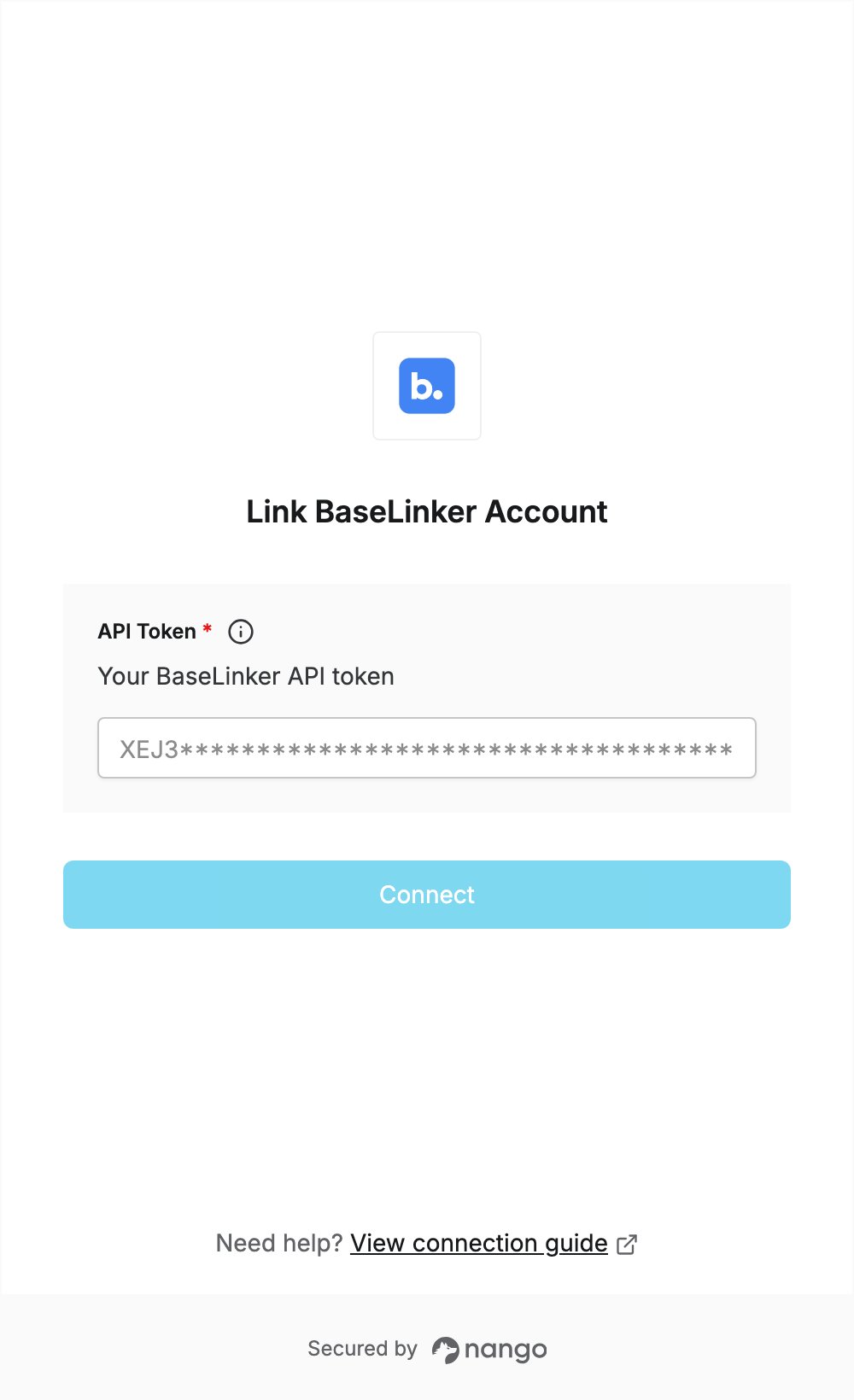
To authenticate with BaseLinker, you need:- API Token — an API token of your BaseLinker user account.
Prerequisites
- A BaseLinker (Base.com) account. If you don’t have one, sign up; new accounts get a free 14-day trial with all features.
Step 1: Create an API token
- Log in to the BaseLinker panel.
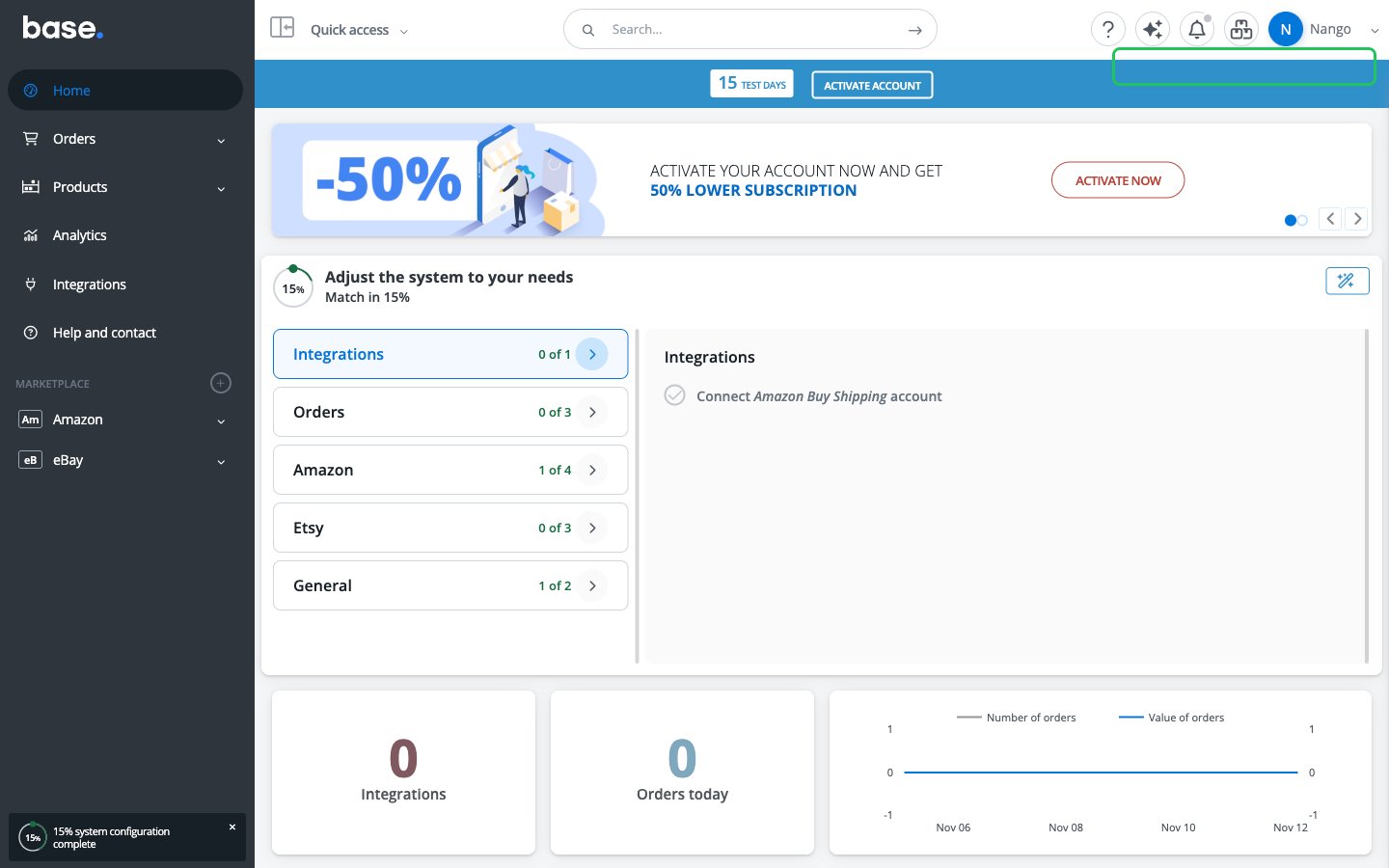
- Open the account menu in the upper right corner and click My account.
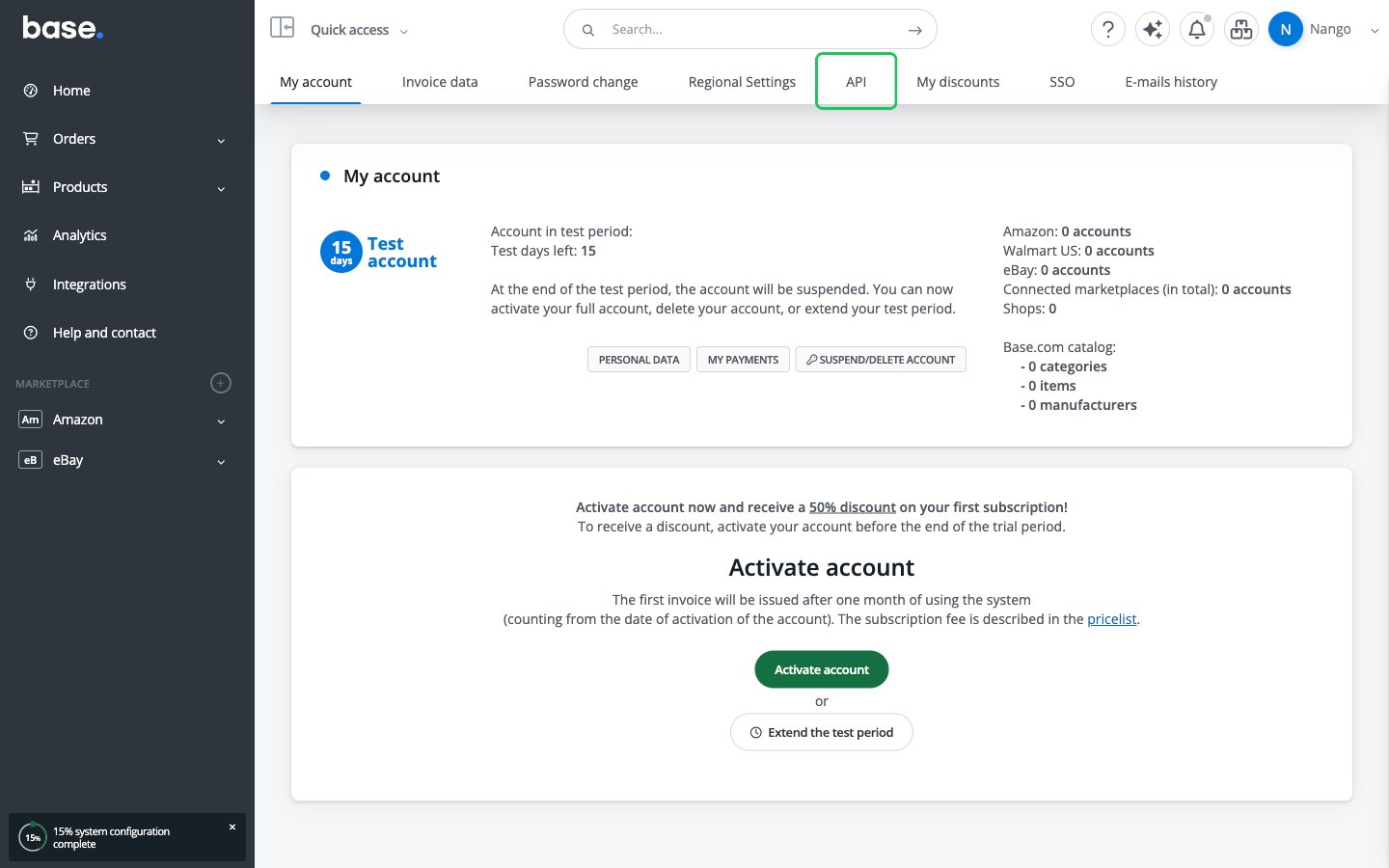
- Open the API tab.
- In the API Tokens section, click Add API Token.
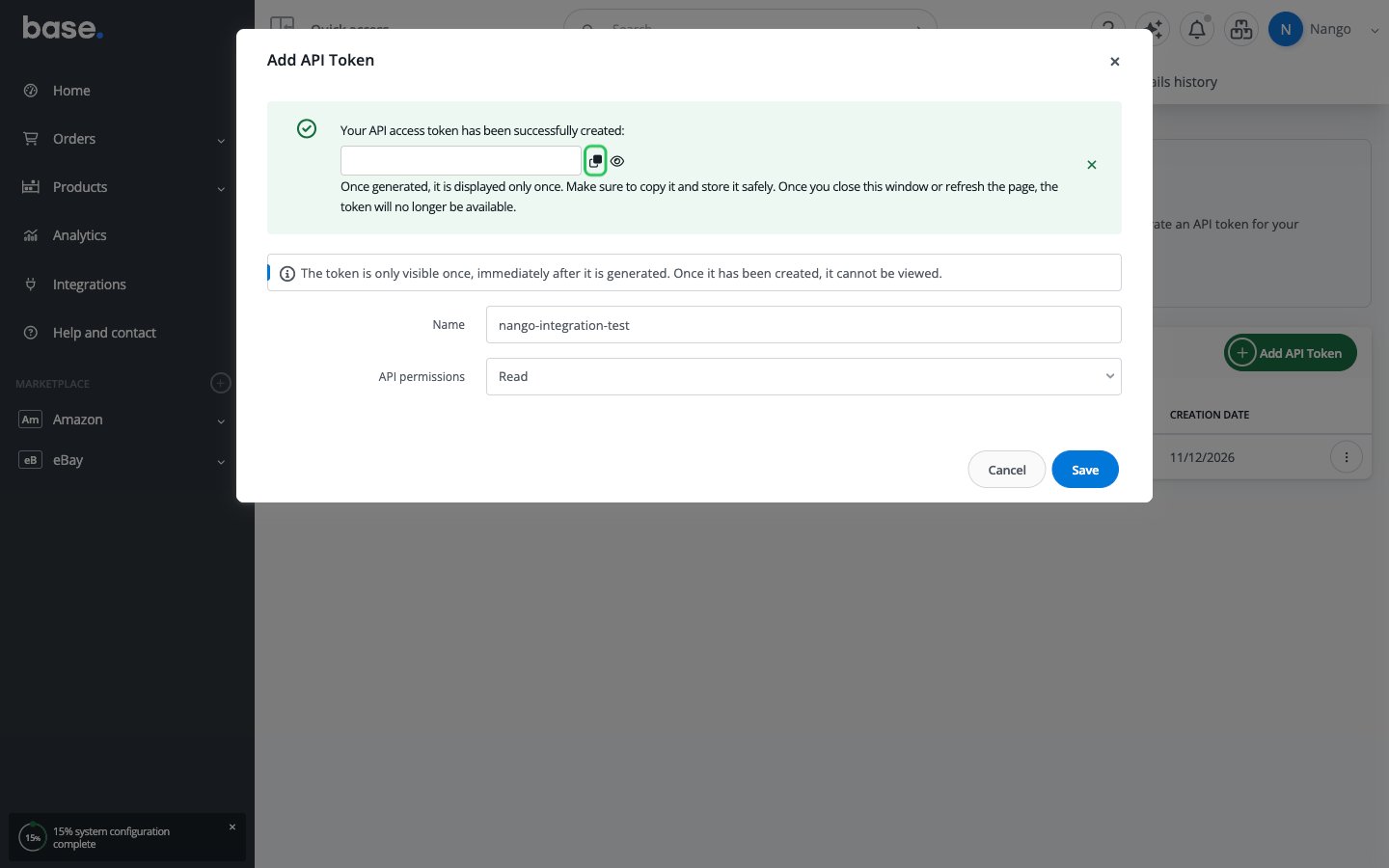
- Enter a name for the token, choose the API permissions your integration needs (Read is enough for read-only access), and click Save.
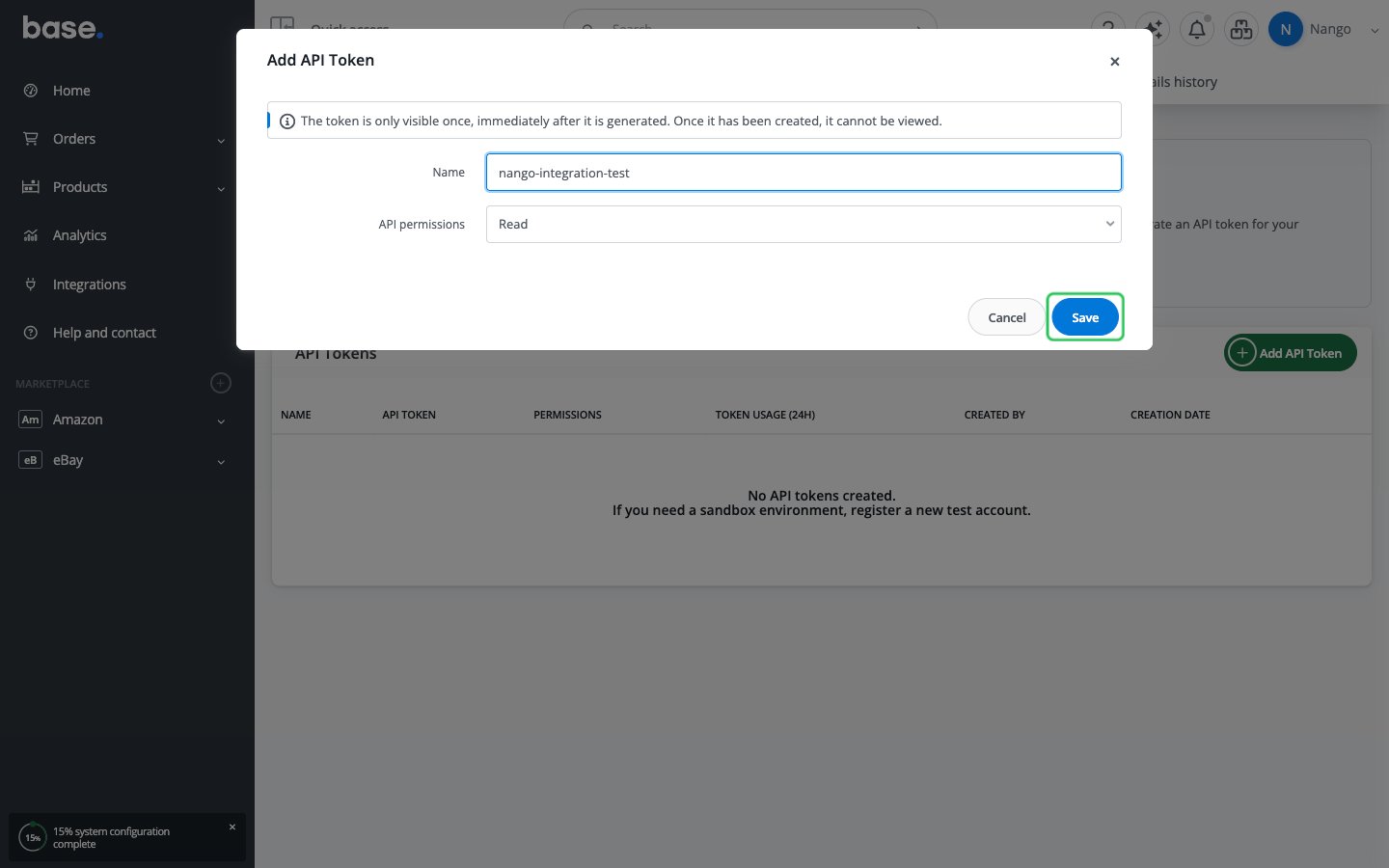
- Copy the token with the copy icon right away. It is shown only once and can’t be viewed again after you close the dialog or refresh the page.
Step 2: Enter your API token in the Connect UI
- Open the form where you need to authenticate with BaseLinker.
- Enter your API token in the API Token field.
- Submit the form, and you should be successfully authenticated.