Overview
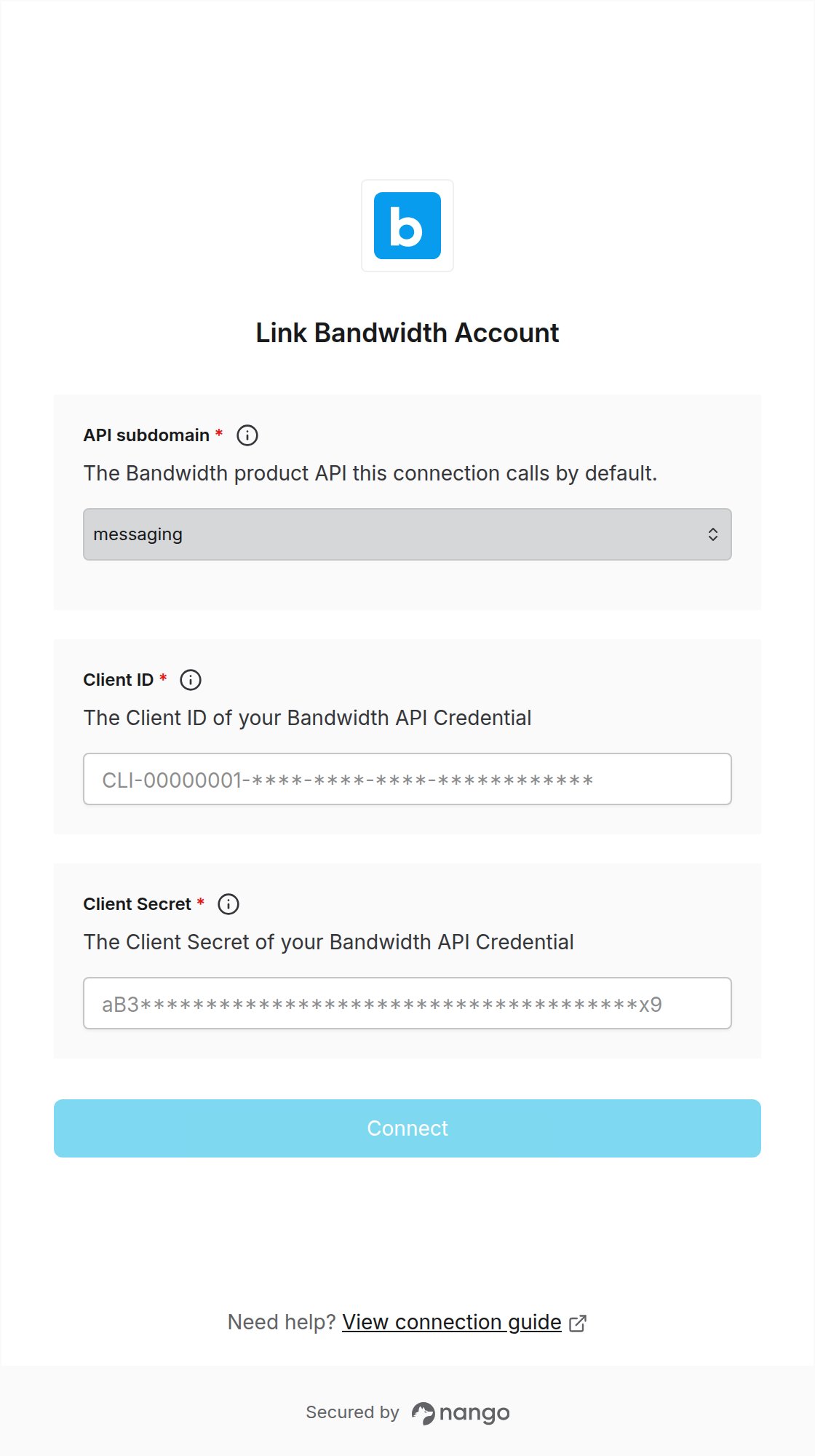
To authenticate with Bandwidth, you will need:- Client ID - The Client ID of a Bandwidth API Credential.
- Client Secret - The Client Secret issued together with that Client ID.
- API subdomain - The Bandwidth product API (Messaging, Voice, Numbers, or Account) this connection calls by default.
Prerequisites
- You must have access to the Bandwidth App.
- Your user needs the Credential Access role to create API Credentials. If you don’t see API Credentials under Account, ask your admin to assign this role.
- Your account must be enabled for the products you want to call (Messaging, Voice, Numbers).
Instructions
Step 1: Create an API Credential
- Log in to the Bandwidth App.
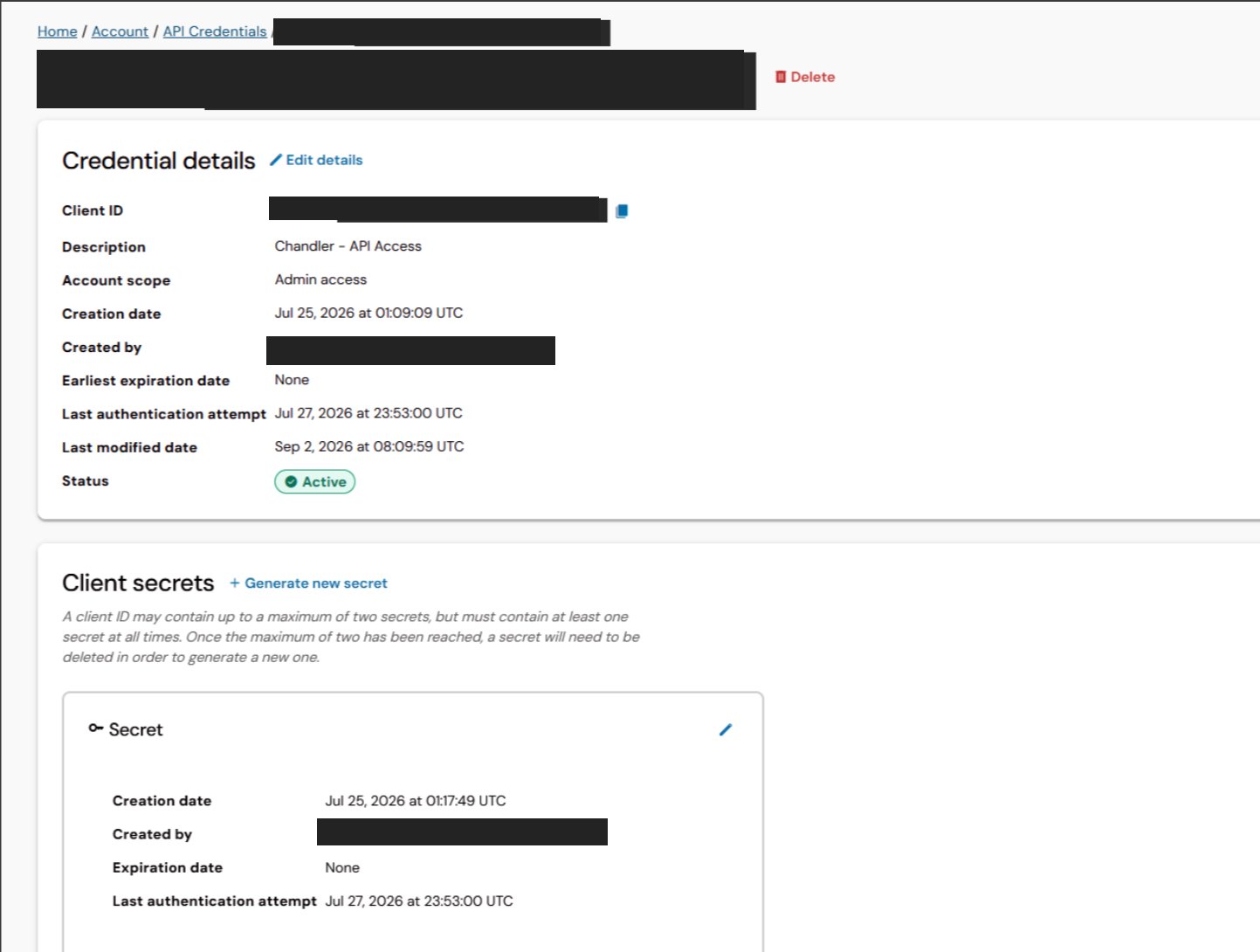
- Go to Account > API Credentials and click Create.
- Fill in the required fields:
- Description - A note to help you identify these credentials.
- Account scope - Basic or admin level access.
- Expiration - Optionally set an expiration date for the initial Client Secret.
- Roles - The permissions for the APIs you will call, for example Messaging, Voice and Numbers. Keep the role set minimal.
- Accounts - The accounts these credentials can access.
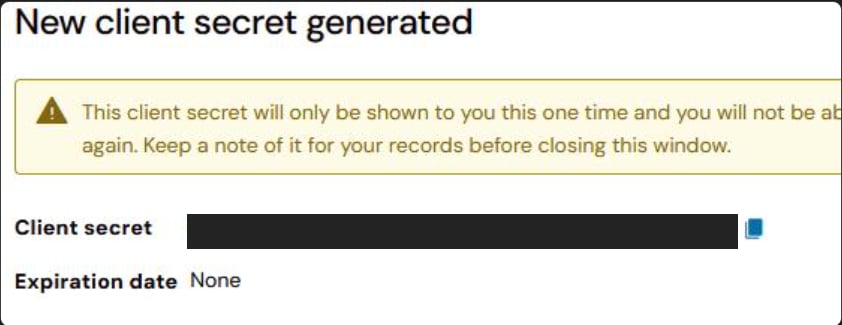
- Click Create and copy the Client ID (starts with
CLI-) and Client Secret. The Client Secret is shown only once; store it securely.
Step 2: Choose the API subdomain
Bandwidth’s product APIs live on separate hosts. Pick the subdomain for the API you will call most; you can still reach the other hosts from the same connection with a base URL override.Step 3: Enter credentials in the Connect UI
Once you have your Client ID, Client Secret, and API subdomain:- Open the form where you need to authenticate with Bandwidth.
- Select the API subdomain from Step 2.
- Enter your Client ID in the Client ID field.
- Enter your Client Secret in the Client Secret field.
- Submit the form, and you should be successfully authenticated.