Overview
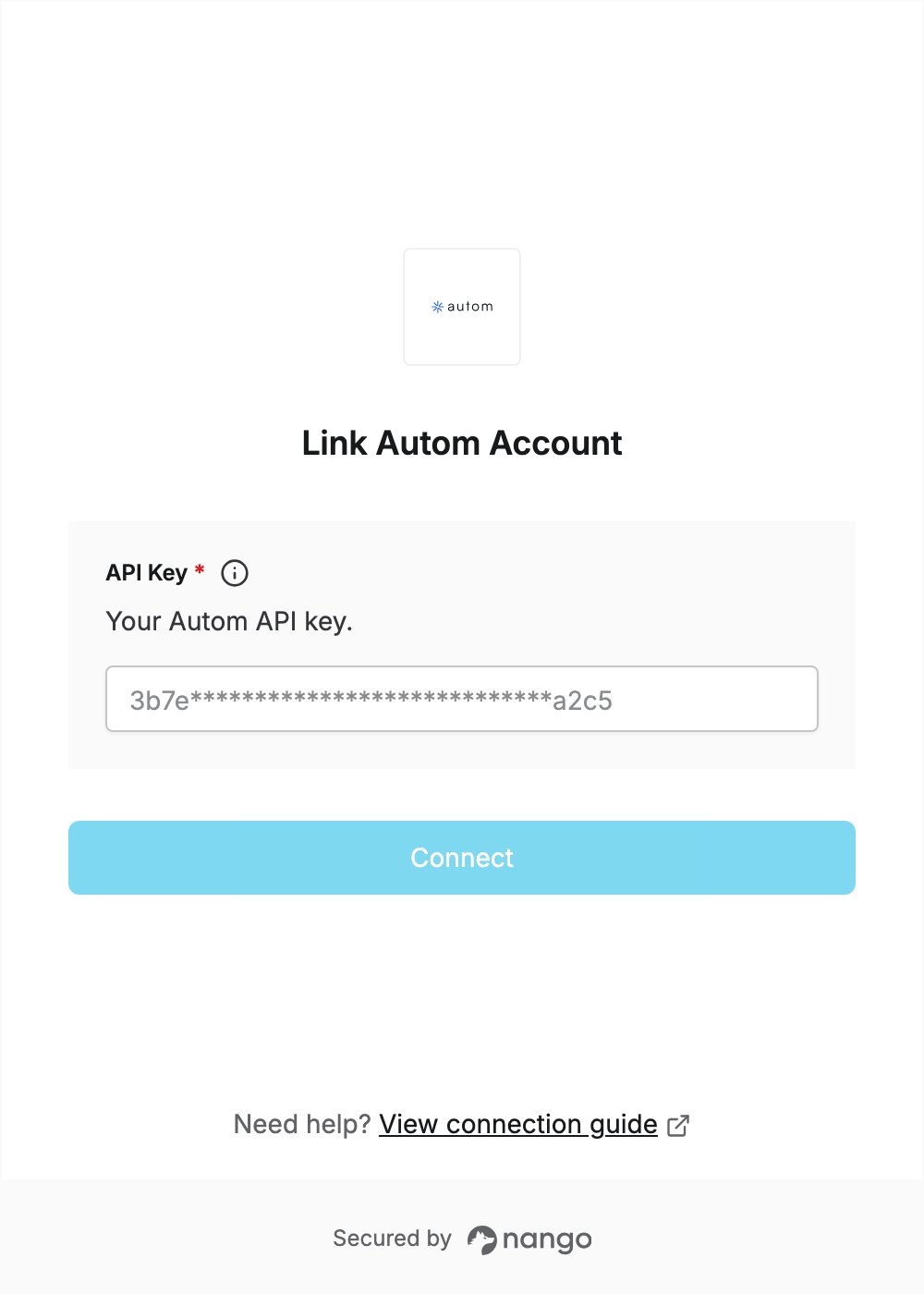
To authenticate with Autom, you need:- API Key - An Autom API key.
Prerequisites
- An Autom account. You can sign up with email, Google, or GitHub, and no credit card is required.
Step 1: Create an API key
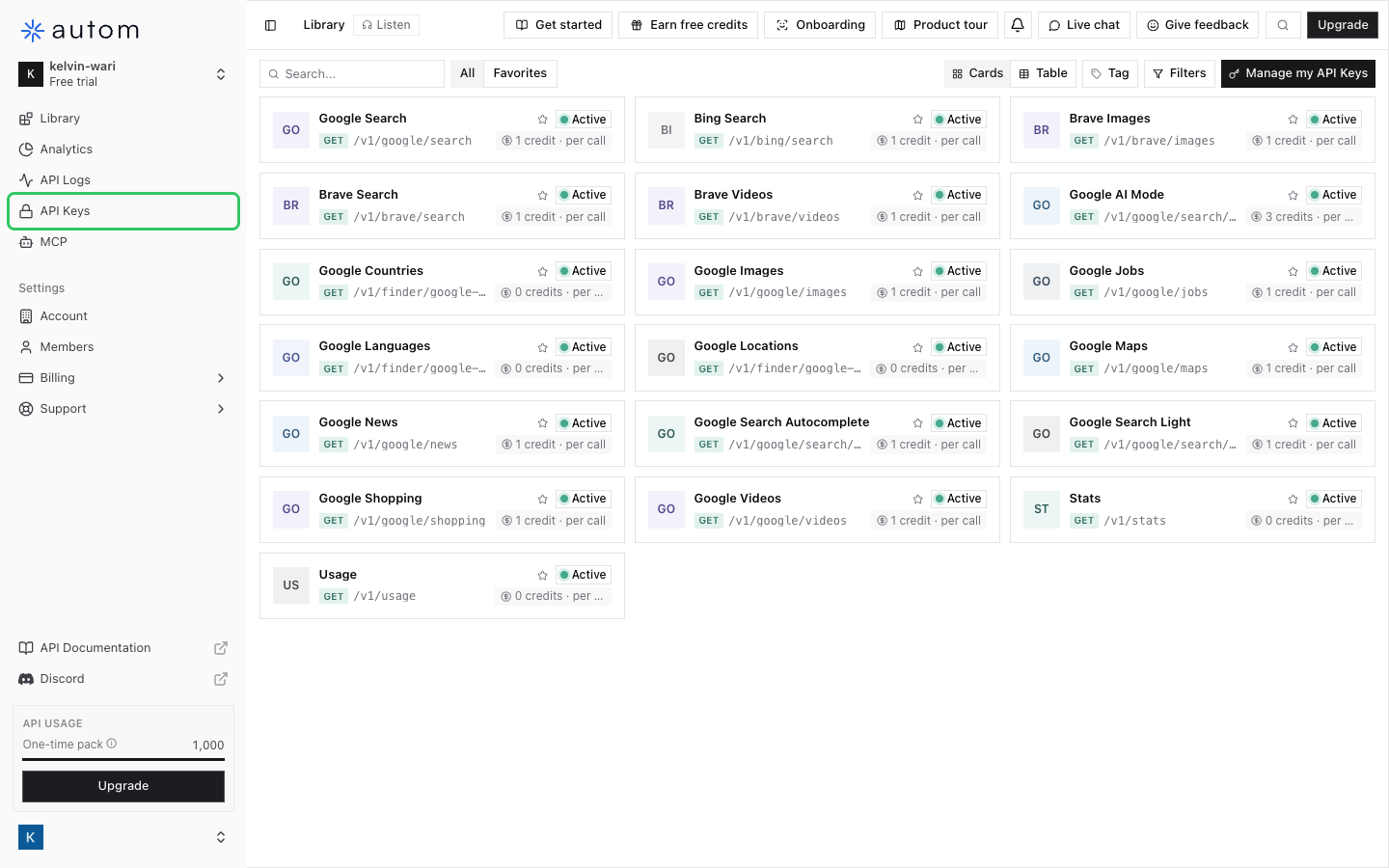
- Sign in to the Autom dashboard and click API Keys in the sidebar.
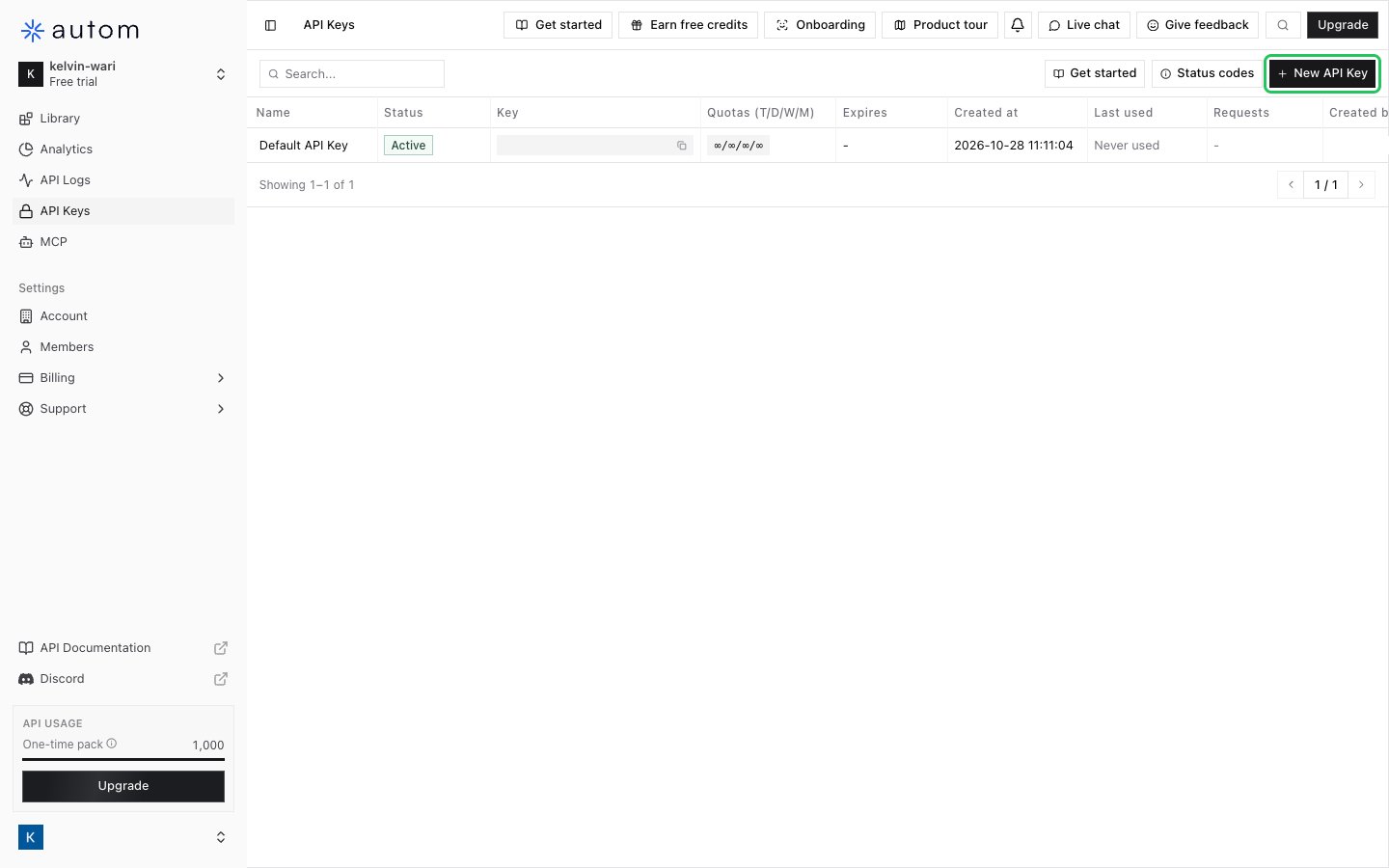
- Click New API Key.
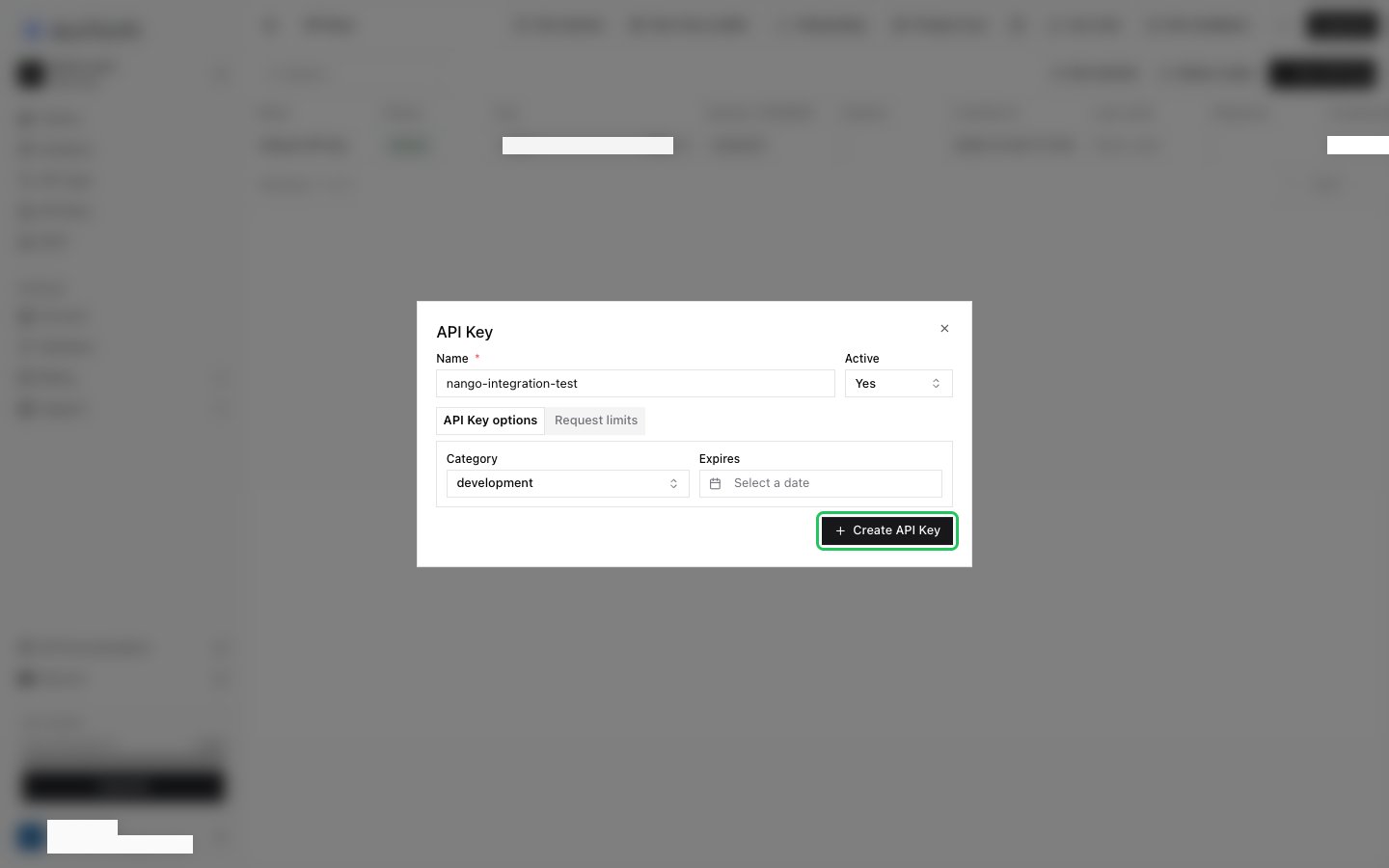
- Enter a Name and pick a Category. You can also set an expiry date, and request limits on the Request limits tab. Then click Create API Key.
- Click Copy to copy the key. Autom shows it only once.
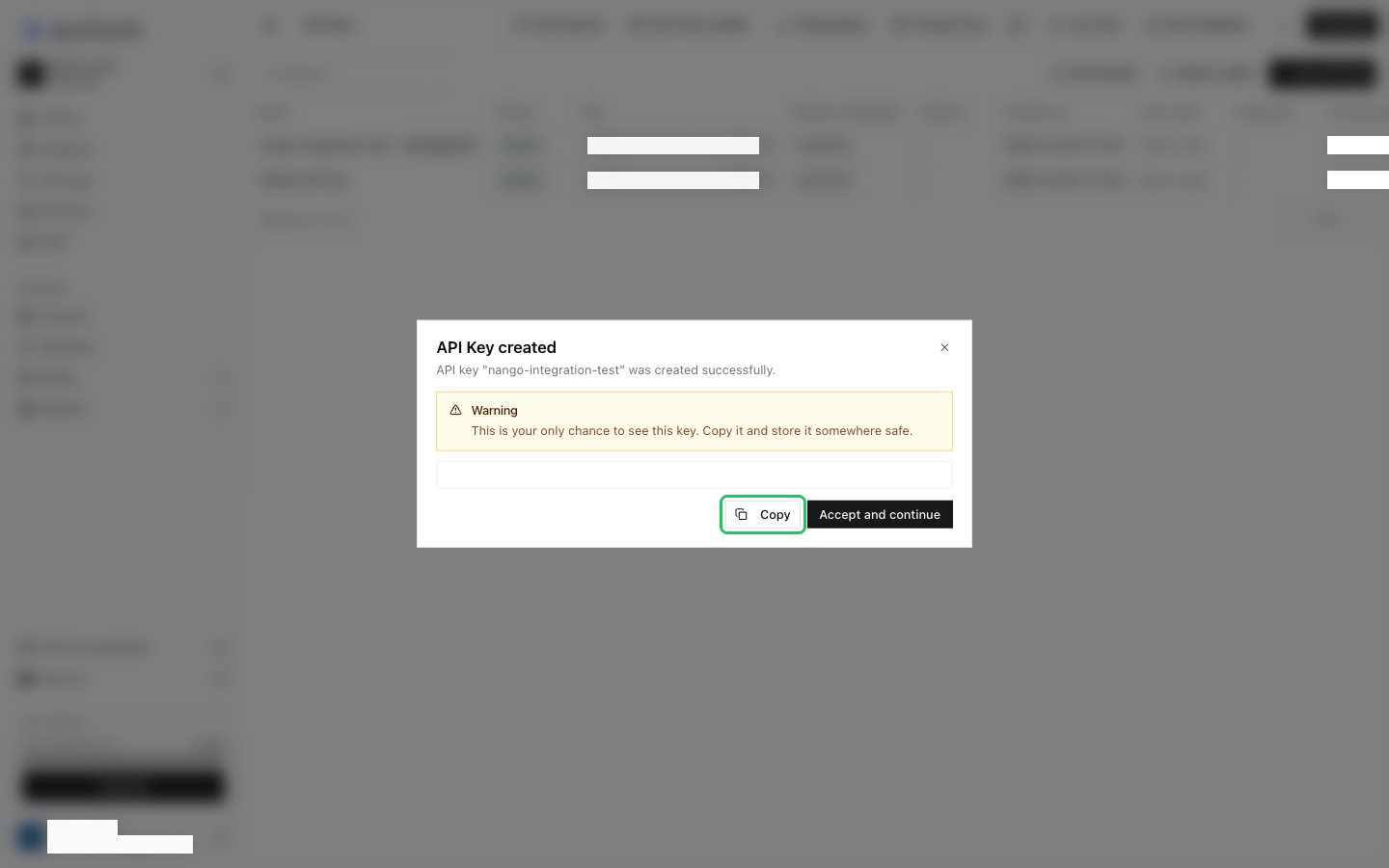
If the key expires, is deactivated, or reaches its request limits, Autom rejects requests made with it.
Step 2: Enter your API key in the Connect UI
- Open the form where you need to authenticate with Autom.
- Enter your API Key in the designated field.
- Submit the form, and you should be successfully authenticated.