Overview
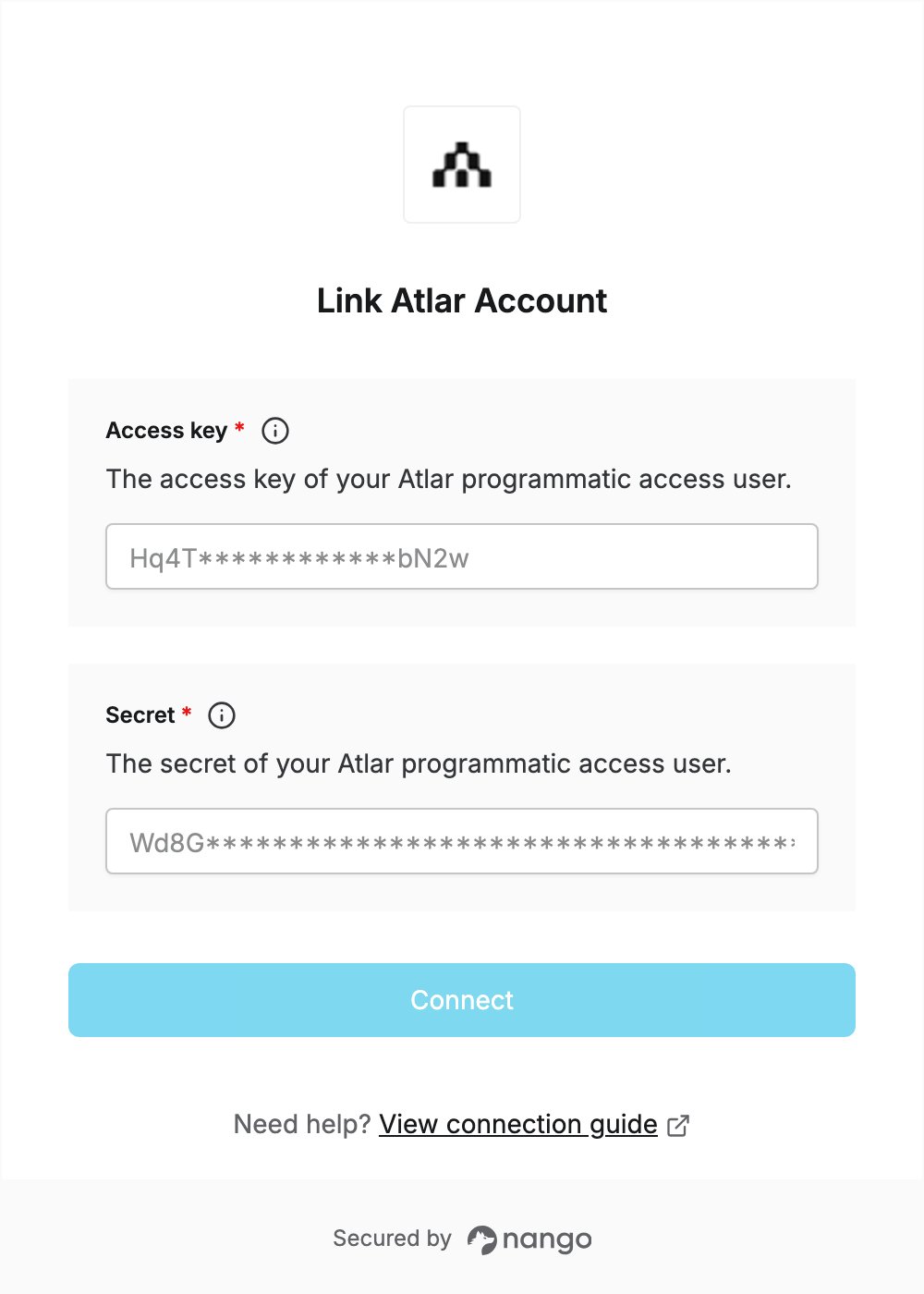
To authenticate with Atlar, you need the credentials of an Atlar programmatic access user:- Access key — the access key of the programmatic access user.
- Secret — the secret of the programmatic access user.
Prerequisites
- An Atlar organization. If you don’t have one, register it in the Atlar Dashboard.
Step 1: Create a role for the integration
- Sign in to the Atlar Dashboard.
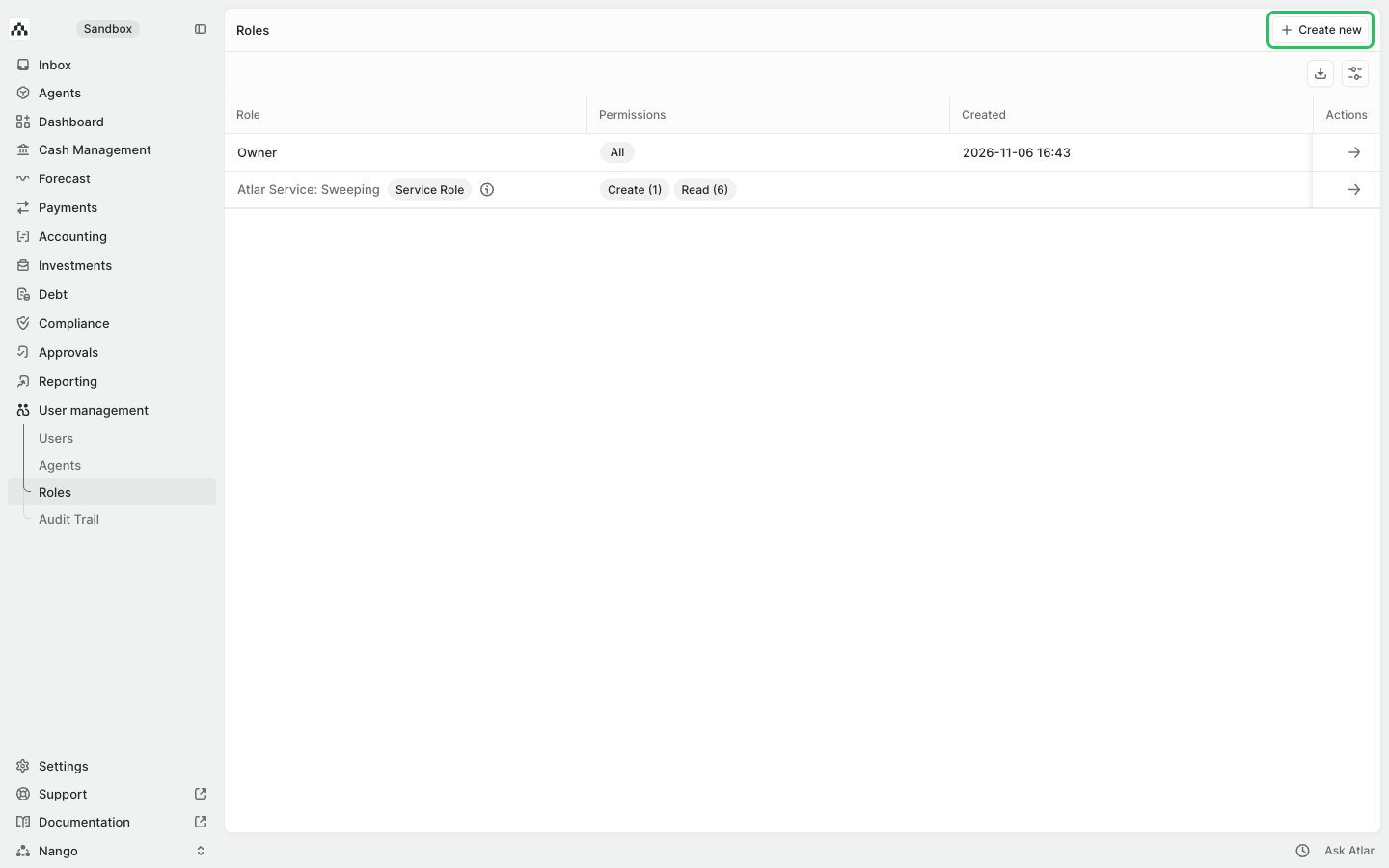
- In the sidebar, go to User management → Roles and click Create new.
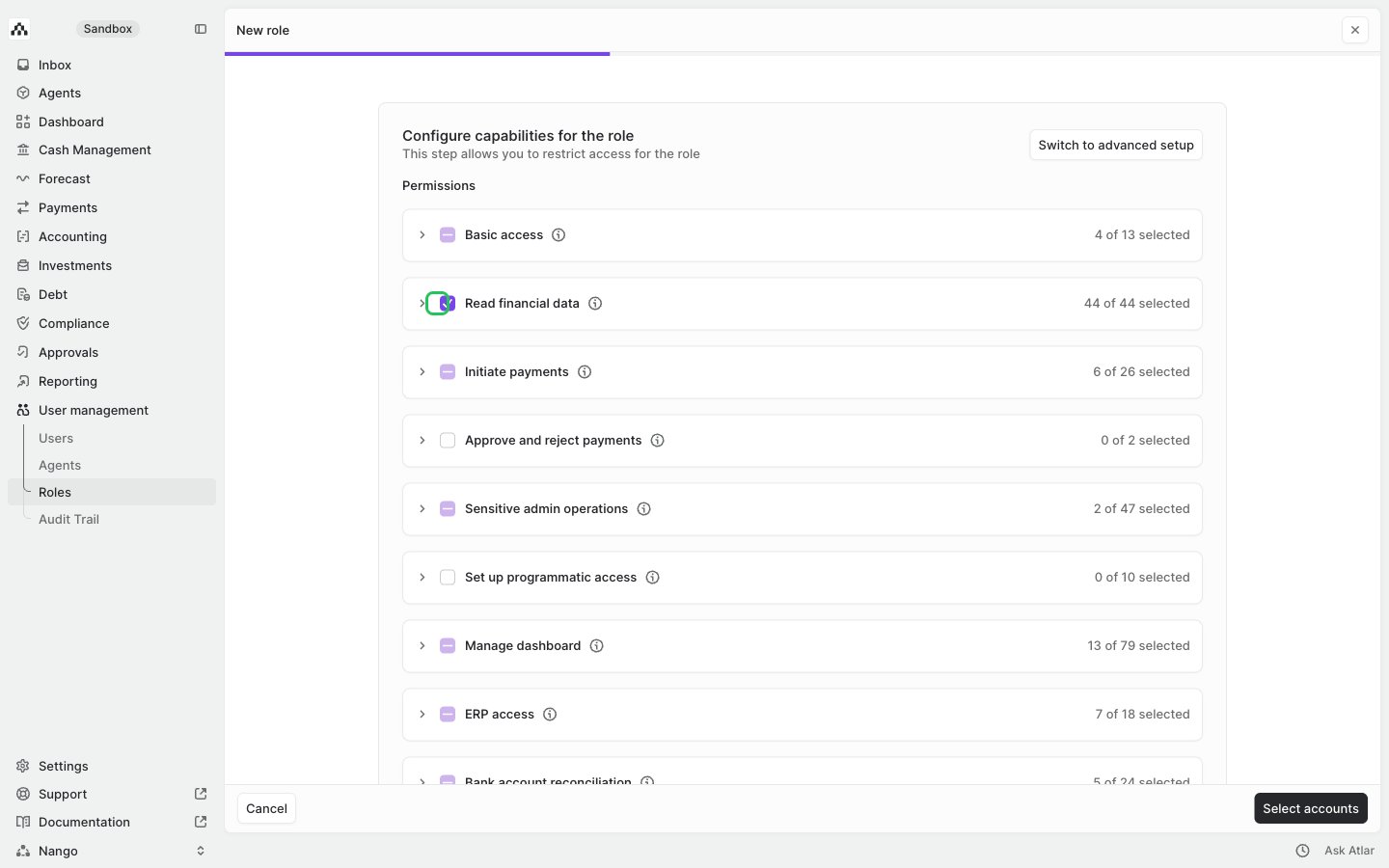
- Under Permissions, tick Basic access and the permissions your app needs (for example, Read financial data for read access to transactions, balances and counterparties), then click Select accounts.
Atlar says every role should be assigned Basic access, which lets the role view your own entities and accounts. See Atlar permissions.
- Choose the entities and accounts the role can access, click See role summary, enter a role name (for example,
nango-integration) and click Create.
Step 2: Create a programmatic access user
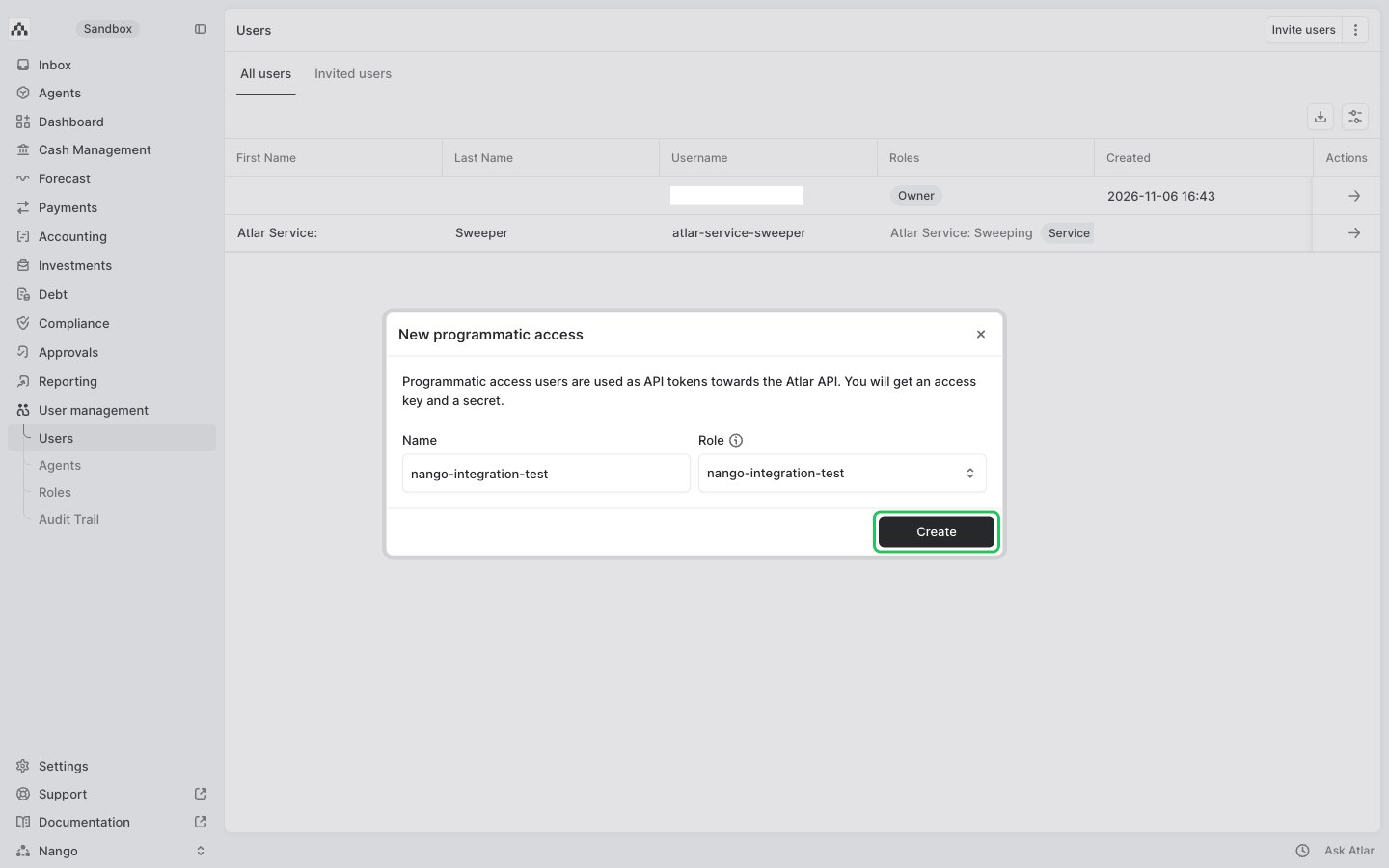
- Go to User management → Users, open Actions and choose New programmatic access.
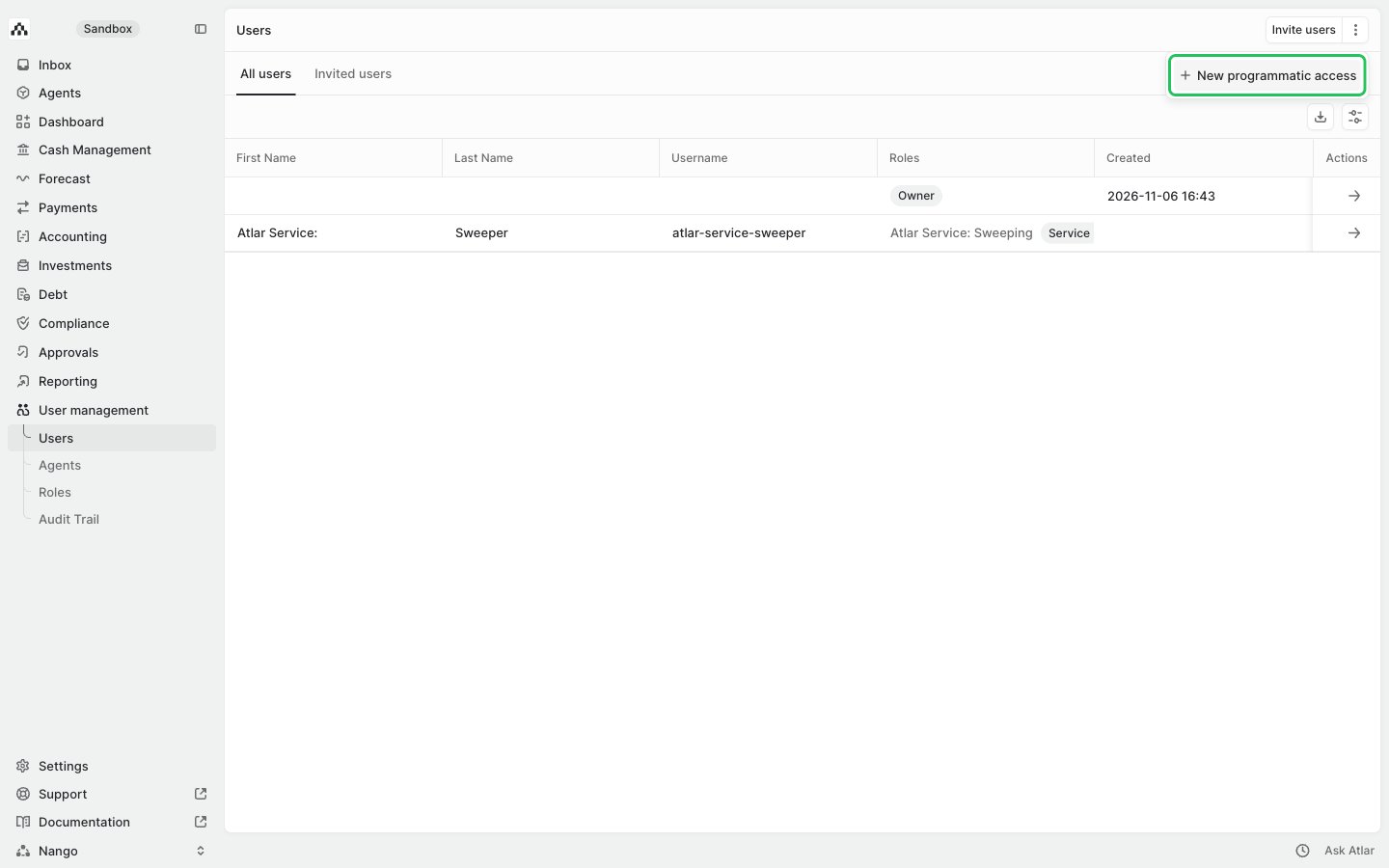
- Enter a name, select the role you created in Step 1 under Role, and click Create.
Step 3: Copy your access key and generate a secret
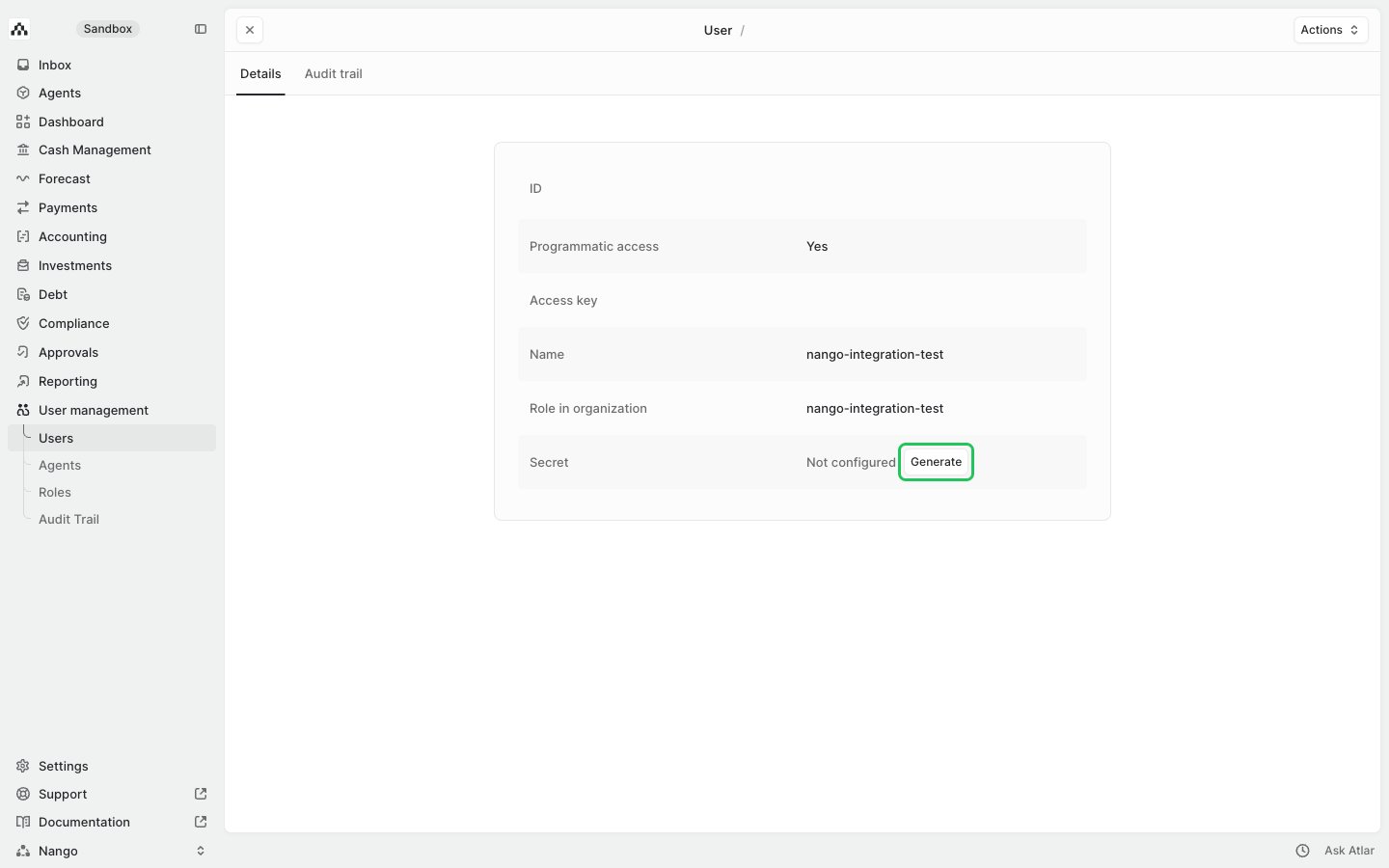
- On the new user’s details page, click Generate next to Secret.
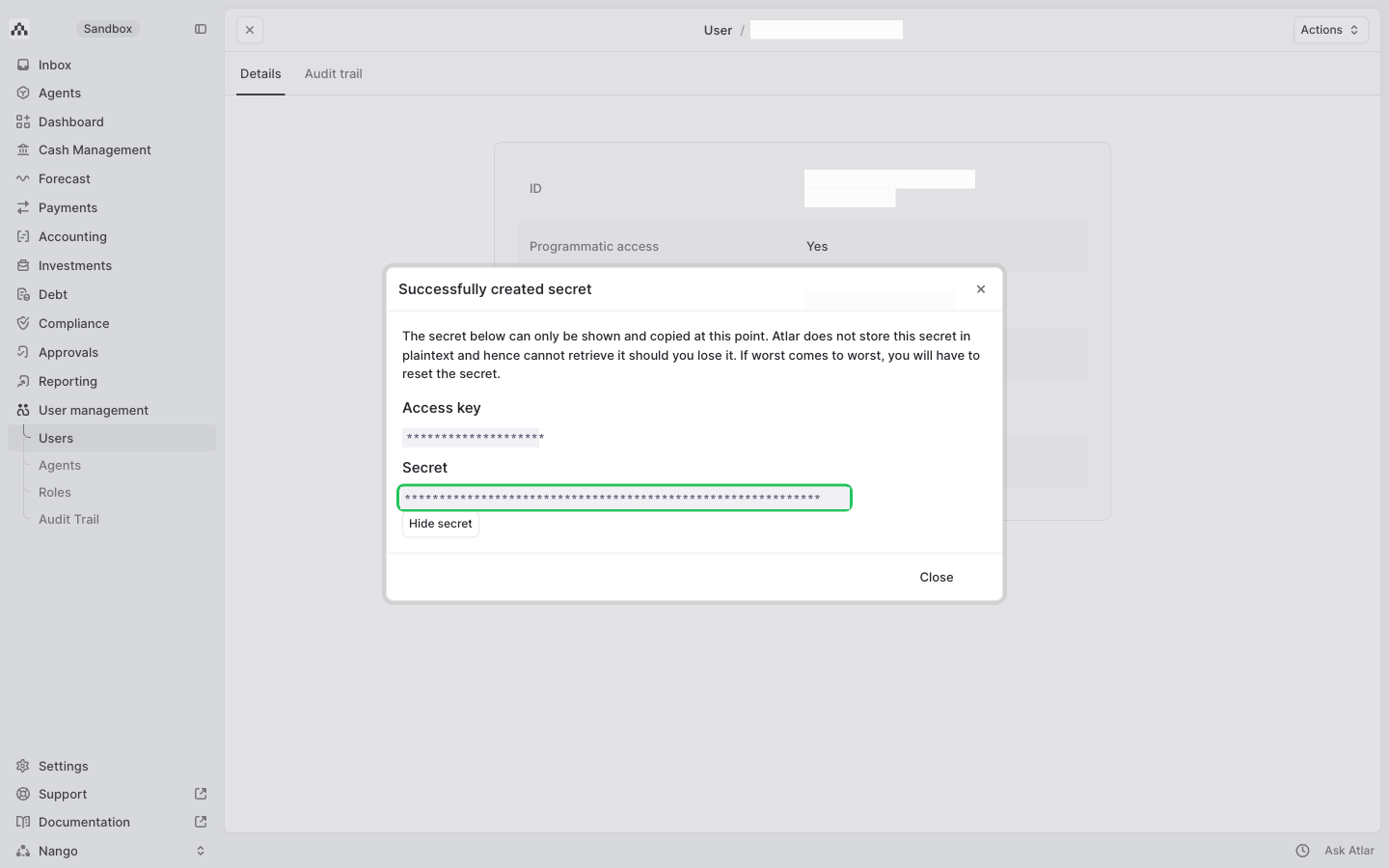
- In the dialog, copy the Access key and the Secret.
Step 4: Enter your credentials in the Connect UI
- Open the form where you need to authenticate with Atlar.
- Enter your access key in the Access key field.
- Enter your secret in the Secret field.
- Submit the form, and you should be successfully authenticated.