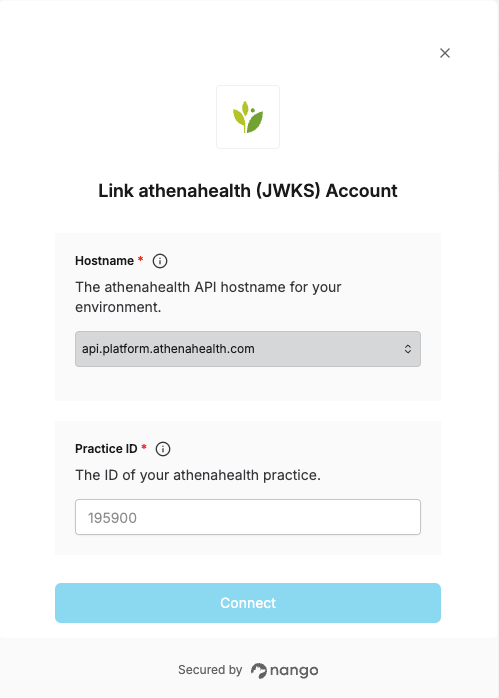
Overview
To connect a practice to athenahealth, you need:- Hostname - the athenahealth API hostname for the practice’s environment:
api.platform.athenahealth.comfor production orapi.preview.platform.athenahealth.comfor preview. - Practice ID - the ID of the athenahealth practice you’re connecting to.
Prerequisites
- Your app is registered with athenahealth and configured in Nango. See the setup guide.
- The practice has granted your app access.
Step 1: Choose your environment
Selectapi.platform.athenahealth.com for production or api.preview.platform.athenahealth.com for preview. It must match the environment your app is registered in, since athenahealth issues separate apps for each environment.
Step 2: Find your Practice ID
Nearly every athenahealth API endpoint is scoped to a practice. To find the Practice ID:- Log in to athenaNet and click your username in the top-right corner.
- Your practice name is shown with a number in parentheses next to it. That number is your Practice ID.
Step 3: Enter your details in the Connect UI
- Open the form where you need to authenticate with athenahealth.
- Select the Hostname and enter the Practice ID.
- Submit the form, and you should be successfully authenticated.