Overview
To authenticate with Asin, you need:- API Key — a personal API key created in your Asin dashboard.
Prerequisites
- An Asin account. You can sign up for free with Google, Discord or an email address.
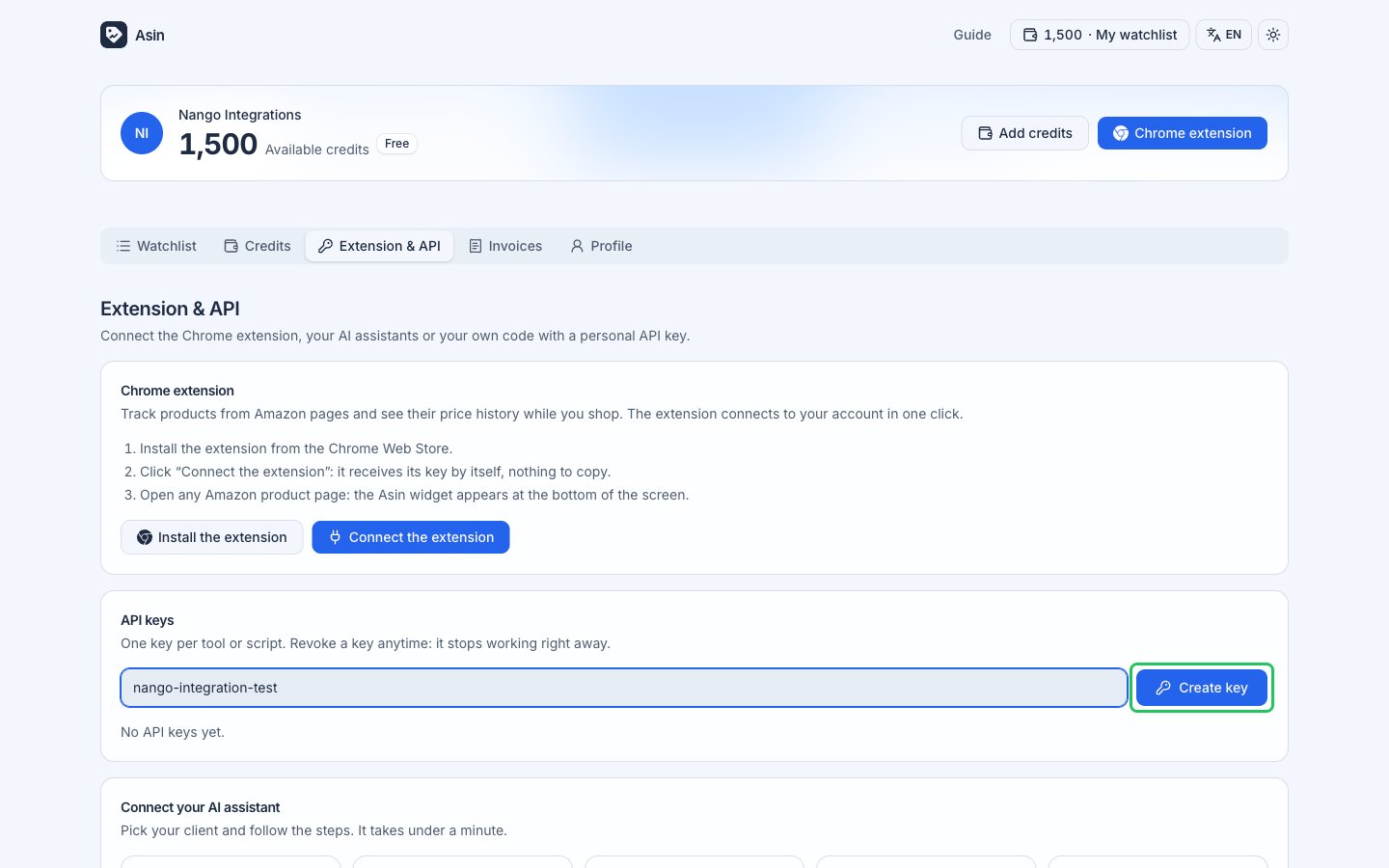
Step 1: Create an API key
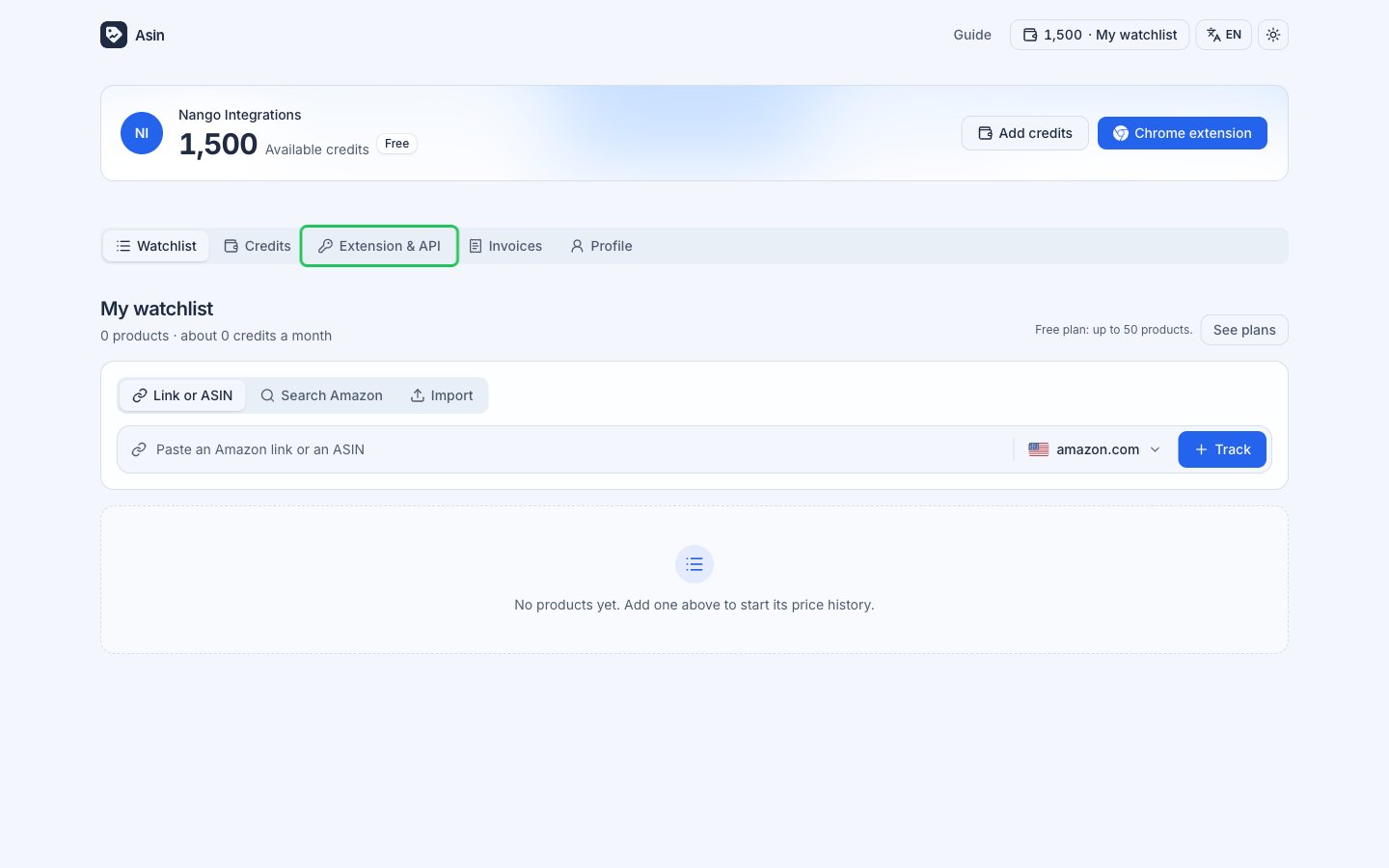
- Under API keys, enter a name for the key, such as the name of your app, then click Create key.
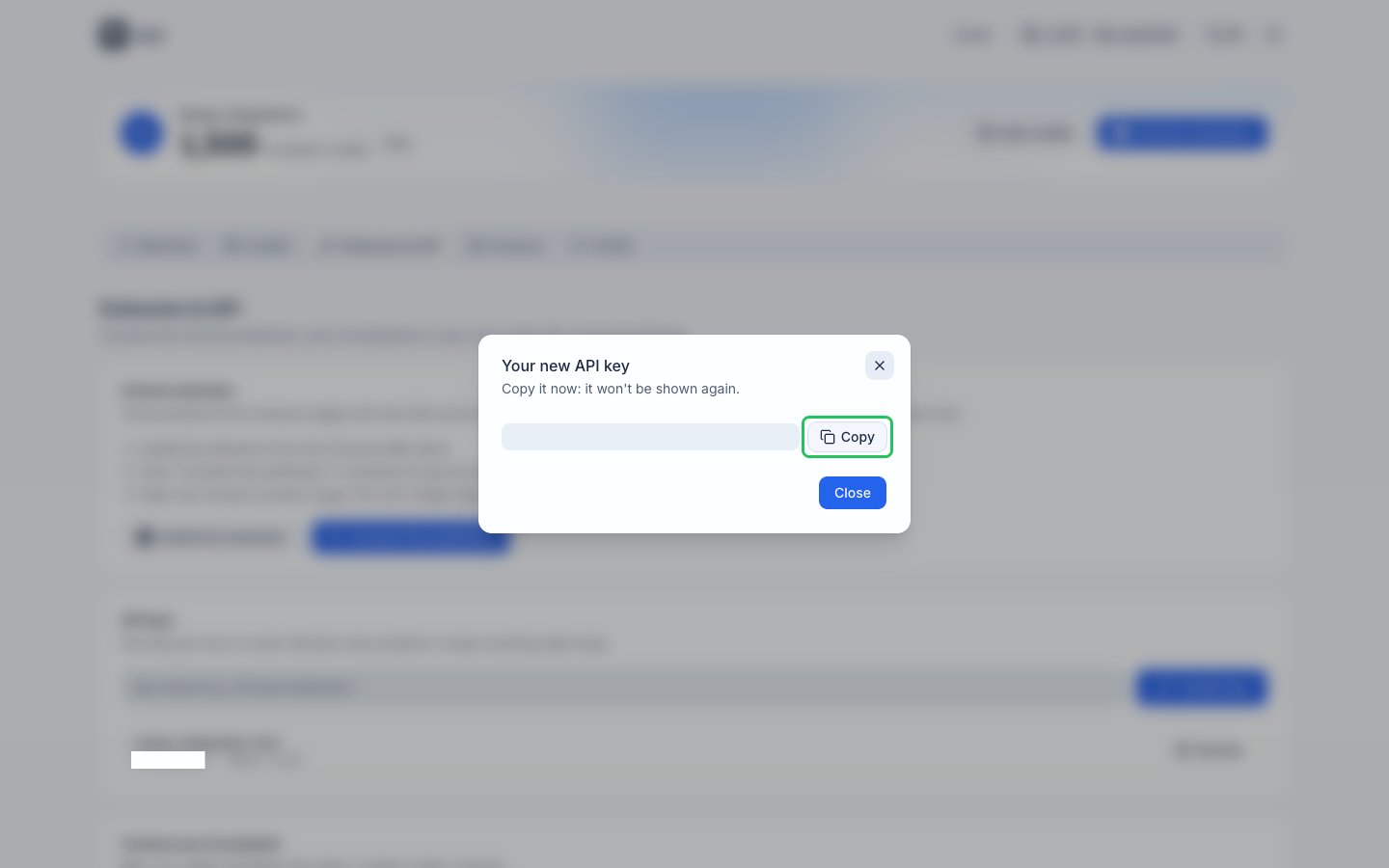
- In the Your new API key dialog, click Copy. Asin shows the key only once: if you lose it, create a new key. The key starts with
asin_.
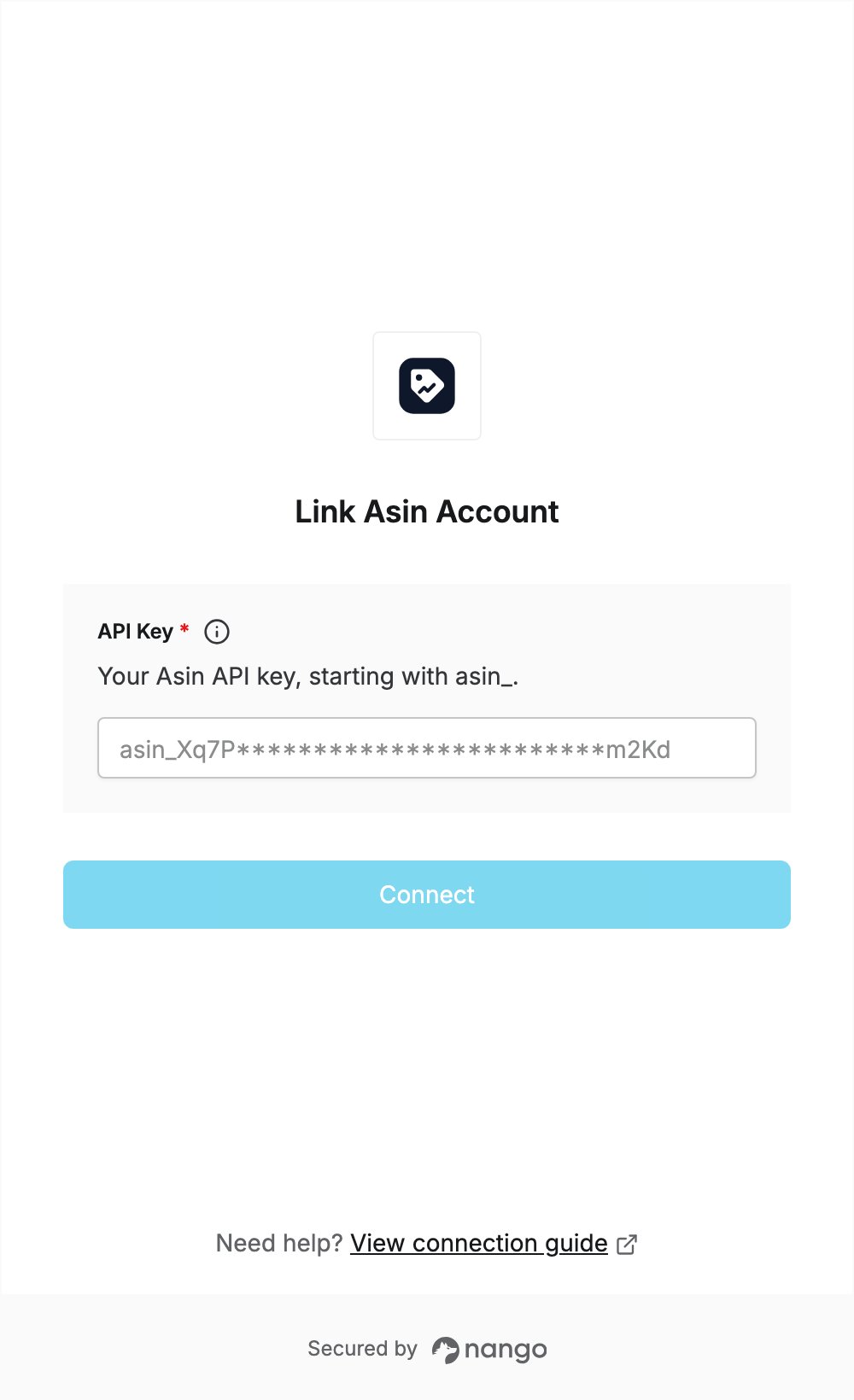
Step 2: Enter your API key in the Connect UI
- Open the form where you need to authenticate with Asin.
- Paste the key you copied in Step 1 into the API Key field.
- Submit the form. Nango checks the key with Asin and rejects it if it is wrong.