Overview
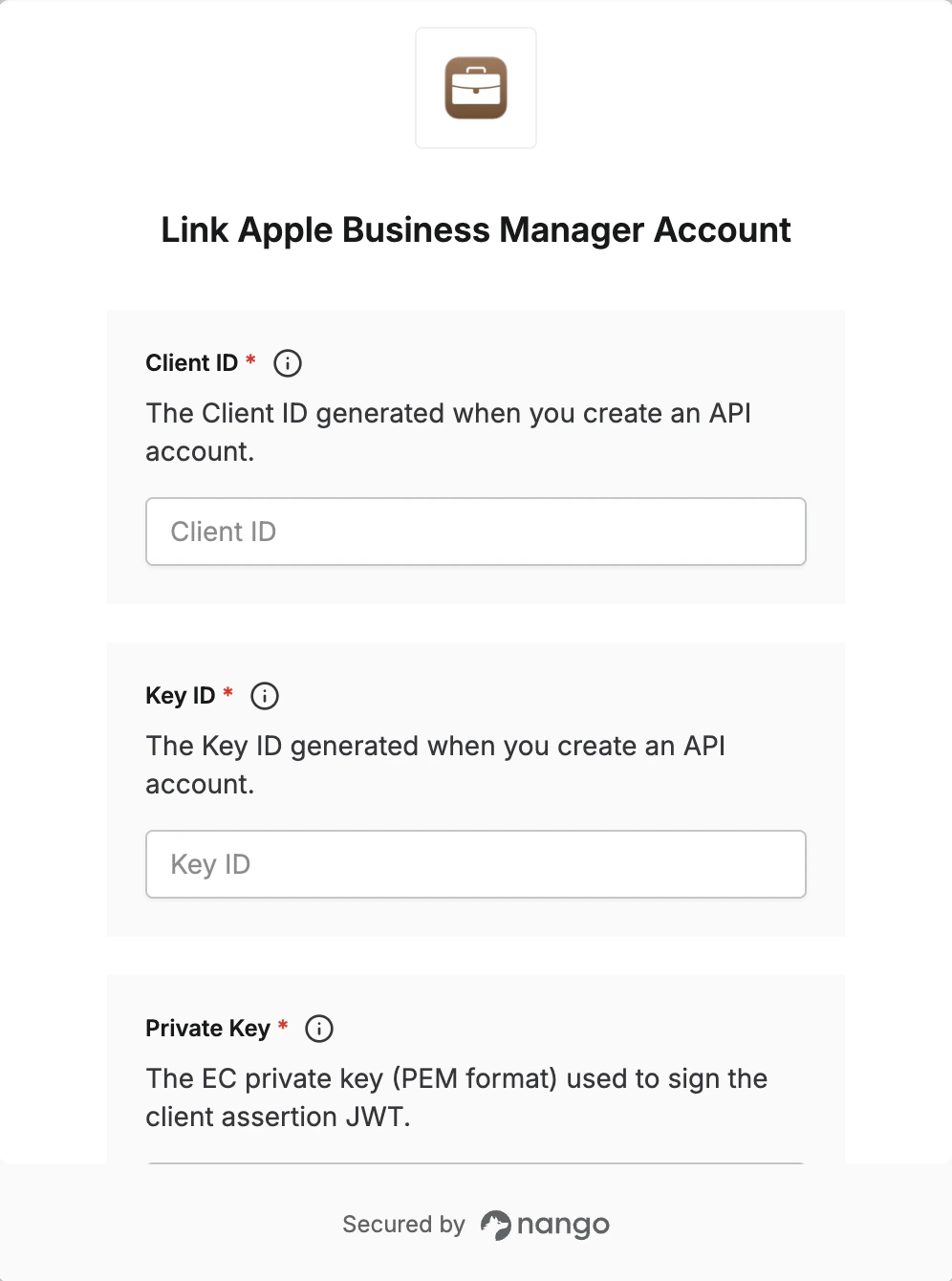
To authenticate with Apple Business Manager, you will need:- Client ID – Returned when you upload your public key in Apple Business Manager.
- Key ID – Returned when you upload your public key in Apple Business Manager.
- Private Key – The EC private key (PEM format) you generate to sign the client assertion JWT.
Prerequisites:
- An Apple Business Manager account with the Administrator role.
Instructions:
Step 1: Create an API account and generate a private key
Apple Business Manager authenticates using a P-256 elliptic curve private key that you generate — it is never stored by Apple.- Sign in to Apple Business Manager as a user with the Administrator role.
- Select your name at the bottom of the sidebar, then select Preferences → API.
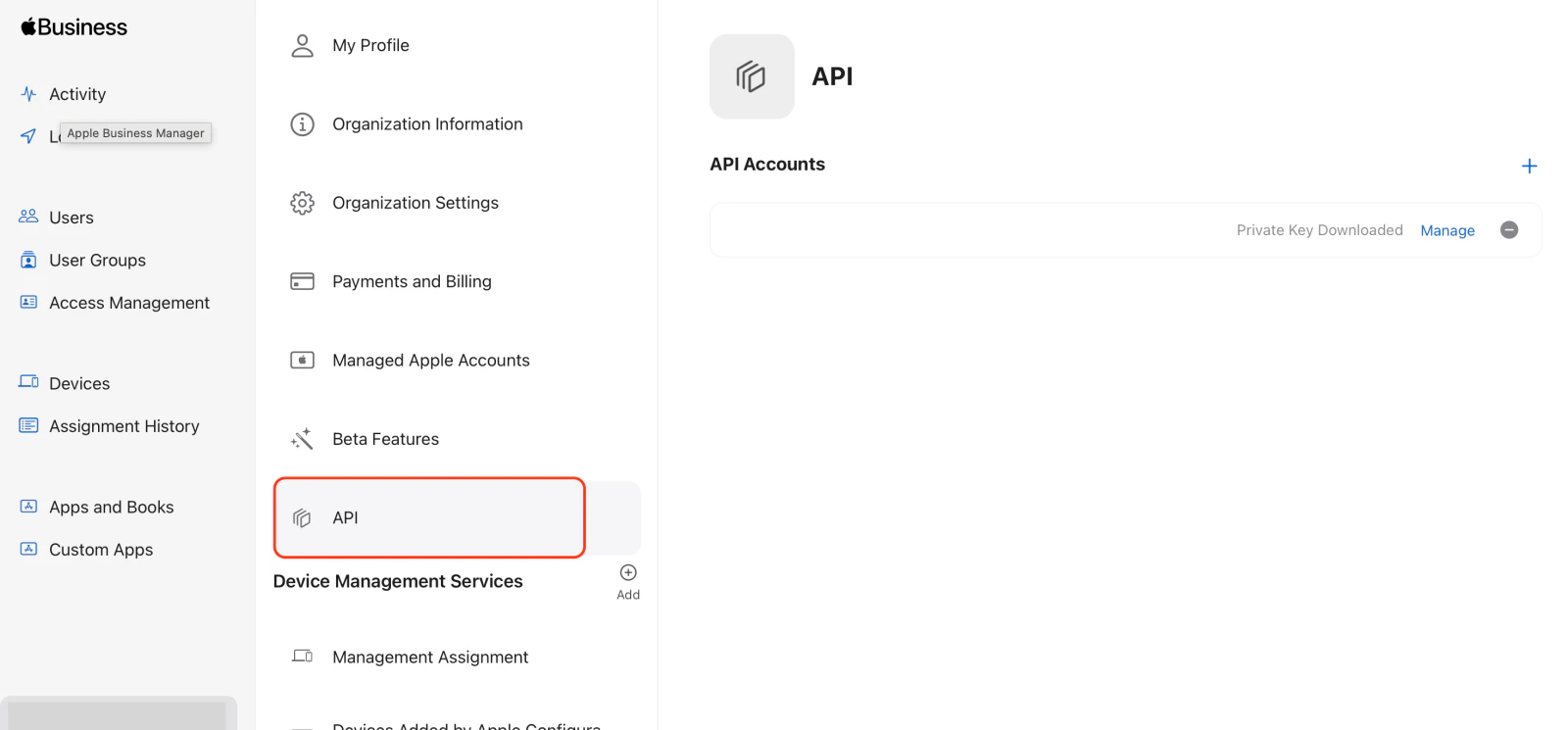
- Click Create API Account.
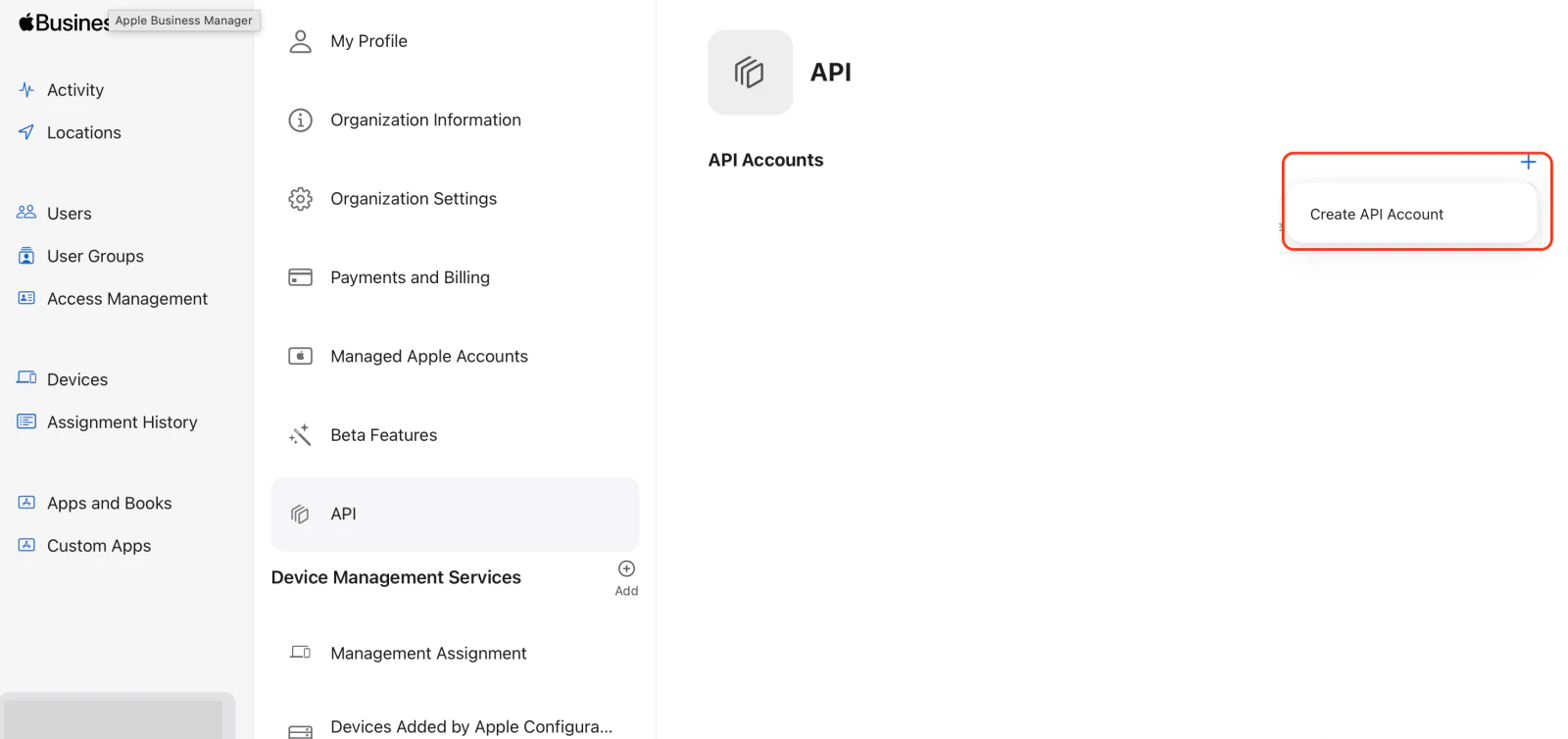
- Enter an account label, click Create, then click Generate Private Key and save the file.
.pem file automatically downloads to your browser’s download location. This key is used to sign JWTs for authentication.
Step 2: Note your credentials
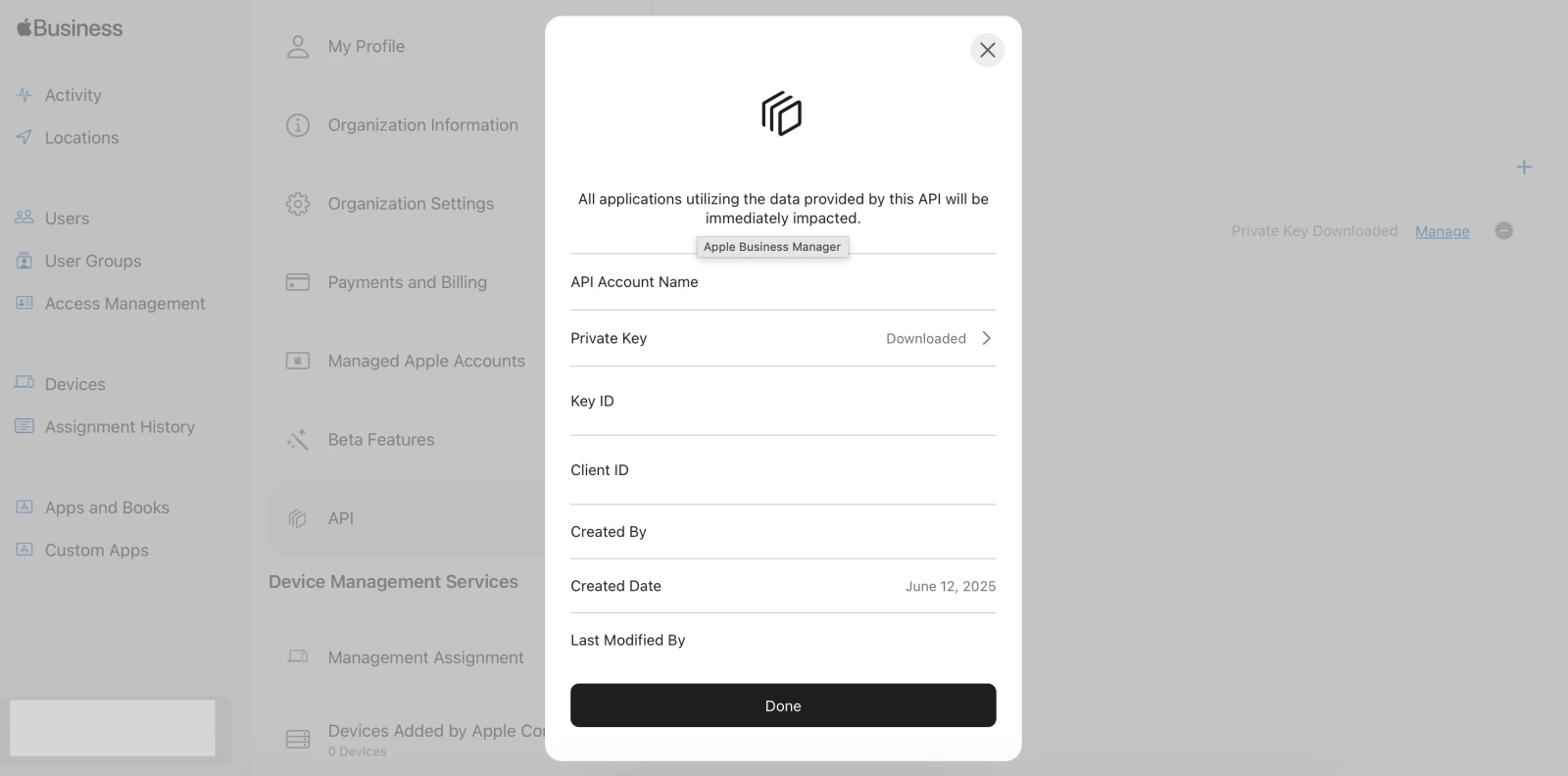
After generating the private key, Apple Business Manager displays your API account details. Select Manage to view:- Client ID – A unique identifier for your API account, used in JWT claims.
- Key ID – The identifier for the key pair, used in the JWT header.
Step 3: Enter credentials in Nango
Once you have your Client ID, Key ID, and Private Key:- Open the form where you need to authenticate with Apple Business Manager.
- Enter your Client ID, Key ID, and Private Key in their respective fields.
- Submit the form to complete authentication.