Overview
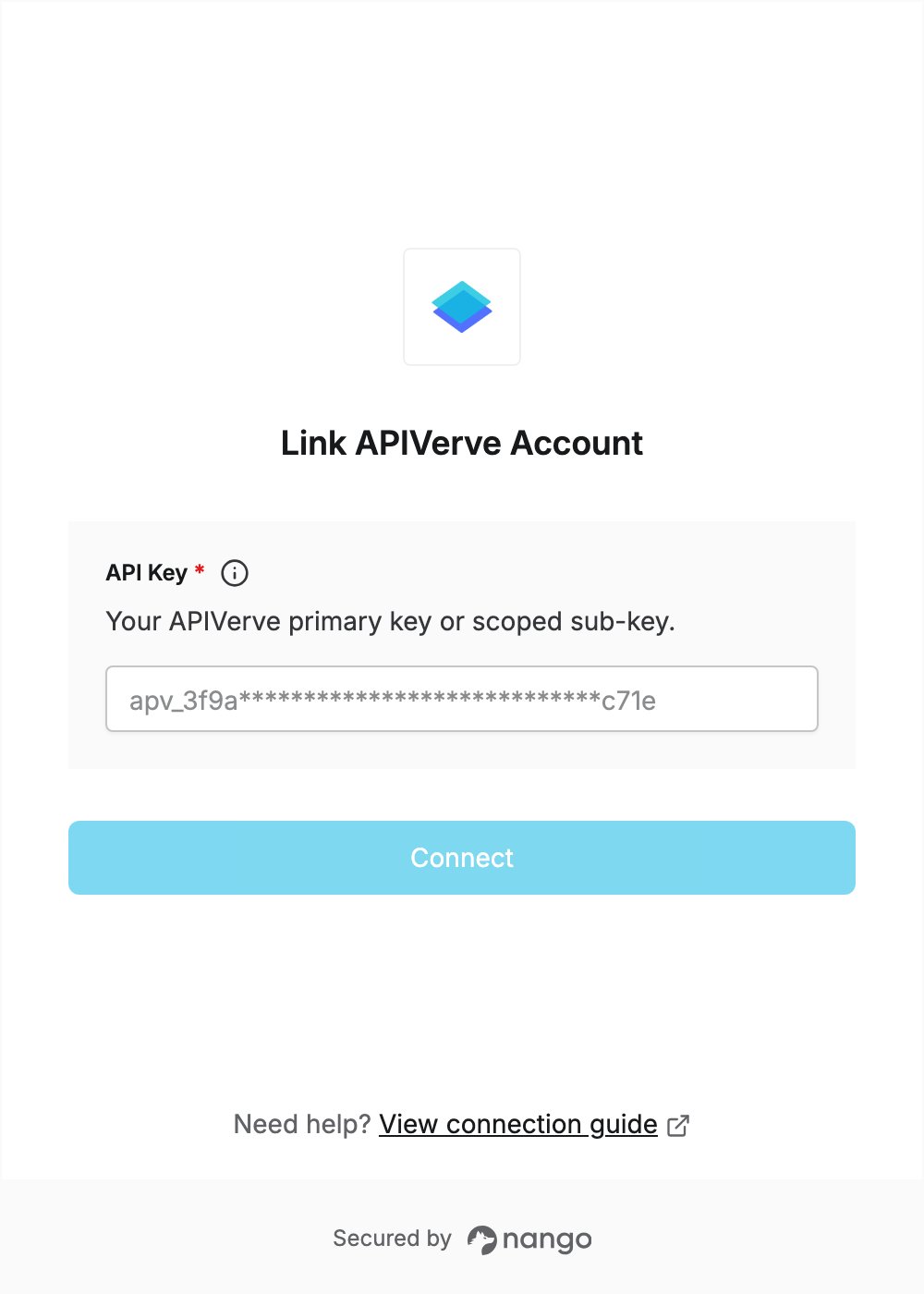
To authenticate with APIVerve, you need:- API Key — your APIVerve primary key or a scoped sub-key.
Prerequisites
- An APIVerve account. You can sign up for free without a credit card; your primary key is created with the account.
Step 1: Copy your API key
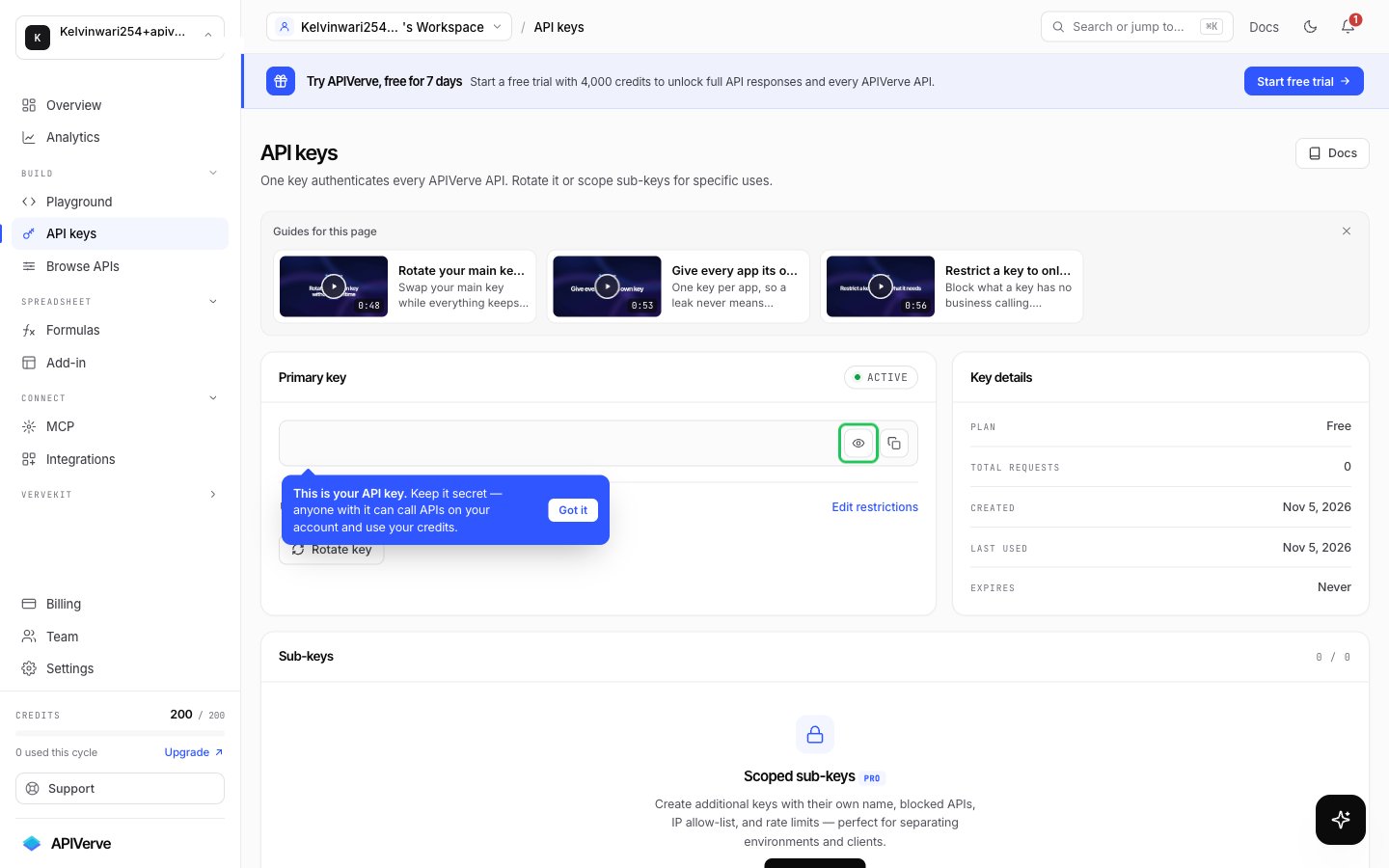
- Log in to the APIVerve dashboard and click API keys under Build in the left sidebar.
- Your Primary key is already there. Click Reveal key to show it.
- Click Copy key to copy the key.
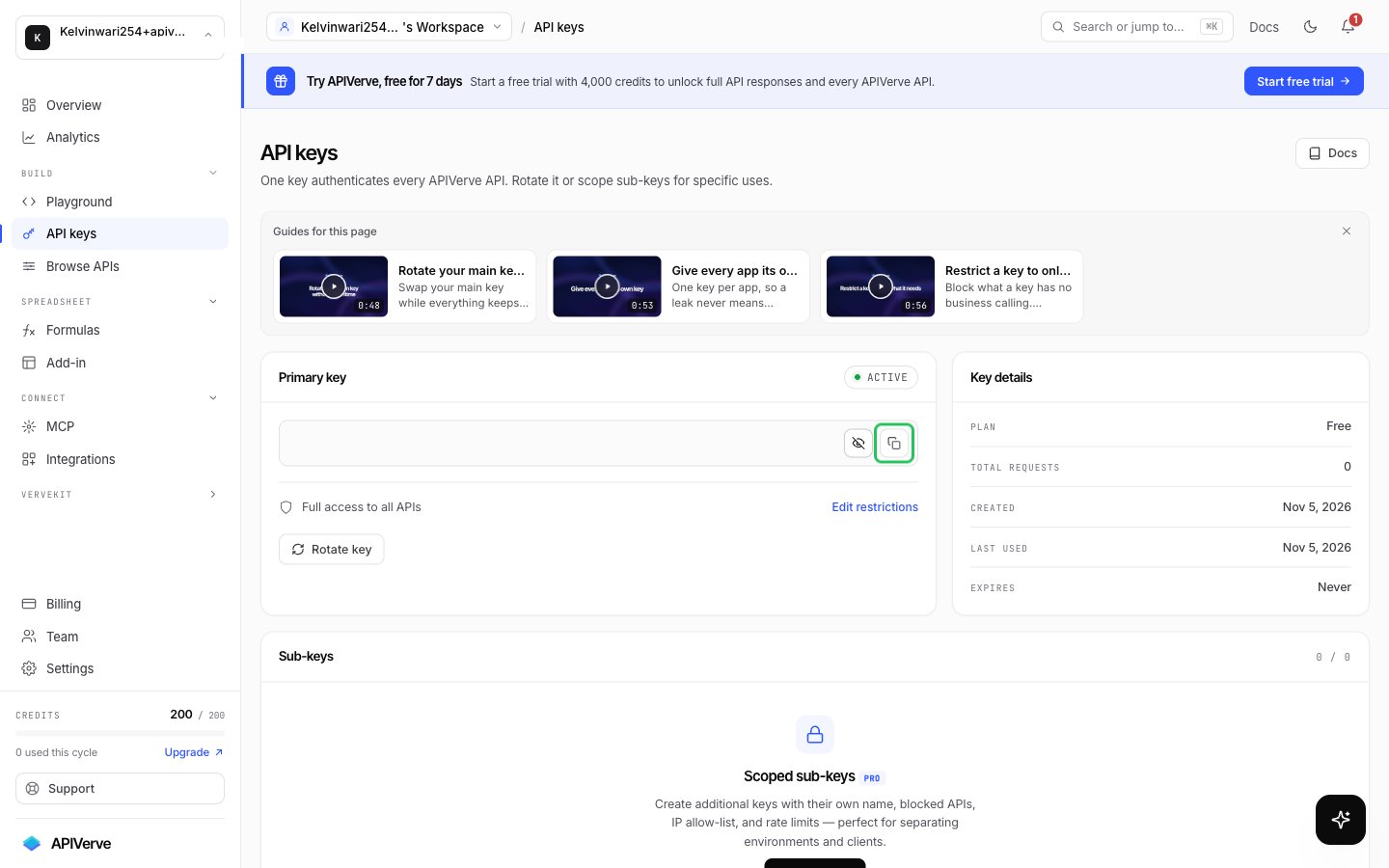
apv_sbk and are only available on plans that include them.
Step 2: Enter your API key in the Connect UI
- Open the form where you need to authenticate with APIVerve.
- Enter your API Key in the designated field.
- Submit the form, and you should be successfully authenticated.