Overview
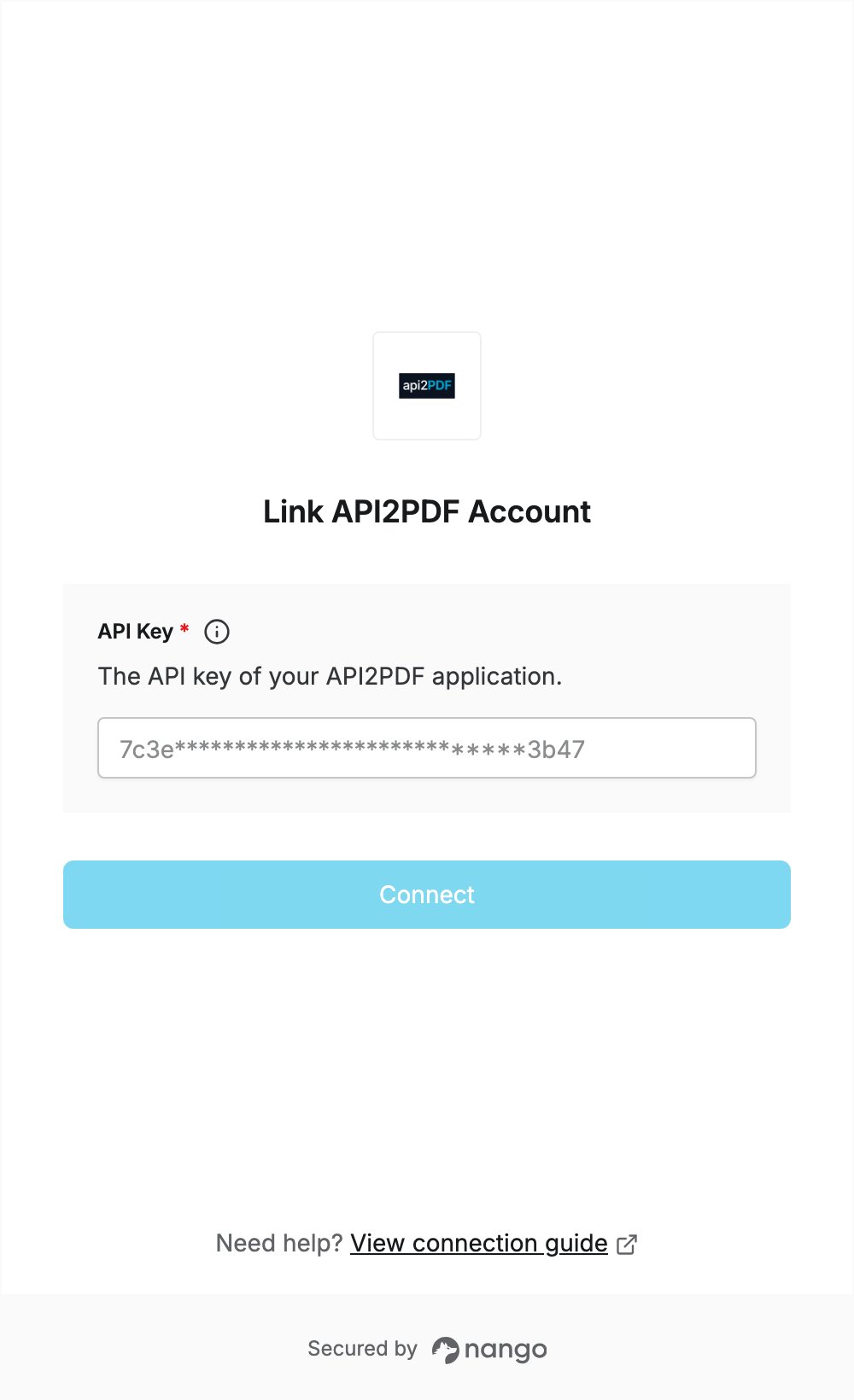
To authenticate with API2PDF, you need:- API Key - the API key of an API2PDF application.
Prerequisites
- An API2PDF account. You can register with an email address, Google or GitHub.
Step 1: Create an application and copy its API key
- Sign in to the API2PDF portal.
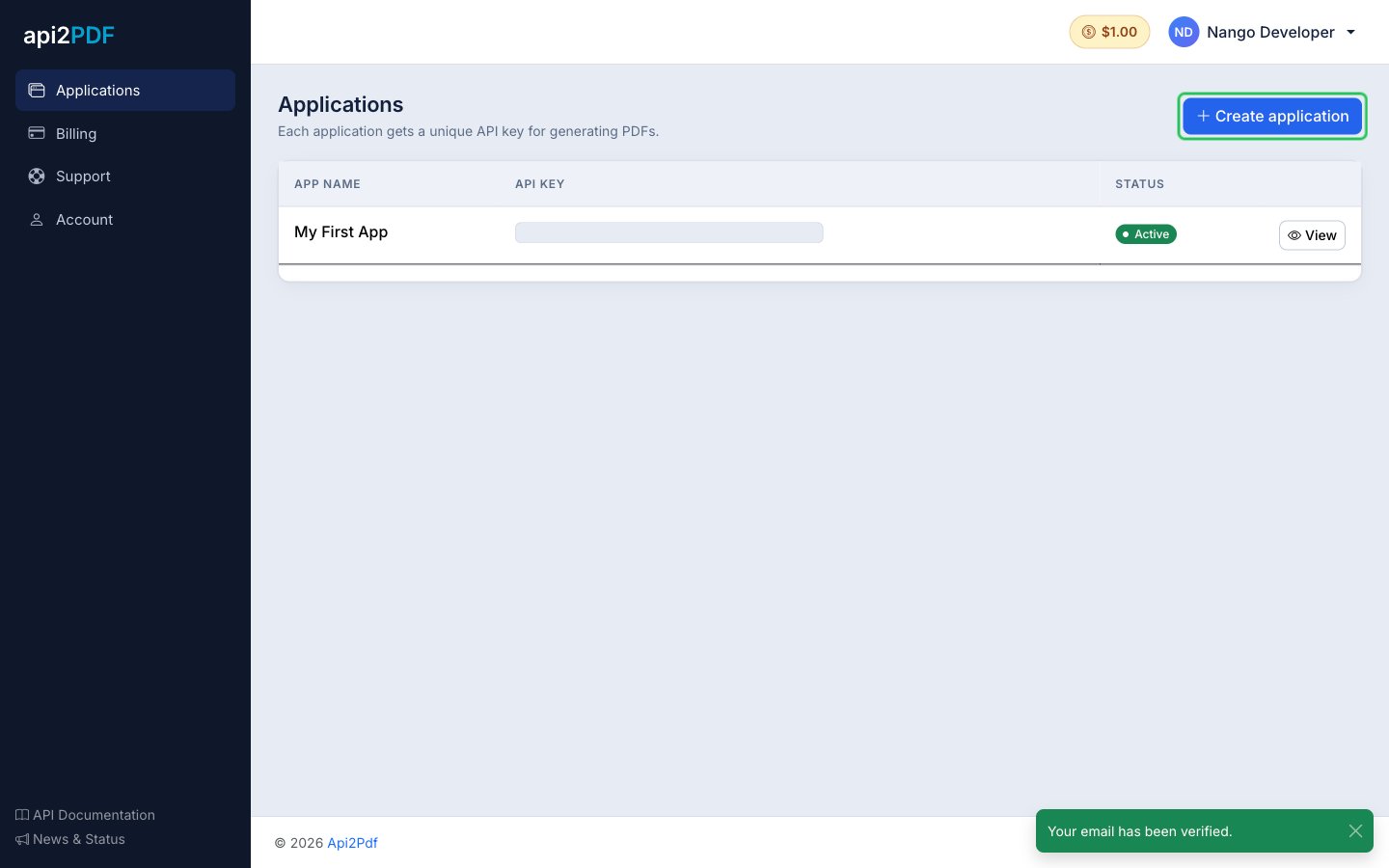
- On the Applications page, click Create application. Each application has its own API key. You can also use the key of an existing application, such as My First App, by clicking View next to it and skipping to step 4.
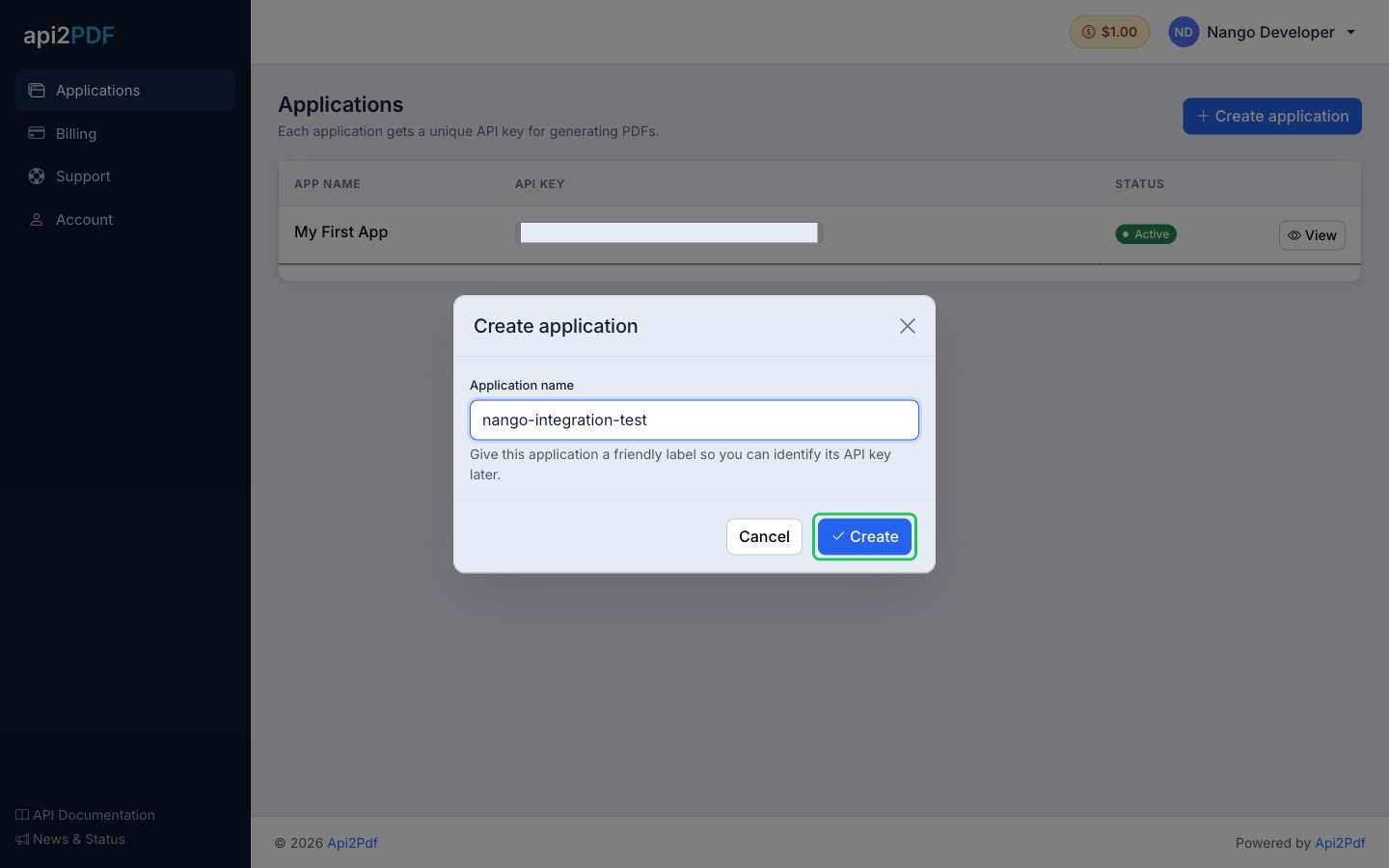
- Enter an Application name, for example
Nango, and click Create.
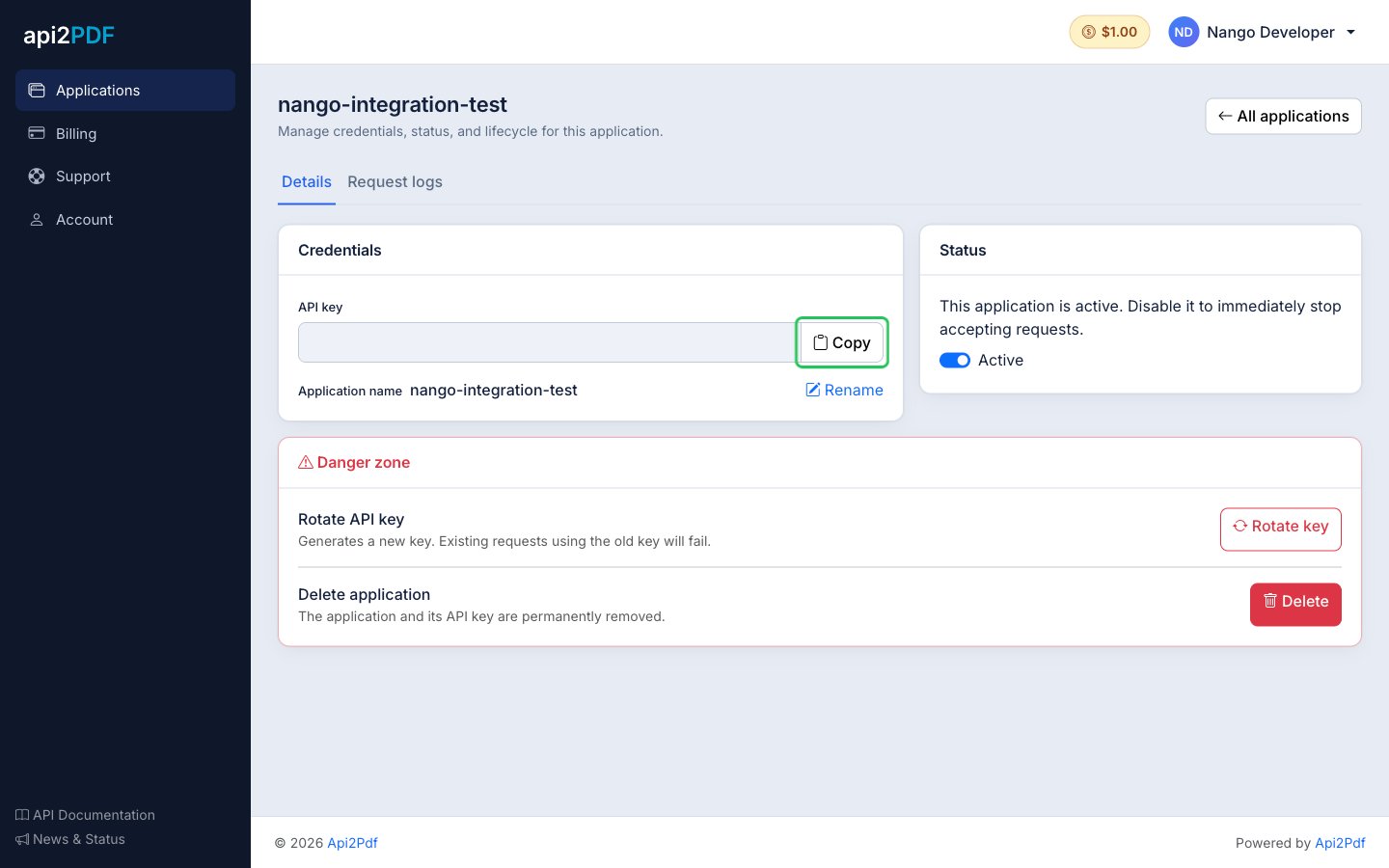
- On the application’s page, under Credentials, click Copy next to the API key.
Step 2: Enter your API key in the Connect UI
- Open the form where you need to authenticate with API2PDF.
- Enter your API Key in the designated field.
- Click Connect. Nango checks the key with API2PDF and rejects it if it is wrong.