Overview
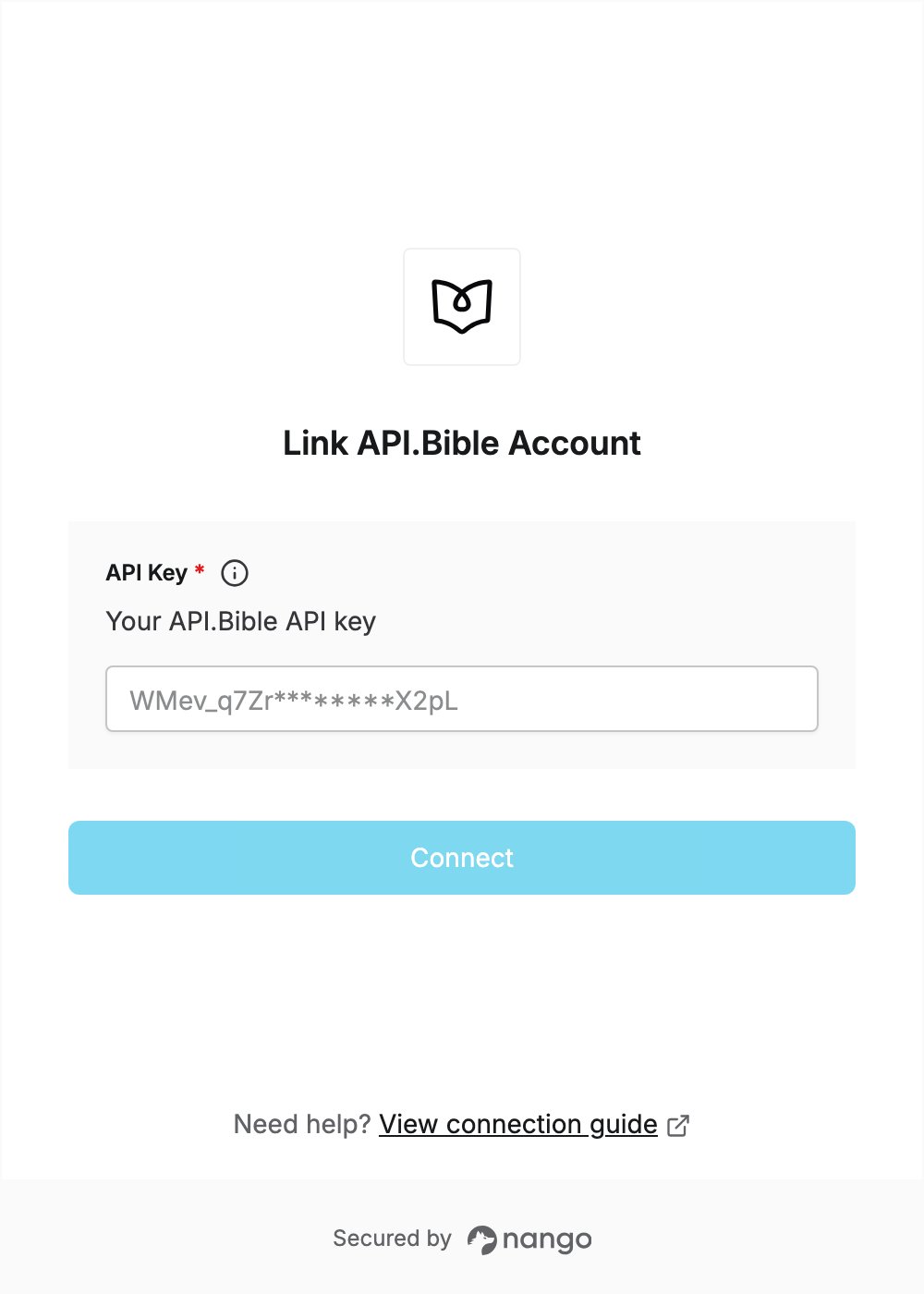
To authenticate with API.Bible, you need:- API Key — the API key of your API.Bible app.
Prerequisites
- An API.Bible account with an app. You can sign up for free on the Starter plan.
Step 1: Find your API key
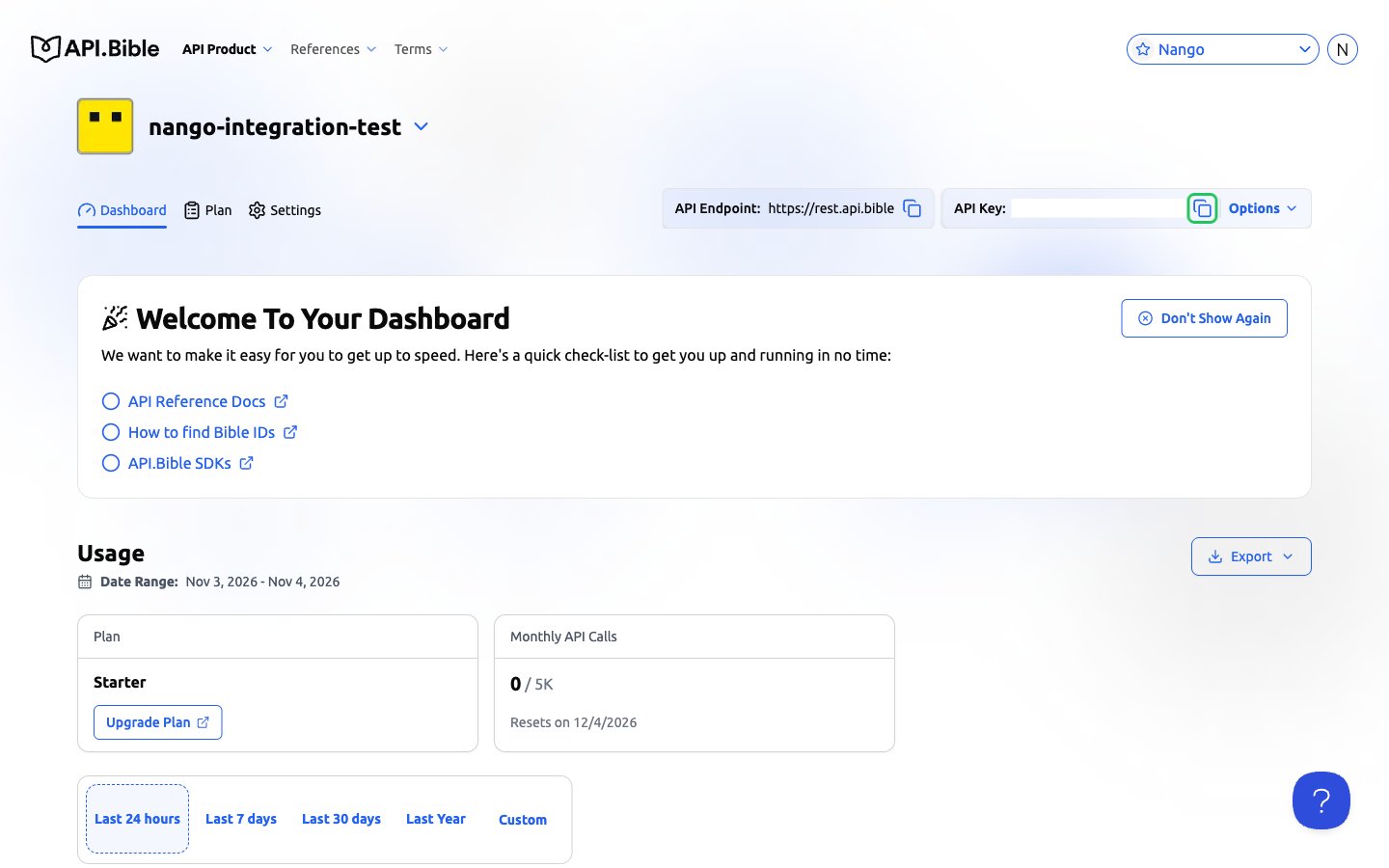
- Sign in to API.Bible. You land on your dashboard; you can also open API Product -> Dashboard.
- Select your app.
- Your API Key is shown in the top right corner of the dashboard. Click the copy icon next to it.
Step 2: Enter your API key in the Connect UI
- Open the form where you need to authenticate with API.Bible.
- Enter your API Key in the designated field.
- Click Connect.