Overview
To authenticate with Ambient Weather, you need:- API Key — the API key for your AmbientWeather.net account.
- Application Key — the key that identifies the application calling the API.
Prerequisites
- An AmbientWeather.net account.
Step 1: Create an API key
- Log in to AmbientWeather.net and open your Account page.
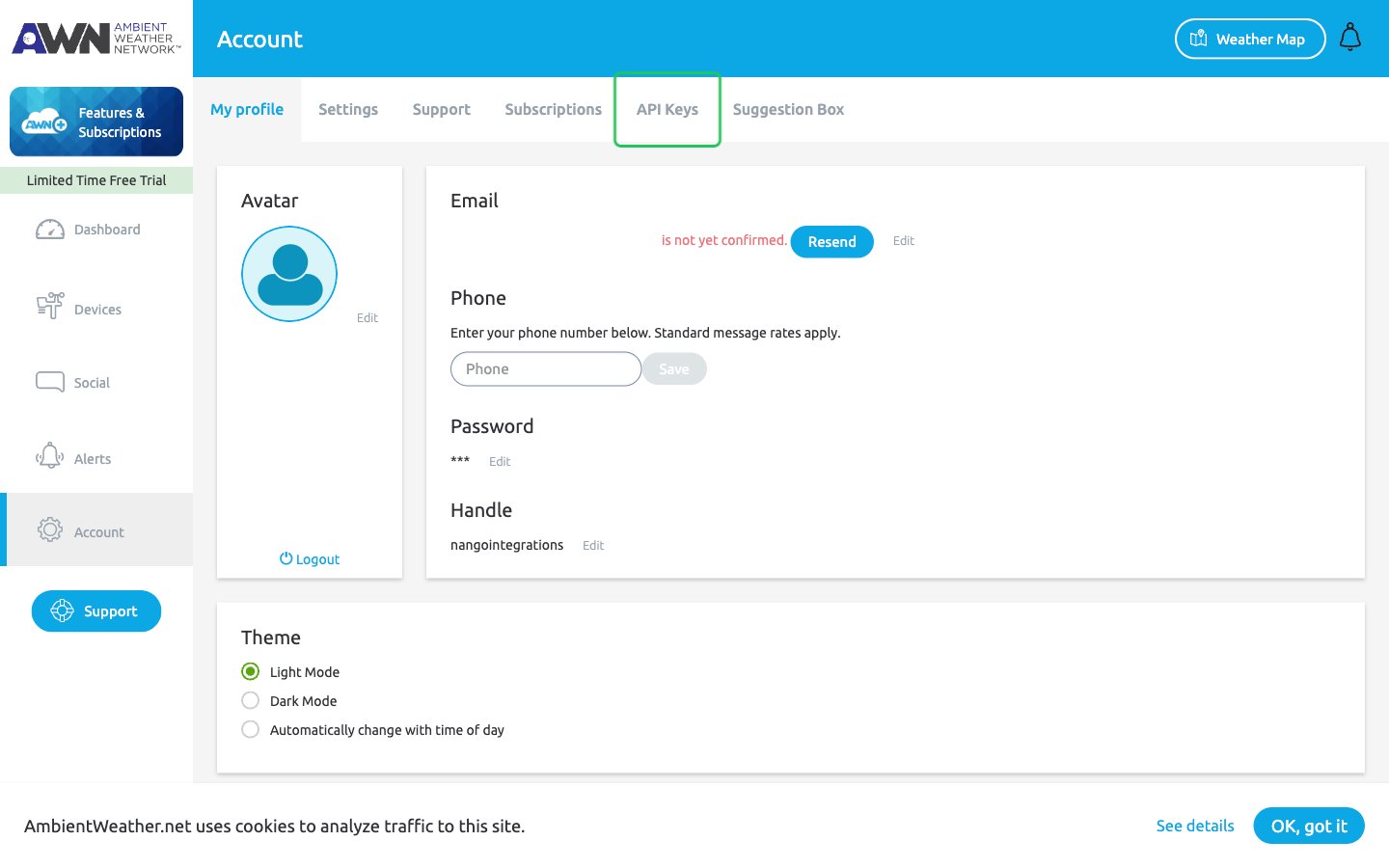
- Open the API Keys tab.
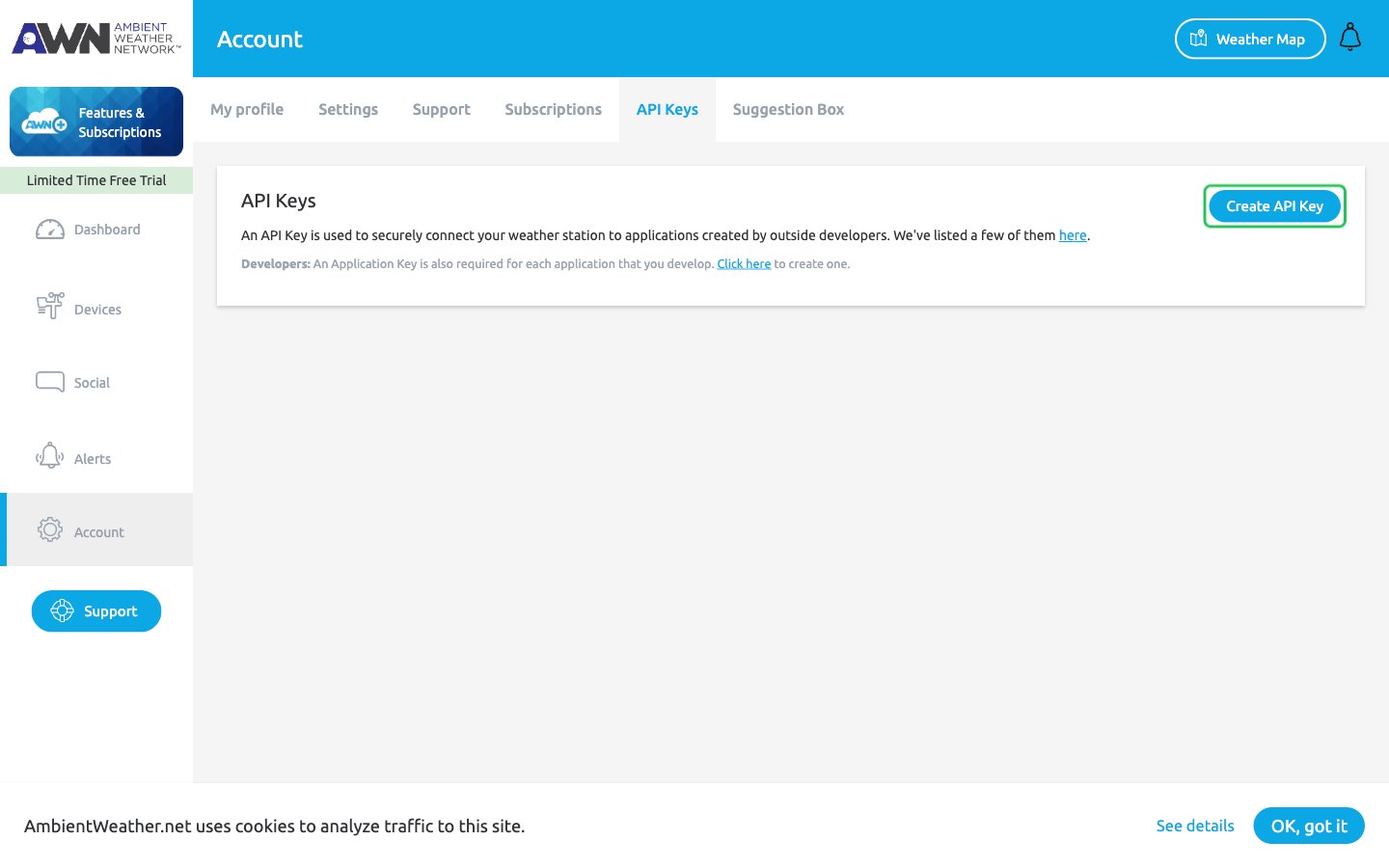
- Click Create API Key.
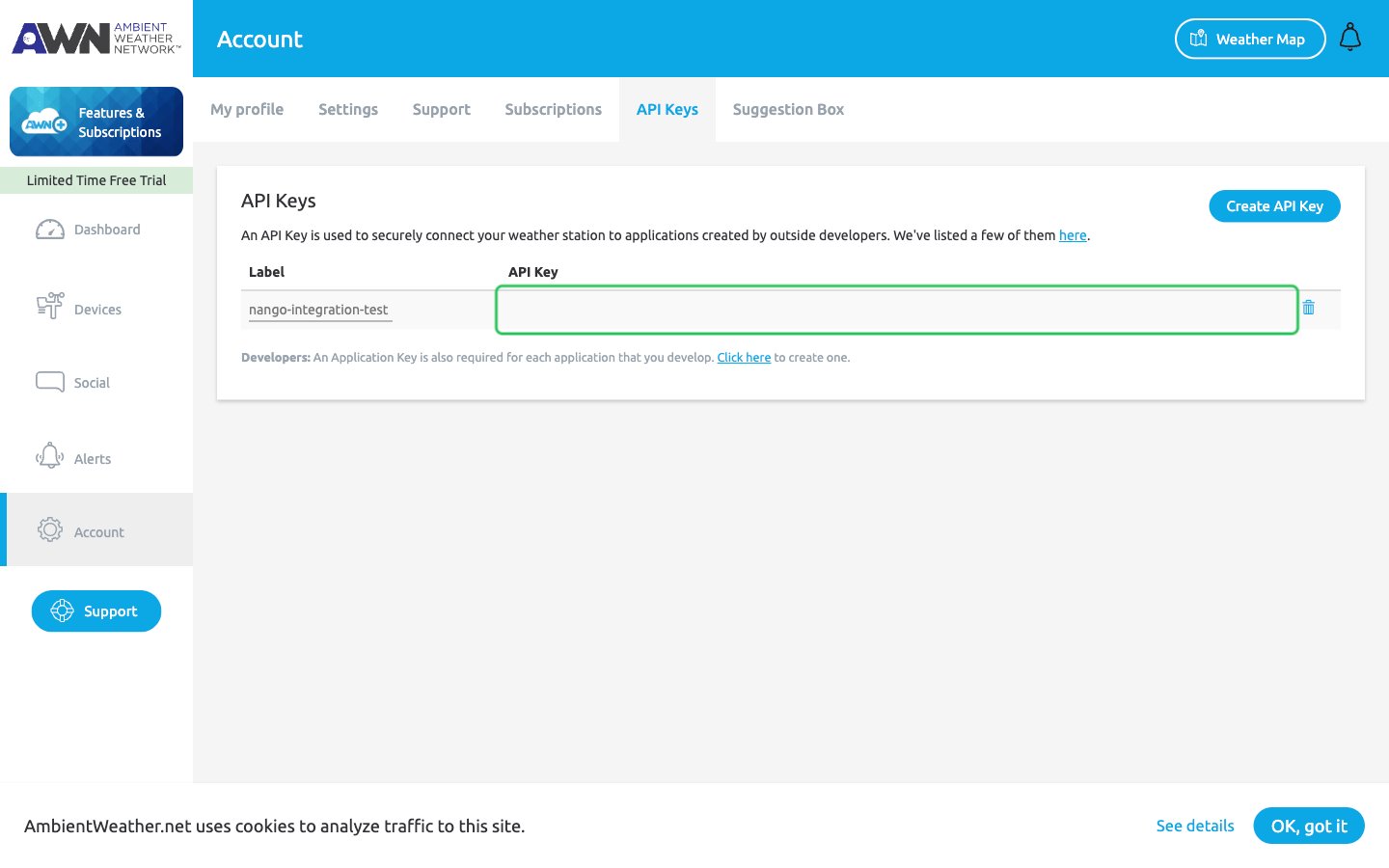
- A new row appears. Optionally enter a label for the key, then copy the value in the API Key column.
Step 2: Create an application key
- On the same API Keys tab, find the line Developers: An Application Key is also required below the keys.
- Click Click here, describe your application, then click Create Application Key.
- Copy the new key: it is your application key.
Step 3: Enter your credentials in the Connect UI
- Open the form where you need to authenticate with Ambient Weather.
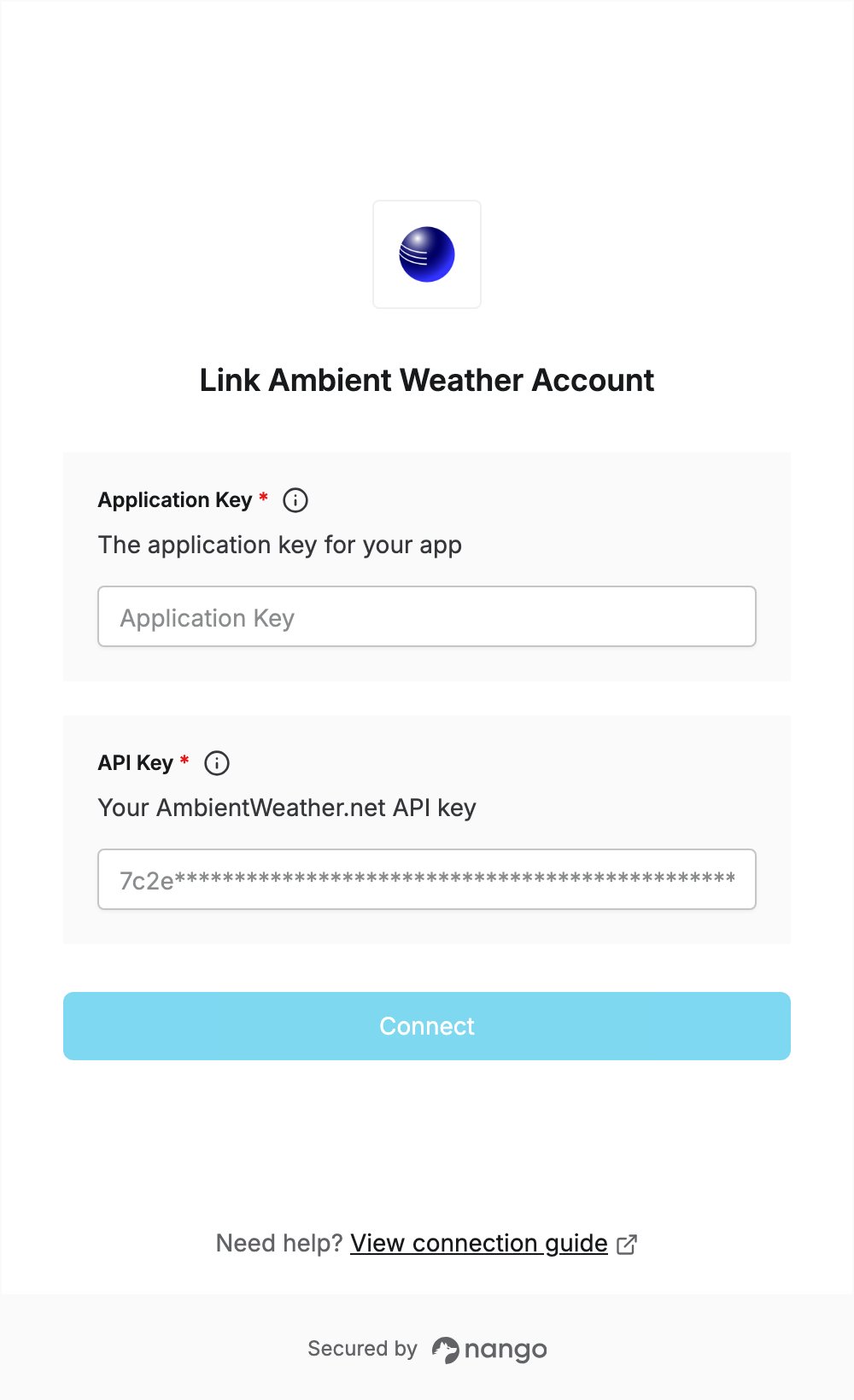
- Enter your Application Key and your API Key in their fields.
- Submit the form, and you should be successfully authenticated.