Overview
To authenticate with Altoviz, you need:- API key — a key you create in the settings of your Altoviz account.
Prerequisites
- An Altoviz account. If you don’t have one, register from the Altoviz sign-in page and finish the company setup. Altoviz has a free plan, and the API is available on it.
Step 1: Create an API key
- Sign in to the Altoviz app.
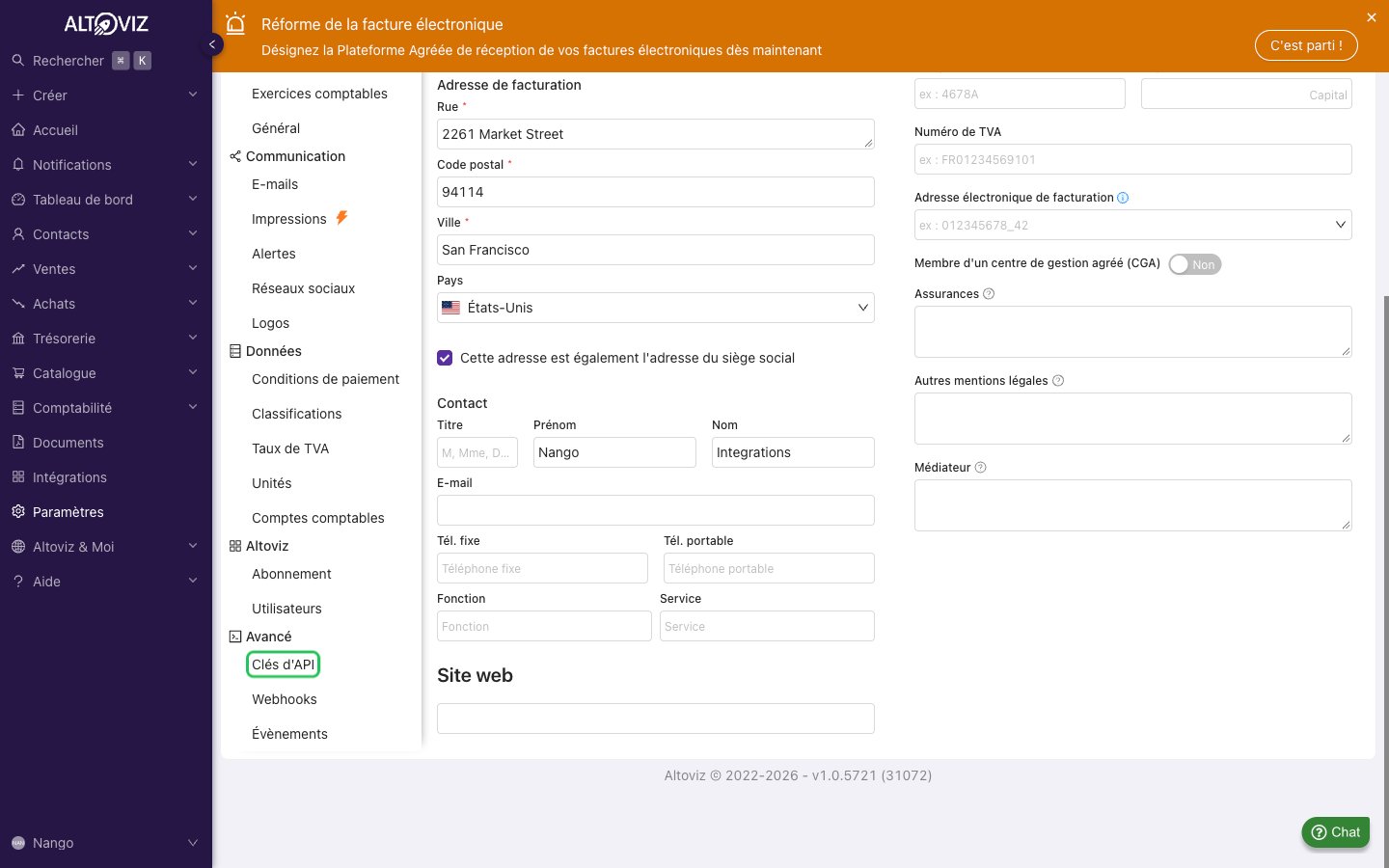
- In the left menu, click Paramètres (Settings). Under Avancé (Advanced), click Clés d’API (API keys).
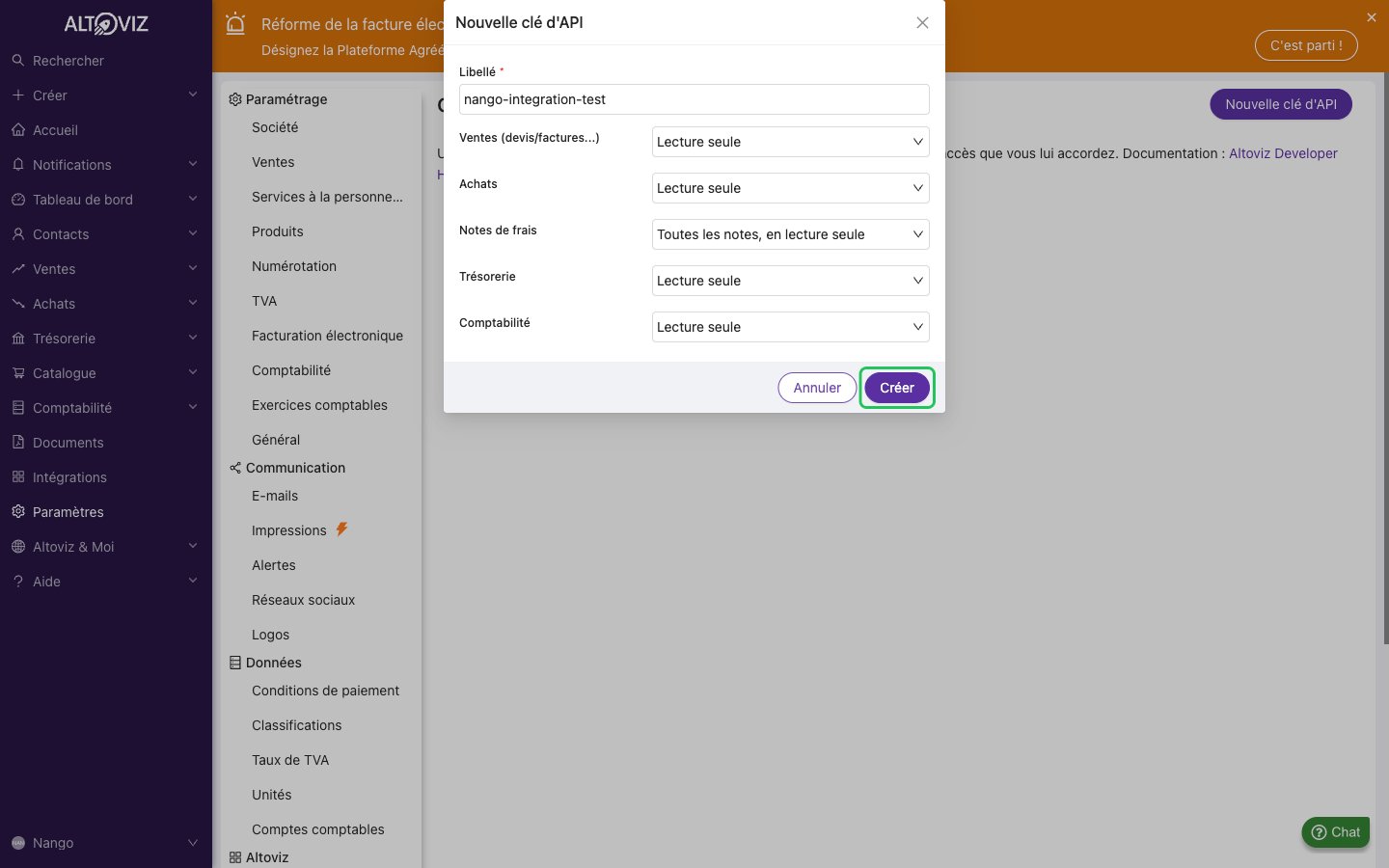
- Click Nouvelle clé d’API (New API key) and enter a label, for example
nango. - Choose the access the key gets for each area (Ventes, Achats, Notes de frais, Trésorerie, Comptabilité): no access, read-only (Lecture seule), or read and write. Give it only the access your integration needs.
- Click Créer (Create).
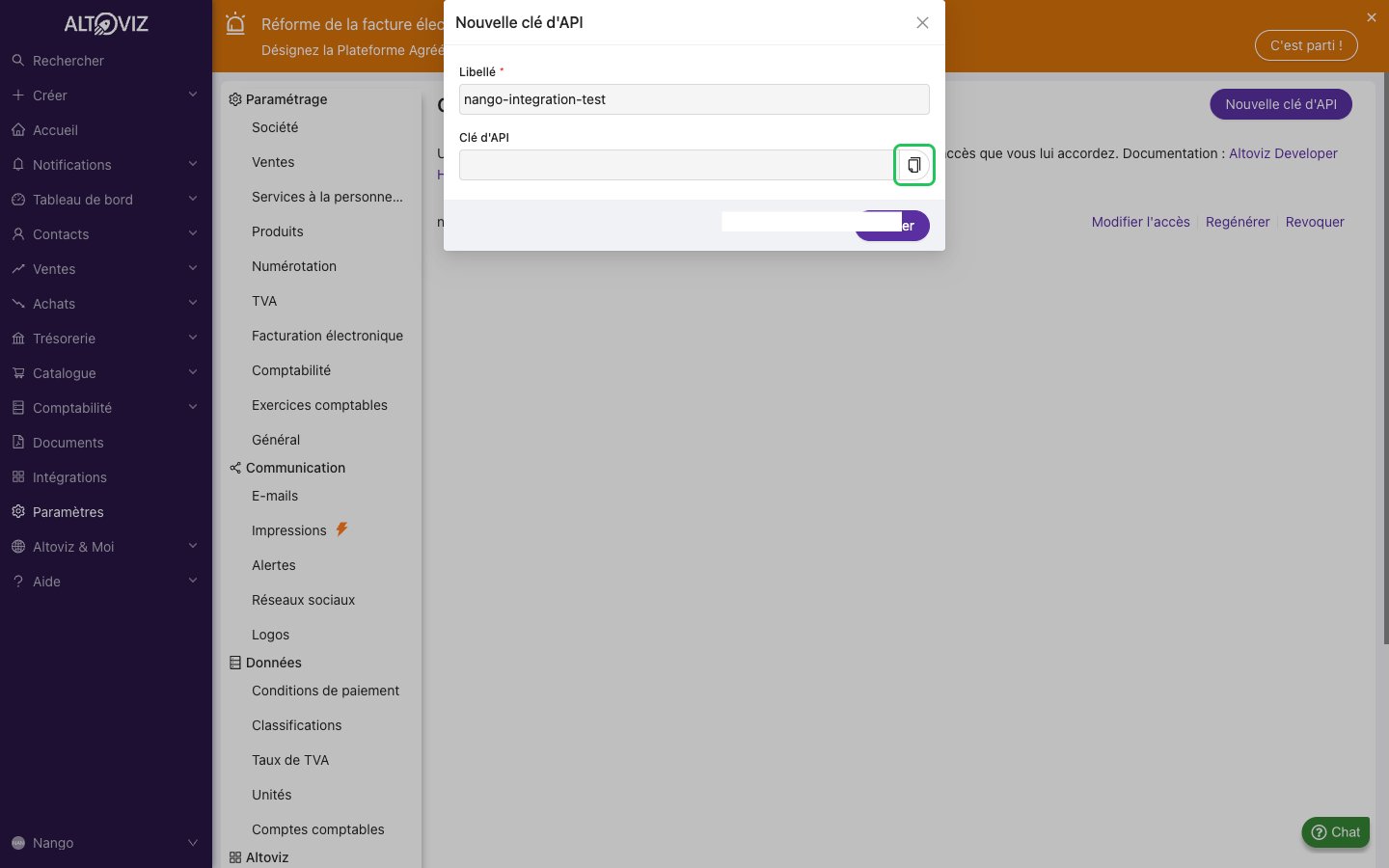
- Copy the API key with the copy button before you close the dialog. Altoviz only shows the full key once.
Step 2: Enter your API key in the Connect UI
- Open the form where you need to authenticate with Altoviz.
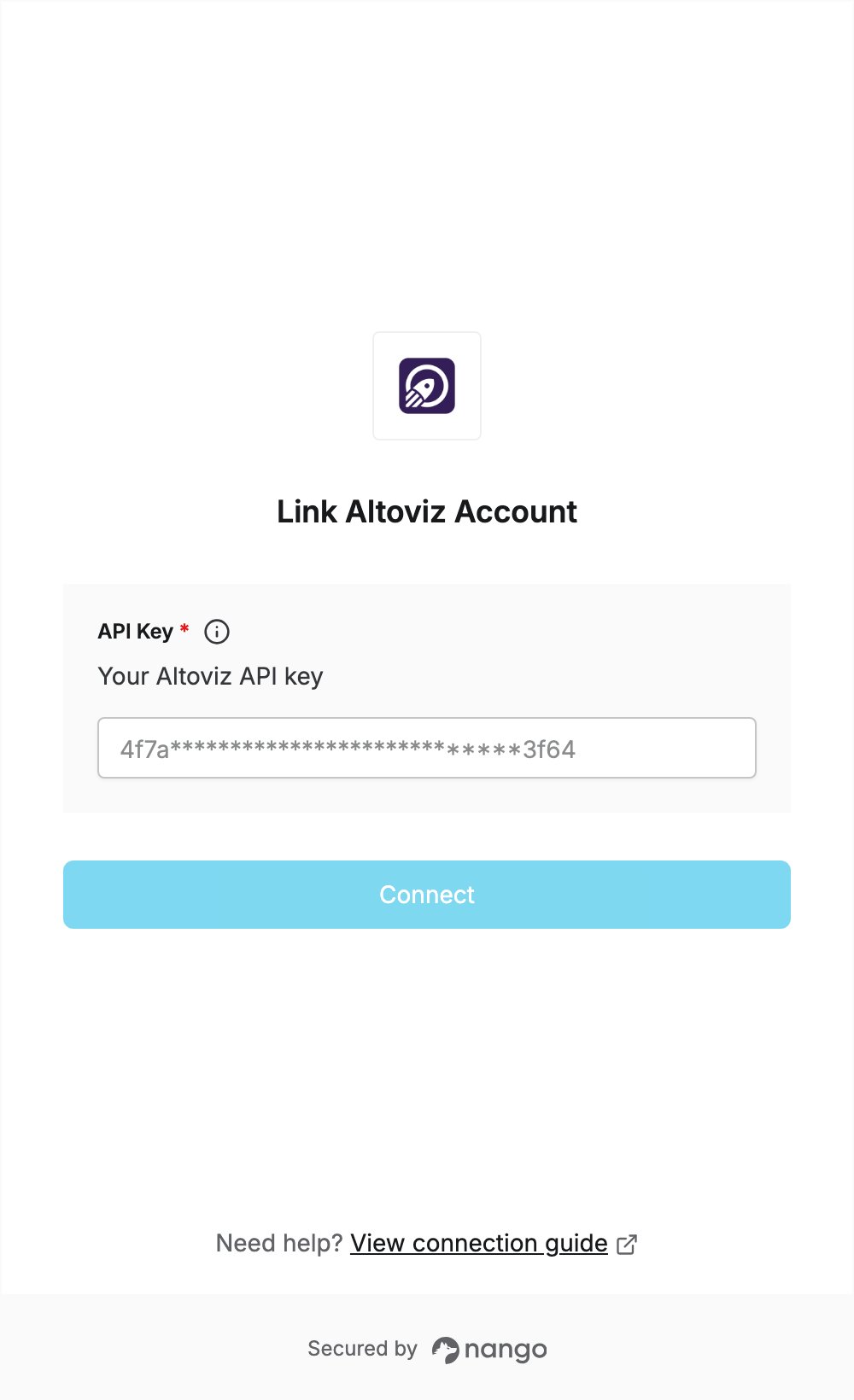
- Enter your API key in the API Key field.
- Submit the form, and you should be successfully authenticated.