Overview
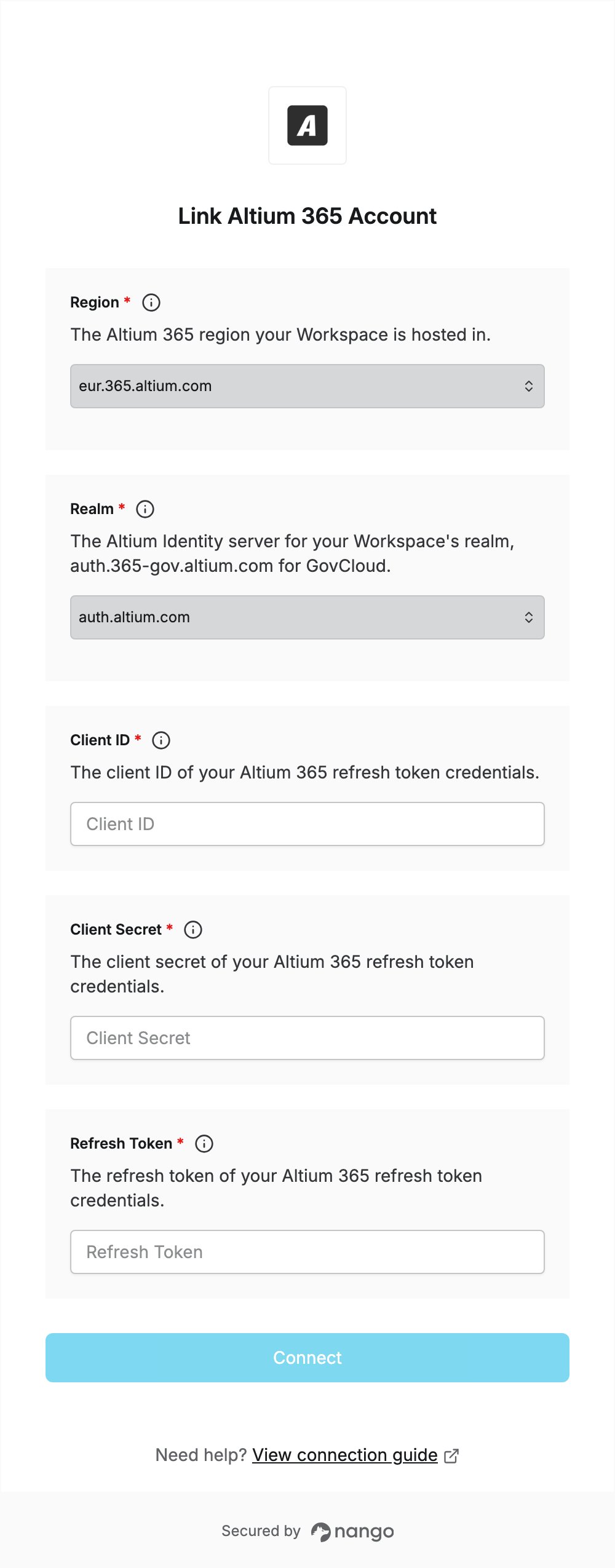
To authenticate with Altium 365, you need:- Region — the Altium 365 region your Workspace is hosted in.
- Realm — the Altium Identity server for your Workspace: Altium 365 or Altium 365 GovCloud.
- Client ID, Client Secret and Refresh Token — refresh token credentials created in your Workspace.
Prerequisites
- An Altium 365 Workspace with access to the Altium 365 API. The API is in Closed Beta and available only to selected early-access customers.
- A Workspace administrator account. Only Workspace administrators can create tokens.
Step 1: Select your region and realm
Select the Region your Workspace is hosted in. If you’re not sure, ask your Altium 365 administrator.
Then select the Realm that matches it:
Step 2: Create a refresh token
- In your Workspace, go to Admin → Developer.
- Create a token and select the refresh token option. Set its lifetime (up to 1 year).
- Copy the Client ID, Client Secret and Refresh Token. They are shown only once, and Altium can’t show them again after you leave the page.
Step 3: Enter your details in the Connect UI
- Open the form where you need to authenticate with Altium 365.
- Select your Region and Realm, then enter your Client ID, Client Secret and Refresh Token.
- Submit the form, and you should be successfully authenticated.