Overview
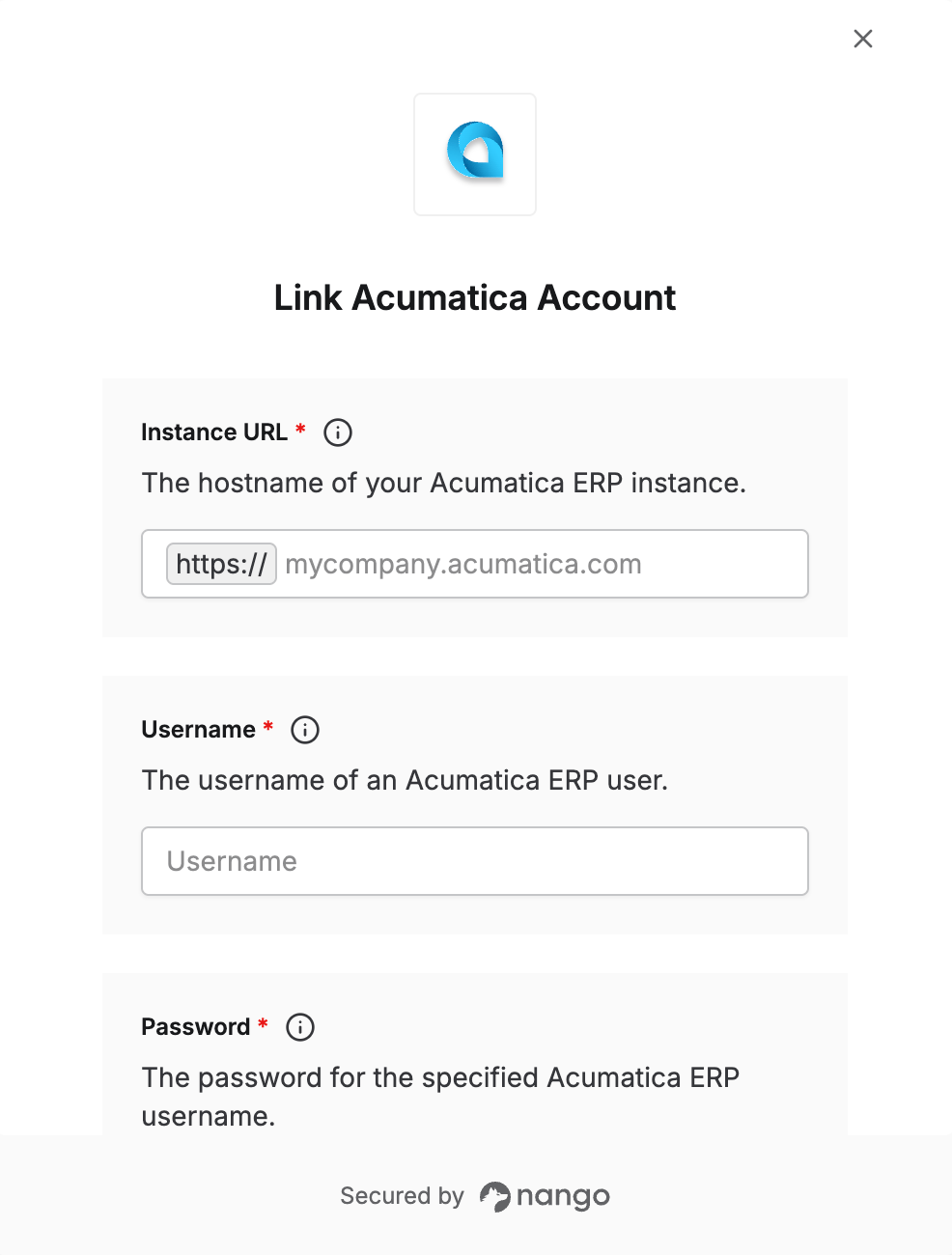
To authenticate with Acumatica using the Resource Owner Password Credentials flow, you will need:- Instance URL — The hostname of your Acumatica ERP instance, including the virtual directory if your instance is hosted at a subpath (e.g.
mycompany.acumatica.comormycompany.acumatica.com/Instance1) - Client ID — The client ID assigned to your connected application, including the tenant suffix (e.g.
88358B02-A48D-A50E-F710-39C1636C30F6@MyTenant) - Client Secret — The client secret created for your connected application
- Username — The username of an Acumatica ERP user
- Password — The password for the specified username
Prerequisites
- An active Acumatica ERP instance with administrator access
- Permission to manage connected applications in Acumatica
Instructions
Step 1: Open Connected Applications
In Acumatica ERP, go to System → Integration → Configure → Connected Applications (SM303010).Step 2: Create a new application
- In the Client Name field, enter a name for your application. Leave Client ID blank — the system auto-generates it on save.
- In the OAuth 2.0 Flow dropdown, select Resource Owner Password Credentials.
Step 3: Add a client secret
- Click Add Shared Secret.
- Enter a description and optionally an expiration date.
- Click OK and copy the secret value immediately.
Step 4: Configure scopes
On the Scopes tab, add theapi and offline_access scopes. The offline_access scope is required so Acumatica issues a refresh token — without it, your connection will stop working once the access token expires.
Step 5: Save to activate
Click Save. Once saved, copy your Client ID from the application record.The Client ID includes an auto-generated string and the tenant ID, for example
88358B02-A48D-A50E-F710-39C1636C30F6@MyTenant. Copy the full value including the @TenantId suffix.Step 6: Identify your instance URL
Your instance URL is the hostname you use to access Acumatica, plus the virtual directory if your instance is hosted at a subpath. For example, if you access Acumatica athttps://mycompany.acumatica.com, your instance URL is mycompany.acumatica.com. If you access it at https://mycompany.acumatica.com/Instance1, your instance URL is mycompany.acumatica.com/Instance1.
Step 7: Enter credentials in the Connect UI
- Open the form where you need to authenticate with Acumatica.
- Enter your Instance URL (hostname and optional virtual directory, without
https://). - Enter your Username and Password for the Acumatica ERP user.
- Enter your Client ID (the full value including the
@TenantIdsuffix). - Enter your Client Secret.
- Submit the form.