Overview
To authenticate with ActiveTrail, you need:- Access Token - an ActiveTrail API access token.
Prerequisites
- An ActiveTrail account where you have Manager permissions. Only Managers can create API access tokens.
Step 1: Create an API access token
- Sign in to ActiveTrail.
- In the top bar, open the Integrations menu (puzzle-piece icon) and choose API. This opens the API Keys page.
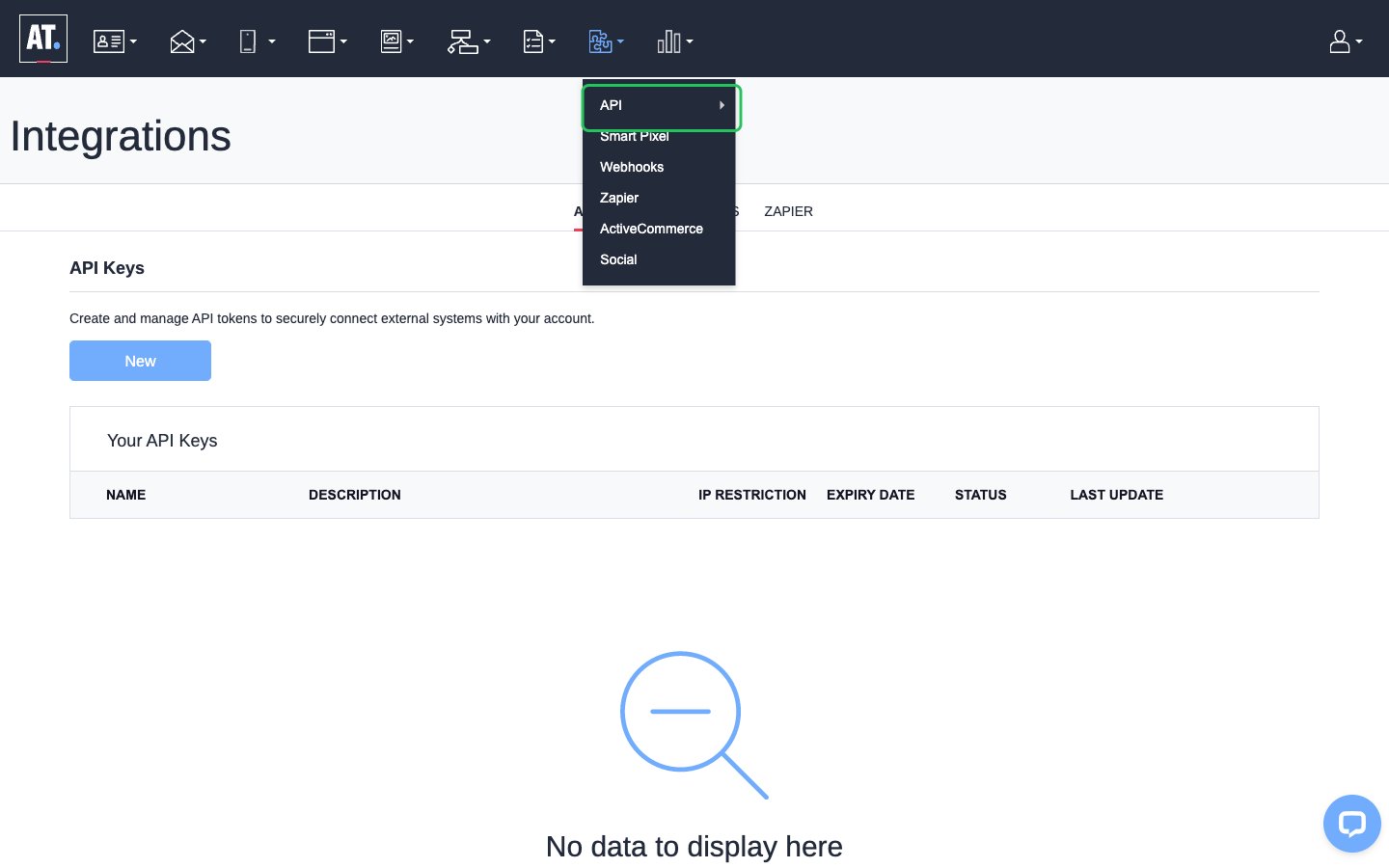
- Click New.
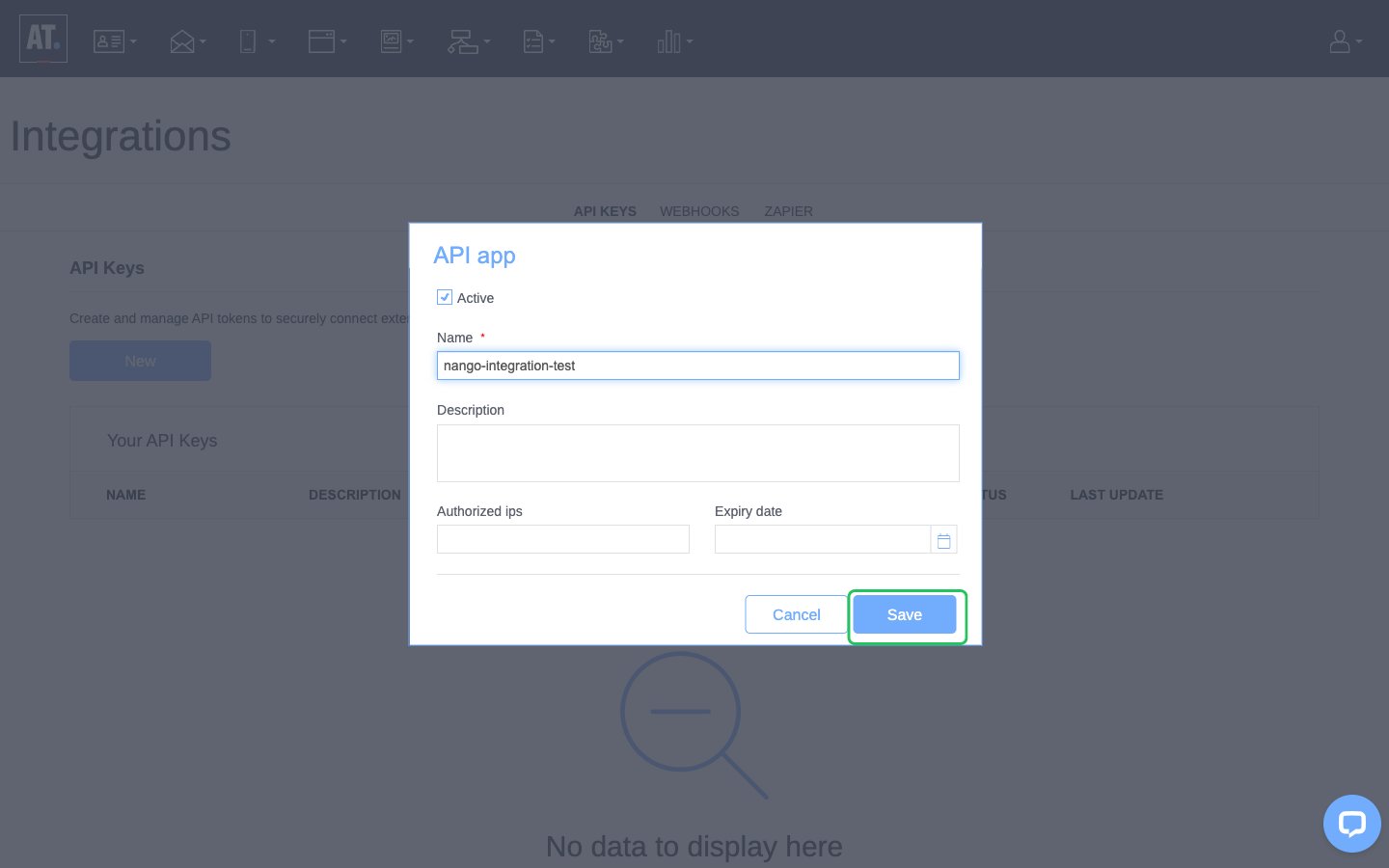
- Enter a Name for the token, for example
Nango. Description, Authorized IPs and Expiry date are optional:- Leave Authorized IPs empty. If you add IPs, the token only works from those addresses.
- If you set an Expiry date, the connection stops working when the token expires.
- Click Save.
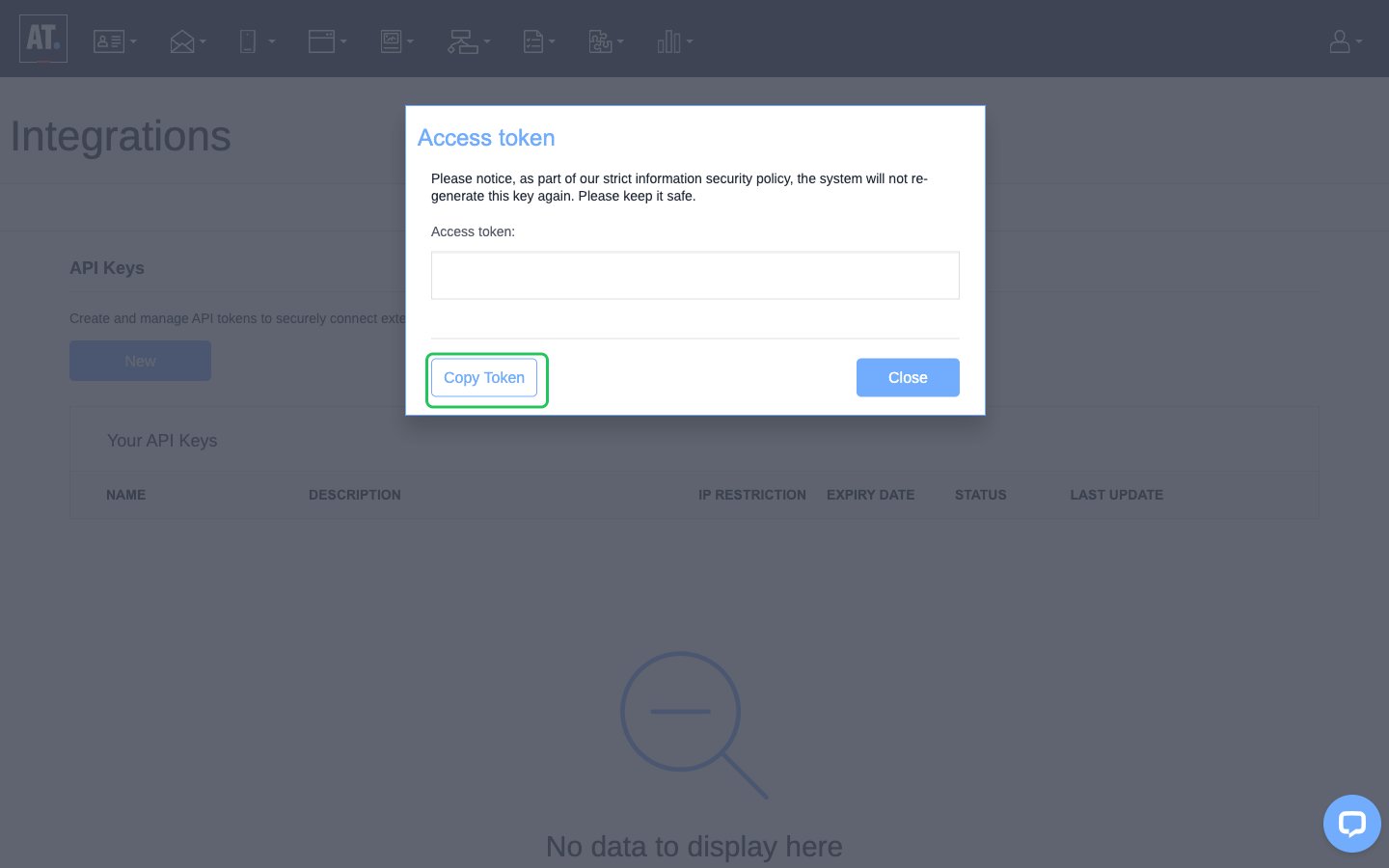
- In the Access token dialog, click Copy Token. ActiveTrail shows the token only once, so copy it now.
Step 2: Enter your access token in the Connect UI
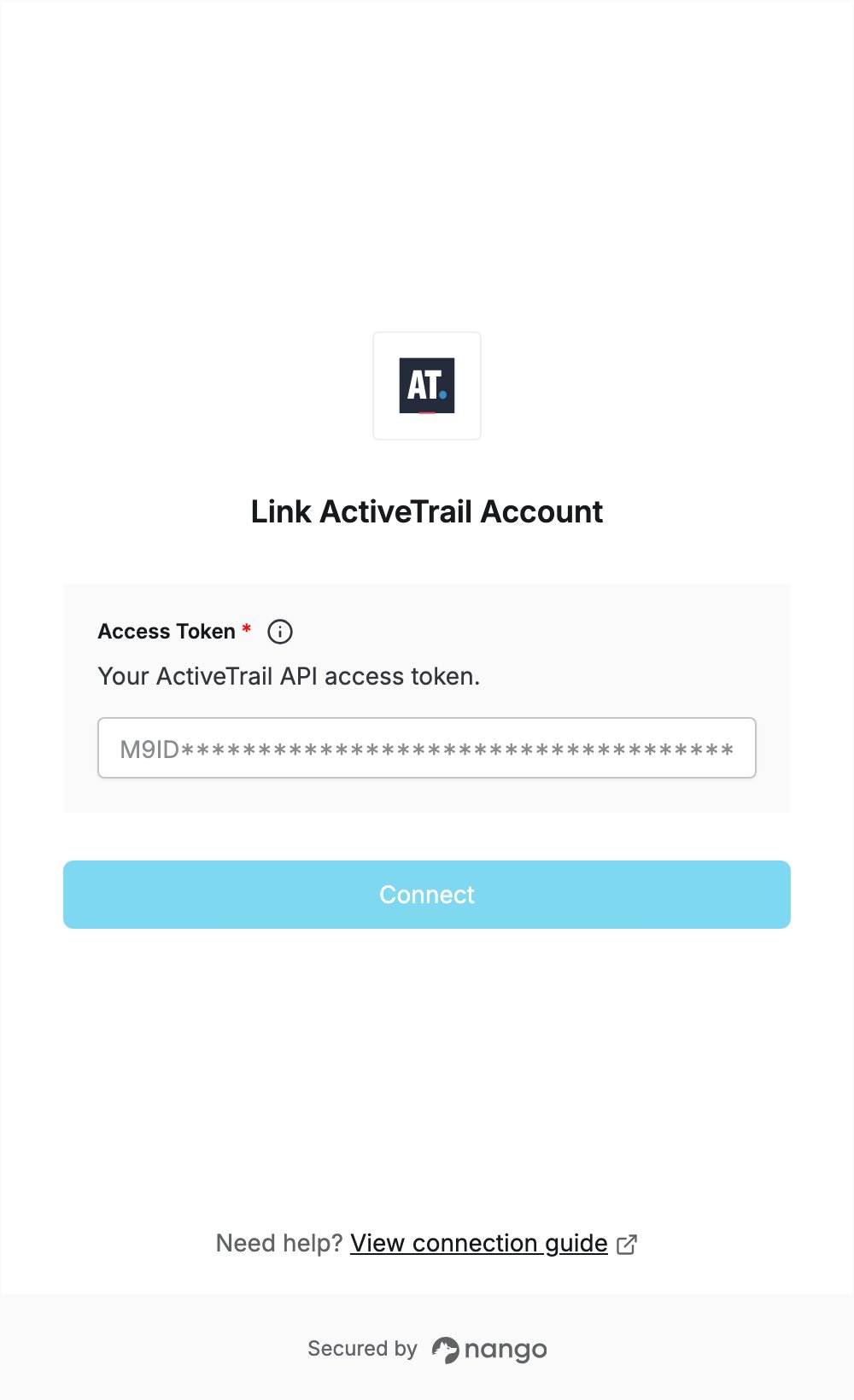
- Open the form where you need to authenticate with ActiveTrail.
- Enter your Access Token in the designated field.
- Click Connect. Nango checks the token with ActiveTrail and rejects it if it is wrong.