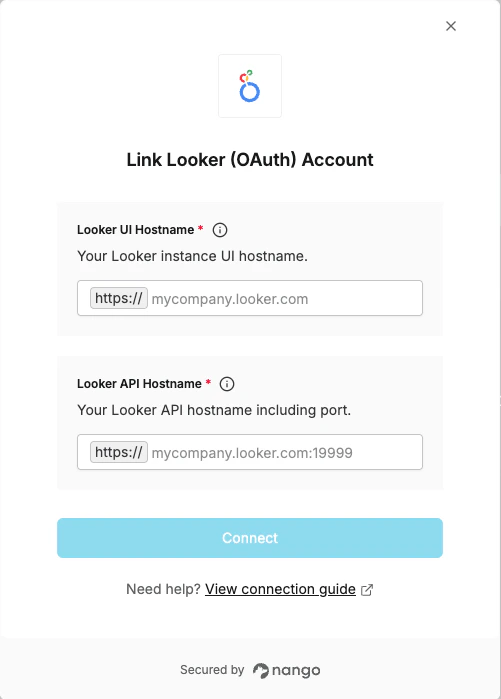
Overview To authenticate with Looker via OAuth, you need:
Looker UI Hostname — the base URL of your Looker instance, used for the OAuth authorization redirect.Looker API Hostname — the API endpoint of your Looker instance (including port).
This guide will walk you through finding both hostnames.
Prerequisites
An active Looker account with admin access.
Instructions Step 1: Finding your Looker UI hostname Your UI hostname is the domain you use to access Looker in the browser, without the https:// prefix.
For example, if you access Looker at https://mycompany.looker.com, your UI hostname is mycompany.looker.com.
Step 2: Finding your Looker API hostname The API hostname may differ from the UI hostname and typically includes a port number.
Log in to your Looker instance with admin access.
Navigate to Admin > API .
Check the API Host URL field.
If a value is configured, use that value (without the https:// prefix) as your API hostname.
If the field is empty, your API hostname is typically your UI hostname on port 19999 (e.g., mycompany.looker.com:19999).
For Looker-hosted (Google Cloud) instances, the API hostname is usually the same domain as the UI hostname without a custom port.
Step 3: Enter credentials in the Connect UI Once you have both hostnames:
Open the form where you need to authenticate with Looker.
Enter your Looker UI Hostname (e.g., mycompany.looker.com).
Enter your Looker API Hostname (e.g., mycompany.looker.com:19999).
Submit the form, and you should be successfully authenticated.
You are now connected to Looker (OAuth).