

Overview
To authenticate with Lightfield, you need:- API Key - A dedicated Lightfield API key with the narrowest scopes required for your integration.
Prerequisites
- A Lightfield account with permission to create API keys.
Instructions
Step 1: Create an API key
- Sign in to Lightfield and login to your workspace.
- Go to Settings > API keys.
- Click Create API key.
- Enter a descriptive Name, such as
Nango integration. - Select only the scopes required for your integration. Review Lightfield’s scopes guide if you need help choosing the right scopes.
- Click Create.
- Copy the API key from the API key created dialog and store it securely. Lightfield only displays a new key once, and you’ll paste it into Nango during setup.
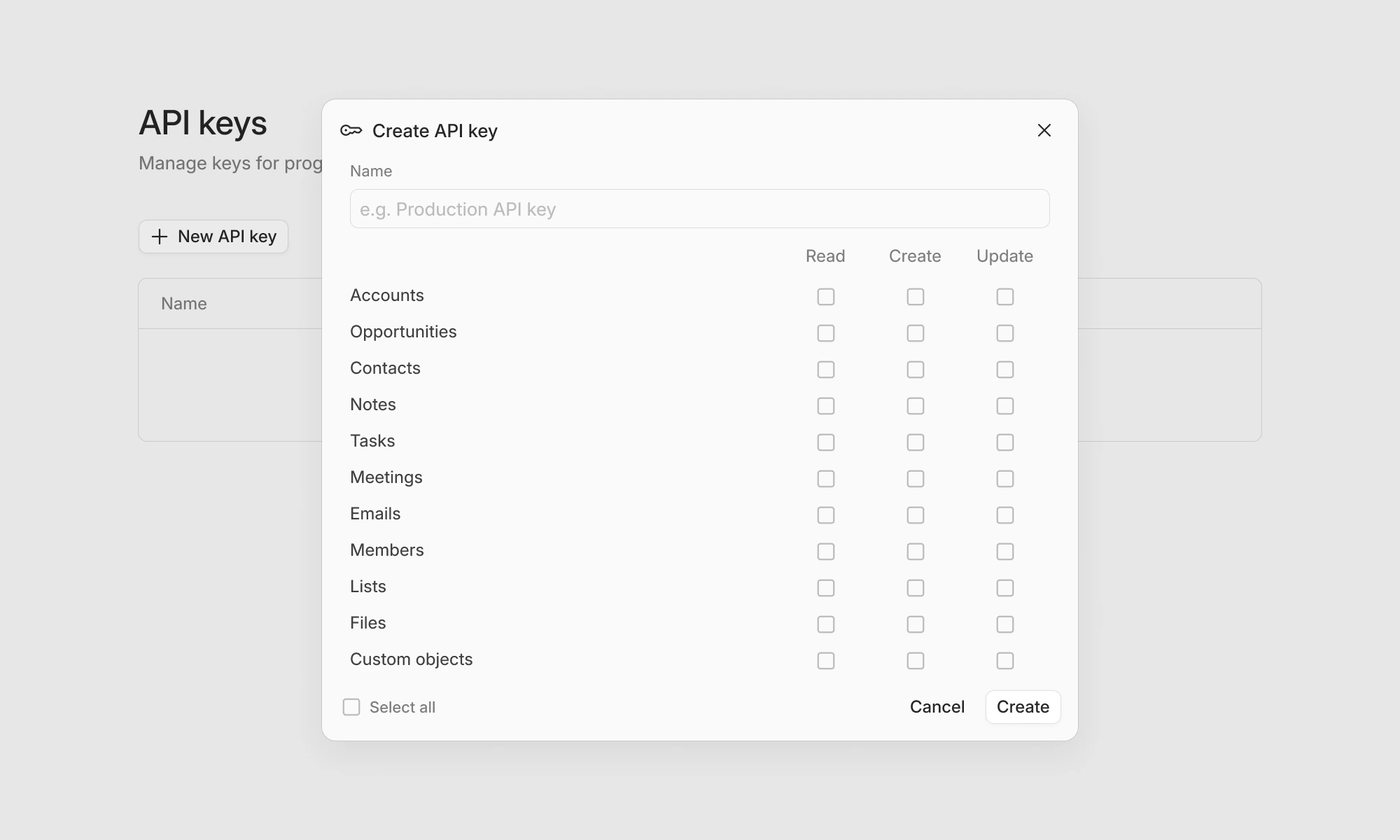
Step 2: Enter credentials in the Connect UI
Once you have your API Key:- Open the form where you need to authenticate with Lightfield.
- Enter your API Key in the API Key field.
- Submit the form, and you should be successfully authenticated.