Overview
To authenticate with Viewpoint Vista, you will need:- Application Key - Used to authenticate requests to the Trimble Xchange Direct API.
- Subscriber Code - Identifies your Vista subscriber account within Trimble Xchange.
Prerequisites:
- Your organization must have Trimble Xchange provisioned for your Viewpoint Vista subscriber. Xchange is a separate, optional integration layer on top of Vista’s SQL Server database — not every Vista install has it enabled.
Instructions:
Step 1: Requesting your application key and subscriber code
- Request third-party access to the Vista API from your customer portal or from Trimble Support — this is required for any integration, like Nango, that isn’t part of Trimble’s own setup.
- Specify the Vista resources you need this integration to access (for example, AP vendor data) via the customer portal, so they’re added to your Application Key’s authorization.
- Trimble issues an Application Key scoped to those resources. Your Subscriber Code identifies your Vista account and is tied to the same onboarding — ask your Trimble contact to confirm it alongside the key.
Access isn’t self-served from an end-user account — it’s requested through the customer portal or Trimble Support, and provisioned by Trimble. If you don’t have a customer portal contact, reach out to Trimble/Viewpoint support directly.
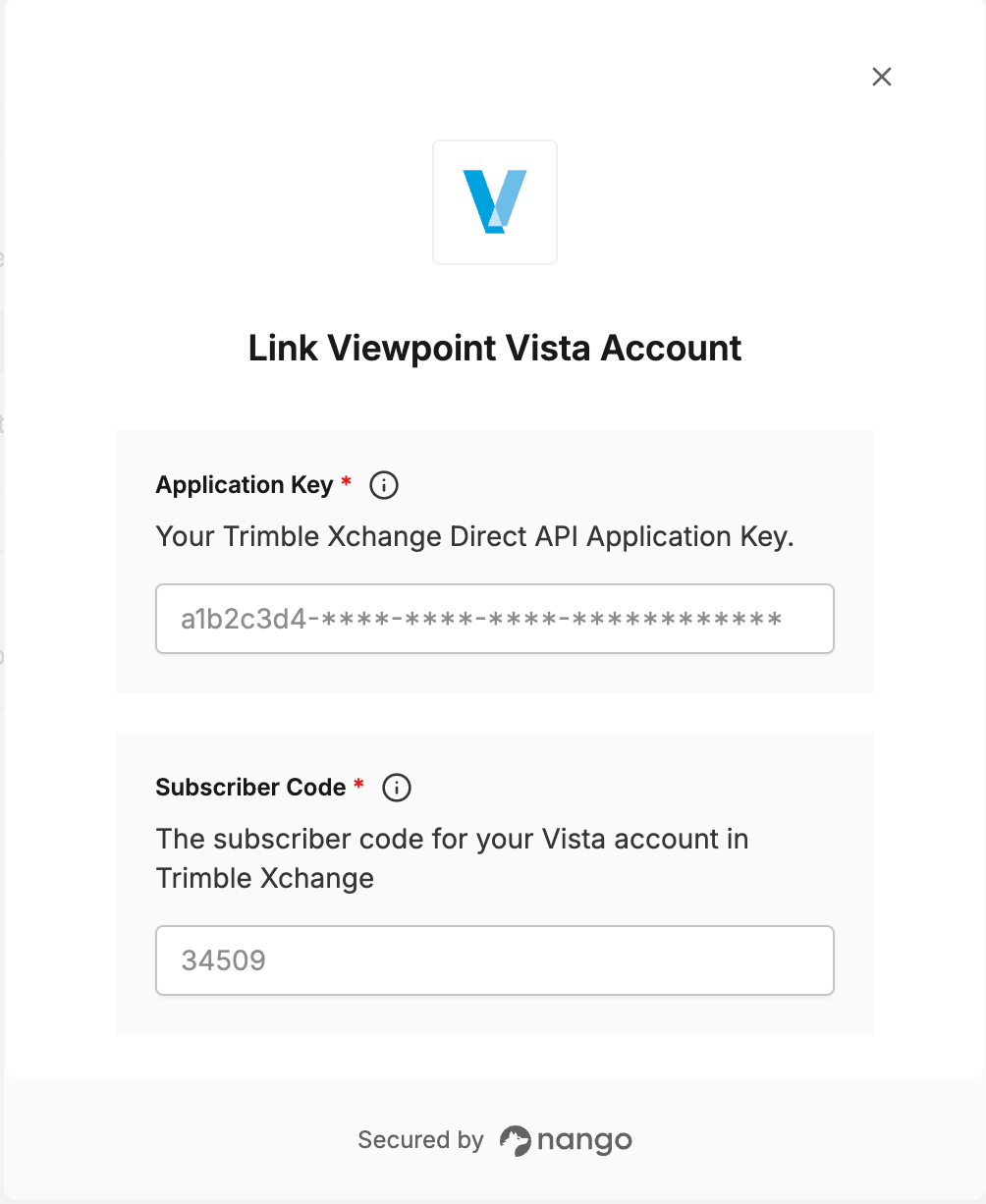
Step 2: Enter your credentials in the Connect UI
Once you have your Application Key and Subscriber Code:- Open the form where you need to authenticate with Viewpoint Vista.
- Enter your Application Key and Subscriber Code in the designated fields.
- Submit the form, and you should be successfully authenticated.