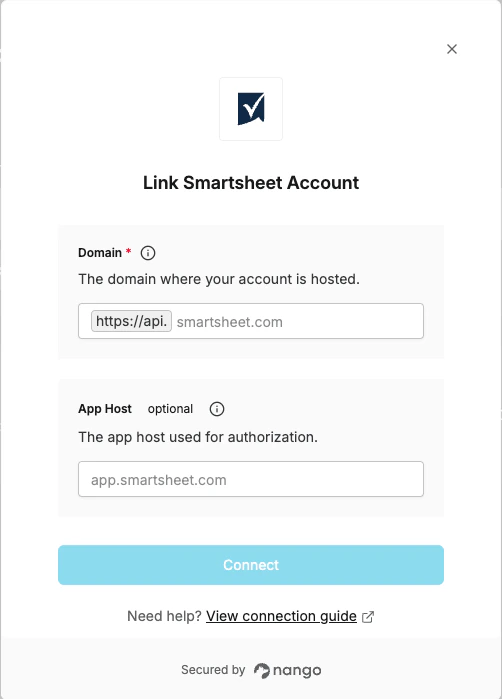
Overview
To authenticate with Smartsheet, you need:- Domain - The domain where your account is hosted.
- App host (optional) - The app host used for authorization. Defaults to
app.smartsheet.com; useapp.test.smartsheet.comfor test environments.
Prerequisites
- You must have an account with Smartsheet.
Instructions
Step 1: Finding your domain
- Log in to your Smartsheet account.
- Look at the URL in your browser’s address bar.
- Your domain is the text after
https://app.and before/b/.- For example, if your URL is
https://app.smartsheet.com/b/home, your Domain issmartsheet.com.
- For example, if your URL is
Step 2: Choose your app host (optional)
The App host field is optional and determines which Smartsheet environment you connect to:
Leave it blank to use the production environment.
Step 3: Enter credentials in the connect UI
Once you have your Domain (and optionally your App host):- Open the form where you need to authenticate with Smartsheet.
- Enter your Domain and App host in their respective fields.
- Submit the form, and you should be successfully authenticated.