Overview
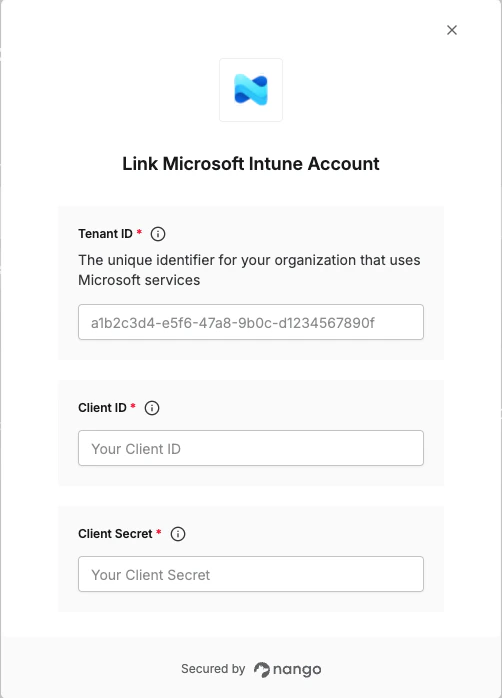
To connect Microsoft Intune in Nango, you need to provide:- Tenant ID — The unique identifier for your organization that uses Microsoft services.
- Client ID — The unique identifier that Azure assigns to your application when it’s registered.
- Client Secret — A unique string that enables the client application to access Microsoft Intune.
Prerequisites
- You must have an active Azure account with a Microsoft Intune subscription.
- You must have permission to register applications and grant admin consent in Microsoft Entra ID.
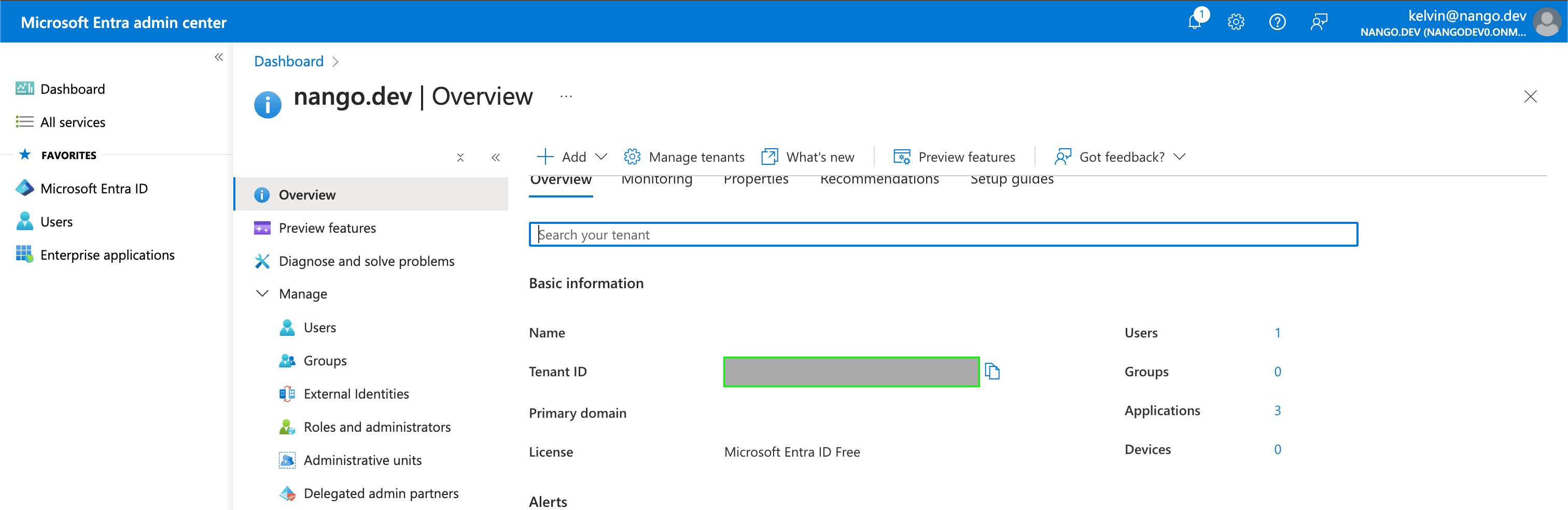
Step 1: Finding your Tenant ID
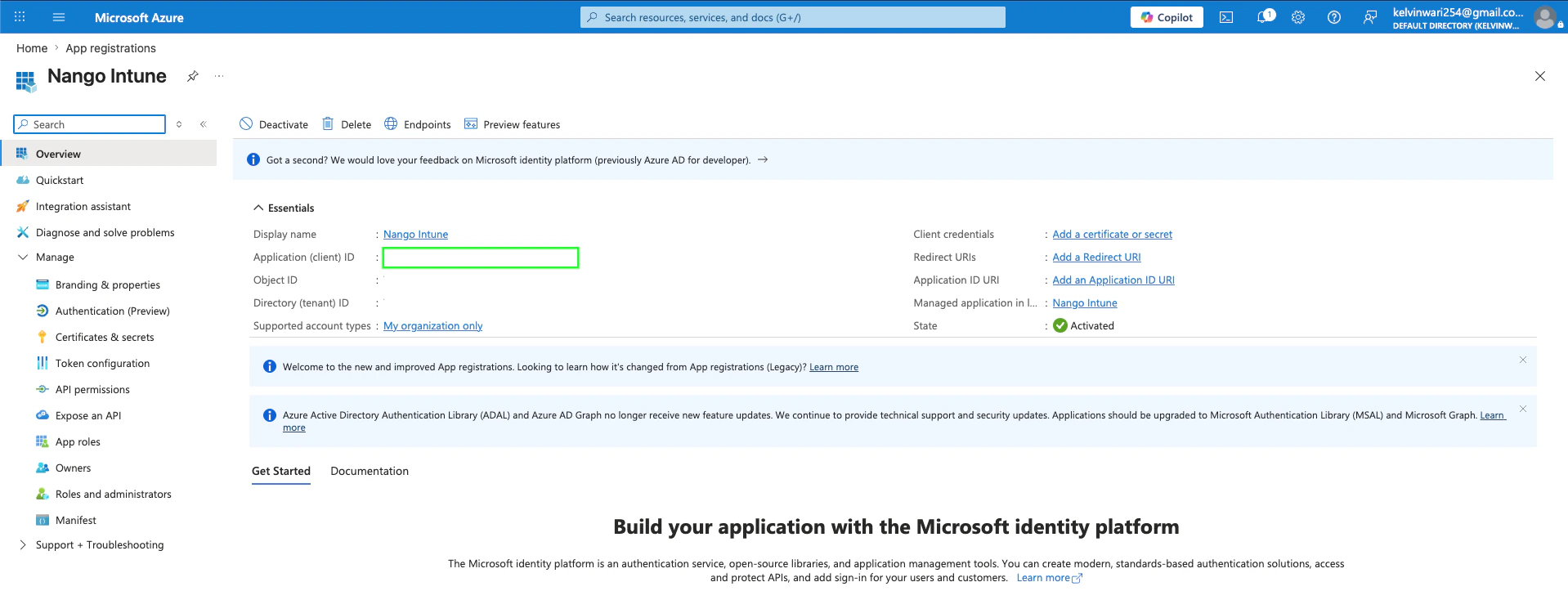
- Your Tenant ID can be found in the Tenant ID field on the Overview page within your Azure account.
Step 2: Generating your Client ID
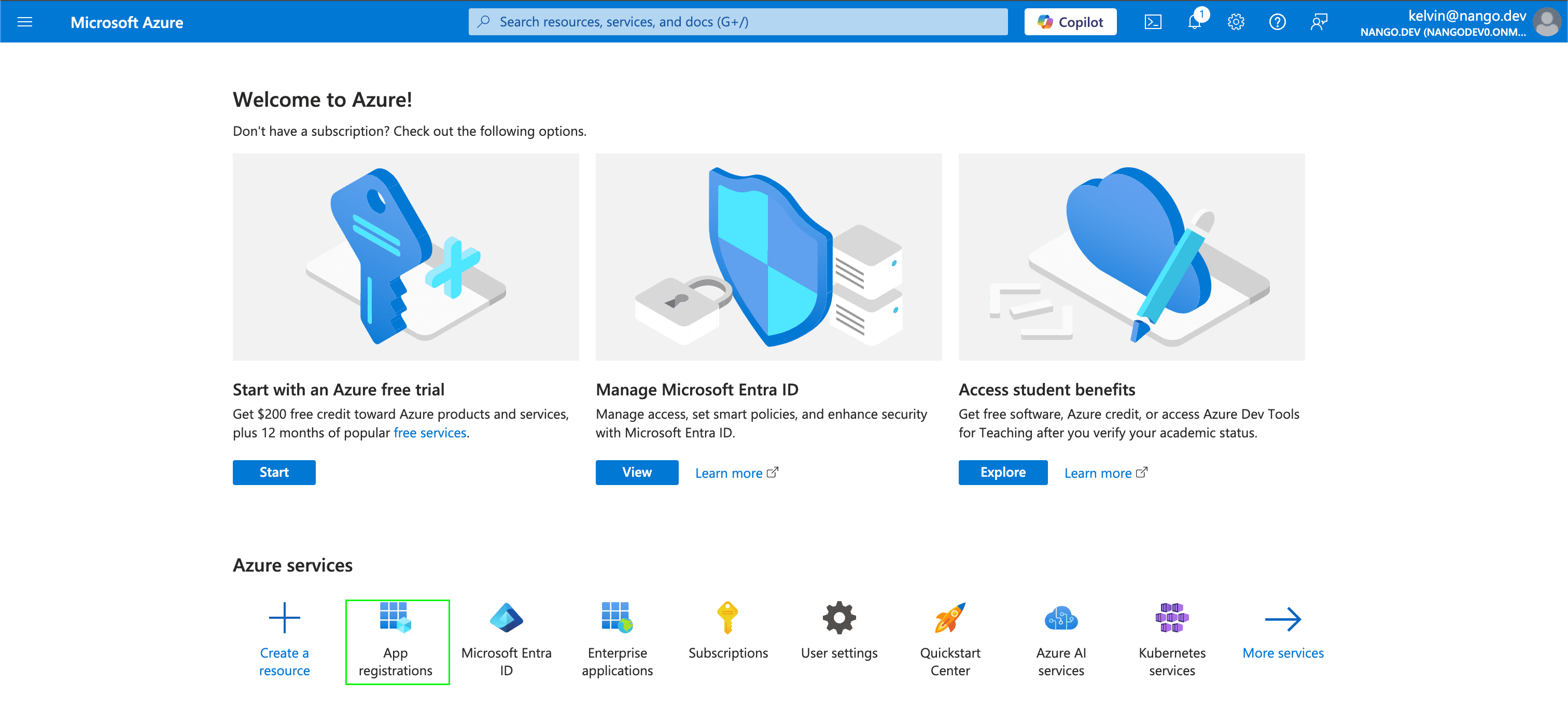
- Navigate to the Azure portal home page and sign in using the credentials of an administrator.
- Select App registrations.
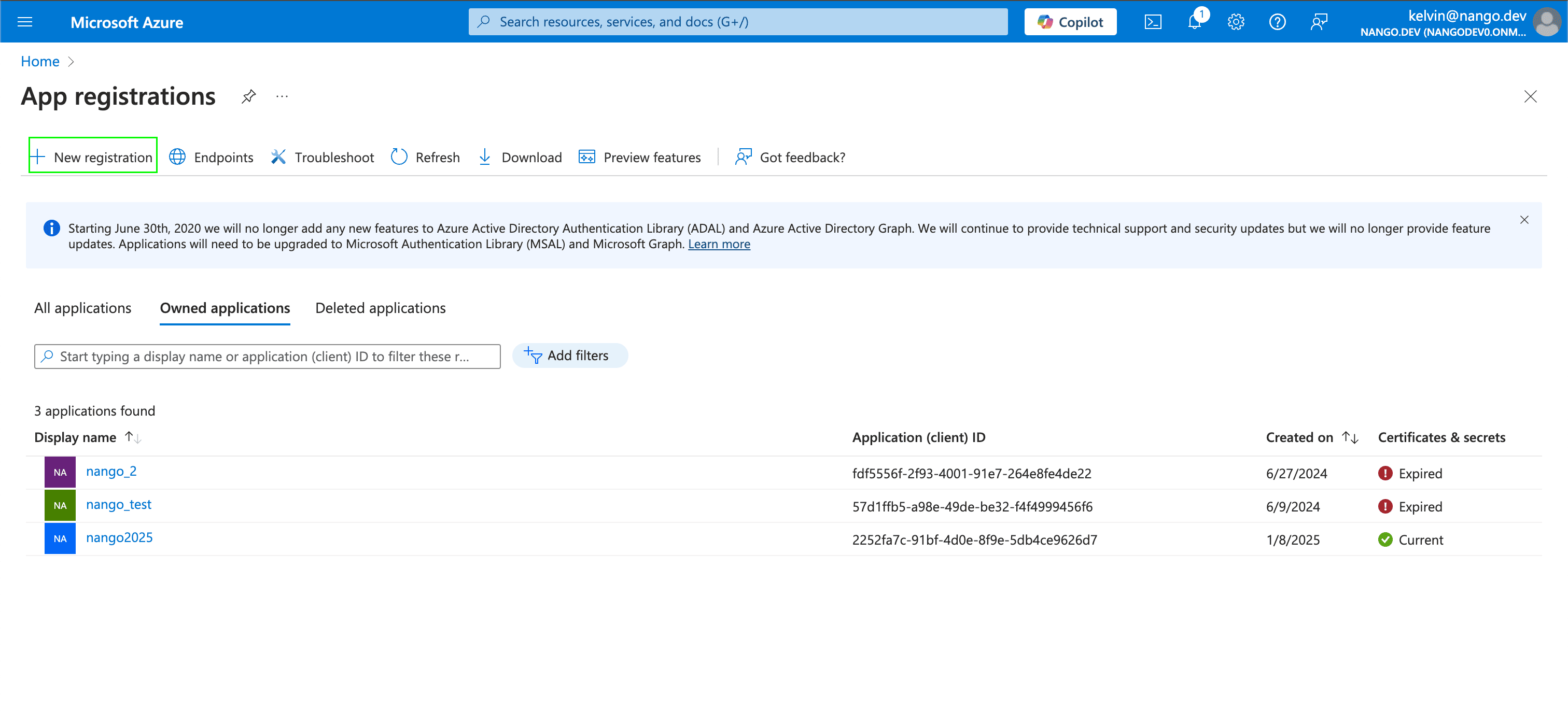
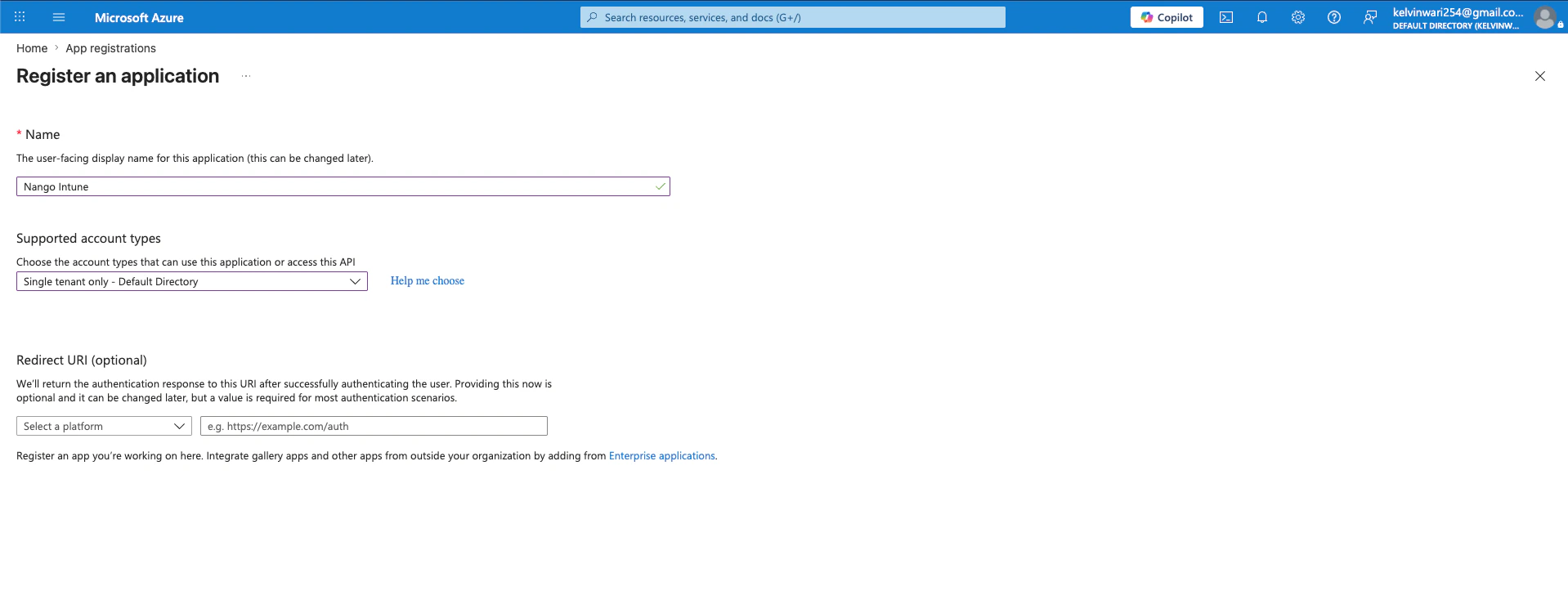
- Select New registration.
- In the Register an application section, enter a meaningful application name to display to users (e.g.
Nango Intune). Under Supported account types, leave it to the default one which is Single tenant Only and click Register.
- Once you have registered your application, your Client ID will be displayed in the Application (client) ID field within the Essentials. Your Tenant ID is shown in the Directory (tenant) ID field.
Step 3: Generating your Client Secret
- After registering a new app in the step above, navigate to Certificates & secrets under Manage, and click New client secret.
- A pop-up modal will appear, prompting you to enter your secret’s Description and Expires values. Fill these then click on Add.
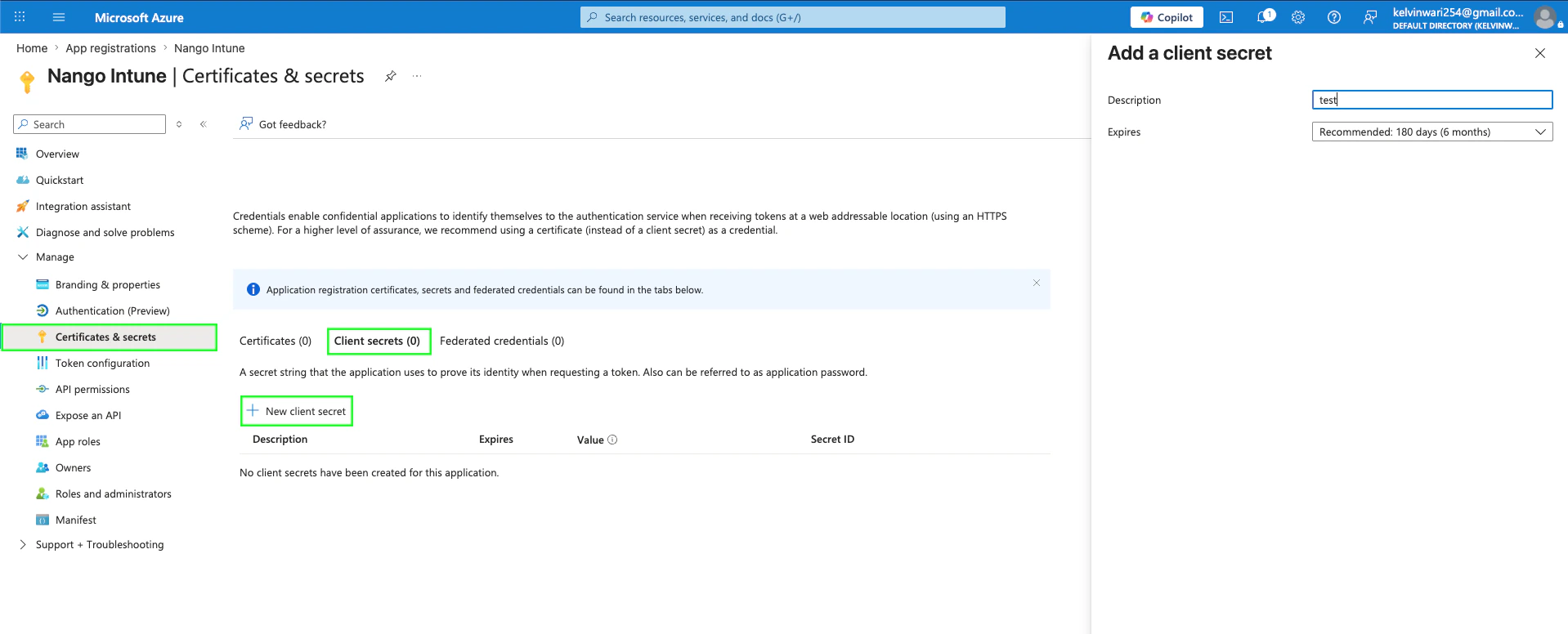
- Once completed, your Client Secret will be generated. This value can be found in the Value field within the Client Secrets table.
- After generating the Client Secret, you must grant the registered application the necessary permissions. Navigate to API permissions, select Add a permission, and choose Microsoft Graph.
- From the displayed list, choose Application permissions, select the required Intune permissions, and click Add permissions. Common permissions include:
DeviceManagementManagedDevices.Read.All— read managed devicesDeviceManagementManagedDevices.ReadWrite.All— read and write managed devicesDeviceManagementConfiguration.Read.All— read device configuration policiesDeviceManagementApps.Read.All— read mobile app management data
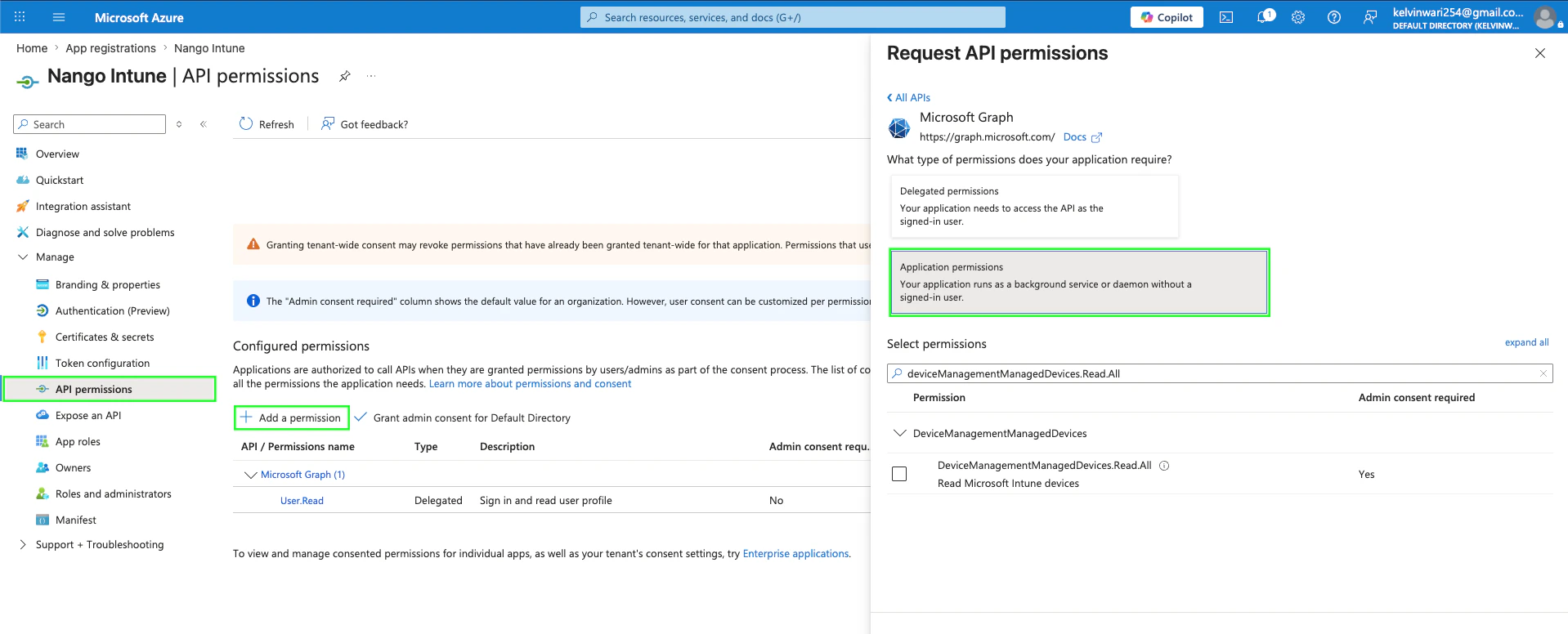
- Select Grant admin consent for [your organization] and confirm. Admin consent is required for application permissions.
The Intune service must be correctly licensed on the tenant for these API calls to succeed, regardless of whether the permissions are granted.
Step 4: Enter credentials in the Connect UI
Once you have your credentials:- Open the form where you need to authenticate with Microsoft Intune.
- Enter the Tenant ID, Client ID, and Client Secret in their designated fields.
- Submit the form, and you should be successfully authenticated.