Overview
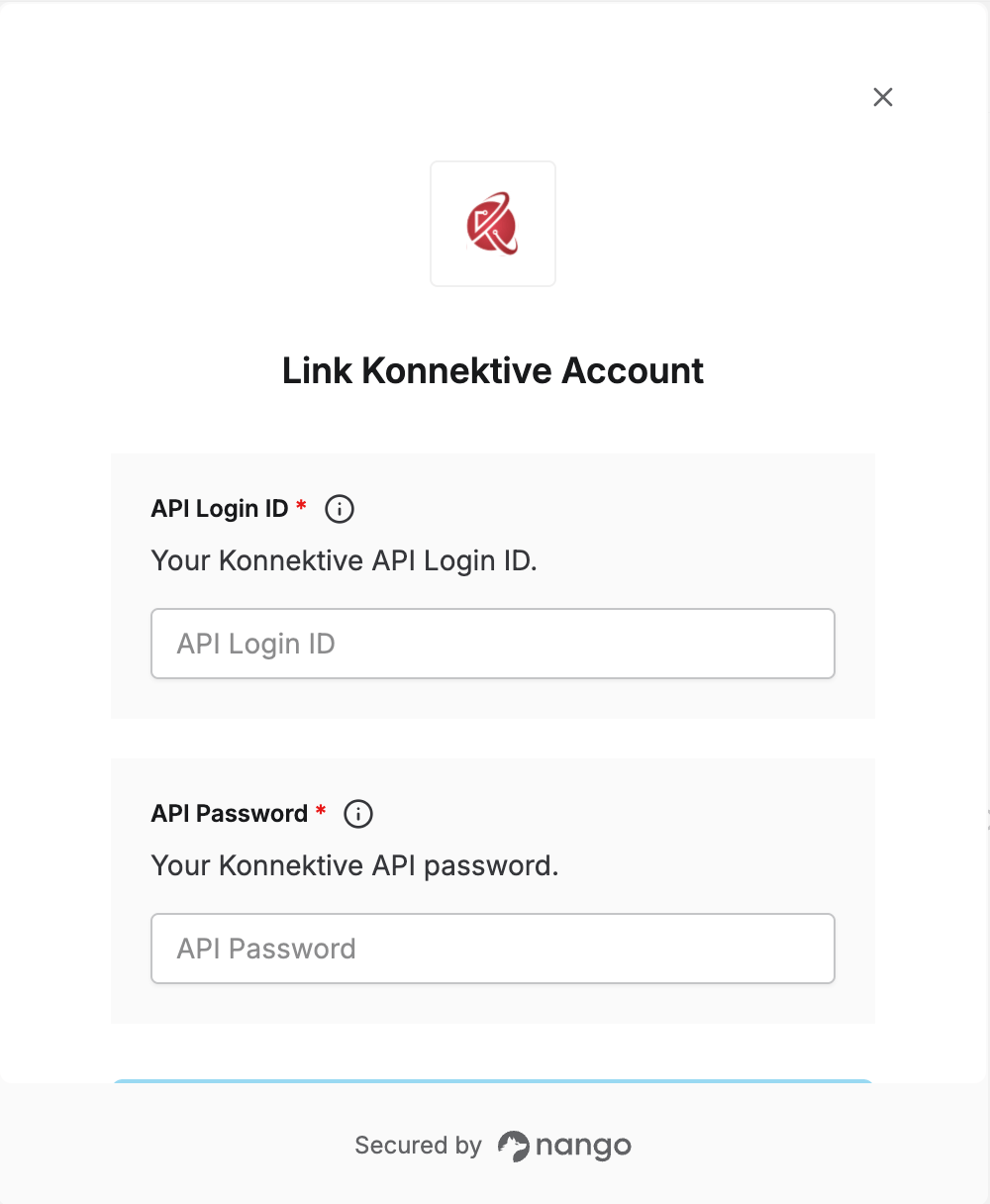
To authenticate with Konnektive, you need:- API Login ID — Your Konnektive API user login ID.
- API Password — Your Konnektive API user password.
Prerequisites
- An active Konnektive account with administrator access.
Step 1: Find your API credentials
- Log in to your Konnektive account.
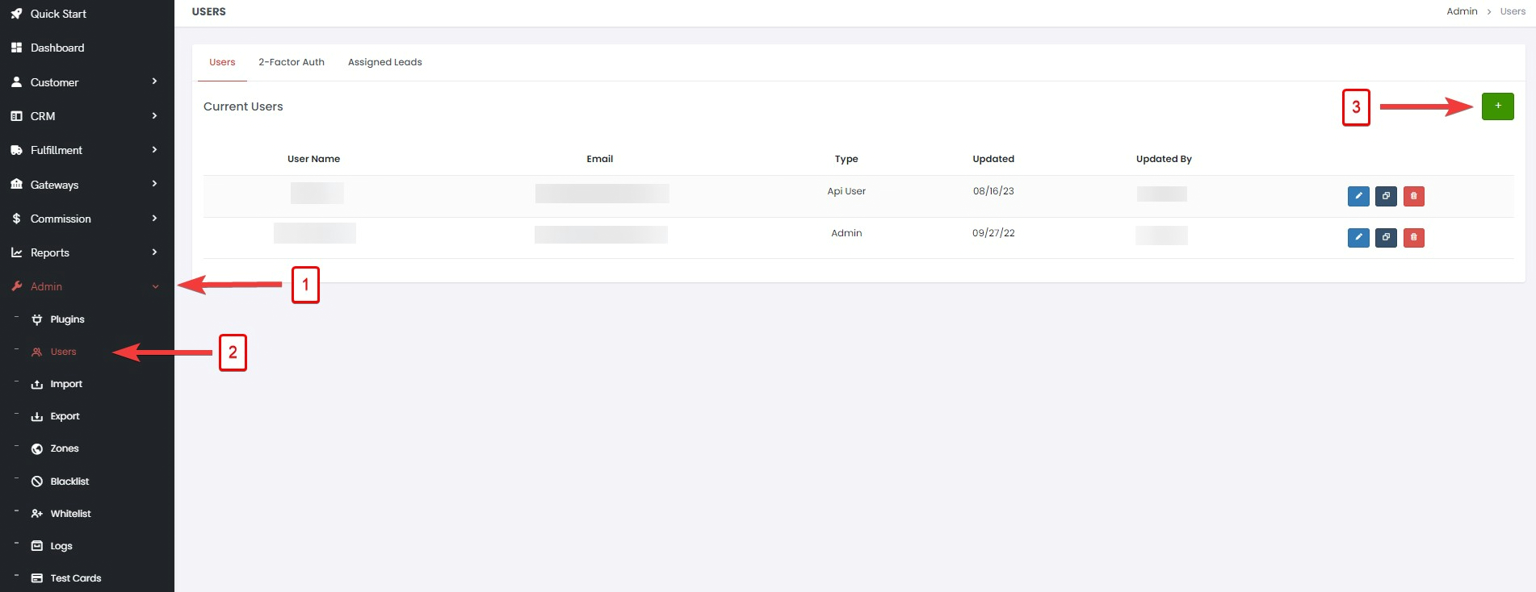
- Go to Admin > Users and click Add User (or open an existing API user).
- Set Access Level to Api User, then choose a Username and Password.
- The password can’t contain an
&character.
- The password can’t contain an
- Under IP Whitelist, add the IP address that will call the Konnektive API. See Nango’s public IP addresses if Nango’s proxy will be making the calls.
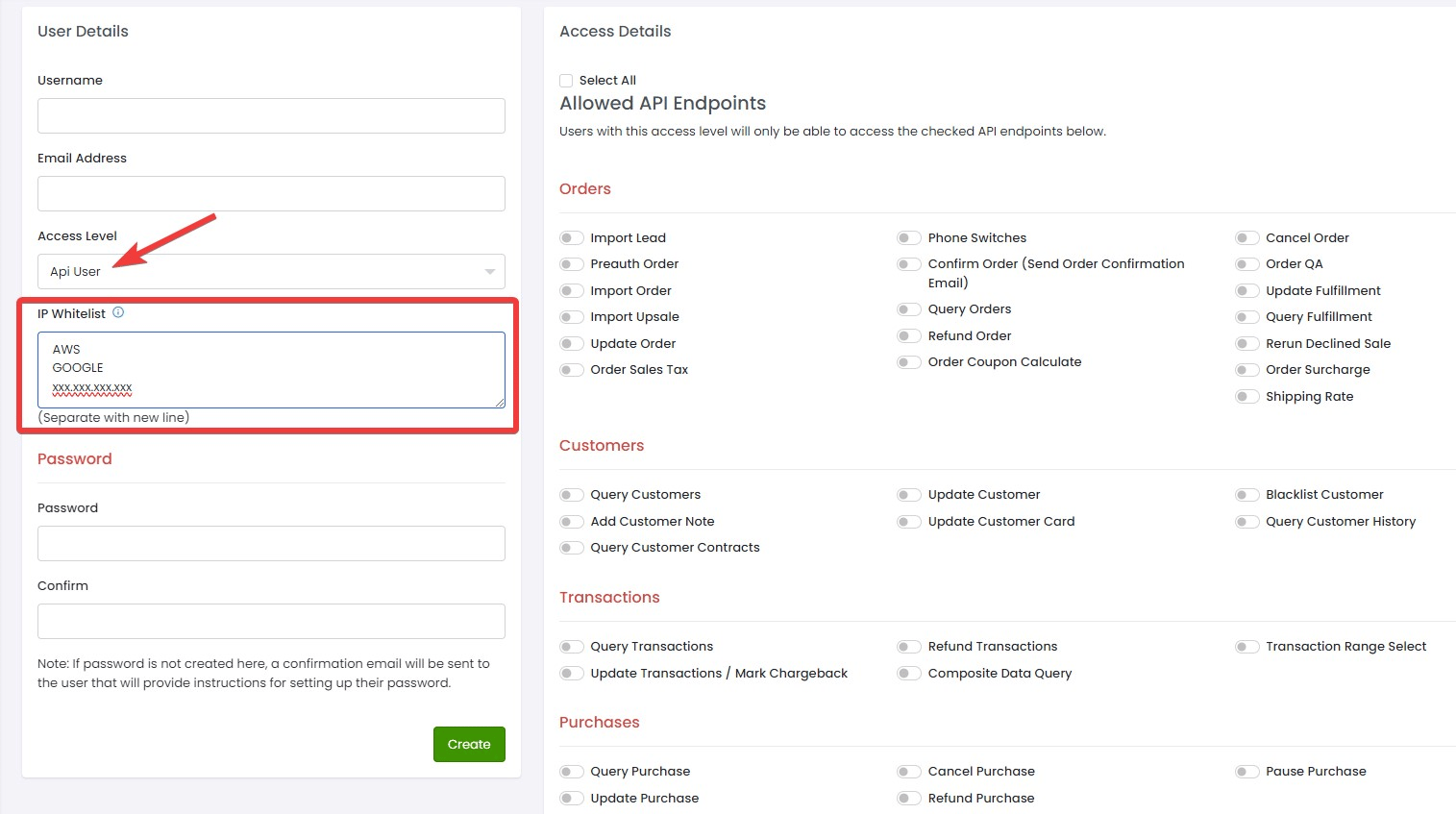
- Under Access Details, grant only the endpoints this API user needs — access to query endpoints lets it pull data out of your CRM, so scope it to what your integration actually uses. Create separate API users for different services that need API access.
- Save the user, then note its Username and Password — these are your API Login ID and password.
Step 2: Enter credentials in the Connect UI
Once you have your API Login ID and password:- Open the form where you need to authenticate with Konnektive.
- Enter your API Login ID and API Password in the corresponding fields.
- Submit the form, and you should be successfully authenticated.