Overview
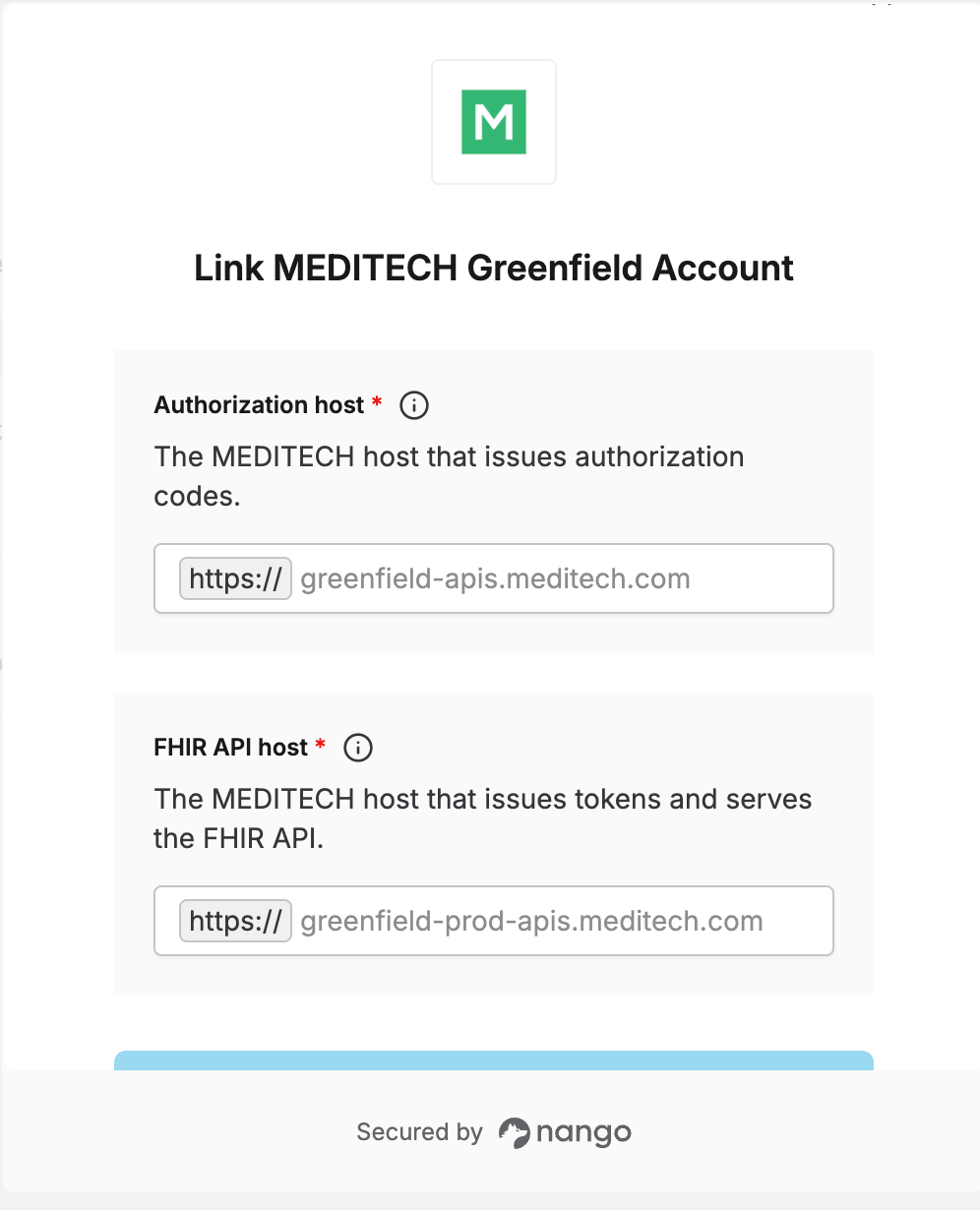
To authenticate with MEDITECH Greenfield via the Connect UI, you need:- Authorization host — the MEDITECH host that issues authorization codes.
- FHIR API host — the MEDITECH host that issues tokens and serves the FHIR API.
Sandbox hosts only work against synthetic test patients in the Greenfield Workspace. Going live against a real healthcare organization’s data uses different hosts, provisioned separately by that organization.
Prerequisites
- The MEDITECH Greenfield integration must already be configured in Nango with a Client ID and Client Secret — see the OAuth client setup guide if that hasn’t been done yet.
Instructions
Step 1: Find your authorization host and FHIR API host
Which hosts you use depends on whether you’re testing against the sandbox or connecting to a real healthcare organization:- Sandbox: use the fixed hosts above while testing with synthetic patients.
- Production: each MEDITECH customer’s FHIR endpoints are listed in MEDITECH’s endpoint directory. A single organization may expose multiple endpoints depending on its facility footprint, so confirm the exact authorization host and FHIR API host with the healthcare organization directly. Enter both without the
https://prefix and without a trailing slash.
Step 2: Enter your hosts in the Connect UI
- Open the Connect UI (or the Connections tab -> Add Test Connection -> Authorize) for MEDITECH Greenfield.
- Enter the Authorization host and FHIR API host from Step 1.
- Log in with the credentials you use for MEDITECH Expanse (via your organization’s identity provider) and approve the requested scopes.