Overview
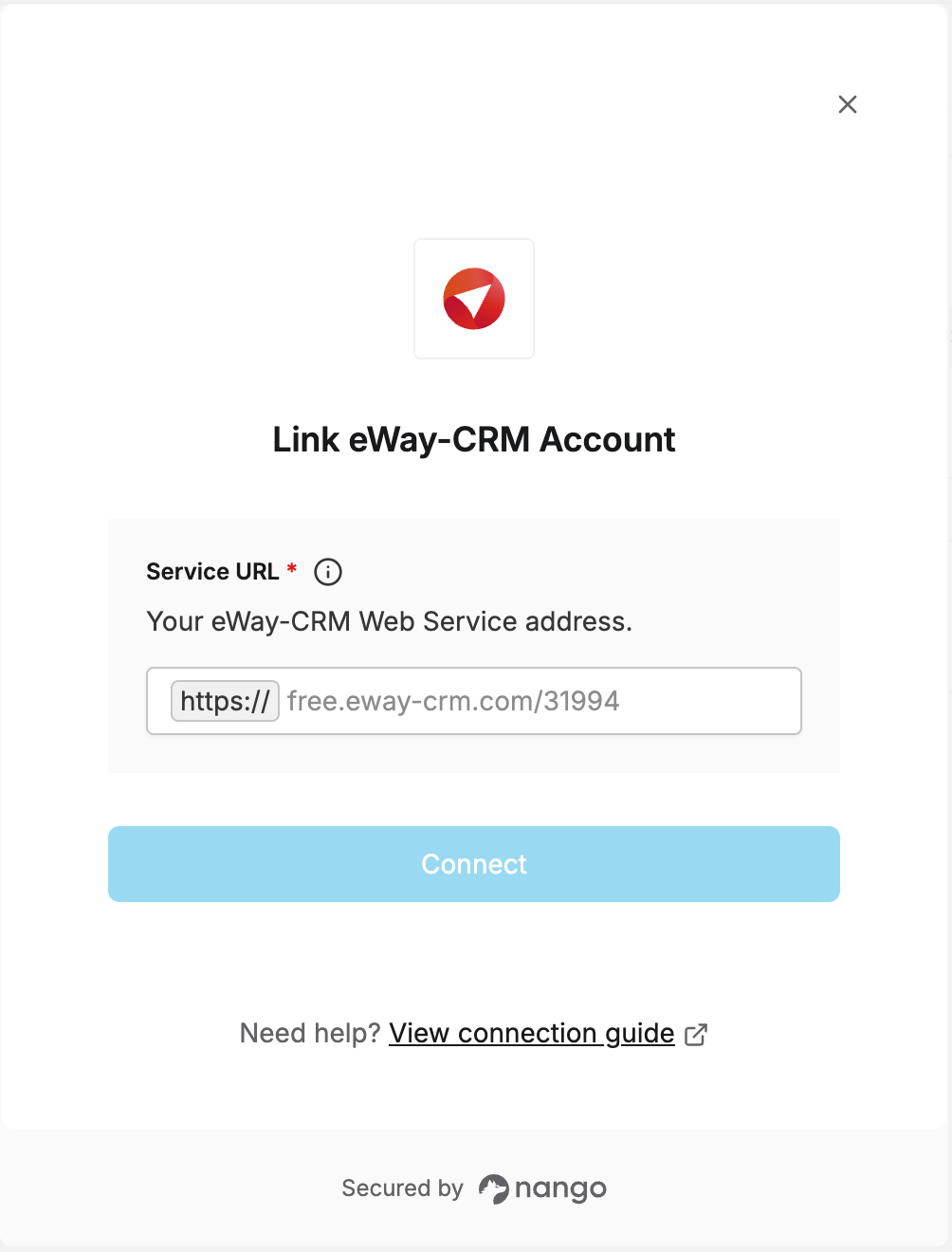
To authenticate with eWay-CRM, you need:- Service URL — your eWay-CRM Web Service address.
Prerequisites
- Your eWay-CRM instance must be configured to use Azure Auth (Microsoft Entra ID) — OAuth 2.0 isn’t available otherwise.
Step 1: Finding your Web Service Address
Your Service URL is the same address you use to connect Outlook to eWay-CRM (eWay-CRM menu → About → Web Service Address in Outlook, or ask your eWay-CRM administrator). It looks like a domain followed by a numeric instance ID, for examplefree.eway-crm.com/31994. Enter it without the https:// prefix or a trailing slash.
Step 2: Enter your Service URL in the Connect UI
- Open the form where you need to authenticate with eWay-CRM.
- Enter your Service URL in the designated field.
- Submit the form — you’ll be redirected to log in to eWay-CRM and authorize access.