Overview
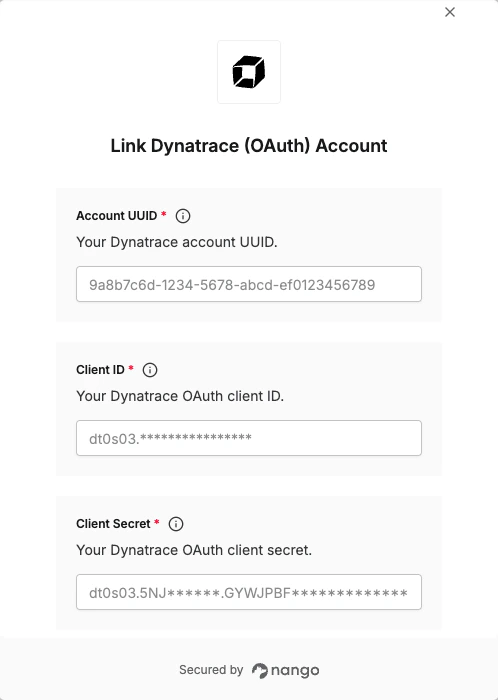
To authenticate with Dynatrace using OAuth, you need:- Account UUID - Your Dynatrace account identifier.
- Client ID - Your Dynatrace OAuth client ID.
- Client Secret - Your Dynatrace OAuth client secret.
Prerequisites
- Access to Dynatrace Account Management
- Permission to manage OAuth clients (requires Identity & access management admin rights)
Instructions
Step 1: Find your account UUID
- Go to Dynatrace Account Management.
- If you have more than one account, select the account you want to connect.
- Your account UUID is visible in the URL:
https://myaccount.dynatrace.com/account/home?account-uuid={accountUuid}
Step 2: Create an OAuth client
- In Account Management, go to Identity & access management > OAuth clients.
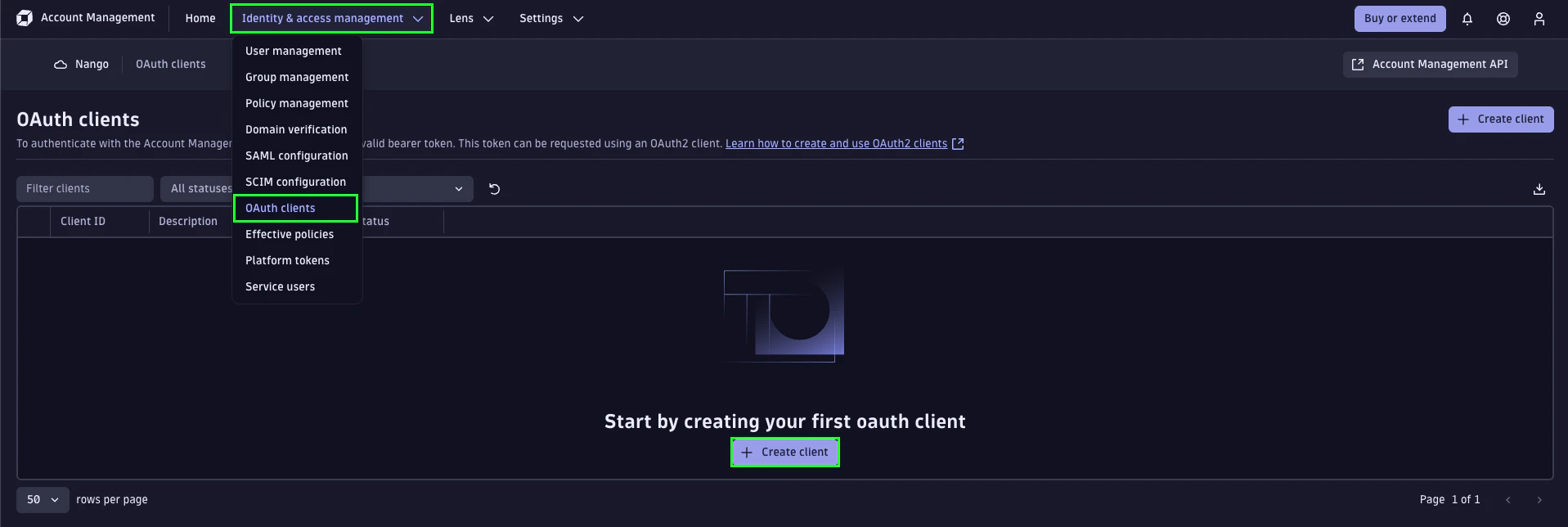
- Select Create client.
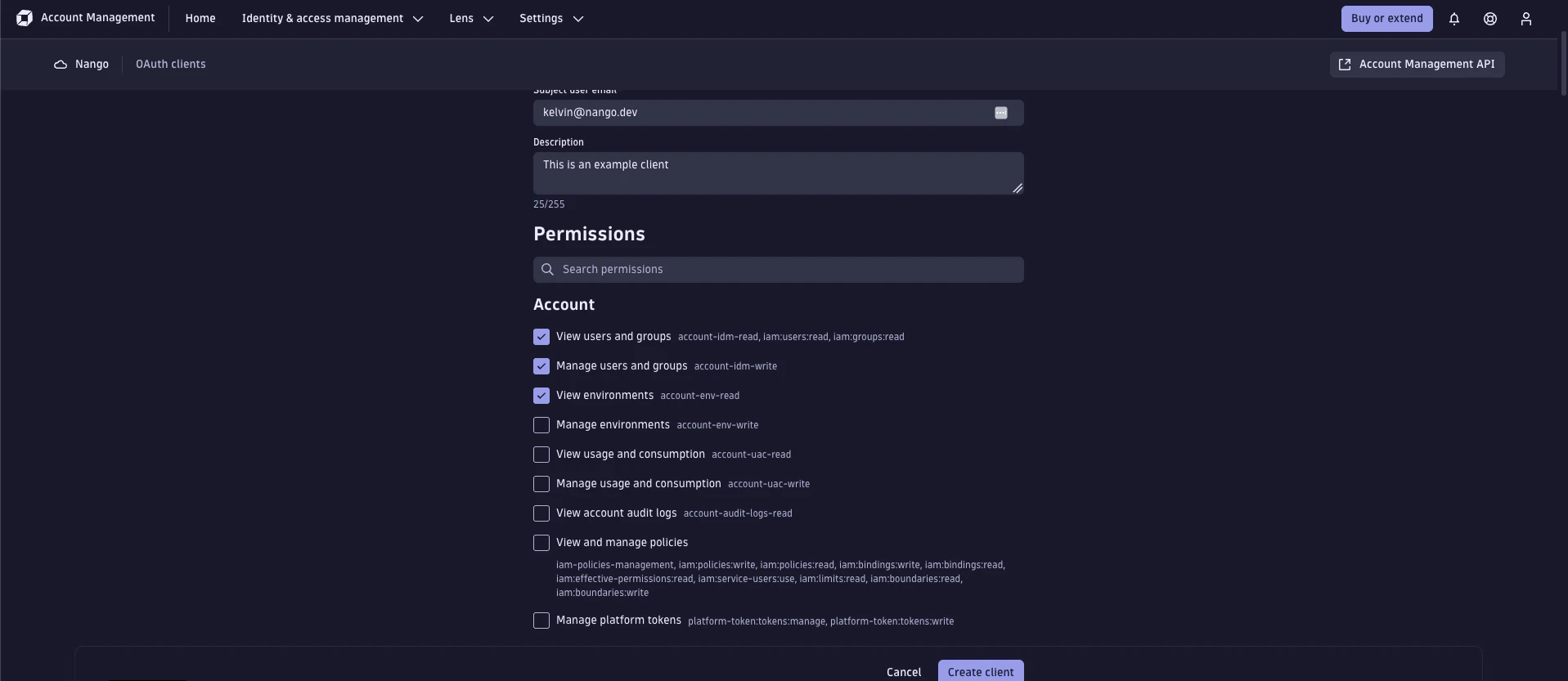
- Fill in the form:
- Owner email: the email of the user who owns the client.
- Description: describe what service will use this client and why.
- Permissions: select the scopes this client needs. Tokens generated by the client can only use the scopes granted here. Common scopes include:
account-uac-read/account-uac-write— user and group managementapp-engine:apps:run— run apps on AppEnginestorage:buckets:read/storage:logs:read— read logs and storage
- Select Create client.
- Copy the Client ID and Client Secret from the generated credentials dialog.
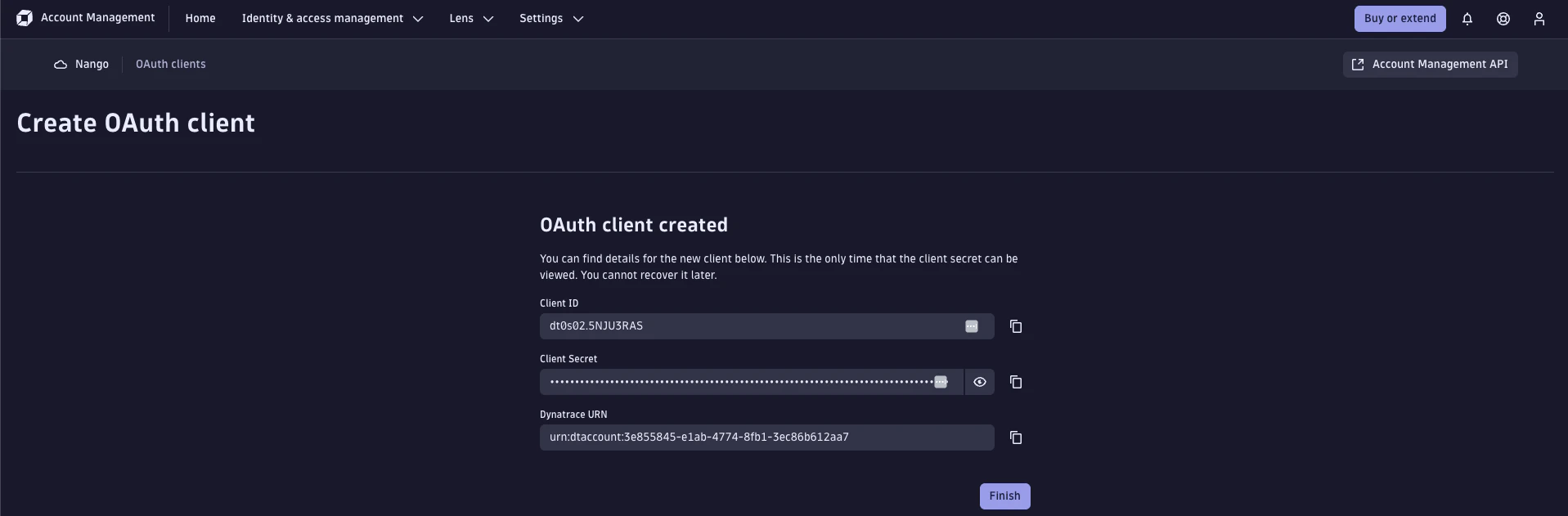
The client secret is shown only once. Copy it immediately and store it in your organization’s secure vault — it cannot be retrieved after you close the dialog. If lost, you must create a new client.
Step 3: Enter credentials in the Connect UI
- Open the form where you need to authenticate with Dynatrace.
- Enter your Account UUID, Client ID and Client Secret in their respective fields.
- Submit the form to authenticate.