Overview
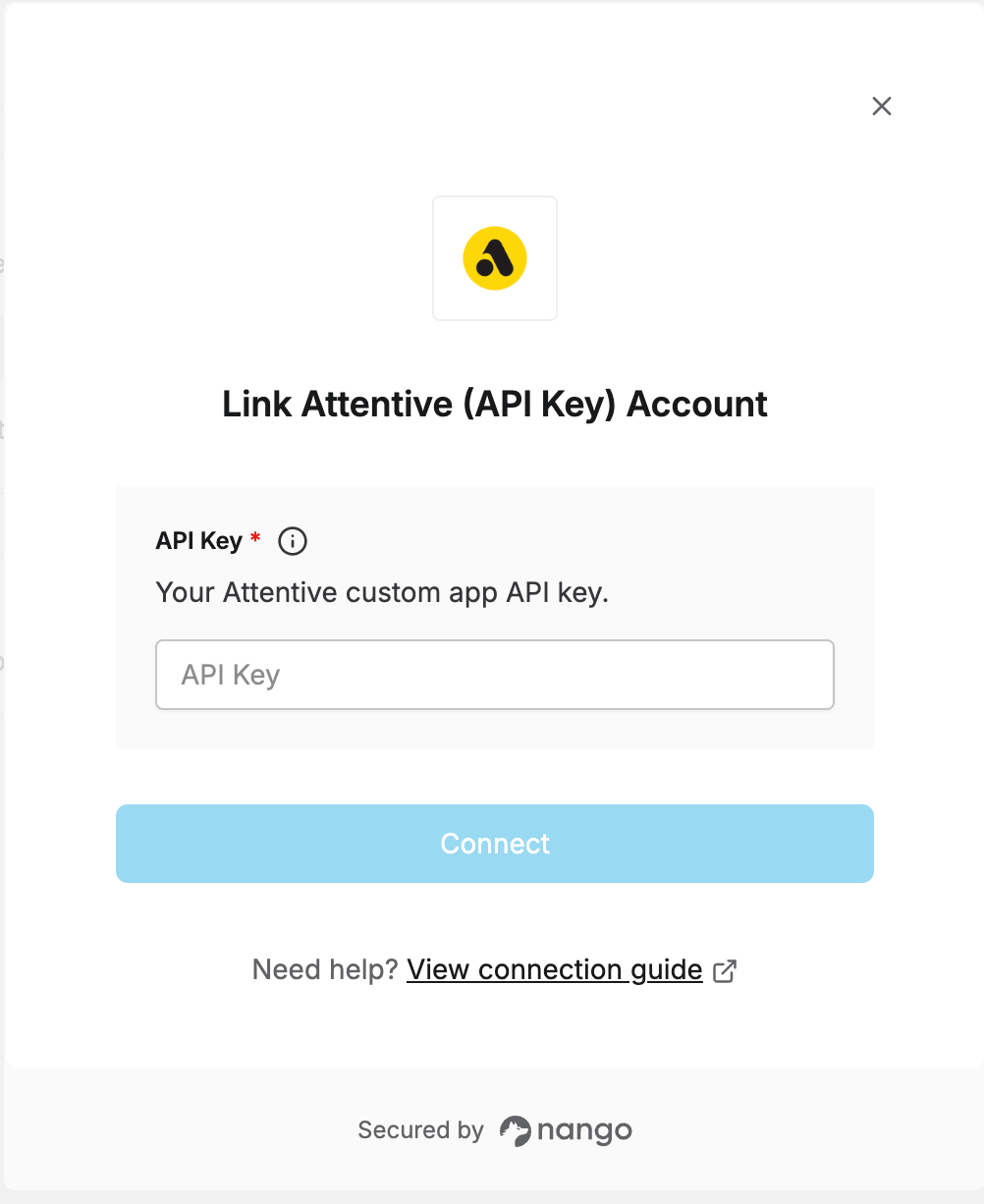
To authenticate with Attentive (API Key), you need:- API Key — the API key of a custom app in your Attentive account.
Prerequisites
- An Attentive account that can create apps. If you can’t access the Attentive platform, email api-tokens@attentivemobile.com for access.
Step 1: Create a custom app
- Sign in to Attentive and go to the integrations setup page.
- Click + Create App in the top-right corner.
- Enter a unique name in the App name field and your email address in the Contact email field.
- Under Permissions, set each API your integration needs to Write. The APIs are Custom Attributes, Custom Events, eCommerce, Privacy Request, Product Catalog, and Subscribers. All of them default to No Access.
- Click Create. The Copy API key modal appears.
- Click Copy to copy the API key, then click X to close the modal.
Attentive only shows the API key once. Save it somewhere secure before closing the modal. If you lose it, open your app from the Built by you tab and click Regenerate in the API key section, then update the key in Nango.
Step 2: Enter your API key in the Connect UI
- Open the form where you need to authenticate with Attentive.
- Enter your API Key in the designated field.
- Submit the form, and you should be successfully authenticated.