Overview
To authenticate with A-Leads, you need:- API key — A key that grants Nango permission to interact with the A-Leads API.
Prerequisites
- An active A-Leads account with API access.
Step 1: Obtain your API key
- Log in to your A-Leads account.
- Go to Settings.
- Navigate to the Integrations tab.
- In the API Key section, click Create API Key.
- Assign permissions your API key needs.
- Save the generated API key.
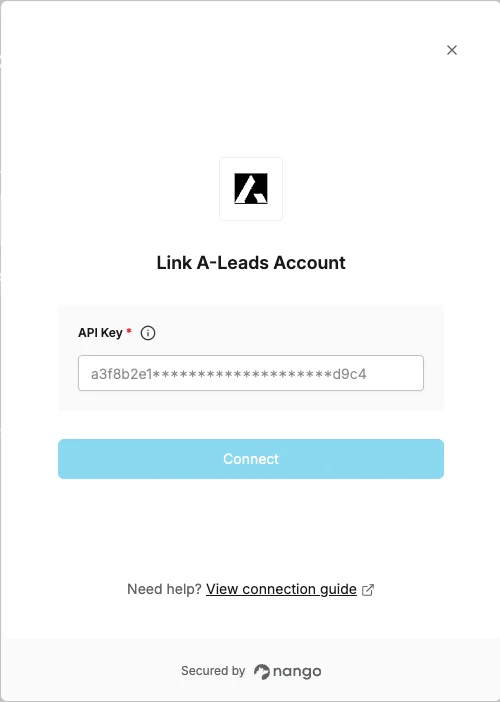
Step 2: Enter credentials in the Connect UI
Once you have your API key:- Open the form where you need to authenticate with A-Leads.
- Enter your API Key in the designated field.
- Submit the form, and you should be successfully authenticated.