Overview
To authenticate with ePost (KLARA), you need:- API Key — a key created inside KLARA that grants Nango access to the ePost API for your company.
Prerequisites
- A KLARA account with access to the company you want to integrate.
Step 1: Finding your API key
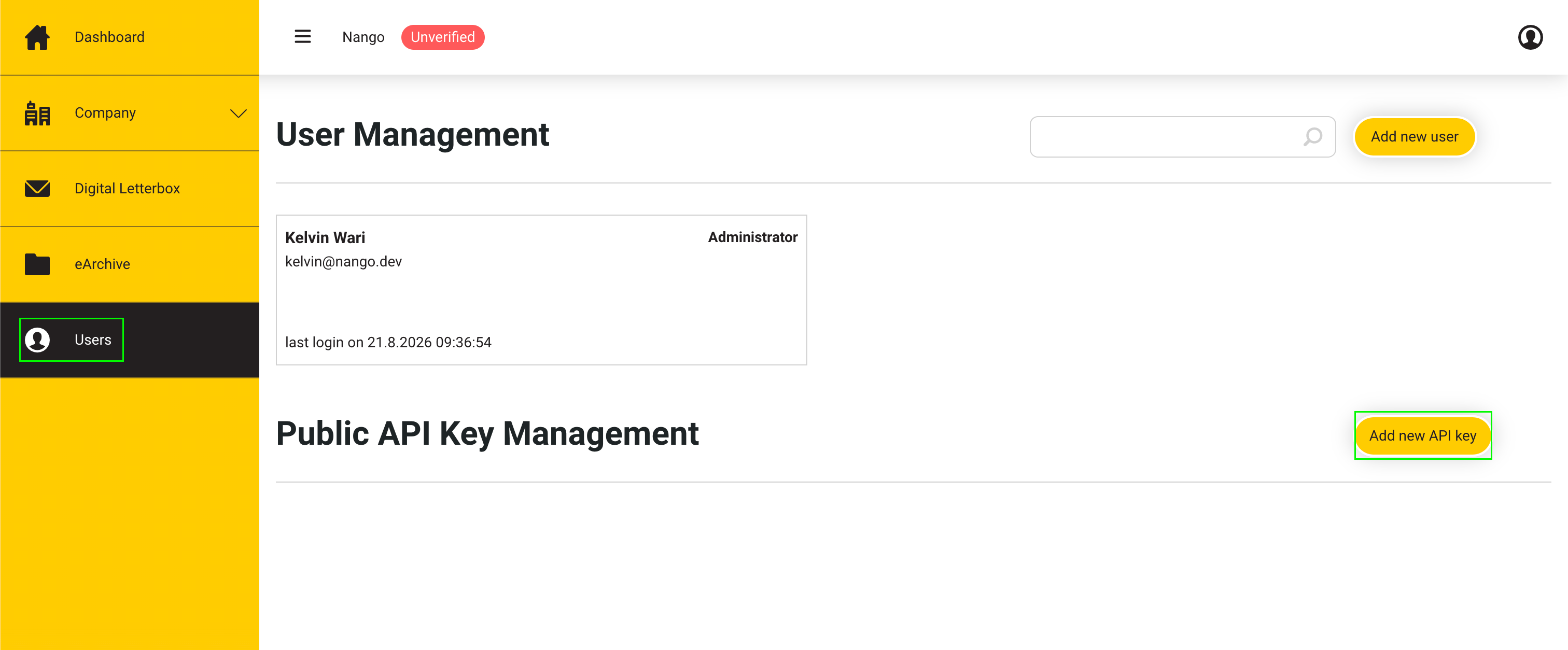
- Log in to KLARA and open the User menu.
- Go to public API key management and click Add new API Key.
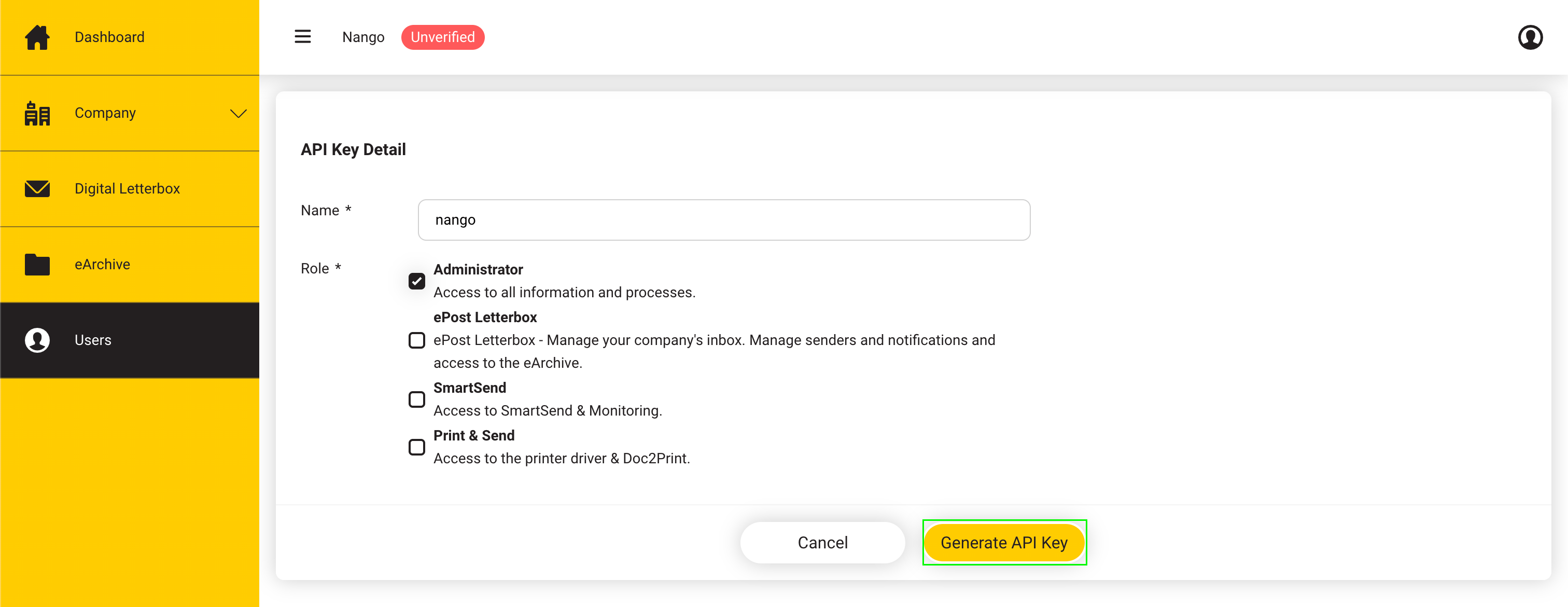
- When prompted for a Role, select ePost Letterbox — this is the role that grants access to the digital mailbox onboarding and inbox APIs. Other roles (Administrator, SmartSend, Print & Send) cover different KLARA products and aren’t needed for this integration.
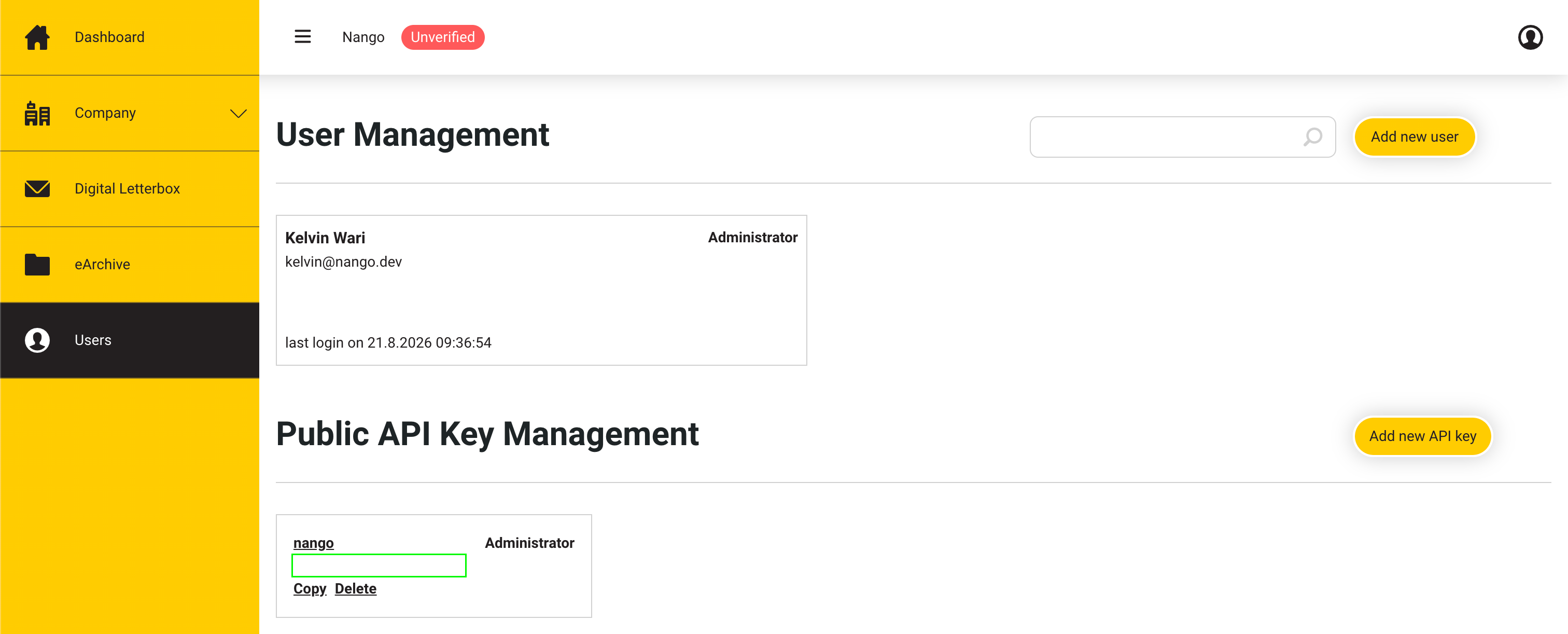
- Copy the generated key. It looks like a UUID, e.g.
0b6df221-****-****-****-********e06d.
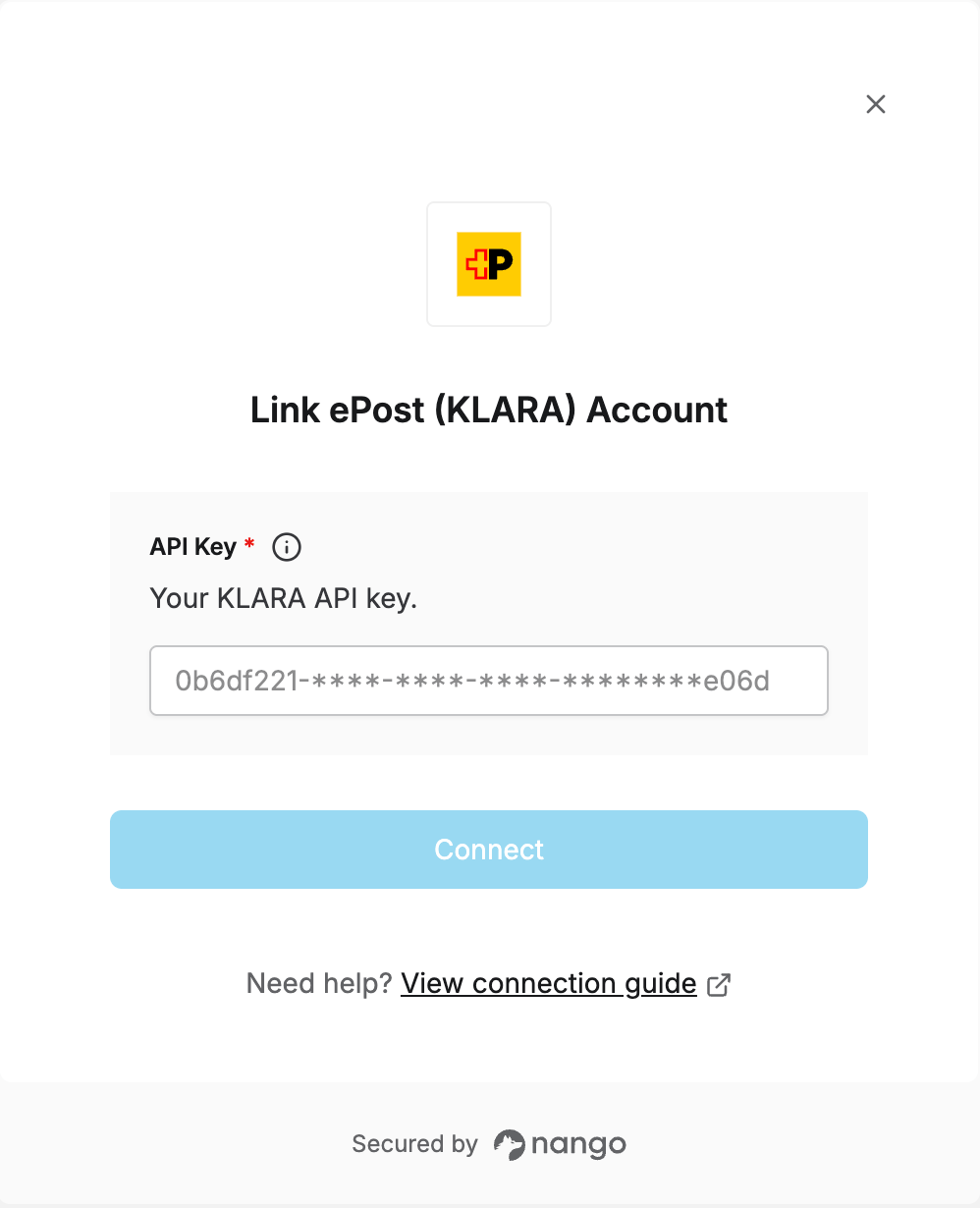
Step 2: Enter your API key in the Connect UI
Once you have your API key:- Open the form where you need to authenticate with ePost (KLARA).
- Enter your API Key in the designated field.
- Submit the form, and you should be successfully authenticated.