Overview
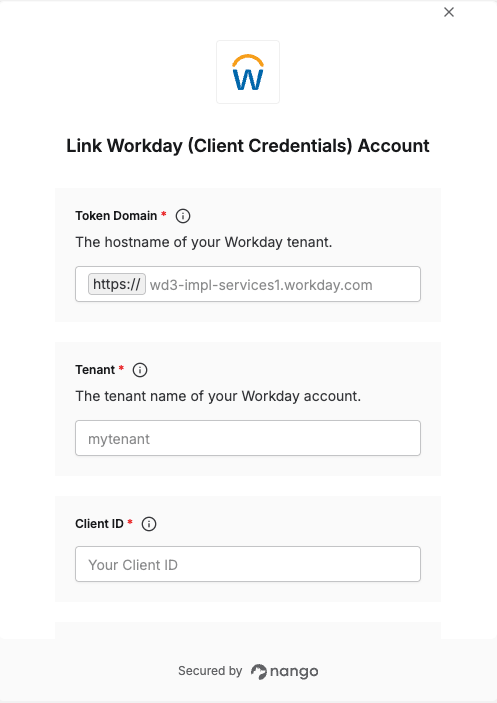
To authenticate with Workday using Client Credentials, you will need:- Token Domain - The hostname of your Workday tenant
- Tenant - The tenant name of your Workday account
- Client ID - Your Workday API Client ID
- Client Secret - Your Workday API Client Secret
Prerequisites
- An active Workday account with administrator access
- Access to register API clients for integrations
- OAuth 2.0 enabled on your Workday tenant
Instructions
Step 1: Enable OAuth 2.0
- In Workday, search for and open Edit Tenant Setup – Security.
- Ensure OAuth 2.0 is enabled.
Step 2: Finding your Token Domain
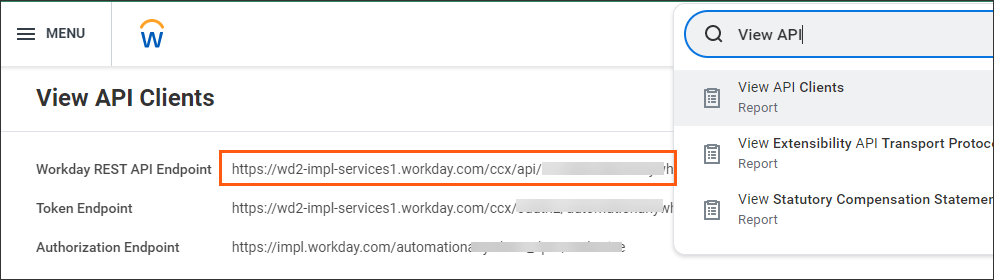
- In your Workday homepage, search for and select View API Clients.
- Locate the Token Endpoint field.
- Your Token Domain is everything after
https://and before/ccx.
- Example: If the endpoint is
https://wd2-impl-services1.workday.com/ccx/oauth2/acme/token, your Token Domain iswd2-impl-services1.workday.com.
Step 3: Finding your Tenant
In the same Token Endpoint field, your Tenant is the segment after/oauth2/ and before /token.
- Example: If the endpoint is
https://wd2-impl-services1.workday.com/ccx/oauth2/acme/token, your Tenant isacme.
Step 4: Create an Integration System User (ISU)
The ISU is a dedicated service account that acts as the subject of all access tokens issued to your API client. You will link it to the client in Step 6.- Search for and open Create Integration System User.
- Enter a username and password. Set Session Timeout Minutes to
0to prevent session expiration. Leave Require New Password at Next Sign In unchecked. - Search for Create Security Group, select Integration System Security Group (Unconstrained) as the type, and give it a name.
- Assign the ISU to this security group via Edit Integration System Security Group.
- Use Maintain Permissions for Security Group to add the domain security policies your integration requires (e.g., Worker Data: Workers).
- Run Activate Pending Security Policy Changes to apply.
Step 5: Register an API Client
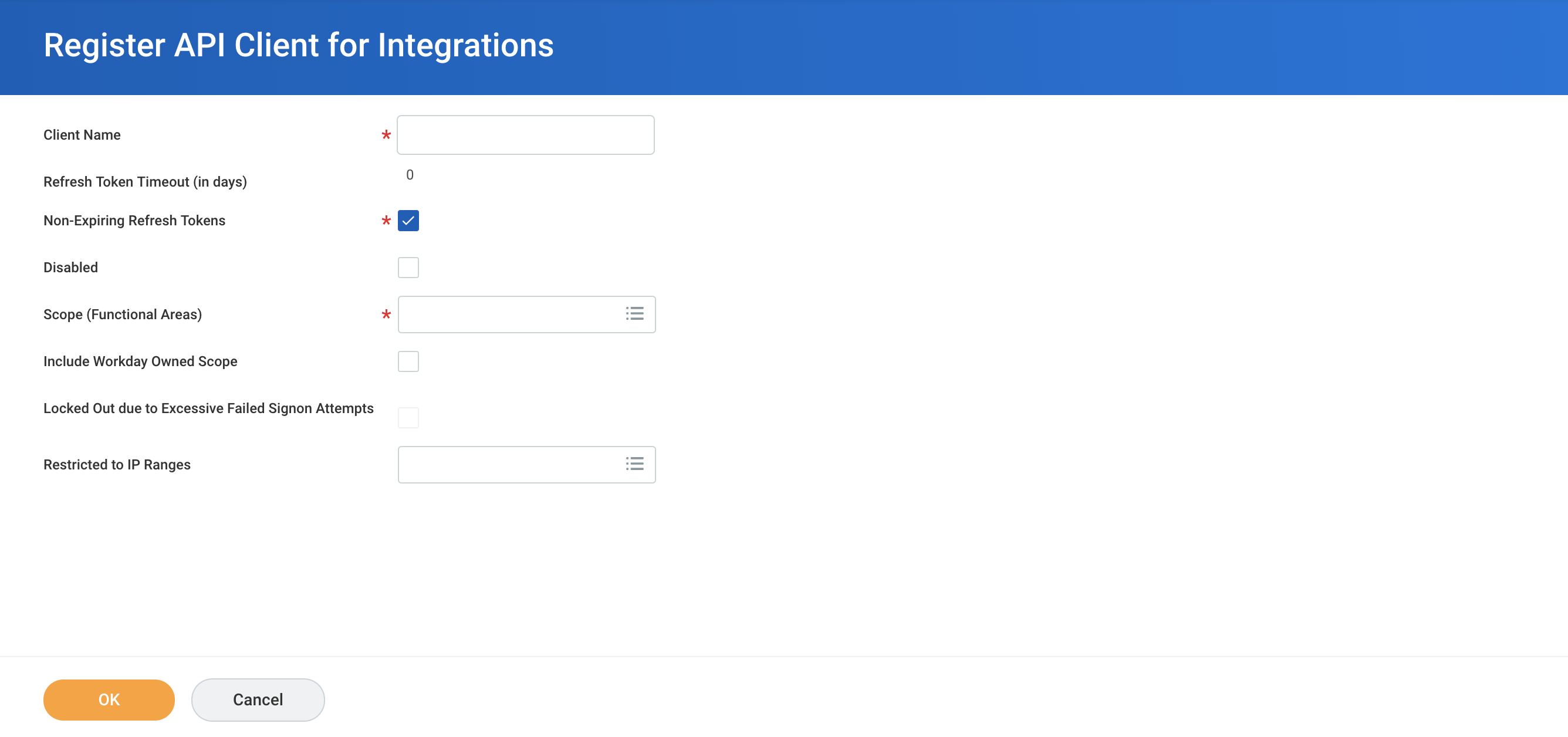
- Search for and open Register API Client for Integrations.
- Enter a name (e.g.
Nango Client Credentials). - Set Grant Type to Client Credentials.
- Select the functional area scopes your integration requires (e.g. Human Resources, Staffing, System). The ISU must also have access to the domain security policies that govern these scopes.
- Click OK to save.
- Copy the Client ID and Client Secret — the secret is shown only once.
Step 6: Create a Client Credentials Mapping
This step links the API client to the ISU. Unlike the Refresh Token flow (where the ISU is associated via refresh token management), Client Credentials uses a dedicated mapping task.- Search for and open Create Client Credentials Mapping.
- Enter the Client ID of the API client you registered in Step 5.
- Select the Integration System User you created in Step 4.
- Click OK to save.
Step 7: Enter credentials in the Connect UI
- Open the form where you need to authenticate with Workday.
- Enter your Token Domain, Tenant, Client ID, and Client Secret in their respective fields.
- Submit the form.