Overview
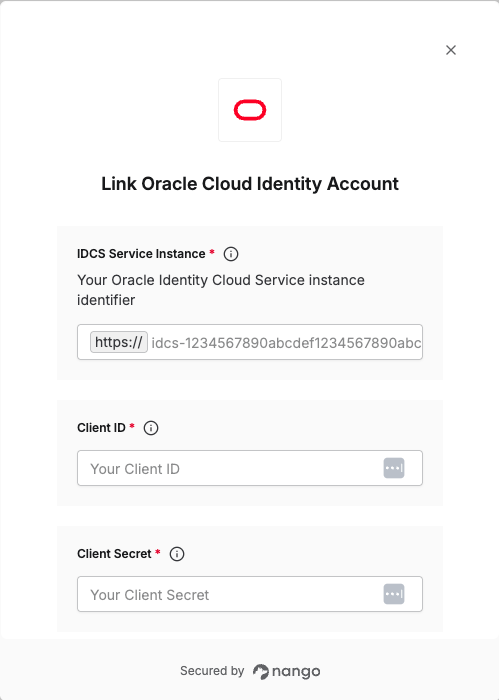
To authenticate with Oracle Cloud Identity, you will need:- IDCS Service Instance - Your Oracle Identity Cloud Service instance identifier.
- Client ID - A key that is used to identify your Oracle Cloud Identity application.
- Client Secret - A secret key used in conjunction with the Client ID to grant Nango permission to access Oracle Cloud Identity’s API resources and services.
Prerequisites:
- You must have an Oracle Cloud Identity account with administrative access.
- You must have the ability to access Oracle Cloud Services in your IDCS console.
Instructions:
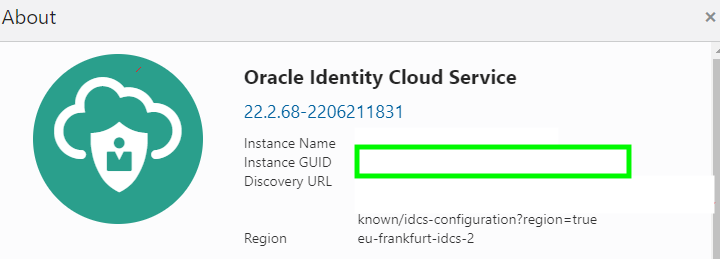
Step 1: Finding Your Service Instance
- Log in to your Oracle Identity Cloud Service (IDCS).
- Access the IDCS Admin console.

- Select About from the options.
Step 2: Get the OAuth Client ID and Client Secret
- From your account, select the Navigation icon (☰) to view a list of available functions.
- Select Oracle Cloud Services.
-
From the Oracle Cloud Services window, select the required FCCM Internal Application Service (in
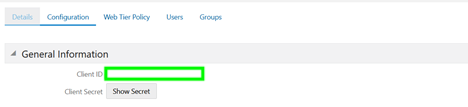
AMLCS <tenant-id>format) from the list.If you are retrieving the ERP ESS Job Details API, select the required AMLCS Application Service (inAMLCS <tenant-id>format) from the list. Ensure you use the sameAMLCS <tenant-id>when creating a connection in Nango. - Click the Configuration tab.
- The Client ID and Client Secret details are displayed in the General Information section.
Step 3: Connect Your Oracle Cloud Identity Account
Once you have your Service Instance, Client ID, and Client Secret:- Open the form where you need to authenticate with Oracle Cloud Identity.
- Enter your IDCS Service Instance, Client ID, and Client Secret in their respective fields.
- Submit the form, and you should be successfully authenticated.