Overview
Sage 300 CRE only runs on-premise on Windows — the Web API is hosted through IIS on the same Windows Server that runs the accounting data, with no Linux, Mac, or cloud-hosted option. Connecting requires that server’s hostname and company data folder in addition to a Sage 300 CRE user’s Windows credentials — the API authenticates against the Windows account associated with the user, not a separate application password. Requests are also authorized with a Sage Development Partner Program (DPP) license key — an XML blob issued once per partner agreement to the integration developer, not to each individual company. It’s usually preconfigured on the Nango integration itself, so most users won’t need to provide one.Prerequisites
- A Sage 300 CRE installation with the Web API components installed on its accounting server.
- Network access (HTTPS) from Nango’s proxy to that server. Since the API is on-premise and authenticates with Windows credentials, don’t expose it directly to the public internet — connect it over a VPN or private tunnel, or restrict inbound traffic to Nango’s published proxy IP ranges with a firewall allow-list.
Instructions
Step 1: Finding your server hostname and company data folder
- Ask whoever administers your Sage 300 CRE server for the hostname (and port, if it’s not the default) where the Web APIs are reachable.
- In Sage 300 CRE, open File Locations to find the name of the company data folder you want to connect to (this is what the API calls
X-DatabaseName).
Step 2: Creating a dedicated integration user
- In Sage 300 CRE, create a dedicated Windows user for this integration rather than reusing a personal login.
- Grant it the permissions the endpoints you plan to use require (for example, APIs > Enter Time for time-entry endpoints, Job Cost > Post Entries for posting job cost batches). Check the specific endpoint’s licensing and permission requirements in Sage’s Web API documentation.
- Note the username in
Domain\UserNameformat and its password — you’ll enter both in Nango.
Step 3: DPP License Key (only if not already configured)
Every request to the Sage 300 CRE Web API must carry a Sage Development Partner Program (DPP) license key: an XML<License> blob that authorizes which API features a partner’s application can call. Sage issues it to the integration developer under a development partner agreement — not per customer or company — and reissues it when that agreement renews.
Because the same key is shared across every connection made through this integration, whoever set up Sage 300 CRE in Nango has usually already preconfigured it. Only paste a DPP License Key here if you were explicitly given one and asked to; most users can leave this field blank.
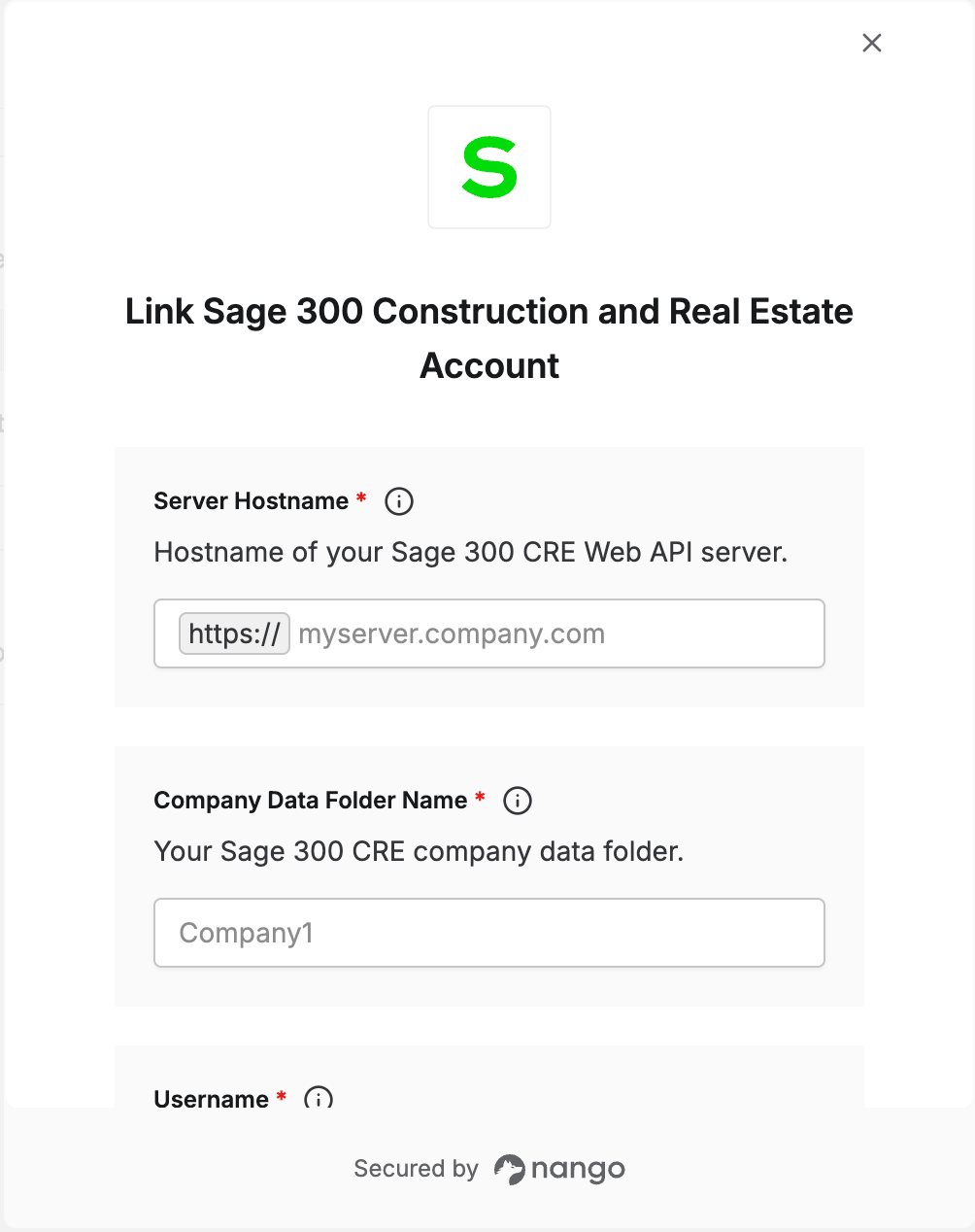
Step 4: Enter your connection details
- Open the form where you need to authenticate with Sage 300 CRE.
- Enter your Username, Password, Server Hostname, and Company Data Folder Name. Only fill in DPP License Key if you were asked to in step 3.
- Submit the form to connect your account.