Overview
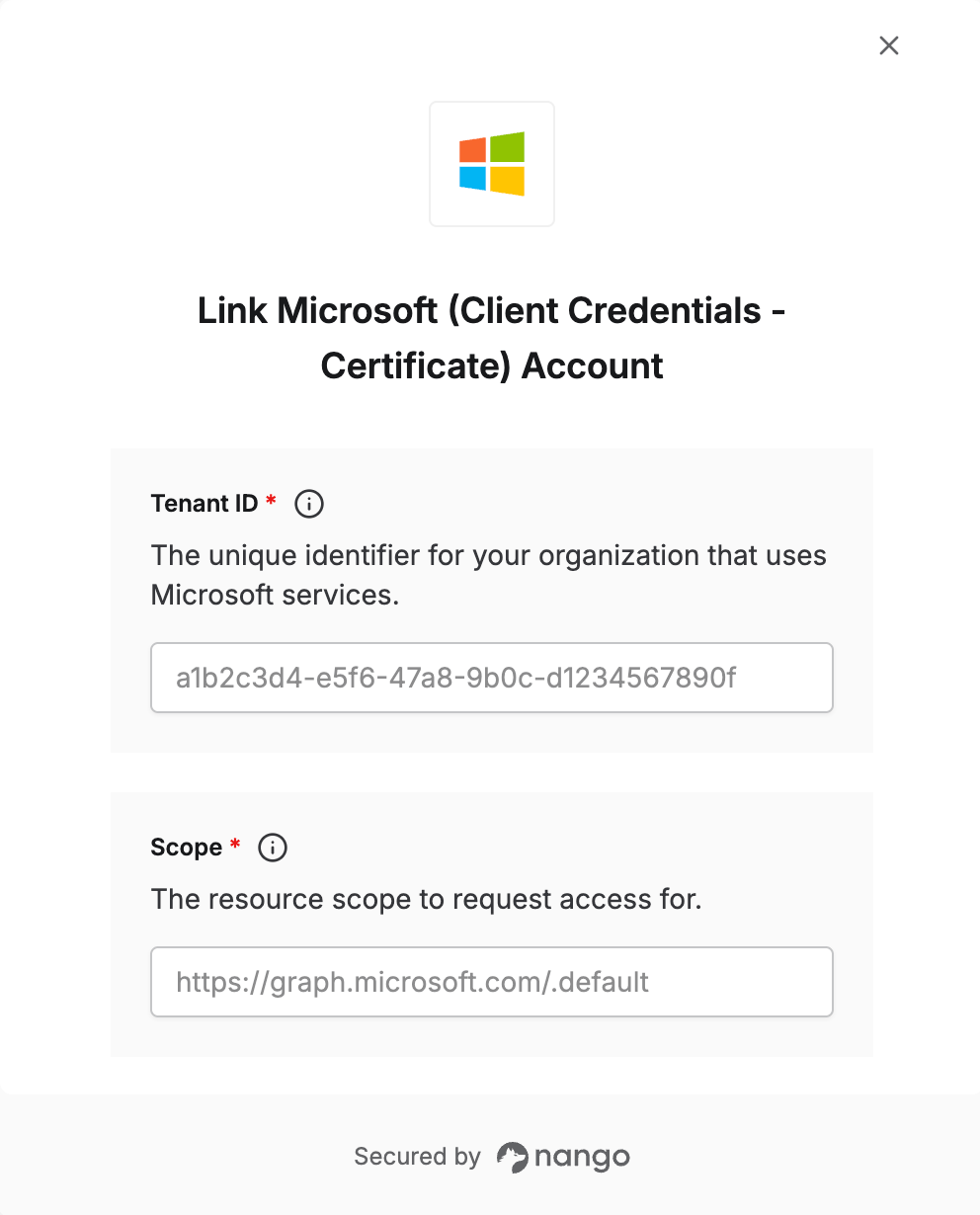
To connect Microsoft (Client Credentials - Certificate) in Nango, you need to provide:- Tenant ID — The unique identifier for your organization in Azure.
- Scope — The resource you want to access, suffixed with
.default(e.g.https://graph.microsoft.com/.default). - Client ID — The unique identifier Azure assigns to your registered application.
- Private Key — The RSA private key (PEM format) matching the certificate you uploaded to your app registration.
- Certificate Thumbprint (x5t#S256) — The base64url-encoded SHA-256 thumbprint of your certificate, used to identify it in the JWT assertion.
Prerequisites
- An active Azure account with the appropriate Microsoft product subscription.
- OpenSSL or equivalent tooling to generate a certificate and private key.
Step 1: Finding your Tenant ID
Your Tenant ID is shown in the Tenant ID field on the Azure Active Directory Overview page.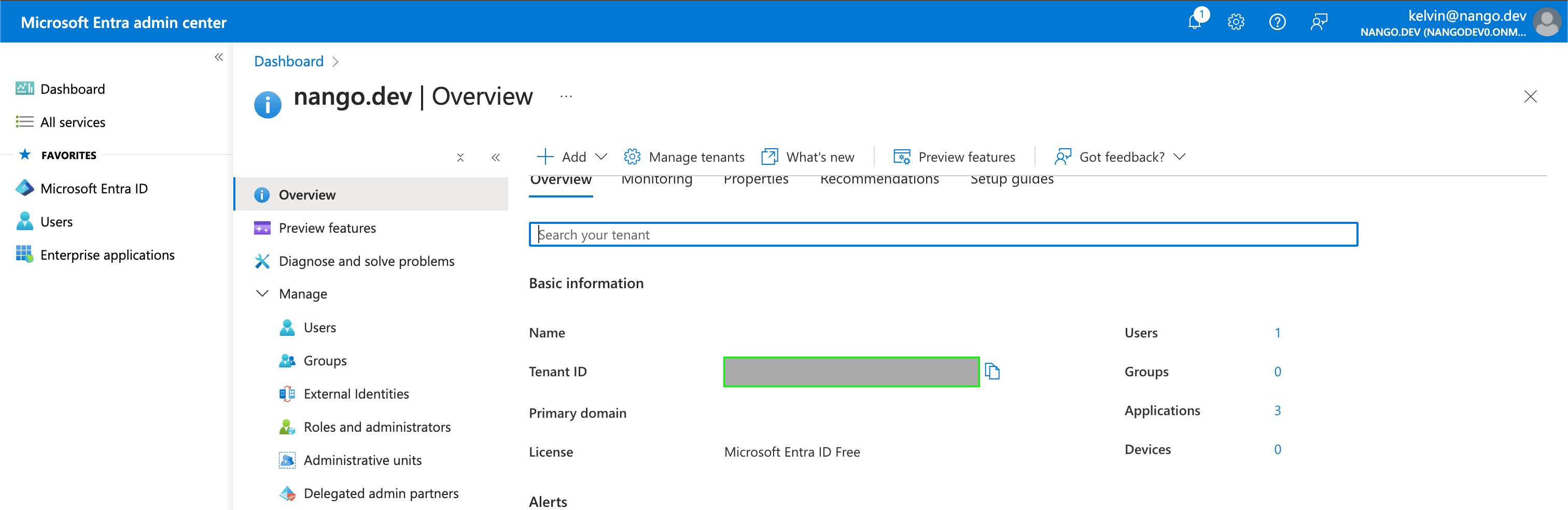
Step 2: Registering your application and finding your Client ID
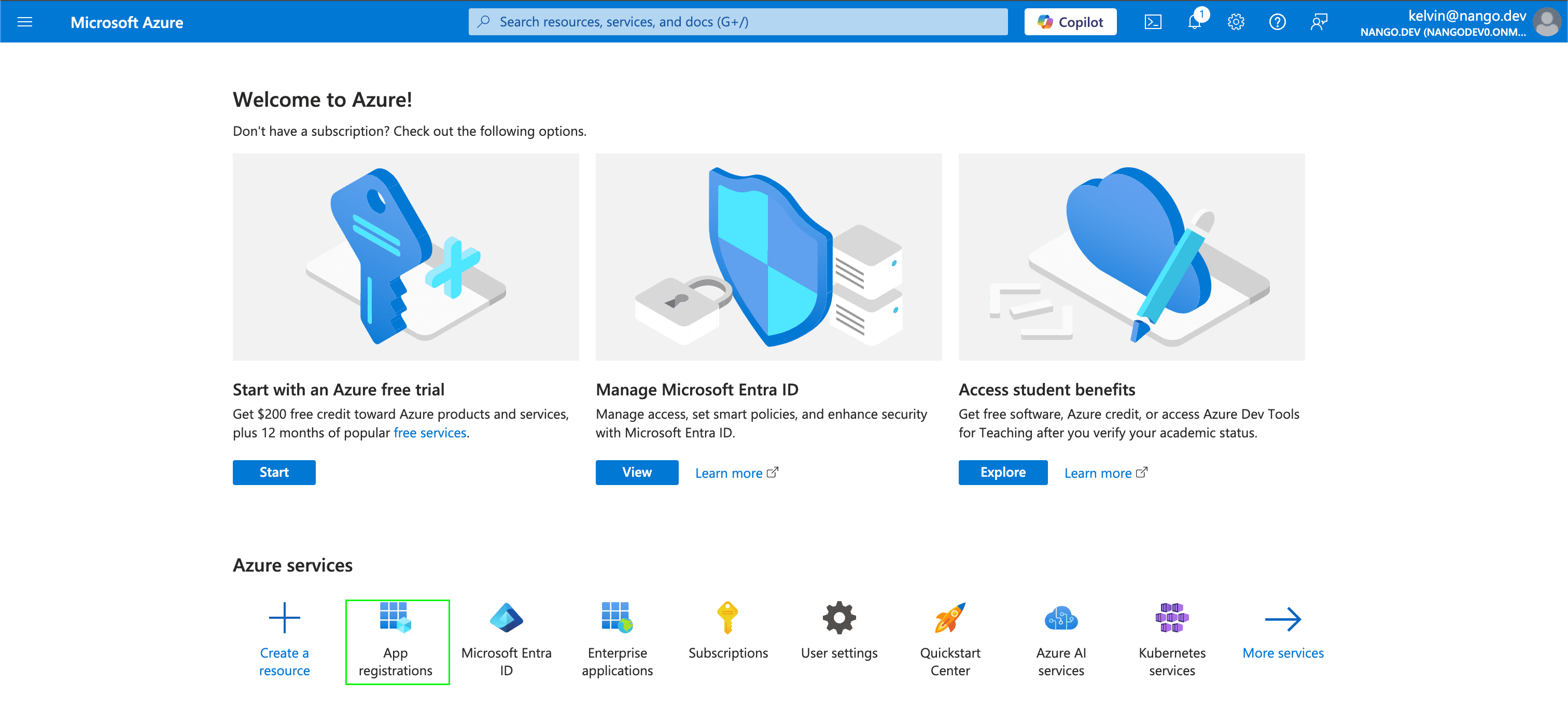
- Go to the Azure portal and select App registrations.
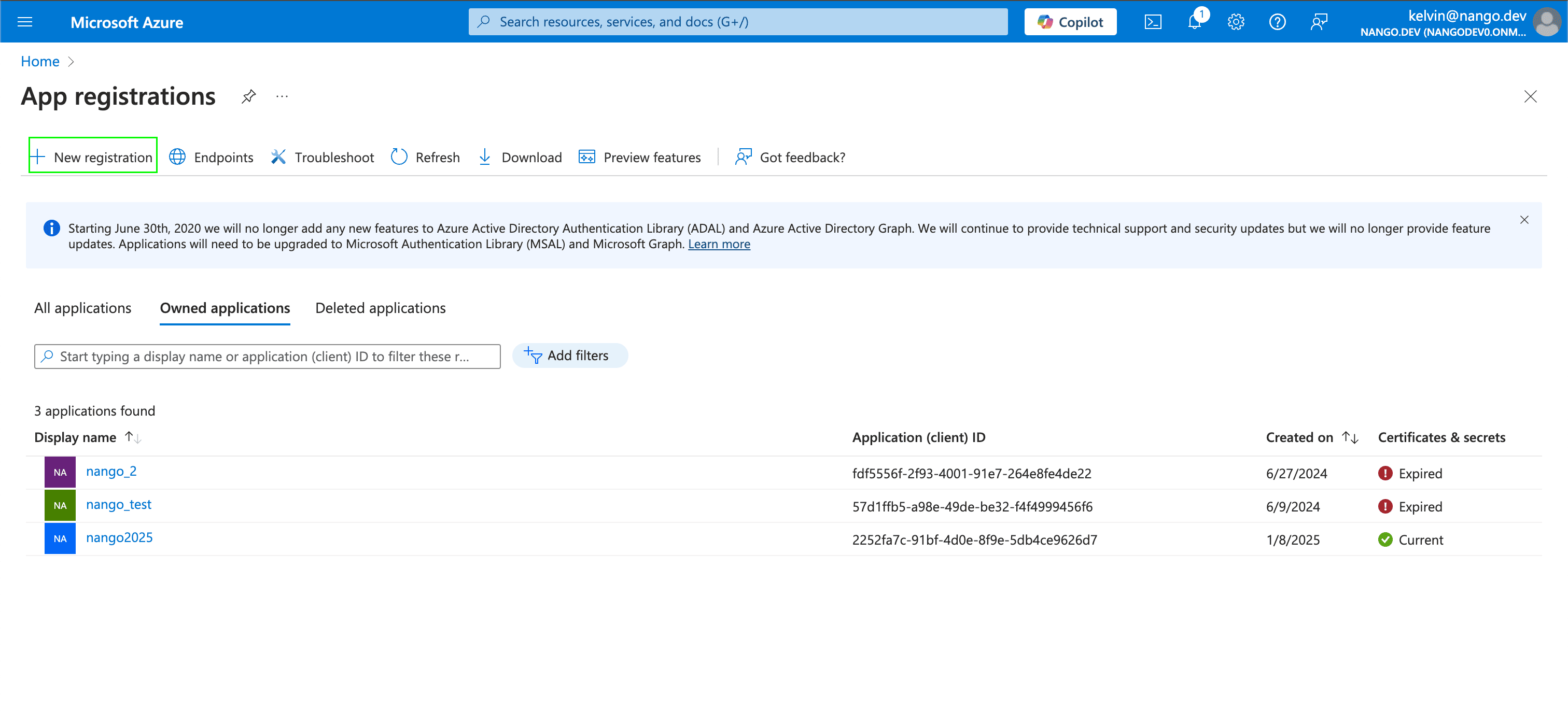
- Select New registration, give your application a name, and click Register.
- Once registered, your Client ID is shown in the Application (client) ID field under Essentials.
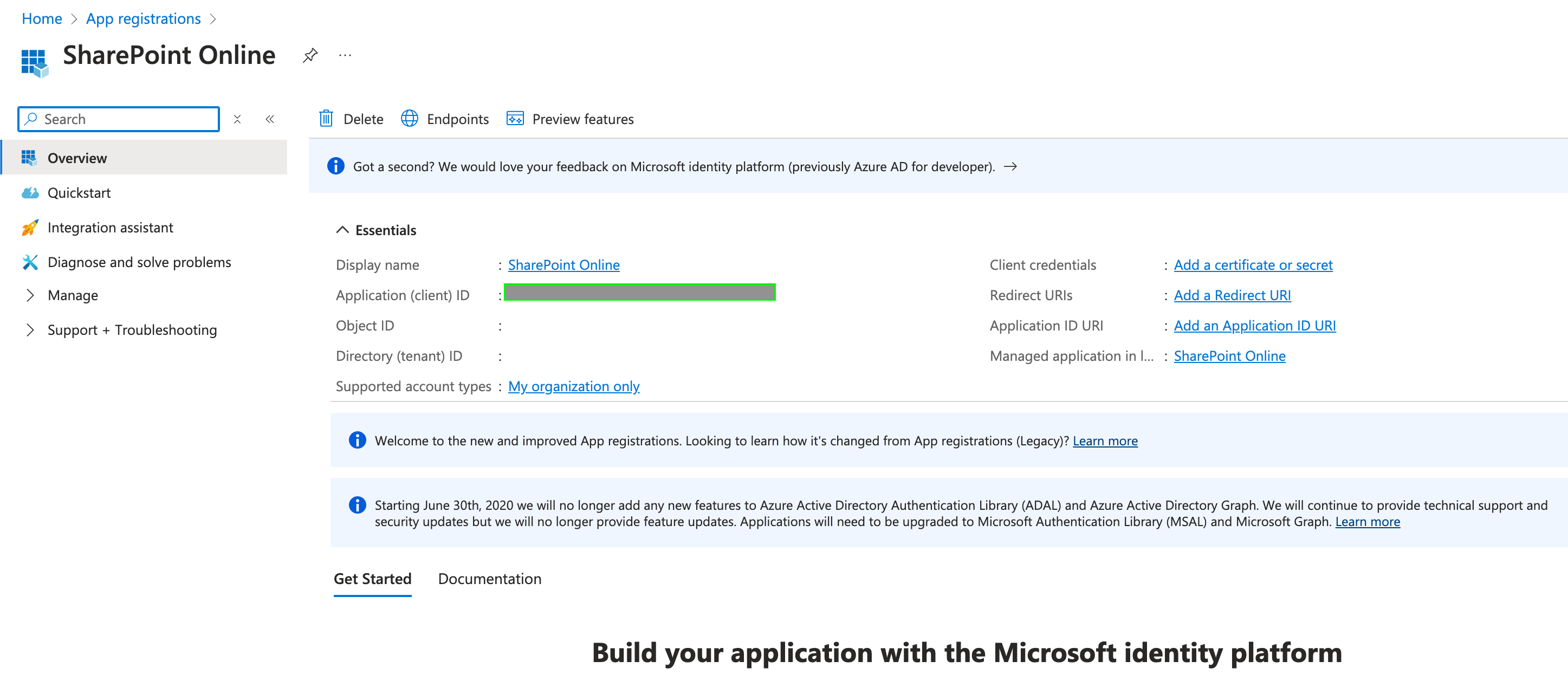
Step 3: Generating a certificate and uploading it to Azure
- Generate an RSA private key and a self-signed certificate using OpenSSL:
private_key.pem (your private key) and certificate.pem (your certificate).
- In your app registration, navigate to Certificates & secrets → Certificates → Upload certificate, and upload
certificate.pem.
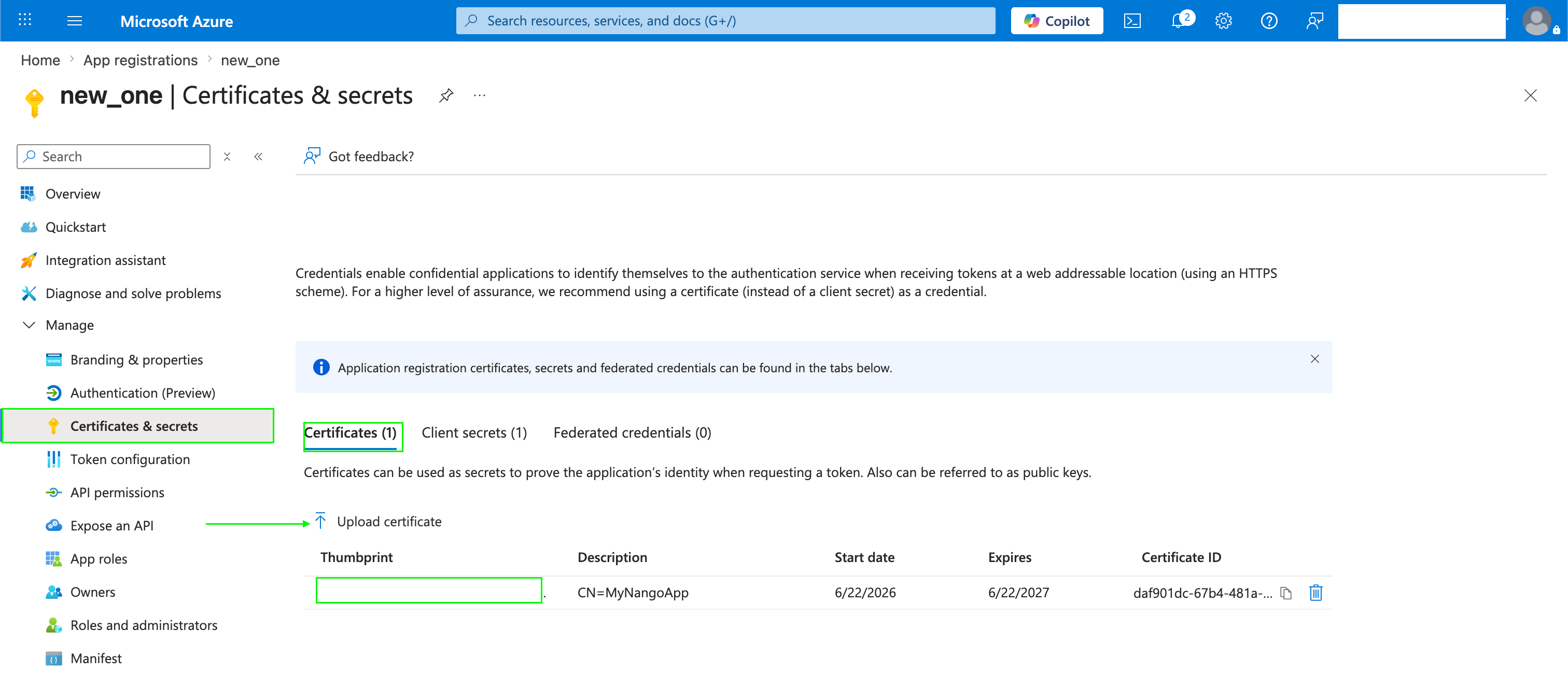
- After uploading, Azure confirms the certificate was registered.
Step 4: Computing the Certificate Thumbprint (x5t)
Thex5t#S256 value is the base64url-encoded SHA-256 thumbprint of your certificate. Run this command against your local certificate.pem to compute it:
Step 5: Granting API permissions
- In your app registration, go to API permissions → Add a permission → Microsoft Graph.
- Select Application permissions, choose the permissions your app requires, and click Add permissions.
- Click Grant admin consent to activate the permissions.
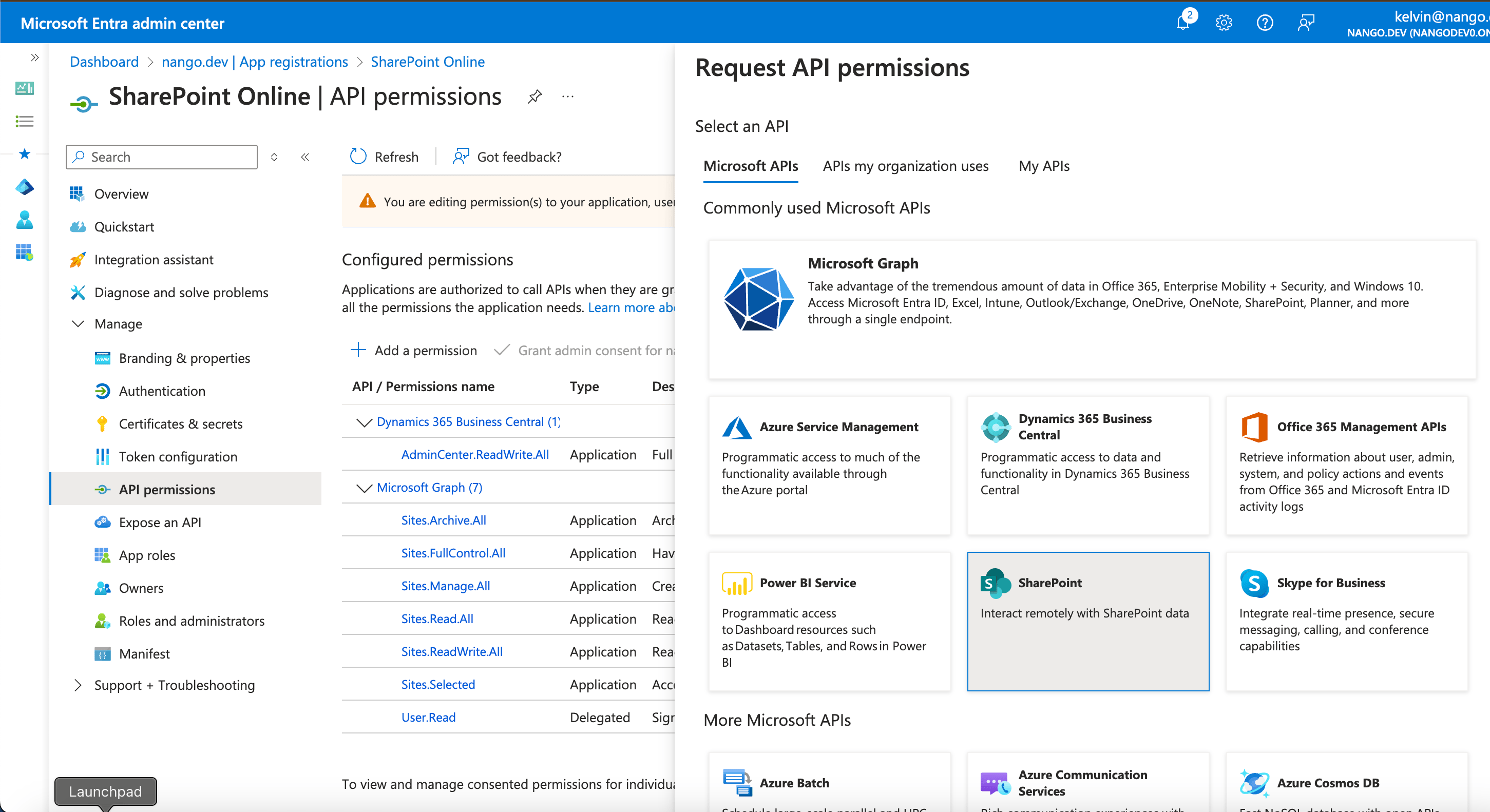
Step 6: Enter credentials in the Connect UI
Once you have all credentials:- Open the connection form in Nango.
- Enter the Tenant ID, Scope, Client ID, the contents of
private_key.pemas Private Key, and the computed value as Certificate Thumbprint (x5t#S256). - Submit the form to authenticate.