Overview
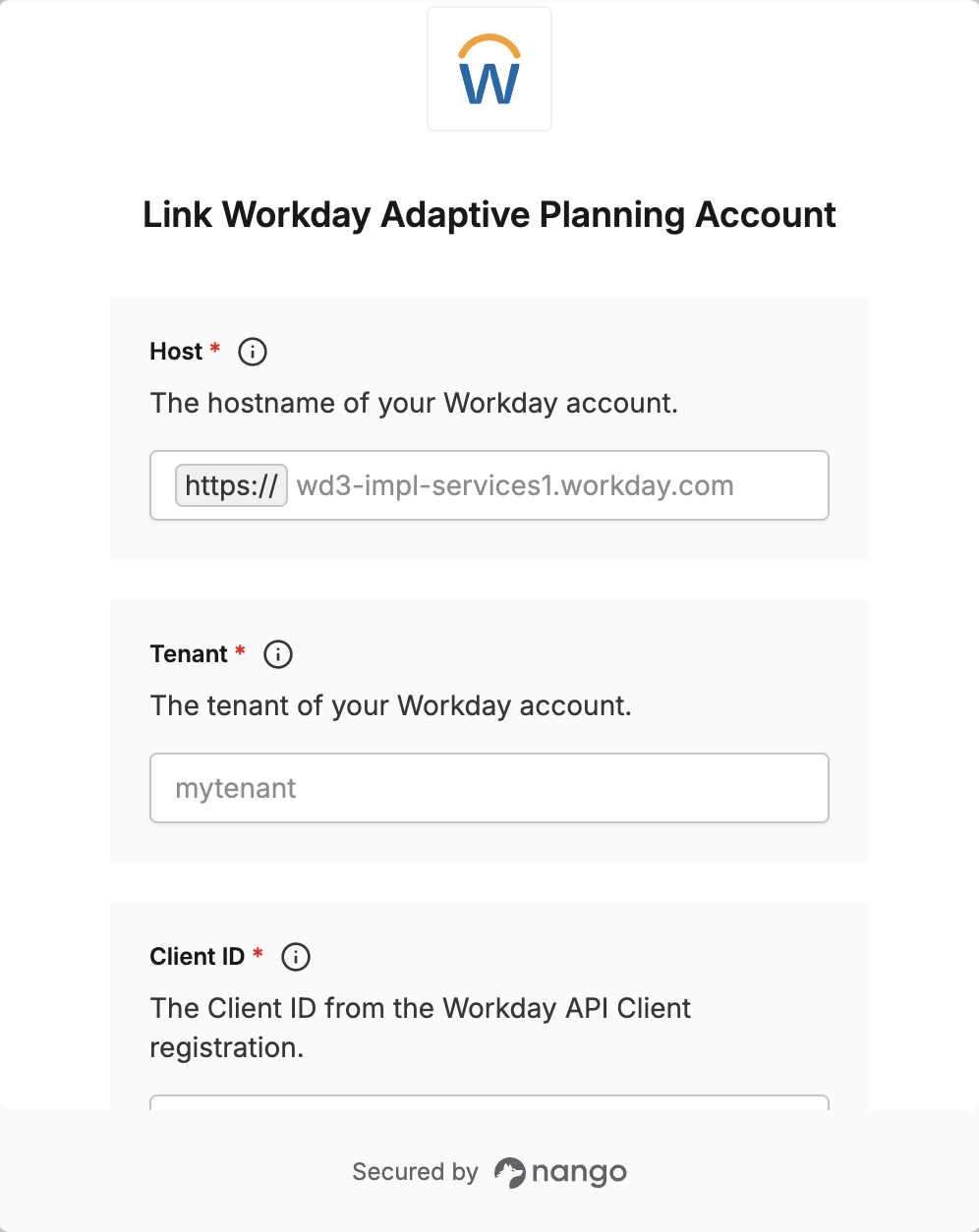
To authenticate with Workday Adaptive Planning, you need:- Host - The hostname of your Workday instance (used for API calls and token requests).
- Tenant - The unique identifier for your Workday tenant.
- Client ID - From your registered Workday API client (with JWT Bearer Grant and Adaptive Planning scope).
- ISU Username - The Integration System User username (beginning with
PublicAPIISU_). - Private Key - The RSA private key (PKCS8 PEM format) used to sign the JWT — generated alongside the certificate registered in your Workday API client.
Prerequisites
- A Workday administrator account.
- OpenSSL installed on your machine.
Instructions
Step 1: Generate a certificate and private key
JWT authentication requires an X.509 certificate and the private key used to sign it. You will create two files:- privatekey_workday.key – Your private key (PKCS8 format). Use this as the Private Key in Nango.
- cert_workday.pem – The self-signed certificate. Upload this to Workday as an X.509 Public Key.
- Open a terminal and change to a directory where you want to store the files (e.g.
mkdir ~/cert && cd ~/cert). - Generate a self-signed certificate and RSA key:
This creates
cert_workday.pem(the certificate) andkey.pem(an encrypted RSA key). - Convert the RSA key to PKCS8 format:
This creates
privatekey_workday.key— the private key you will enter in Nango.
Step 2: Register the certificate in Workday
- Log in to Workday using your administrator account.
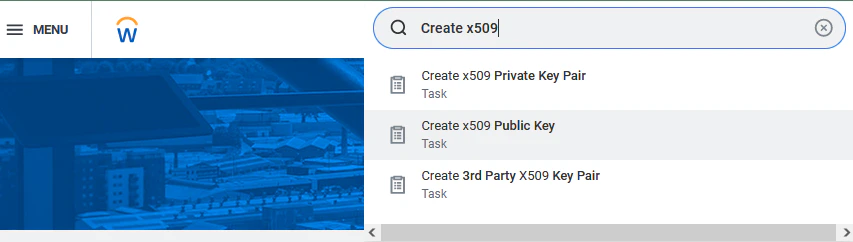
- In the search bar, type Create x509 Public Key and select it from the results.
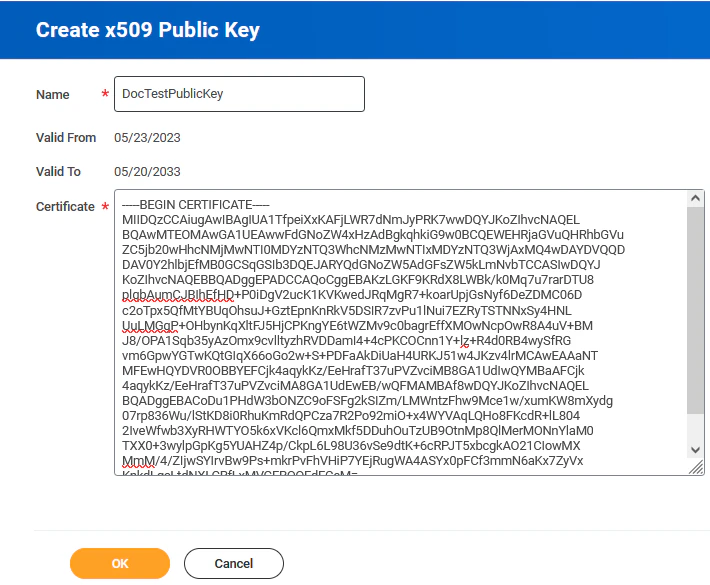
- Enter a name for the key in the Name field.
- Copy the full contents of
cert_workday.pem(including the-----BEGIN CERTIFICATE-----and-----END CERTIFICATE-----lines) and paste it into the Certificate field. - Click OK.
Step 3: Register an API client
- In the search bar, type Register API Client and select it from the results.
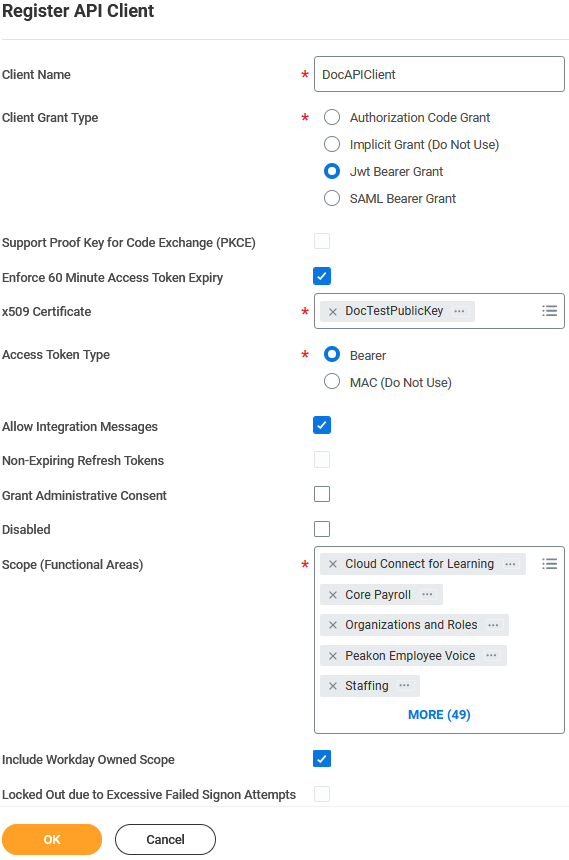
- Fill in all required fields (marked with red stars).
- Under grant type, select JWT Bearer Grant.
- Under token type, select Bearer.
- Under scope, select Adaptive Planning.
- Associate the X.509 public key you created in Step 2 with this API client.
- Click OK.
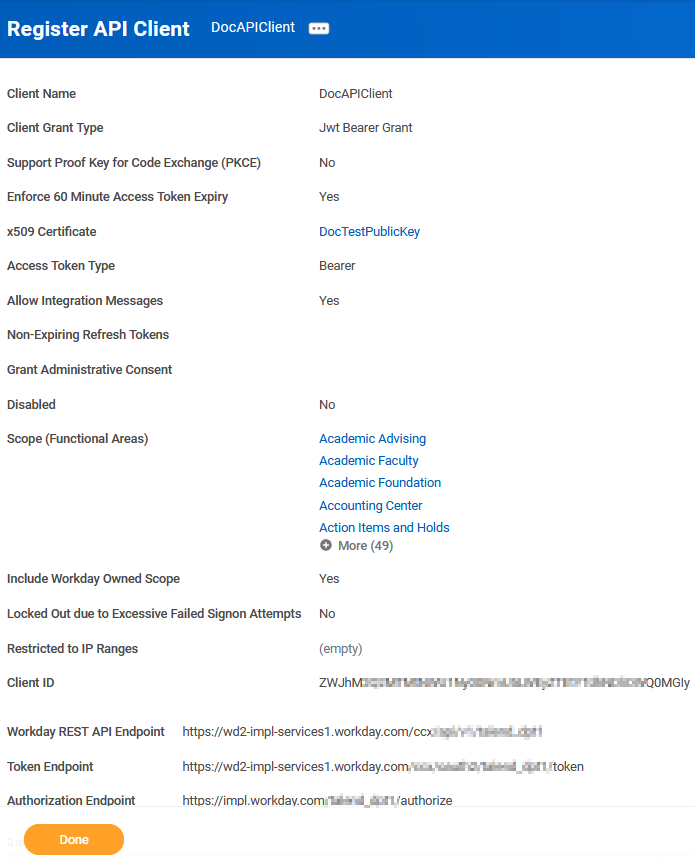
- On the confirmation page, copy and save the following values for later:
- Client ID
- Token Endpoint (used to extract your Host and Tenant — see Step 5)
Step 4: Assign your ISU to a security group
- In the search bar, type Assign Users to User-Based Security Group and select it.
- Click in the User-Based Security Group field and select the appropriate security group for Adaptive Planning.
- Add your Integration System User (ISU) to the group.
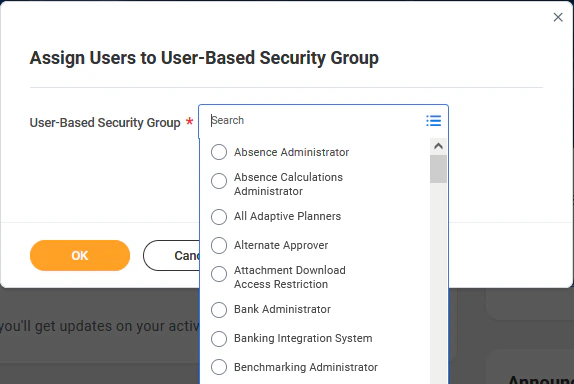
- Click OK. Repeat for any additional security groups as needed.
Step 5: Find your Host and Tenant
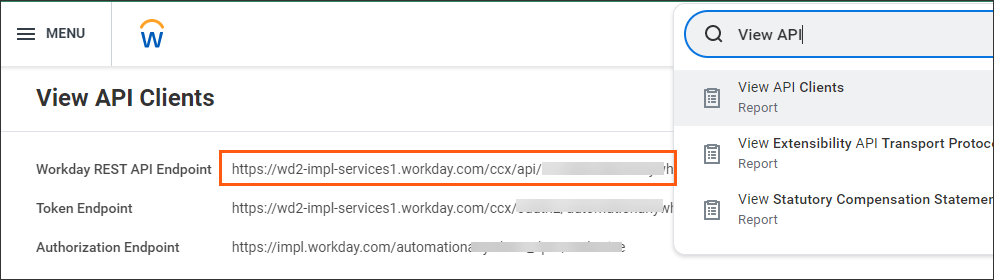
Look at the Token Endpoint you saved in Step 3. It follows this format:- Host: the segment after
https://and before/ccx(e.g.wd3-impl-services1.workday.com) - Tenant: the segment after
/oauth2/and before/token(e.g.mytenant_abc)
Step 6: Find your ISU Username
- In Workday, search for Integration System Users.
- The ISU username used for Adaptive Planning starts with
PublicAPIISU_. - You can also verify this in Adaptive Planning under the users list — the ISU should appear there with the same
PublicAPIISU_prefix.
Step 7: Enter credentials in the Connect UI
Once you have all five values:- Open the form where you need to authenticate with Workday Adaptive Planning.
- Enter your Host, Tenant, Client ID, ISU Username, and Private Key in their designated fields.
- Submit the form, and you should be successfully authenticated.