Overview
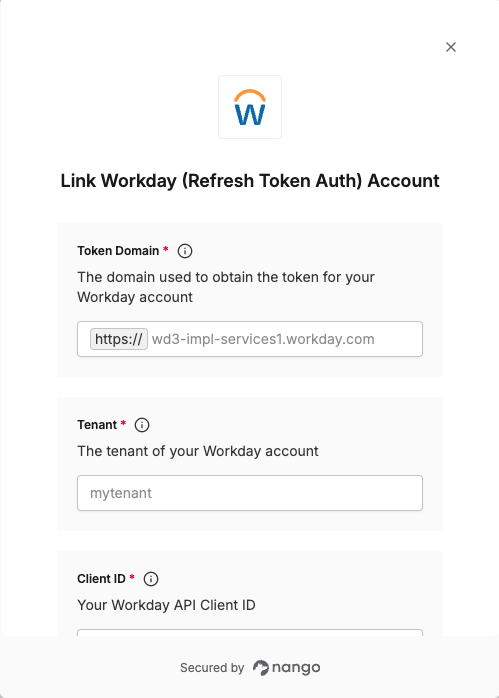
To authenticate with Workday (Refresh Token), you will need:- Token Domain - The domain used to obtain tokens for your Workday account
- Tenant - The tenant of your Workday account
- Client ID - Your Workday API Client ID
- Client Secret - Your Workday API Client Secret
- Refresh Token - Your Workday refresh token for the Integration System User (ISU)
Prerequisites:
- You must have an active Workday account with administrator access
- You must have access to register API clients for integrations
Instructions:
Step 1: Finding your Token Domain
- Log in to your Workday instance.
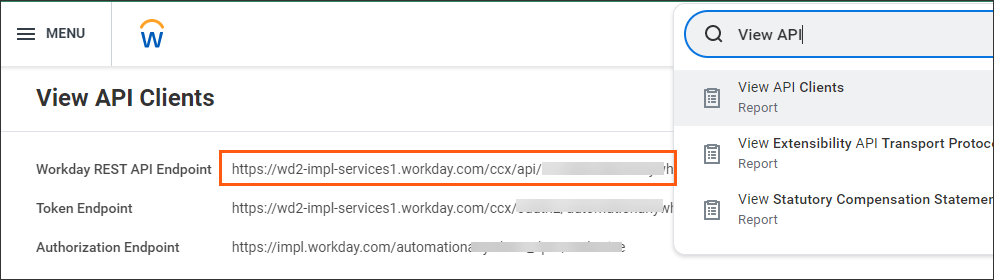
- In your Workday homepage, go to the search bar and type View API Clients then select it.
- You can locate your Token Domain within the Token Endpoint field.
- The Token Domain is everything after
https://and beforeccx.
- Example: If the endpoint is
https://wd2-impl-services1.workday.com/ccx/oauth2/acme/token, your Token Domain iswd2-impl-services1.workday.com.
Step 2: Finding your Tenant
- In the same Token Endpoint field from the View API Clients report, the Tenant is the final part of the URL after
/oauth2/and before/token.
- Example: If the endpoint is
https://wd2-impl-services1.workday.com/ccx/oauth2/acme/token, your Tenant isacme.
Step 3: Registering an API Client
- Navigate to Register API Client for integration in your Workday instance
- Click Register API Client for Integrations
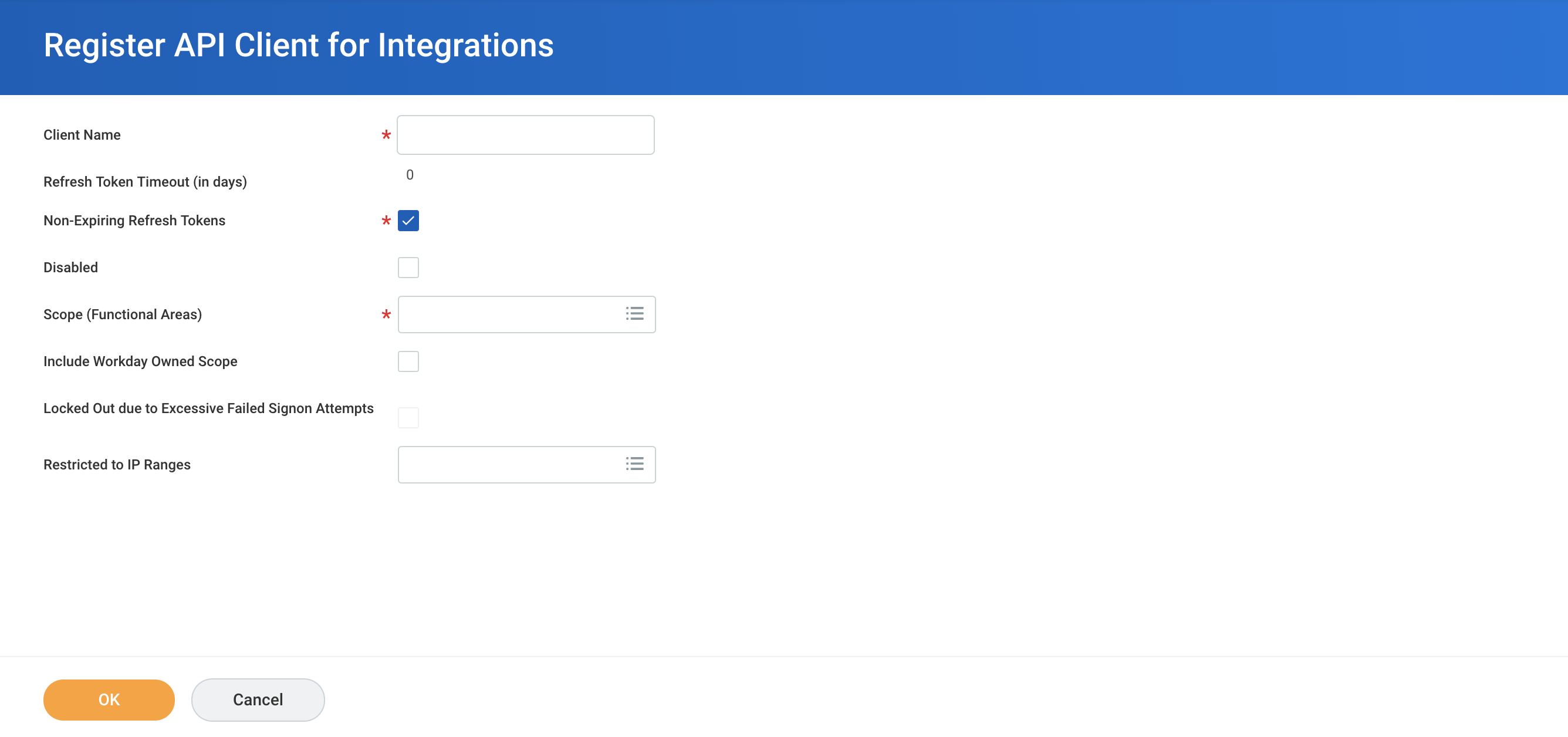
- Enter a meaningful name to indicate that this API client is used for your integration (e.g., “Nango Integration”)
- Select Non-Expiring Refresh Tokens to ensure long lived access
- Select all the OAuth2 scopes and Functional Area scopes that you need for the recipes you intend to create
- Save the Client ID and Client Secret before clicking Done. These will be required to create a Workday connection
Step 4: Generating a Refresh Token
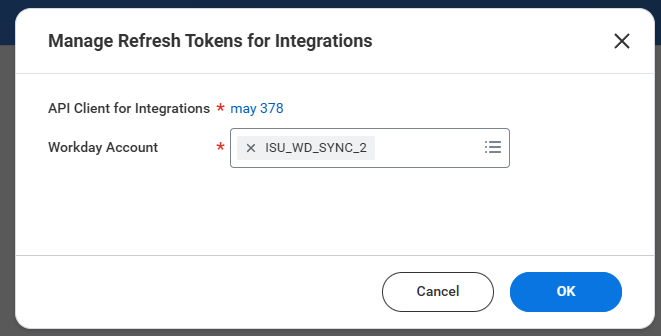
After registering your API client, you need to generate a refresh token for your Integration System User (ISU).- Navigate to Action > API Client > Manage Refresh Tokens for Integrations
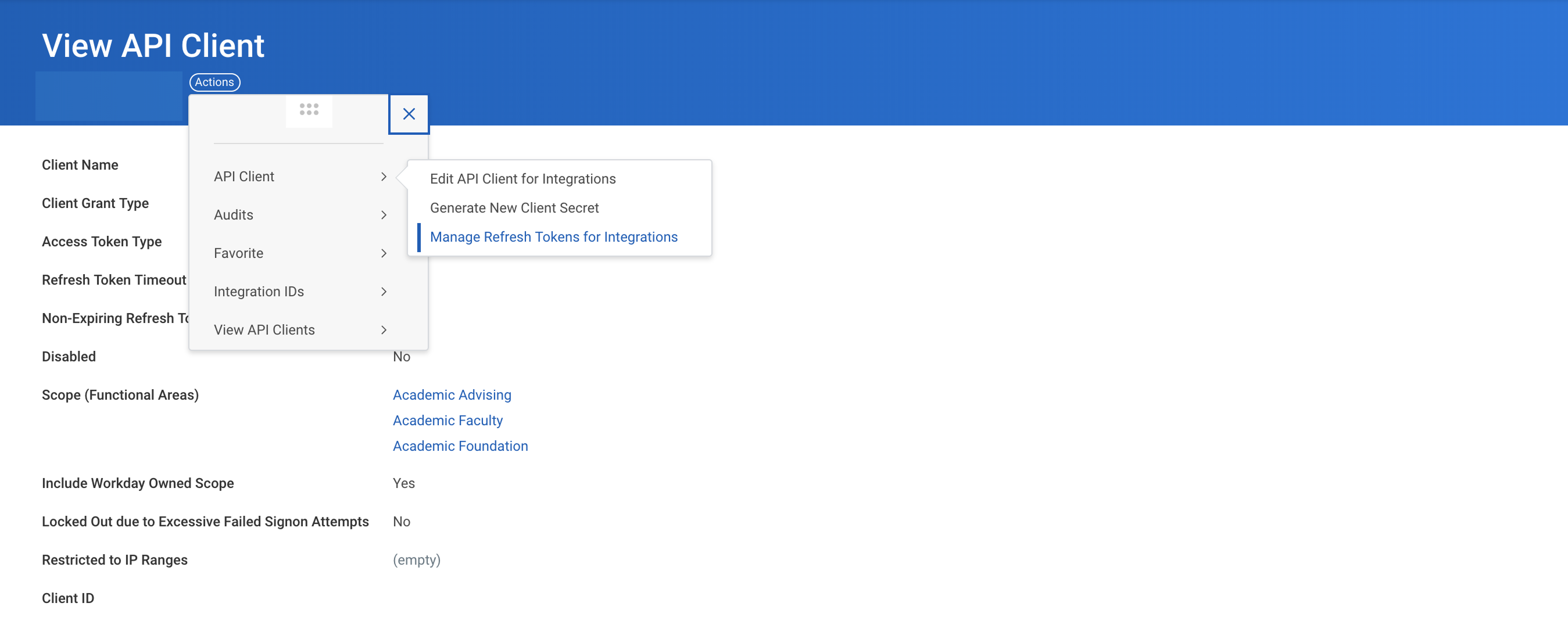
- Select the Integration System User (ISU) to perform all integration actions
- If there are no existing refresh tokens, select Generate new refresh token
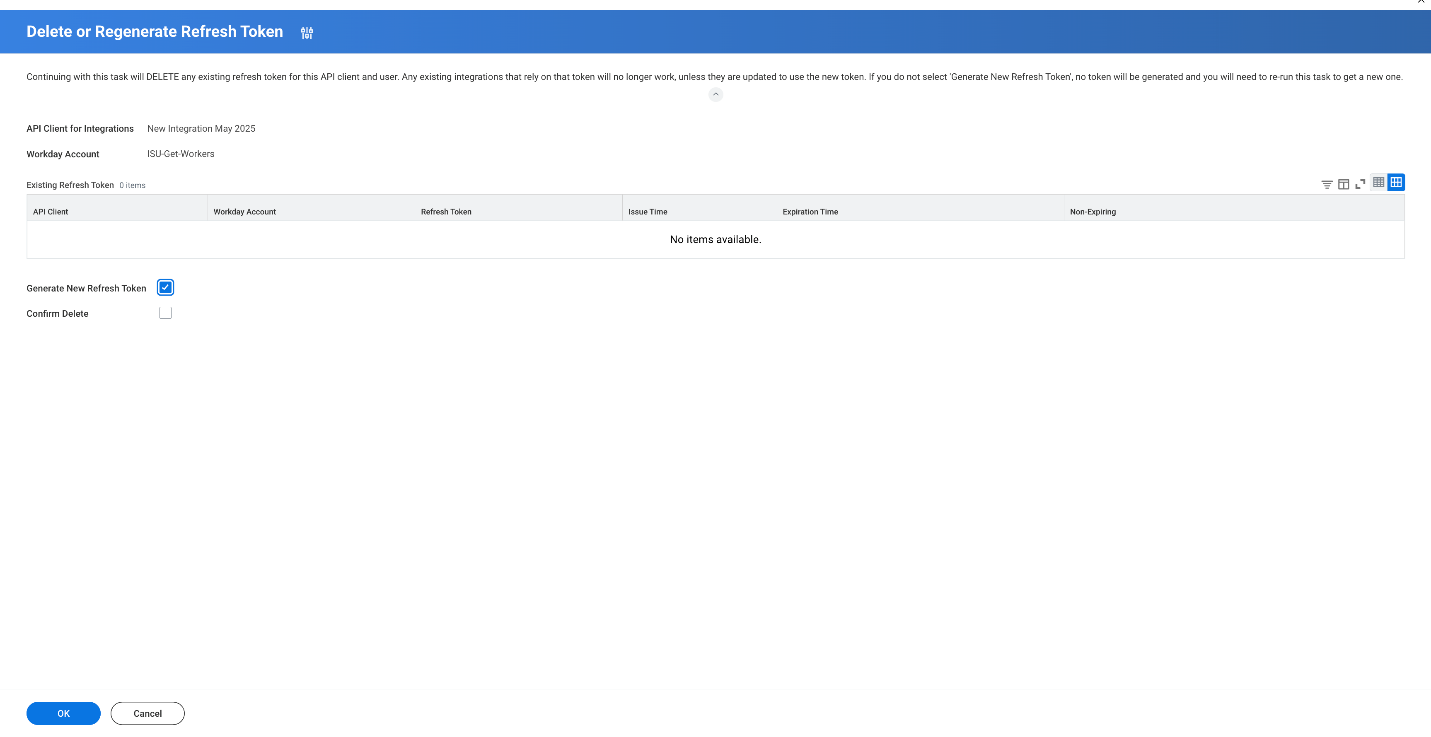
- Copy the new Refresh Token - this will be required to create a Workday connection
Step 5: Enter credentials in the Connect UI
Once you have your Token Domain, Tenant, Client ID, Client Secret, and Refresh Token:- Open the form where you need to authenticate with Workday (Refresh Token)
- Enter your Token Domain, Tenant, Client ID, Client Secret, and Refresh Token in their respective fields.
- Submit the form, and you should be successfully authenticated