Overview
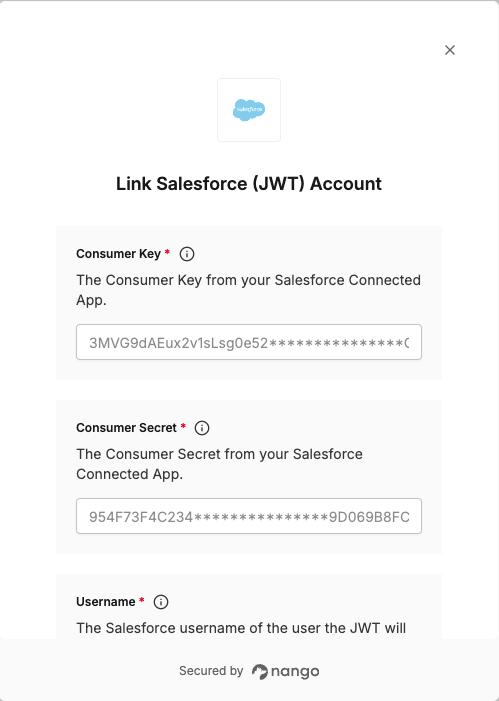
To authenticate with Salesforce using JWT, you need:- Consumer Key – from your Salesforce External Client App
- Consumer Secret – from your Salesforce External Client App
- Private Key – the private key that matches the certificate you upload to the External Client App
- Username – the Salesforce user the JWT will act on behalf of
- Authorization server’s URL – the Salesforce OAuth/token endpoint base URL (see Step 6 below)
Prerequisites
- A Salesforce org
- OpenSSL installed on your machine (for generating the certificate and key)
Instructions
Step 1: Create a private key and self-signed digital certificate
JWT authentication requires a digital certificate and the private key used to sign it. We recommend using your own private key and a certificate from a certification authority (CA) for production. For getting started, you can use OpenSSL to create a self-signed certificate and key. You will create two files:- server.key – Your private key. Use this file (or its PEM content) in Nango as Private Key.
- server.crt – The digital certificate. Upload this file when creating the External Client App (under Enable JWT Bearer Flow).
- Open a terminal (macOS/Linux) or Command Prompt (Windows). Check that OpenSSL is installed by running
which openssl(macOS/Linux) orwhere openssl(Windows). - Create a directory for the files and change into it, e.g.
mkdir ~/JWT && cd ~/JWT. - Generate a private key and save it as
server.key:openssl genpkey -aes-256-cbc -algorithm RSA -pass pass:SomePassword -out server.pass.key -pkeyopt rsa_keygen_bits:2048openssl rsa -passin pass:SomePassword -in server.pass.key -out server.key
- Generate a certificate signing request: run
openssl req -new -key server.key -out server.csrand enter your company information when prompted. - Generate a self-signed certificate: run
openssl x509 -req -sha256 -days 365 -in server.csr -signkey server.key -out server.crt.
These steps are for getting started only. For production, use a key and certificate from a CA and follow your company’s security policies.
Step 2: Create a new External Client App
- Log in to Salesforce.
- Go to Setup → Apps → App Manager, then click New External Client App.
- Fill in all the required fields, for Distribution State: Choose Local.
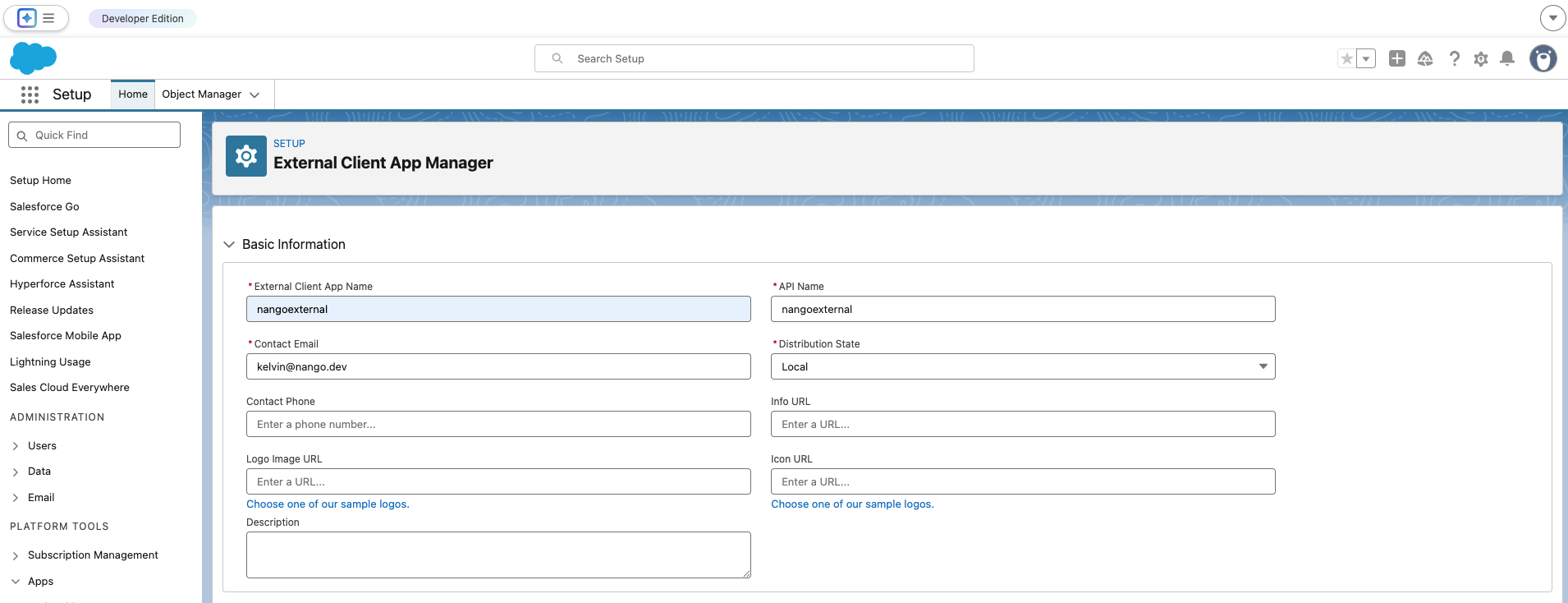
- In the API (Enable OAuth Settings) section, check Enable OAuth.
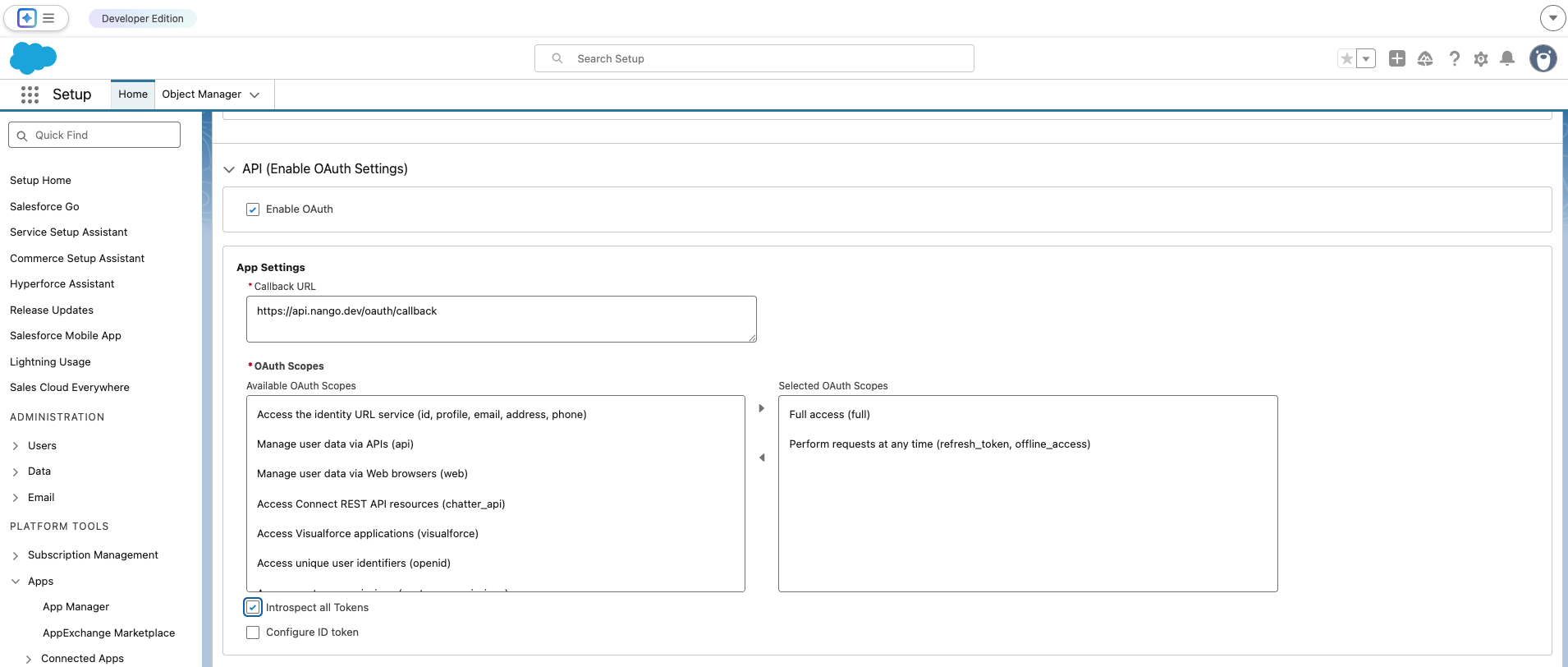
- For Callback URL, enter
https://api.nango.dev/oauth/callback. Salesforce requires this field even though JWT Bearer Flow does not use it. - Under Selected OAuth Scopes, add:
- Manage user data via APIs (api)
- Perform requests at any time (refresh_token, offline_access)
- Enable the Introspect all Tokens option.
- Under Flow Enablement, check Enable JWT Bearer Flow, then click Choose File and upload your certificate file (e.g.
server.crtfrom Step 1).
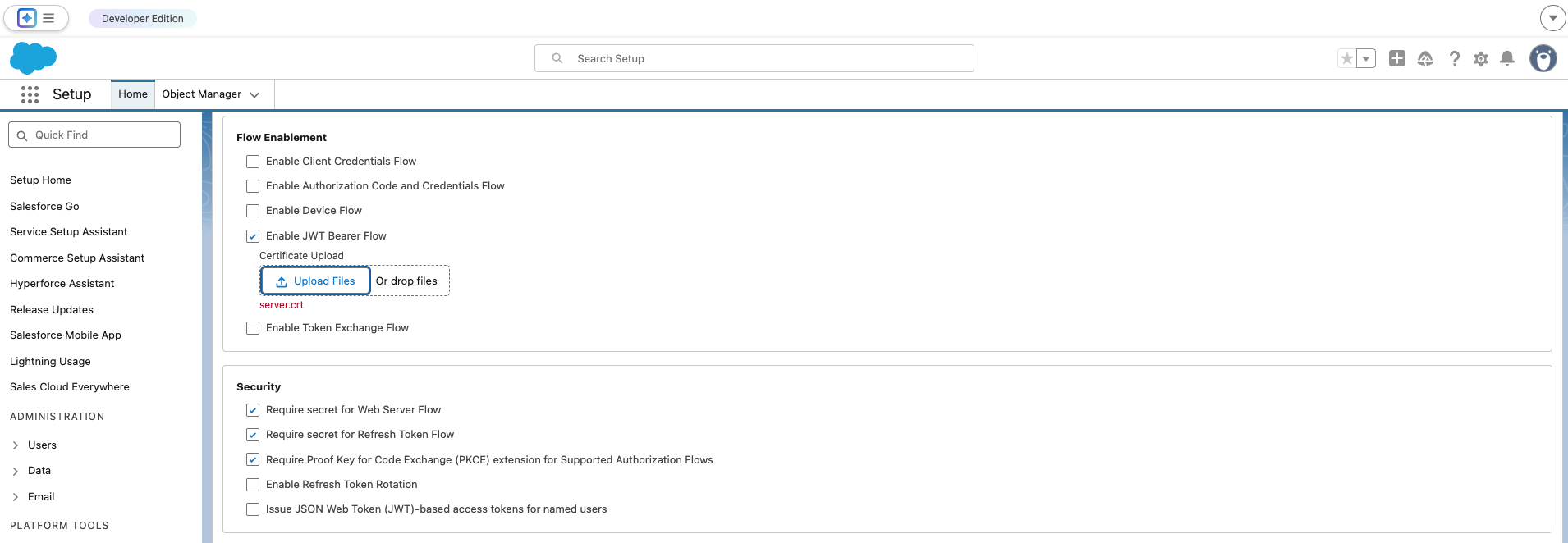
- Click Create to finish.
Step 3: Get Consumer Key and Consumer Secret
- Open your app, go to the Settings tab.
- Expand the OAuth Settings section and click Consumer Key and Secret.
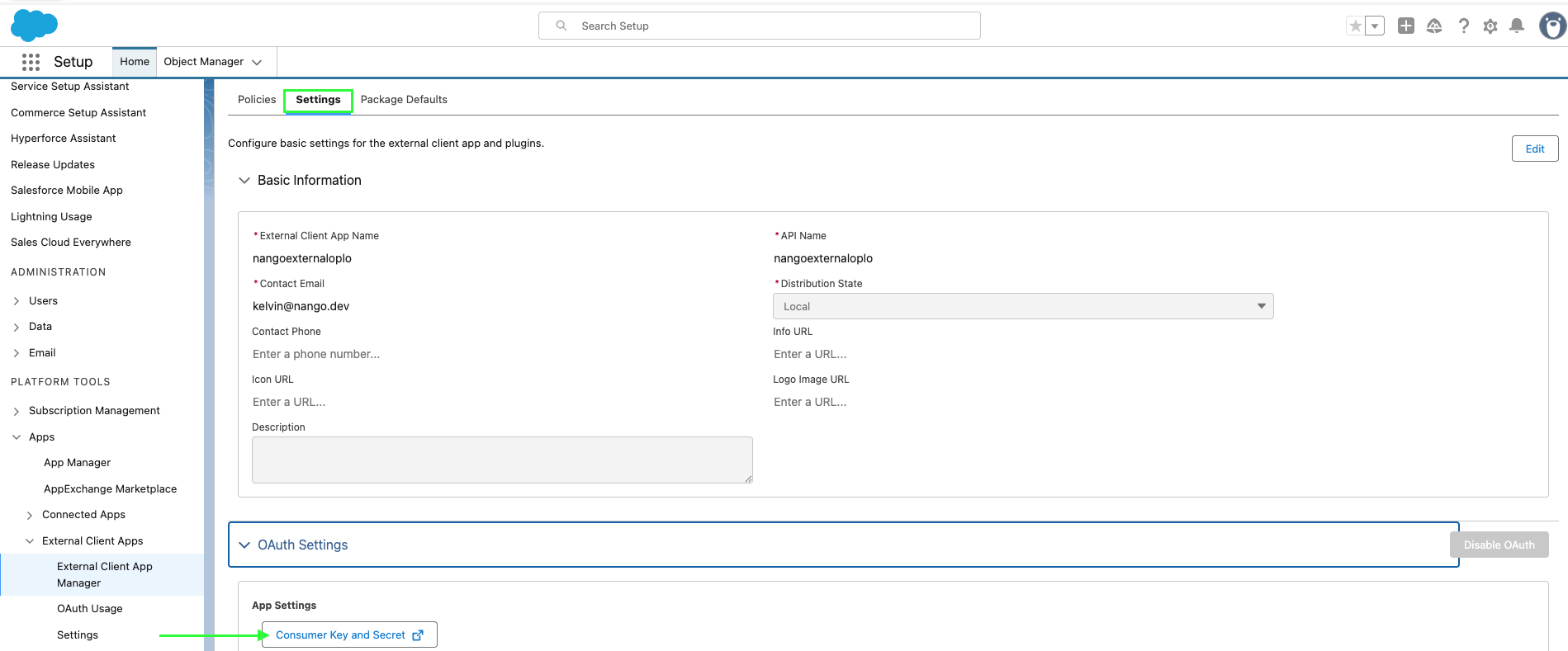
- If prompted, verify your identity (e.g. enter the code sent to your email).
- Copy the Consumer Key and Consumer Secret; you’ll need them when setting up a connection in Nango.

Step 4: Configure token and session policies
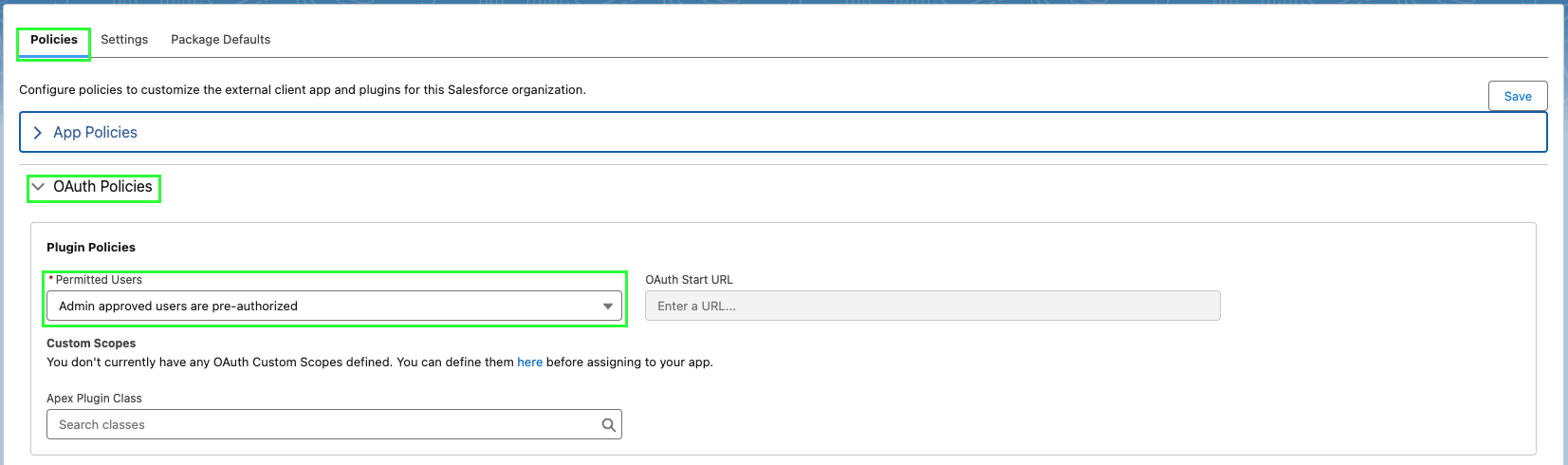
- In your app, go to the Policies tab and click Edit. Under OAuth Policies, select Admin approved users are pre-authorized, then click OK, then Save.
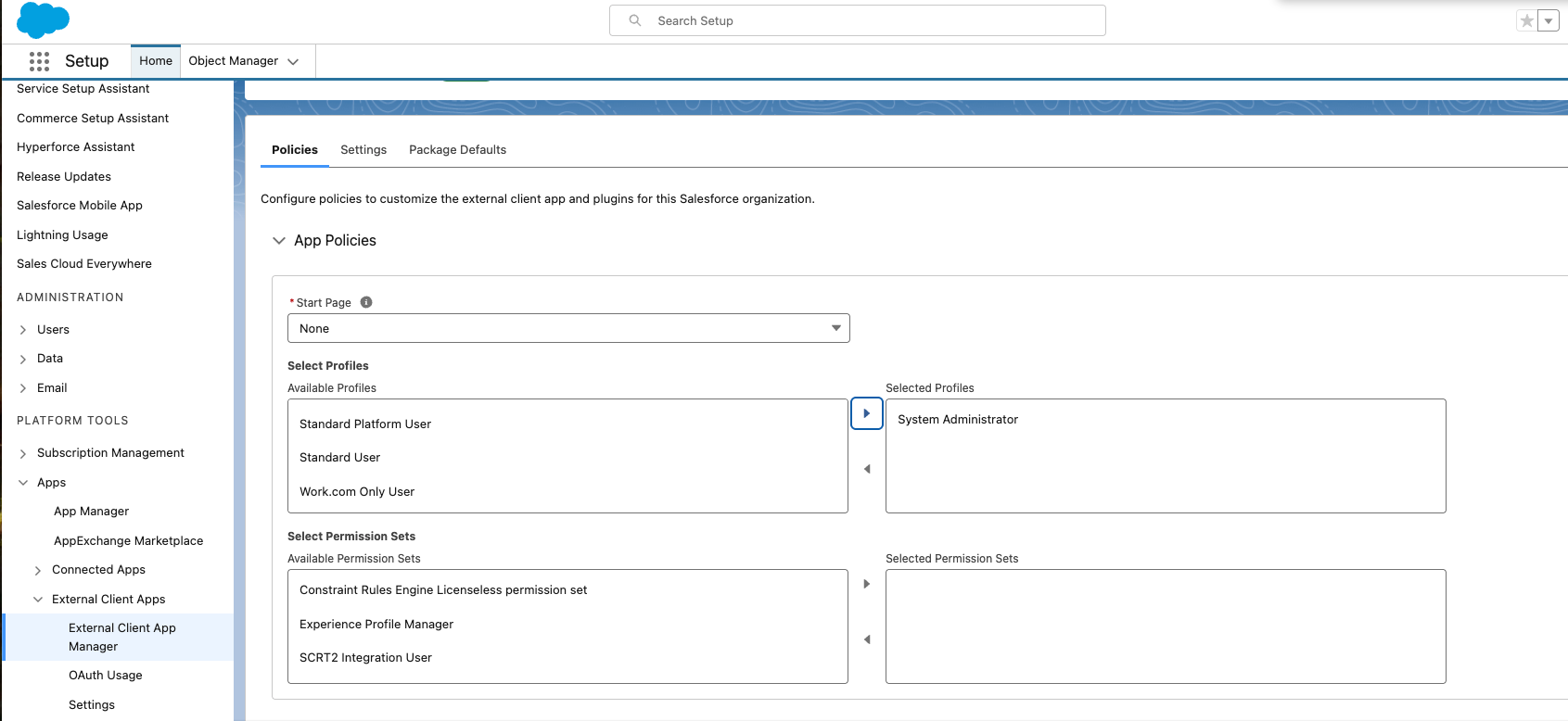
- Click App Policies, select the profiles or permission sets that can use this app, then click Save.
Step 5: Finding the authorization server URL
Use the authorization server’s URL that matches your environment:- Production:
login.salesforce.com - Sandbox:
test.salesforce.com - Experience Cloud site:
site.force.com/customers(or your Experience Cloud site URL if implementing for a site)
Step 6: Finding the username
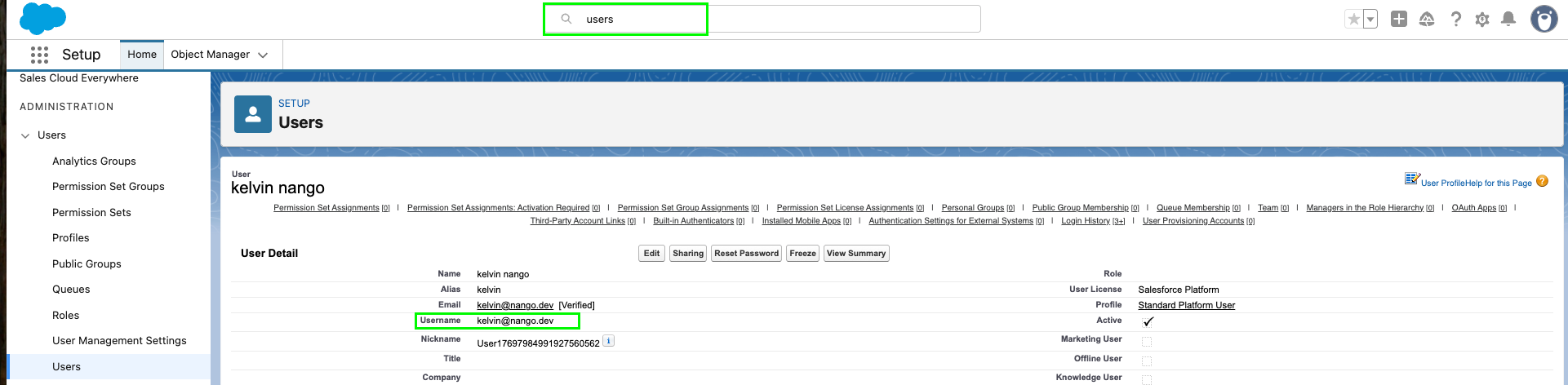
The Username you use for JWT must belong to a user who has one of the profiles you selected in Selected Profiles above. To find a valid username:- In Salesforce, go to Setup.
- In the Quick Find box, search for Users, then select Users.
- Open a user record that has one of the profiles you authorized for the External Client App.
- On the user detail page, copy the Username value.
Step 7: Enter credentials in the Connect UI
When you have your Consumer Key, Consumer Secret, Private Key, Username, and Authorization server’s URL:- Open the form where you authenticate with Salesforce JWT.
- Enter your Consumer Key, Consumer Secret, Private Key, Username, and Authorization server’s URL in their respective fields.
- Submit the form, and you should be successfully authenticated.