Overview
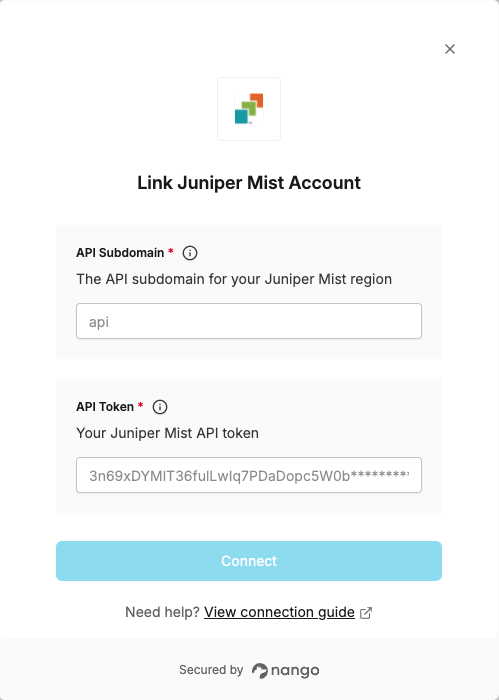
To authenticate with Juniper Mist, you will need:- API Subdomain - The API subdomain for your Juniper Mist region
- API Token - Your Juniper Mist API token (personal or organization token) for authentication.
- Personal API tokens: For individual user access
- Organization API tokens: For automated systems and service accounts
Prerequisites:
- You must have a Juniper Mist account
Instructions:
Step 1: Finding your API Subdomain
- Log in to the Juniper Mist portal.
-
Once logged in, check the address bar. Notice the first part of the URL, starting with the word
manageand ending withcom. Example:https://manage.ac2.mist.com/admin/?org_id=xxxxxxx-xxxx-xxx -
Your API endpoint is similar but starts with
apiinstead ofmanage. In the above example, the resulting API subdomain isapi.ac2. Tip: The portal URL also contains your organization ID. In the URL, the organization ID section starts with these characters:org_id=
Step 2: Generating your API Token
Choose one of the following methods based on your needs: Option A: Generate a Personal API Token (User Token)- Sign in to your Juniper Mist portal.
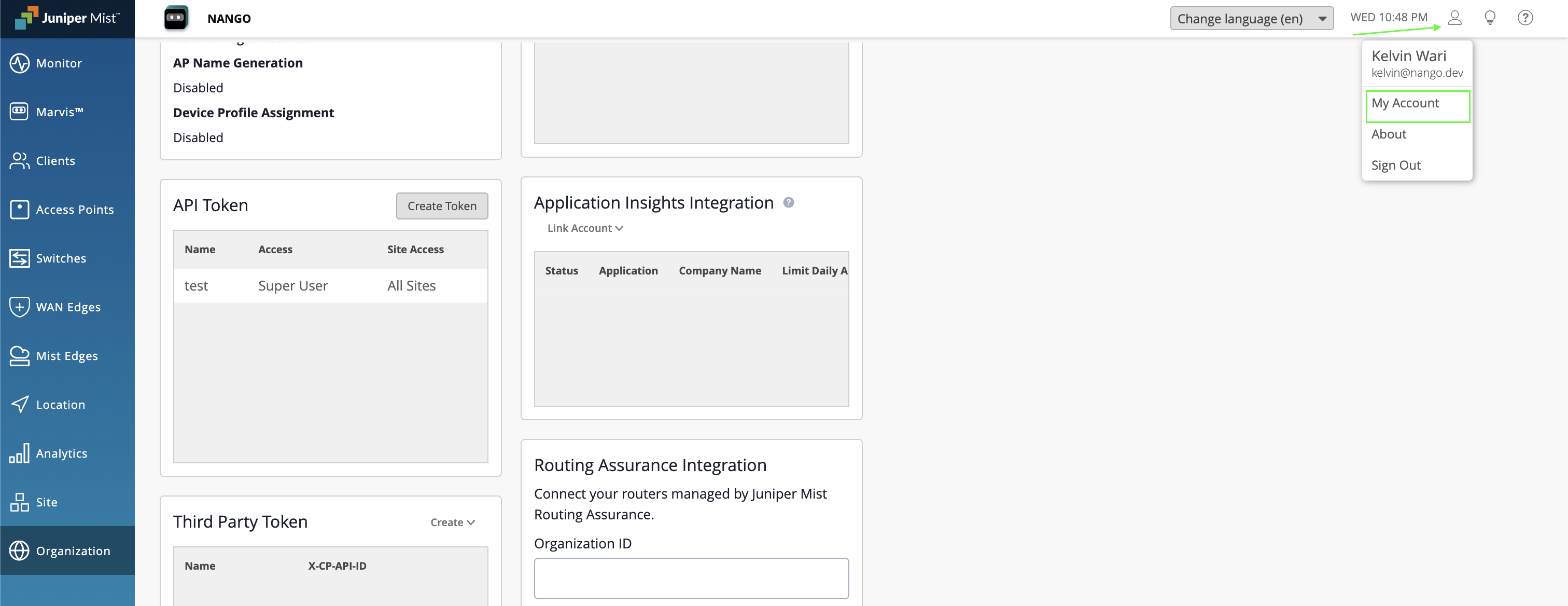
- At the top-right corner, click the Juniper Mist Account icon, then click My Account.
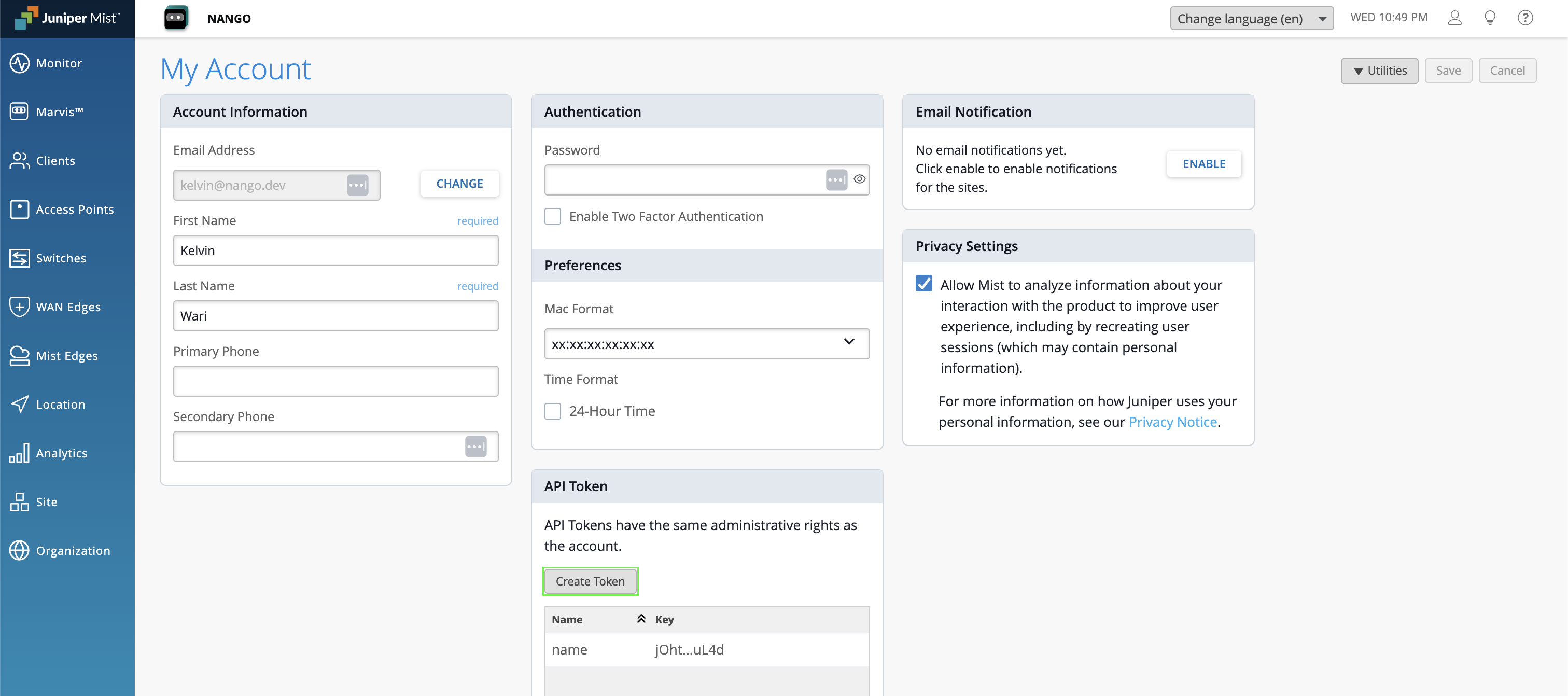
- In the API Token section, click Create Token.
- Note: If you have enabled single sign-on for your organization, you will not be able to create API user tokens.
- Enter a name for the token and click Generate.
- Click the copy button next to the Key field to copy your token.
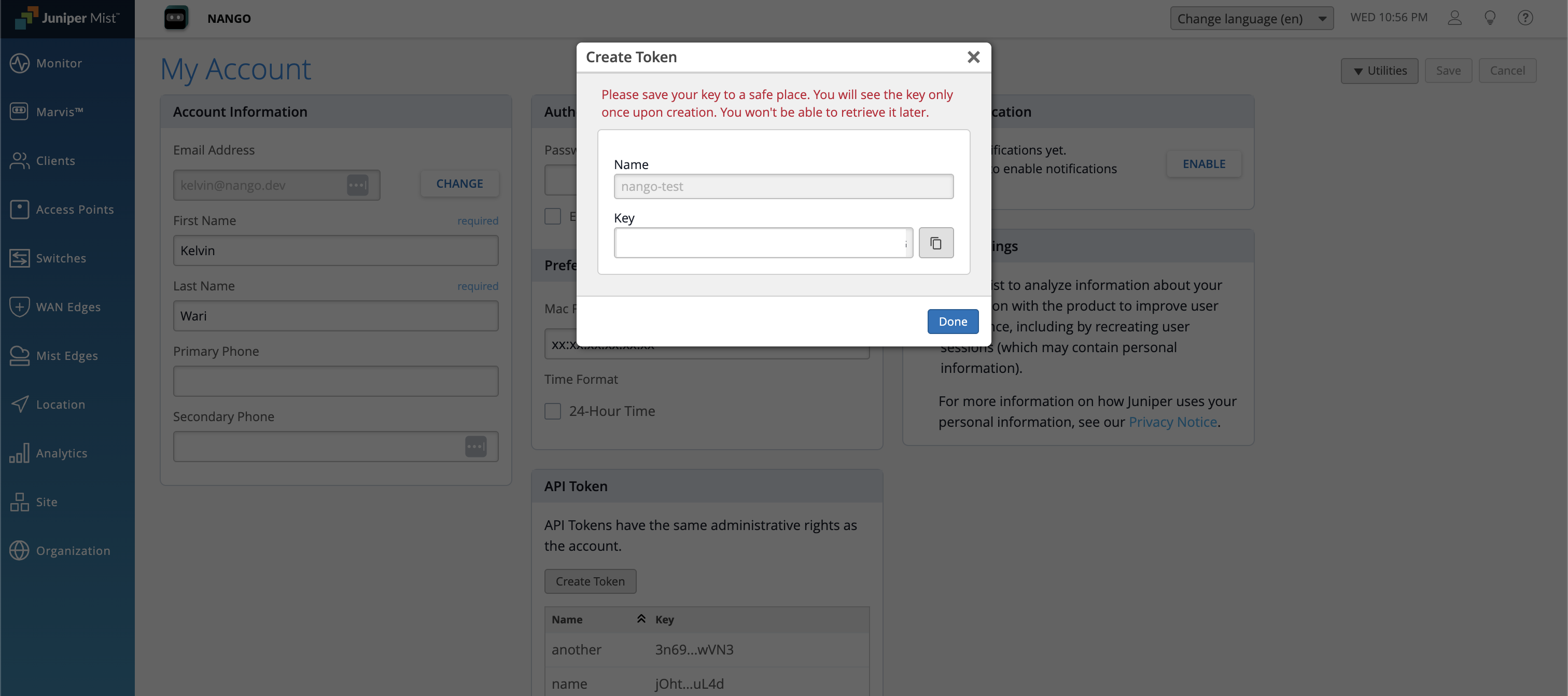
- Important: Store the key somewhere safe as you will not be able to see the full key again. If you misplace the key, you’ll need to create a new one.
- Click Done.
- Sign in to your Juniper Mist portal.
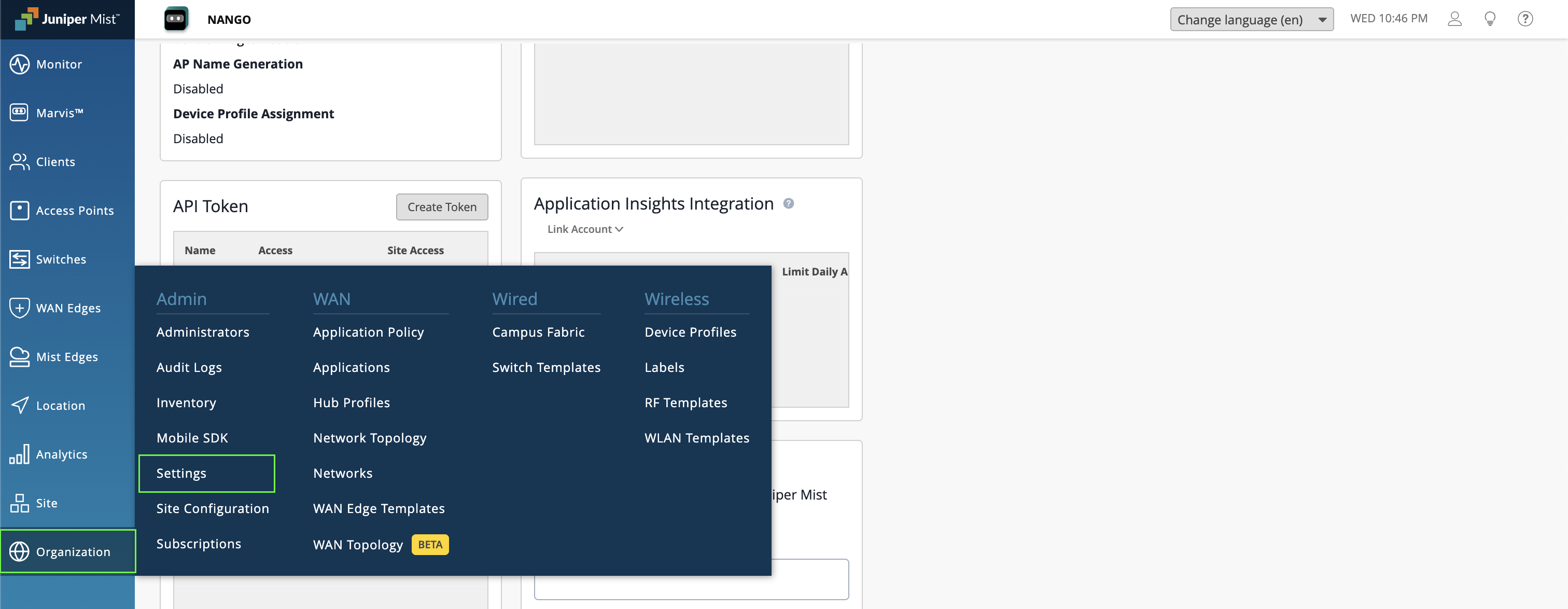
- From the left menu, navigate to Organization > Settings.
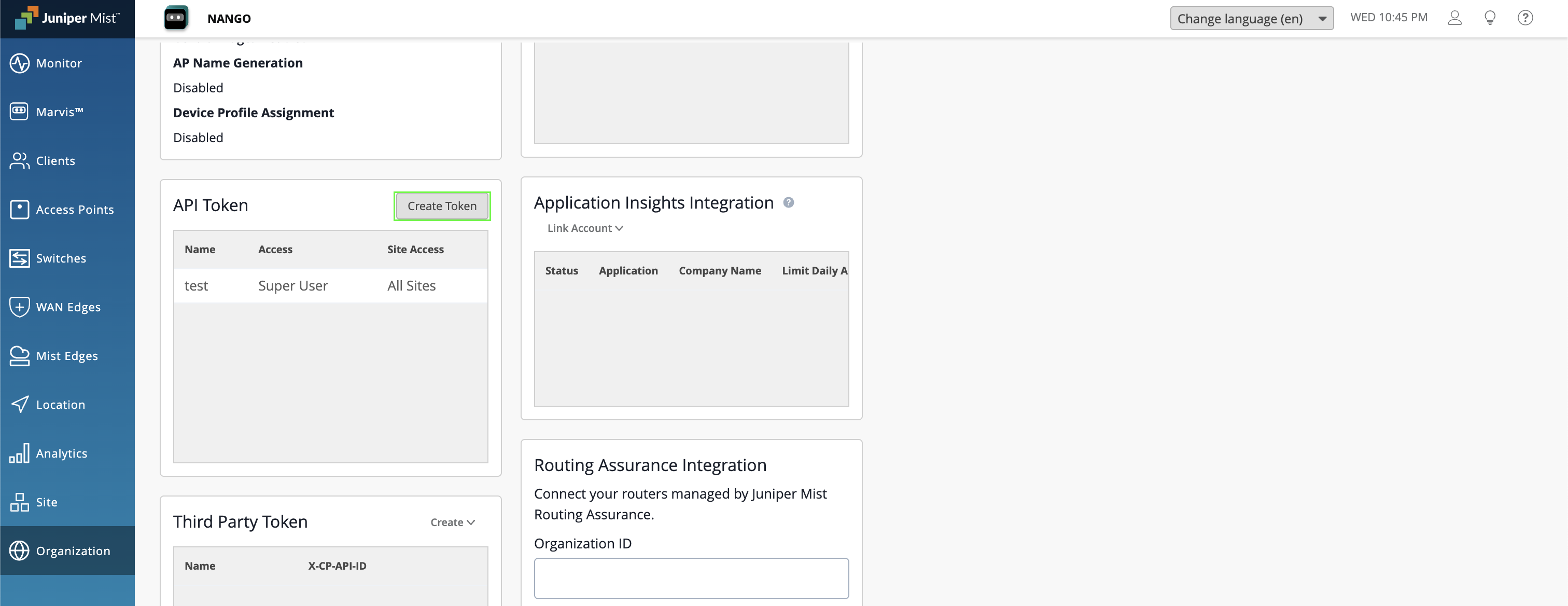
- Scroll down to the API Token section and click Create Token.
- Define the permissions for the token.
- Click Generate.
- After clicking Generate, you will see a message at the top of the window reminding you to save your key.
- Click the copy button next to the Key field to copy your token.
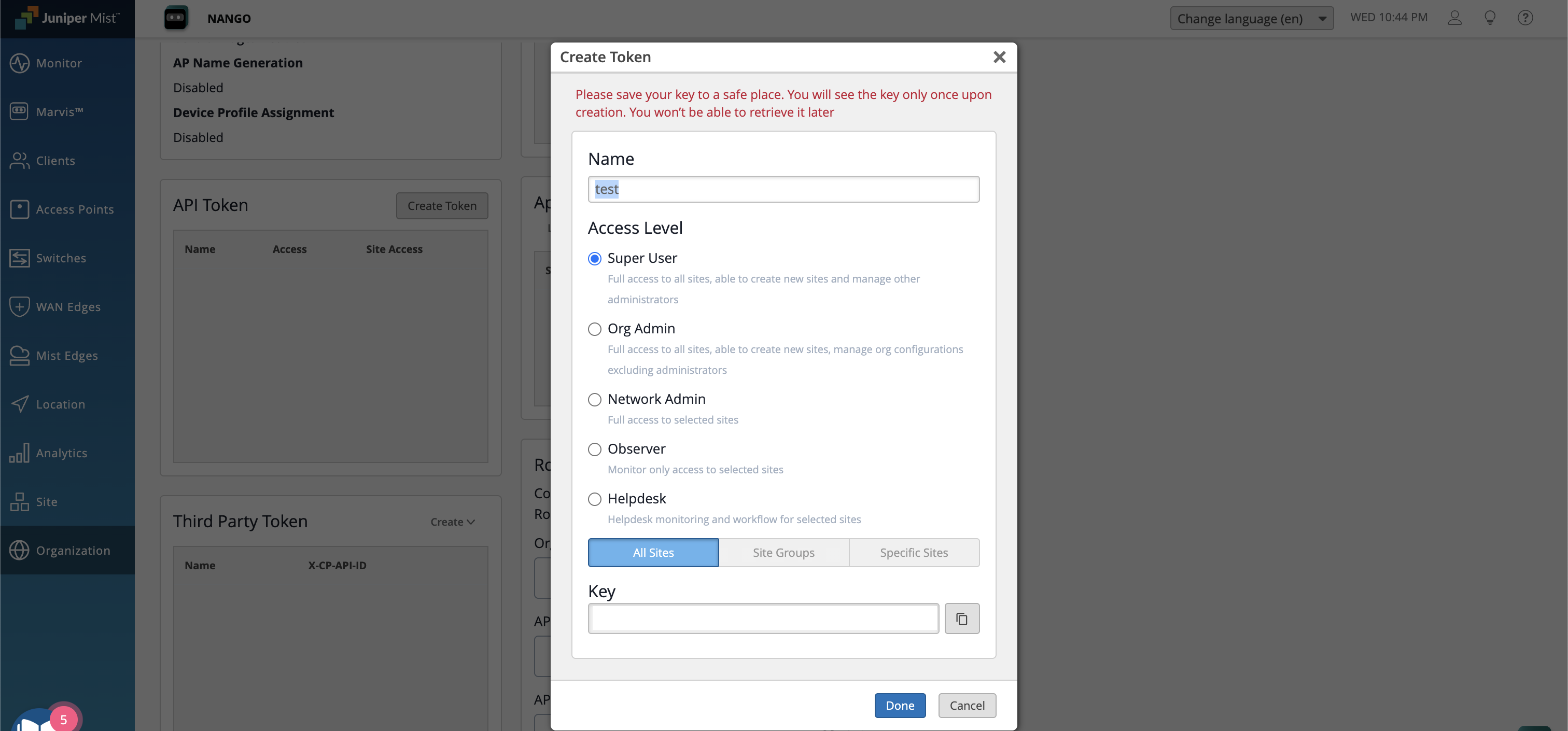
- Important: Store the key somewhere safe. The only time you will see the entire, untruncated key is upon creation. You will not be able to see the full key ever again. If you misplace the key, you will have to create a new key.
- Click Done at the bottom of the window.
- Click Save near the top-right corner of the page.
Step 3: Enter credentials in the Connect UI
Once you have your API Subdomain and API Token:- Open the form where you need to authenticate with Juniper Mist.
- Enter your API Subdomain (e.g.,
api,api.gc1,api.ac2) in the respective field. - Enter your API Token in the respective field.
- Submit the form, and you should be successfully authenticated.