Overview
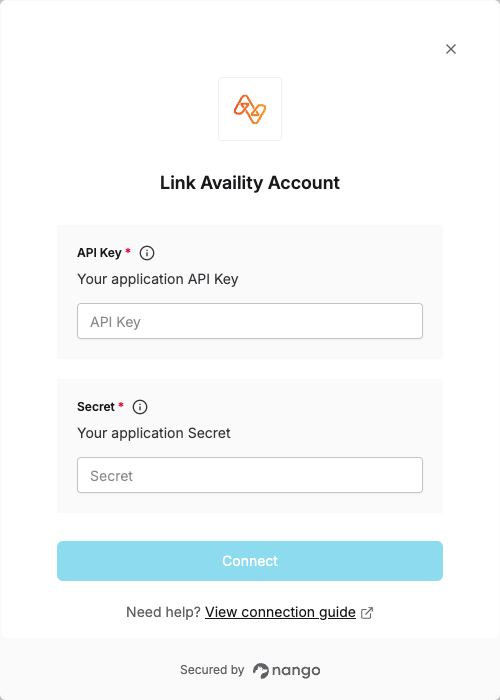
To authenticate with Availity, you need:- API Key - The API key from your approved Availity application.
- Secret - The secret key from your approved Availity application.
Prerequisites:
- You must have an Availity account.
- You need access to the Availity Development Portal.
Instructions:
Step 1: Obtaining Your Client Credentials
- Go to the Availity Development Portal and sign in. If you are not already logged in, select Portal Login at the top right of the landing page.
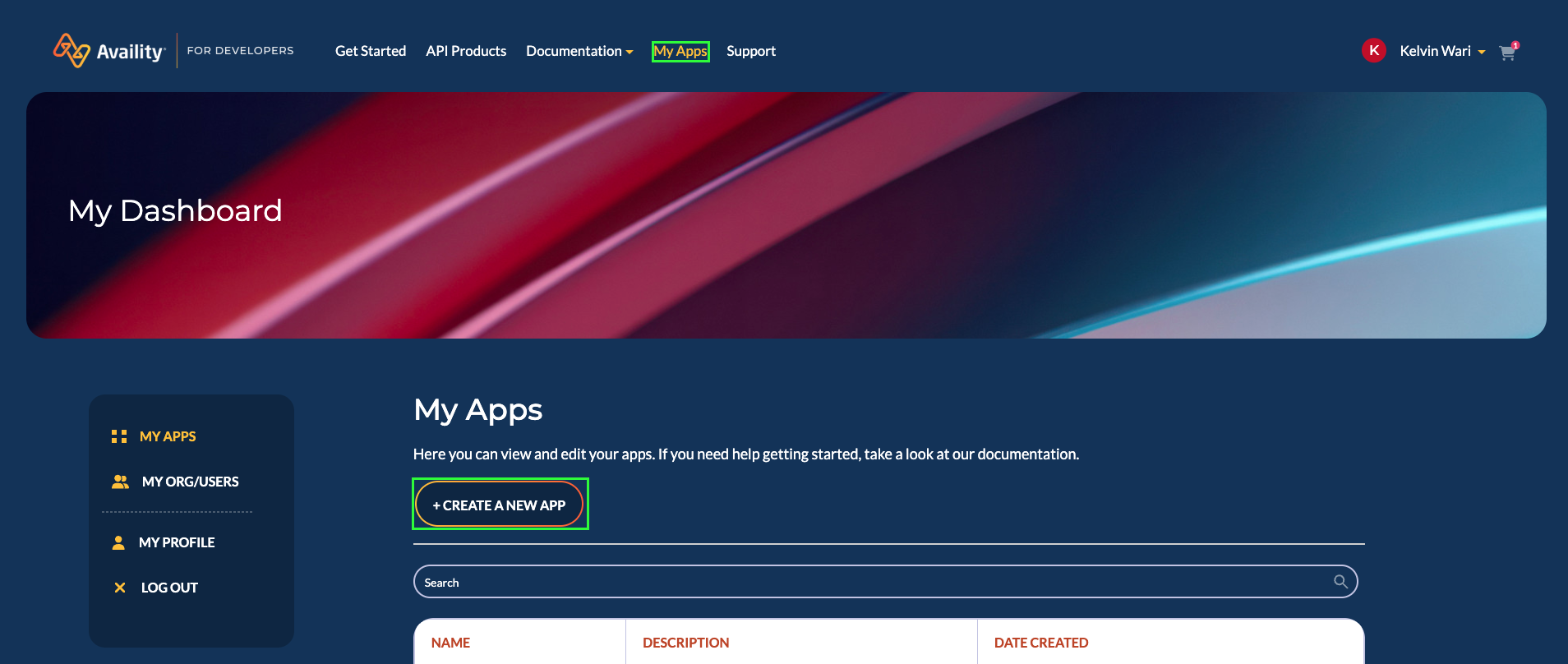
- Select My Apps in the menu bar, then select Create a New App.
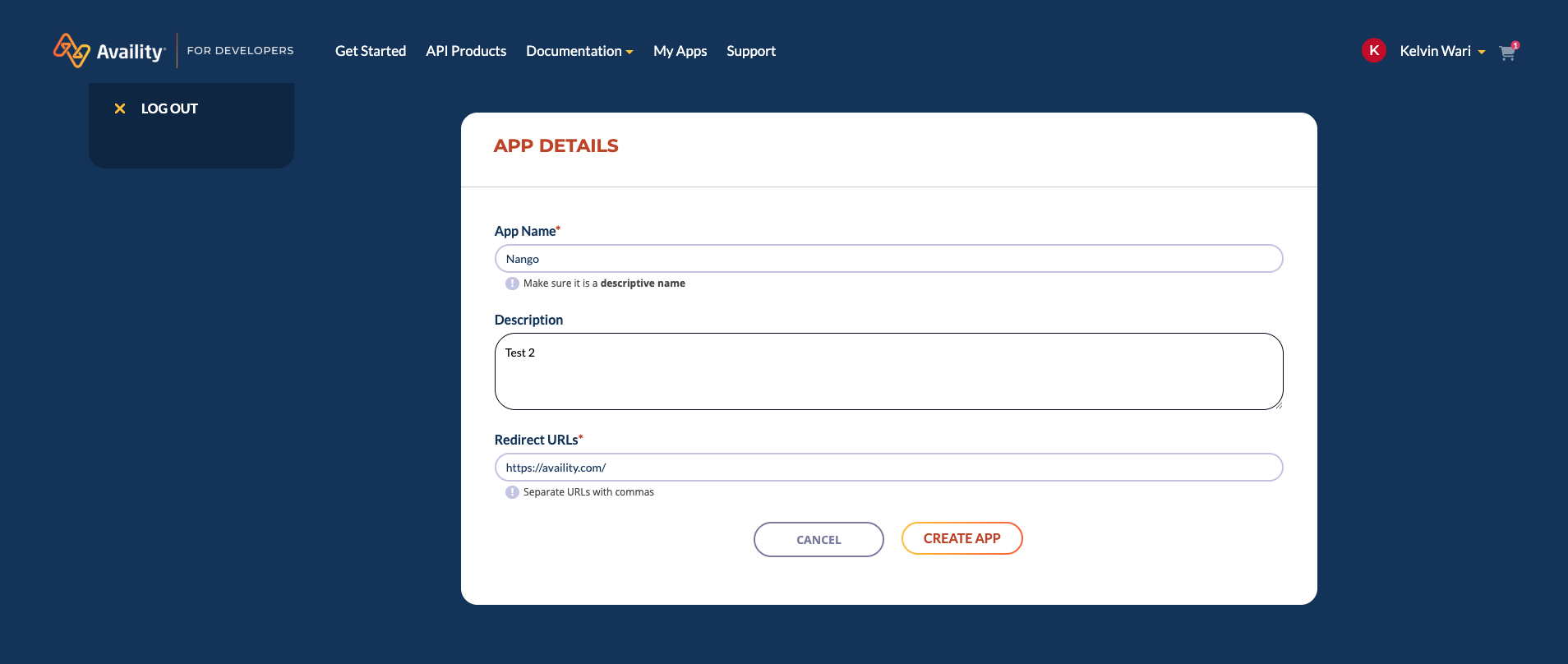
- Enter your application details (name, description, etc.), and then select Create App.
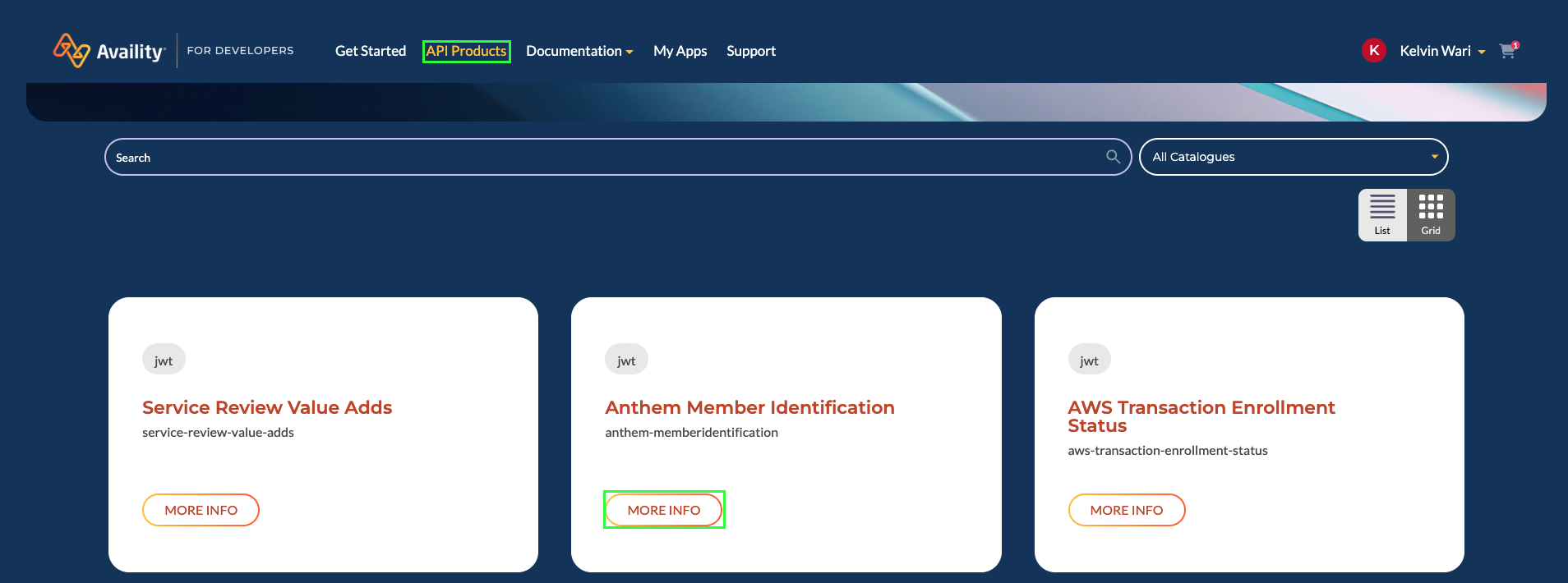
- Select API Products in the menu bar.
- Select More Info to learn more about the accessible APIs in an available API product.
- Note: Select the title of any accessible API available in the selected API product to view its full definition.
-
Select Access this Product to view available subscription plans for the selected API product.
Subscription Plans:
- Demo Plan: A sandbox environment used to test communication with Availity APIs. Demo subscriptions are automatically approved and recommended for initial testing.
- Standard Plan: Full access to REST APIs and production data. Requires contract approval from the Trading Partner Management team.
It’s recommended that you start with a Demo subscription to gain knowledge of the Availity REST API workflow. After exploring the Demo Plan, if you’re ready to move forward, first place your subscription request for the Standard Plan on the Developer Portal, then email partnermanagement@availity.com.

- Select Access with this Plan for the desired subscription plan to add the API product subscription to your cart.
- Select Go to cart in the subscription notification (or select the cart icon next to your username at the top right).
- Confirm that the API Product you want access to is listed in the selected product area.
- Confirm that the Selected Plan is correct.
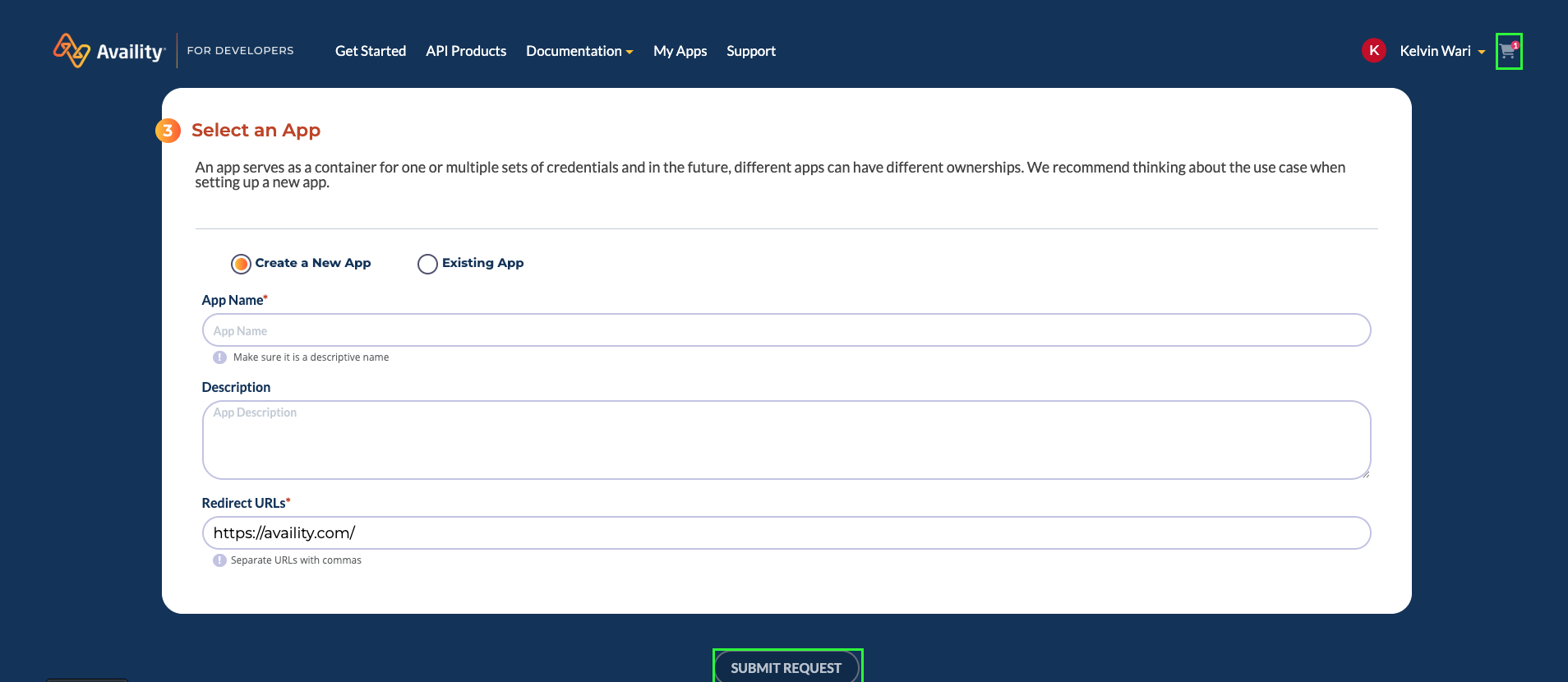
- In the Select an App area, either:
- Select Create a New App and enter application details to create a new application, or
- Select Existing App and then select an existing application.
- Select Submit Request.
For Standard Plan subscriptions, the Trading Partner Management team will reach out to you for contract. The subscription request will be approved upon verification of contract status.
- Once your subscription is approved, navigate to My Apps in the menu bar.
- Select your application.
- Go to Approved Access section.
- Look for the product you subscribed to and expand Client info.
- Copy your API Key (this is your Client ID) and Secret (this is your Client Secret).

Step 2: Enter credentials in the Connect UI
Once you have your API Key and Client Secret:- Open the form where you need to authenticate with Availity.
- Enter your API Key and Secret in their designated fields.
- Submit the form, and you should be successfully authenticated.