Overview
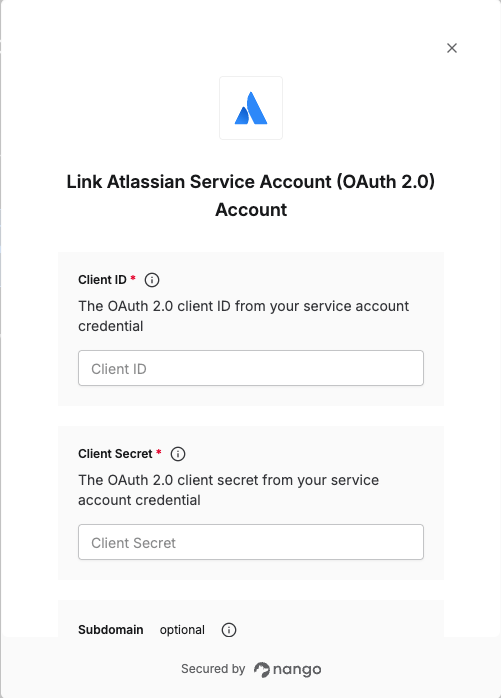
To authenticate with Atlassian using OAuth 2.0 service account credentials, you will need:- Client ID - The OAuth 2.0 client ID from your service account credential.
- Client Secret - The OAuth 2.0 client secret from your service account credential.
- Subdomain (optional) - Your Atlassian account subdomain.
Prerequisites:
- You must have an Atlassian account with admin access
- You must have created a service account
Instructions:
Step 1: Creating OAuth Client Credentials
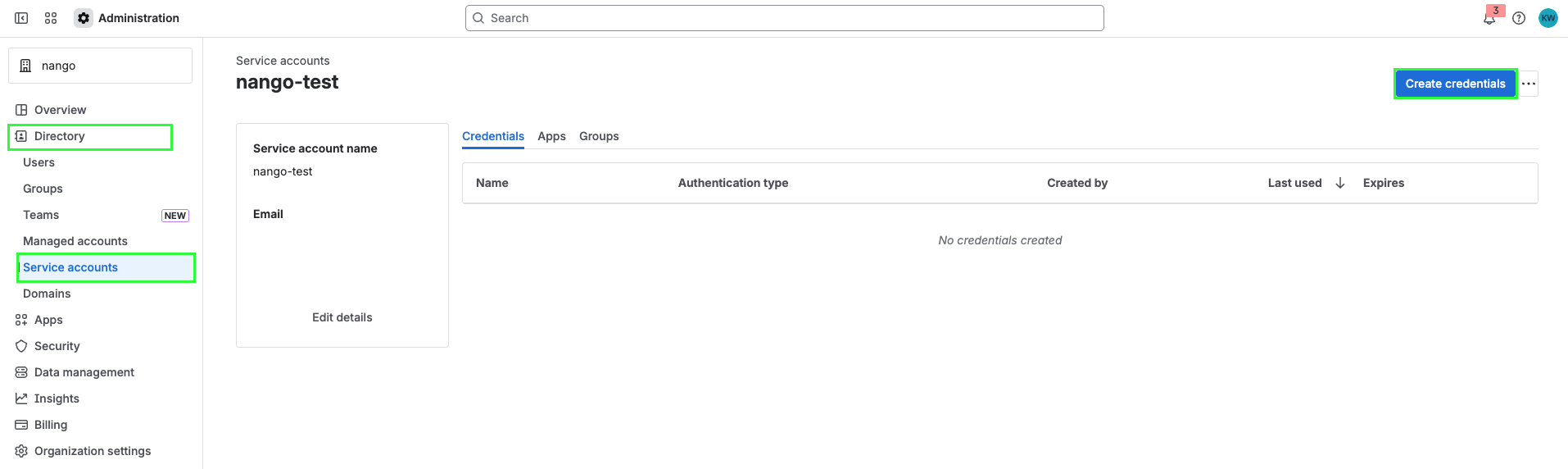
- Go to Atlassian Administration. Select your organization if you have more than one.
- Select Directory > Service accounts.
- Select the service account you want to create a credential for.
- Select Create credentials.
- Select OAuth 2.0, then select Next.

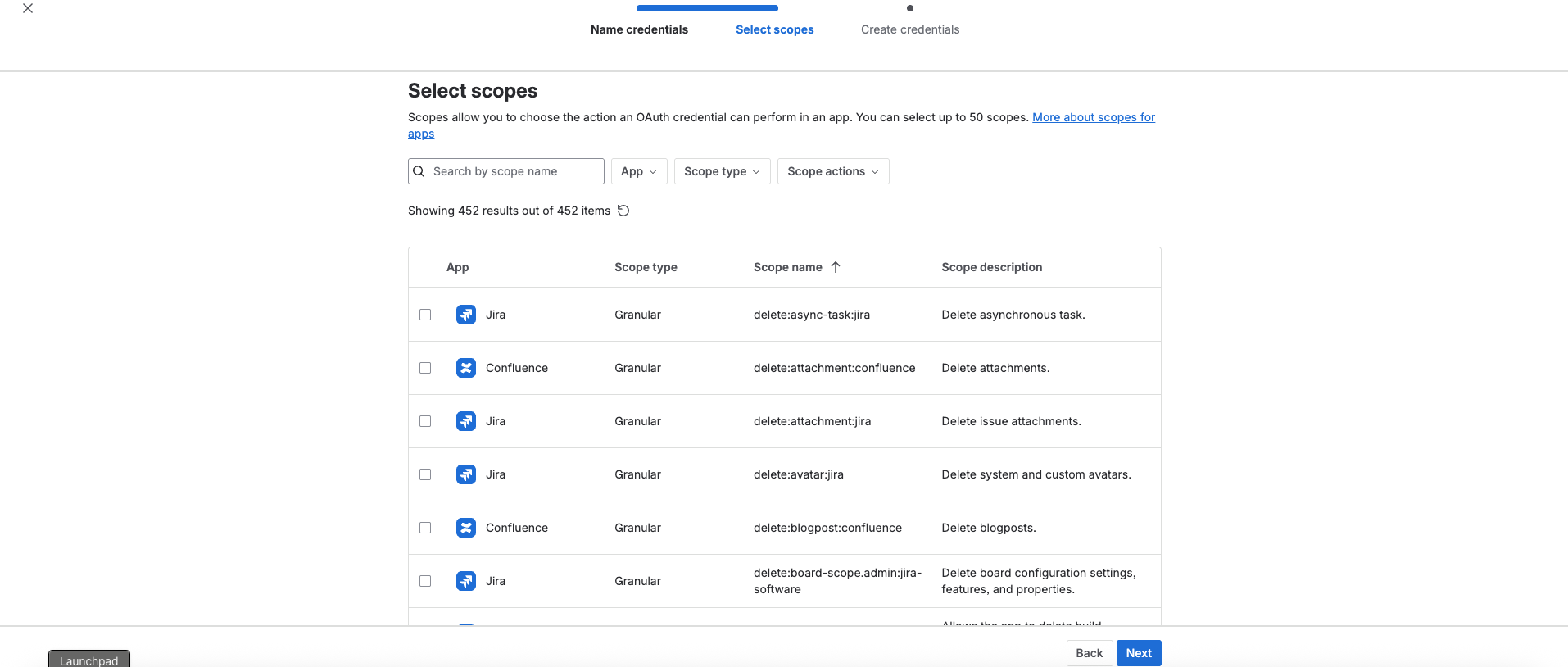
- Select scopes to determine what the API access token can do in Atlassian. Select Next.
- Review your OAuth information, then select Create.
- Copy your Client ID and Client Secret and save them somewhere safe. You can’t recover them after you create the credential.

Step 2: Finding your Subdomain
- Log in to your Atlassian cloud site.
- Once logged in, check the address bar in your browser. Your subdomain is the text between
https://and.atlassian.netin the URL.- For example, if your URL is
https://acme.atlassian.net, your subdomain isacme.
- For example, if your URL is
The subdomain is optional. Since a single access token can have access to many resources, you can either provide a
Subdomain during connection creation (recommended) to ensure you connect to a specific Atlassian site, or let Nango auto-select the first available site if no Subdomain is specified. Adding the subdomain ensures you connect to the intended site.Step 3: Enter credentials in the Connect UI
Once you have your Client ID and Client Secret (and optionally your Subdomain):- Open the form where you need to authenticate with Atlassian Service Account (OAuth 2.0).
- Enter your Subdomain, Client ID, and Client Secret in their respective fields.
- Submit the form, and you should be successfully authenticated.