Overview
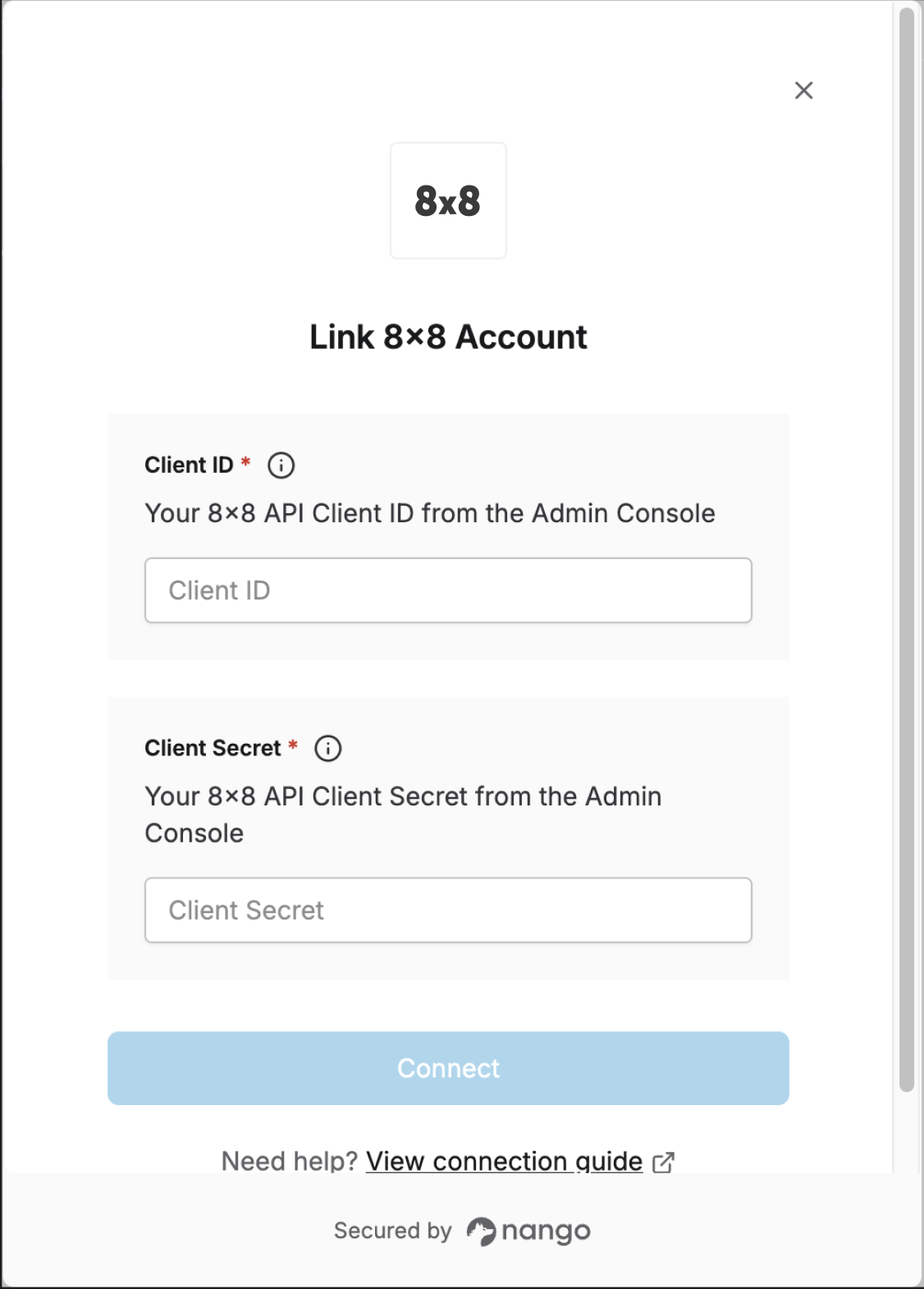
To authenticate with 8x8, you need:- Client ID - The client ID from your 8x8 Admin Console.
- Client Secret - The client secret from your 8x8 Admin Console.
Prerequisites:
- You must have an 8x8 account with admin access.
- You need access to the 8x8 Admin Console.
Instructions:
Step 1: Obtaining Your Client Credentials
- Log in to the 8x8 Admin Console with your administrator credentials.
- Navigate to Home > API Management in the left-hand menu.
- Click Create API App to create a new application.
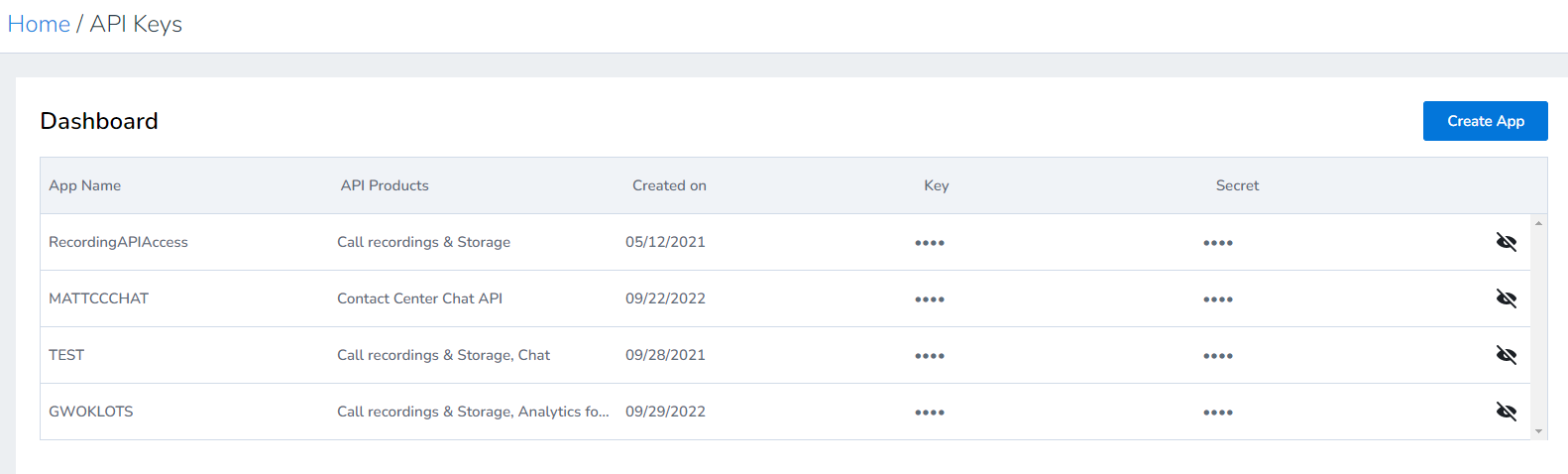
- Enter a name and description for your application.
-
Select the API products you want to enable for this application. Available products include:
- CC Realtime Analytics
- CC Historical Analytics
- Cloud Storage Service
- Quality Management
- Contact Center Chat
- Click Save to create the application.
-
After the application is created, you will be provided with:
- Client ID - This is your API username
- Client Secret - This is your API password (shown only once, so save it securely)
The Client Secret is only displayed once when you create the application. Make sure to copy and store it securely. If you lose it, you’ll need to regenerate a new secret.
Step 2: Enter credentials in the Connect UI
Once you have your Client ID and Client Secret:- Open the form where you need to authenticate with 8x8.
- Enter your Client ID in its designated field.
- Enter your Client Secret in its designated field.
- Submit the form, and you should be successfully authenticated.