
In this guide, we’ll use Nango Agent Sessions to add tenant-level access control to MCP servers. Each agent run will use only the tenant’s connected accounts, an explicit list of tools, and a fixed session lifetime. This requires no changes to the upstream MCP server.
We’ll use the official Notion MCP server as our example. We’ll also show how to connect MCP servers outside Nango’s catalog and expose prebuilt API tools when a provider doesn’t have an MCP server.
How Agent Sessions enforce tenant-level access
An MCP server authenticates a connected account and applies that account’s permissions. Your application also needs to decide which customer’s account an agent can use for a particular task.
Nango Agent Sessions let your backend make that decision before the agent starts. Each session exposes a dedicated MCP endpoint with access to selected connections and tools. Nango stores the provider credentials and uses the session’s selected connection for each tool call.
The flow is:
- Your backend authenticates the user and verifies their tenant membership and role.
- It creates an Agent Session that selects the tenant’s connections and permitted tools.
- Your agent’s MCP client connects using the session URL and token.
- Nango executes permitted calls using those connections. The agent cannot change the scope of its session.
For example, CustomerA and CustomerB can each connect Notion to your app. A session created for CustomerA uses CustomerA’s Notion connection. CustomerB’s connection stays outside that session, even though both connections belong to the same Nango environment.
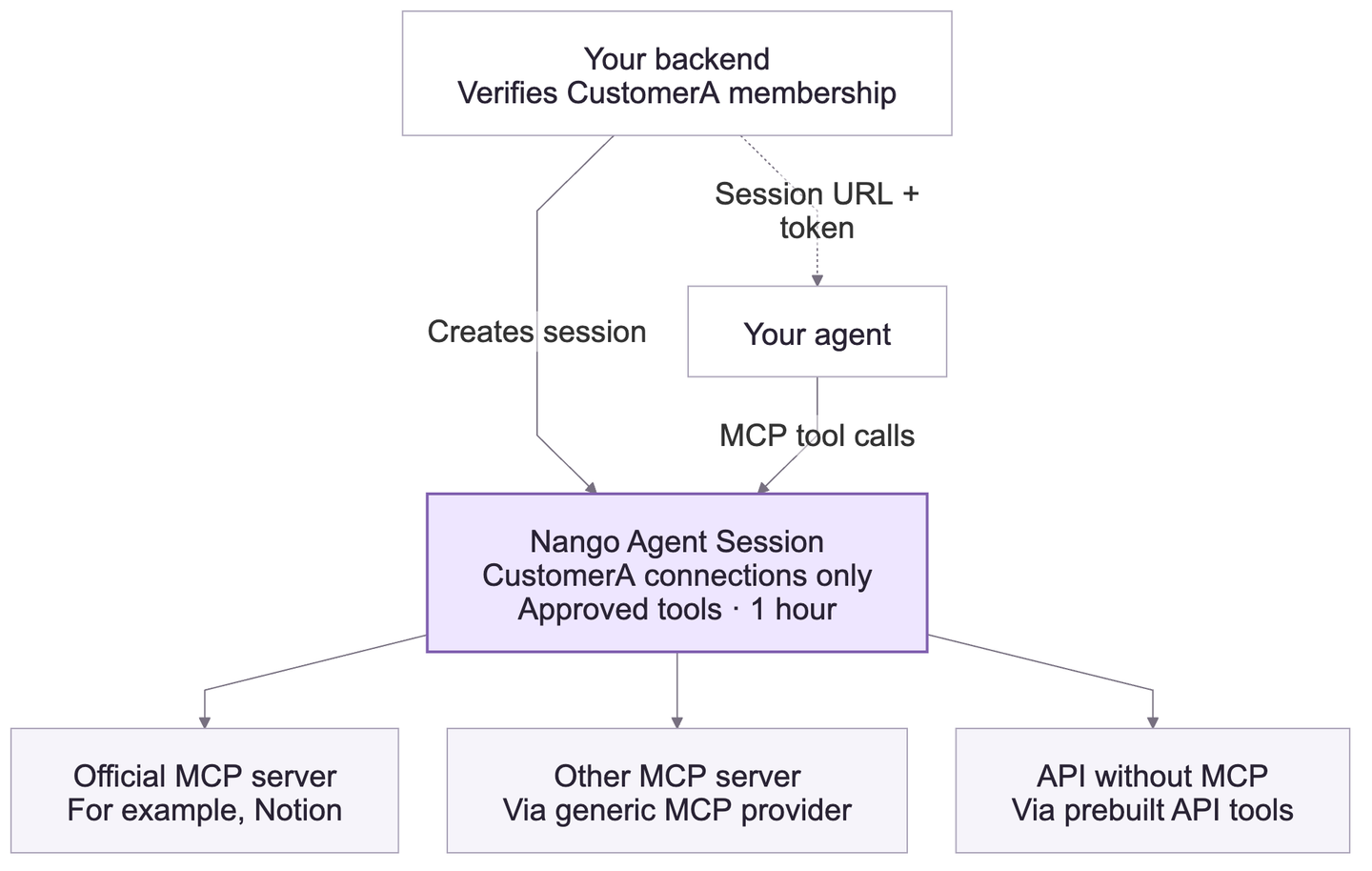
Connection selection and resource permissions work together. A session selects the account used for a call; Notion still decides which pages that account can read. If one connected Notion account can access both customers’ content, tenant tags alone won’t separate that content. Use appropriately scoped accounts or add resource checks in your application. See our guide to preserving user permissions in API integrations.
Use the same policy for MCP servers and API tools
Nango provides 10,000+ prebuilt tools across 1,000+ APIs. Start by checking the API and tool catalog for the operations your agent needs. Agent Sessions can expose those prebuilt API tools alongside tools from connected MCP servers:
| Tool source | How you connect it |
|---|---|
| Official MCP server in Nango's catalog | Choose from the supported official MCP servers, such as Notion or Linear, and let the customer authorize their account |
| MCP server outside the catalog | Add Generic MCP Server OAuth2 and let the customer connect the server by URL |
| API without an MCP server | Add the API integration and expose its prebuilt actions as MCP tools through the session. Customize or add actions when needed |
Nango is open-source. If your API isn’t in the catalog, you can add support for a new API, build custom actions, and expose them as MCP tools through an Agent Session.
All three paths use the same tenant connection selectors, tool allowlists, and session expiration. You can include several integrations in one session and expose them through one MCP endpoint.
For the generic MCP path, the server must support OAuth with automatic client registration through Dynamic Client Registration (DCR) or Client ID Metadata Documents (CIMD). This is the generic provider’s compatibility requirement.
Implement tenant access control
We’ll give CustomerA’s agent read access to its connected Notion account (example). CustomerB will have a separate connection and session.
| Control | CustomerA's policy |
|---|---|
| Tenant connections | Connections tagged organization_id: "customer-a" |
| Permitted tools | notion-search and notion-fetch |
| Session lifetime | One hour |
1. Configure the Notion MCP integration
Create a Nango account, open Integrations, and add Notion (MCP). Use notion-mcp as the integration ID in this walkthrough, or substitute your chosen ID throughout the examples.
Nango handles OAuth client registration for Notion MCP, so you don’t need to register your own Notion OAuth app.
Store your Nango environment API key on the backend as NANGO_API_KEY. The examples require the environment:connect_sessions:write and environment:agent_sessions:write scopes. See API key scopes.
2. Connect each customer’s account with a tenant tag
After verifying the user’s tenant membership, your backend creates a Connect session. Its tags are copied onto the connection created during authorization.
For CustomerA, the request is:
curl --request POST \
  --url https://api.nango.dev/connect/sessions \
  --header "Authorization: Bearer $NANGO_API_KEY" \
  --header "Content-Type: application/json" \
  --data '{
    "allowed_integrations": ["notion-mcp"],
    "tags": {
      "organization_id": "customer-a"
    }
  }'
Open the returned data.connect_link for CustomerA’s user, or use data.token with the embedded Connect UI. The user authorizes Notion, and Nango stores the resulting connection with the customer-a tag.
Repeat the flow for CustomerB using organization_id: "customer-b". For the verification in Step 5, use separate Notion accounts with access to separate test content.
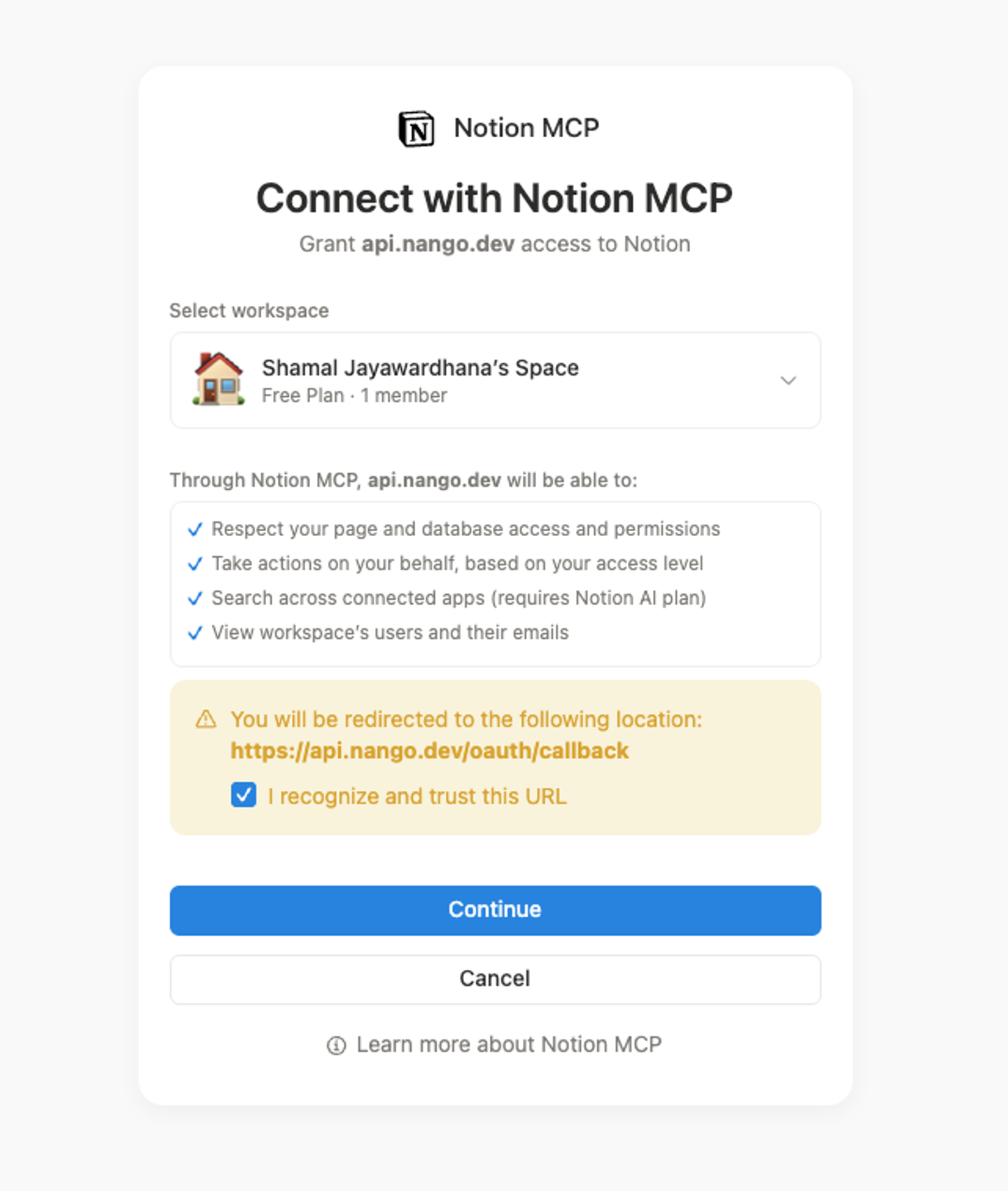
The tag values are fixed here to make the example readable. In your app, derive them from the authenticated user’s verified tenant context. A tenant ID supplied by a browser or an agent is not proof of membership.
3. Create an Agent Session for the authorized tenant
Your backend creates the session using POST /sessions. This Node.js helper takes the tenant ID your application has already authorized:
export async function createTenantAgentSession(authorizedTenantId) {
  const response = await fetch("https://api.nango.dev/sessions", {
    method: "POST",
    headers: {
      Authorization: `Bearer ${process.env.NANGO_API_KEY}`,
      "Content-Type": "application/json"
    },
    body: JSON.stringify({
      tenant: {
        connections: {
          any: [{ tags: { organization_id: authorizedTenantId } }]
        }
      },
      toolset: {
        "notion-mcp": {
          allow: { tools: ["notion-search", "notion-fetch"] }
        }
      },
      pinned_tools: {
        "notion-mcp": ["notion-search", "notion-fetch"]
      },
      meta_tools: {
        nango_tool_search: true,
        nango_execute: true,
        nango_proxy: false,
        nango_create_connection: false
      },
      expires_in: "1h"
    })
  });

  const result = await response.json();
  if (!response.ok) {
    throw new Error(`Agent Session creation failed (${response.status})`);
  }

  return result.data;
}
For an authenticated CustomerA user, call this helper with "customer-a". CustomerB’s users receive sessions created with "customer-b". Keep the membership and role check in your application before either call.
The configuration enforces these restrictions:
tenant.connections: Selects connections with the authorized tenant’sorganization_idtag. Nango resolves and stores the selected connection when creating the session; the agent doesn’t choose a connection on each call.toolset: Allows onlynotion-searchandnotion-fetchonnotion-mcp. Other integrations and Notion tools are excluded.meta_tools: Disables raw proxy requests and connection creation. Keepnango_proxydisabled because it bypasses named-tool allowlists, including direct calls to upstream MCP tools.expires_in: Ends the session’s access after one hour.
The pinned_tools setting makes both read tools appear directly in MCP’s tools/list response. Pinning controls discovery; the toolset enforces permission to execute. Other permitted tools can remain searchable through nango_tool_search as your toolset grows.
Selectors must resolve to one connection per integration. If CustomerA has multiple Notion connections, narrow the tags or pin an authorized connection ID. Otherwise, creation fails with ambiguous_connections.
4. Connect the agent to its session endpoint
The response contains session_id, mcp_url, session_token, and a toolset summary. Before starting the agent, check that toolset["notion-mcp"] reports connected: true and mcp_server: "available". A missing connection or unavailable upstream MCP server can leave a session without usable Notion tools.
Configure a Streamable HTTP MCP client with:
- Server URL: The returned
mcp_url. - Authorization header:
Bearer <session_token>.
Keep the session token in the MCP client’s authentication configuration, outside the model’s prompt. Provider credentials stay in Nango, and the Nango environment API key stays on your backend.
For this configuration, tools/list exposes nango_tool_search, nango_execute, notion-mcp__notion-search, and notion-mcp__notion-fetch. The integration prefix identifies the tool in the session; the allowlist uses the original upstream names.
For framework-specific client setup, see the Agent Sessions quickstart.
You can also try your integrations in the Agent Playground before connecting your own agent. For example, ask it to find a Notion page, then inspect the tool searches and calls as it runs.
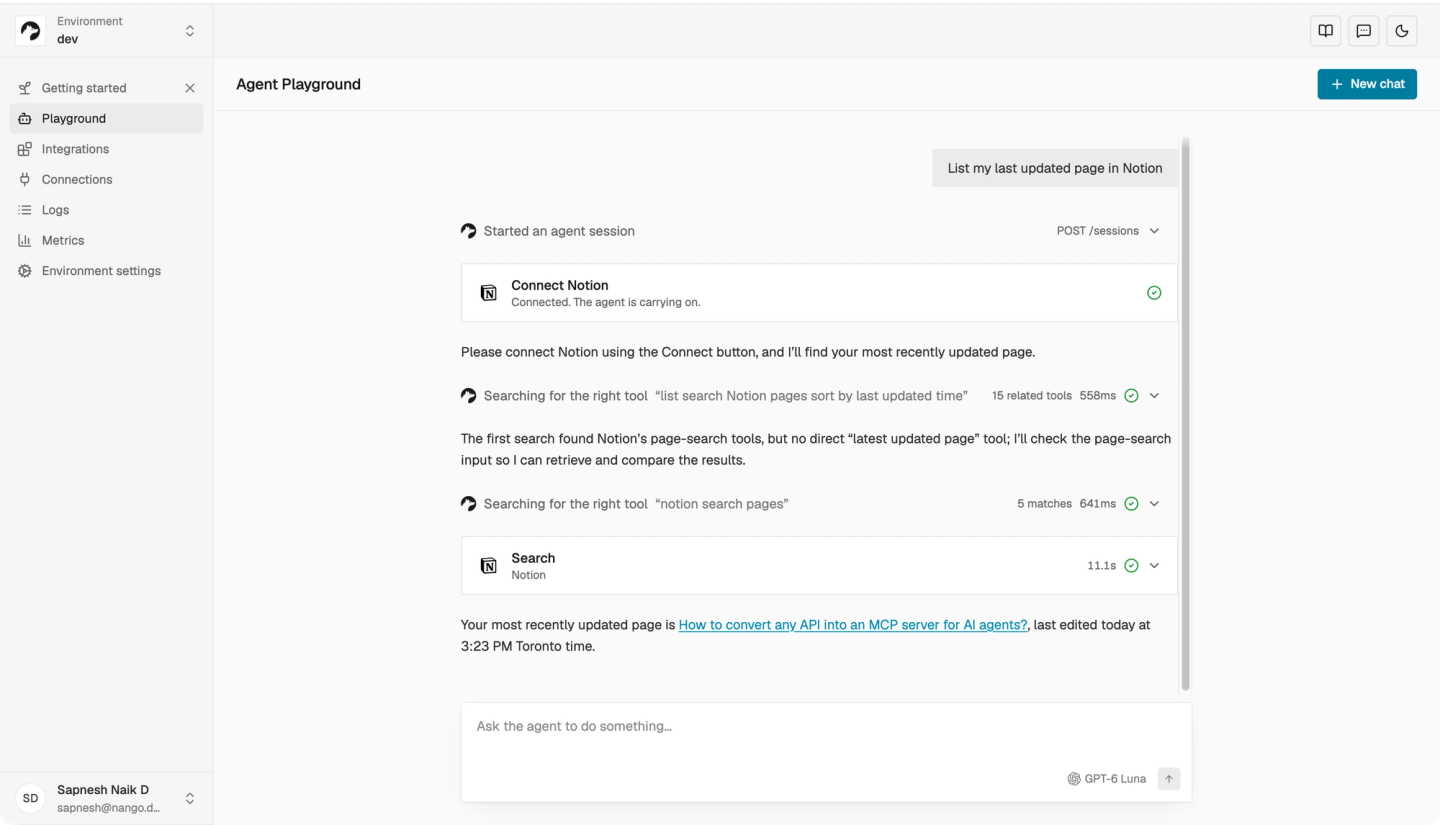
The Playground creates its own Agent Session. Run the tenant-isolation checks below using the restricted MCP endpoint you created in Step 3.
5. Verify tenant isolation and tool restrictions
Create a private test page for each customer: CustomerA-only and CustomerB-only. CustomerA’s connected Notion account must be able to read only its own test page; CustomerB’s account must be able to read only its own. Avoid shared or public pages for this check.
Create a session for each tenant and run the following checks with an MCP client. Use the input schemas returned by tools/list when calling the tools. For the exclusion check, choose a tool that exists on the upstream server, such as notion-update-page.
| Check | Expected result |
|---|---|
Fetch CustomerA-only through CustomerA's session | The page is returned |
Fetch CustomerB-only through CustomerB's session | The page is returned, confirming the page and connection work |
Fetch the same CustomerB-only page URL through CustomerA's session | No page content is returned; Notion rejects access using CustomerA's connection |
Fetch CustomerA-only through CustomerB's session | No page content is returned using CustomerB's connection |
Search for or call excluded notion-update-page, directly and through nango_execute | The tool is unavailable through search and blocked on execution |
Inspect tools/list | Neither nango_proxy nor nango_create_connection is exposed |
| Ask your backend for a CustomerB session while authenticated only for CustomerA | Your application rejects the request before creating a session |
Check Nango’s Logs alongside these requests. Confirm that each upstream Notion request uses the connection assigned to that tenant. The cross-tenant fetch checks verify resource denial through the selected account; the logs verify which connection Nango used. An excluded tool call should produce no upstream request.
Also verify session termination using DELETE /sessions/{session_id} from your backend. Subsequent MCP requests should receive 401. To check expiration independently, create a test session with expires_in: "60s", let it expire, and try another request. Ending a session does not cancel calls already in flight.
Connect an MCP server outside Nango’s catalog
The same approach works with a compatible MCP server that Nango hasn’t listed as a catalog integration. Use the Generic MCP Server OAuth2 provider:
- In Integrations, select Configure New Integration, then MCP Server OAuth2 (Generic). Give the integration an ID such as
custom-mcp. - Create a Connect session with
allowed_integrations: ["custom-mcp"]and the authorized tenant’s tags, as in Step 2. - The Connect UI asks the user for the MCP server URL. Nango discovers the OAuth endpoints and completes authorization. The server must support DCR or CIMD.
- Include
custom-mcpin the Agent Session’stoolset, allowing only the upstream tool names your workflow needs. Use those names inpinned_toolsif they should appear directly intools/list.
You can try this flow with https://mcp.notion.com/mcp and the same notion-search and notion-fetch tools before connecting another server. Substitute custom-mcp for notion-mcp in both the session configuration and response checks.
For other servers, use their actual tool names and schemas. The resulting session still selects the tenant’s connection and enforces the configured tool permissions. If you need several different MCP servers in one session, create a separate generic integration ID for each server.
Expose API tools when a provider has no MCP server
An API integration can join the same session without an upstream MCP server. Nango exposes its actions as MCP tools, so your app doesn’t need to build and host a separate MCP server for that API.
Start with Nango’s 10,000+ prebuilt tools across 1,000+ APIs. For example, you can expose Google Drive’s prebuilt find-file action without connecting a Google Drive MCP server:
- Add the Google Drive API integration with the ID
google-drive. Use a Nango-provided OAuth app where available. - Let the customer authorize Google Drive through a Connect session with the same verified tenant tag. The
find-fileaction requires thehttps://www.googleapis.com/auth/drive.readonlyOAuth scope. - Create a new Agent Session with this
toolset, keeping the tenant selectors and disabled proxy settings from Step 3:
{
  "notion-mcp": {
    "allow": { "tools": ["notion-search", "notion-fetch"] }
  },
  "google-drive": {
    "allow": { "tools": ["find-file"] }
  }
}
The agent can search Notion through the official MCP server and find Google Drive files through Nango’s prebuilt API action. Both run using the connections selected for the session’s tenant. The unpinned Google Drive tool is discoverable through nango_tool_search.
If the catalog doesn’t include the operation you need, customize a prebuilt action or build one with Claude Code, Cursor, or Codex using the Nango builder skill. Nango’s runtime runs the integration, and you expose the resulting action through the same session policy.
FAQ
How do you isolate tenants using MCP?
With Nango Agent Sessions, your backend verifies the user’s tenant membership and creates a session containing only that tenant’s connections. Tool calls use those selected connections. The provider still enforces the connected account’s resource permissions.
Can you restrict tools without modifying the upstream MCP server?
Yes. A Nango Agent Session can allow specific tools from a connected MCP server without changing its code. Set an explicit tool allowlist and keep nango_proxy disabled so direct proxy requests can’t bypass the named-tool policy.
Can you expose an API that has no MCP server to an agent?
Yes. Nango exposes prebuilt or custom API actions as MCP tools through an Agent Session. Your agent can use those tools alongside connected MCP servers, with the same tenant connection selection, tool allowlists, and session expiration.
Manage access for each tenant and task
Your backend controls which tenant’s connections an agent can use, which tools it can execute, and how long access lasts. The same policy applies to official MCP servers, compatible servers connected through the generic provider, and API-backed tools.
Agent Sessions are immutable. Create a new session when the task or permitted tools change, and terminate active sessions when a user’s tenant access is revoked. Use the Agent Sessions guide to adapt this configuration to your app.
Related reading:


