
When building agents in your SaaS products, your agent will need to work with the external systems your customers use, which requires API access to their accounts. If a provider has no MCP server, you need a way to make its API operations available as tools. That means connecting the right customer’s account, handling credentials, and deciding which operations the agent can perform.
We’ll show you how to convert any API into a secure MCP server using Nango’s agent sessions (even those without an official MCP server). Nango is the tool-calling layer for AI agents. It makes your agents powerful with 10,000+ pre-built tools across 1,300+ APIs.
What you’ll build
Google Tasks does not have an official MCP server, so we’ll use Nango’s agent sessions to convert the Google Tasks API into an MCP server and make a real agent work with your customers’ Google Tasks records.
By the end, the agent will be able to answer questions such as “What tasks are due this week?” and perform actions such as “Create a customer discovery preparation task with our standard deck link.”
The same flow can work with any of Nango’s 1300+ APIs.
Those tools also give the agent a smaller, more purposeful interface. With raw API access, it may need to research endpoints and reconstruct a sequence of requests for each business action. Loading the entire API specification adds context without resolving that workflow or the need to maintain it as the API changes. Reusable tools encode the operations and rules the agent needs.
1. Open your agent project in a coding agent
Open your product’s agent project in a Coding agent like Claude or Codex. You’ll use its existing authentication to connect Google Tasks for the signed-in user, then give the agent an MCP client scoped to that connection. Your existing model and conversation interface can stay in place.
Create a Nango account and use a Google test account for this walkthrough. The companion project supplies a runnable TypeScript example if you want to follow the same interface shown here:
git clone --branch main https://github.com/NangoHQ/blog-demos.git
cd blog-demos/api-to-mcp-google-tasks
npm ci
cp .env.example .env
npm run build
The companion requires Node.js 22.22.2 or later. Set DEMO_USERNAME, a local DEMO_PASSWORD of at least 12 characters, and OPENAI_API_KEY in .env. It uses HTTP Basic authentication and a single in-memory conversation for the local demo. Keep your product’s authentication and user-specific conversation storage when adapting the code.
With your project ready, give Codex the tools to configure Nango and build the integration. From the project folder, install Nango’s function-building skill and add its Management MCP server:
npx skills add NangoHQ/skills --skill building-nango-functions --agent codex
codex mcp add nango-management --url https://mcp.nango.dev/mcp
Complete Nango’s OAuth authorization in the browser. If the add command does not start authorization, run codex mcp login nango-management. Start a new Codex session so it loads the server and skill, then ask:
Use Nango Management MCP to call environments_list.
Show the environments I can access. Do not modify anything.
The setup checkpoint is a successful tool call returning your authorized environments. Use dev for the remaining steps, and tell Codex to use that environment for its Nango calls. Nango’s coding-agent setup guide covers other supported coding agents. See the companion’s verification guide for tested versions and results.
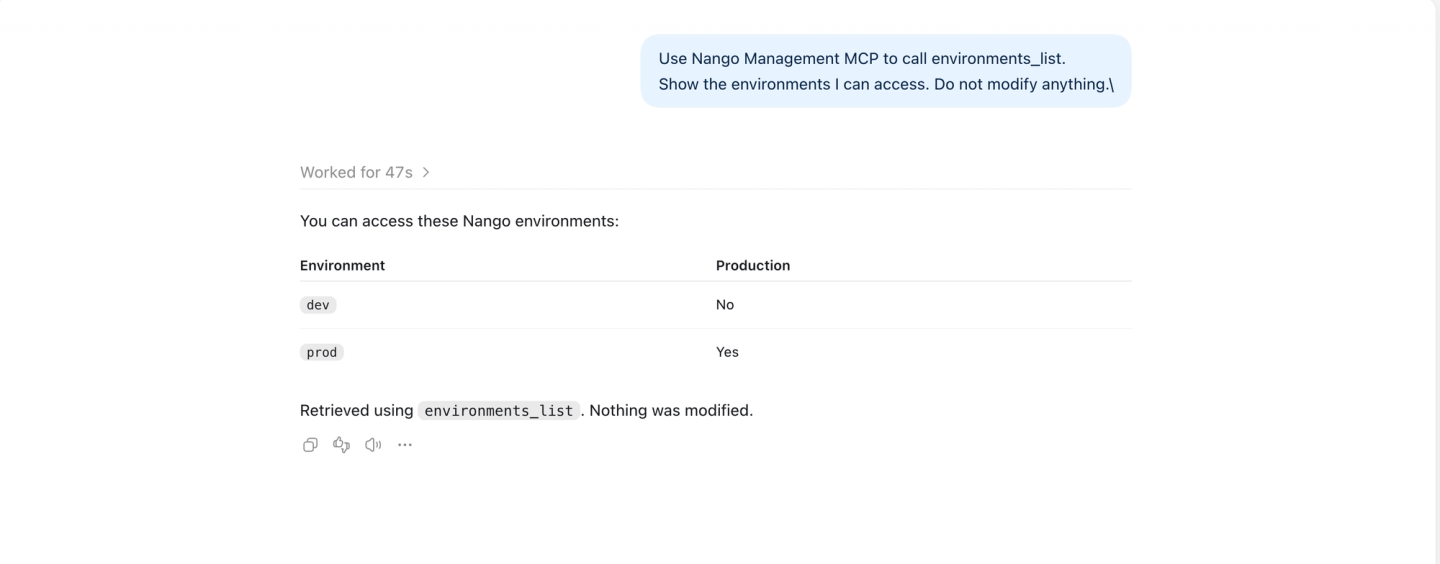
Management MCP lets Codex configure Nango. The Nango CLI compiles and deploys the custom tool below. Your product’s runtime agent receives a separate Agent Session with the narrow tool allowlist you define.
2. Connect the API account and select read tools
With Codex connected to Nango, define the first capability your product agent needs. Answering “What tasks are due this week?” requires finding a task list and reading its tasks. Ask Codex to add those two operations and the account-authorization flow they depend on:
Add Google Tasks to this agent using Nango Agent Sessions and the
Nango-managed OAuth app. Let the signed-in user authorize Google.
Expose only list-tasklists and list-tasks. Create sessions on the backend
for that user's connection, keep nango_proxy disabled, and keep keys
and provider tokens out of prompts and client code.
Nango’s Google Tasks integration includes both read tools, as well as task creation and other operations. Inspect this provider’s catalog instead of assuming that API support means every operation is pre-built.
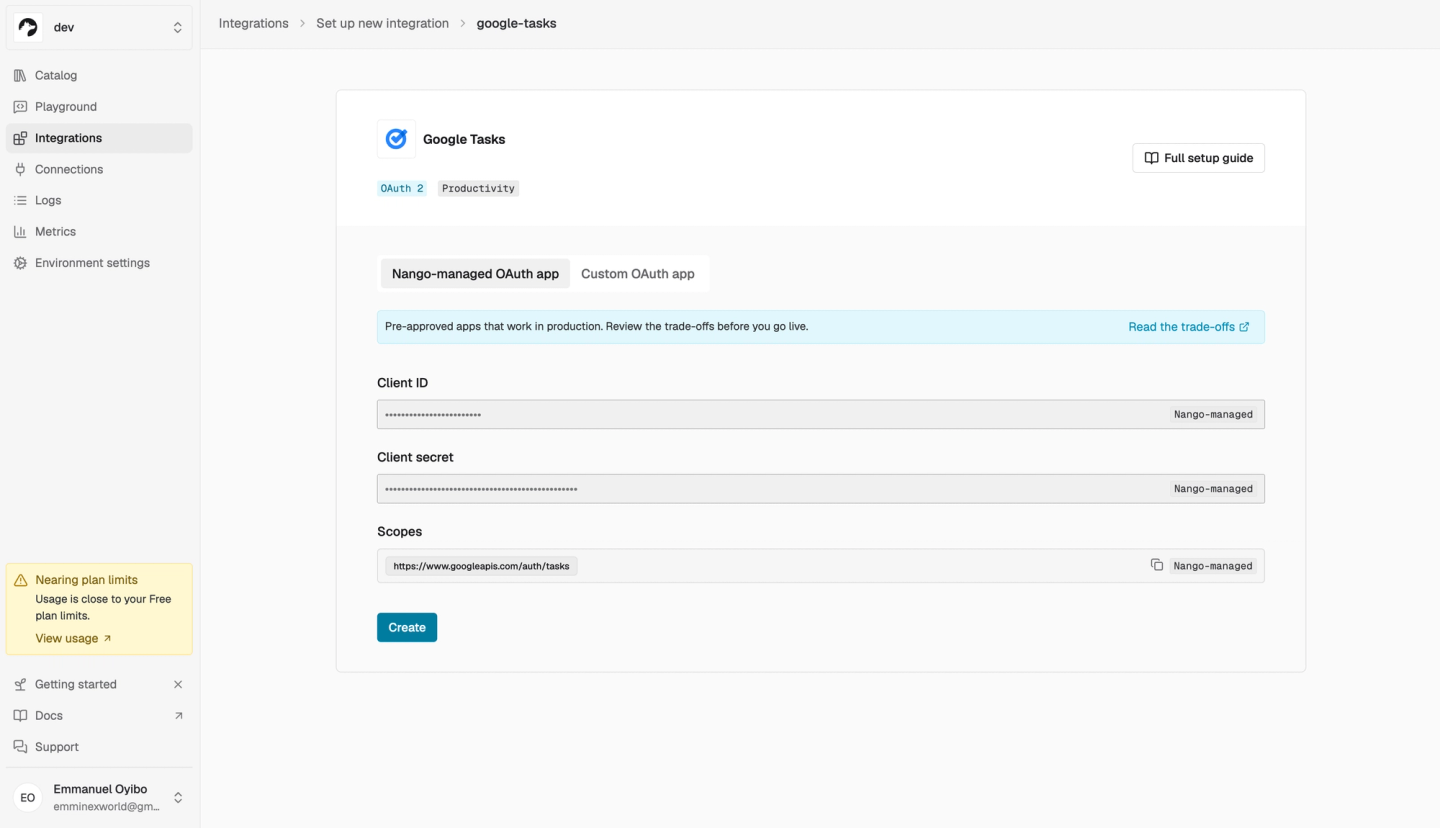
To make these tools available for a connected account, create the integration with ID google-tasks. In the Nango dashboard’s dev environment, select Google Tasks, choose Nango-managed OAuth app, confirm that its fixed scopes include https://www.googleapis.com/auth/tasks, and create the integration.
Note: Nango provides managed OAuth apps for 80+ APIs, so you don’t have to create your own or go through any approval process with the providers. This saves a huge amount of time and effort when working on multiple API integrations and going through a review process like Google’s CASA approval.
Configure your backend’s NANGO_API_KEY with a dev Environment API key granting environment:connect_sessions:write and environment:agent_sessions:write. In the companion’s .env, leave NANGO_CONNECTION_ID empty and keep ENABLE_DISCOVERY_PREP=false. Stop the optional starter if it is running, then start the integrated app:
npm startOpen http://127.0.0.1:3610 and sign in with the demo credentials. Click Connect Google Tasks, then Authorize Google Tasks, then return here. Complete Google consent and finish the Nango Connect flow. Return to the app to ask about your tasks.
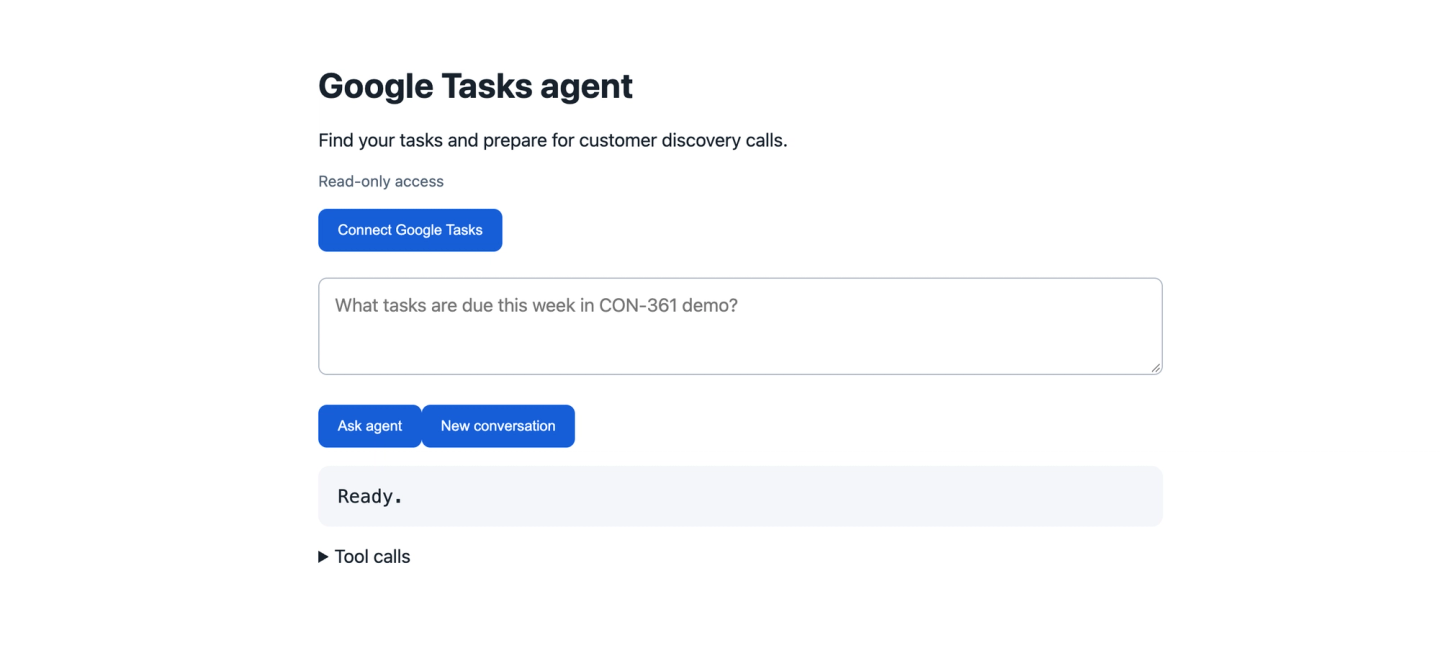
The backend tags the new Google Tasks connection with the signed-in user’s ID. It uses that same ID later to select the account for the agent.
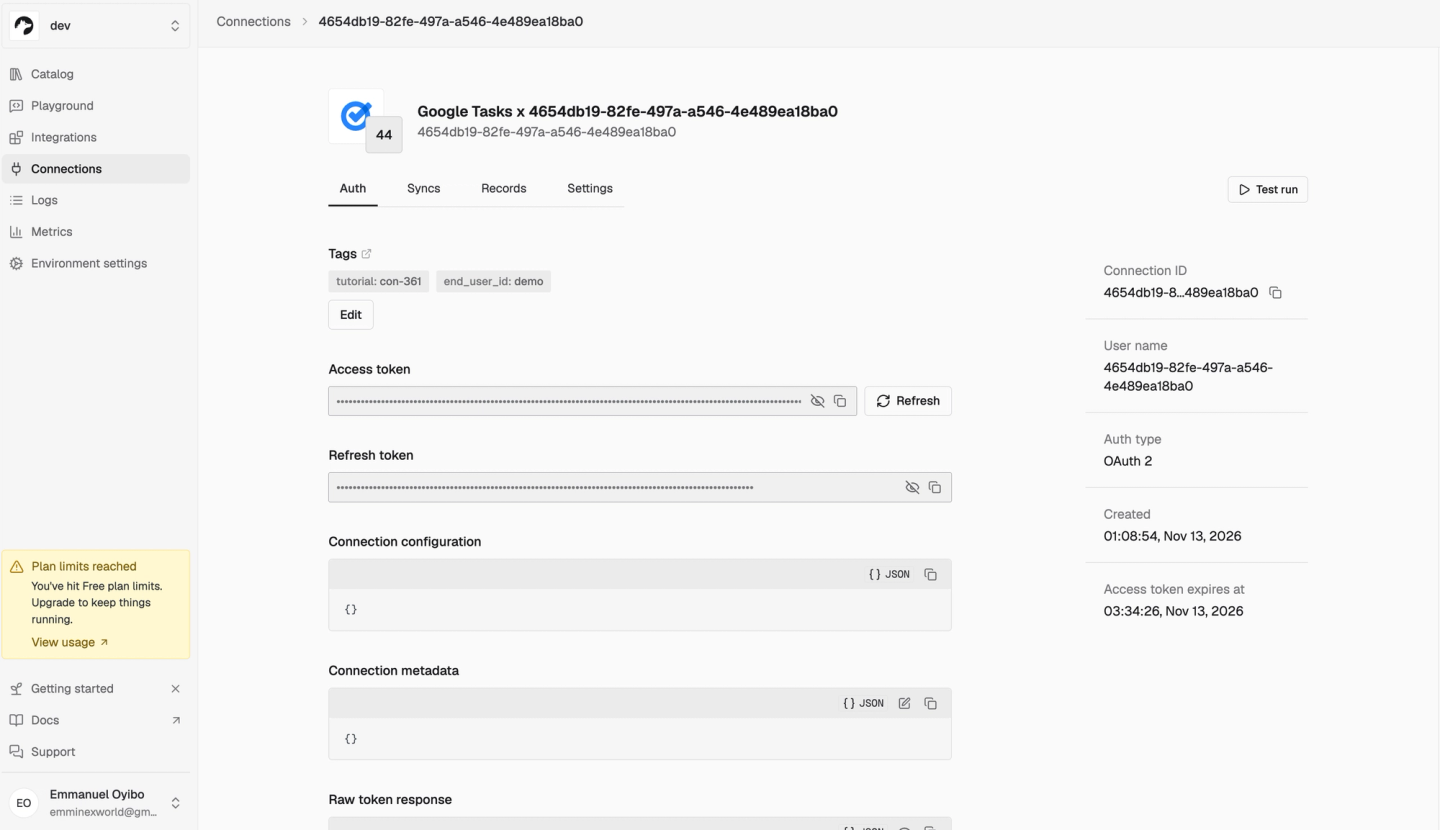
Once the account is connected, Nango stores its credentials and refreshes OAuth tokens so the agent can call authorized tools without receiving Google’s tokens. This managed authentication extends across 1,300+ APIs, including API-key and OAuth integrations.
Google’s OAuth grant permits reads and writes. The first Agent Session allows only the two read tools.
3. Inspect the session’s MCP endpoint
An Agent Session determines which tools your product agent can use with that account. The diagram separates setup from runtime: Codex configures the integration and deploys custom tools during setup; your application then selects the connection and allowed tools for each session.
flowchart TD
  subgraph SETUP["1. Setup: configure the integration and build tools"]
    C[Codex] --> M[Nango Management MCP]
    M --> N[Configure Google Tasks integration]
    C --> L[Nango CLI]
    L --> S[Compile and deploy custom tool]
  end

  subgraph RUNTIME["2. Runtime: use the connected account through allowed tools"]
    U[Signed-in user] --> B[Application backend]
    B --> A[Create Agent Session: select user connection and allowed tools]
    A -->|MCP URL and session token| R[Product agent and backend MCP client]
    R --> E[Session MCP endpoint]
    E --> T[Allowed catalog or custom tool]
    T --> API[Google Tasks API]
    K[Credentials from the authorized Google connection] --> T
  end

  N -.->|Integration available for session selection| A
  S -.->|Custom tool available when allowed by the session| T
The backend sends POST /sessions with the signed-in user’s connection selector and the two allowed Google Tasks tools. The response contains the endpoint and token the backend’s MCP client uses:
await client.connect(new StreamableHTTPClientTransport(new URL(sessionData.mcp_url), {
  requestInit: { headers: { Authorization: `Bearer ${sessionData.session_token}` } }
}));
Run npm run inspect in the companion project. You should see google-tasks__list-tasklists and google-tasks__list-tasks. The token stays on the backend. Session implementation
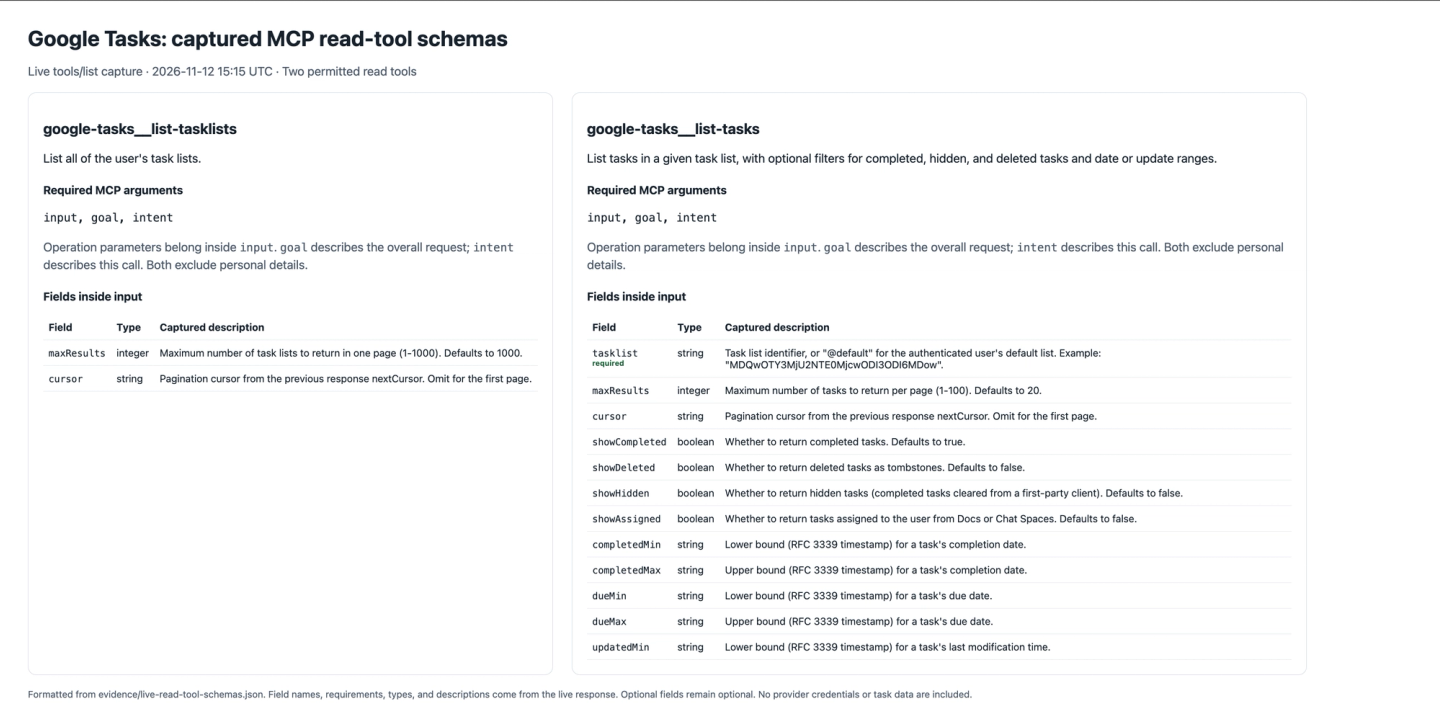
4. Run the read tools and verify the API results
Now that you’ve inspected the tools, test them through the product agent. Use controlled data to check account selection, filters, and results against the provider. For this example, create a Google Tasks list named CON-361 demo and add these incomplete tasks:
| Task | Due date | Expected for November 9–15 |
|---|---|---|
| Review Acme account notes | November 11 | Included |
| Prepare discovery questions | November 13 | Included |
| Send next-week follow-up | November 18 | Excluded |
To make “this week” reproducible, the sample fixes DEMO_TODAY=2026-11-11 and uses a Monday-to-Sunday week. Ask the product agent:
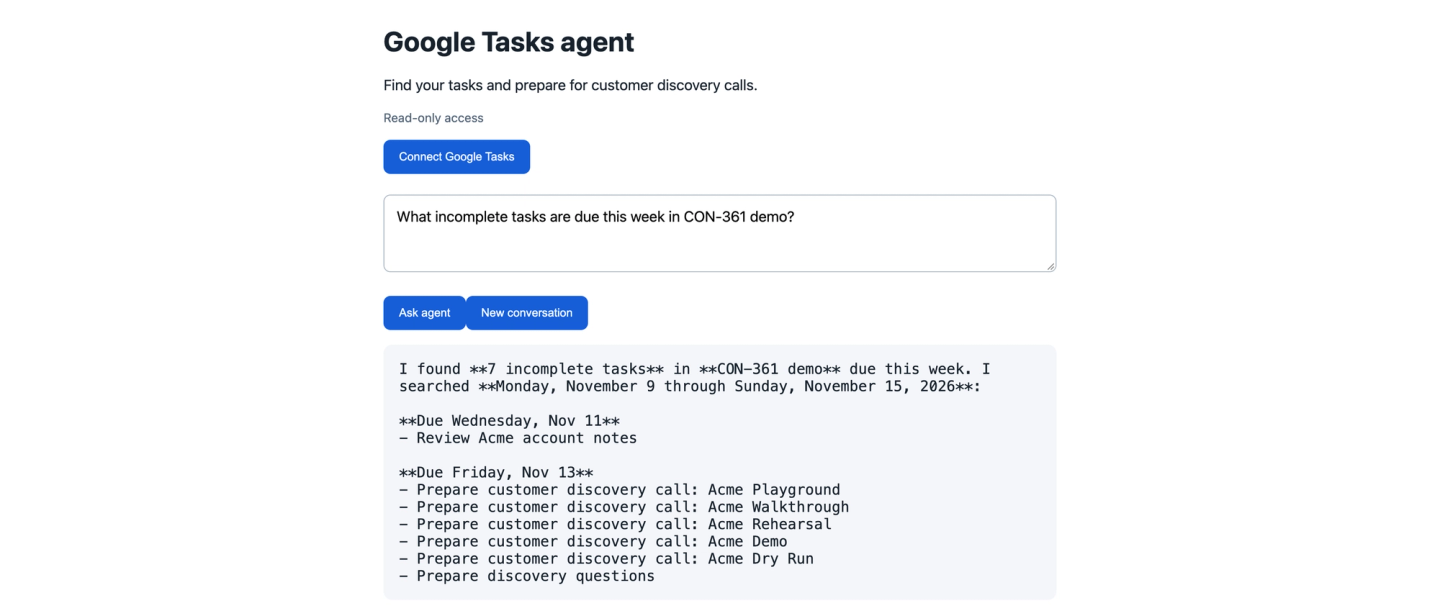
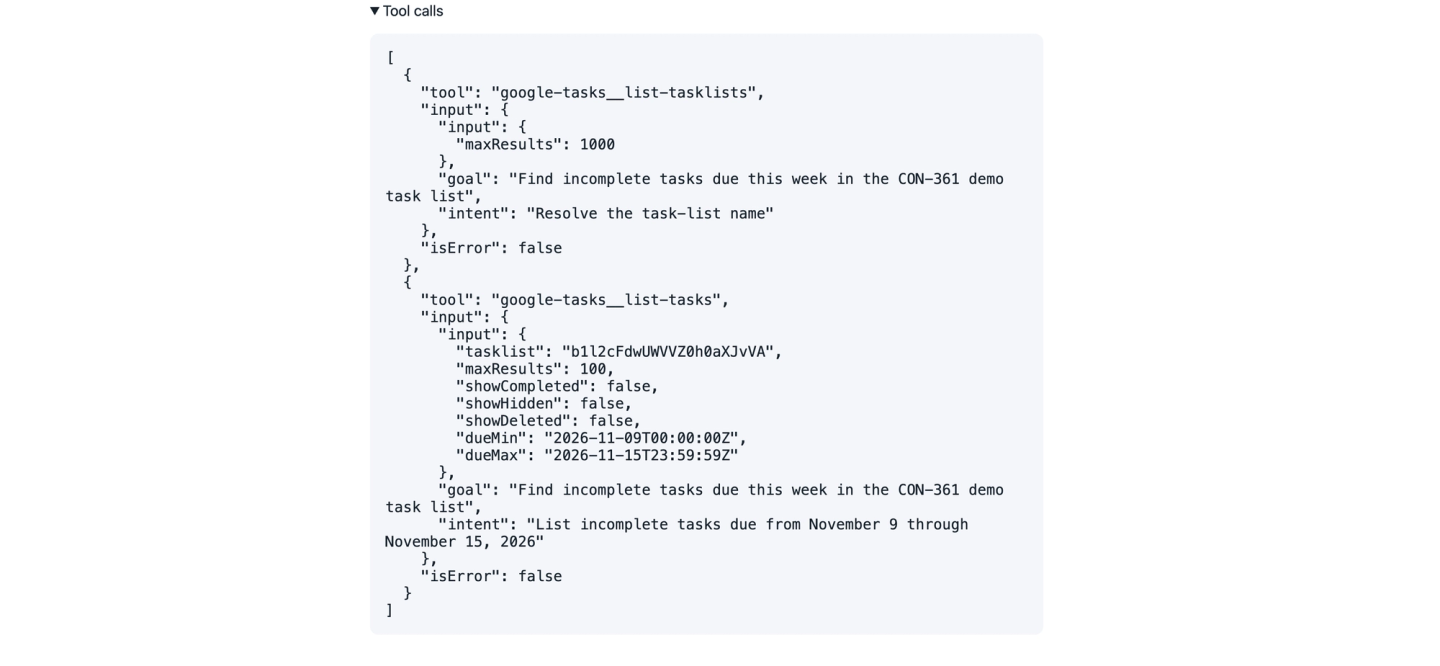
What incomplete tasks are due this week in CON-361 demo?It should resolve the list with list-tasklists, then call list-tasks for that list with incomplete-task and date filters. Use the argument names from the tool schemas you inspected above. Google’s underlying list endpoint accepts dueMin, dueMax, showCompleted, and pagination parameters.
With these three fixtures, expect two matches. The recording shows seven because the list already contained five discovery-prep tasks from earlier runs.
You can also run these reads in Nango’s Agent Playground. This provides a quick way to try the connected tools before cloning the companion or wiring your own agent. With Google Tasks connected, ask:
Use the google-tasks integration to find incomplete tasks in CON-361 demo
from November 9 through November 15, 2026. Resolve the list first and
show the matching tasks.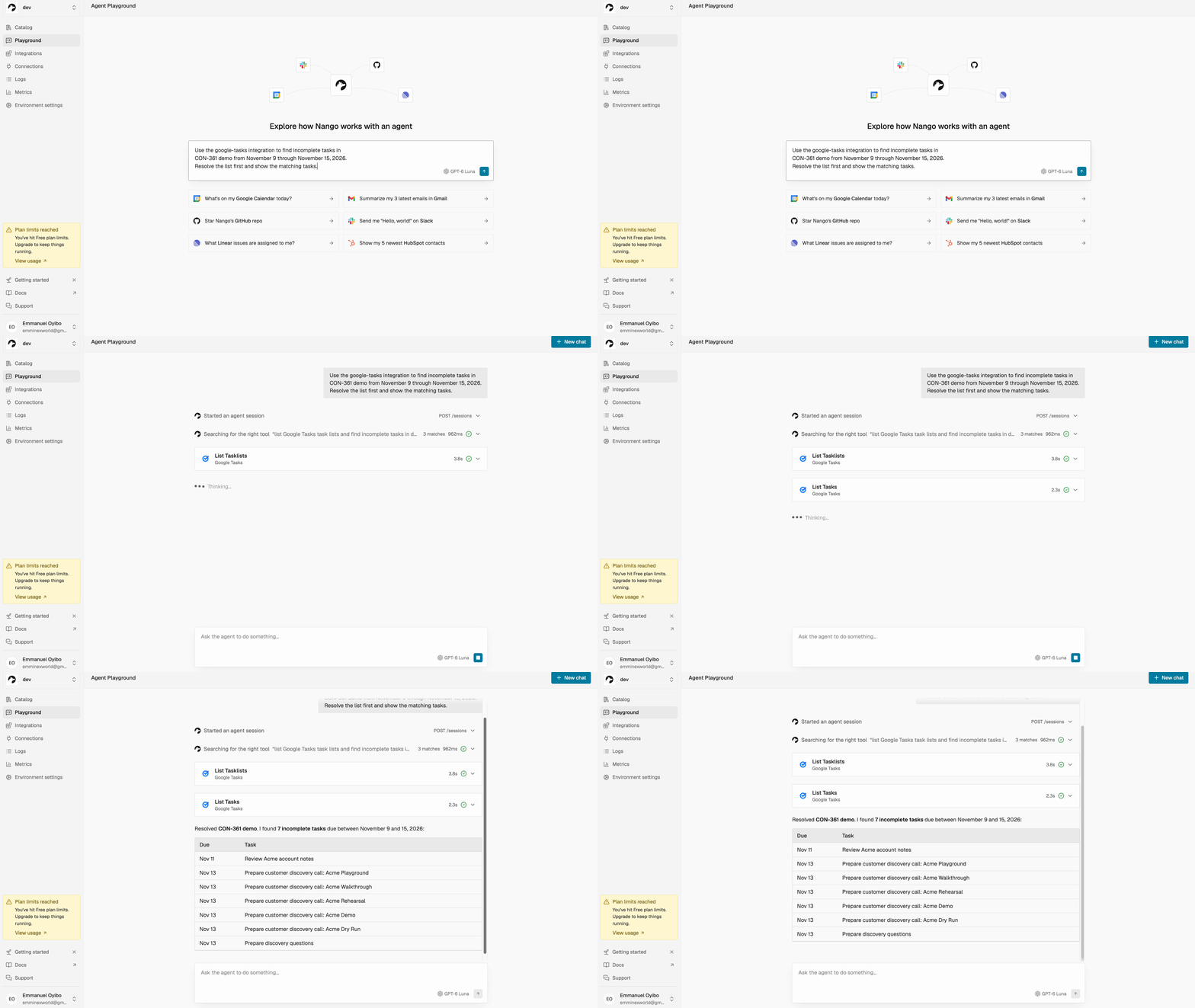
Expand the read calls to inspect their inputs and results. Also inspect Started an agent session: Playground’s session policy can differ from your application’s allowlist. A successful Playground call does not verify your product’s restrictions.
5. Build a custom tool for your business workflow
The read tools let the agent retrieve existing tasks. To create a discovery-preparation task, it also needs to apply your team’s rules: a consistent title, the standard deck link, and preparation notes. A generic task-creation tool leaves those choices to each caller. A custom MCP tool enforces them in code on every call.
Ask Claude/Codex:
Build create-customer-discovery-prep for Google Tasks using Nango. Validate
customerName, dueDate, and taskListId. Create a task titled
"Prepare customer discovery call: <customerName>" and enforce our
configured presentation URL and standard preparation notes in its notes.
Return the created ID and task details. Document required Google scopes,
test with controlled data, and deploy only this tool.
The agent supplies the customer name, date, and task list. The tool builds the notes from the configured deck URL and three fixed instructions:
notes: [`Presentation: ${PRESENTATION_URL}`, '', ...PREPARATION_NOTES].join('\n')The companion already includes the task builder. For that path, have your coding agent test, compile, and deploy the included tool to your Nango dev environment.
6. Expose the custom tool and verify its effects
Deployment makes the custom tool available in Nango. To let the product agent use it, add it to a new session’s allowlist. Ask Codex:
Create a new Agent Session allowing list-tasklists, list-tasks, and
create-customer-discovery-prep. Keep other write tools and nango_proxy
disabled. For a separate denial test, create a read-only control session
and keep it open while creating the write-enabled session.
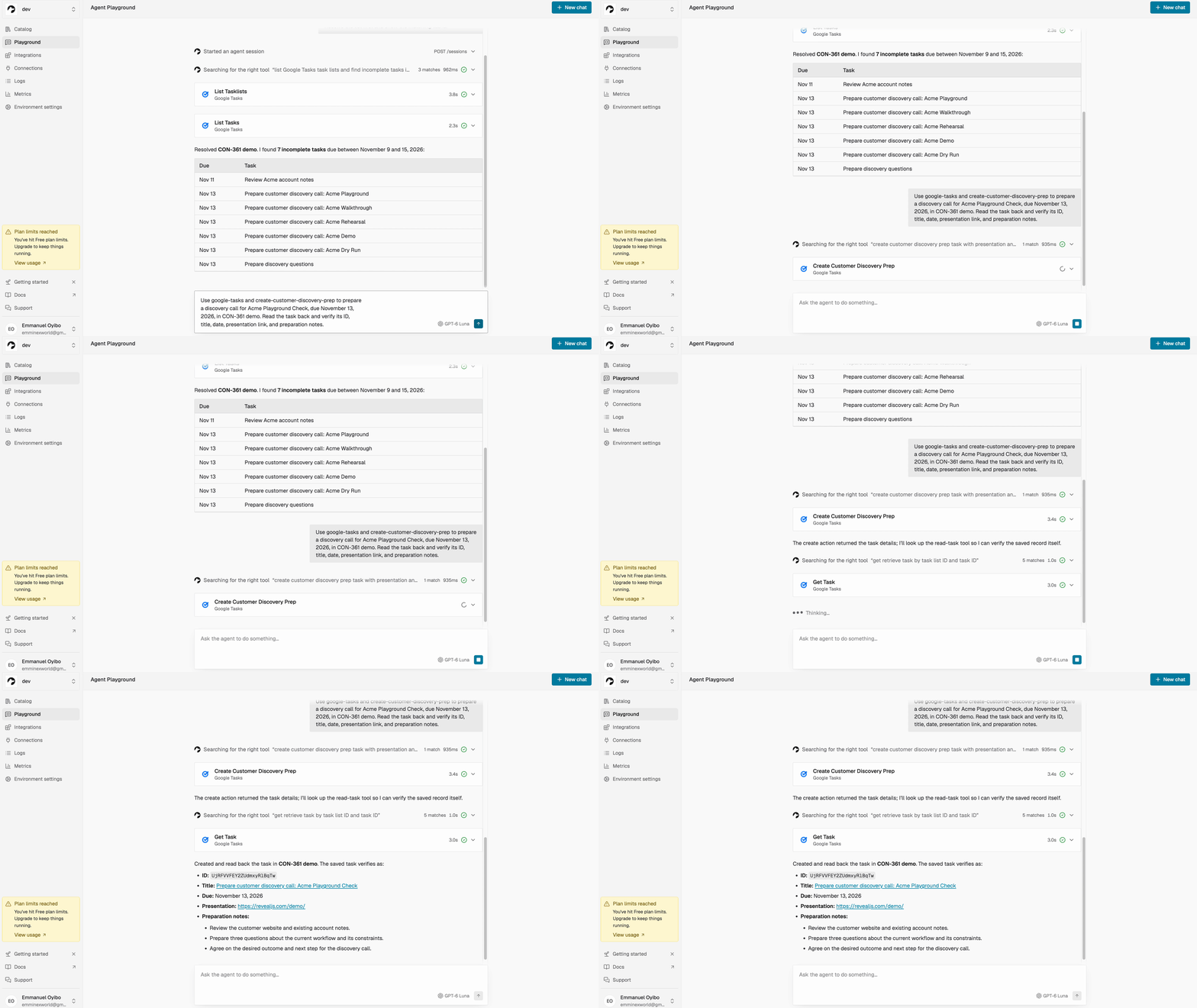
In the companion’s .env, set ENABLE_DISCOVERY_PREP=true. Restart the app with npm start, refresh the page, and start a new conversation. Ask the product agent:
Create a customer discovery preparation task for Acme Walkthrough, due
November 13, 2026, in CON-361 demo, with our standard deck link.
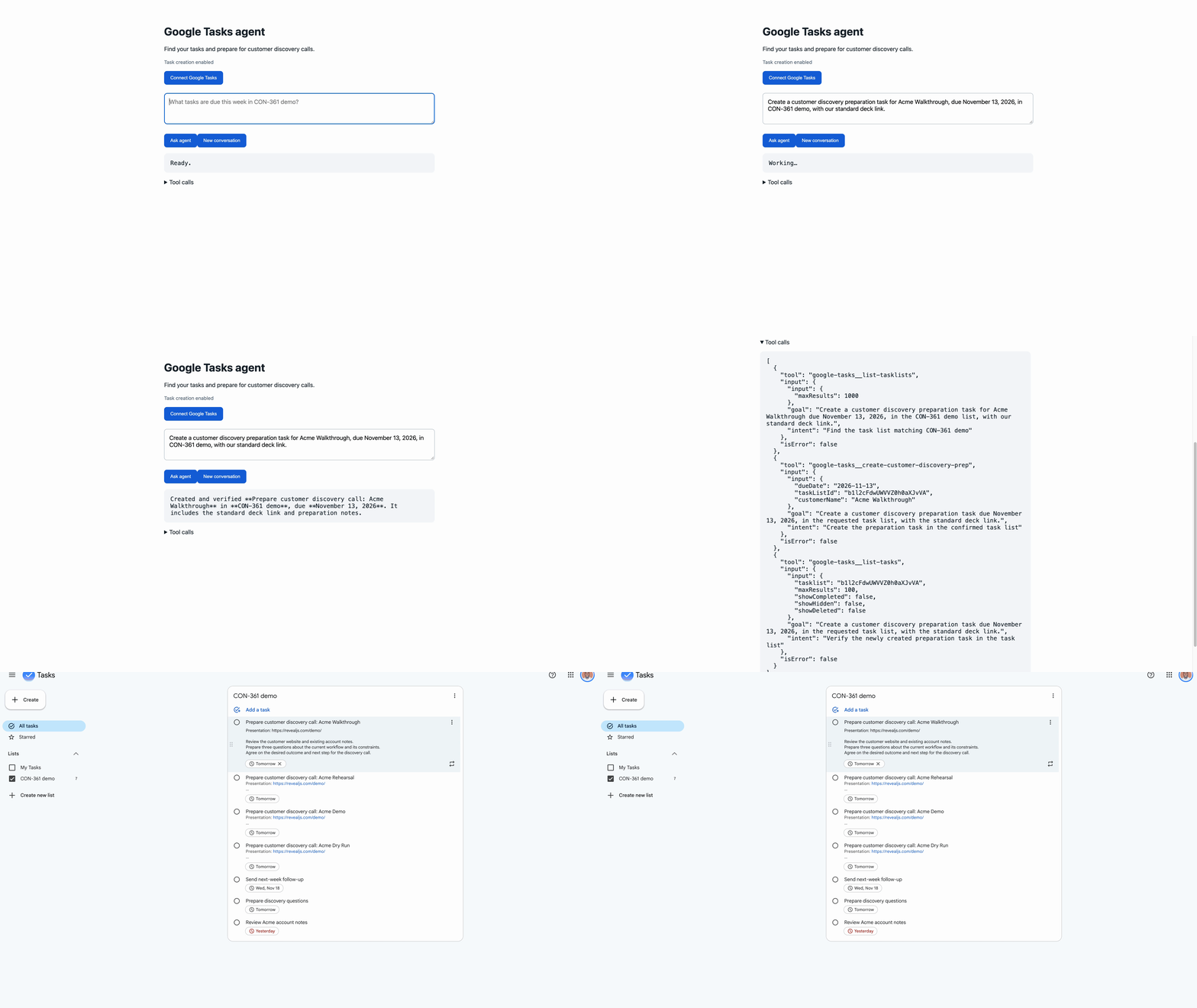
Check the new task in Google Tasks for the requested date, deck link, and three prep notes. The GIF below shows a separate Playground run for Acme Playground Check.
For the companion’s verification run, set TEST_TASK_LIST_ID in .env to the ID of CON-361 demo, then run:
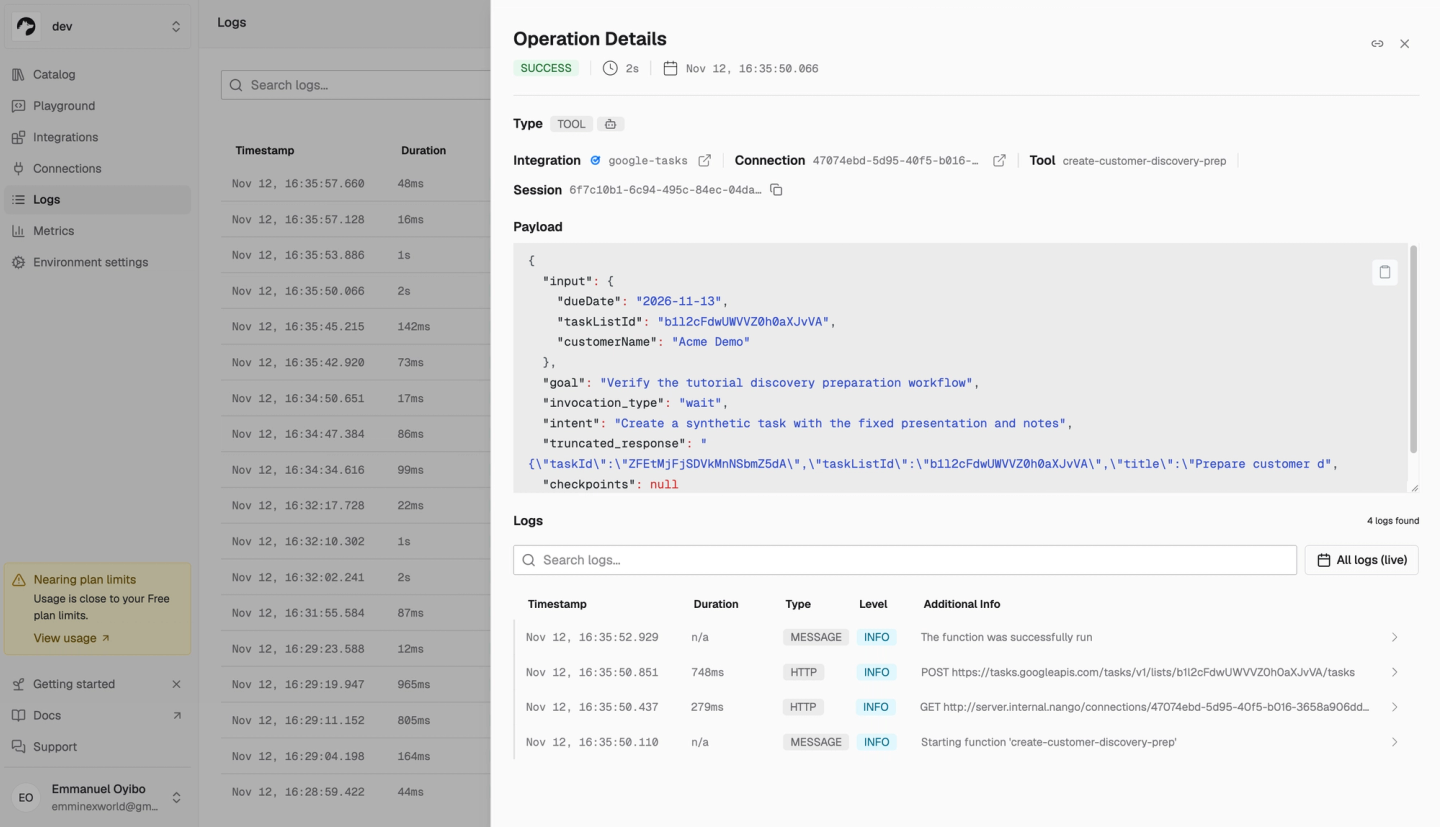
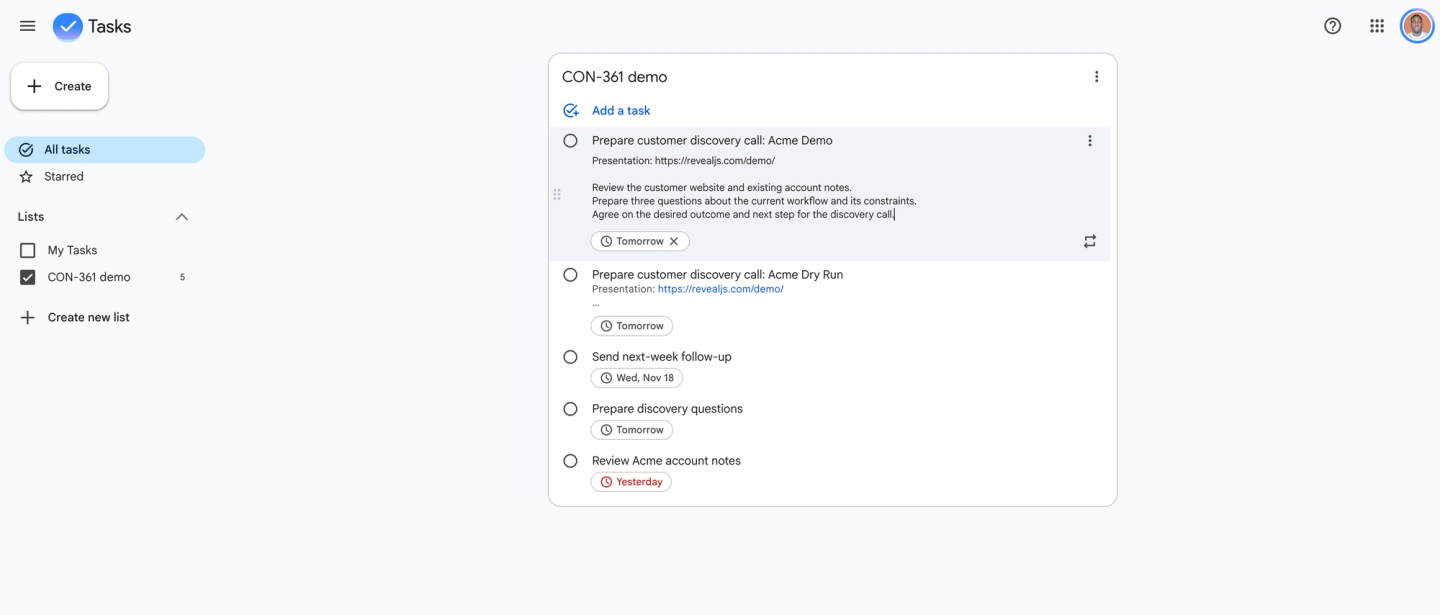
npm run verify:live -- --create-test-taskThis creates a real Acme Demo task, reads it back to check its ID and fields, and verifies that the read-only session rejects the write. The log and Google Tasks screenshot below are from that run.
Changes visible in the Google Tasks board:
What we built
We gave our product agent access to Google Tasks over MCP without waiting for Google to ship an MCP server. Nango’s prebuilt tools let the agent read a customer’s tasks. One custom tool turned our discovery checklist into an action the agent could take. Each new discovery task included the right deck link and prep notes. Our backend decided which sessions could take that action.
We did all of this work in a coding agent with Nango’s Management MCP to configure the integration and the Nango CLI to deploy the custom tool. Nango’s pre-approved Google Tasks OAuth app also saved us from registering an app and waiting for provider review. That same OAuth app can serve production users. For the next API, the same pattern applies. Connect the customer’s account, add the tools your workflow needs, and expose them through a scoped Agent Session.
Related reading:
- How to give AI agents access to user accounts without exposing OAuth tokens
- How to expose tools to AI agents without clogging their context
- How to build AI agent integrations using the Nango Management MCP
- How to build reliable tool calls for AI agents integrating with external APIs
- MCP vs tool calls for AI agents: which is better?

