
This guide shows how to build a customer-facing integration for an AI agent product without leaving Claude Code, using Slack as an example. The steps are the same for any of the 1,000+ APIs in Nango’s catalog.
What is the Nango Management MCP?
The Nango Management MCP is a hosted MCP server at https://mcp.nango.dev/mcp (Streamable HTTP) that exposes Nango’s management surface as tools: integrations, connections, connect sessions, proxy requests, function deployments, sync state, logs, and docs search. It authenticates with a Nango environment API key sent as a Bearer token, so the key decides which environment the agent can touch. The reference page lists the current tools and the scope each one needs.
It serves the engineer and their coding agent during development and operations. Your product’s agent, acting for end users at runtime, uses a separate server and should use separate credentials in production. Step 7 shows that side, and step 8 explains why they are kept apart.
By the end of this guide, you will have:
- A Slack integration in Nango created from a prompt, using Nango’s shared Slack app, with the same prompt shape for any other provider
- A connect link a customer can open to authorize their account, with the resulting connection tagged to that customer
- The
messages-receivedsync template deployed and running, verified from the logs - A
send-messageaction your product’s agent can call through Nango’s tool-calling MCP server, and a key-scoping recipe for each side before production
Prerequisites
- A free Nango account.
- Claude Code, or any MCP client that supports Streamable HTTP with custom headers. The docs cover Cursor, Codex, VS Code, Pi, and OpenCode, too.
- A test account for the provider you pick. For Slack, that is a workspace where you can install apps; a throwaway one is fine.
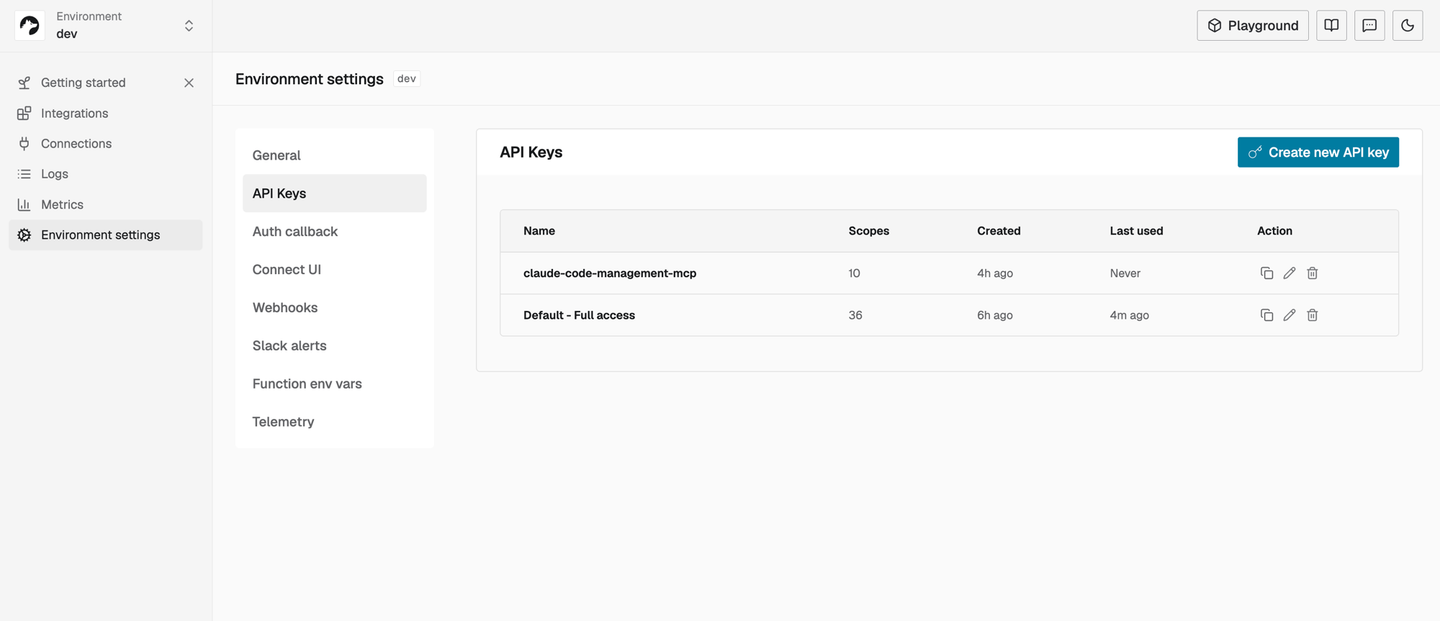
- An environment API key, created under Environment Settings > API Keys in the Nango dashboard. This is the only dashboard visit the guide needs.
Step 1: Connect the Management MCP to Claude Code
Export the environment API key from Prerequisites, then register the server for your user so it is available across projects:
export NANGO_API_KEY=<your-environment-api-key>
claude mcp add --transport http nango-management --scope user https://mcp.nango.dev/mcp \
  --header 'Authorization: Bearer ${NANGO_API_KEY}'
Keep the single quotes: Claude Code expands environment variables in its config at startup, so the key never lands in ~/.claude.json.
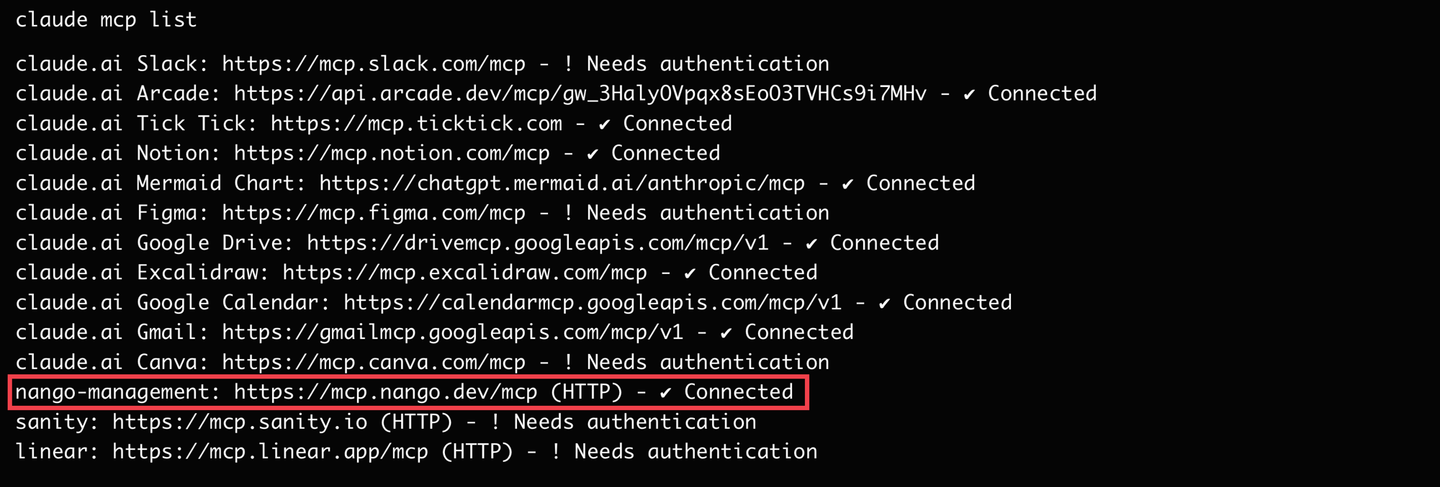
claude mcp list should show nango-management as connected. Configs for the other agents are in the coding agent setup guide.
Step 2: Create the integration
Start with a plain prompt that names the provider:
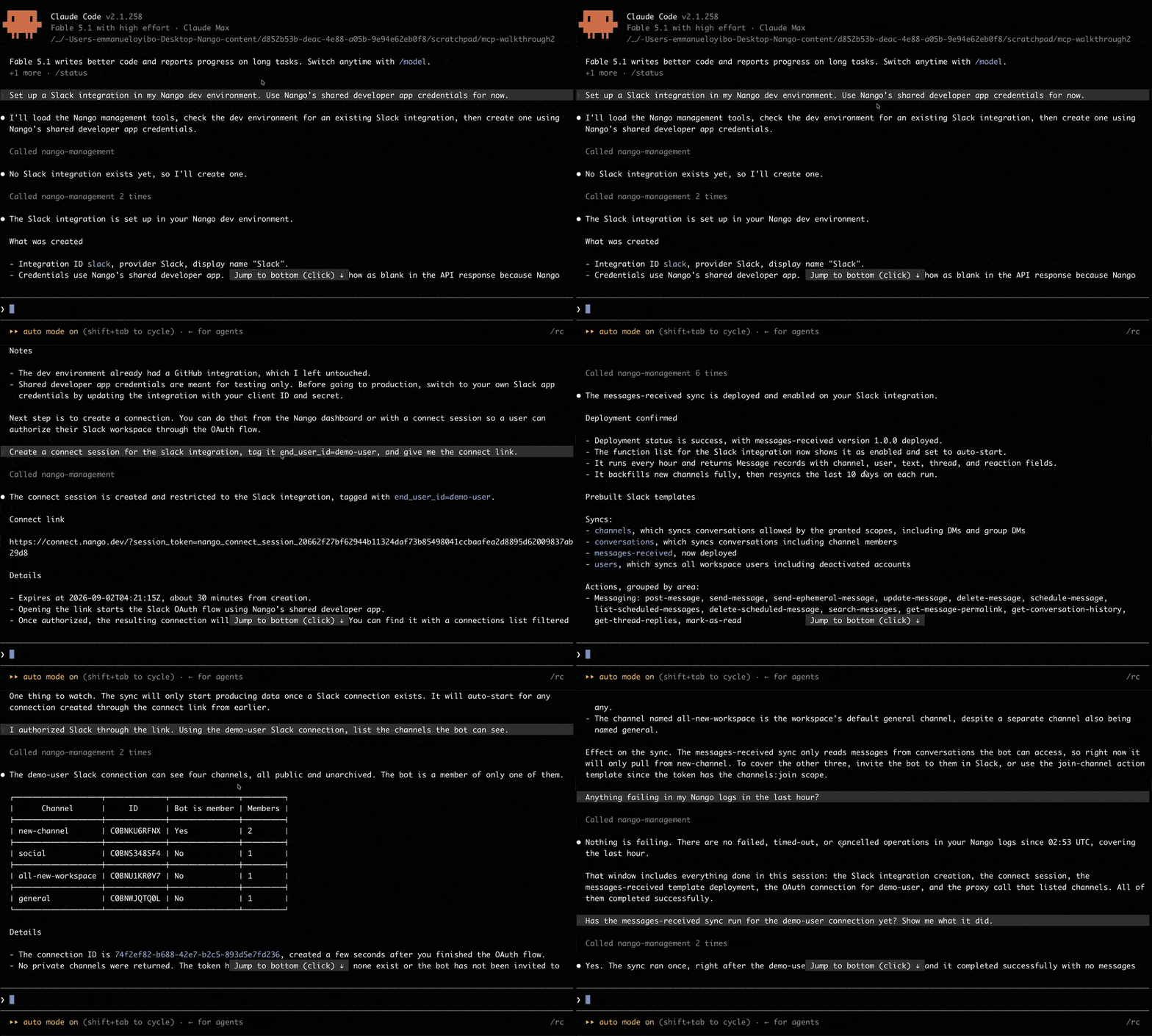
Set up a Slack integration in my Nango dev environment. Use Nango's shared developer app credentials for now.The agent listed what existed, found only the GitHub integration a new Nango account ships with, and created Slack (5 turns, 24 seconds):
integrations_list {}
→ {"data":[{"unique_key":"github-getting-started","provider":"github", ...}]}

No Slack integration exists yet, so I'll create one.

integrations_create {"provider":"slack","integration_id":"slack","credential_source":"nango","display_name":"Slack"}
→ {"data":{"unique_key":"slack","provider":"slack","created_at":"2026-09-02T03:50:51.266Z", ...}}

integrations_get {"integration_id":"slack","include":["credentials","webhook"]}
→ credentials: {"type":"OAUTH2","client_id":"","client_secret":"","scopes":"app_mentions:read,...,chat:write,...,channels:read,..."}   [trimmed]

The Slack integration is set up in your Nango dev environment.
- Credentials use Nango's shared developer app. The client ID and secret show as blank because Nango holds them on its side.
- Shared developer app credentials are meant for testing only. Before going to production, switch to your own Slack app credentials.
The important choice here is credential_source. The value nango uses the pre-provisioned OAuth app Nango ships for popular providers such as Google (CASA-approved), Salesforce, and Slack, which is why a new account can authorize a workspace in the next step with zero Slack developer portal work.
Swap slack for any other provider slug in the catalog and the prompt works unchanged. For providers without a pre-provisioned app, give the agent your app’s client ID and secret up front and it passes them through credential_source: "own".
Step 3: Mint a connect link and authorize a test connection
Create a connect session for the slack integration, tag it end_user_id=demo-user, and give me the connect link.One tool call, 12 seconds:
connect_session_create {"allowed_integrations":["slack"],"tags":{"end_user_id":"demo-user"}}
→ {"token":"nango_connect_session_2066...","connect_link":"https://connect.nango.dev/?session_token=nango_connect_session_2066...","expires_at":"2026-09-02T04:21:15.275Z"}

The connect session is created and restricted to the Slack integration, tagged with end_user_id=demo-user.
- Expires at 2026-09-02T04:21:15Z, about 30 minutes from creation.
- Once authorized, the resulting connection will carry the demo-user tag.
Open the link and complete the provider’s authorization; for Slack that means picking the test workspace and clicking Allow. Connect sessions live for 30 minutes and the response carries token, expires_at, and connect_link. Tags on the session are copied onto the connection, which is what lets the next prompts refer to the customer instead of a connection ID. In your product, your backend mints this session per customer and the frontend opens it; the flow is the same.
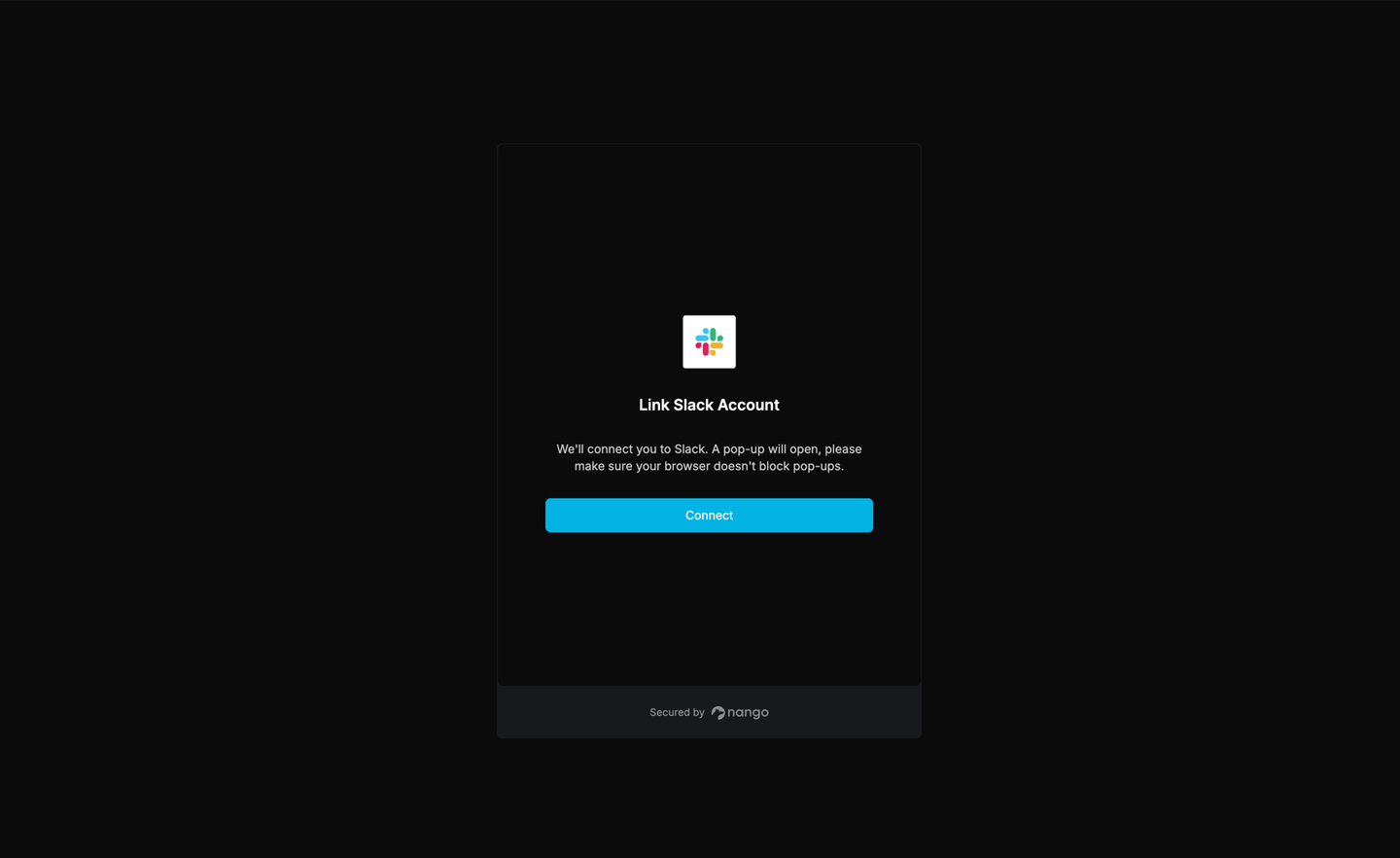
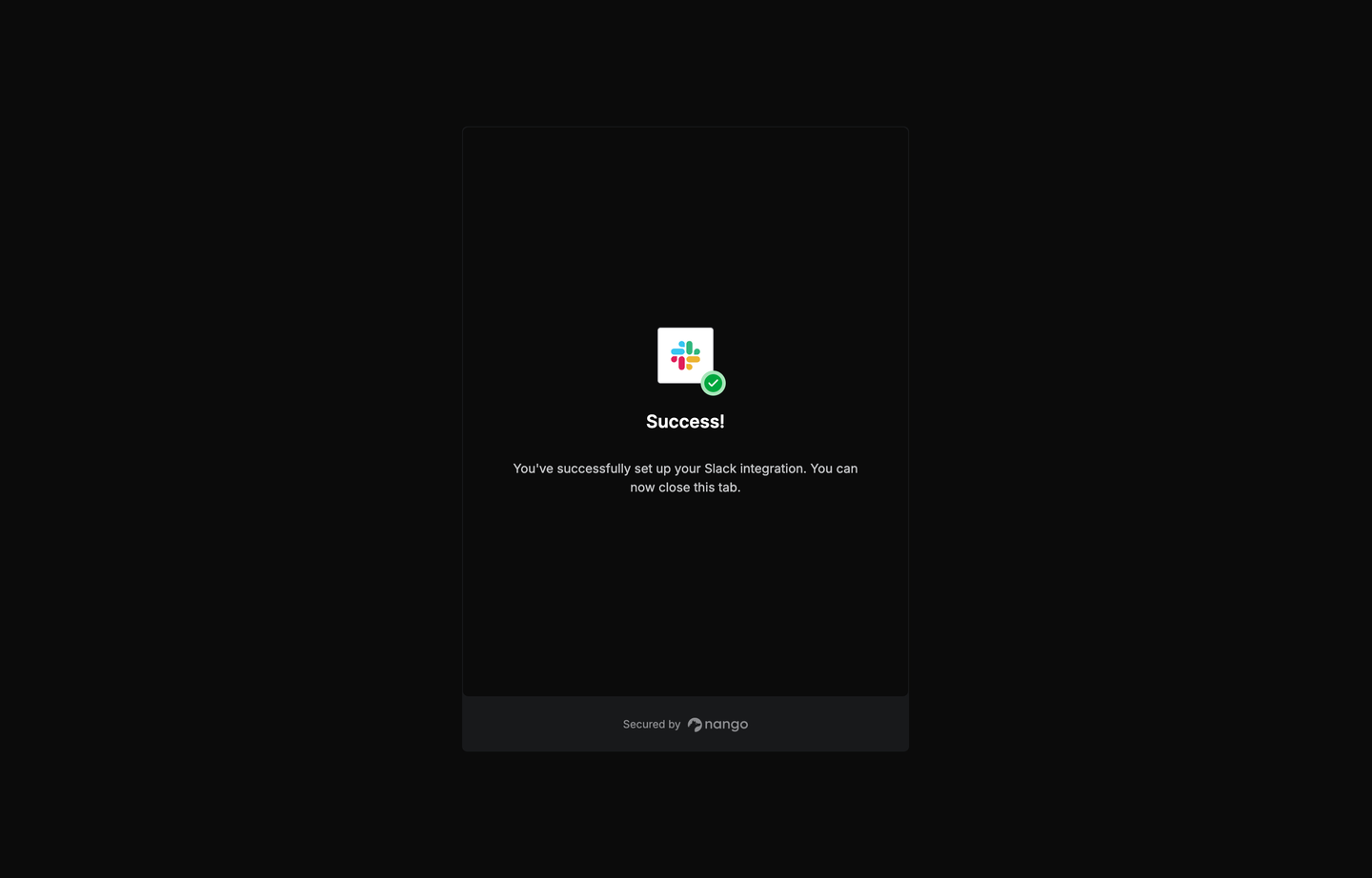
The same tool mints sessions for other integrations and test users in one prompt, and the underlying API is what your backend calls per customer. With the connection authorized, check it before deploying any functions.
Step 4: Smoke-test the connection through the proxy
I authorized Slack through the link. Using the demo-user Slack connection, list the channels the bot can see.The agent resolved the tag to a connection, then went through the proxy (4 turns, 19 seconds):
connections_list {"integration_id":"slack","tags":{"end_user_id":"demo-user"}}
→ {"connections":[{"connection_id":"74f2ef82-...","tags":{"end_user_id":"demo-user"},"errors":[], ...}]}

proxy_request {"method":"GET","path":"/conversations.list","integration_id":"slack","connection_id":"74f2ef82-...","query_params":{"types":"public_channel,private_channel","exclude_archived":"true","limit":200}}
→ {"status":200,"headers":{"x-accepted-oauth-scopes":"channels:read,groups:read,mpim:read,im:read,read", ...},"body":{"ok":true,"channels":[ ... 4 channels ... ]}}   [trimmed]

The demo-user Slack connection can see four channels, all public and unarchived. The bot is a member of only one of them.

<!--TABLE_PLACEHOLDER_0-->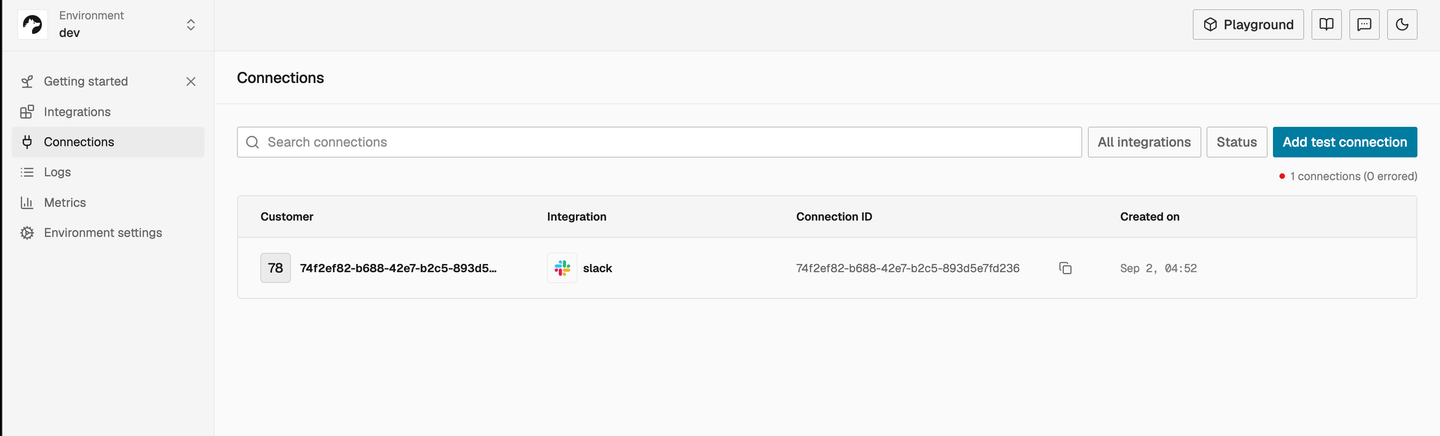
proxy_request injects the connection’s access token, so the agent never sees it. Retries are opt-in through a retries parameter (0 to 5, none by default), and the tool returns the provider’s status, headers, and body. The path is whatever the provider’s API exposes, so the same tool smoke-tests any integration. Two limits: it only returns JSON or UTF-8 text up to 5 MB, and large integers come back as strings so they are not rounded. Binary responses or bigger payloads need the proxy HTTP API instead.
The bot belongs to one channel so far. The next steps show how the sync changes that, and expose a limitation in the template.
Step 5: Enable a prebuilt sync
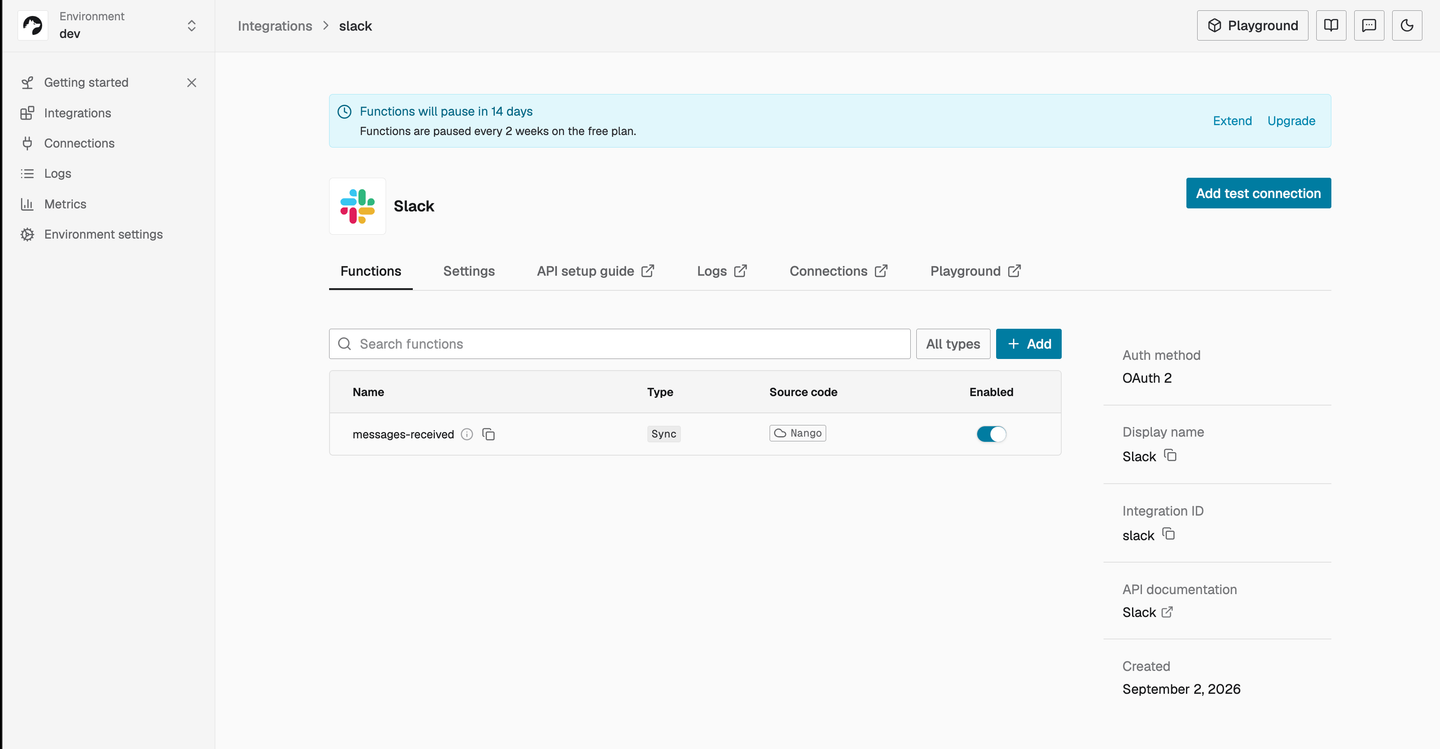
What prebuilt function templates exist for Slack? Enable the messages-received sync on my slack integration and confirm the deployment succeeded.The agent looked up the Slack templates in the Nango docs, deployed the sync, and polled its status (9 turns, 37 seconds):
functions_list {"integration_id":"slack"}
→ {"data":[],"pagination":{"total":0, ...}}

deploy_template {"integration_id":"slack","template":"messages-received","function_type":"sync"}
→ {"id":"5b708a0a-56a1-4860-9a7a-ee0427deceb4","status":"success","created_at":"2026-09-02T03:51:58.281Z"}

get_deployment_status {"id":"5b708a0a-56a1-4860-9a7a-ee0427deceb4"}
→ {"status":"success","function_name":"messages-received","function_type":"sync","output":"Successfully deployed the functions:\n- messages-received@1.0.0","deployed":true}

functions_list {"integration_id":"slack"}
→ {"data":[{"name":"messages-received","type":"sync","runs":"every hour","auto_start":true,"enabled":true,"source":"catalog", ...}]}   [trimmed]

The messages-received sync is deployed and enabled on your Slack integration.
- It runs every hour and returns Message records with channel, user, text, thread, and reaction fields.
- It backfills new channels fully, then resyncs the last 10 days on each run.
Slack ships four sync templates (channels, conversations, messages-received, users) and fifty action templates, listed on the Slack integration page. Other providers list theirs on their own docs pages, and the template catalog shows what is available across all of them. deploy_template deploys catalog code as is. When the template is not what you want, that is where the building-nango-functions skill comes in: the agent writes the function and deploy_function ships it. The two tools start separate deployment paths, but get_deployment_status confirms either one.
Step 6: Verify the sync in the logs
The template deployed with auto_start: true at 03:51:58 UTC, while I was still on the Slack consent screen. The demo-user connection was created at 03:52:34, when I clicked Allow, and Nango initialized the sync for it 42 milliseconds later. (The auth operation in the logs starts at 03:51:15, but that is when the connect session was minted, not when the connection existed.) I asked about it a few minutes after that:
Has the messages-received sync run for the demo-user connection yet? Show me what it did.logs_list_operations {"operations":[{"type":"sync"}],"integrations":["slack"],"connections":["74f2ef82-..."],"period":{"from":"2026-09-02T03:50:00Z"}}
→ {"operations":[{"message":"Sync executed","state":"success","meta":{"records":{"Message":{"added":0,"updated":0,"deleted":0}},"runTimeSecs":2.014, ...}},{"message":"Sync initialized","state":"success", ...}]}
logs_get_operation {"operationId":"1788321155244_tgpqLdaW","messages":{"limit":100}}
→ messages: [
"Full sync 'messages-received' completed successfully",
"GET https://slack.com/api/conversations.history?channel=C0BNKU6RFNX&oldest=0&limit=100",
...
] [trimmed]
Yes. The sync ran once, right after the demo-user connection was created, and it completed successfully with no messages found.
... [trimmed: steps 1 and 2 were init and channel listing]
3. Called Slack's join endpoint once, which is how the bot became a member of new-channel.
4. Fetched the full history of new-channel from the beginning of time. Slack returned an empty result.
... [trimmed]The agent read the HTTP messages under the operation, noticed the template had called conversations.join, and connected it to the “bot is a member of only one” observation from step 4. That is more than the logs page tells you.
The logs show what the sync did, but not why it touched only one channel. The template source explains why: the catalog version of messages-received runs allChannels.slice(0, 1), with a comment about preventing timeouts, so it joins and reads only the first channel Slack returns. Inviting the bot elsewhere changes nothing. For a real multi-channel sync, pull the template with the building-nango-functions skill, drop the slice, add pagination, and ship it with deploy_function.
The plainer prompt, “Anything failing in my Nango logs in the last hour?”, came back empty in 15 seconds after one logs_list_operations call filtered on failed, timeout, and cancelled. The agent that configured the integration can inspect its failures later from the same session.
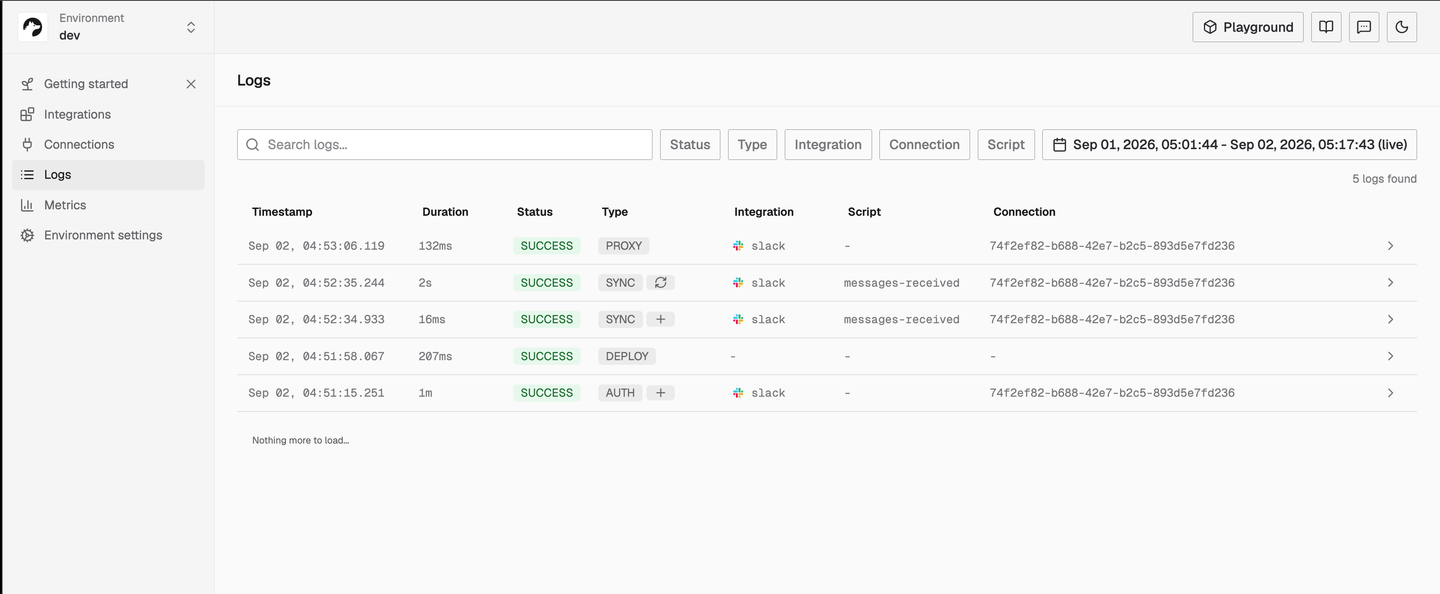
The dashboard shows my local time, one hour ahead of the UTC timestamps in the transcripts. At this point it showed five operations: the deploy and the proxy call from the agent, the auth one from me clicking Allow, and the two sync operations Nango scheduled on its own once the connection existed.
Step 7: Expose an action to your product’s agent
So far the Management MCP has handled the engineer-facing configuration and verification. A customer-facing integration exists for your product’s agent to act on the customer’s behalf at runtime. This step enables an action and invokes it through the runtime server as that agent would.
Enable the send-message action template on my slack integration so my product's agent can post messages, and confirm it deployed.The deployment follows the same sequence as the sync: deploy, poll, and verify (4 turns, 21 seconds):
deploy_template {"integration_id":"slack","template":"send-message","function_type":"action"}
→ {"id":"9707a744-0529-41fa-9b0a-97770b7f42ea","status":"success","created_at":"2026-09-02T04:59:49.896Z"}

get_deployment_status {"id":"9707a744-..."}
→ {"status":"success","function_name":"send-message","function_type":"action","output":"Successfully deployed the functions:\n- send-message@3.0.1","deployed":true}

functions_list {"integration_id":"slack","type":"action"}
→ {"data":[{"name":"send-message","scopes":["chat:write"],"type":"action","input":{"channel_id":"string","text":"string"},"enabled":true,"source":"catalog", ...}]}   [trimmed]

The send-message action is deployed and enabled on your Slack integration.
This action is now exposed through Nango's tool-calling MCP server at https://api.nango.dev/mcp, or callable through the actions API. Each request needs the connection ID and provider config key.
Now switch hats. Your product’s agent does not get the Management MCP. It gets Nango’s tool-calling MCP server at https://api.nango.dev/mcp, with the customer’s connection pinned in two headers. I used curl to show the underlying JSON-RPC requests over Streamable HTTP:
curl -s -X POST https://api.nango.dev/mcp \
  -H "Authorization: Bearer <NANGO-API-KEY>" \
  -H "connection-id: <CONNECTION-ID>" \
  -H "provider-config-key: slack" \
  -H "Content-Type: application/json" -H "Accept: application/json, text/event-stream" \
  -d '{"jsonrpc":"2.0","id":1,"method":"tools/list","params":{}}'
{"result":{"tools":[{"name":"send-message","description":"Send a message to a channel","inputSchema":{"type":"object","properties":{"channel_id":{"type":"string", ...},"text":{"type":"string", ...}},"required":["channel_id","text"]}}]}}One tool, because one action is enabled. That is the whole tool surface this customer’s agent sees. Calling it is the same request with a tools/call payload:
curl -s -X POST https://api.nango.dev/mcp \
  -H "Authorization: Bearer <NANGO-API-KEY>" \
  -H "connection-id: <CONNECTION-ID>" \
  -H "provider-config-key: slack" \
  -H "Content-Type: application/json" -H "Accept: application/json, text/event-stream" \
  -d '{"jsonrpc":"2.0","id":2,"method":"tools/call","params":{"name":"send-message","arguments":{"channel_id":"C0BNKU6RFNX","text":"Hello from the runtime agent. Posted through Nango send-message for demo-user."}}}'
{"result":{"content":[{"type":"text","text":"{\"ok\":true,\"channel\":\"C0BNKU6RFNX\",\"ts\":\"1788325222.248489\",\"message\":{\"type\":\"message\",\"user\":\"U0BNKUB3EQ3\",\"text\":\"Hello from the runtime agent. Posted through Nango send-message for demo-user.\", ...}}"}]}} [trimmed]
The message landed in new-channel, the channel the sync joined in step 6. Note the sender name: that is Nango’s pre-provisioned Slack app from step 2.
Neither the agent nor the curl command handled a Slack token. The runtime key identifies the environment, the headers select the Nango connection and integration the request should use, and Nango stored the token and injected it when executing the action. Swap curl for the MCP SDK in your agent loop and you have the customer-facing half of the integration. Nothing here is Slack-specific: enable an action on any integration and the runtime server exposes it the same way, selected by the same two headers. The runtime path works; what remains is replacing the full-access development key with narrowly scoped ones.
Step 8: Which API key scopes does the agent need?
For anything that stays configured, scope the key to the tool groups each side needs. The scopes reference has the full list. The Management MCP calls in steps 1 through 7 need:
environment:integrations:create,environment:integrations:list,environment:integrations:readforintegrations_create,integrations_list,integrations_getenvironment:connect_sessions:writeforconnect_session_createenvironment:connections:listforconnections_list(addenvironment:connections:readonly if the agent needsconnections_get, which this walkthrough never called)environment:proxyforproxy_requestenvironment:functions:listandenvironment:deployforfunctions_list,deploy_template,get_deployment_statusenvironment:logs:readforlogs_list_operations,logs_get_operation
The runtime call in step 7 requires environment:mcp, which the Management MCP does not use at all. In production, give it a separate key containing only that scope. It is easy to grant the wrong one; the reference page carries a note about exactly this confusion.
Provider credentials stay out of the agent’s context when the key excludes both environment:integrations:read_credentials and environment:connections:read_credentials. Without those scopes, integrations_get and connections_get return metadata without secrets, and the proxy injects access tokens server-side. The default full-access key I used for the run does carry both, which is the reason to scope down before anything permanent. The key is also bound to one environment, so a dev key cannot reach production no matter what the agent is asked.
The Management MCP is for development and operations, never for your production agent. The tool-calling server is for runtime, and each request targets one connection through the headers, but the environment:mcp key itself is environment-wide. Treat connection IDs as sensitive and leave environment:connections:list off the runtime key, as the advised profiles recommend. A leaked runtime key can then only run enabled actions against connection IDs the attacker already knows. A leaked Management MCP key may also create integrations, deploy functions, proxy provider requests, or read logs, depending on its scopes. For the contrast with platforms where one API key does everything, see Composio vs Nango.
Conclusion
Seven prompts and two curl requests produced both halves of a customer-facing integration: the engineer’s half through the Management MCP, and the product agent’s half through the tool-calling server. Slack was the example. The same prompts work for any API in the catalog once you swap the provider slug, with your own OAuth app where Nango has no shared one. One full-access dev key served both halves here. That is fine for a throwaway environment and wrong for production, where each half gets its own scoped key.
The Management MCP’s tool list is still growing toward the full public API, so check the reference and the changelog before wiring it into anything that matters. Self-hosters can run it from the main Nango server by setting NANGO_MANAGEMENT_MCP_SERVER_URL to a dedicated hostname.
When the job is writing integration code rather than managing the environment, install the skill alongside the MCP:
npx skills add NangoHQ/skills -s building-nango-functionsUse the skill to write the function and the Management MCP to test, deploy, and debug it.
FAQ
What is the Nango Management MCP?
It is a hosted MCP server at https://mcp.nango.dev/mcp that lets a coding agent manage a Nango environment through tools: create and update integrations, mint connect sessions, inspect connections, call provider APIs through the proxy, deploy functions and templates, and query logs. It authenticates with a Nango environment API key as a Bearer token.
Is it the same as Nango’s tool-calling MCP server?
No. The Management MCP is for development and operations: an engineer’s coding agent configuring and debugging an environment. The tool-calling MCP server at https://api.nango.dev/mcp is for runtime: your product’s agent executing enabled action functions for one end user’s connection, authenticated with the environment:mcp scope plus per-request connection headers. Separate servers, and separate credentials in production.
Is it safe to give an agent access to my integrations environment?
Use a dev environment and a scoped key. Every tool that touches the environment declares the scope it needs (only the two docs tools need none), the key is bound to one environment, and provider tokens are only returned when the key carries a read_credentials scope, so leave those off. The proxy injects credentials server-side, so the agent never holds a Slack token. Keep the key out of the repo and reference it through an environment variable.
How do I provide SaaS integrations to AI agents with Nango?
Build the integration once with your coding agent (Management MCP for setup, the building-nango-functions skill for custom code), let end users authorize through a connect link, then expose the enabled action functions to your runtime agent through Nango’s tool-calling MCP server or the actions API. Nango stores tokens, refreshes them, and logs every call.
Does this only work for Slack?
No. Slack is the worked example. integrations_create accepts any provider slug from Nango’s catalog of 1,000+ APIs, connect sessions and the proxy behave the same for every integration, and templates exist per provider where Nango has built them. For providers without a shared developer app, supply your own OAuth app credentials when creating the integration.

