
This guide shows how to build a custom, customer-facing Google Sheets API integration with Nango and an AI coding agent (Codex, Claude Code, Cursor, or any other).
By the end of this guide, you will have:
- A Google Sheets auth UI in your product (Nango Connect) so your customers can connect their own spreadsheets to your app.
- A durable sync that imports rows from a connected spreadsheet and keeps them up to date as the sheet changes.
- The ability to append rows to a customer’s spreadsheet and export reports to new spreadsheets, from your UI or from an AI agent in your product (via an MCP tool call).
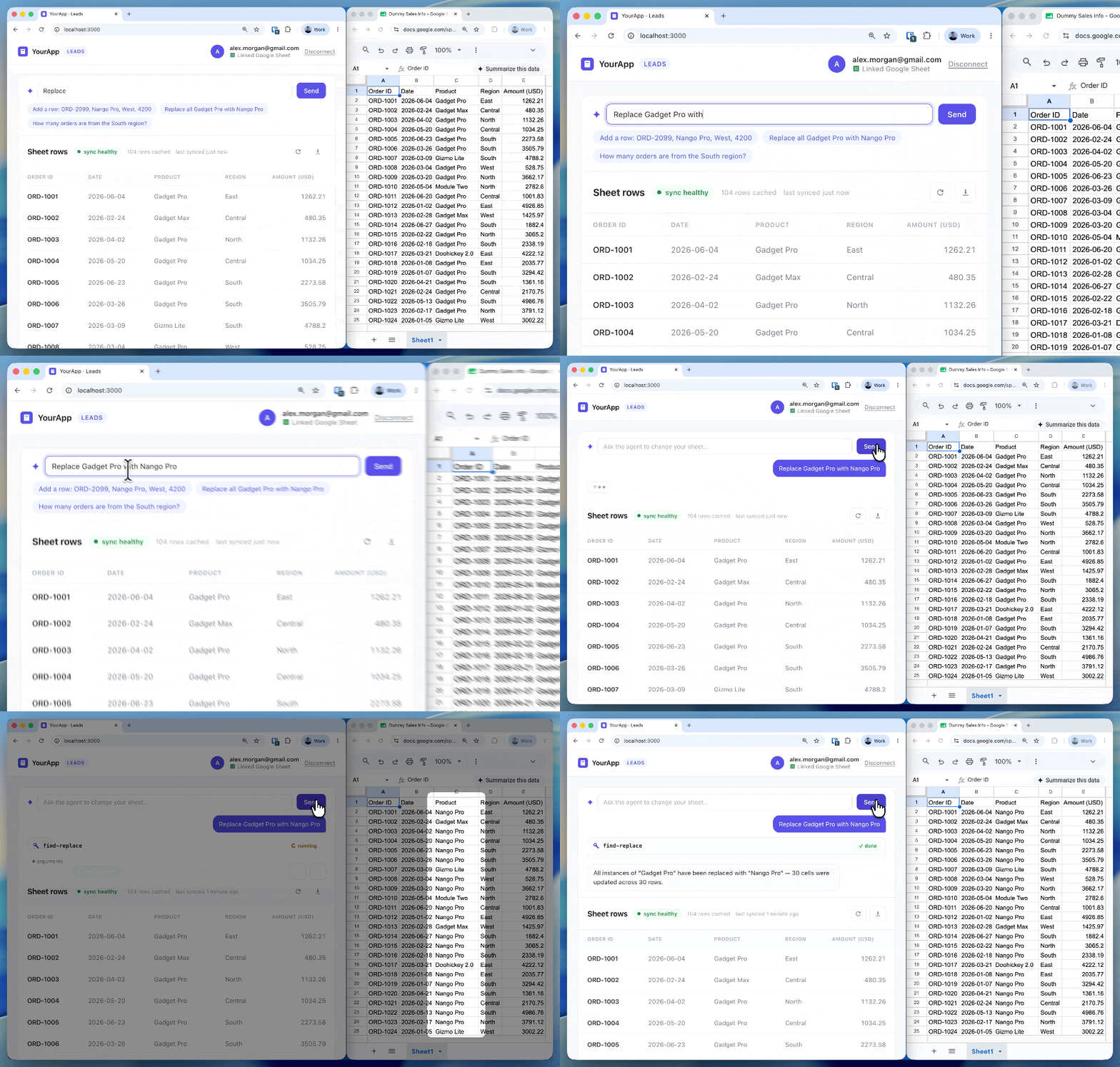
Get the working example: the complete demo (frontend, backend, nango-integrations) is on GitHub at NangoHQ/google-sheets-api-integration. Clone it to run the whole thing end to end, or follow the guide below and let Codex generate the same functions in your own project.
Why is it hard to integrate the Google Sheets API into your app?
A production Google Sheets API integration needs a few decisions up front:
- You need an OAuth app, not an API key: a Google Sheets API key only reads public spreadsheets. Accessing customer spreadsheets takes an OAuth 2.0 app with a consent screen, token refresh, and revocation handling.
- Decide on scopes early, they set your verification timeline: most integrations request
https://www.googleapis.com/auth/spreadsheets, the standard read-write scope. Google classifies it as sensitive, so your app needs verification to go live (unverified apps cap at 100 users), and while the OAuth app’s publishing status is Testing, refresh tokens expire every 7 days. - Plan around the rate limits: the quota is 300 read and 300 write requests per minute per project, and 60 per user. Past that, requests fail with
429: Too many requests, and Google’s limits page says exceeding quota is planned to incur charges later in 2026. - No Google Sheets webhooks: the v4 API has no push notifications. Change detection means polling, or Drive API
files.watchchannels that expire after at most one day and carry no payload. - Decide whether you want Google’s auto-formatting on writes:
valueInputOption=USER_ENTEREDparses values the way the Sheets UI does (strings can become numbers and dates), whileRAWstores them as-is. Phone numbers and zip codes usually belong inRAW. - Keep the data you write contiguous:
values.appendlooks for a “table” in the target range and writes after the last one it finds, so empty rows shift where new rows land. - Avoid hardcoding sheet names or ranges: customers rename tabs and reorder columns, which breaks A1 ranges (
Unable to parse range). Store the stable numericsheetId, resolve the current tab name withspreadsheets.getbefore building ranges, and read headers instead of assuming column order.
Building all of this by hand takes weeks. With Nango and a coding agent like Codex, the same Google Sheets API integration can ship in about an hour.
Why use Nango for a Google Sheets API integration
Nango is the integration platform where coding agents build API integrations. An agent like Codex writes the integration as code in your repo, and Nango’s runtime runs it with managed auth, retries, and observability across 900+ APIs.
For a Google Sheets integration, we will use these Nango features:
- OAuth for Google Sheets: your product gets a customizable, white-label auth UI where customers connect their Google Sheets account, while Nango handles token storage, refresh, and encryption behind it.
- A function builder skill for Codex: to build your integration logic and flows, Codex uses the Nango function builder skill. It researches the Sheets API, writes your actions and syncs from a prompt, tests them against a real Google Sheets connection, and iterates until the integration works end to end.
Note: The Nango skill also works with other coding agents like Claude Code, Cursor, Gemini CLI, etc. - Integrations infrastructure for every use case:
- Actions: one-off operations on a customer’s sheet, like appending a row or creating a spreadsheet.
- Syncs: scheduled functions that keep spreadsheet rows flowing into your app.
- Webhooks: route external events, like Drive file-change notifications, to your integration.
- MCP server: exposes your deployed actions as tools for the AI agents in your product.
Nango also has pre-built actions and syncs for Google Sheets. They cover the common operations (a worksheet rows sync, appending values, reading values, upserting rows, creating spreadsheets) and you can enable them from your dashboard and use them right away, without building anything. Or have Codex clone and customize them to fit your use case.
Prerequisites
- Sign up for Nango (the free tier is enough for development).
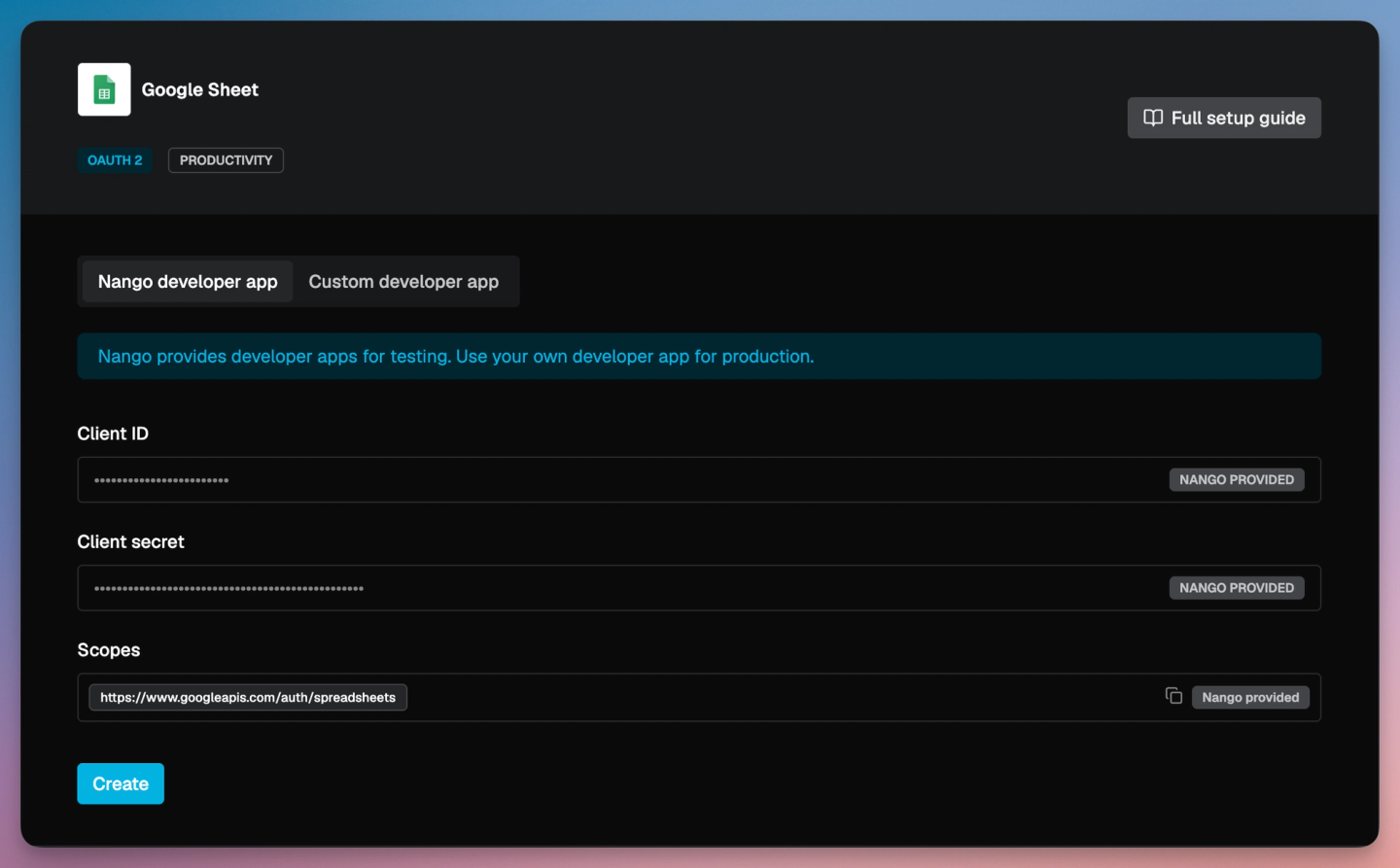
- Add Google Sheets as an integration on the Nango dashboard. For this tutorial, use Nango’s pre-configured developer app: activate the shared credentials on the integration page and skip the Google Cloud setup entirely. For production, register your own Google OAuth app with Nango’s callback URL
https://api.nango.dev/oauth/callback.
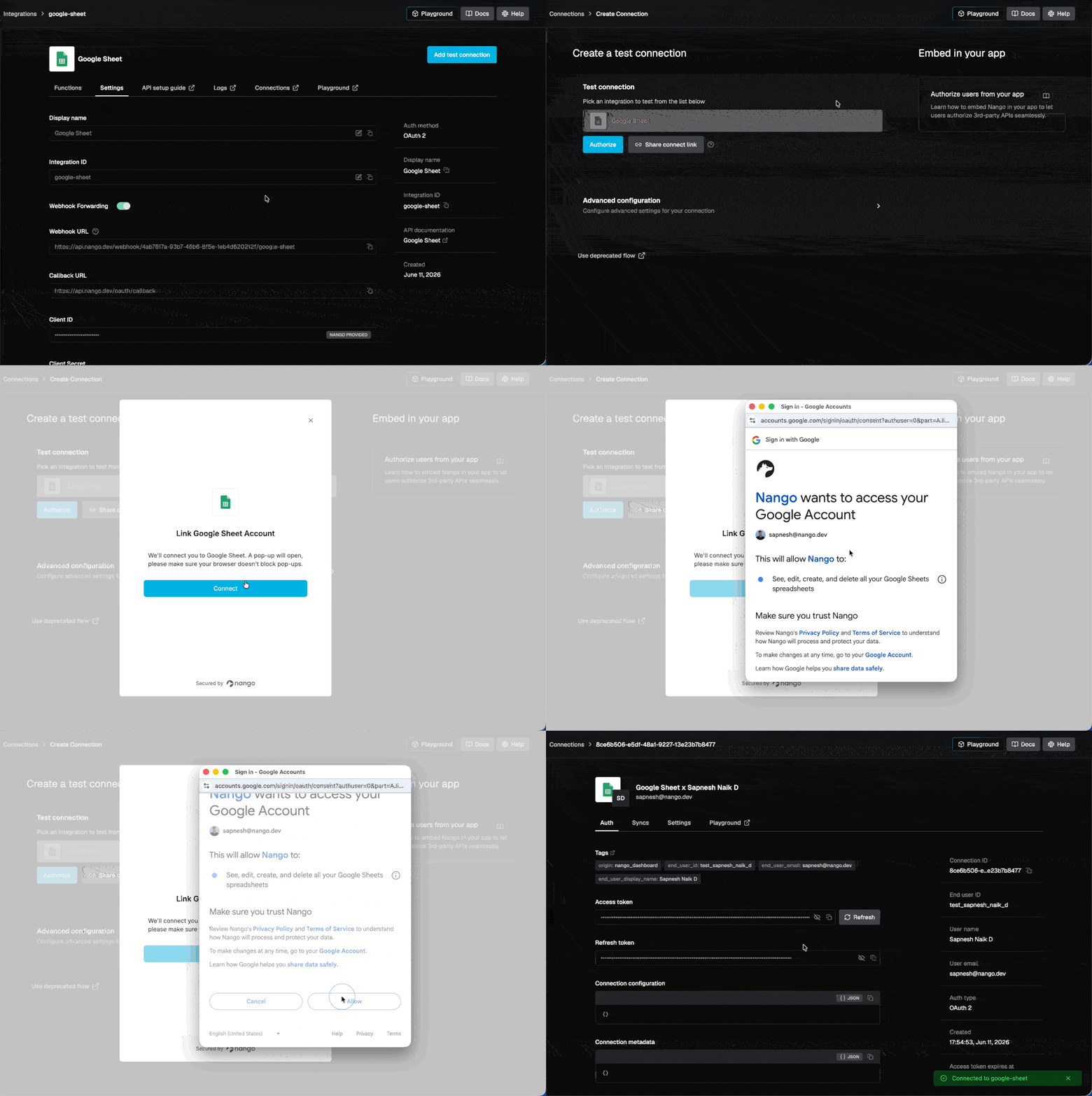
- Add a test connection: on the Nango dashboard, open the integration and select Connections > Add Test Connection, then authorize a Google account that owns a spreadsheet with a few rows of data (your own or any test account). While Codex builds your integration, it runs the generated code against this connection, so what ships has already worked against real data.
- Give Codex a project to build in. Install the Nango CLI and run
nango init: it creates anango-integrationsfolder with the Nango framework bootstrapped, and Codex writes and deploys your syncs and actions from there. SetNANGO_SECRET_KEY_DEV(your dev API key, from Environment Settings in the dashboard) innango-integrations/.envso it can test and deploy on your behalf.

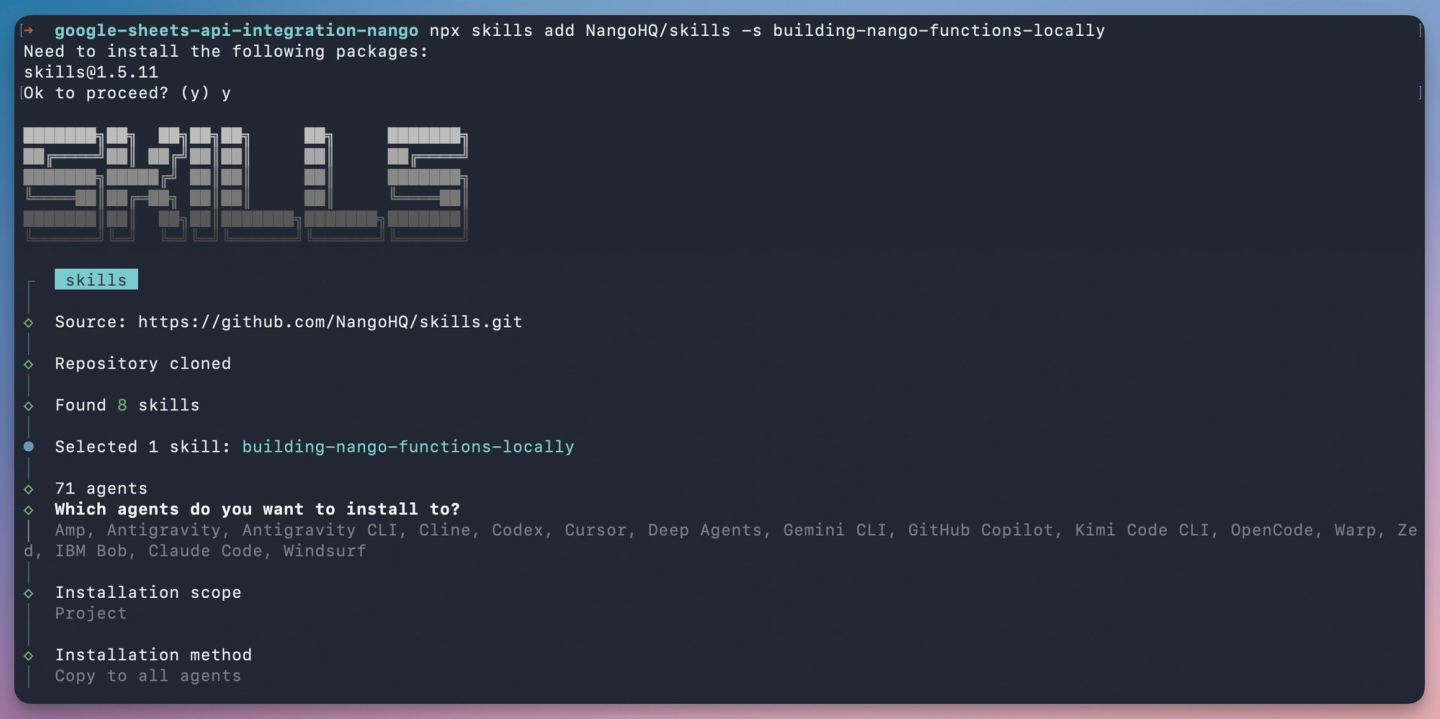
- Install the Nango skill. Run
npx skills add NangoHQ/skills -s building-nango-functions-locally; the installer detects Codex and copies the skill to.agents/skills/, where Codex discovers it. The same skill works with Claude Code, Cursor, and other coding agents.
Tip: LLM training data on Nango is often stale. Add the Nango docs MCP server alongside the skill so Codex pulls current API references while it generates code:
codex mcp add nango-docs --url "https://nango.dev/docs/mcp"Sync customer spreadsheet rows to your app
A sync keeps a fresh copy of the customer’s sheet in your app. Here it imports every row of the spreadsheet they connect, then refreshes on a schedule so edits show up without anyone clicking refresh.
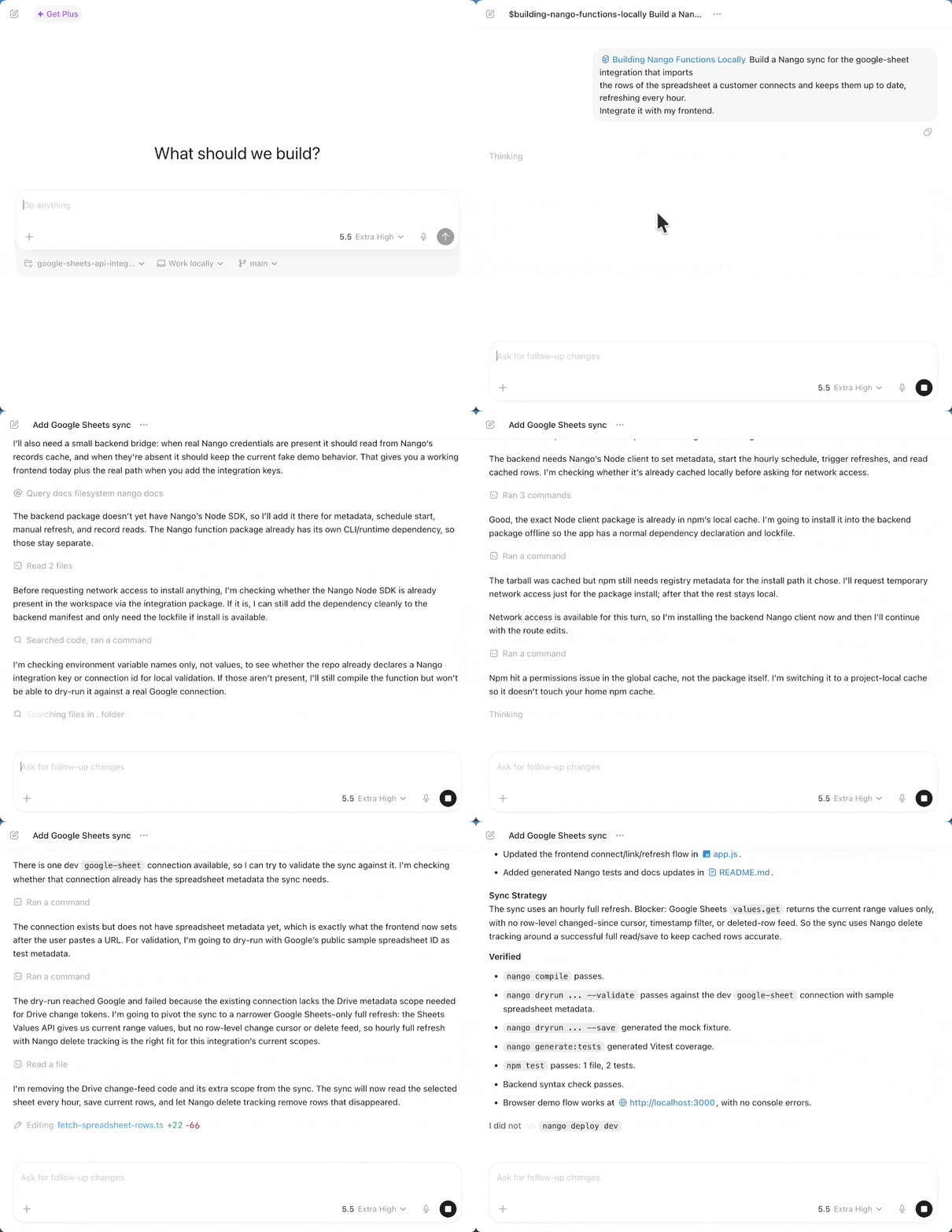
You build it by prompting Codex with the Nango skill (type $ to mention a skill, or run /skills to browse):
$building-nango-functions-locally Build a Nango sync for the google-sheet integration that imports
the rows of the spreadsheet a customer connects and keeps them up to date, refreshing every hour.
Integrate it with my frontend.
With the skill loaded, Codex:
- Researches the Sheets API and the endpoints it needs.
- Writes the sync and a typed model for your rows.
- Tests it against your real connection with
nango dryrun. - Iterates on any errors until the sync works end to end.
// Codex generates this sync. You do not write it by hand.
export default createSync({
    description: 'Imports rows from the connected Google Sheet and refreshes them every hour.',
    frequency: 'every hour',
    autoStart: false, // starts once your app saves the spreadsheetId metadata
    models: { SheetRow },
    exec: async (nango) => {
        const { spreadsheetId, range } = await nango.getMetadata();
        const res = await nango.get({
            endpoint: `/v4/spreadsheets/${spreadsheetId}/values/${encodeURIComponent(range)}`,
        });
        await nango.batchSave(toRows(res.data.values), 'SheetRow');
    },
});
The full sync, with the row model, header mapping, and delete tracking, is in the demo repo: fetch-spreadsheet-rows.ts.
When Codex finishes, it deploys the sync for you (approve the deploy when it asks):
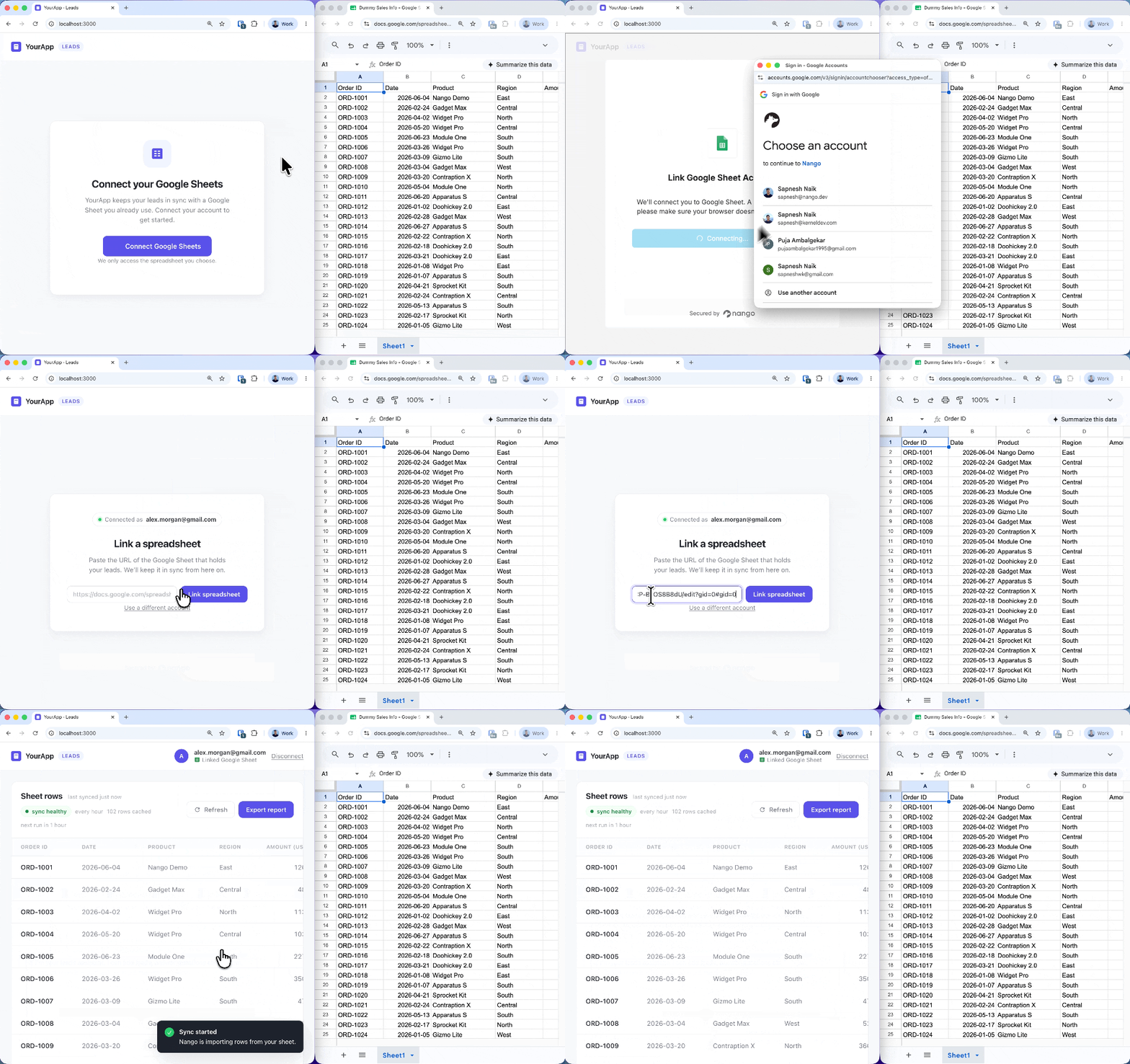
nango deploy --sync fetch-spreadsheet-rows devBecause the prompt said to integrate the frontend, Codex also wires Nango Connect into your app: customers authorize Google Sheets, paste their spreadsheet link, and the sync starts on its own.
Your backend reads the synced rows from Nango’s cache and serves them to your UI:
const { records } = await nango.listRecords({
    providerConfigKey: 'google-sheet',
    connectionId,
    model: 'SheetRow',
});
Do a quick check to confirm everything works: open your app, connect a Google account, paste a spreadsheet URL, and watch the rows appear. Codex has already tested the integration with nango dryrun; this is your own sanity check.
Letting users pick a Google Sheet
The Sheets API has no endpoint to list a user’s spreadsheets, so the sync needs to be told which one to read. Here we handle it by asking the user for the spreadsheet URL. If you would rather let customers pick from a list of their spreadsheets than paste a link, use the Google Drive API: a Drive-scoped connection plus a file picker, which we will cover in a separate Google Drive guide.
Run the sync on demand
Syncs run on a schedule (every hour in this example). When a customer wants fresh data immediately, give them a refresh button that triggers the sync on demand (behind the scenes, a nango.triggerSync call) instead of waiting for the next run:
$building-nango-functions-locally Add a refresh button to my app that triggers the fetch-spreadsheet-rows
sync on demand for the current user's connection.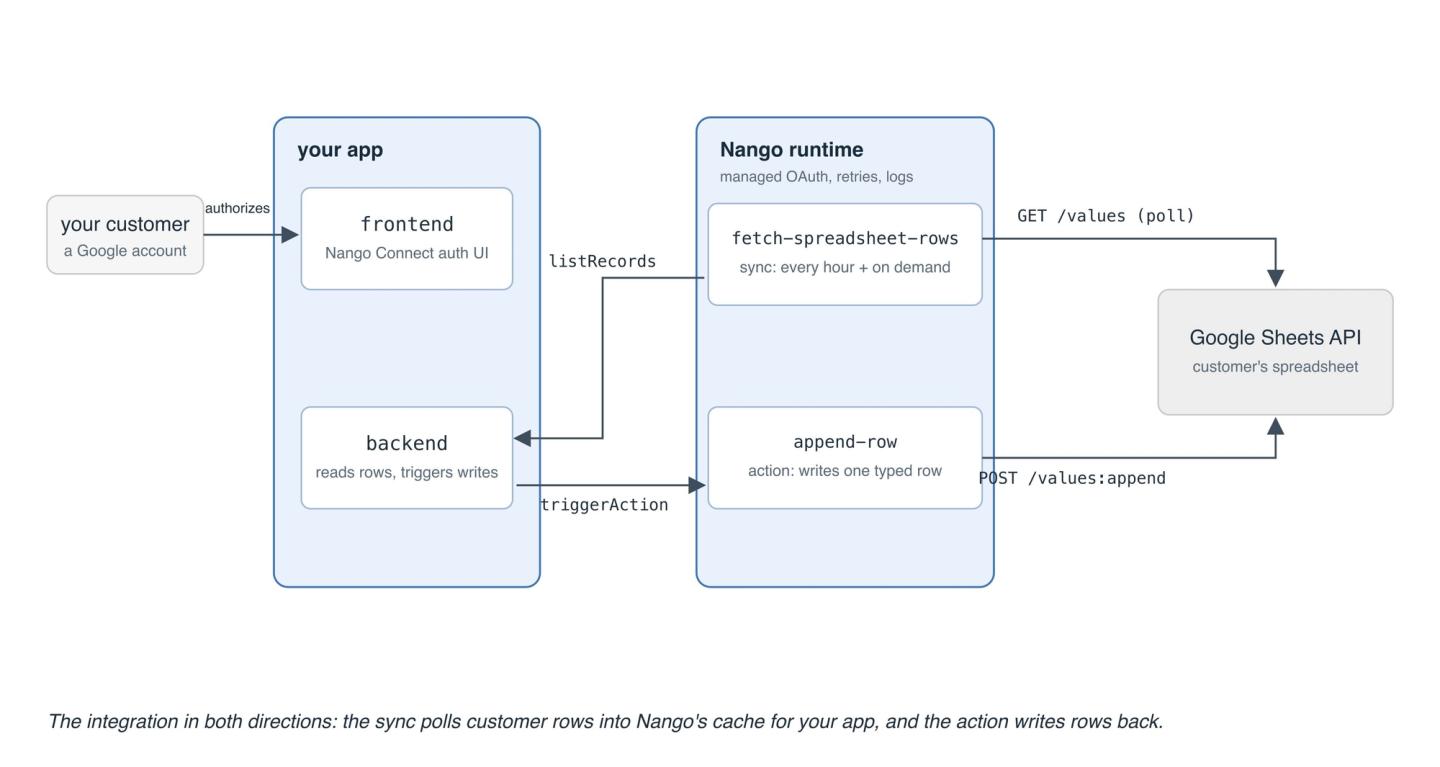
With the sync deployed, a customer connects once and the rows they maintain in Sheets show up in your app and stay current: a product catalog they edit in a spreadsheet, a price list your billing features read, or the roster behind your scheduling screens.
Append rows to a customer’s spreadsheet from your app
An action is a one-off operation your product or an agent triggers on demand. Here it writes back: each new lead, order, or form response in your app lands as a row in the customer’s sheet. Prompt Codex to build it:
$building-nango-functions-locally Add an action to the google-sheet integration that appends a row
to the customer's connected spreadsheet from typed input.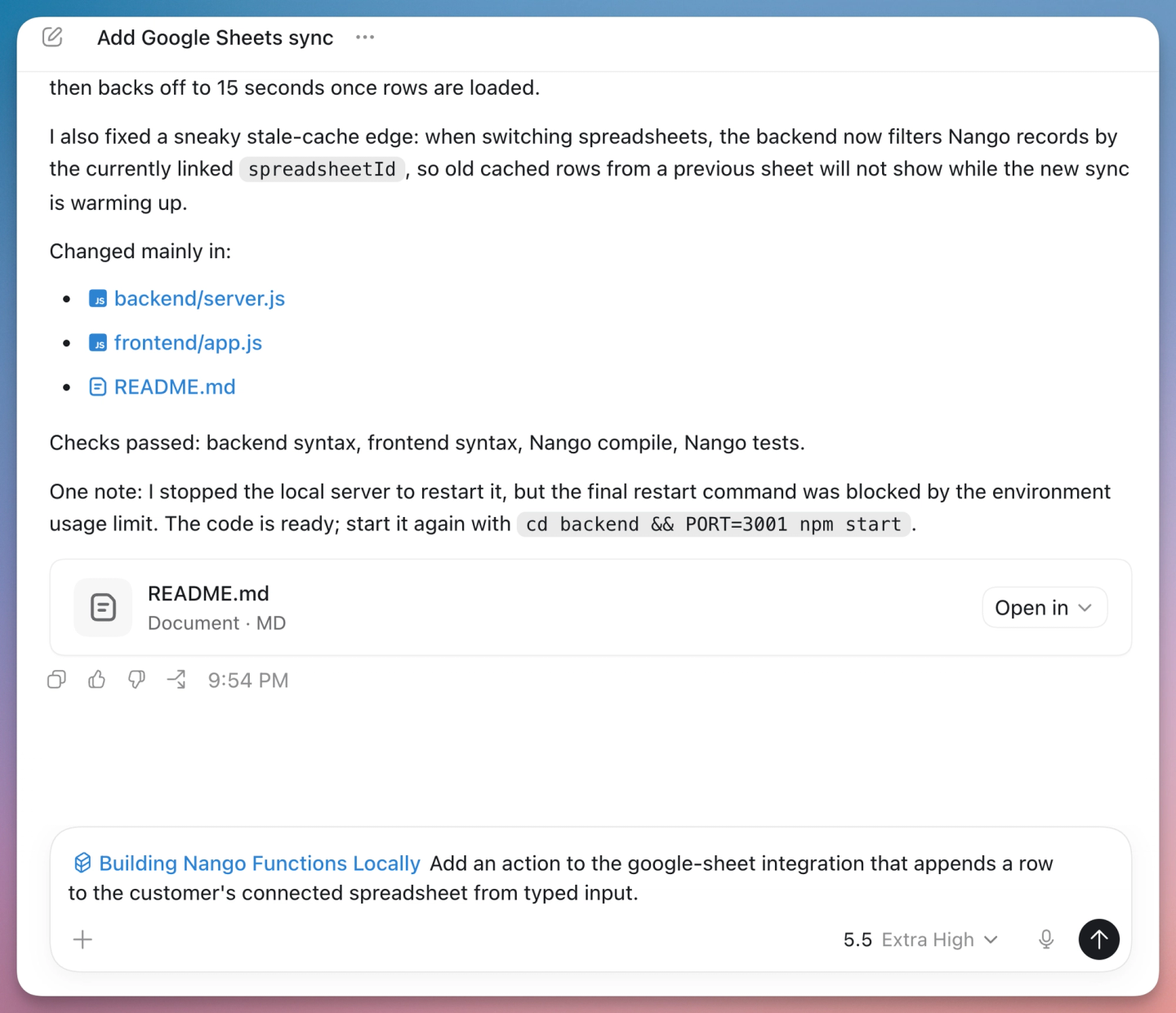
Codex writes the action, tests it by appending real rows to your connected test spreadsheet, and deploys it when you approve.
// Codex generates this action; approve the deploy when it asks.
export default createAction({
    description: 'Append a row to the connected spreadsheet',
    retries: 0, // appends are not idempotent, a retry must not duplicate the row
    exec: async (nango, input) => {
        const res = await nango.post({
            endpoint: `/v4/spreadsheets/${input.spreadsheetId}/values/${encodeURIComponent(input.range)}:append`,
            params: { valueInputOption: 'USER_ENTERED', insertDataOption: 'INSERT_ROWS' },
            data: { values: [input.row] },
        });
        return { updatedRange: res.data.updates.updatedRange };
    },
});
Two parameters matter here: valueInputOption=USER_ENTERED parses values the way the Sheets UI would (so a date string becomes a real date), and insertDataOption=INSERT_ROWS inserts new rows instead of overwriting data below the table. If your customers store values that look like numbers but aren’t (phone numbers, zip codes), switch to RAW. On retries: 0: a rate-limited request is safe to retry because it wrote nothing, and Nango’s proxy handles that; re-running the whole action after an unknown failure could append the row twice, so the action itself does not retry.
Deploy it the same way:
nango deploy --action append-row devYou can test the action from your app, or run it from the Nango dashboard with the Playground against your connection. The demo wires one more action of the same shape for inline edits, so changing a row in the app updates the sheet:
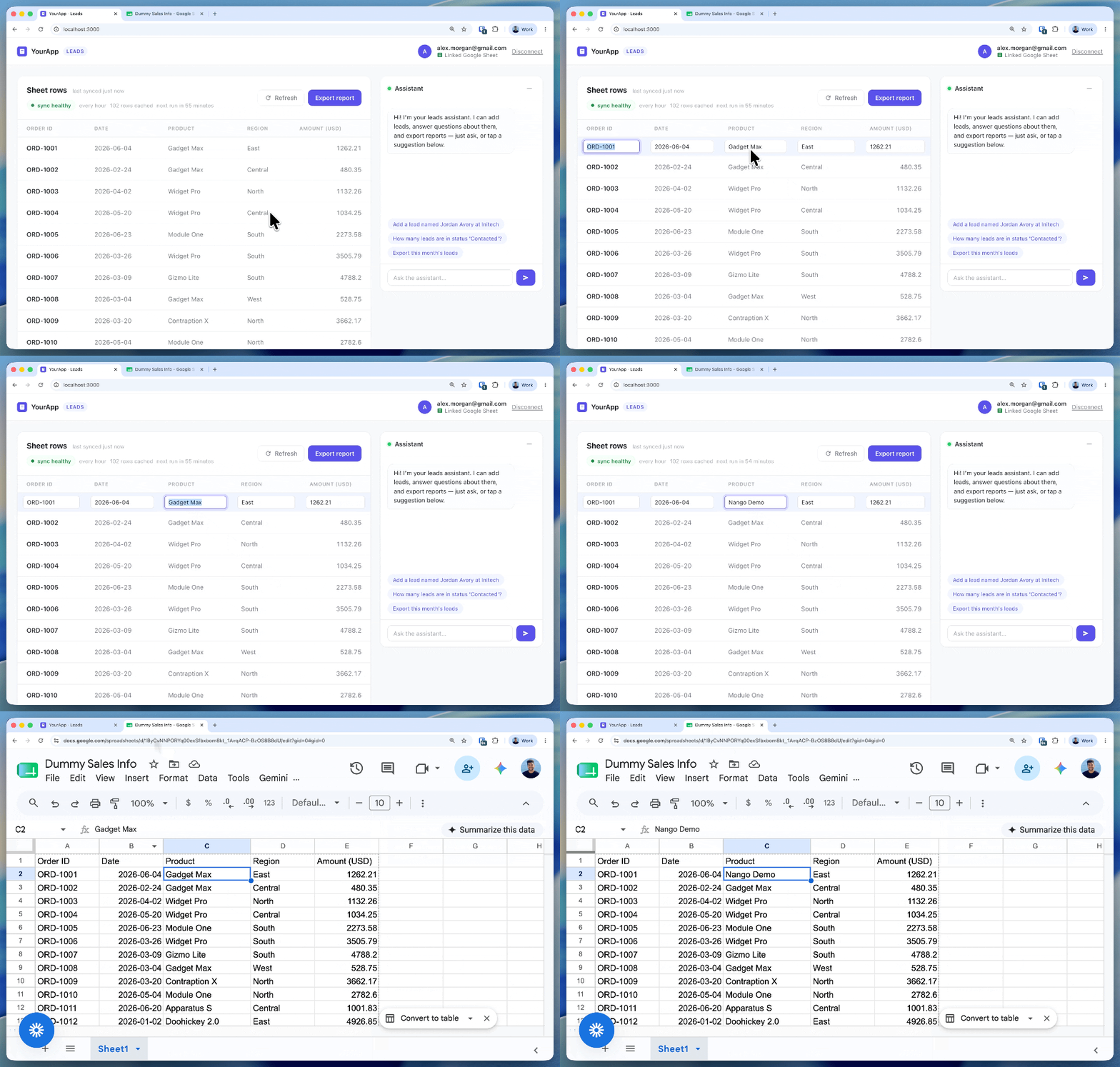
Your product can now write to the spreadsheets your customers already work in. Form builders use this exact pattern to stream responses into a sheet, schedulers log bookings as they happen, and e-commerce tools export each order as it comes in, without the customer ever downloading a CSV.
Export app data to a new spreadsheet
The other common write pattern is an “Export to Google Sheets” button: instead of appending to an existing sheet, your app creates a fresh spreadsheet in the customer’s account and fills it with data. The same action workflow covers it:
$building-nango-functions-locally Add an action to the google-sheet integration that creates a new
spreadsheet from a title and a 2-D array of values, and returns the new spreadsheet's URL.
Codex builds this on two calls, spreadsheets.create followed by a values.batchUpdate write, and returns the spreadsheetUrl your UI can open in a new tab. Analytics exports, scheduled report generation, and one-report-sheet-per-customer setups are all this action plus a place to trigger it from.
Give AI agents in your product access to customer spreadsheets
Once the sync and actions are deployed, the AI agents inside your product can use them. Nango exposes enabled actions as typed tool calls through a hosted MCP server, so an agent calls append-row with typed inputs instead of guessing raw Sheets API parameters.
Point your MCP client at Nango’s server (Streamable HTTP transport) and pass three values:
Authorization:        Bearer <YOUR-NANGO-SECRET-KEY>
provider-config-key:  google-sheet
connection-id: <CONNECTION-ID>- Authorization: your Nango secret key, held by your backend.
- provider-config-key: your Google Sheets integration ID (
google-sheet). - connection-id: the connection for the current user. Fetch it per logged-in user rather than hardcoding it, so each user’s agent acts on their own spreadsheets.
Codex can wire this into your product’s agent for you:
$building-nango-functions-locally Wire my product's AI agent to Nango's MCP server for the google-sheet
integration, passing the logged-in user's connection id, so it can read and append spreadsheet rows.
If you do not have an agent interface in your product yet but want to try the tools, add Nango’s MCP server to Codex itself. codex mcp add does not support custom headers, so add it to ~/.codex/config.toml:
[mcp_servers.nango_sheets]
url = "https://api.nango.dev/mcp"
bearer_token_env_var = "NANGO_SECRET_KEY"
http_headers = { "connection-id" = "<CONNECTION-ID>", "provider-config-key" = "google-sheet" }
Then ask Codex: “Append a row with today’s signup count to my Metrics spreadsheet using the nango sheets MCP.”
Tip: you can view detailed action and sync logs on the Nango dashboard.
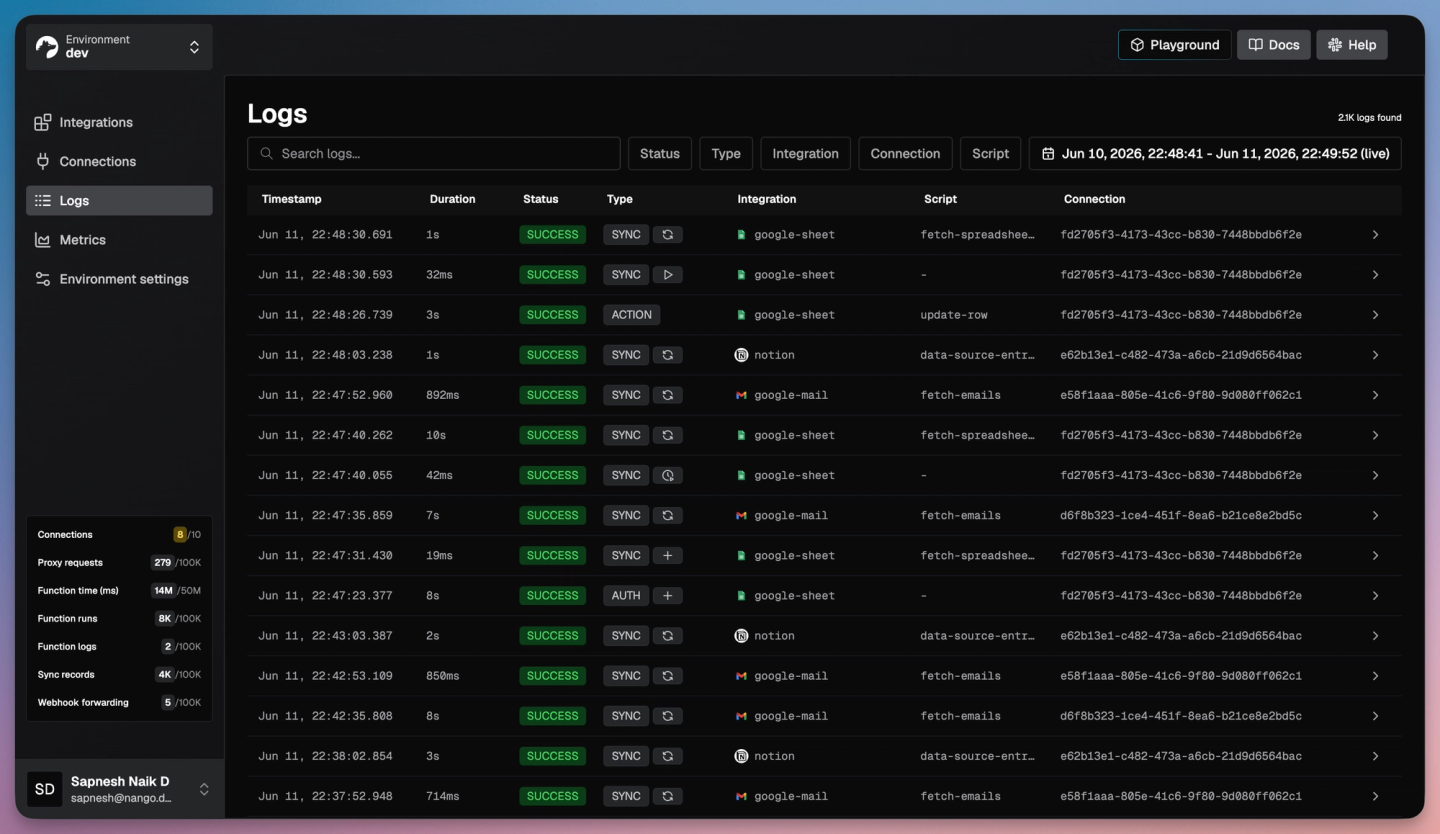
Your product’s agents can now work with customer spreadsheets through the same integration: an in-product assistant answers questions from the synced rows, a support copilot logs each resolution to the customer’s tracking sheet, all scoped to that user’s connection and logged like every other call.
Common issues
| Issue | Cause and fix |
|---|---|
| `Unable to parse range: Sheet1!A1:D10` (400) | The tab was renamed, or the sheet name needs single quotes (`'Q2 Leads'!A1:D10`). Store the numeric `sheetId` and resolve the current tab name with `spreadsheets.get` before building ranges. |
| 429 `Quota exceeded for quota metric 'Read requests'` | The Sheets API allows 60 requests per minute per user. Batch with `values.batchGet` / `values.batchUpdate`; Nango retries with backoff for you. |
| 403 `The caller does not have permission` | The connected account lost access to the spreadsheet, or was not granted access in the first place. Reconnect with the owning account or re-share the sheet. |
| 400 `This operation is not supported for this document` | The ID points to an Excel file stored in Drive, not a native Google Sheet. Convert it (File > Save as Google Sheets) and use the new ID. |
| Numbers or dates change when written | `USER_ENTERED` parses values like the Sheets UI, so "06-11" can become a date. Use `RAW` to store values verbatim. |
| Appended rows land in the wrong place | `values.append` writes after the last "table" it finds in the range, and blank rows split tables. Keep data contiguous and check the `tableRange` field in the response. |
| Refresh token stops working after 7 days | Your Google OAuth app is in Testing mode. Publish it to Production and complete verification; see Google OAuth invalid_grant: what it means and how to fix it. |
| `listRecords` is empty right after connecting | The sync starts only after your app saves the `spreadsheetId` metadata, and the first run is asynchronous. Read records once a run completes (Codex wires this into your app). |
Conclusion
A production-grade Google Sheets API integration comes down to customer OAuth (sensitive scopes and Google verification), reading rows durably (a polling sync, since the API has no webhooks), writing rows safely (append semantics and value parsing), and staying inside per-user quotas.
With the Nango skill, Codex writes that logic as code from a prompt and tests it against a real connection, while Nango’s runtime handles managed OAuth, durable syncs, retries, and observability. The same workflow covers any of Nango’s 900+ supported APIs, and it scales into just-in-time integrations: integrations built on demand by an agent instead of pre-built for every use case.
Clone the demo project on GitHub to run it end to end, or build your first integration from the quickstart.
Related reading:
- How to build a GitHub API integration for AI agents with Nango and Codex
- How to build a Notion API integration with Nango and Claude
- How to build a Gmail API integration with Nango and Claude
- Google OAuth invalid_grant: what it means and how to fix it
- Best API integration platforms to use with Claude Code, Cursor, and Codex

