
Claude’s built-in Google Sheets connector works with one Google account at a time. It can only access data for the Google account you’ve connected, so using a spreadsheet from another account means disconnecting and reconnecting.
In this tutorial, we’ll show you how to connect multiple Google Sheets accounts to Claude, ChatGPT, or any agent that supports MCPs. You’ll then be able to read a sheet in one account and update a sheet in another from the same chat. Setup is free and takes about five minutes.
To make both accounts available in one chat, we’ll use Nango and its MCP. Nango’s free plan allows up to 10 connections, enough for 10 Google accounts. Connections to other apps count toward the same limit.
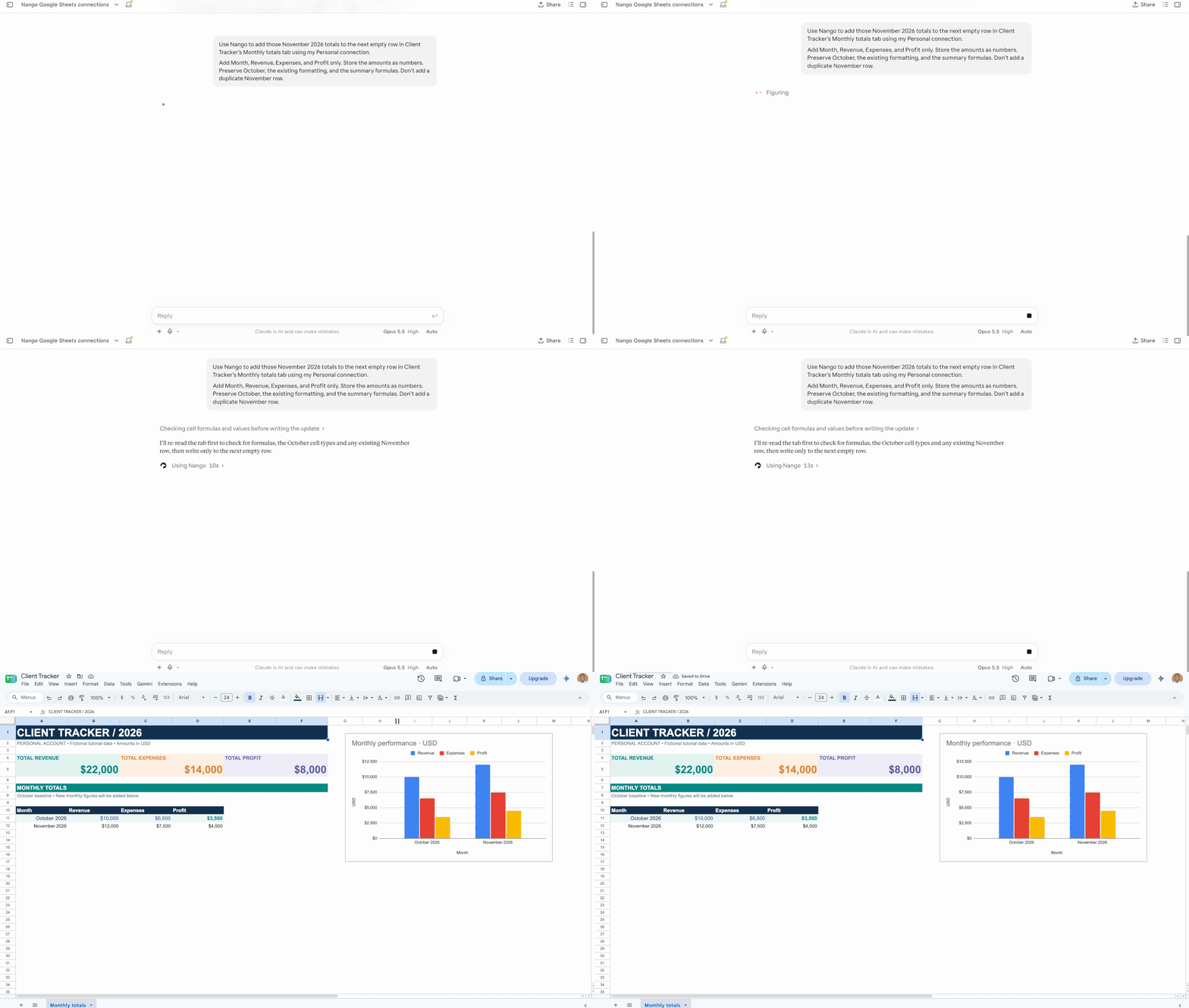
Step 1: Add Google Sheets in Nango
Create a free Nango account or sign in. Open Catalog, search for Google Sheets, and select the Google Sheets entry with the Instant setup lightning icon.
Click Add integration. Nango uses its managed Google OAuth app, so you don’t need to create a Google Cloud project or submit an app for Google’s review.
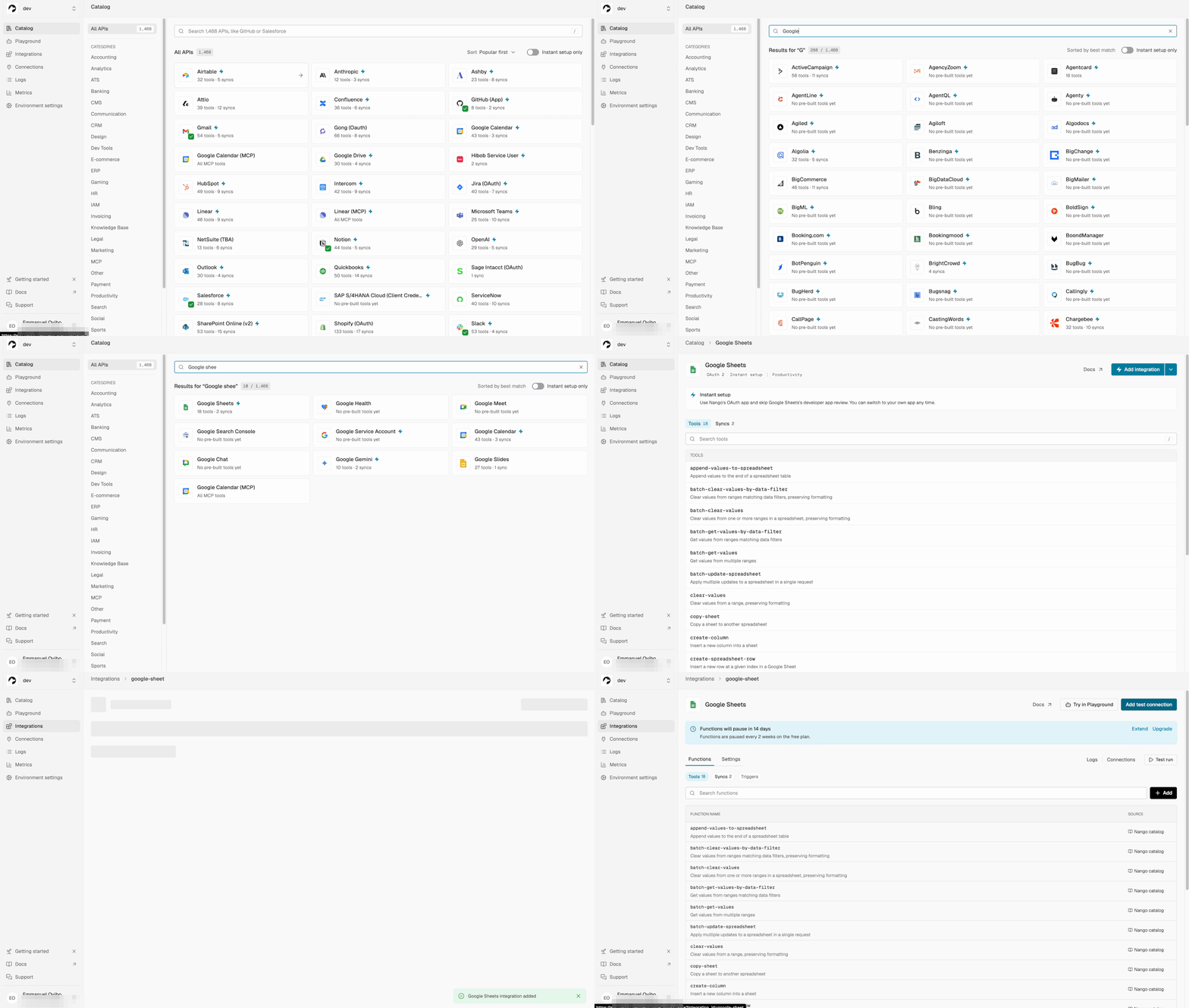
On the integration page, select Add test connection to begin connecting your first account.
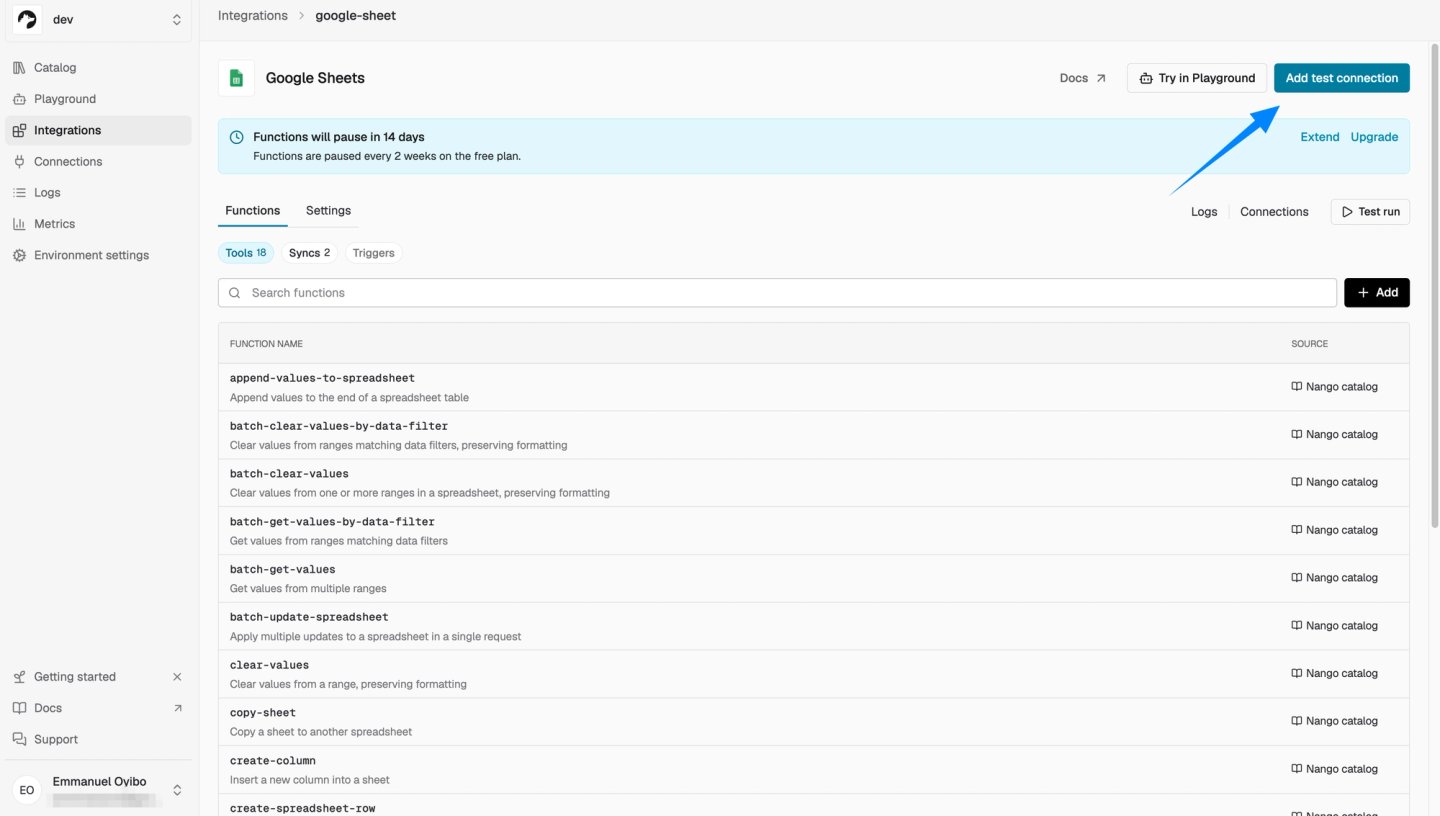
Step 2: Connect both Google accounts
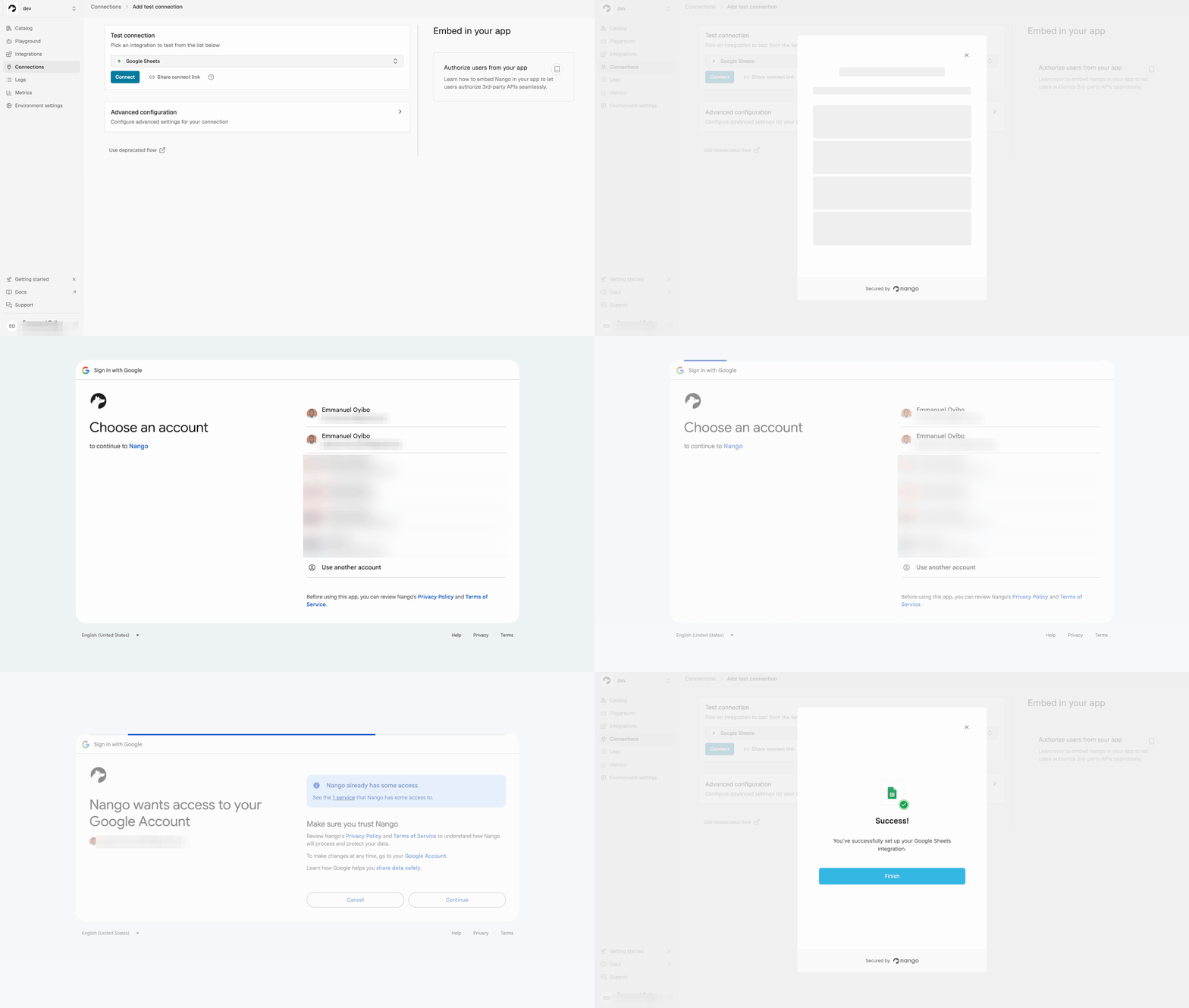
1. Click Connect in the Google Sheets dialog.
2. On Google’s account chooser, select your work account.
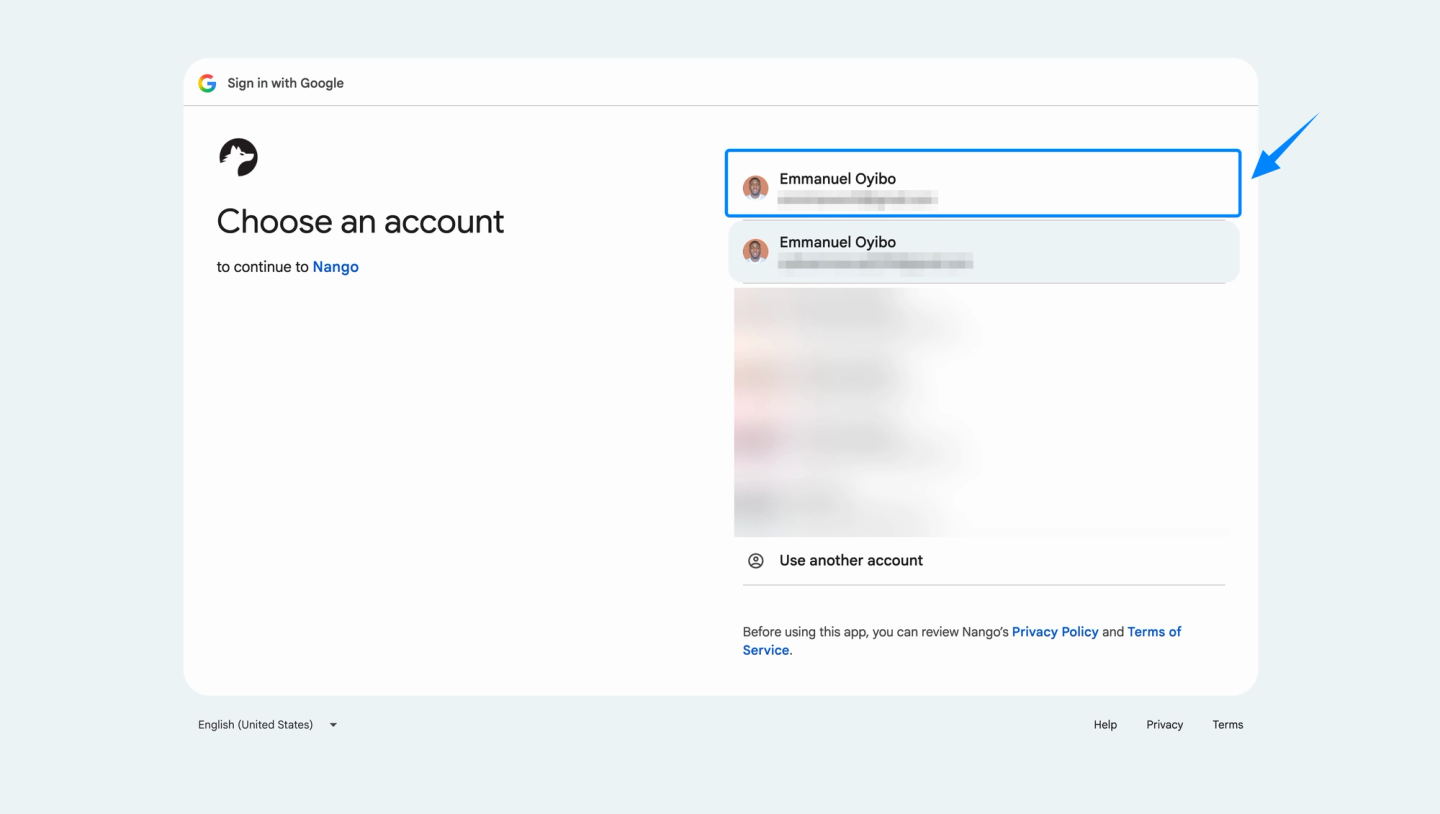
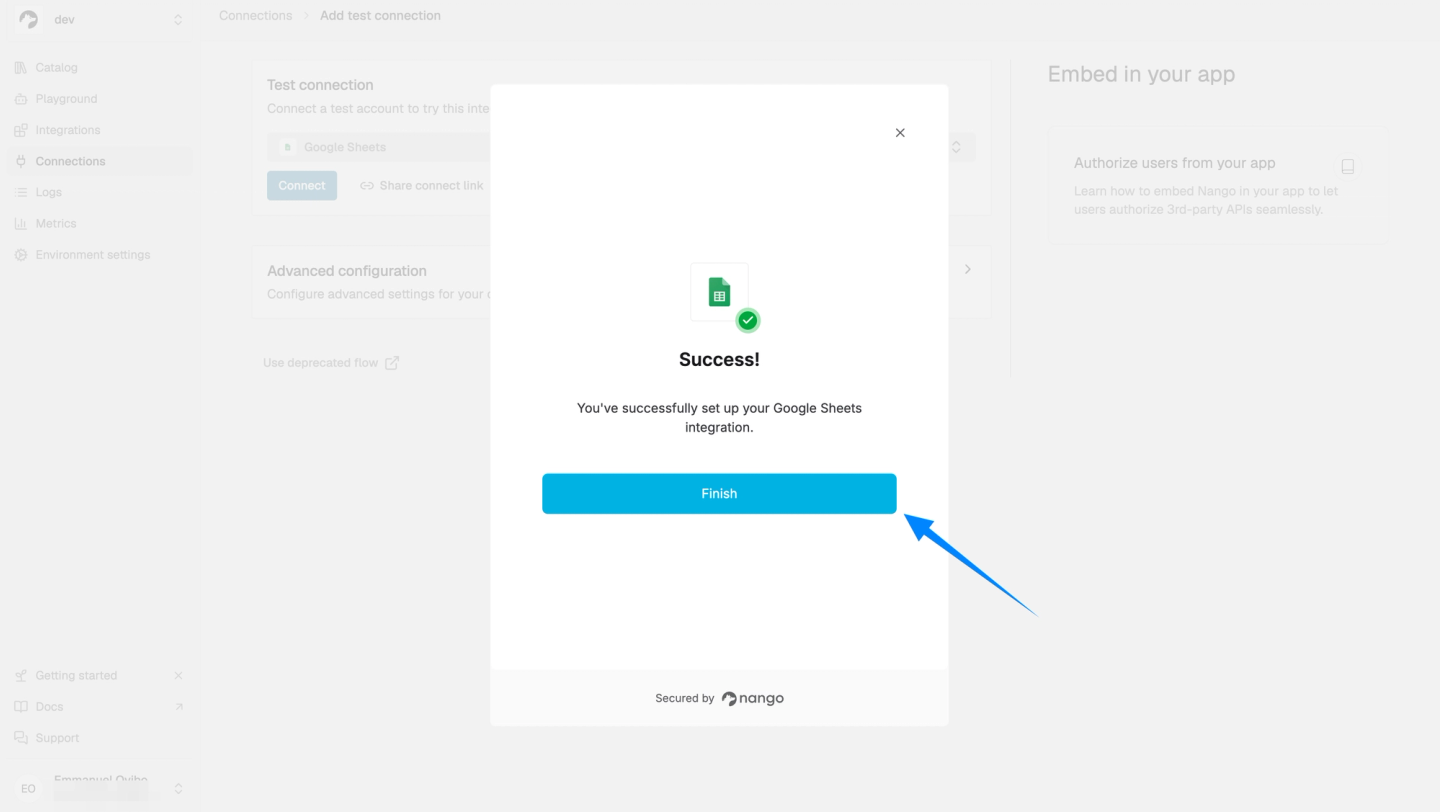
Check that Google’s authorization page shows the same email, review the requested permissions, and click Continue to approve access. Then click Finish in Nango.
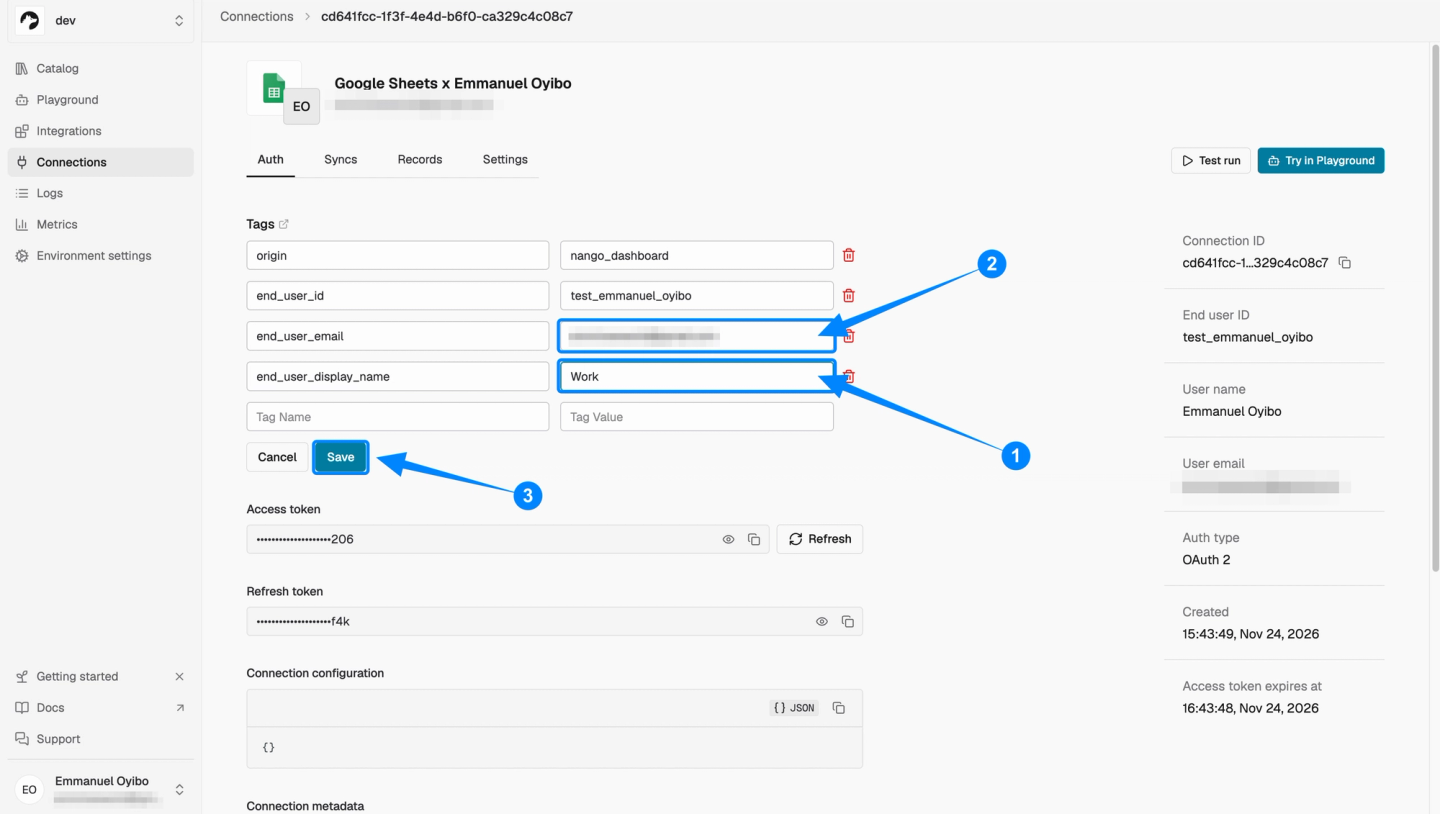
3. Label the connection so your assistant can tell your accounts apart. On the saved connection, find Tags, click Edit, set end_user_display_name to Work and end_user_email to the Google address you just selected, then save.
4. Click Add test connection again. Select Google Sheets, click Connect, and repeat the authorization for your personal account. Choose that account explicitly in Google’s account chooser. If your second account isn’t listed, select Use another account and sign in.
Before continuing, check that Google’s authorization page shows the second email. Approve access, then click Finish in Nango.
5. Label the new connection the same way: end_user_display_name set to Personal and end_user_email set to the second Google address.
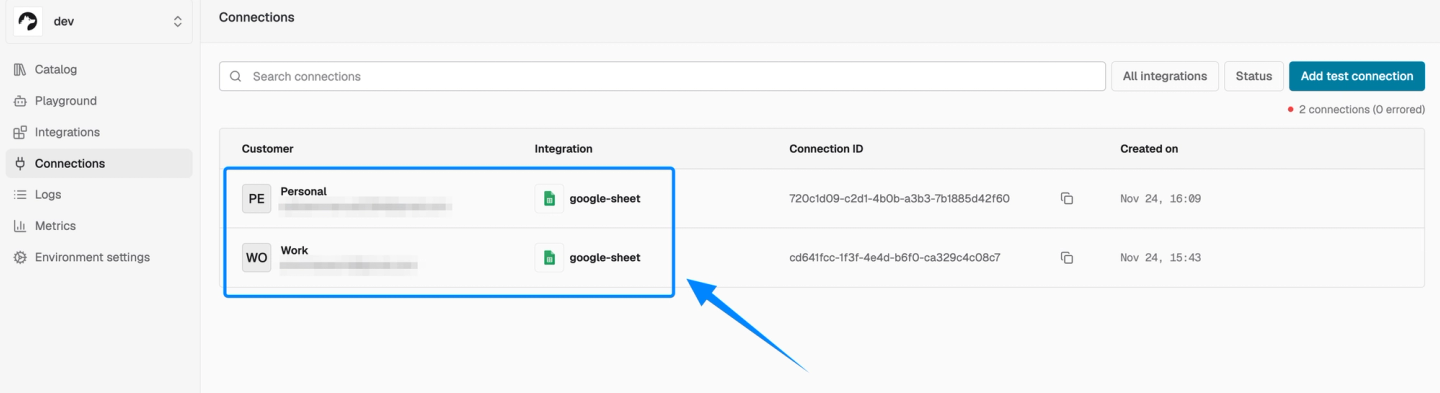
Back in Connections, you should see Work and Personal listed separately.
To connect an account that’s signed in on another browser or device, return to Add test connection, select Google Sheets, and choose Share connect link. Copy the link and open it there, or in a private window. You can also send it to a client so they can review Google’s permissions and authorize their account without a Nango login.
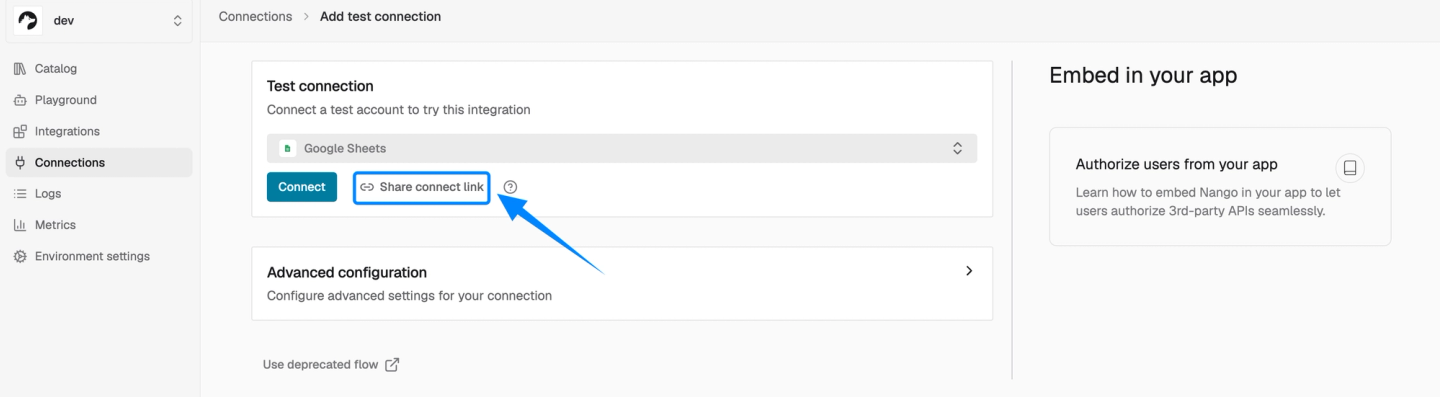
After authorization, check Connections for the new entry. Shared links expire after 30 minutes; Google Workspace policies may require an administrator to allow the connection.
Step 3: Enable Nango in Claude or ChatGPT
Once both accounts are connected in Nango, enable Nango in your assistant. The Nango connector makes both labeled Sheets accounts available to it.
Claude
- Open Plugins in Claude’s left sidebar and search for Nango, or open the Nango community connector.
- Select Nango and connect it. Sign in to the Nango account containing your Google Sheets connections and approve access. Check that Nango shows Connected.
- Start a new chat. Open the plus menu, select Plugins, and check that Nango is enabled.
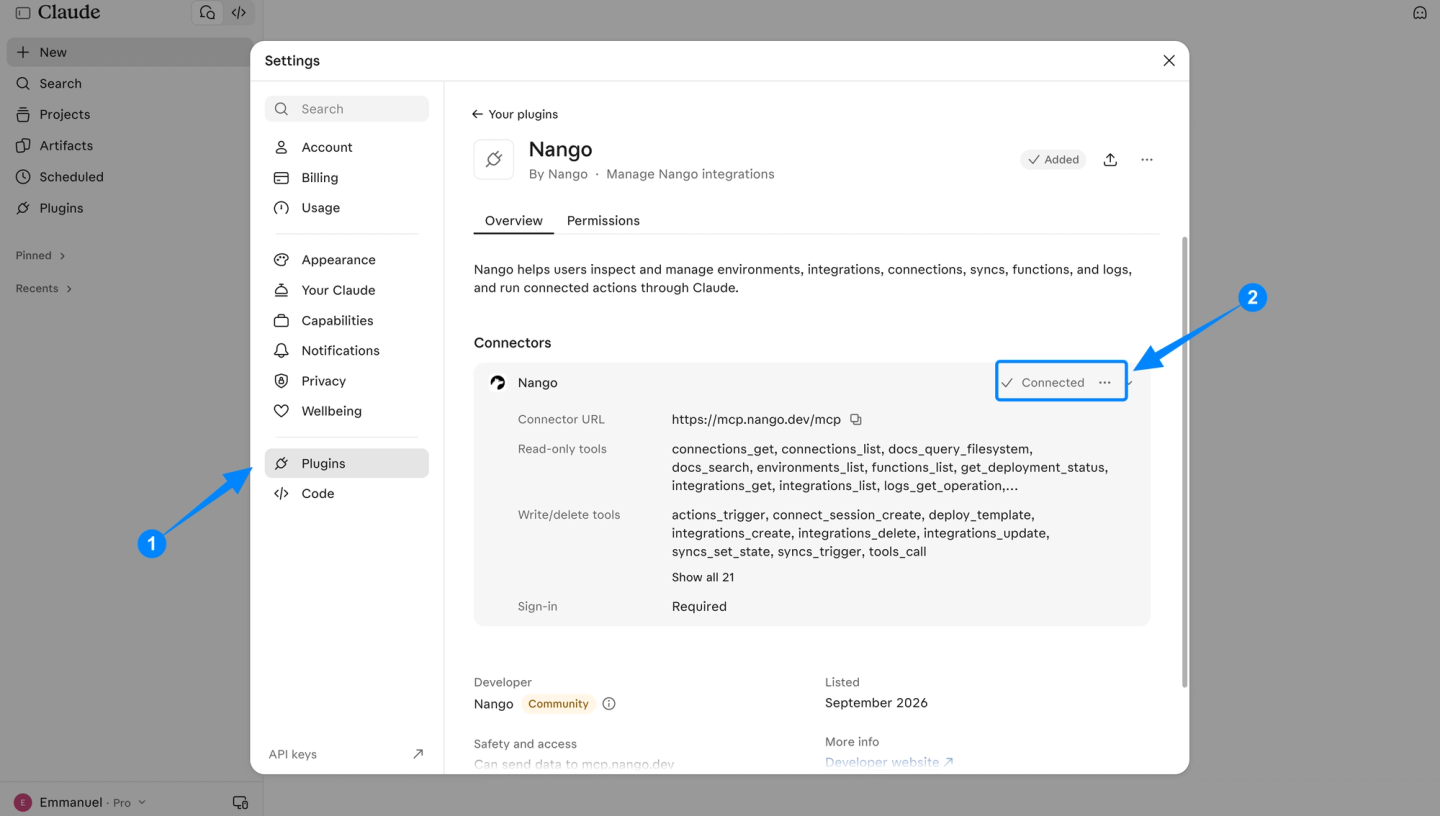
If Nango is missing from a new chat in Claude Desktop, quit and reopen the app, then check Plugins again.
On Claude Team or Enterprise, an Owner or Primary Owner must enable the connector for the organization. They can also restrict write actions.
ChatGPT
On ChatGPT web, open Plugins, select the plus button, then Add custom MCP server.
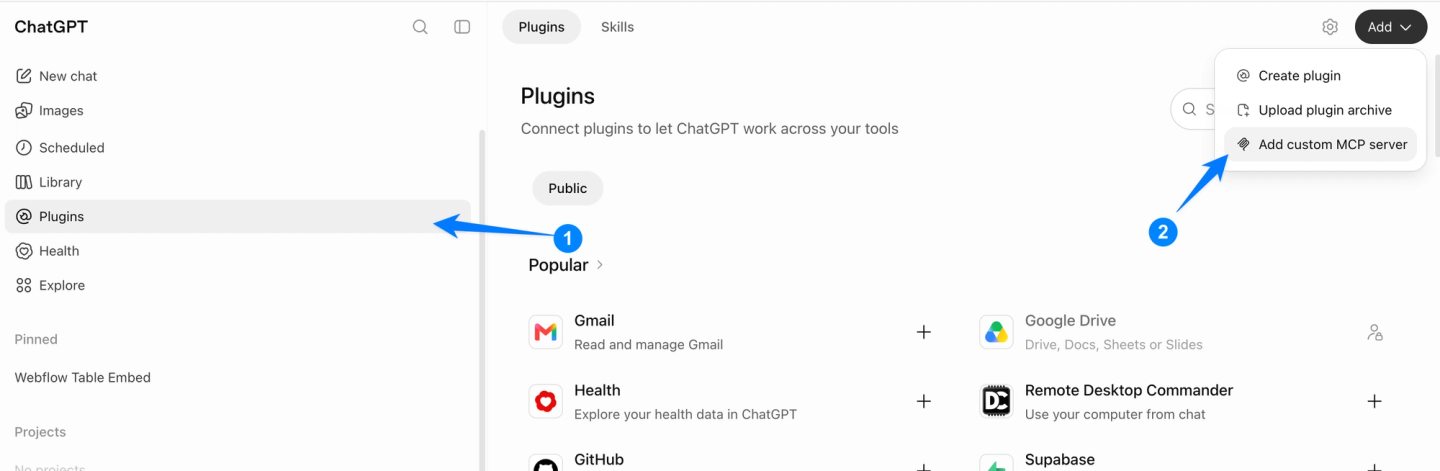
Name the plugin Nango, enter https://mcp.nango.dev/mcp as the server URL, and choose OAuth. Review the permission warning and create the plugin.
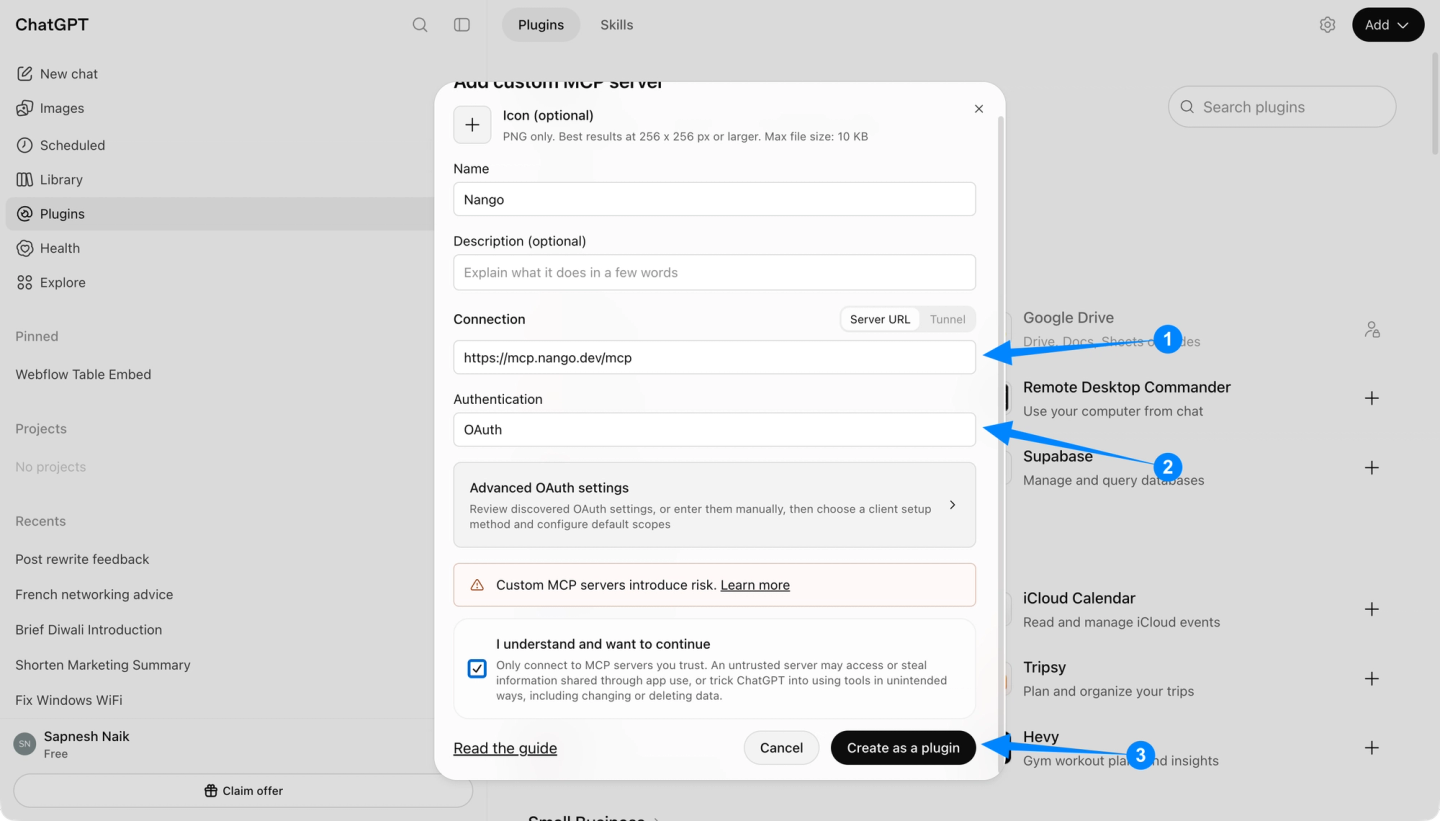
Continue to Nango and sign in to the account containing your Sheets connections, then install the resulting plugin. In a new chat, type @ and select Nango. Select it again on follow-up messages that need to read or change a spreadsheet.
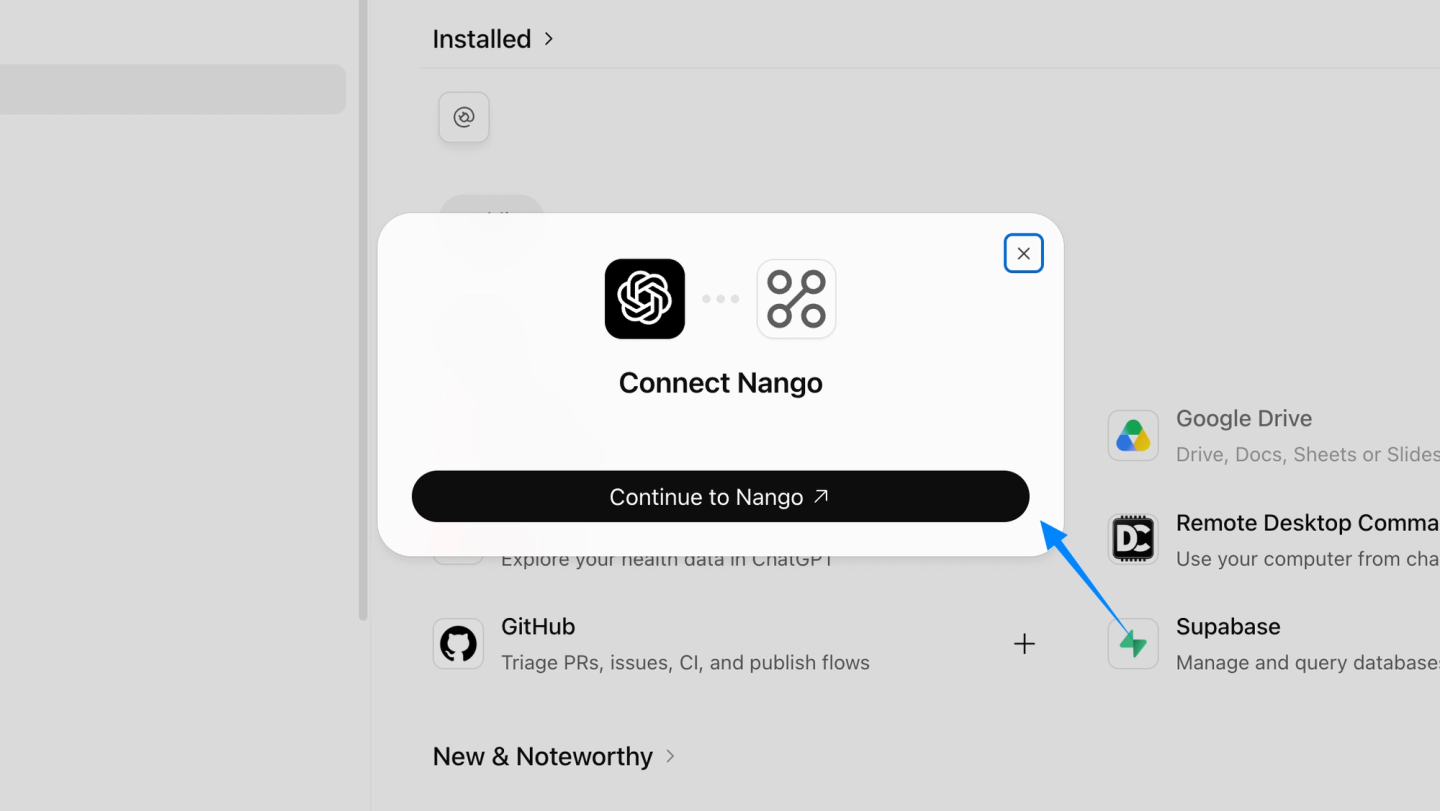
Custom plugins and write actions depend on your ChatGPT plan and workspace permissions.
For Claude Code or Codex, follow the coding agent setup guide. For Cursor, use the Cursor configuration instructions. Both paths let you reuse your Nango connections.
Step 4: Read and update spreadsheets across both accounts
Nango’s prebuilt Google Sheets tools let your assistant read cells, add rows, and update spreadsheets. We started by checking which connections Claude could see:
Which Google Sheets connections do I have in Nango?
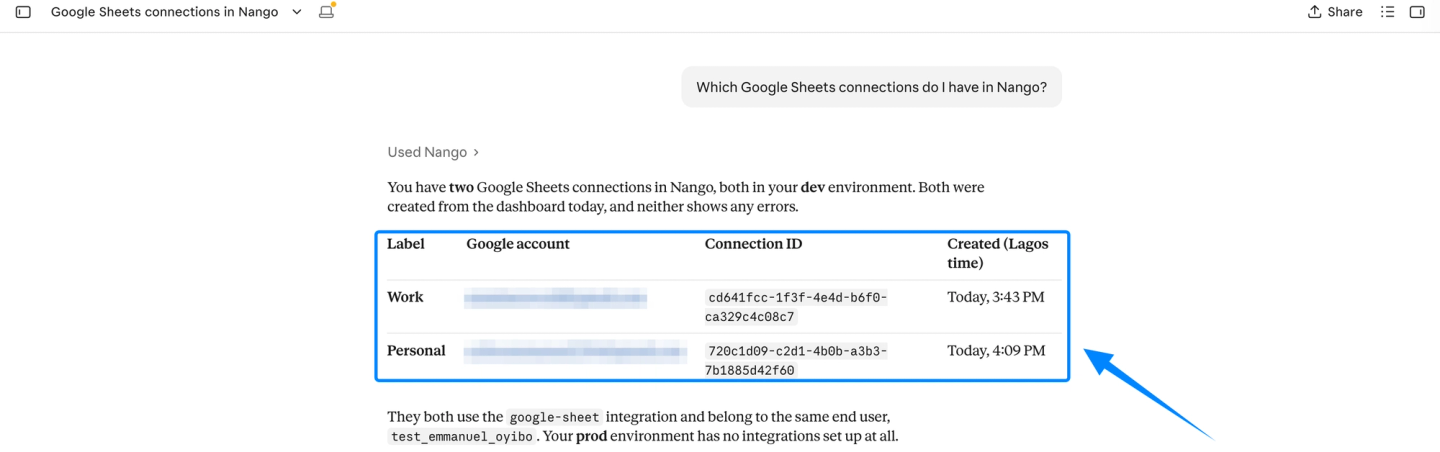
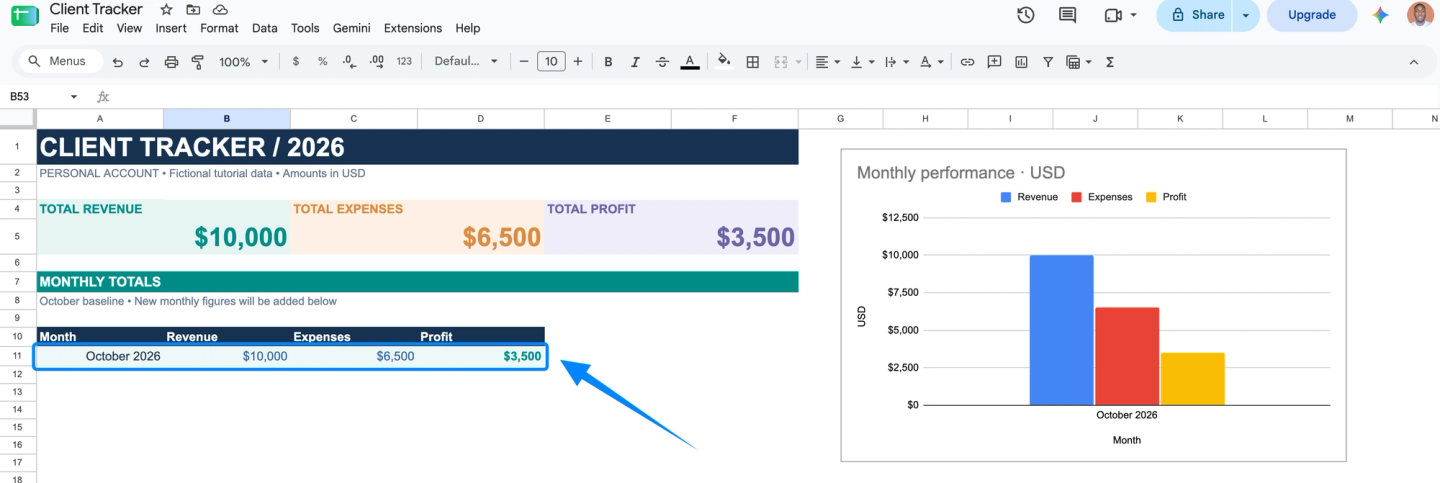
For the example below, Q4 Budget belongs to Work and Client Tracker belongs to Personal. The tracker contains only October’s figures. We’ll read November’s totals first, review them, and then add the missing month.
Use spreadsheet links in your prompts: the Sheets tools work with a spreadsheet you identify, rather than searching your files by name. The source account needs permission to view the budget, and the destination account needs permission to edit the tracker. A spreadsheet link alone doesn’t grant access.
Read the monthly totals from your work account
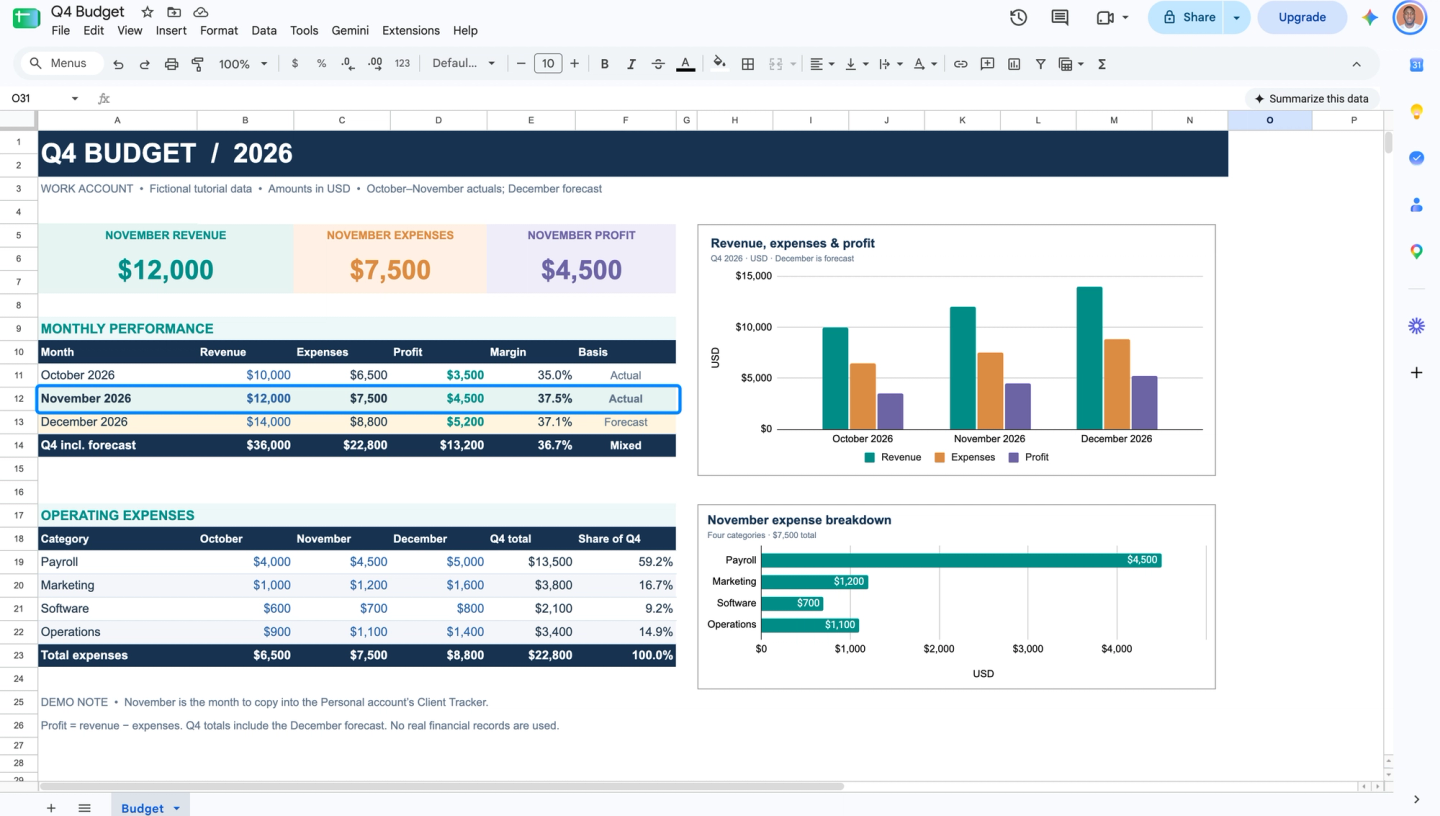
Q4 Budget has a Budget tab with November revenue, expenses, and profit.
Ask Claude for the figures first, with your own spreadsheet link in place of the brackets:
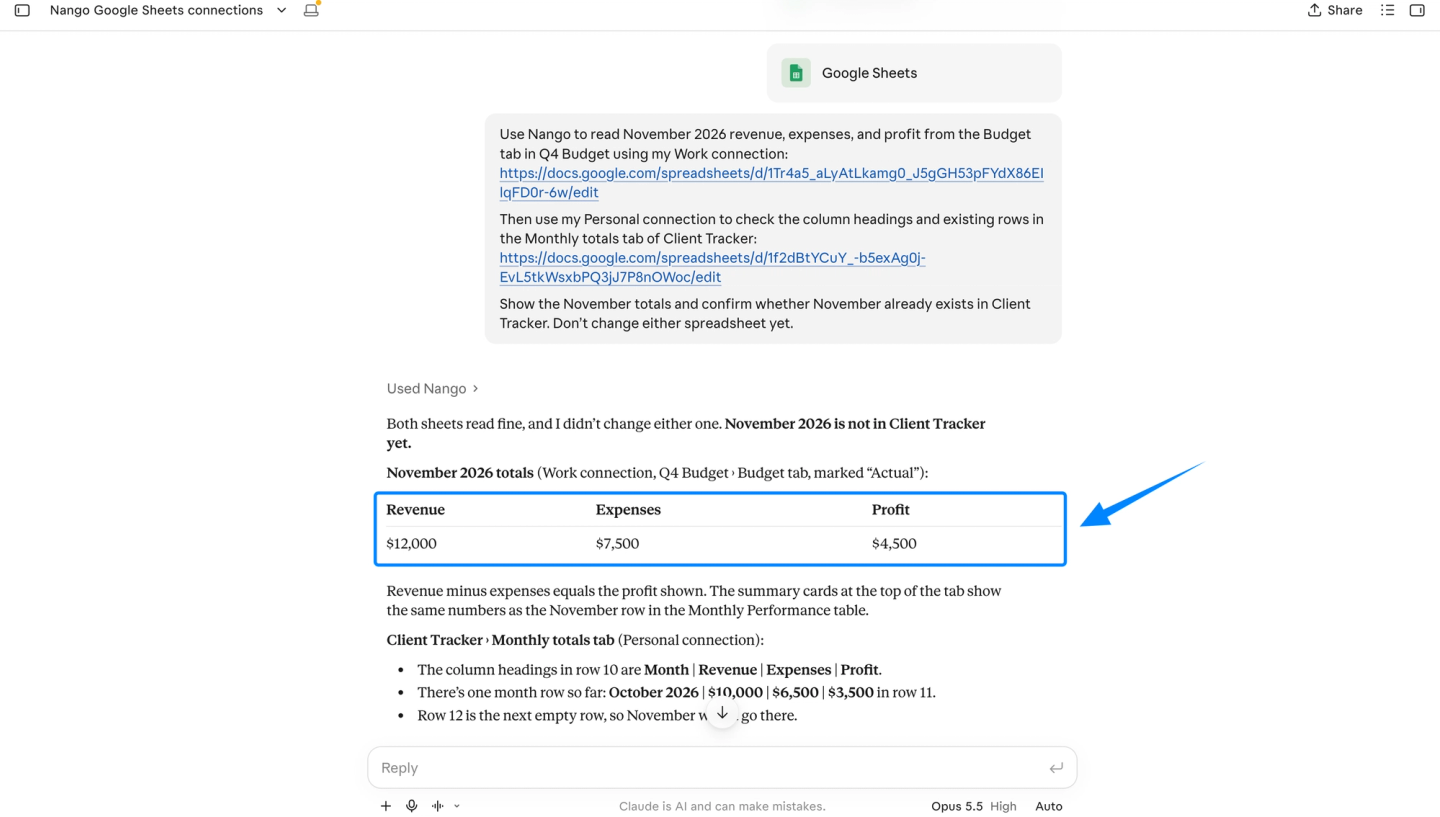
Use Nango to get November’s revenue, expenses, and profit from my work Q4 Budget sheet [paste link], and show them to me before changing anything.
In our example, Claude returned $12,000 revenue, $7,500 expenses, and $4,500 profit.
Add the reviewed totals to your personal tracker
If the numbers look right, continue in the same chat:
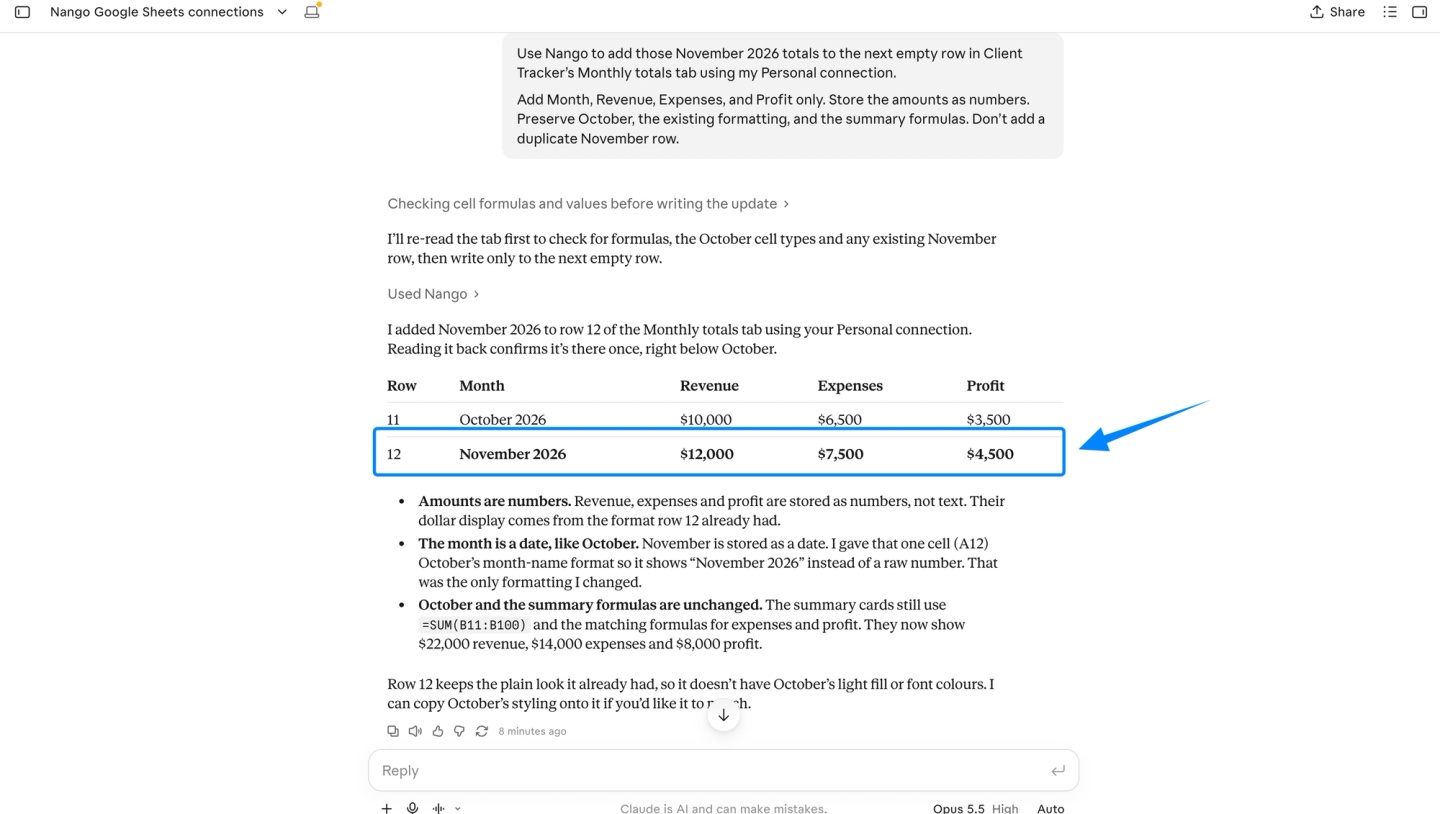
Looks right. Add them as a new row in my personal Client Tracker [paste link].
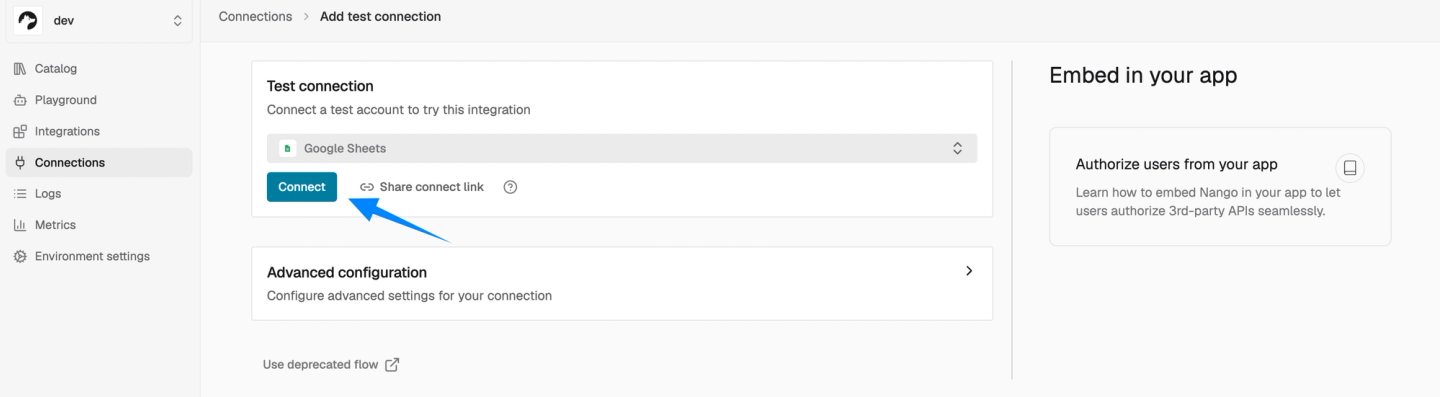
Claude used the Personal connection to add November below October and read the tracker back to check the result.
Open Client Tracker in Google Sheets to verify the new row yourself.
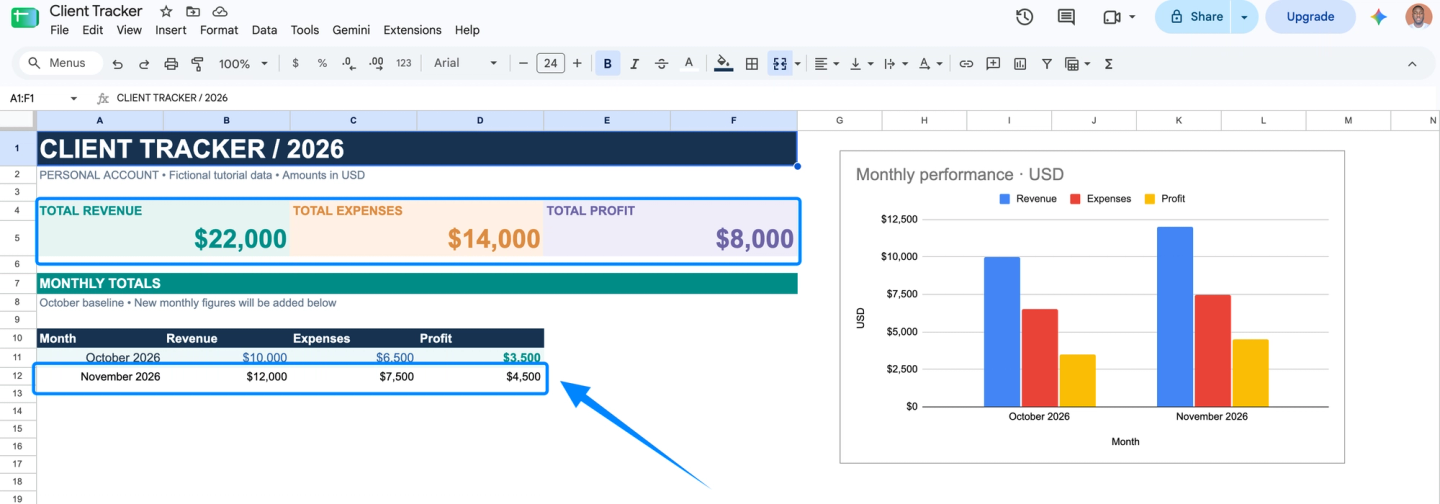
The tracker now contains both months. November matches the source budget, and the existing summary formulas show $22,000 revenue, $14,000 expenses, and $8,000 profit. This completes the transfer between the two accounts without manually copying the figures.
Connecting more apps to your agent with Nango
You can extend this workflow to the apps you use alongside Google Sheets, such as Google Drive, Gmail, Slack, HubSpot, or Airtable. Nango supports 1,500+ APIs and MCPs, and new connections become available through the Nango MCP you’ve already installed, with the access you’ve granted.
Related reading

