
This tutorial shows how to connect multiple Gmail accounts to Claude, ChatGPT, or any coding agent that supports MCP. The setup is free and should take about 5-10 minutes, after which you’ll be able to query and take actions in multiple email accounts at once.
We’ll use Nango and its Management MCP in this tutorial. The free Nango account supports up to 10 Gmail accounts.
Step 1: Add Gmail in Nango
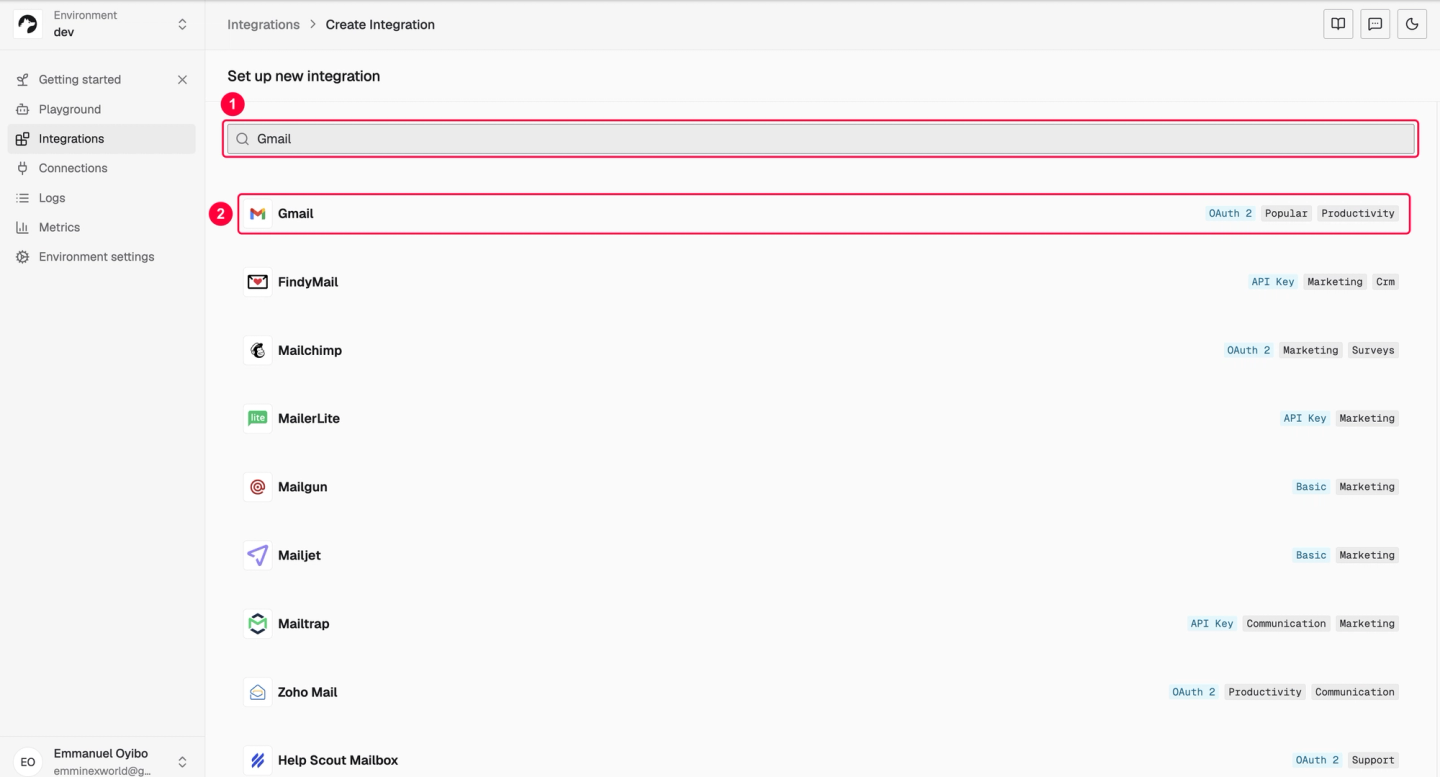
Create a free Nango account and log in. Then open Integrations → Set up new integration. Search for Gmail and select the entry with the OAuth 2 label. Both accounts will use this integration.
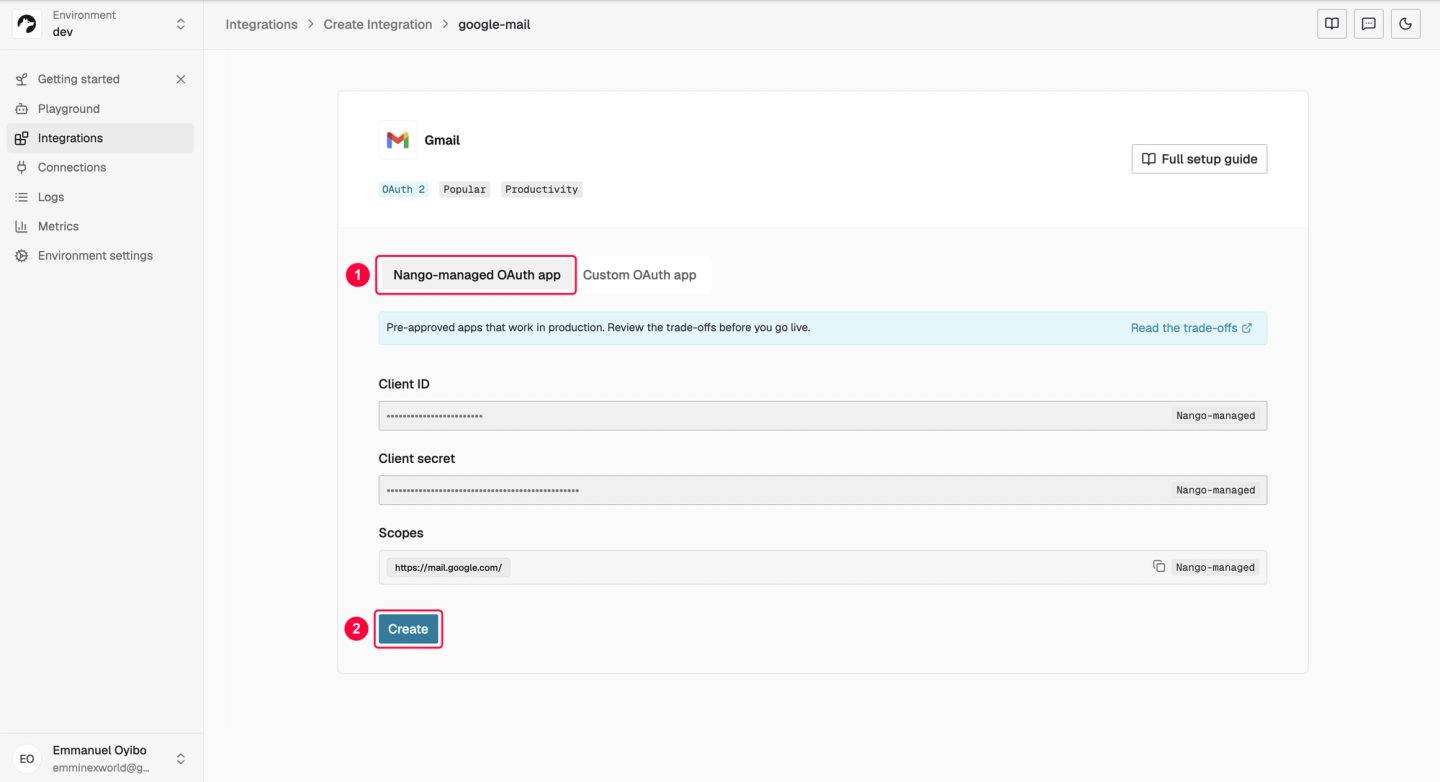
Keep Nango-managed OAuth app selected and click Create. Nango’s pre-approved app saves you from having to create your own OAuth app in Google Cloud.
Step 2: Connect both Google accounts
To authorize the first account, open Connections → Add test connection and choose the Gmail integration you created.
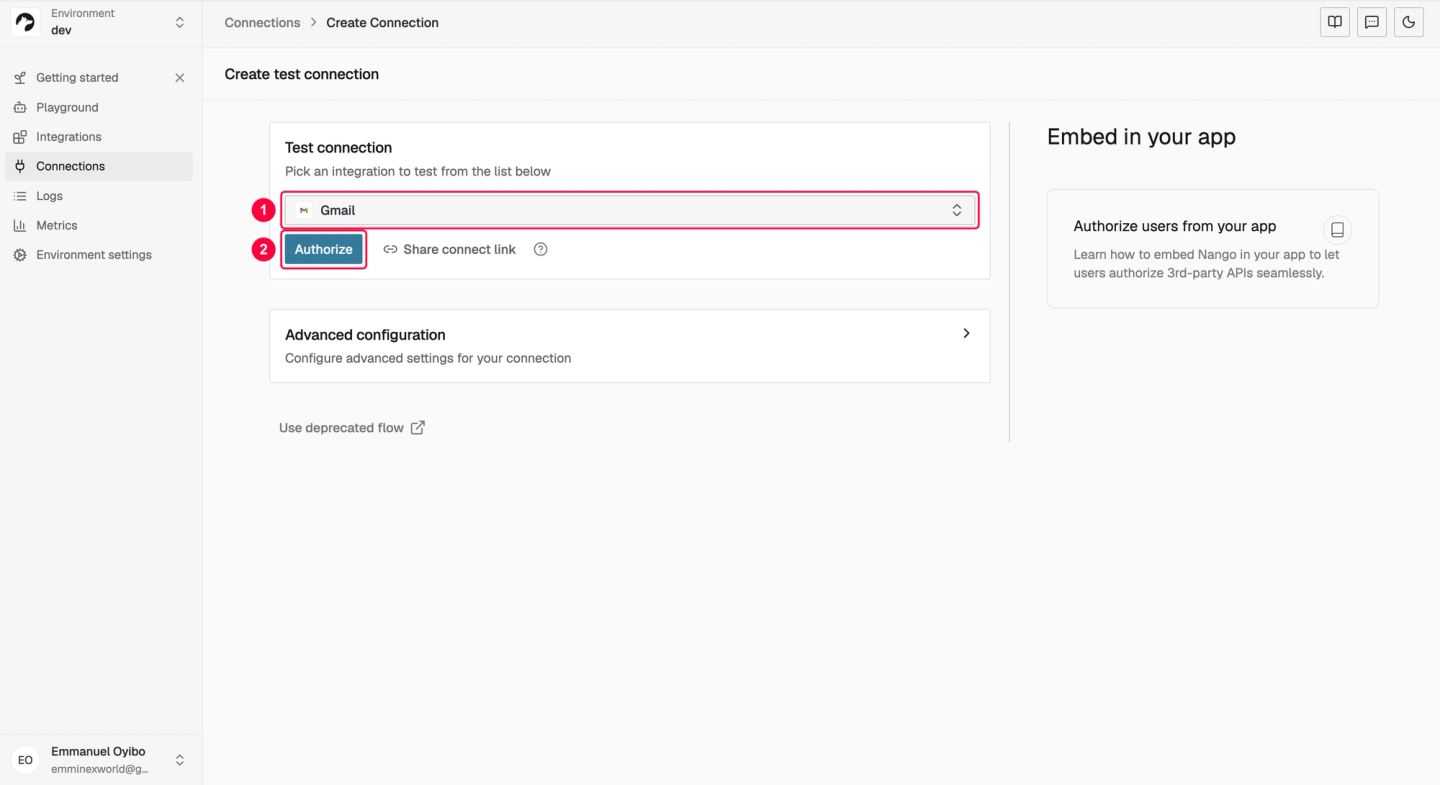
- Click Authorize, then Connect in the Link Gmail Account window.
- Choose your first Google account.
- Review Google’s permission request and complete authorization.
- Finish the connection flow and return to Nango’s Connections page.
Repeat Add test connection → Gmail → Authorize for the second account. In Google’s account chooser, select the other email address. If it is missing, click Use another account and sign in. Check the address on the consent screen before continuing.
To connect a Gmail account you can’t sign in to yourself, choose Share connect link and send the link to the account owner to complete authorization. The link expires after 30 minutes.
If your organization’s policy blocks authorization, ask your Google Workspace administrator to review the app’s access.
Check that Nango lists two Gmail connections, then connect Claude to Nango. Step 4 verifies that the connections belong to different mailboxes.
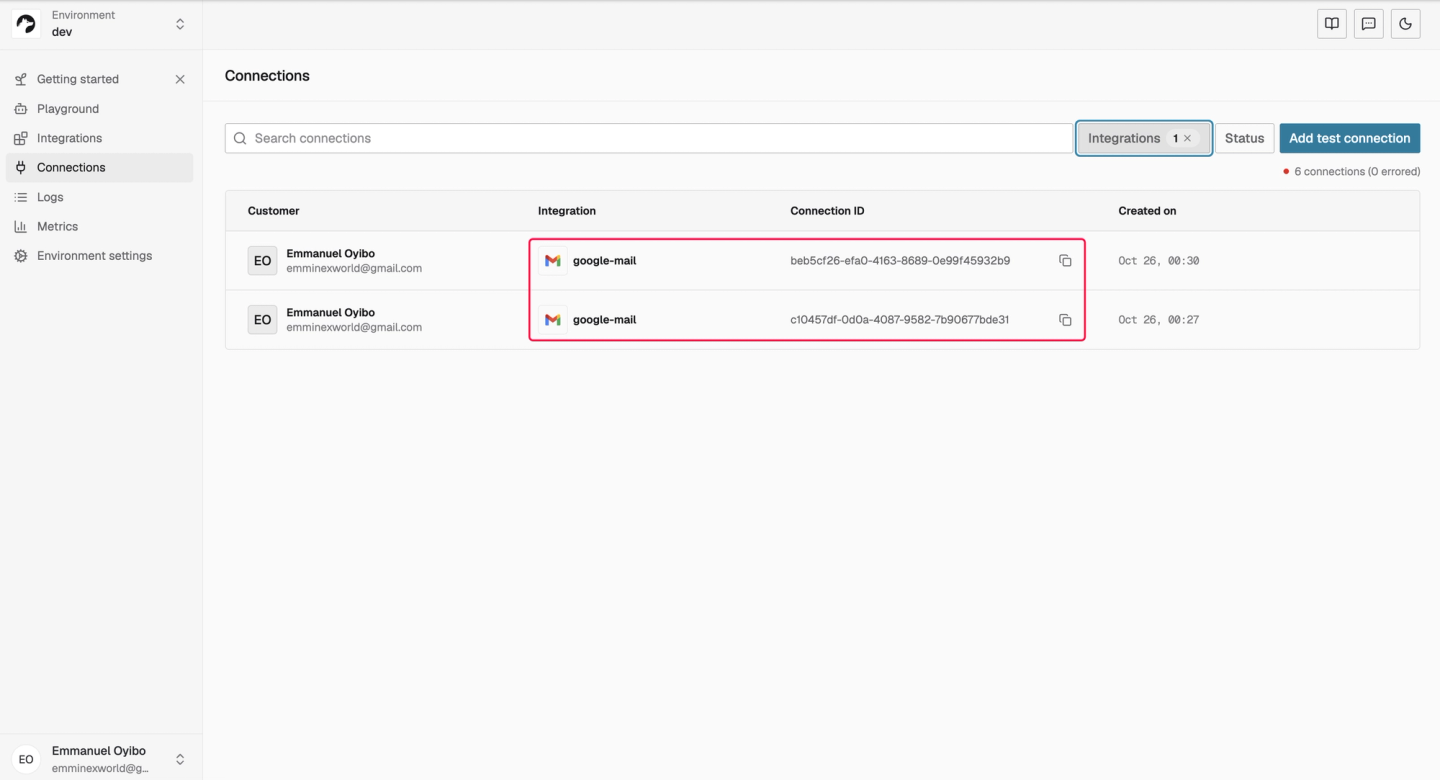
Step 3: Enable Nango in Claude
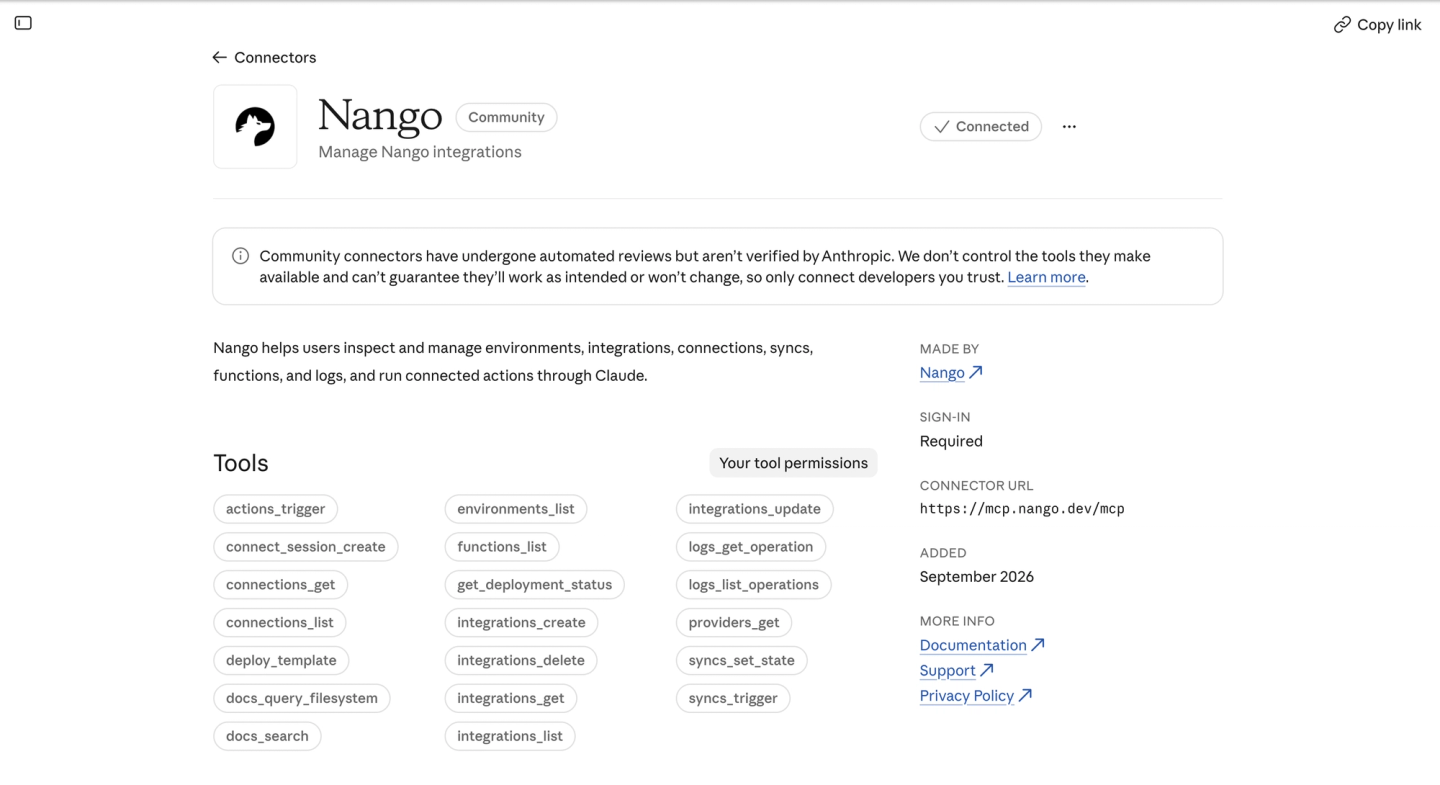
- In Claude, open Customize → Connectors and find Nango, or open the Nango connector listing directly.
- Select Connect to Claude and sign in to the Nango account containing your Gmail connections.
- Review and approve the connection.
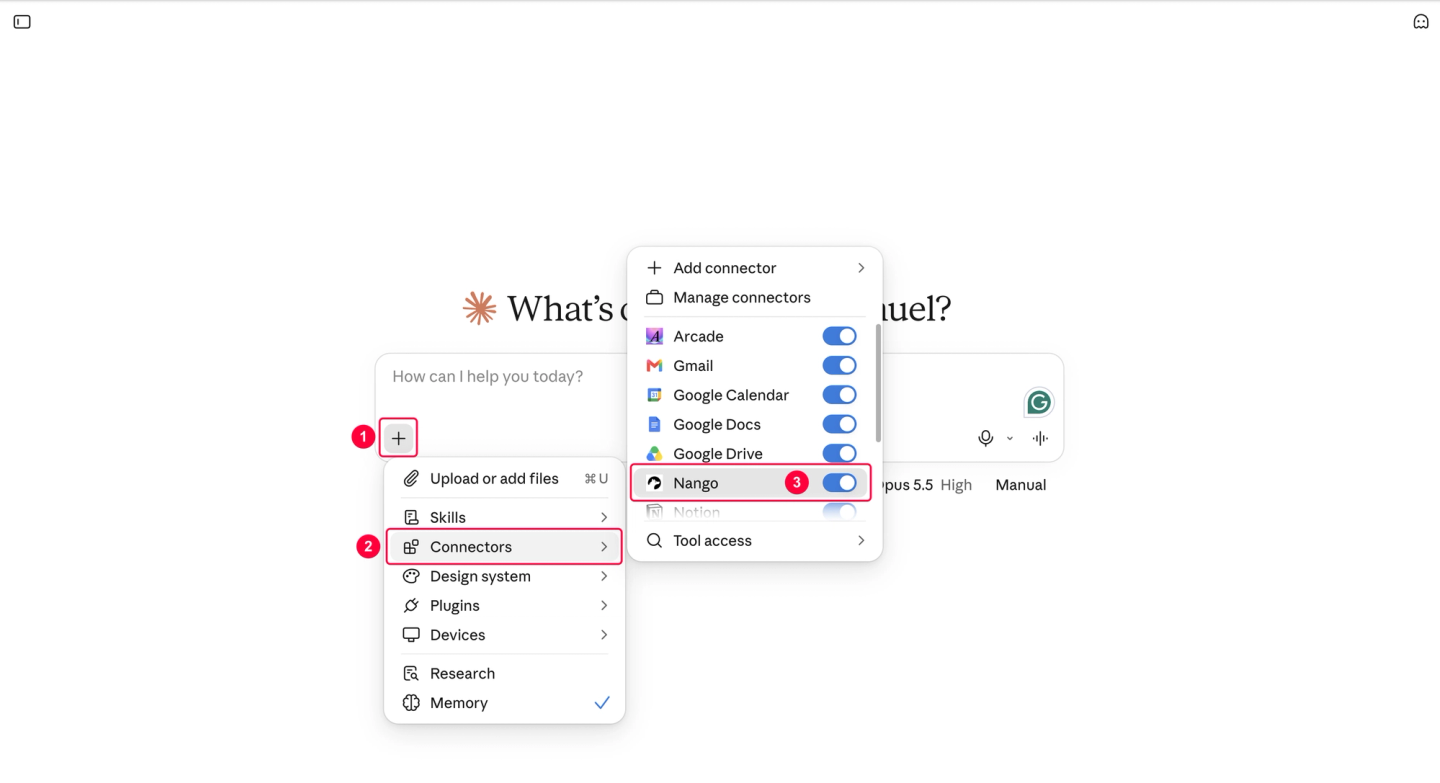
Start a new chat. Open + → Connectors in the message box and enable Nango.
On Claude Team or Enterprise, an Owner or Primary Owner must enable Nango for the organization first.
For Codex, Cursor, or Claude Code, follow Nango’s Management MCP setup instructions. Use the same Nango account and dev environment, with permission to access your Gmail connections.
Step 4: Search both Gmail accounts and draft a reply
The Nango MCP provides prebuilt tools for Gmail to search, read, and draft emails using Claude.
Return to your Claude chat and identify each mailbox before searching email:
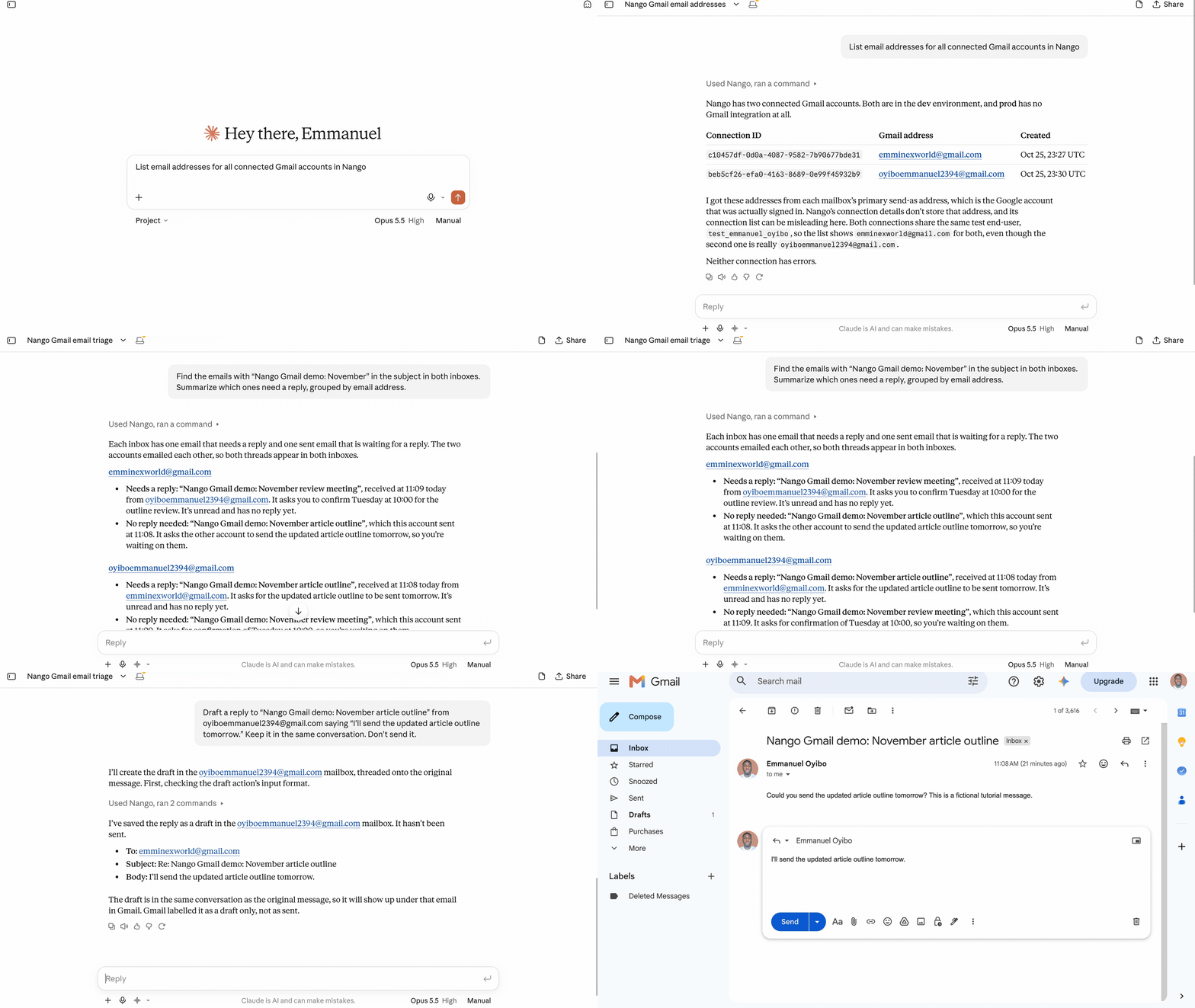
List email addresses for all connected Gmail accounts in Nango
Approve read requests if asked, then check that Claude returns the two addresses you connected.
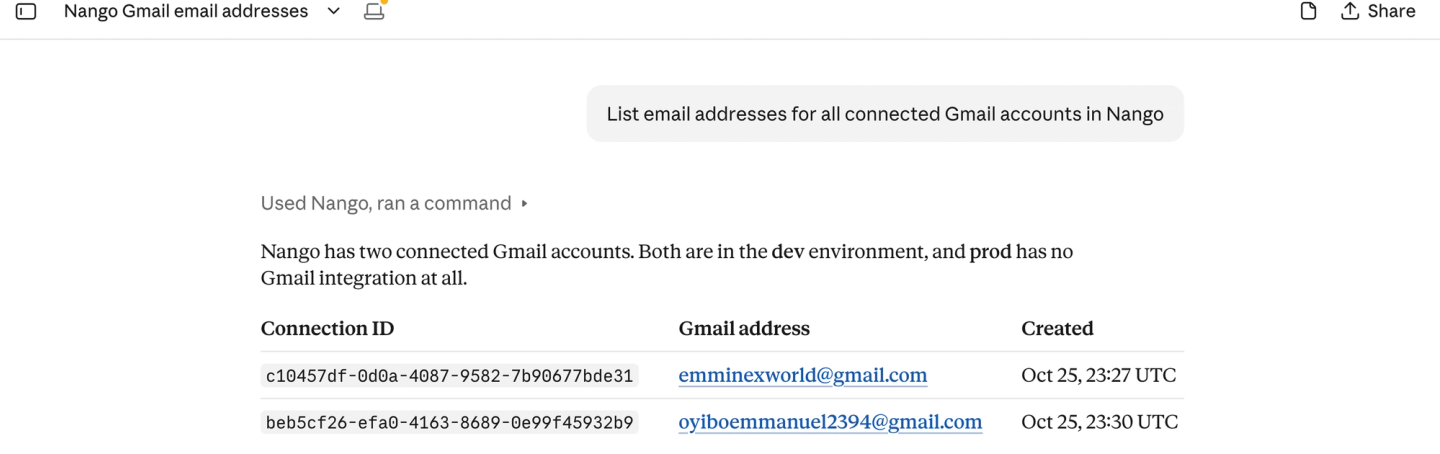
Search and summarize emails across multiple accounts
The following prompt searches for our fictional tutorial emails. Replace “Nango Gmail demo: November” with a subject you want to find in your inboxes:
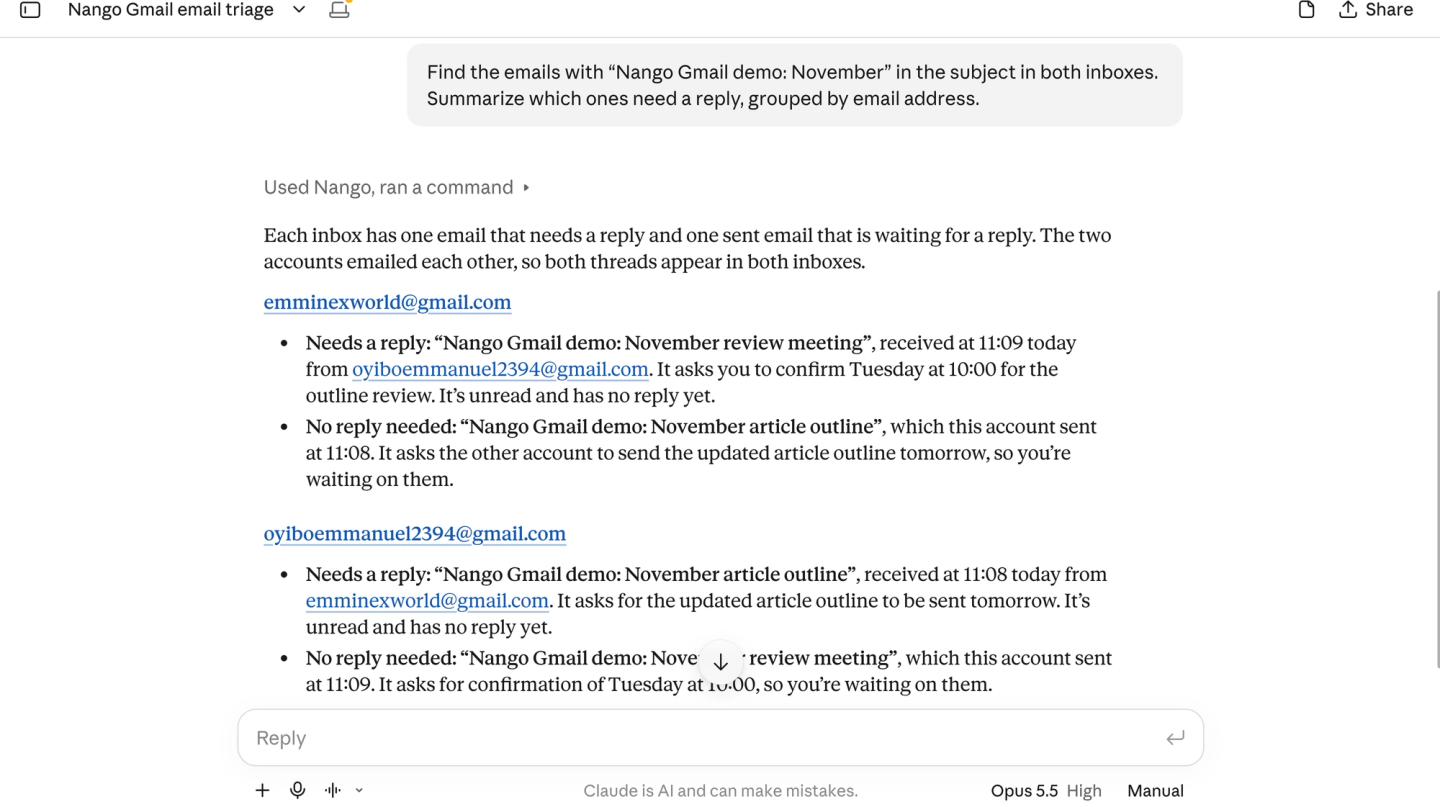
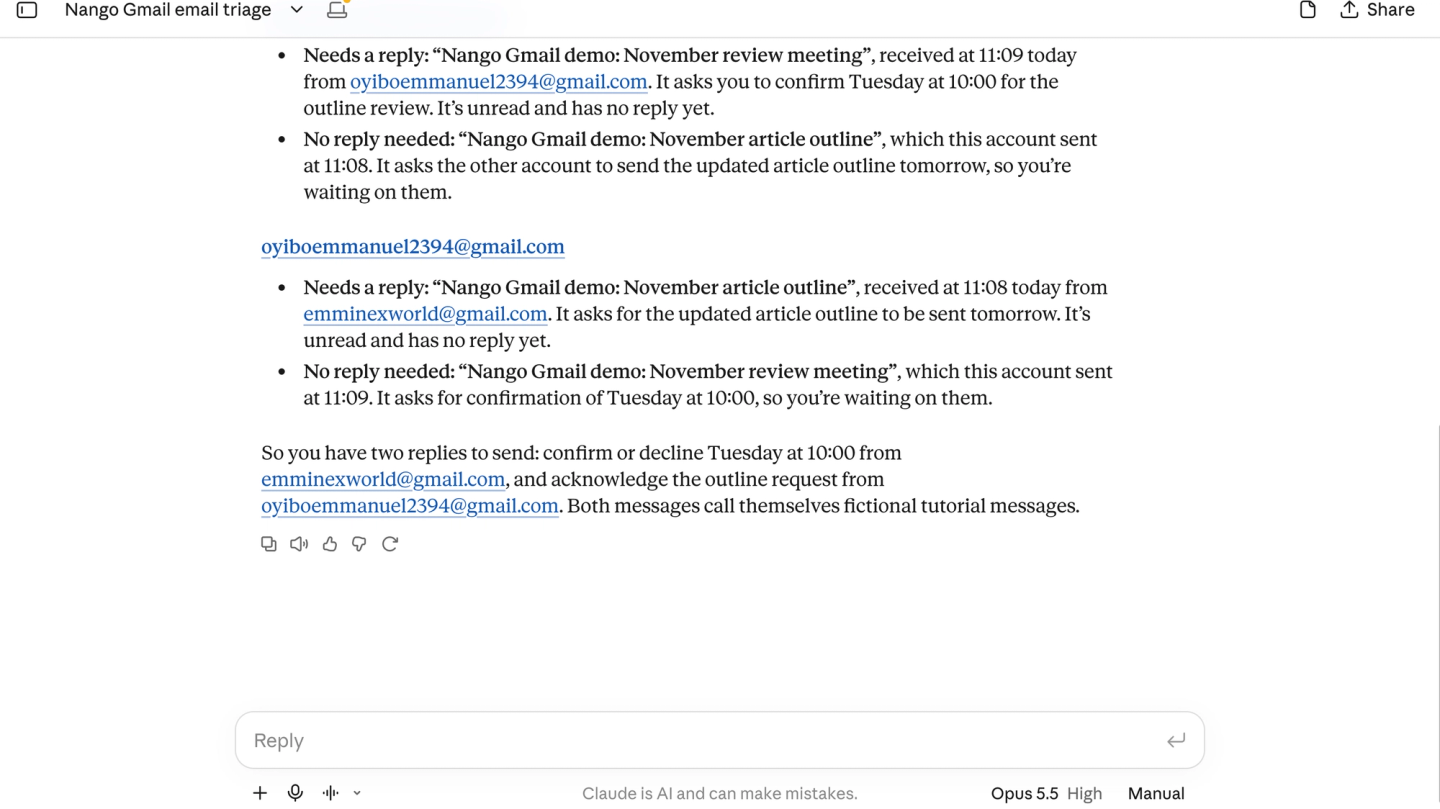
Find the emails with “Nango Gmail demo: November” in the subject in both inboxes. Summarize which ones need a reply, grouped by email address.
Claude identified one demo email needing a reply in each account: a meeting-confirmation request in the first and an article-outline request in the second.
Have Claude draft a reply in Gmail
Choose a message from the summary and specify its account when requesting a reply. For the article-outline example:
Draft a reply to “Nango Gmail demo: November article outline” from oyiboemmanuel2394@gmail.com saying “I’ll send the updated article outline tomorrow.” Keep it in the same conversation. Don’t send it.
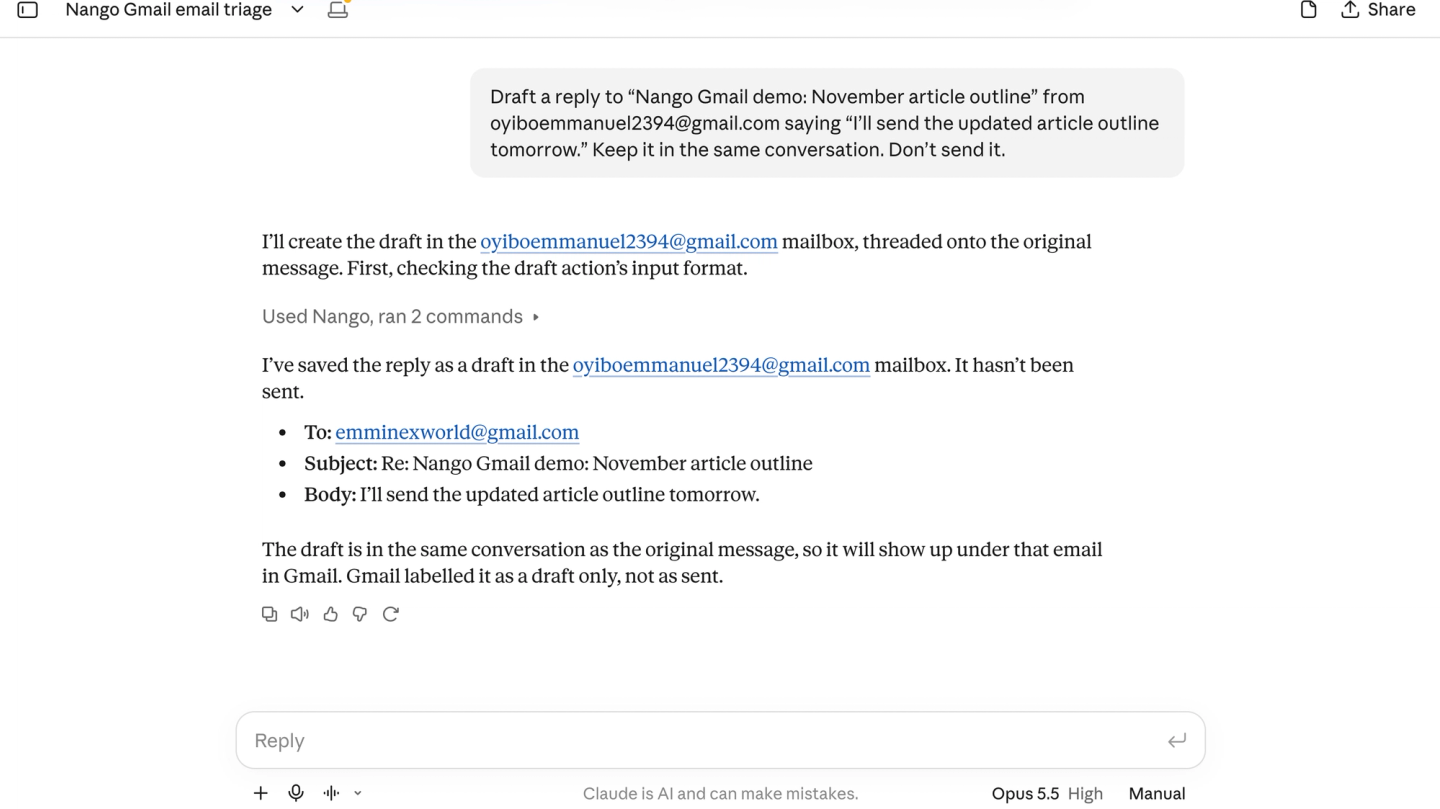
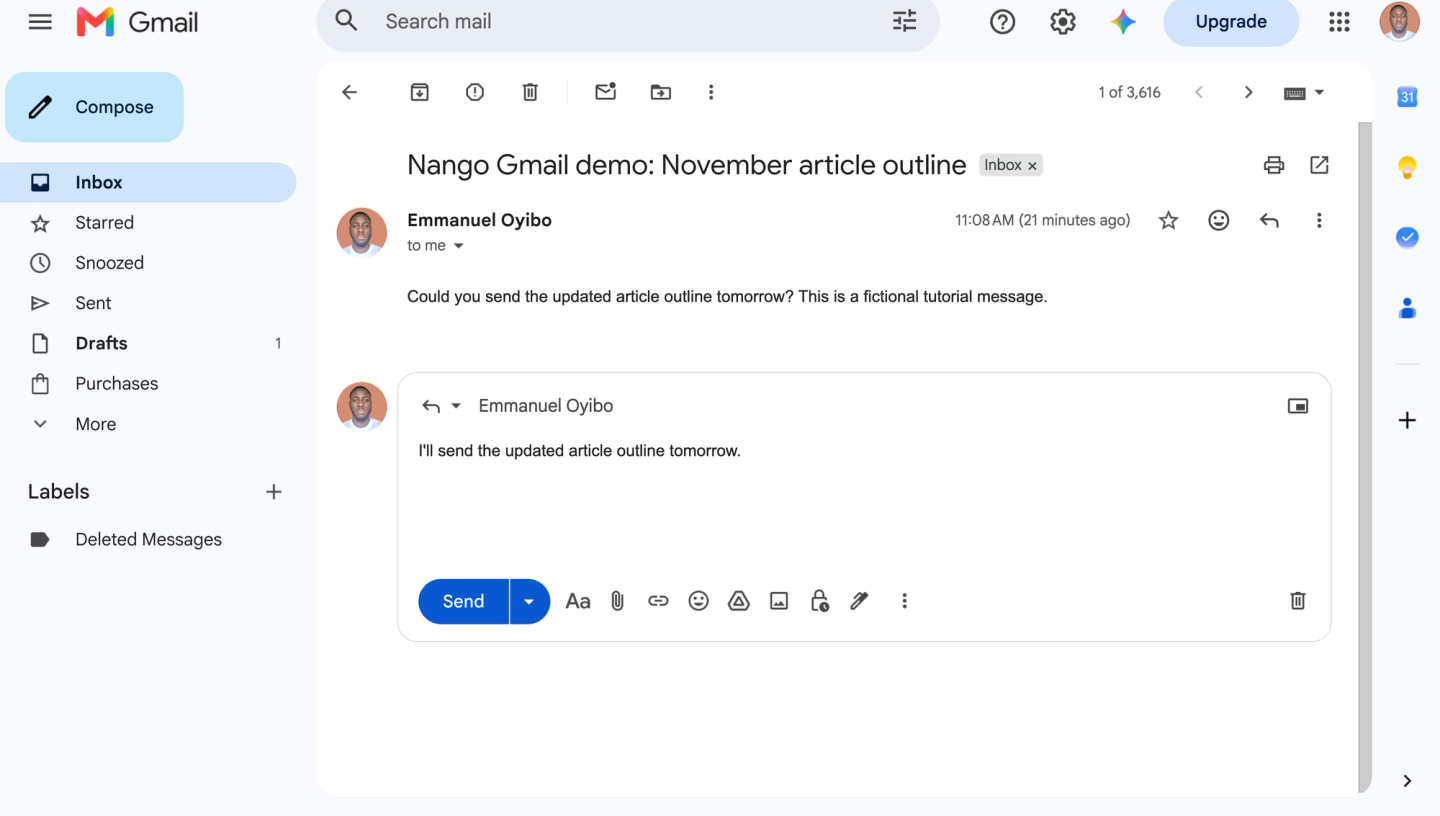
Open Drafts in the intended Gmail account and verify the sender, recipient, and text before sending. Check that the reply appears in the original conversation. If Claude times out or gives an unclear result, check Gmail before retrying to avoid duplicate drafts.
Reuse your connections across agents and apps
Connect your Gmail accounts to Nango once, then add the Nango Management MCP to Codex, Cursor, or any agent that supports MCP. You can also authorize Google Calendar, Slack, or other apps from Nango’s catalog of 1,000+ APIs and access them through the same connector.
Related reading:

