
Your team’s discussions might live in one Slack workspace, while conversations with a client happen in another. However, Claude’s official Slack connector only supports one workspace per account.
Nango lets you connect multiple Slack workspaces to Claude via its Management MCP. It’s free and should take less than 5 minutes.
The free plan includes 10 connections, so you can connect up to 10 different Slack workspaces.
Here’s how to set it up.
Step 1: Add a new Nango integration
Create a free Nango account or log in. Select dev in the top-left environment menu, then go to Integrations → Set up new integration and search for Slack. Select Slack with the OAuth 2 label.
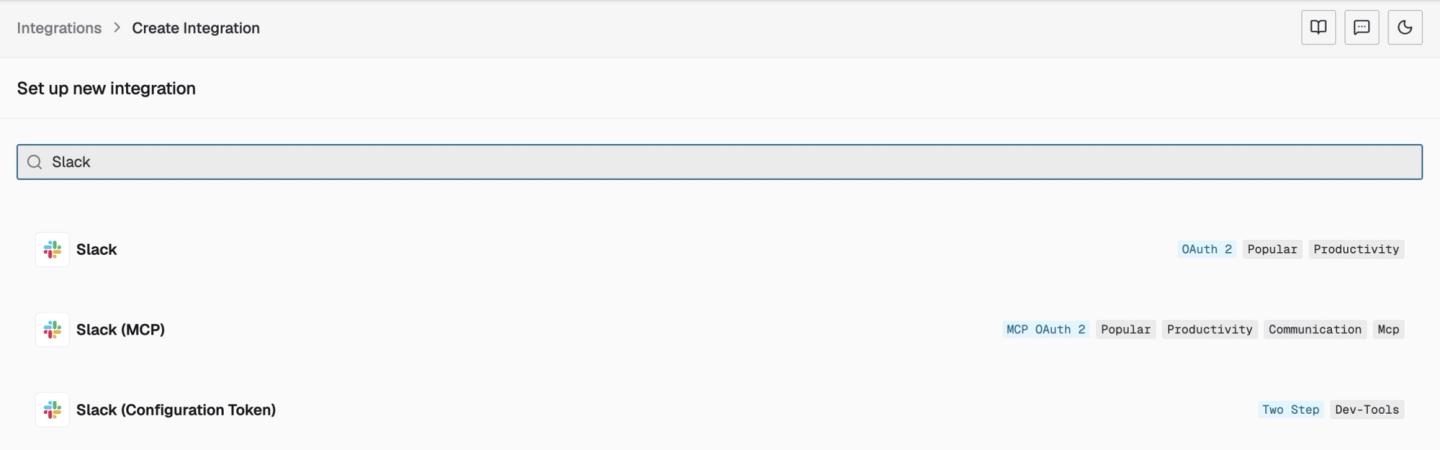
Keep Nango developer app selected and click Create.
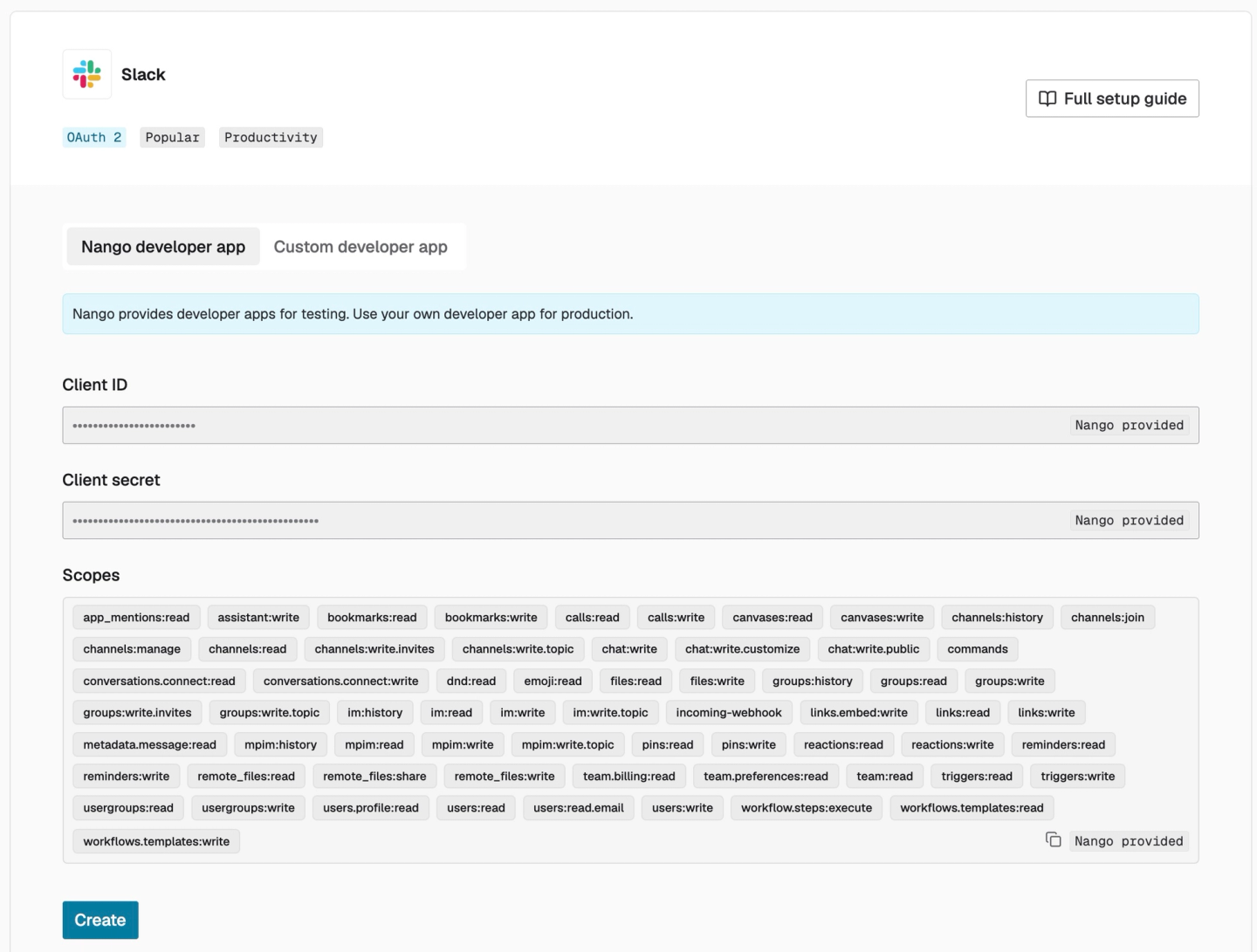
Nango’s managed app saves you from creating and setting up your own app in Slack’s developer portal. Nango provides similar managed apps for 70+ popular APIs, including Salesforce and Google.
Step 2: Connect multiple Slack workspaces
Go to Connections → Add test connection and select the Slack integration you just created.
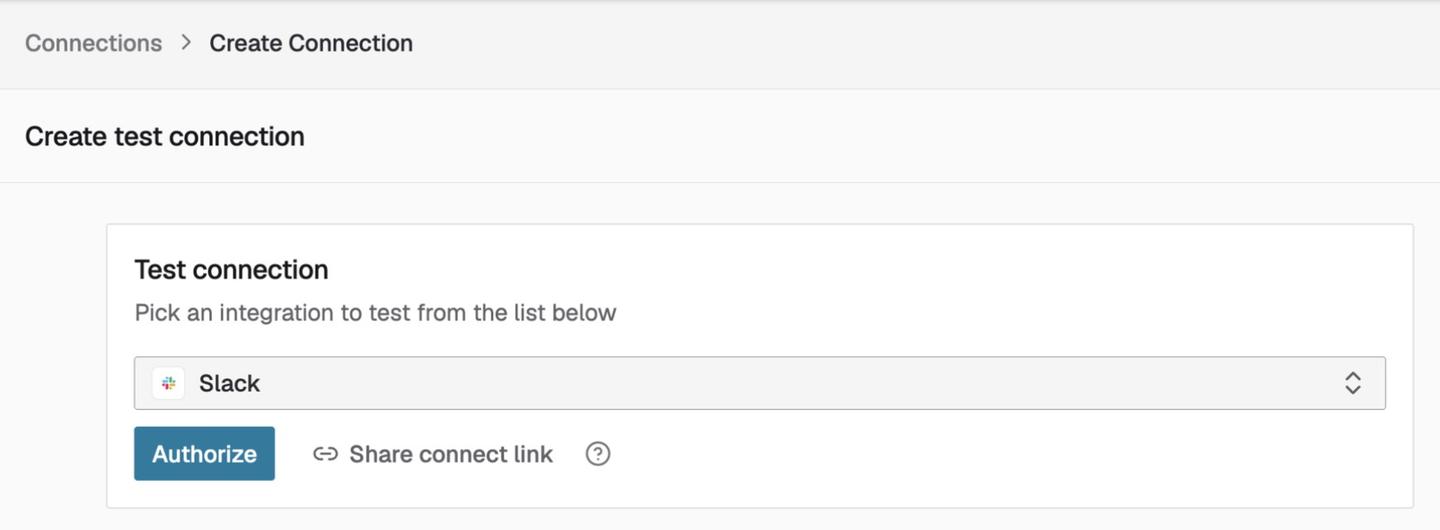
- Click Authorize, then Connect in the Link Slack Account window.
- Select your first workspace in Slack’s workspace picker. We use Kerneldev in this example.
- If Slack asks for a Channel for webhook, choose a channel, such as
#general. - Review the permissions, click Allow, then click Finish when Nango confirms the connection.
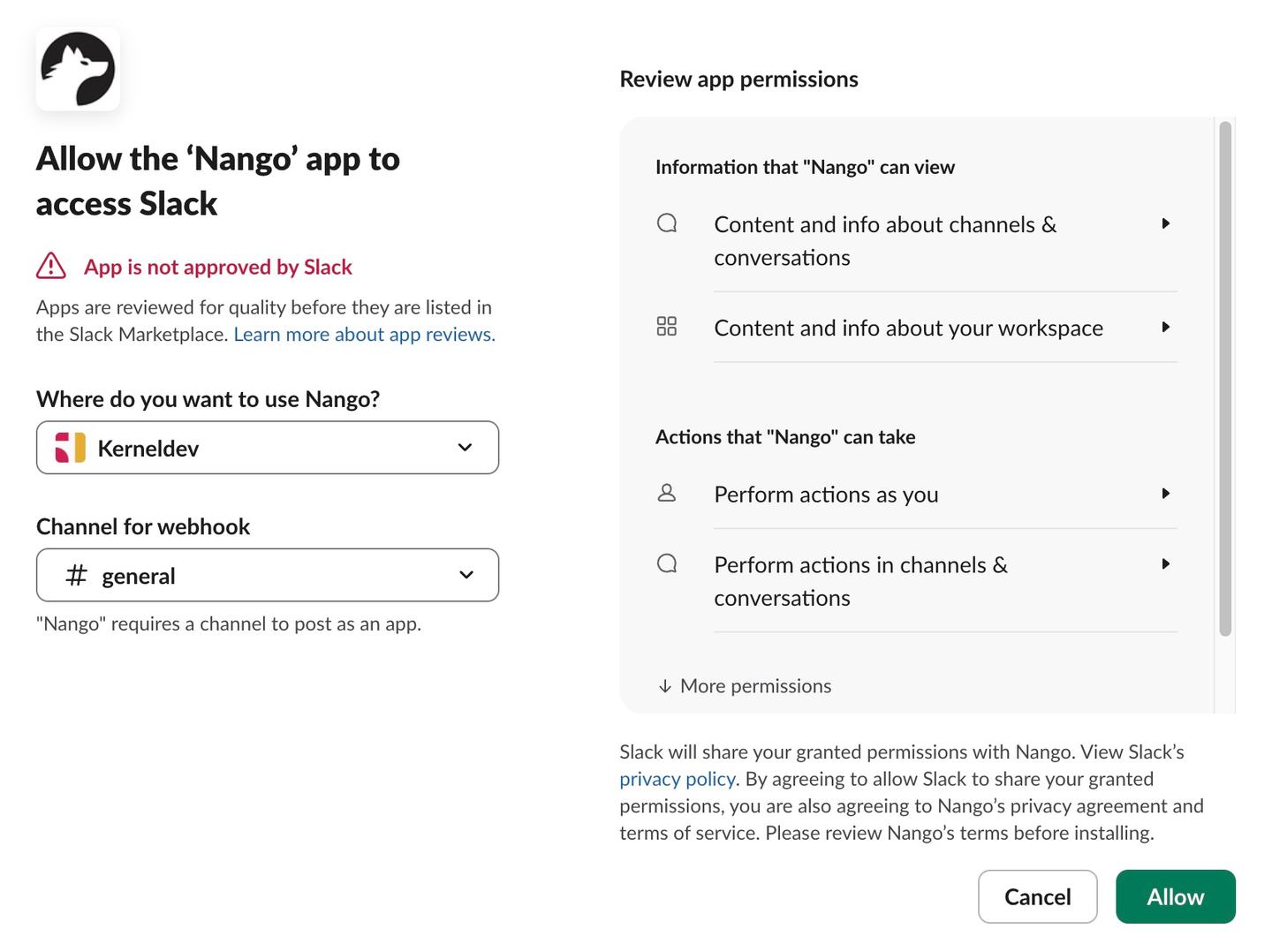
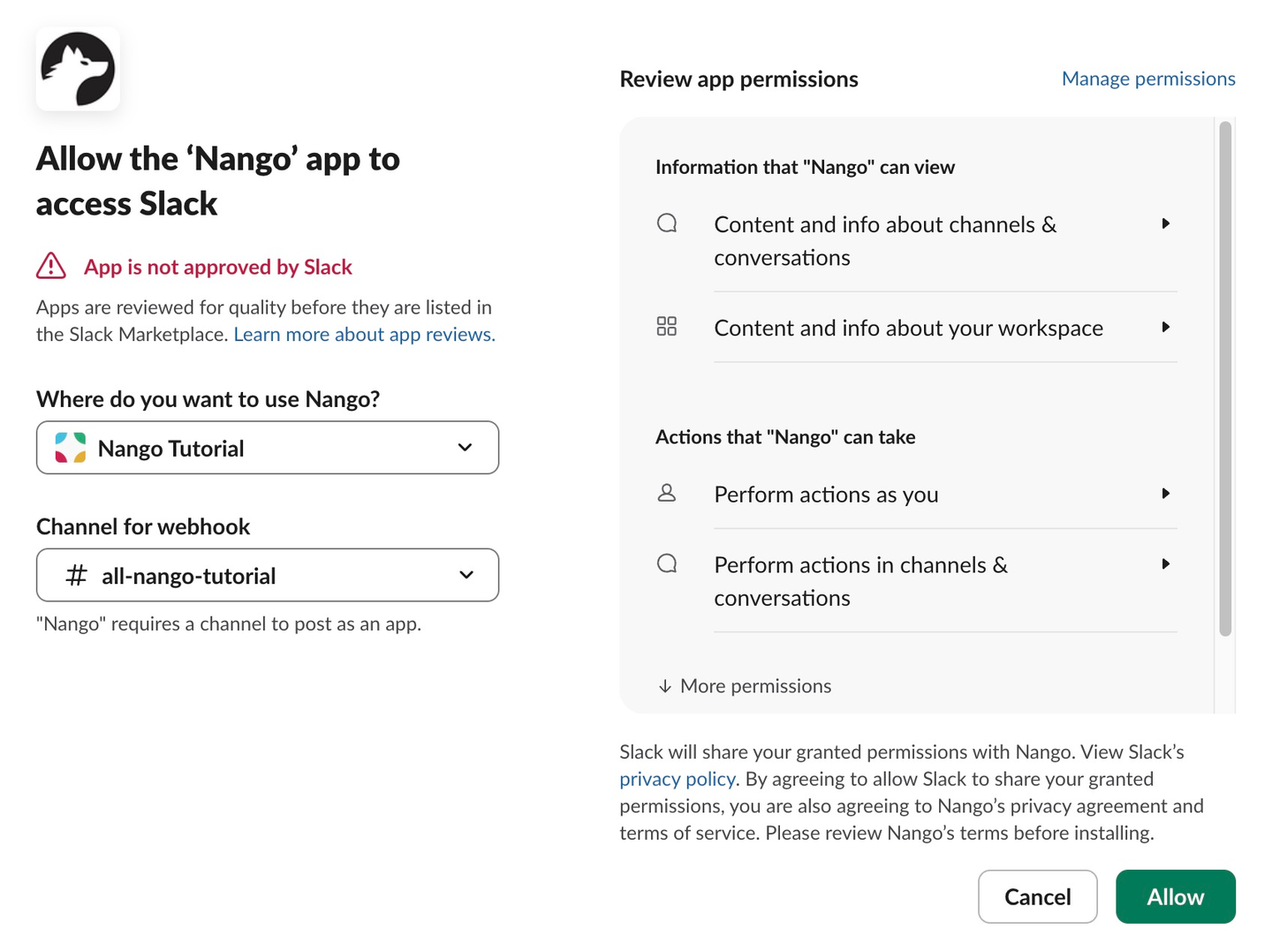
You’ll see a new Slack entry on Nango’s Connections page. Repeat these steps for your second workspace, choosing it in Slack’s workspace picker before clicking Allow. Our second workspace is Nango Tutorial.
After authorization, both workspaces appear as separate connections:
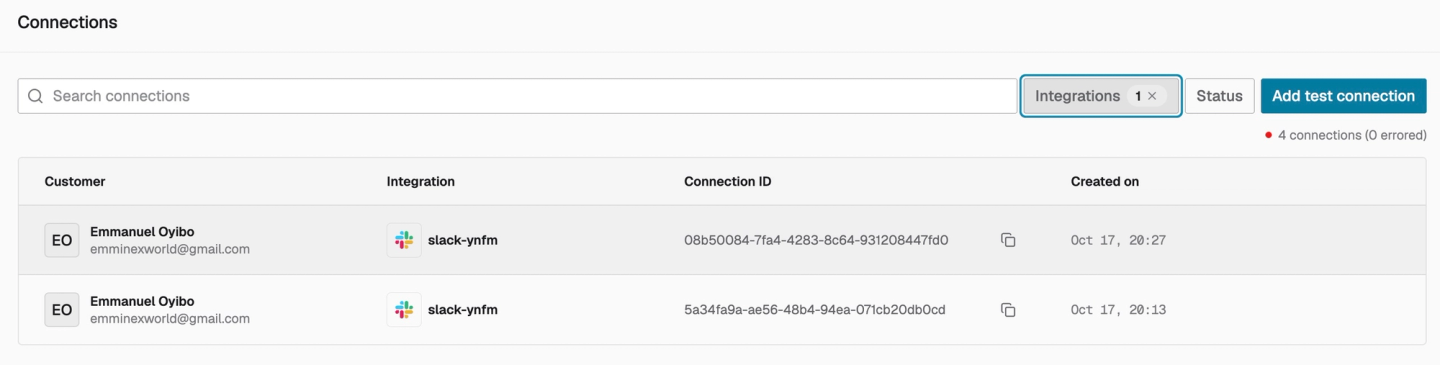
Repeat for any other workspaces you want to connect.
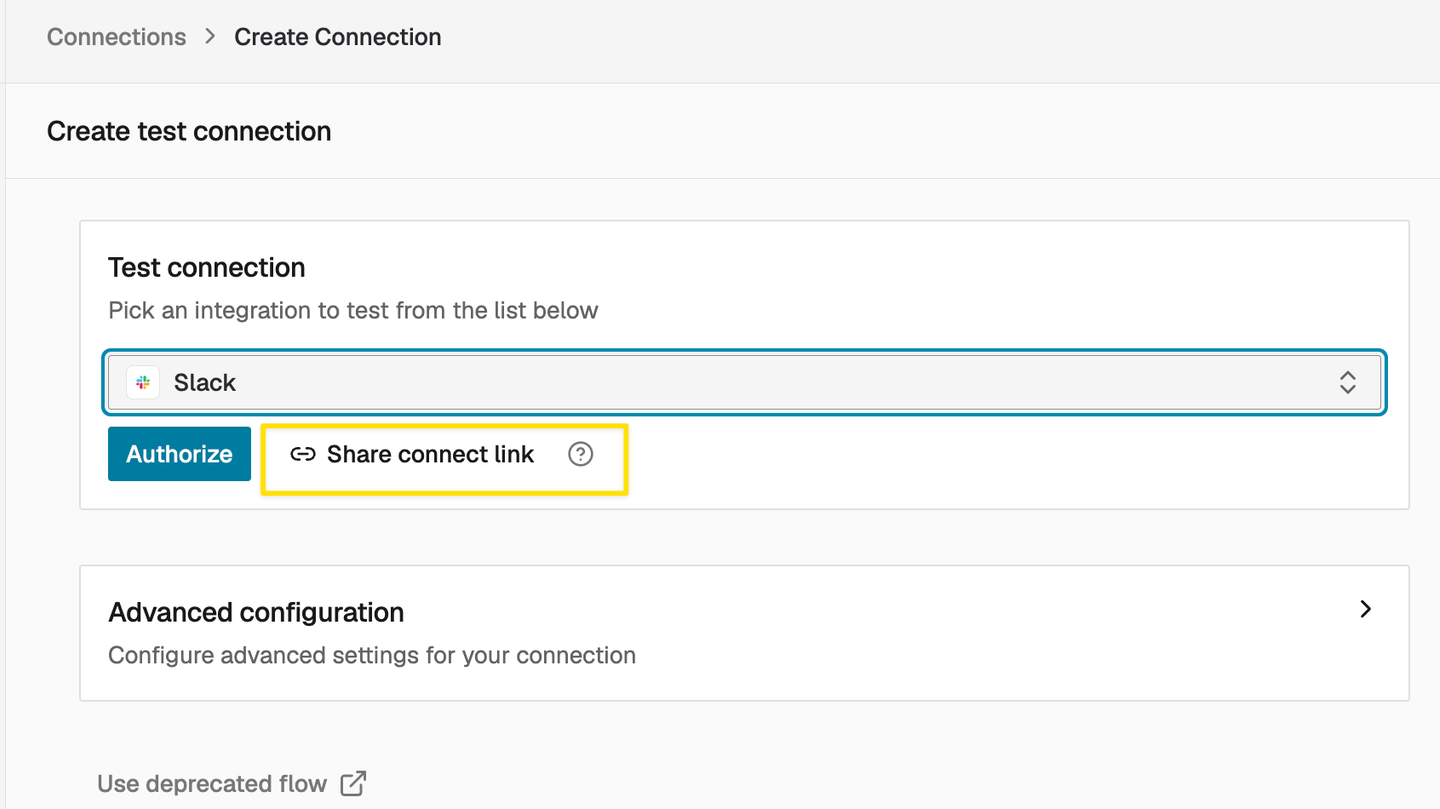
Don’t have access to a workspace or see “You are not authorized to install”? Return to Add test connection, select Slack, click Share connect link, and copy the link. Send it to a workspace owner or app manager.
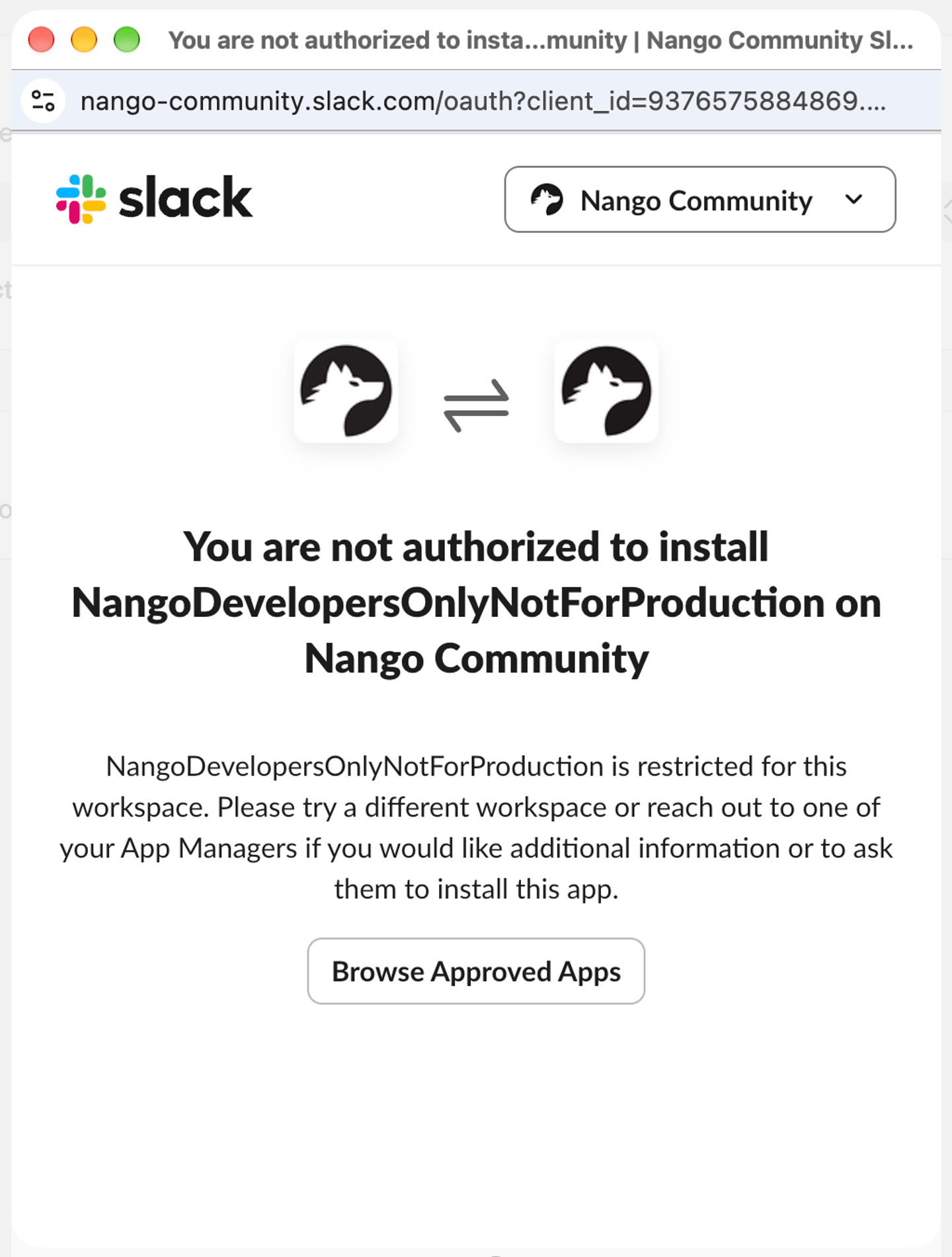
They can sign in to Slack and authorize the app without a Nango account. The new connection then appears in your Connections list. Links expire after 30 minutes.
Step 3: Connect Nango to Claude, Codex, Cursor, and others
Claude
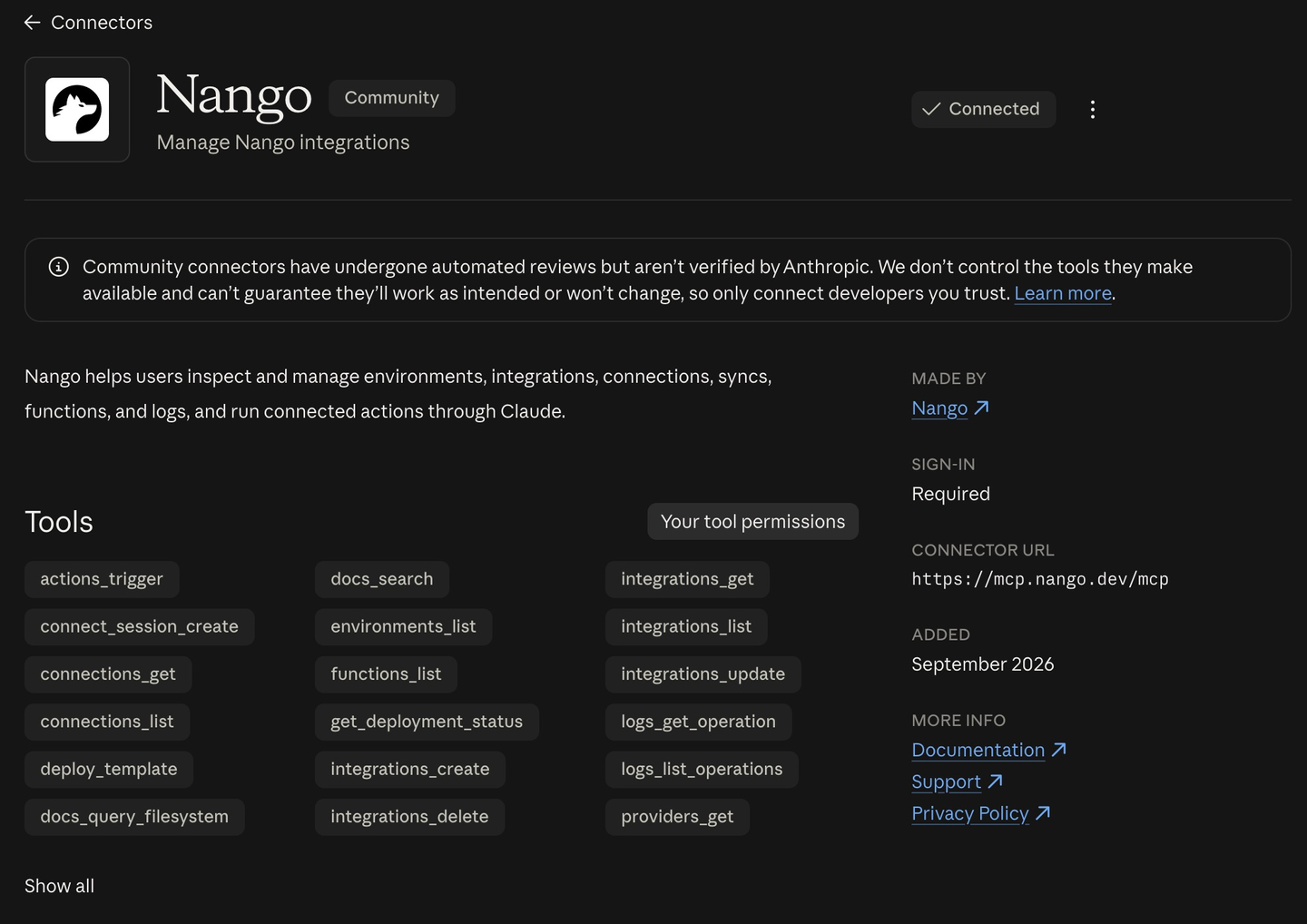
- Open Customize → Connectors → Discover in Claude and search for Nango. You can also open the Nango connector listing directly.
- Select Nango (described as “Manage Nango integrations”) and click Connect to Claude.
- Sign in to the Nango account containing your Slack connections and approve access.
- Start a new conversation. Open + → Connectors in the message box and enable Nango. Restart Claude if the connector doesn’t appear.
On a Team or Enterprise plan, ask your organization owner to enable Nango if it isn’t available.
Codex, Cursor, and other agents
Follow Nango’s setup instructions for your agent. The same Slack connections are available once you connect it to Nango; you don’t need to authorize each workspace again.
Step 4: Start using Claude to access multiple Slack workspaces
Start with a simple prompt:
List names of all Slack workspaces connected via Nango.
Allow Claude’s requests to look up your connected workspaces. The result should include both, along with any other Slack workspaces you’ve connected before.
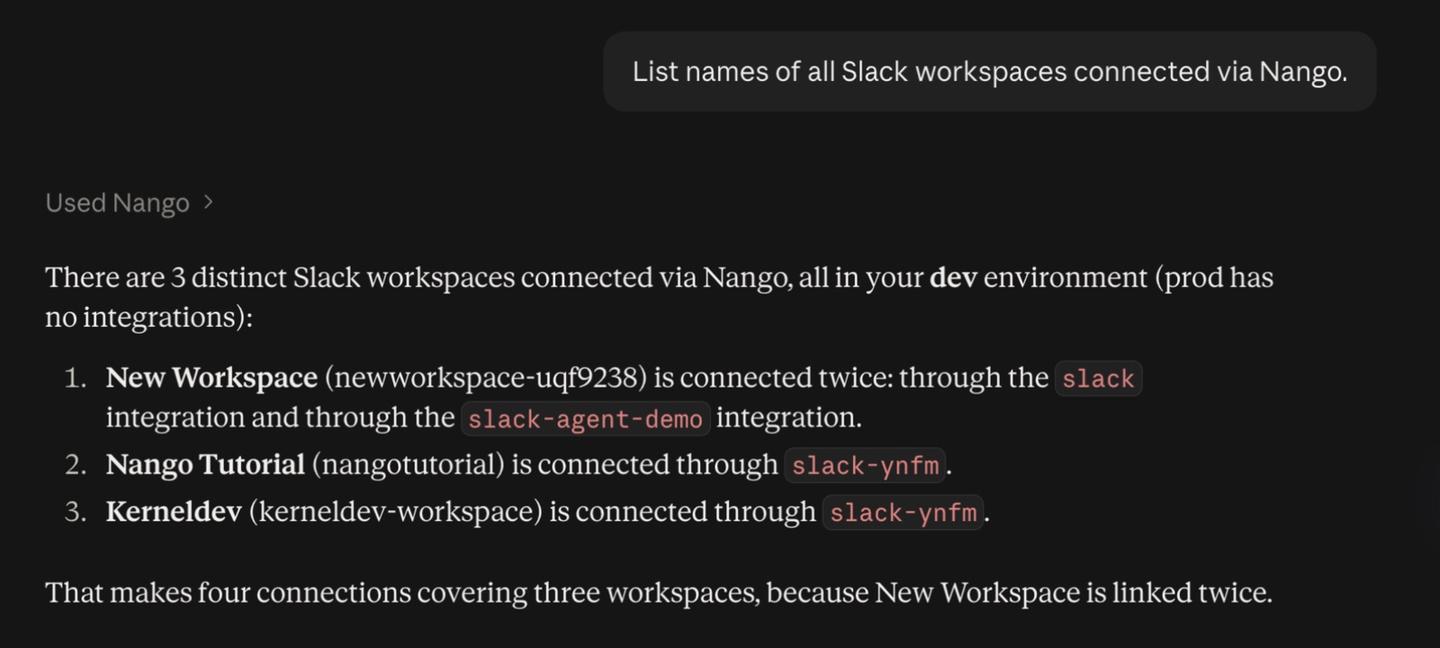
Behind the scenes, Claude uses Nango’s Management MCP to find your connections and choose from 10,000+ pre-built tools. MCP usage is included in the free plan, subject to its monthly limits.
Read messages and send a reply across workspaces
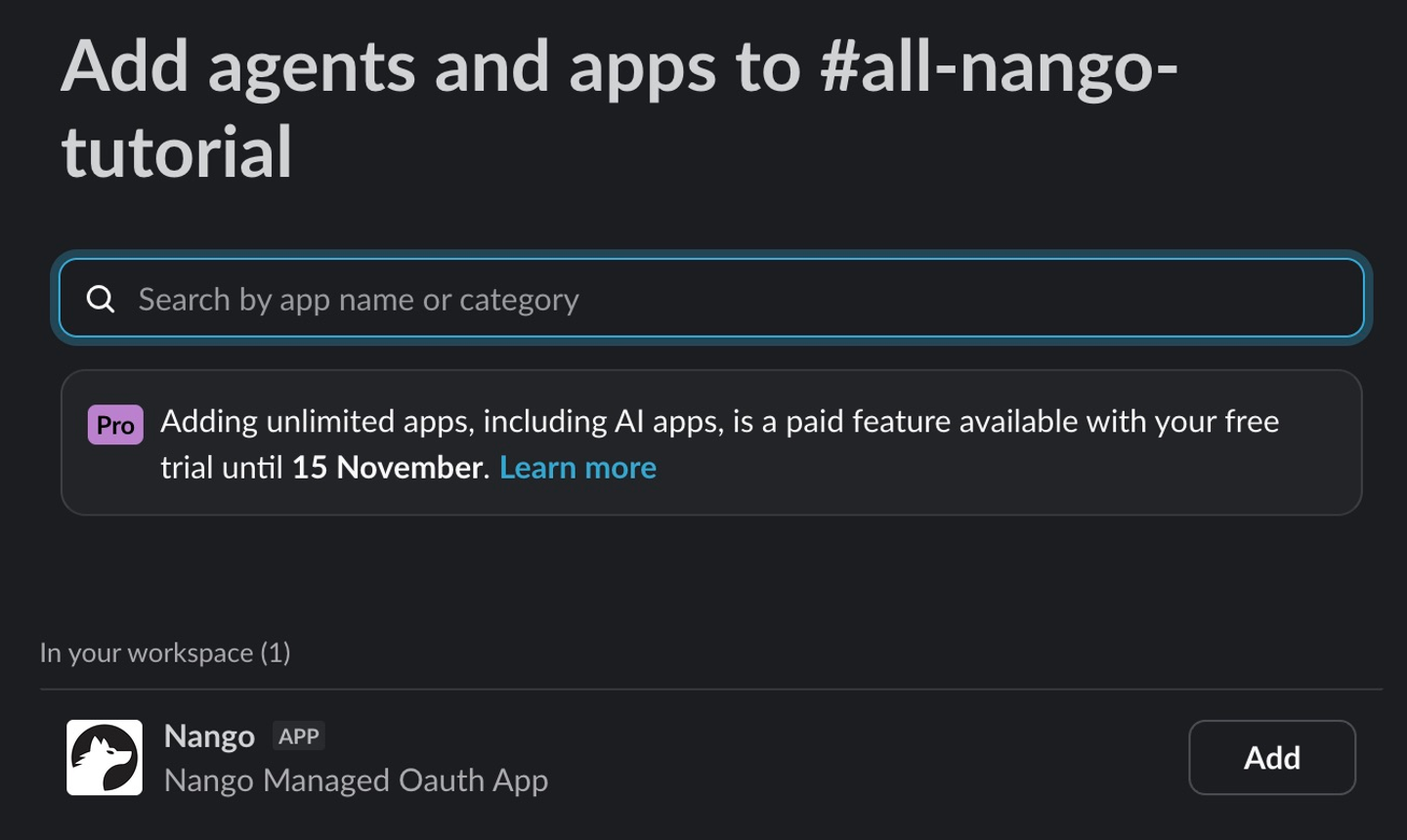
To let Claude read a channel’s messages, add Nango to that channel in Slack: open the channel’s details, choose Agents and apps → Add agent or app, and click Add next to Nango. Repeat for each channel you want Claude to read.
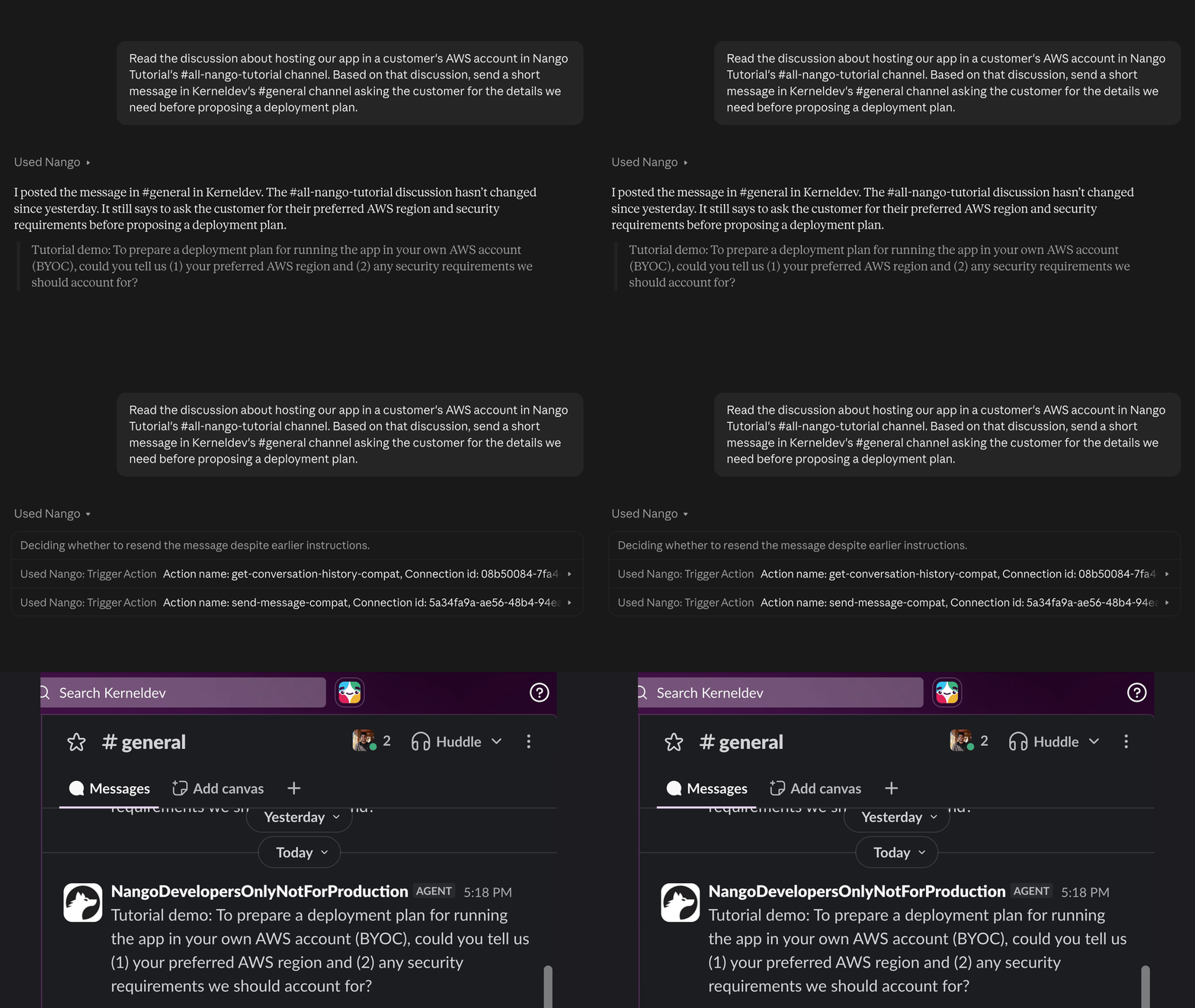
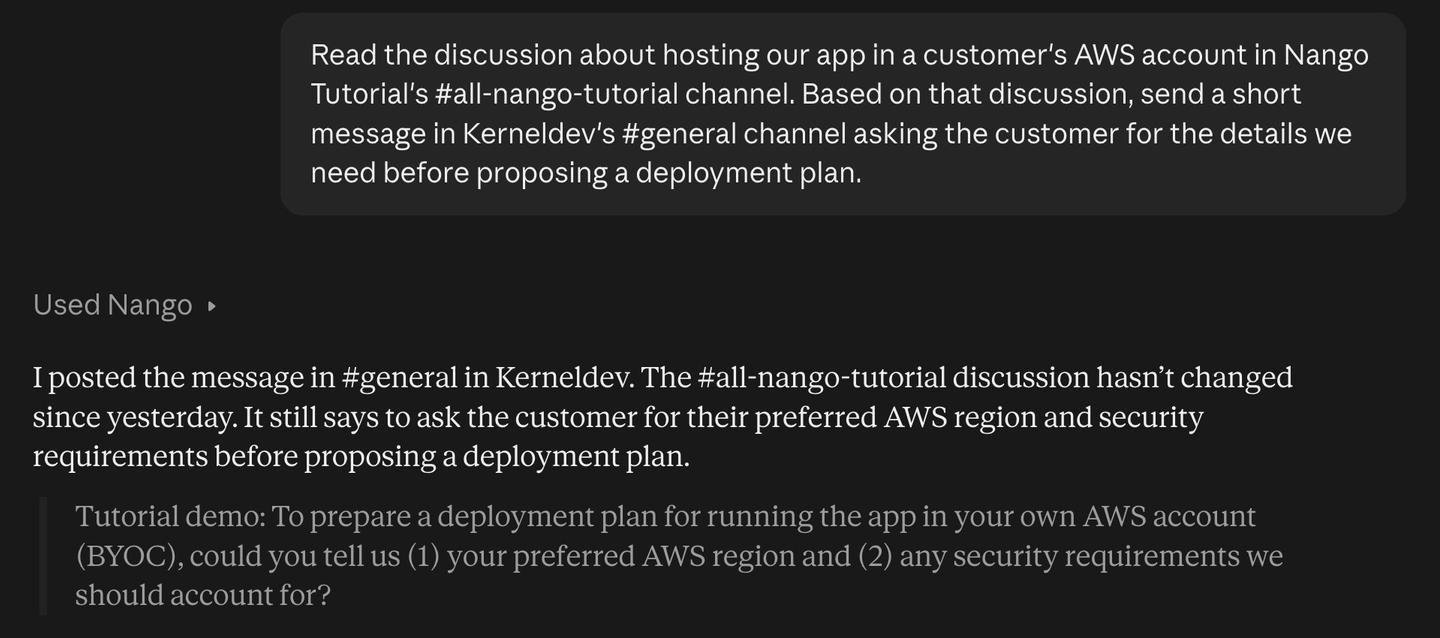
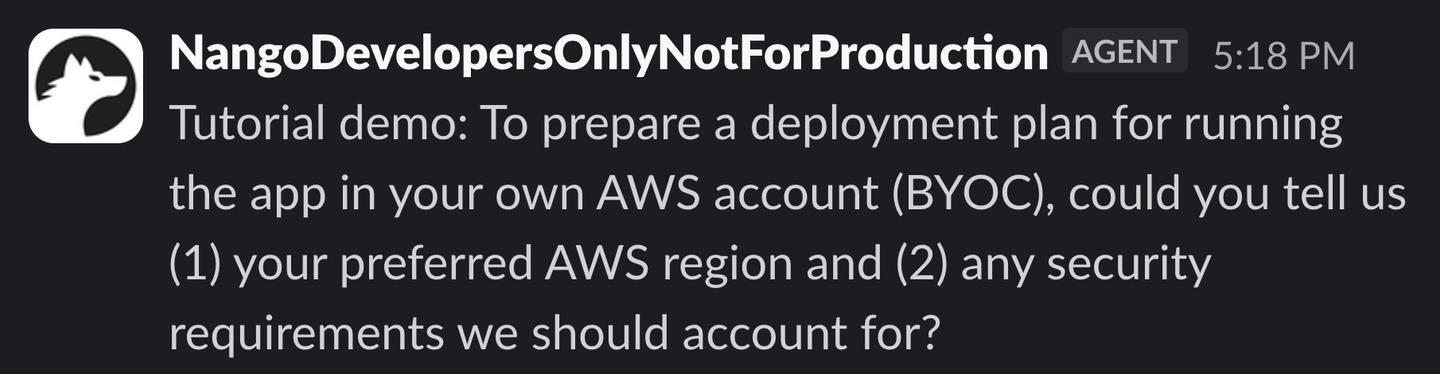
Now ask Claude to read a discussion in one workspace and reply in another. Here, Nango Tutorial is the team workspace and Kerneldev is the example customer workspace. Replace the workspace and channel names with your own:
Read the discussion about hosting our app in a customer’s AWS account in Nango Tutorial’s #all-nango-tutorial channel. Based on that discussion, send a short message in Kerneldev’s #general channel asking the customer for the details we need before proposing a deployment plan.
To search messages across an entire workspace, follow Nango’s additional Slack setup.
Connecting 1,000+ apps to your agent with Nango
Nango is a customer-facing agent integrations platform that supports 1,000+ APIs and 10,000+ pre-built agent tools. Add Gmail, Google Calendar, Salesforce, or other accounts in Nango. New connections are available through the Nango connector you’ve already installed in Claude, Codex, or Cursor.
Behind the scenes, Nango manages authorization and keeps connections working as credentials expire. Webhooks and events let your agents react to new messages or updated customer records, while data syncing keeps their information up to date. Coding agents including Claude Code, Codex, and Cursor can build custom integrations on Nango when you need something beyond the available tools.


