
“Do I have an hour free tomorrow?” is a two-calendar question for many. Your work calendar might have an opening at 2 p.m., but your personal calendar already has an appointment booked.
In this tutorial, we’ll show you how to connect all your Google Calendar accounts to Claude, ChatGPT, or any agent that supports MCPs. The setup is free and should take about 5-10 minutes, after which you’ll be able to query and take action across multiple Google Calendar accounts at once.
We’ll use Nango and its Management MCP in this tutorial. The free Nango account supports up to 10 accounts.
Step 1: Add Google Calendar in Nango
Sign in to Nango or create a free account. In Catalog, search for Google Calendar. Select the entry named Google Calendar with the Instant setup label.
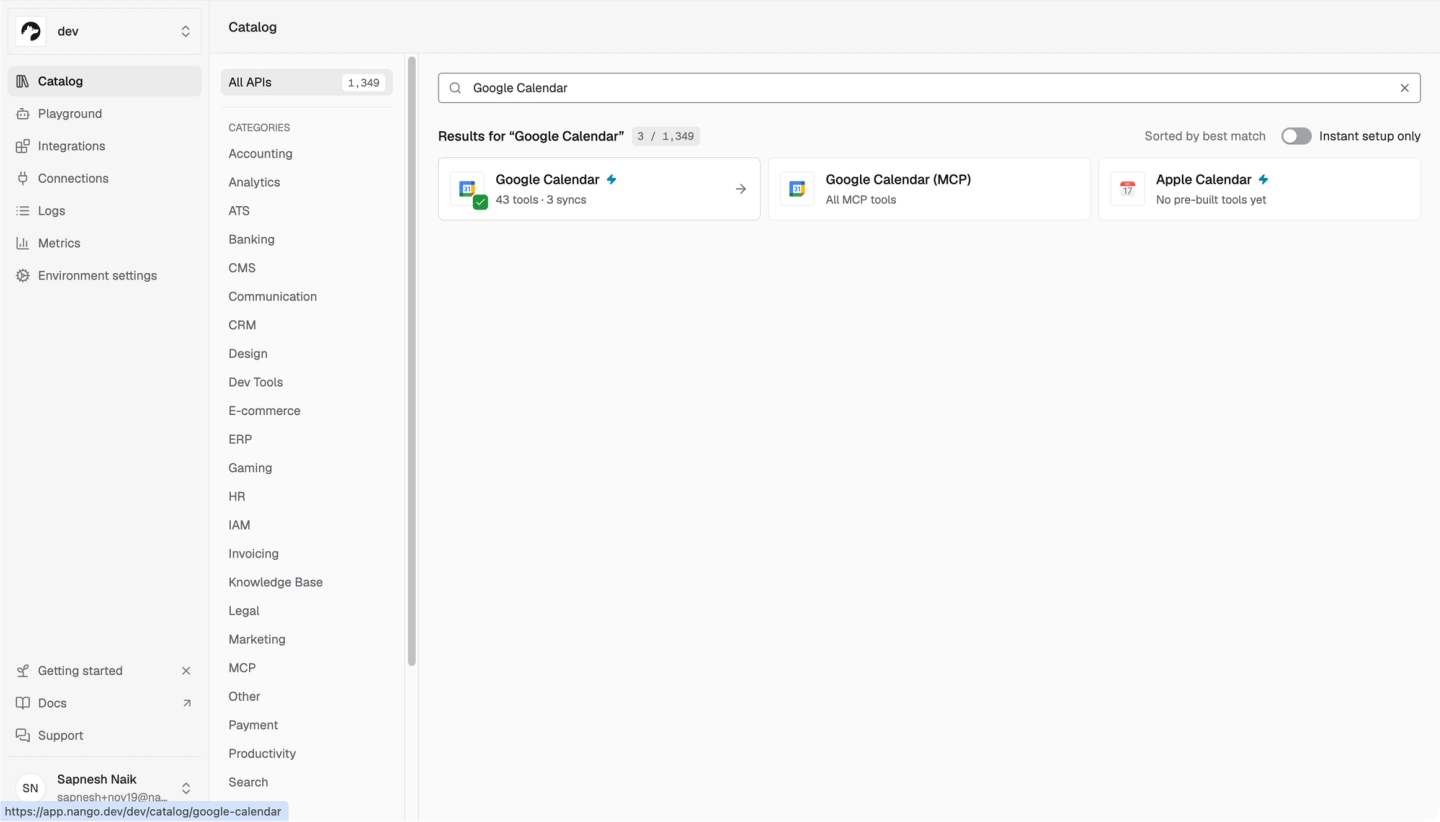
Click Add integration. Nango’s managed Google OAuth app lets you connect your calendars without registering an app in Google Cloud.
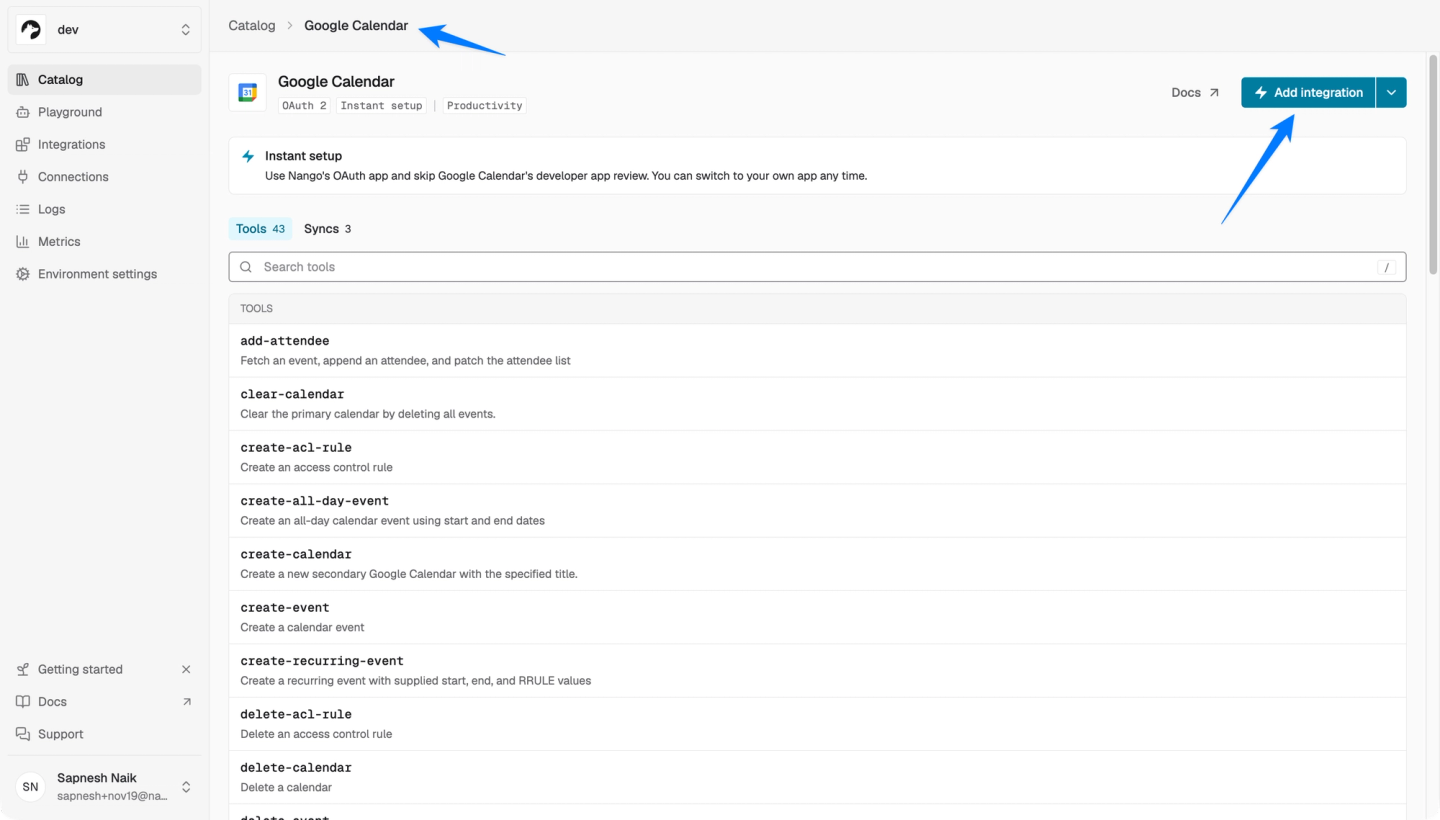
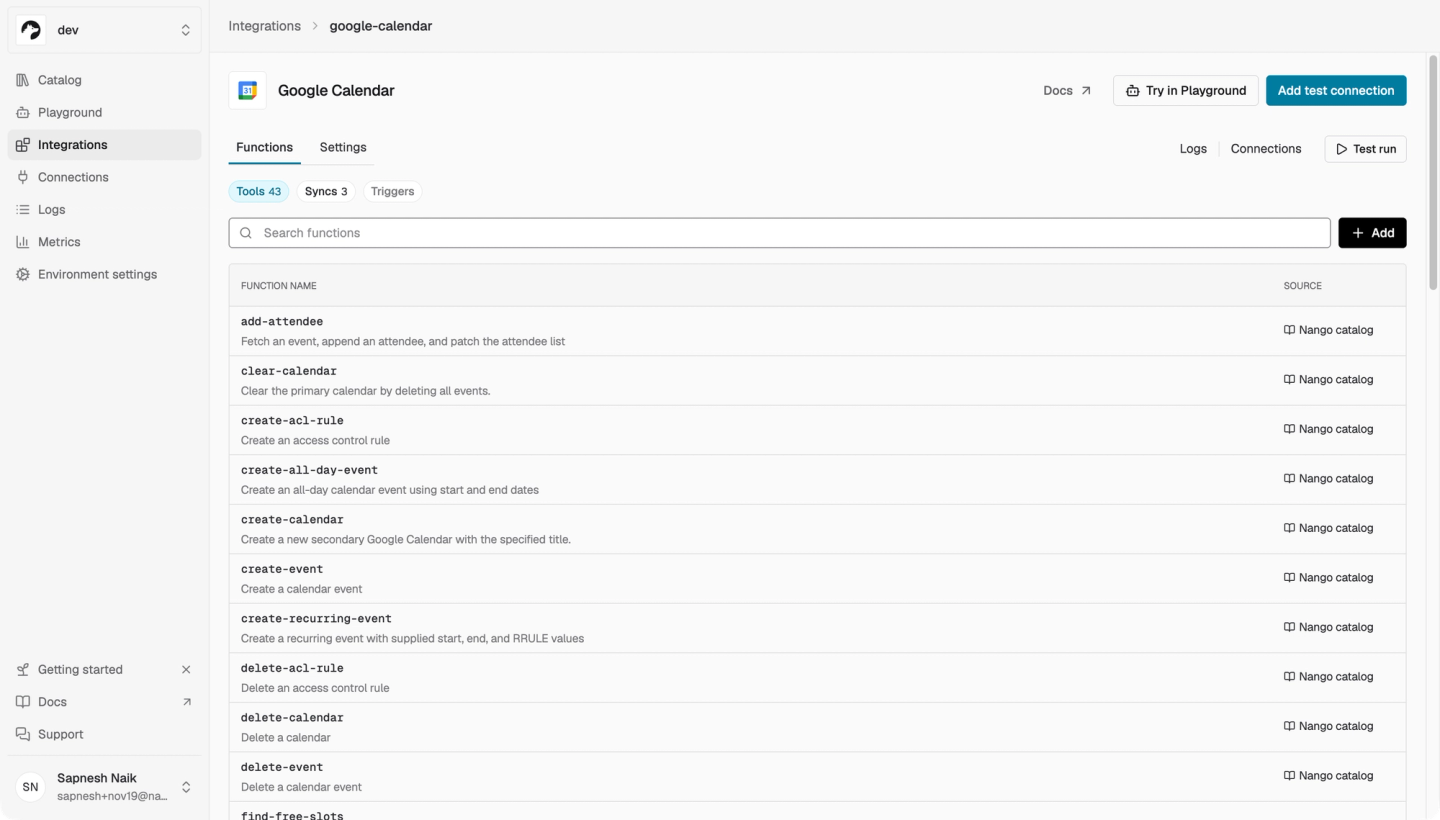
The Google Calendar integration opens. You’ll use Add test connection on this page for your first account.
Step 2: Connect both Google accounts
- Click Add test connection, then Connect.
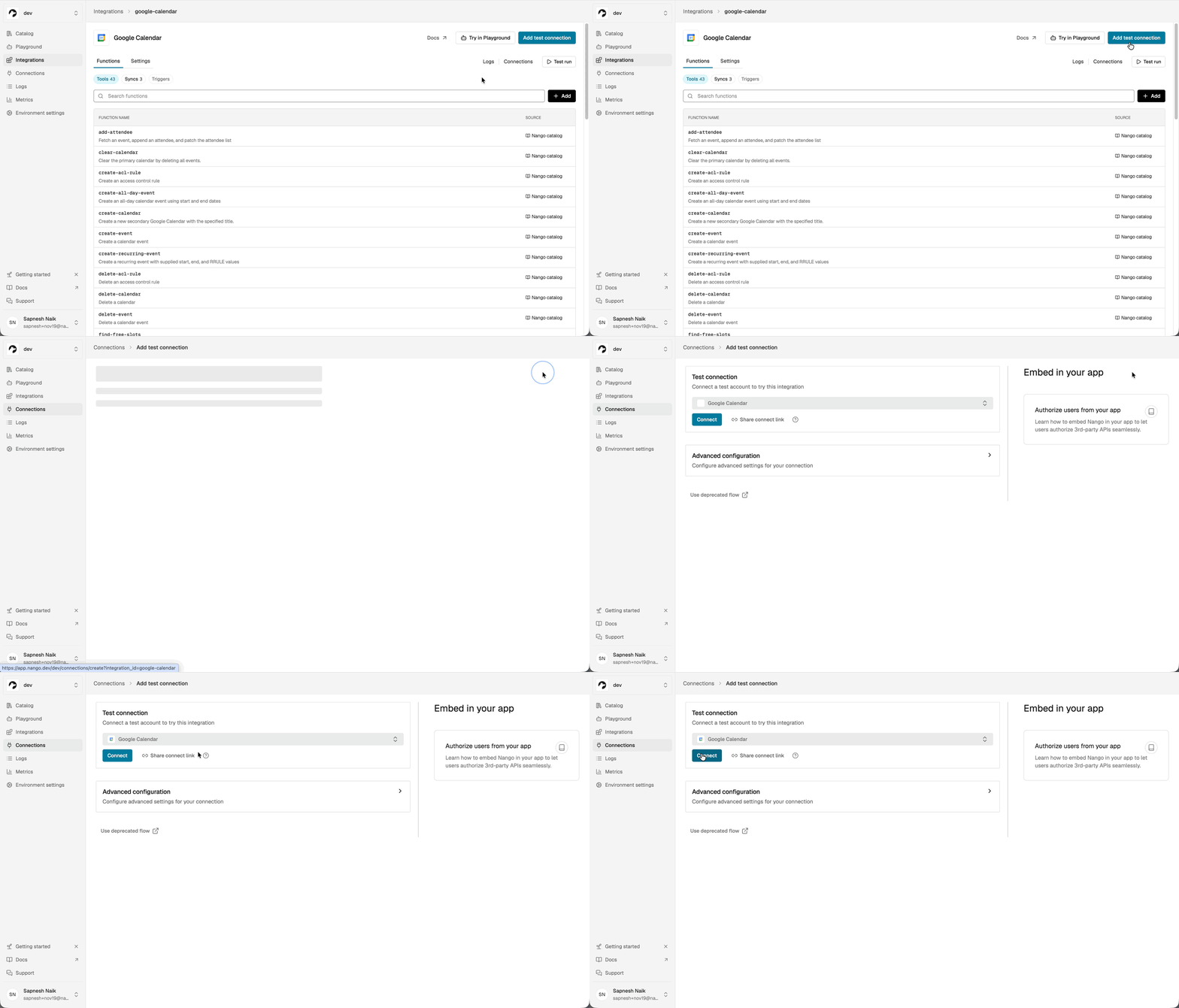
- Choose your first Google account, review the permissions, and approve access. Click Finish to return to Nango.
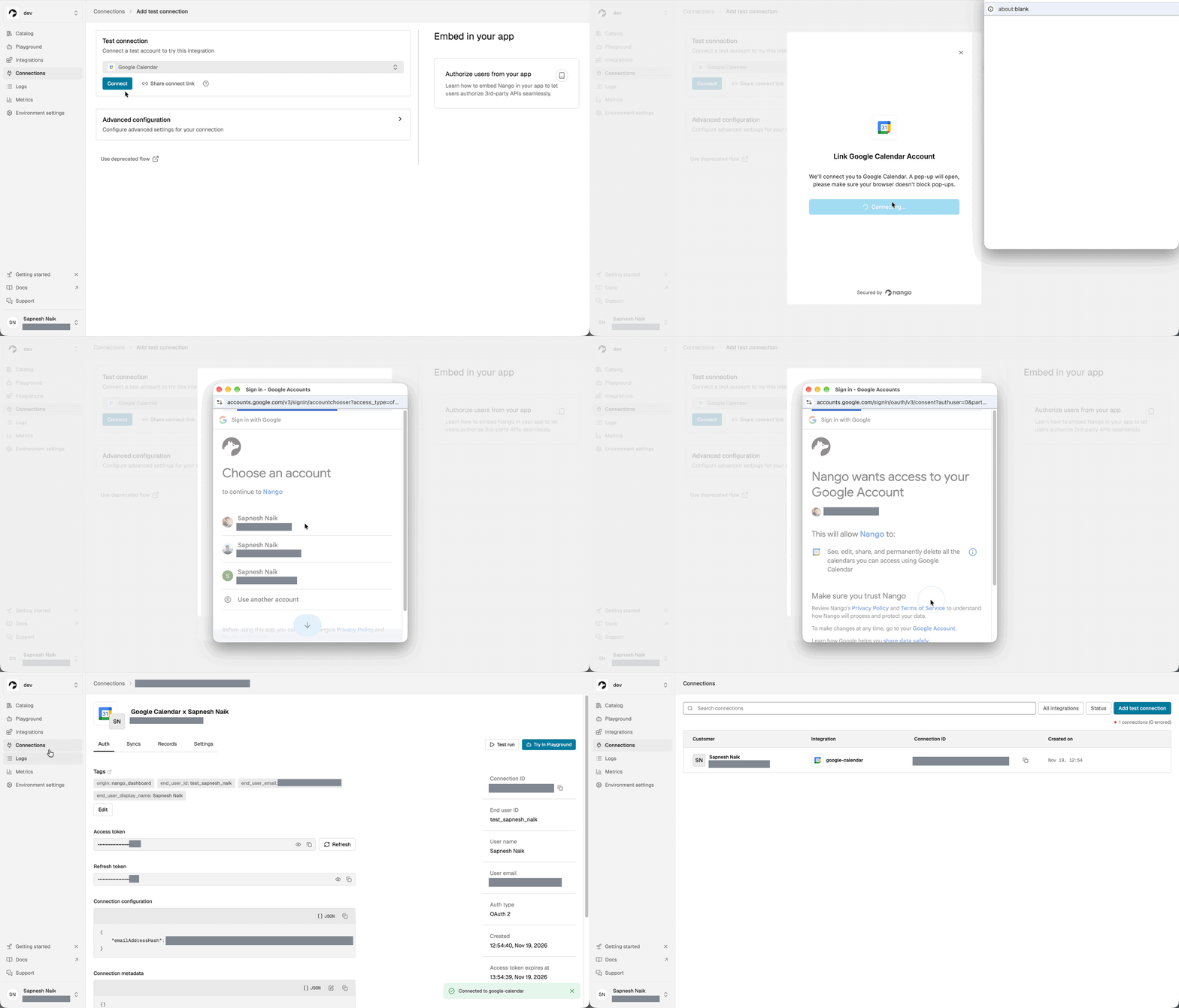
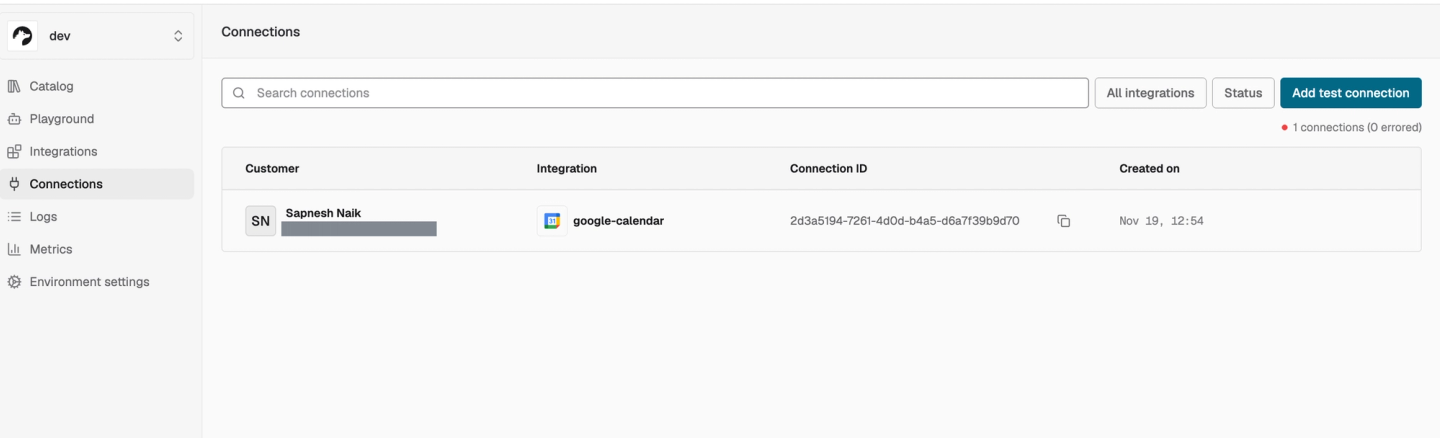
- Open Connections. With the first account connected, you’ll see one Google Calendar entry.
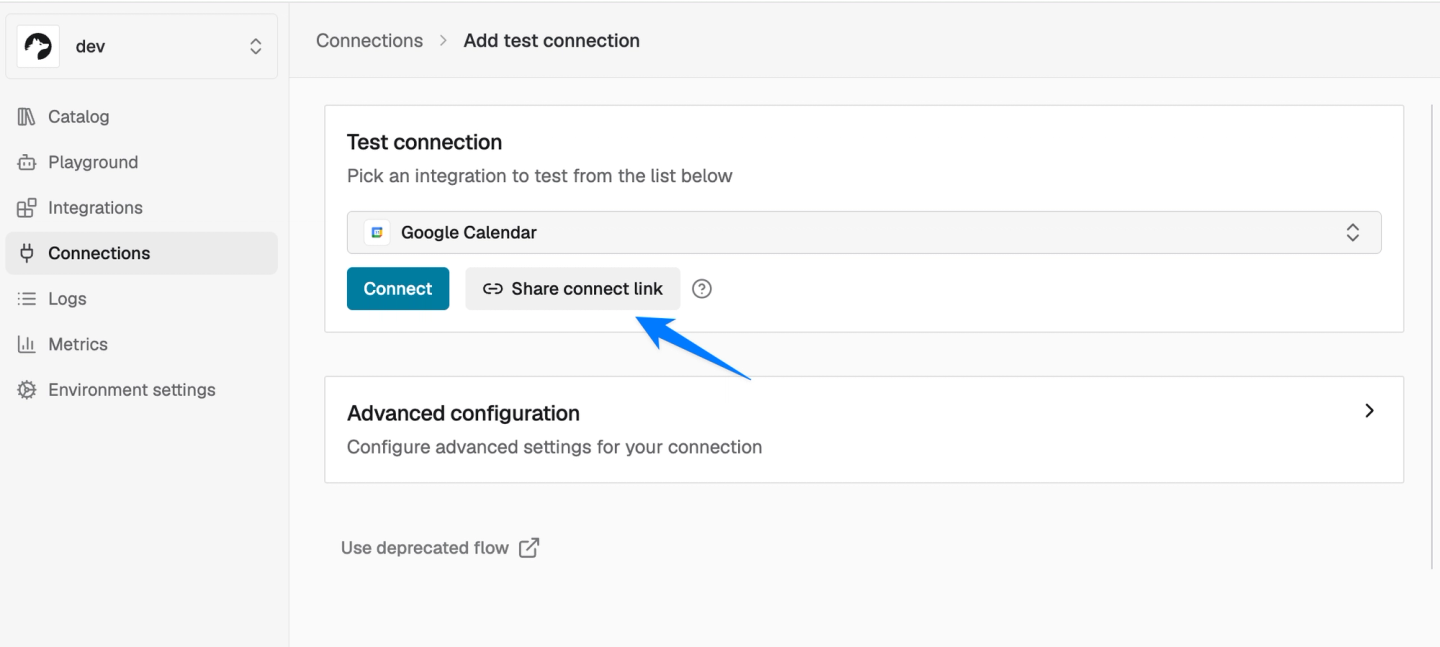
- Click Add test connection again, select Google Calendar, and click Connect. This time, choose your second Google account. If it’s missing from Google’s account chooser, select Use another account and sign in.
If you’re signed in to the second account on another device or browser, choose Share connect link and open the link there. You can also send the link to someone who wants to give you access to their calendar. They review Google’s permissions on their own device.
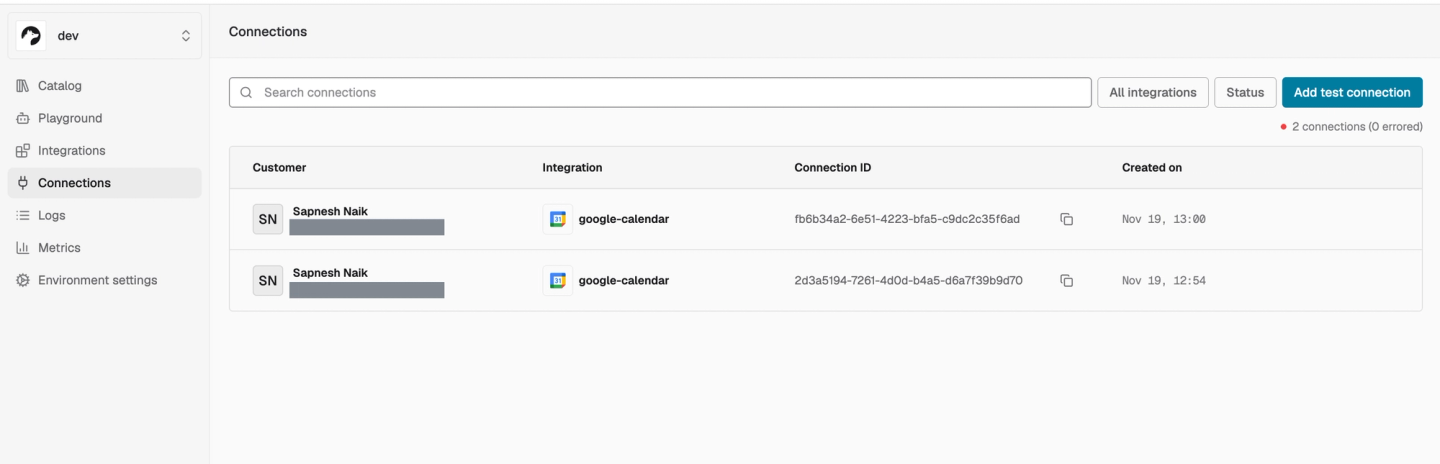
Back in Connections, look for two Google Calendar entries. Both rows can show your Nango email in the Customer column. In Step 4, you’ll ask your assistant for the Google addresses behind those entries.
Step 3: Enable Nango in Claude or ChatGPT
Claude
- Open Customize → Connectors and search for Nango, or open the Nango community connector.
- Select Connect to Claude. Sign in to the Nango account containing your calendars and approve access.
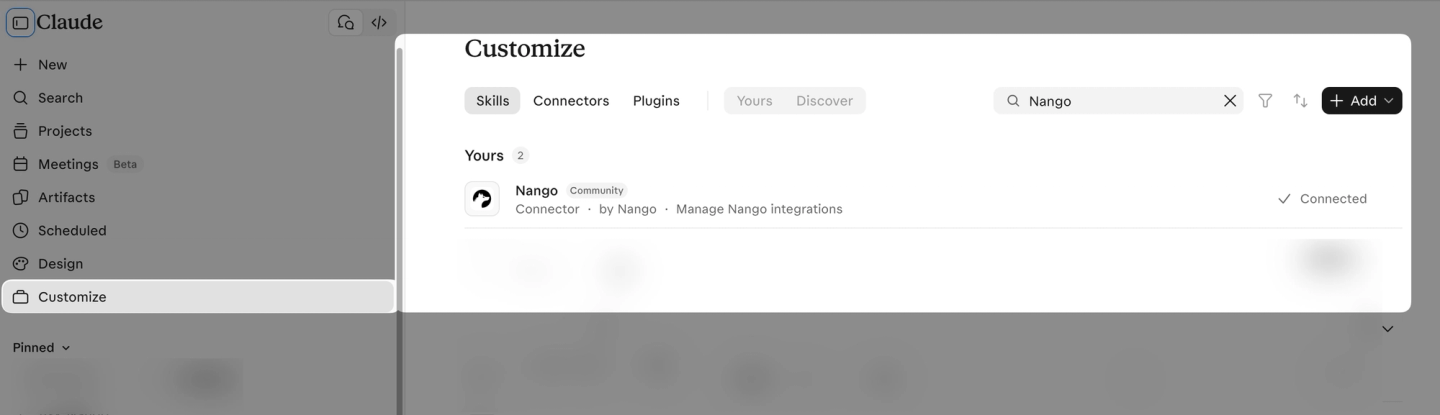
- Check that the connector shows Connected, then quit and reopen Claude Desktop.
ChatGPT
For ChatGPT, go to Plugins -> Add -> Add custom MCP server.
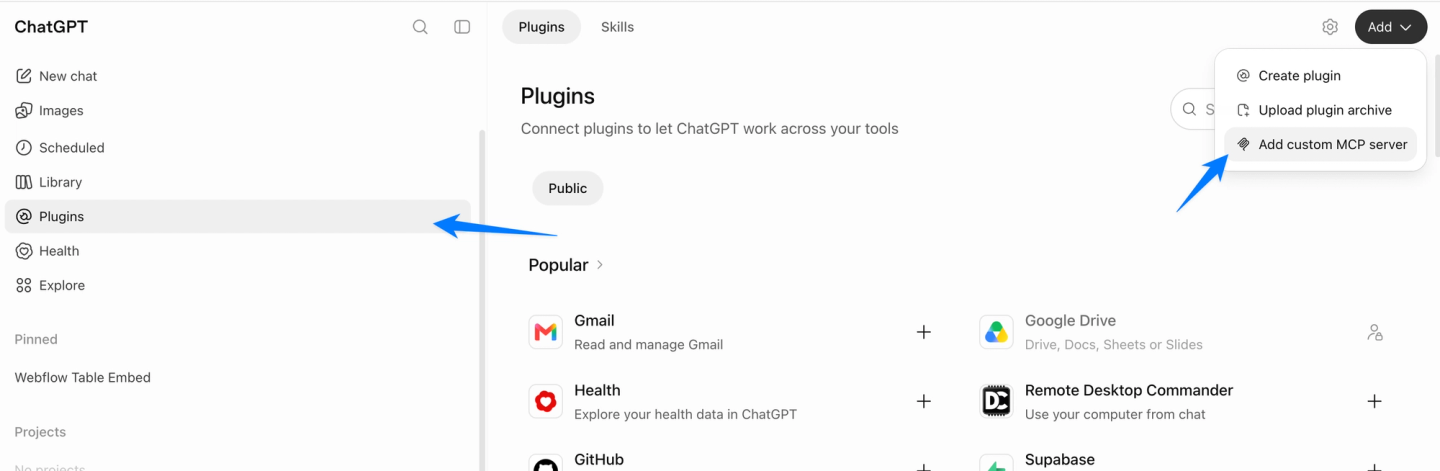
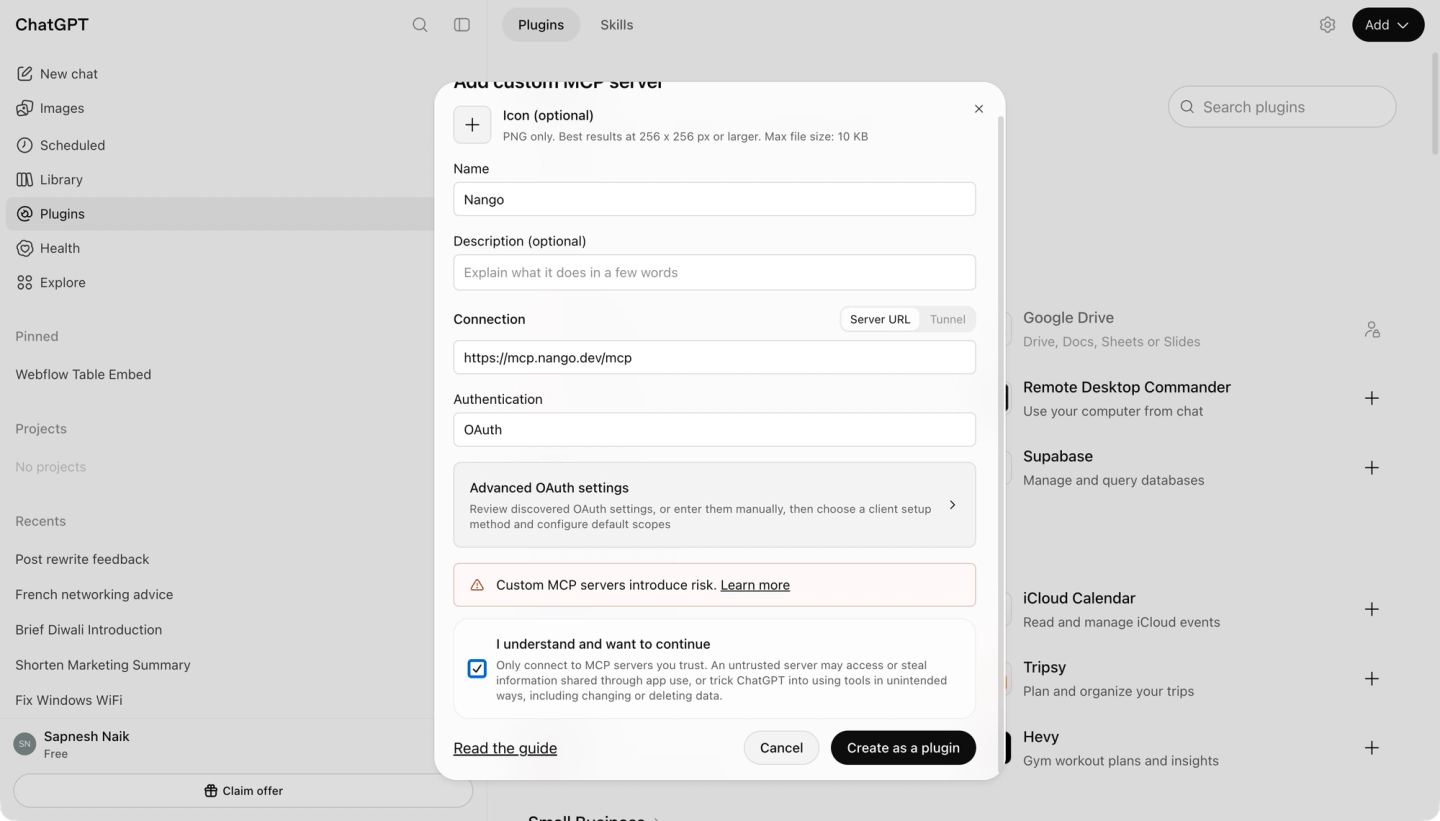
Create an app named Nango, enter https://mcp.nango.dev/mcp as the server URL, and choose OAuth.
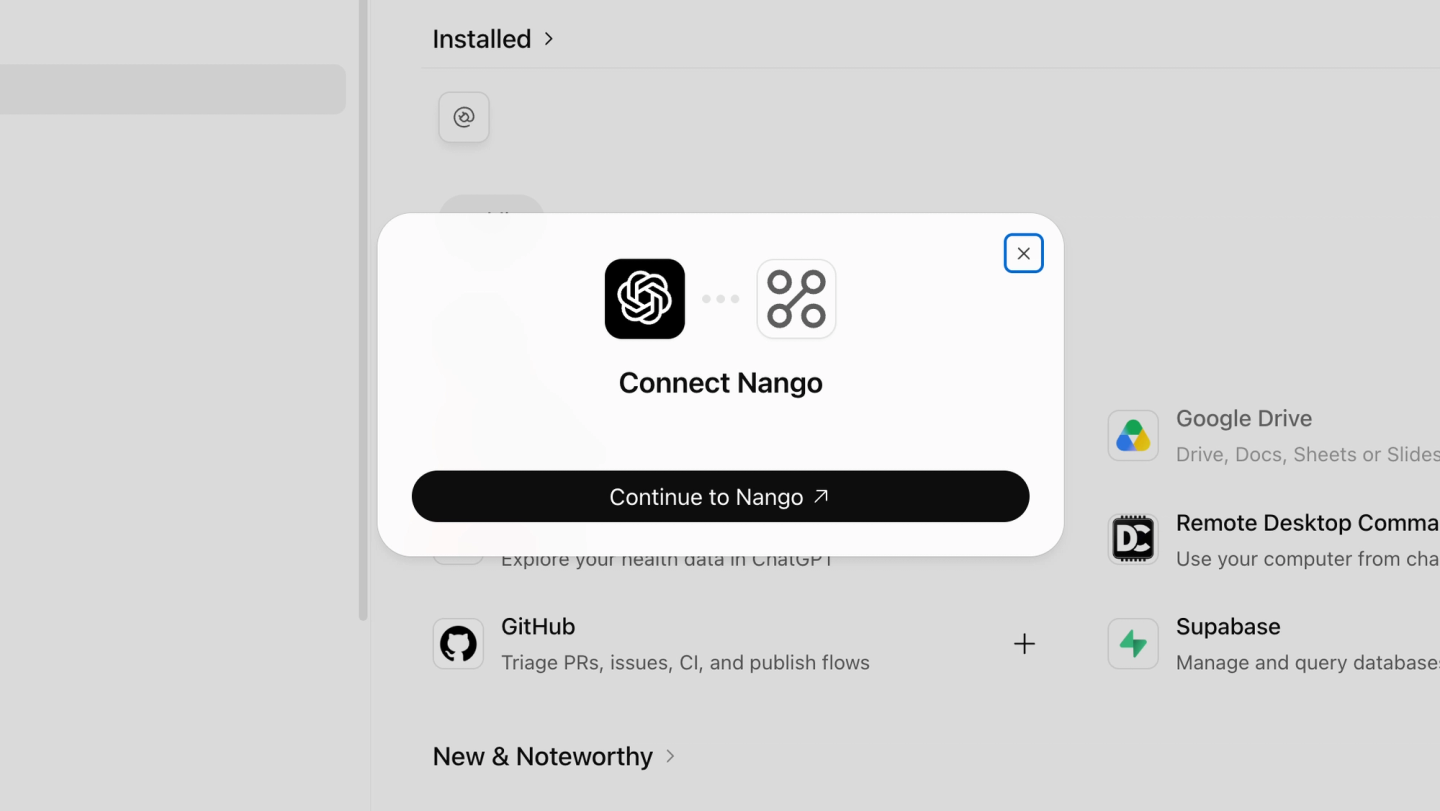
Sign in to the Nango account containing your calendars, then select the app in a new chat. Access to custom apps and write actions depends on your plan and workspace permissions.
For Codex or Cursor, use the same Nango connections with your agent’s Management MCP configuration. Codex setup · Cursor setup
Step 4: Find and book time across both calendars
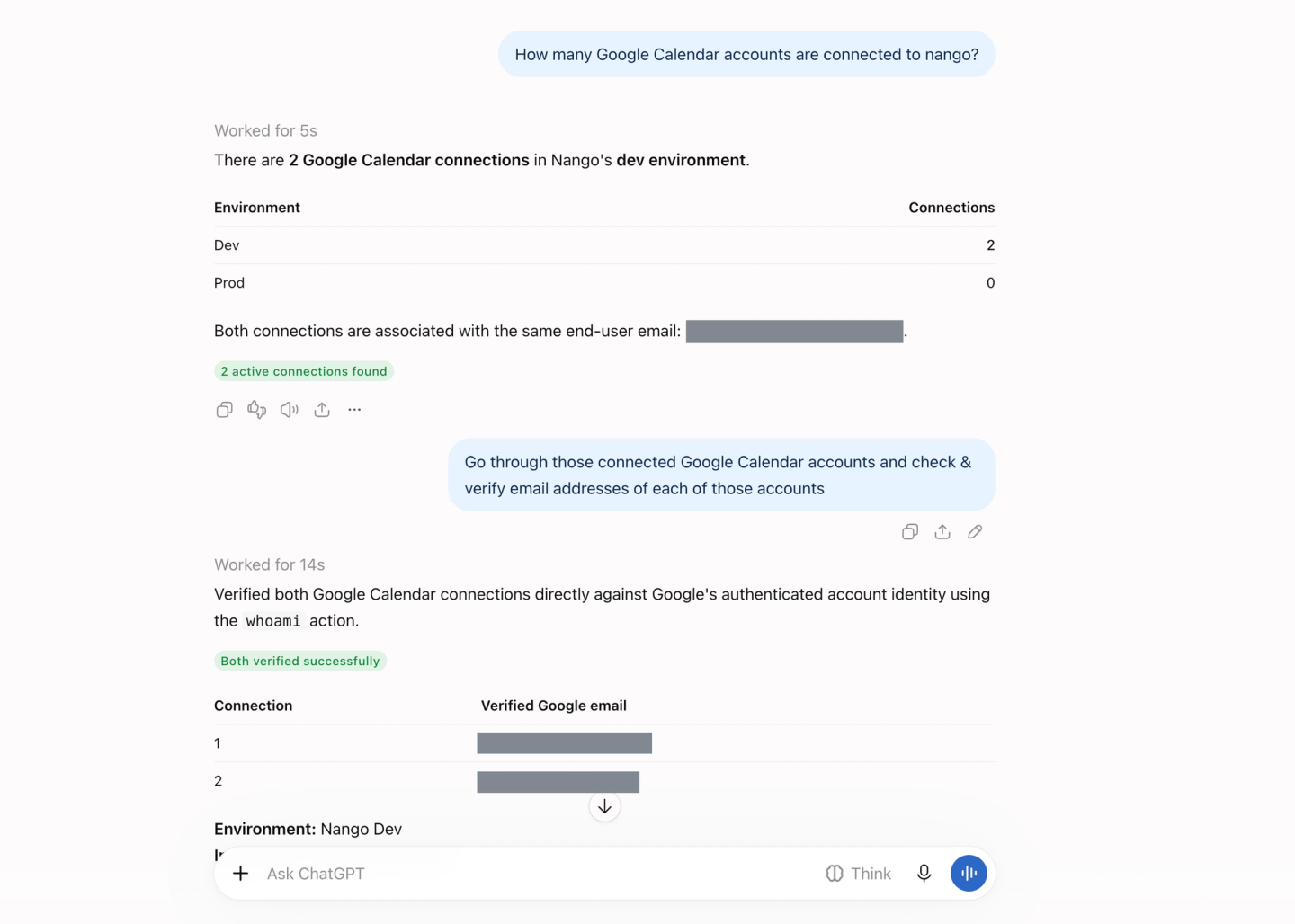
Start by asking Claude or ChatGPT which calendars it can see:
Use Nango to list the email addresses for my connected Google Calendars.
Check that you recognize both addresses. Use them in place of work@example.com and personal@example.com in the prompts below.
Find a free hour and reserve it on both calendars
Use Nango to check work@example.com and personal@example.com. What’s on my calendars tomorrow, and when do I have a full hour free between 9 and 5?
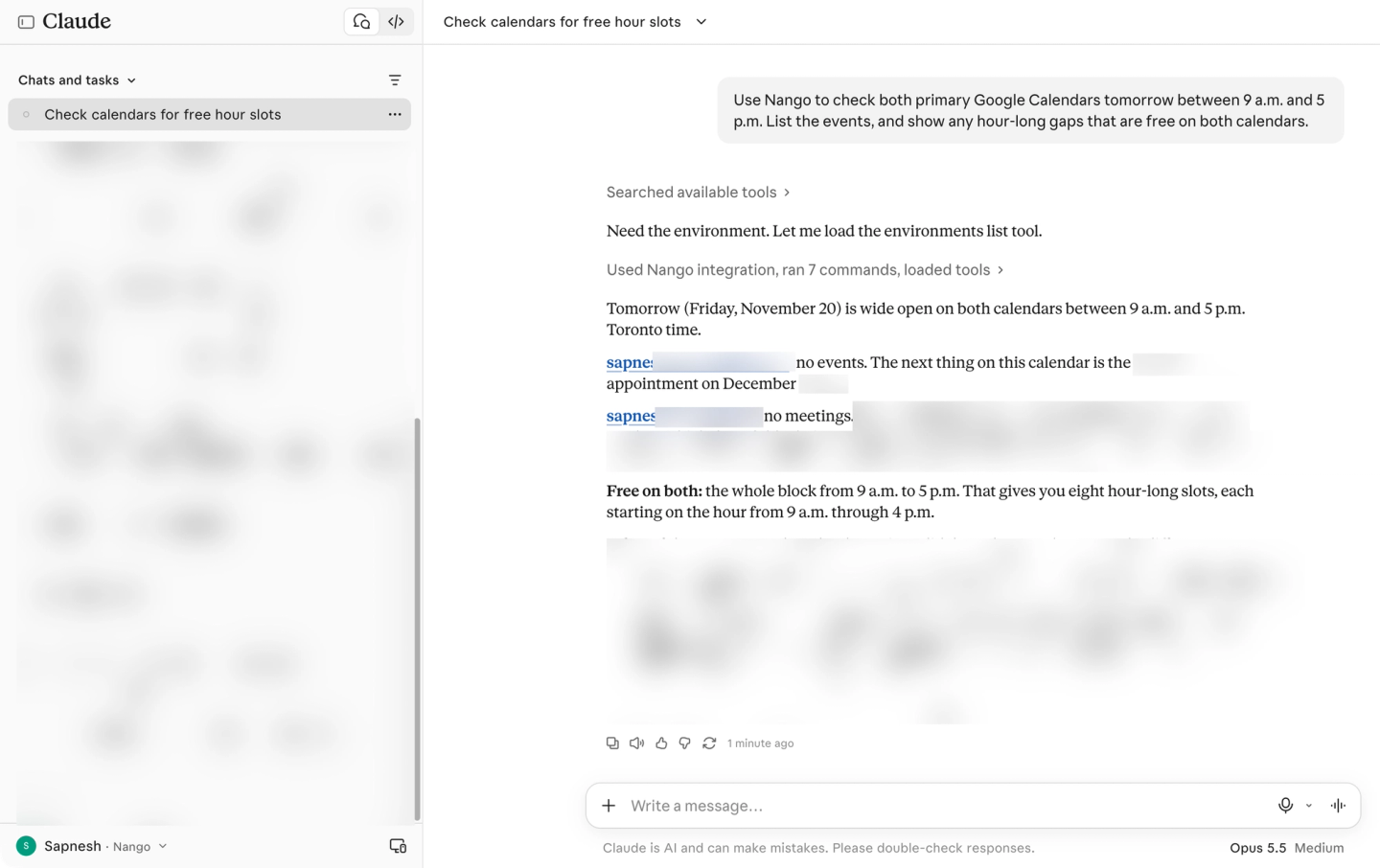
Pick a time from the answer. For example, if 2 p.m. works:
Use Nango to block 2 to 3 p.m. tomorrow on work@example.com and personal@example.com. Call it “Focus time” and mark me as busy on both.
Open Google Calendar and check that Focus time appears on both calendars.
Keep personal appointments private on your work calendar
Use Nango to check personal@example.com for appointments during work hours next week. Show me where I should block time on work@example.com. Skip times I’ve already blocked.
Once you’ve reviewed the list, you can follow up in the same chat:
Use Nango to add those times to work@example.com as “Busy.” Keep the appointment details and guests off my work calendar.
You can use the same approach for a holiday. Ask which calendars already have the day blocked, then choose where to add it.
Related reading

