
Google Drive API sometimes returns a 404 notFound error for existing files. However, users can open them directly from Google Drive. That means those files are not missing. Google can return a 404 when the API request can’t access the file.
The problem might be related to the Google account behind the access token, the OAuth scopes granted to your app, or whether the user has authorized your app to access that specific file under the drive.file scope.
For example, in customer-facing integrations such as document ingestion, RAG, and AI agents, a user might select a folder in Google Picker. However, the app still gets a 404 when it tries to read files inside it. Selecting a folder doesn’t automatically give the app access to every file it contains.
In this article, we’ll look at the common causes of Google Drive API 404 errors, how to identify them and fix them in your integration.
How to identify the Google Drive 404 error
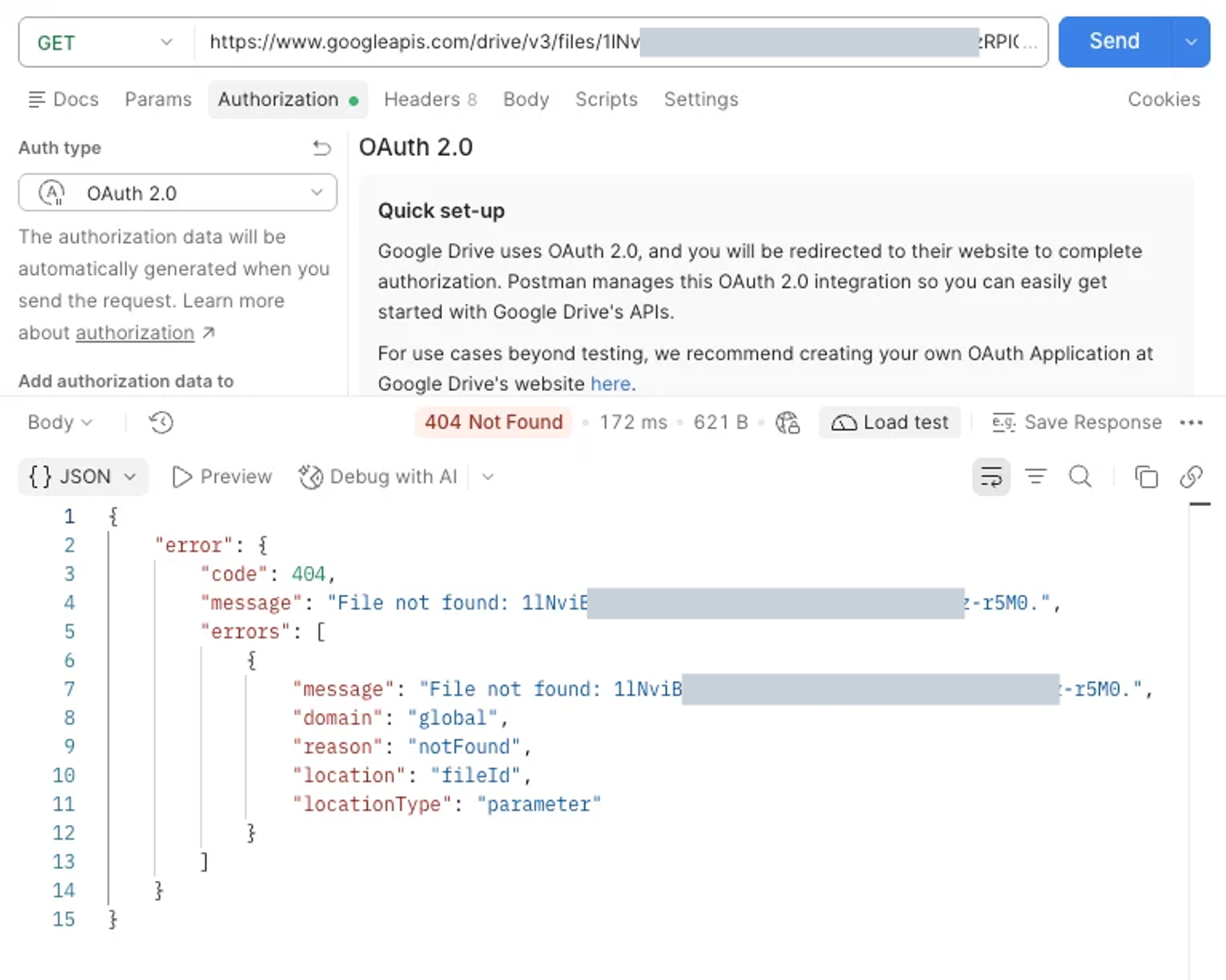
When a files.get request fails because the file can’t be found or accessed, Google may return a response like this:
{
    "error": {
        "code": 404,
        "message": "File not found: 1lNvi....r5M0.",
        "errors": [
            {
                "message": "File not found: 1lNvi....r5M0.",
                "domain": "global",
                "reason": "notFound",
                "location": "fileId",
                "locationType": "parameter"
            }
        ]
    }
}
According to Google’s Drive error reference, notFound can mean either the file doesn’t exist or the authenticated user doesn’t have read access to it. The response doesn’t tell you which.
Start by requesting the file’s metadata using the same access token that produced the error:
curl -i \
  "https://www.googleapis.com/drive/v3/files/FILE_ID?fields=id,name,mimeType,trashed,driveId,shortcutDetails&supportsAllDrives=true" \
  -H "Authorization: Bearer ACCESS_TOKEN"
Replace FILE_ID with the actual file ID and ACCESS_TOKEN with the OAuth access token used by your integration.
The request includes supportsAllDrives=true to support files in Shared Drives. If your original request failed without this parameter but succeeds after adding it, check whether the file belongs to a Shared Drive. We’ll cover this in cause 6 below.
We’ll use this metadata request throughout the troubleshooting steps to identify what’s preventing access.
Why Drive returns 404 for an existing file
To read a file through the Google Drive API, the following conditions must be met:
| Check | Question | Who controls it |
|---|---|---|
| File | Is the ID correct, and does the file still exist? | Your code |
| Identity | Which Google account (or service account) owns the token? | Your auth flow |
| User access | Can that account read the file in Drive? | The file owner or Drive admin |
| App access | Do the granted scopes cover this file? Under drive.file, did the user authorize this file for your app? | Your OAuth and Picker setup |
| Request | Does the request carry the parameters this file needs (supportsAllDrives, resource key)? | Your code |
The difference between user access and app access causes most of the confusion. The user’s Drive permissions are the ceiling. Your scopes decide how much of that ceiling your app gets. With drive.file, your app sees only files the user created with your app, opened with your app, or shared with your app through Google Picker (Google’s scope reference). Everything else in the user’s Drive returns 404 to your app, even though the user can open it.
Because Drive uses 404 for both cases, a caller without read access can’t tell whether the file exists. Treat a Drive 404 as “this token can’t see this file” until you have confirmed the file was deleted.
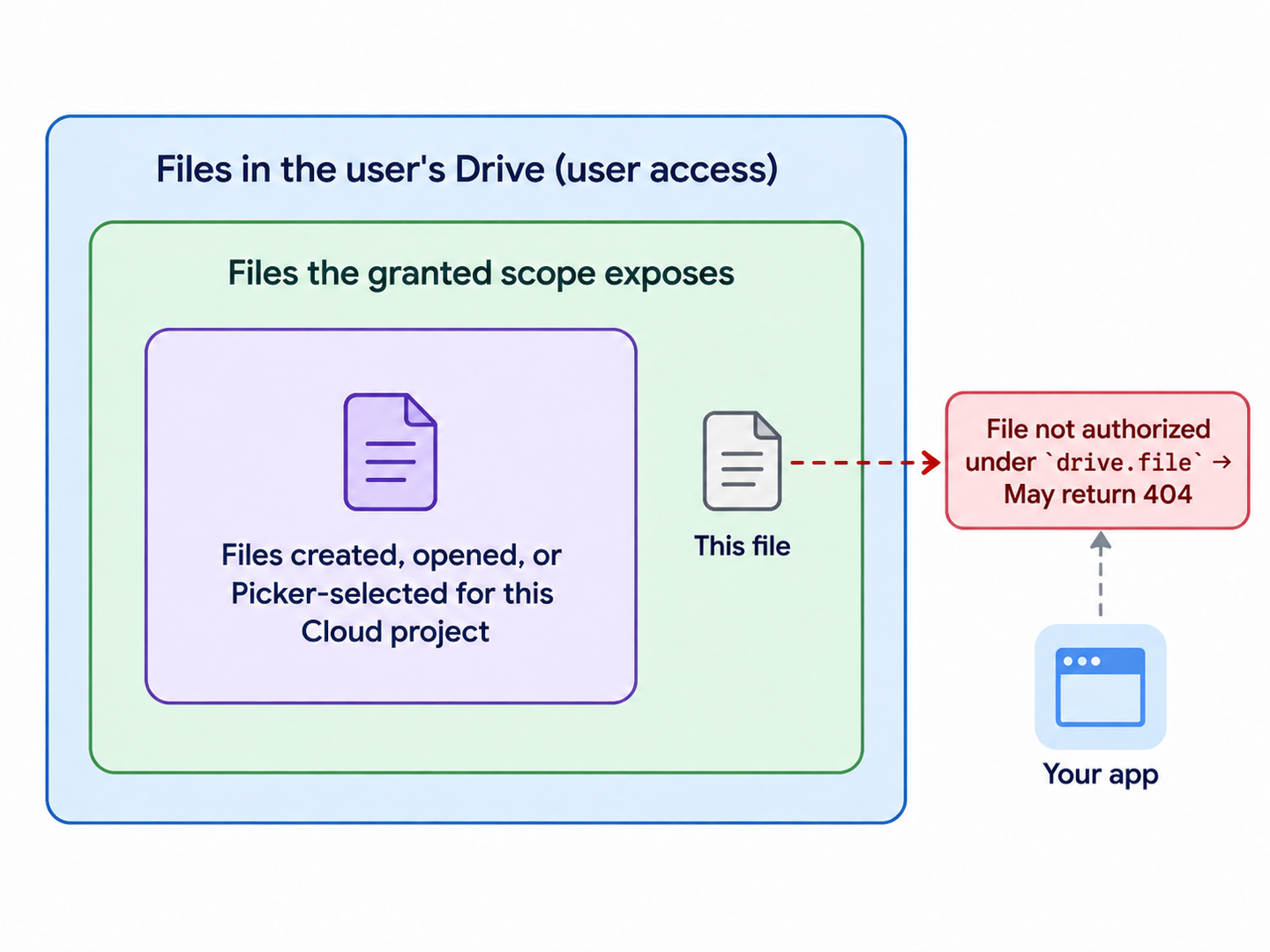
How the drive.file scope limits an app’s access to files the user can access in Google Drive.
Google Drive errors that look similar but are not 404
| Status | reason | What it means | First check |
|---|---|---|---|
| 401 | authError | Expired or invalid access token | Refresh the token. If refresh fails, see Google OAuth invalid_grant. |
| 403 | insufficientPermissions | The token has no scope that allows this method | Granted scopes (cause 4) |
| 403 | appNotAuthorizedToFile | Your app is not on the file's ACL | Same fix as cause 5 |
| 403 | insufficientFilePermissions | The user can read the file but not write it | Request edit access |
| 403 | teamDriveMembershipRequired | The user is not a member of the shared drive | Ask the shared drive manager |
| 404 | notFound | No read access, or the file does not exist | This article |
Root causes for Google Drive notFound errors and their fixes
The causes are listed in the order you should check them. I started with the simplest checks, then moved on to OAuth scopes and Picker configuration. Check causes 1–3 before changing OAuth scopes or asking the user to share the file again.
1. The file ID is incorrect, the file was deleted, or a shortcut’s target is unavailable
Why it happens: IDs often come from parsed URLs, old database rows, or Picker callbacks. A permanently deleted file returns 404 for everyone. A Drive shortcut has its own ID, separate from the file it points to. Requesting the shortcut’s metadata can succeed even when its target was deleted or the user can no longer access the target. A shortcut ID alone does not cause a 404.
How to confirm:
- Take the ID from the
/d/FILE_ID/segment of the file URL, without query parameters likeresourcekey. - Ask the user to open
https://drive.google.com/file/d/FILE_ID/viewwhile signed in to the Google account your app uses. - A trashed file still resolves, with
"trashed": true. But, you can’t resolve a permanently deleted file with this. - If
mimeTypeisapplication/vnd.google-apps.shortcut, readshortcutDetails.targetIdand make a separatefiles.getrequest for that ID using the same token. Access to the shortcut does not guarantee access to its target.
How to fix: Correct the file ID and handle "trashed": true in syncs. For shortcuts, resolve the target ID before fetching the target’s content. If the target is inaccessible, have the owner restore access or ask the user to select another file. Recheck the ID and access before retrying a 404 on a file that worked before.
Expected result: A request for an existing file or shortcut target that the app can access returns 200 with its metadata.
2. The token belongs to a different Google account
Why it happens: Many users have a personal Gmail account and a Workspace account in the same browser. They consent with one and look at the file with the other. In multi-tenant products, the backend can also pick the wrong stored connection for a customer.
How to confirm: Use about.get to check which Google account is associated with the access token. This method supports all Google Drive scopes, including drive.file:
curl -s "https://www.googleapis.com/drive/v3/about?fields=user(emailAddress,displayName)" \
  -H "Authorization: Bearer ACCESS_TOKEN"
{
"user": {
"displayName": "Jane Doe",
"emailAddress": "jane@customer.com"
}
}Compare emailAddress with the account that can open the file.
Service accounts: A service account is a separate Google identity with its own Drive. It sees only files shared with its ...iam.gserviceaccount.com address. With domain-wide delegation, the token acts as the user set in the subject claim. A missing or wrong subject means you are calling Drive as the wrong identity.
How to fix: Reconnect with the correct account. Adding prompt=select_account to the Google authorization URL forces the account chooser. For service accounts, share the file or folder with the service account email, or impersonate the right user.
Expected result: The about.get request returns the correct Google account email, and the original files.get request succeeds with 200 OK.
3. The user no longer has read access
Why it happens: This can happen when the user-level permissions change. The user may lose access to a file when the owner stops sharing it, the user leaves a group that has access, or a shared drive manager removes their permissions. Your app cannot access files that the authenticated user no longer has permission to read.
How to confirm: The user cannot open the file in the Drive UI either. Shared drive membership problems on other methods may surface as 403 teamDriveMembershipRequired.
How to fix: The owner or the shared drive manager has to restore access. Scope change doesn’t fix this. Surface a message like “You no longer have access to this file in Google Drive” instead of a generic sync failure.
Expected result: Once access is restored, files.get returns 200.
4. The user granted fewer scopes than you requested
Why it happens: The scopes configured in Google Cloud, requested during OAuth, and the scopes the user actually grants don’t always match.
Since January 7, 2026, Google has supported granular OAuth consent for web apps. When your app requests multiple scopes, users can choose which permissions to grant. Your app may still receive a valid access token, even if the user hasn’t granted all the requested scopes.
How to confirm: Check what the token carries with the tokeninfo endpoint:
curl -s "https://oauth2.googleapis.com/tokeninfo?access_token=ACCESS_TOKEN"{
"aud": "123456789012-abc123.apps.googleusercontent.com",
"scope": "https://www.googleapis.com/auth/drive.file openid",
"expires_in": "3412",
"access_type": "offline"
}The scope field is the source of truth. Google’s token response includes the same field at authorization time.
A token with no Drive scope usually fails with 403 insufficientPermissions. A token with a narrower Drive scope than you expected (drive.file instead of drive.readonly) returns 404 for every file outside that scope.
How to fix: Check granted scopes after every authorization. If a required scope is missing, explain why the feature needs it and ask the user to authorize again with include_granted_scopes=true.
If your integration runs on Nango, use a reconnect session to let the user authorize again while preserving the connection’s existing data and configuration.
Expected result: The Google API should return a tokeninfo response that lists the scope your request needs.
5. The file wasn’t authorized for your app under drive.file
If your app uses Google Picker, this is the cause to check most carefully. It has three variants.
Why it happens: drive.file access is per user, per file, and per Google Cloud project. A file becomes visible to your app only when the user creates it with your app, opens it with your app from Drive, or selects it in Google Picker configured for your project. The user being able to open the file is not enough.
Variant A: the user selected the parent folder. Picker lets users select folders with DocsView.setSelectFolderEnabled(true). Under drive.file, that authorizes the folder, not the files inside it. Developers report that after selecting a folder, 'FOLDER_ID' in parents returns an empty list and files.get on a child returns 404 (Stack Overflow, July 2025). Note the two symptoms: listing succeeds with zero results, while fetching a child by ID fails.
In our test, Account B owned a Google Drive folder containing a test document. After selecting only the parent folder through Google Picker, a files.get request for the child document returned 404 notFound.
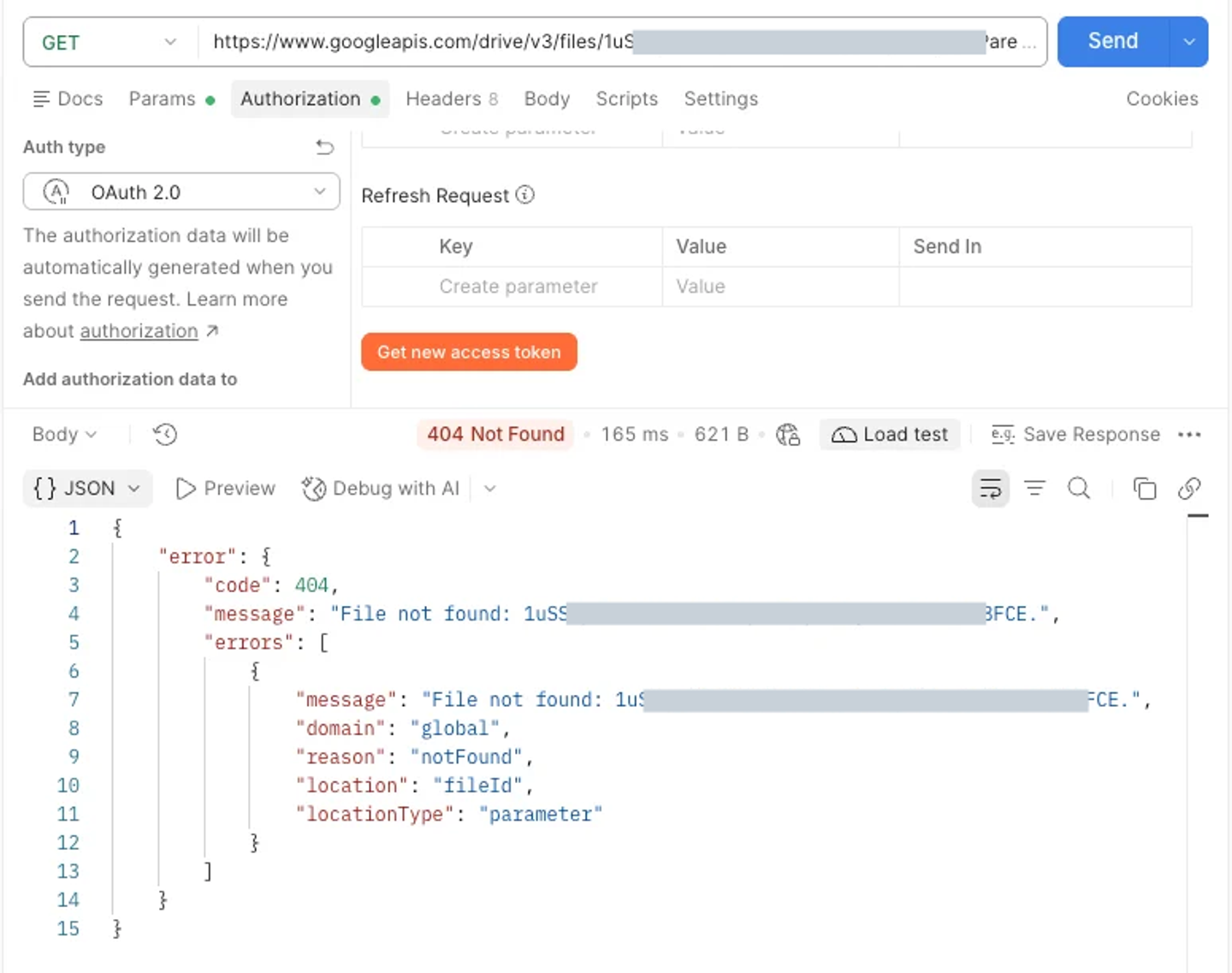
The Google Drive API returns 404 notFound before the individual file is authorized for the app.
We then selected the individual document through Picker and repeated the same request. This time, Google returned 200 OK with the file’s ID, name, and MIME type.
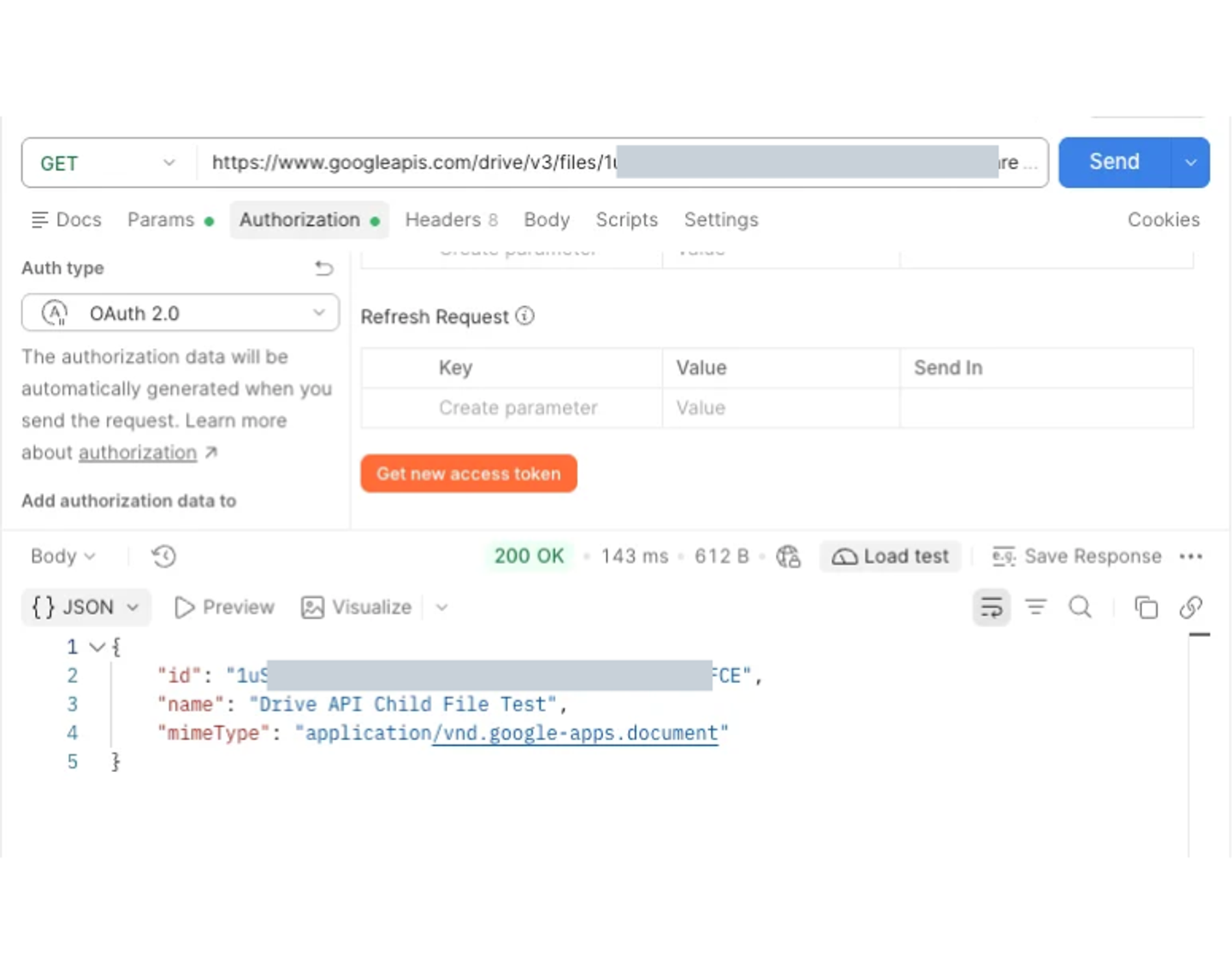
The same files.get request returns 200 OK after the user selects the file through Google Picker.
This confirms that selecting a parent folder does not automatically authorize the app to access every file inside it under the drive.file scope.
Variant B: Picker is tied to a different Cloud project than your backend token. Google’s Picker guide uses PickerBuilder.setAppId with the Cloud project number “to allow the app to access the user’s files.” If setAppId is missing, holds the project ID string instead of the numeric project number, or points to a different project than your backend’s OAuth client, the backend token can’t see the selected file. Developers report this failing for only some files or accounts, and working in testing but failing in production (Stack Overflow).
To check, compare the setAppId value with the project that owns the client ID in tokeninfo’s aud field. Google OAuth client IDs start with the project number (123456789012-...apps.googleusercontent.com).
Variant C: the file was added after the user’s last selection. New files in a selected folder, or files shared with the user later, are not authorized until the user selects them.
How to fix: Configure Picker to select files, not folders, and tie it to the right project:
// Users can browse into folders, but can only select files.
const myDriveView = new google.picker.DocsView(google.picker.ViewId.DOCS)
  .setLabel('My Drive')
  .setIncludeFolders(true)
  .setSelectFolderEnabled(false)
  .setEnableDrives(false);

// A separate view shows shared drives and their files.
const sharedDrivesView = new google.picker.DocsView(google.picker.ViewId.DOCS)
  .setLabel('Shared drives')
  .setIncludeFolders(true)
  .setSelectFolderEnabled(false)
  .setEnableDrives(true);

const picker = new google.picker.PickerBuilder()
  .addView(myDriveView)
  .addView(sharedDrivesView)
  .enableFeature(google.picker.Feature.MULTISELECT_ENABLED)
  .setOAuthToken(accessToken)           // token from the same OAuth client as your backend
  .setAppId('123456789012')             // numeric Cloud project number, not the project ID
  .setDeveloperKey(API_KEY)
  .setCallback(onPicked)
  .build();

picker.setVisible(true);
When the backend hits a 404 for a known file ID, reopen Picker with a dedicated DocsView that uses DocsView.setFileIds to show that file. The user must select the file and click Select to authorize it for the app. setFileIds controls which files appear; it does not preselect them. Do not combine it with setEnableDrives or setParent on the same view, because these settings override one another. Files the user cannot access are excluded from the view.
If your product needs “sync this folder, including files added later”, drive.file cannot do that. See the section on choosing the right fix below.
Nango’s pre-built documents sync accepts selected file IDs in connection metadata. With a scope that permits folder access, it can also sync file metadata recursively from selected folders, including shared drives.
Expected result: After the user selects the individual file in a correctly configured Picker, the same files.get request with the same backend token returns 200.
6. The file is on a shared drive, and the request omits supportsAllDrives
Why it happens: Requests that do not declare shared drive support don’t see shared drive files. Google lists this as the first fix for notFound in its error reference.
How to confirm: The same request succeeds once you add supportsAllDrives=true, and the response includes a driveId.
How to fix: Add supportsAllDrives=true to files.get, files.list, files.create, files.update, files.copy, files.delete, changes.list, and the relevant permissions methods (see the full list).
For files.list and changes.list, also set includeItemsFromAllDrives=true. Otherwise, shared drive items may be excluded from the results.
In Google Picker, add a separate DocsView with setEnableDrives(true) so users can browse shared drives. This setting shows only shared drives in that view; keep the My Drive view separate, as in the example above.
Expected result: The files.get request should return 200 OK, confirming that the file is accessible. The response should also include the driveId field containing the shared drive’s ID, provided you requested that field.
7. The file is link-shared and needs a resource key
Why it happens: Some files shared with “anyone with the link” or “anyone in the domain” have a resource key. Users who reach the file only through that link and have not viewed it before must send the key. Users with direct access do not need it.
How to confirm: The file URL contains a resourcekey= parameter, and the user’s access comes from link sharing, not from a direct share.
How to fix: Store the key when you first see the file (the resourceKey field on the file resource, or shortcutDetails.targetResourceKey for shortcuts) and send it on every request:
curl -s "https://www.googleapis.com/drive/v3/files/FILE_ID?fields=id,name&supportsAllDrives=true" \
  -H "Authorization: Bearer ACCESS_TOKEN" \
  -H "X-Goog-Drive-Resource-Keys: FILE_ID/RESOURCE_KEY"
Expected result: The request should return 200 OK, confirming that your app can now access the file. The response should include the file metadata you requested, such as its ID, name, and MIME type.
Reproducing the folder-versus-file behavior under drive.file
We reproduced the drive.file authorization issue using a test Google account, Google Picker, and Postman.
Here’s the setup we used:
- Google account: A dedicated test Gmail account (Account B).
- OAuth client: A web application client in a test Google Cloud project, configured with the
https://www.googleapis.com/auth/drive.filescope. - Google Picker: Configured with
setAppIdusing the same Cloud project’s numeric project number. - Test data: A folder named
CON-322 Picker Test, containing a Google Docs document namedDrive API Child File Test.
We used Postman to send a files.get request for the same document before and after selecting it individually through Google Picker.
| # | Scenario | Request | Observed result |
|---|---|---|---|
| 1 | Before selecting the individual file | files.get for Drive API Child File Test | 404 Not Found, with reason notFound |
| 2 | After selecting the individual file in Picker | files.get for the same document | 200 OK, returning the file's ID, name, and MIME type |
Before selecting the file
The document existed in Google Drive, and the test account could open it. However, our initial files.get request returned 404 Not Found because the app had not yet been granted access to that specific file.
The Google Drive API returned 404 notFound before the individual file was selected through Google Picker.
After selecting the file
We then selected Drive API Child File Test through Google Picker and repeated the request using the same file ID.
This time, the API returned 200 OK with the document’s metadata.
The same files.get request succeeded after selecting the file through Google Picker.
The results show that having access to a file in Google Drive doesn’t automatically give an app access under drive.file. The app must also be authorized to access that specific file.
Selecting the individual file through Google Picker resolved the error in our test.
Choosing the right fix
Start with the least privileged option that solves the problem. Broader scopes are a last resort.
- Fix the request or identity: Fix wrong ID, wrong account, missing
supportsAllDrives, missing resource key, or a PickersetAppIdmismatch. You don’t need to change the scope or create new verification at first. - Have the user select individual files with Picker (
drive.file):drive.fileis non-sensitive and it needs only basic OAuth app verification. The tradeoff is that users must select each file, including files added later. - Let your app create the files:
drive.filecovers files your app creates. If your product owns the folder structure (exports, generated reports), create the files through the API and they stay visible to your app. - Request a broader read scope:
drive.readonly(anddrive.metadata.readonly) are restricted scopes. Google only allows them for specific app types (backup and sync, productivity and education, reporting and security). Apps that store or transmit restricted-scope data on servers also need a CASA security assessment and need to renew the assessment every 12 months. With preparation, Nango customers typically complete verification plus CASA in 5 to 20 days. Choose this only if your product needs folder-level or whole-Drive access, such as syncing a folder for RAG.
If you use your own Google OAuth app, plan the review time before you switch. While a Google OAuth app is in testing, it is capped at 100 users and its refresh tokens expire after 7 days.
Nango also offers a managed Google Drive OAuth app that has completed Google verification and the CASA security assessment and is available for development and production. Use its supported scopes, or bring your own OAuth app for custom scopes and your product’s branding on the consent screen.
Quick reference for Google Drive 404
| Symptom | Likely cause | How to check | Fix |
|---|---|---|---|
| 404 for everyone, ID came from an old record | Deleted or wrong ID | Open drive.google.com/file/d/FILE_ID/view | Recheck the ID, handle deletes |
| Shortcut metadata loads, but fetching its target returns 404 | Target deleted or inaccessible to the app | Request shortcutDetails.targetId with the same token | Restore target access or select another file |
| User sees the file, app does not, only some users | Wrong Google account | about.get user.emailAddress | Reconnect with the right account |
| User cannot open the file either | Sharing revoked | Drive UI | Owner restores access |
| 404 on many files, scope looks right in config | Narrower scope granted | tokeninfo scope | Reauthorize with the needed scope |
| Folder picked, children 404, listing empty | drive.file folder selection | Picker config | Select files, not folders |
| Picked file 404 in backend | setAppId missing or wrong project | Compare project number with tokeninfo aud | Set the numeric project number |
Works after adding supportsAllDrives=true | Shared drive file | Response has driveId | Set it on every request |
URL has resourcekey= | Link-shared file | Check the file URL | Send X-Goog-Drive-Resource-Keys |
Debugging Google Drive 404s through Nango
Nango connects AI agents and SaaS products to 1,000+ APIs. It ships 10,000+ pre-built tools and covers auth, tool calls, triggers and syncs. For Google Drive, it ships 30 pre-built actions and 4 syncs you can customize, covering file operations, document metadata, folders, permissions, and shared drives.
If your Google Drive integration runs on Nango, the same diagnostics work through the Nango proxy. The proxy injects the connection’s access token, refreshes it when needed, and passes Google’s status and error body back to you.
The baseline files.get request:
curl -i \
  "https://api.nango.dev/proxy/drive/v3/files/FILE_ID?fields=id,name,mimeType,trashed,driveId,shortcutDetails&supportsAllDrives=true" \
  -H "Authorization: Bearer NANGO_API_KEY" \
  -H "Provider-Config-Key: google-drive" \
  -H "Connection-Id: CONNECTION_ID" \
  -H "Base-Url-Override: https://www.googleapis.com"
Or with the Node SDK:
import { Nango } from '@nangohq/node';

const nango = new Nango({ apiKey: process.env.NANGO_API_KEY! });

const res = await nango.get({
  endpoint: `/drive/v3/files/${fileId}`,
  params: { fields: 'id,name,mimeType,trashed,driveId', supportsAllDrives: 'true' },
  providerConfigKey: 'google-drive',
  connectionId
});
We tested a files.get request through Nango’s API proxy using a Google Drive connection configured with the drive.file scope. When we requested a file the app couldn’t access, Google returned 404 Not Found with the reason notFound.
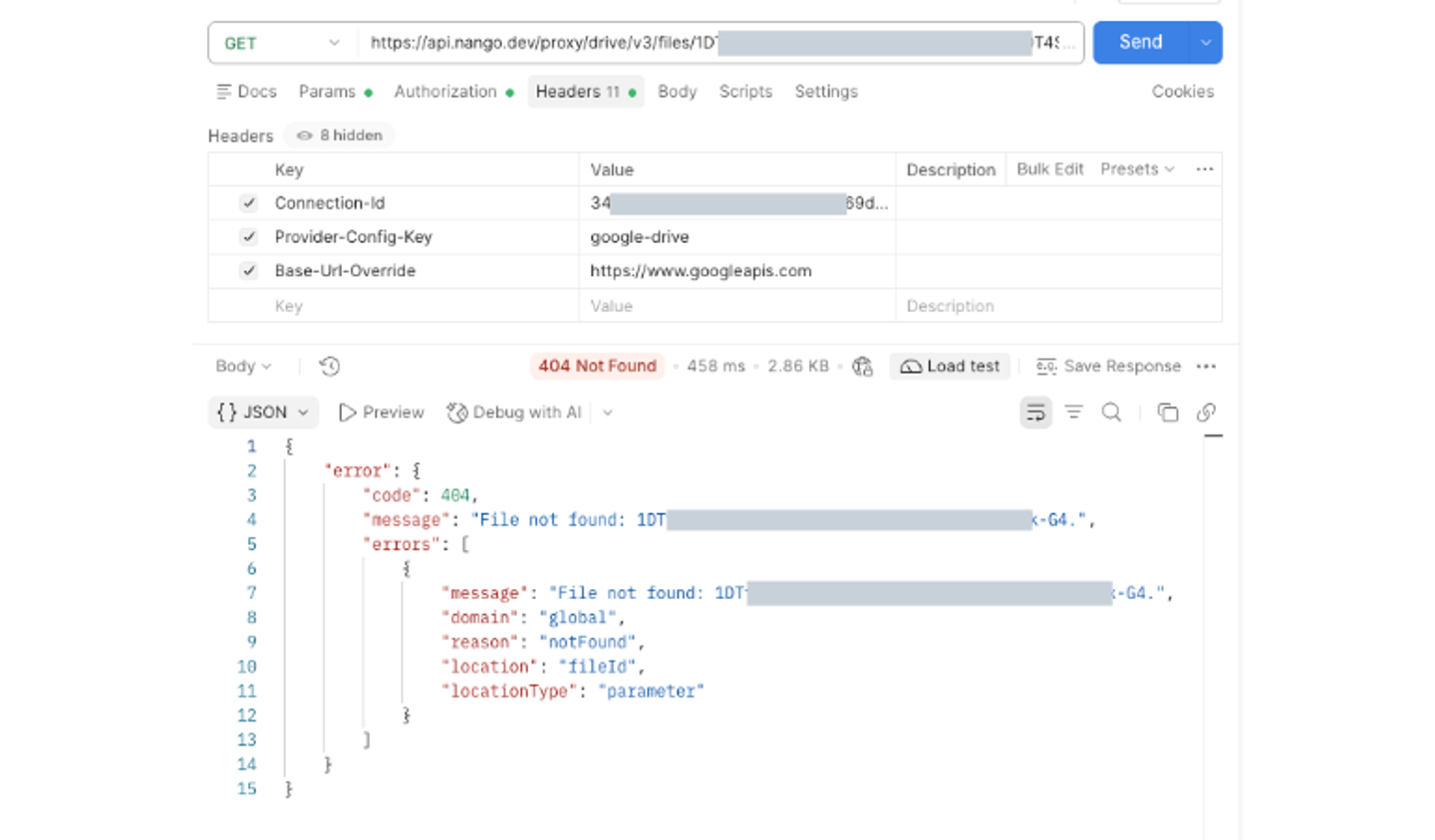
Google Drive returning 404 notFound through Nango’s API proxy.
To troubleshoot a Google Drive 404 error through Nango, check the following details for the affected connection:
- Connection: find the failing call in the Logs view to confirm which
connectionIdit used and what Google returned.
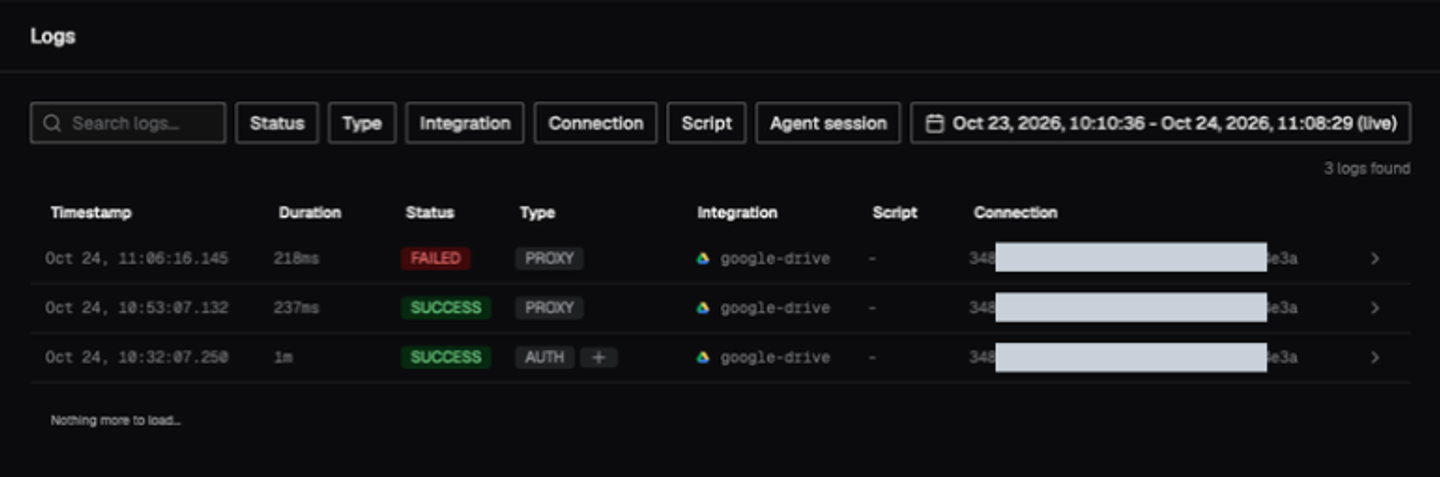
Nango Logs showing successful and failed Google Drive API proxy requests for the same connection.
- Google account: call
/drive/v3/about?fields=userthrough the proxy with the same connection, or run the pre-builtget-aboutaction. - Configured scopes: check the scopes on the Google Drive integration in the Nango dashboard. These are what Nango requests during authorization.
- Granted scopes: Fetch the connection using Nango’s
GET /connections/{connectionId}endpoint and inspect the OAuth credential metadata. In our test,credentials.raw.scopecontainedhttps://www.googleapis.com/auth/drive.file, matching the scope configured for the Google Drive connection.
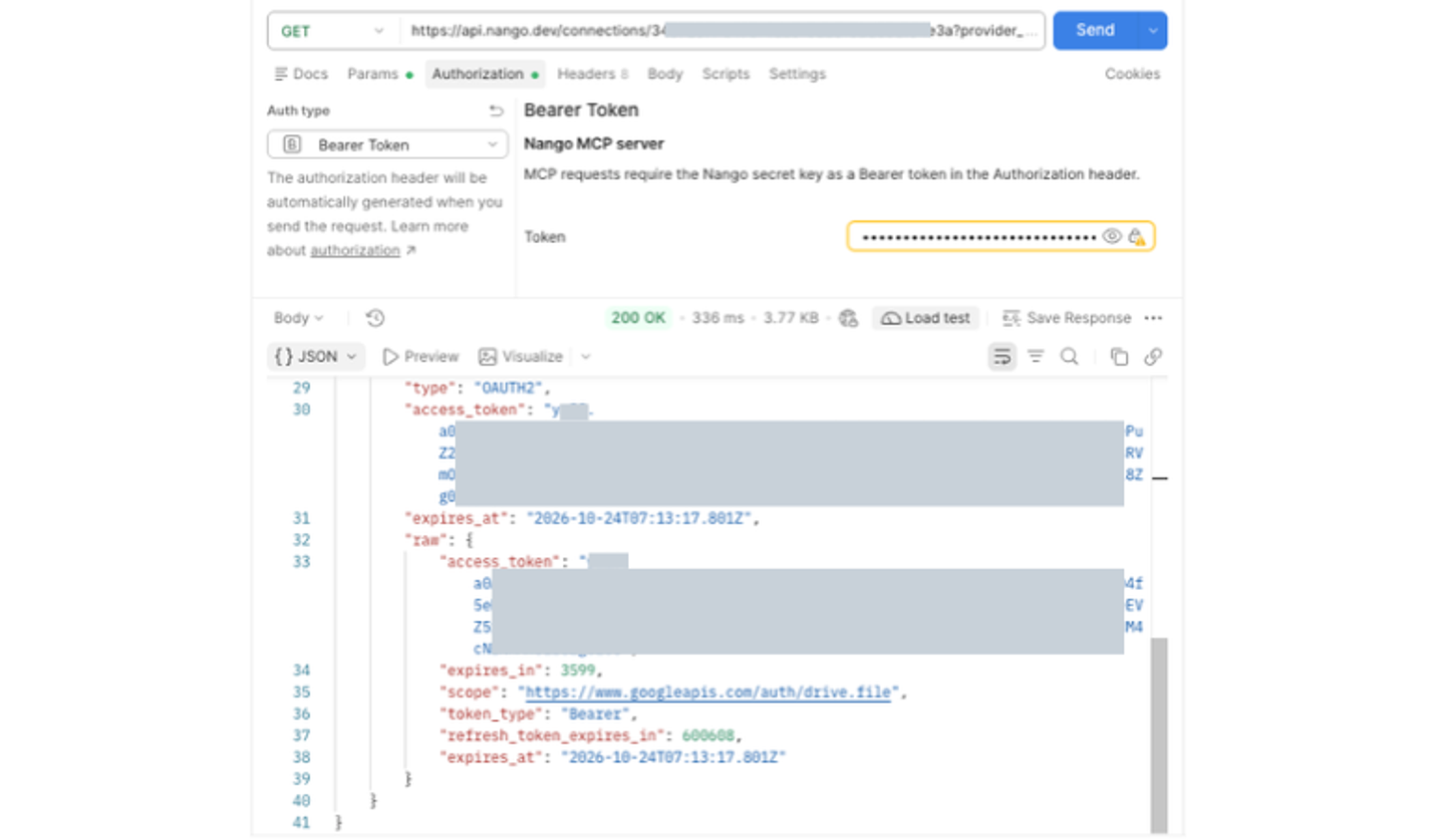
Nango’s Get Connection API response showing the drive.file scope in credentials.raw.scope.
The scope field was present in our test, but its availability may vary depending on the provider’s OAuth response. If it’s missing, you can check the active access token’s scopes using Google’s token inspection endpoint. Recheck the granted scopes after reconnecting an account, since the user may authorize different permissions.
Nango manages the connection and its credentials. It does not change Google’s sharing permissions or drive.file per-file authorization: a file the user has not authorized for your project returns the same 404 through Nango as it does directly. Your frontend still runs Google Picker with the Cloud project number associated with the connection’s OAuth app and a token from the connection.
The Nango sample app shows the full flow: connecting Google Drive, selecting files with Google Picker, syncing document metadata, and downloading file contents. To keep a RAG index current, you can also route Drive change notifications through Nango and trigger a sync for the affected connection.


