
When a family member asks you to find a receipt, check an appointment time, or help with a reply, you can do it from your own Claude or ChatGPT account. Send them a link and they can approve Gmail access on their own device, including any two-factor authentication Google asks for.
Setup takes about five minutes using Nango and its Management MCP server. Only you need a free Nango account. Nango is the tool calling layer for AI agents with support for 1,300+ APIs and 10,000+ prebuilt tools.
Step 1: Connect Nango to Claude or ChatGPT
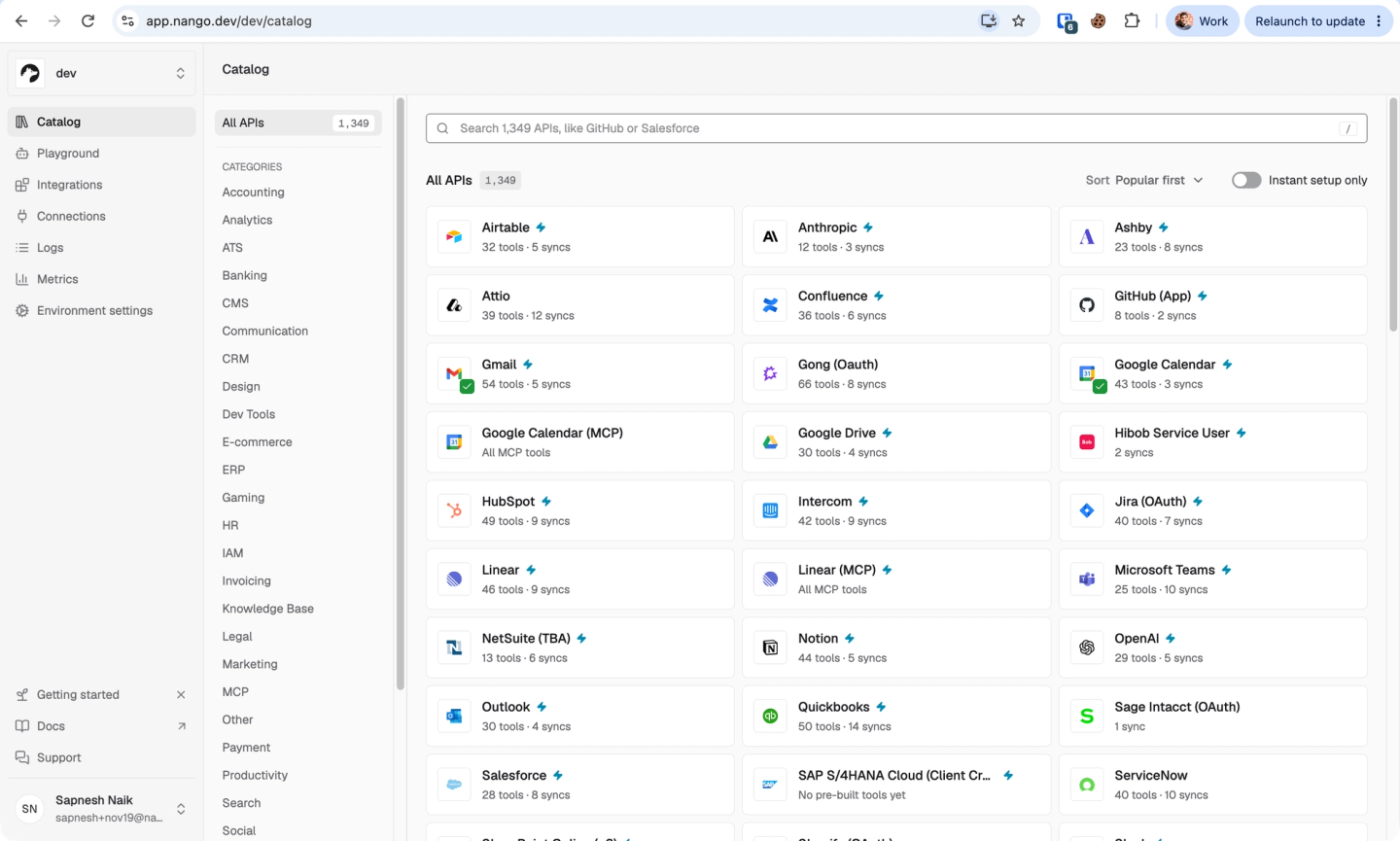
Sign in to Nango. Once you reach the catalog, switch to the assistant you want to use.
Claude
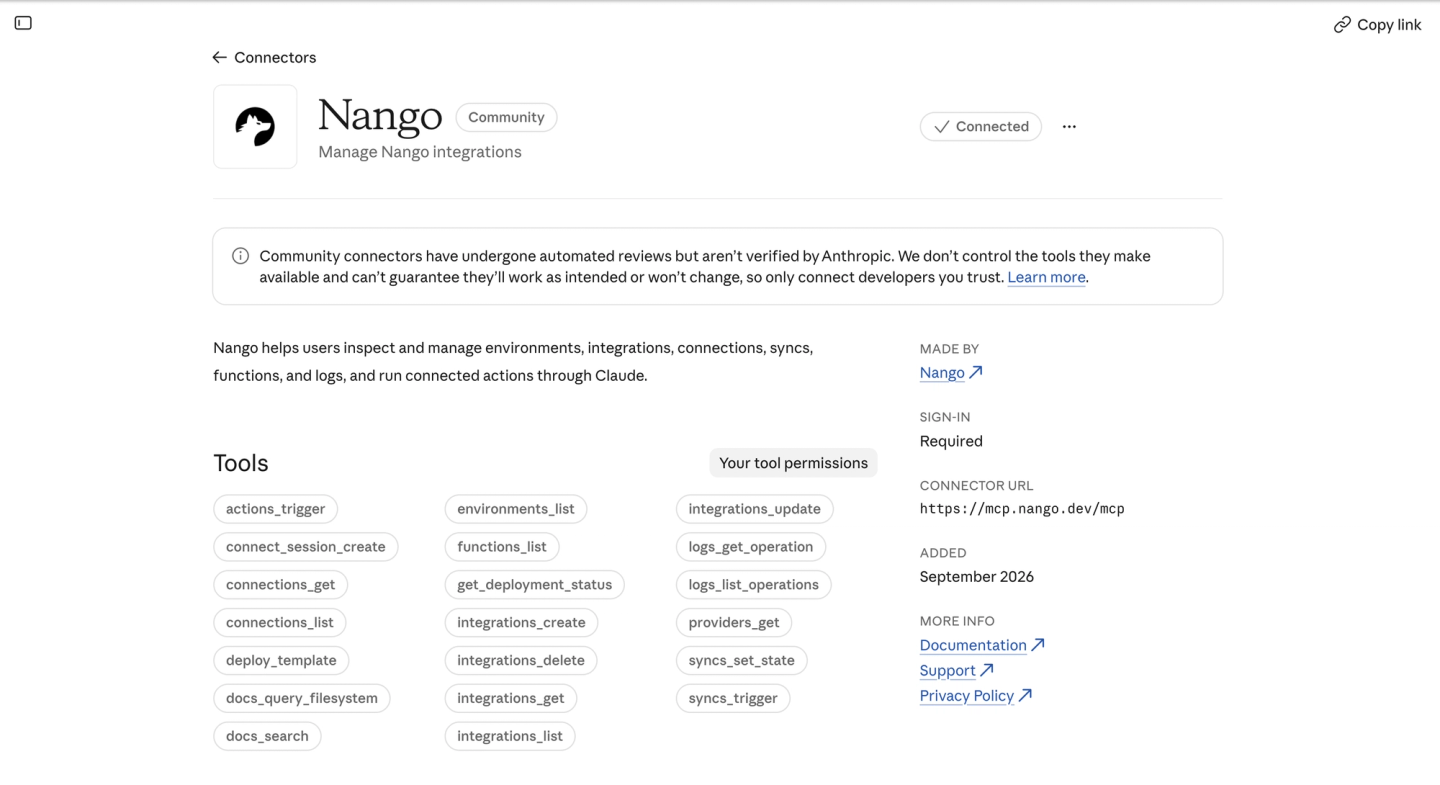
- Open Customize → Connectors and search for Nango, or open the Nango connector directly.
- Click Connect to Claude, sign in to Nango, and approve access. Check that Nango shows Connected.
ChatGPT
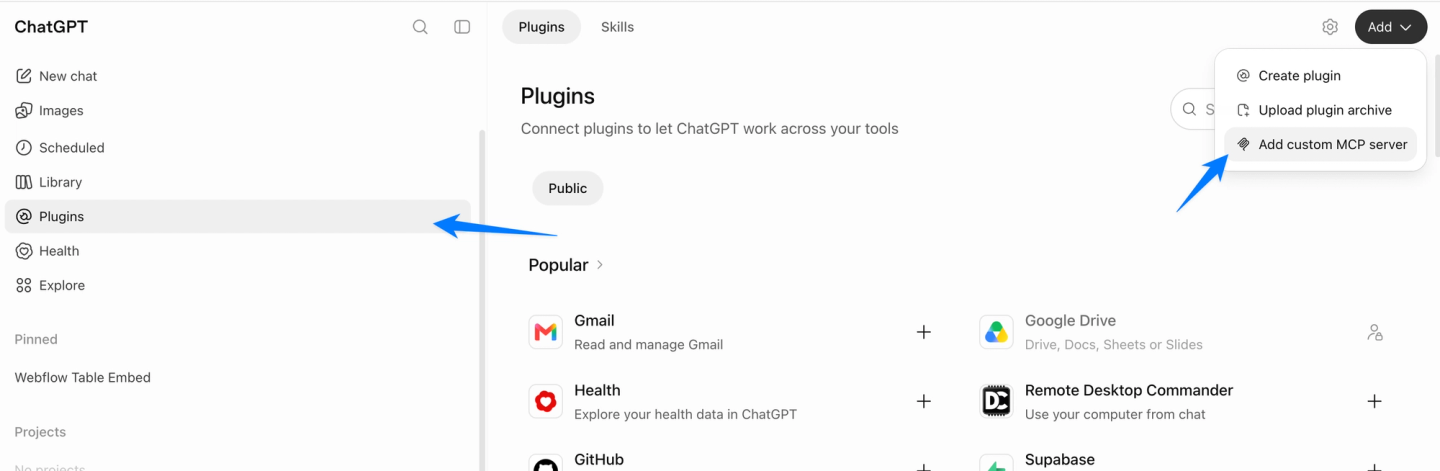
If your workspace supports custom MCP servers, open Plugins → Add → Add custom MCP server. Name it Nango, enter https://mcp.nango.dev/mcp, and choose OAuth. Sign in to Nango and approve access, then select Nango in a new chat.
For Codex or another MCP client, connect to Nango using the agent setup instructions. You can use the same prompts below.
Step 2: Ask Claude for a Gmail connect link
Paste this into your chat:
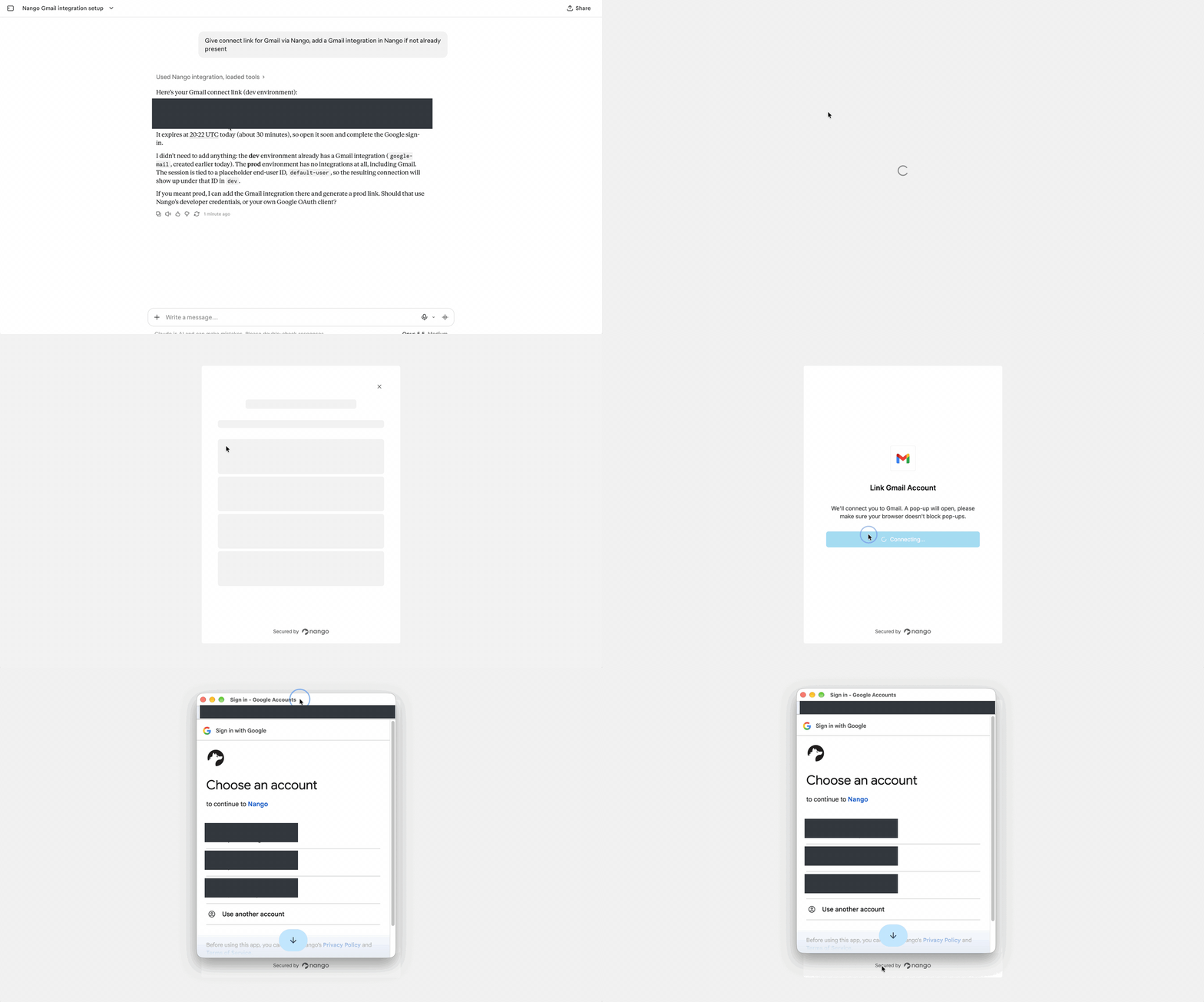
Give connect link for Gmail via Nango, add a Gmail integration in Nango if not already present
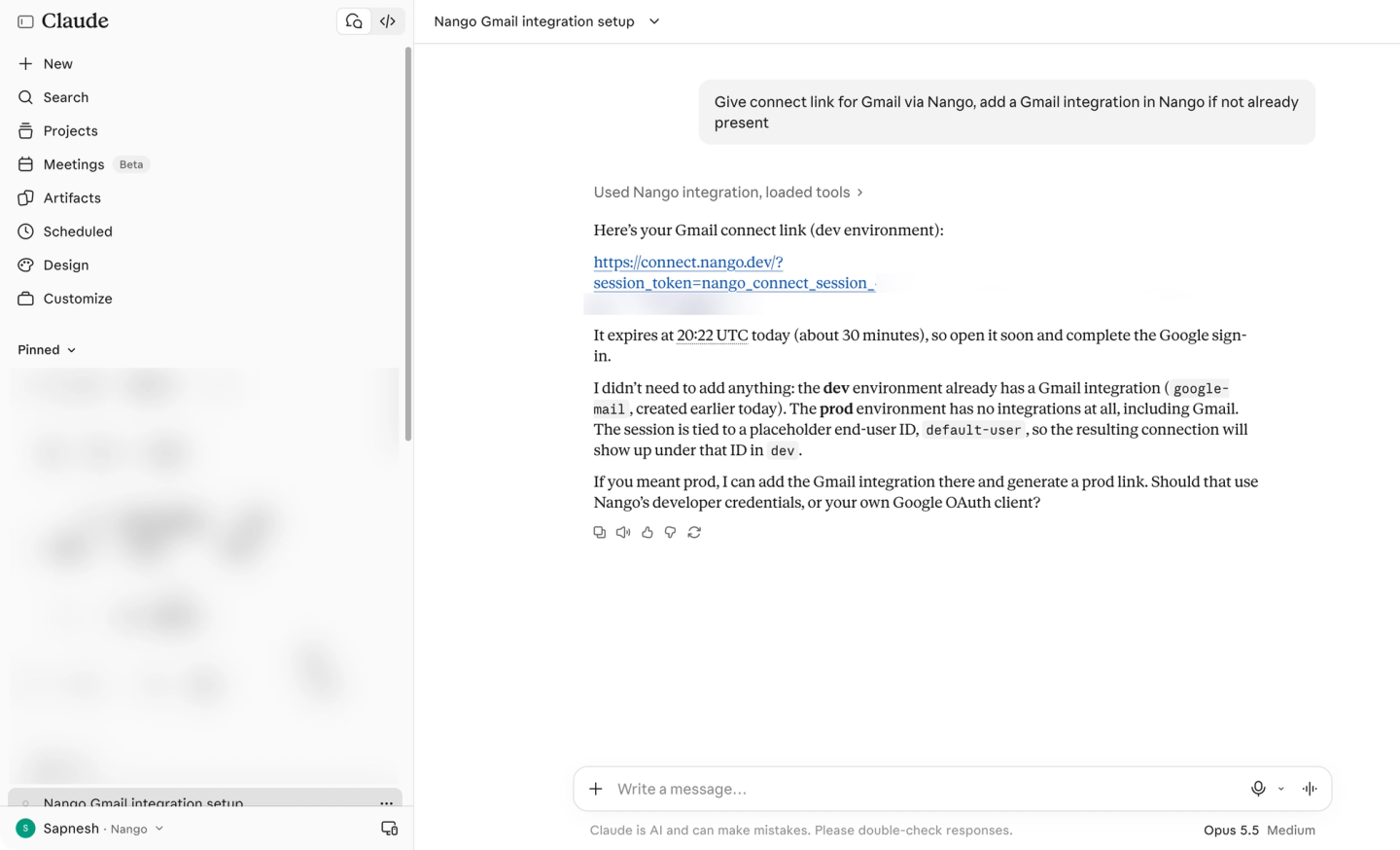
Copy the connect link from Claude’s reply and send it to your family member.
Ask them to open it, choose the Google account they want help with, and review the permissions Google lists. If the link expires before they use it, ask Claude for a fresh one. Connect links expire after 30 minutes.
What happened behind the scenes
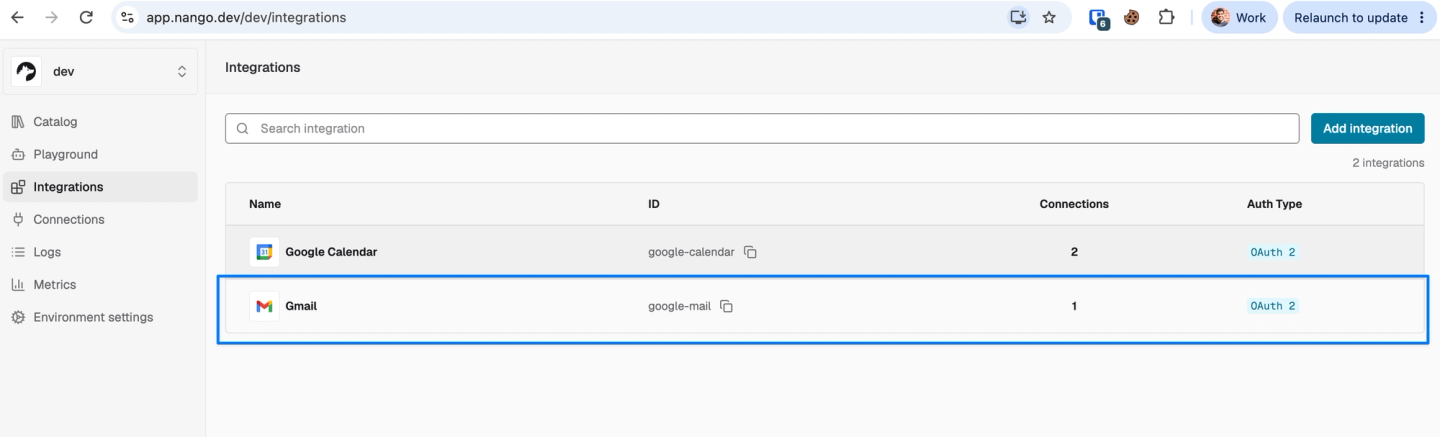
In the screenshot above, Claude found Gmail already configured and generated a link for it. If Gmail is missing, the same prompt tells Claude to add it using Nango’s managed Google OAuth app. That saves you from registering an app in Google Cloud. You can see the Gmail integration under Integrations in Nango.
Step 3: Verify the Gmail account is connected
Once they approve access, return to your Claude chat and ask:
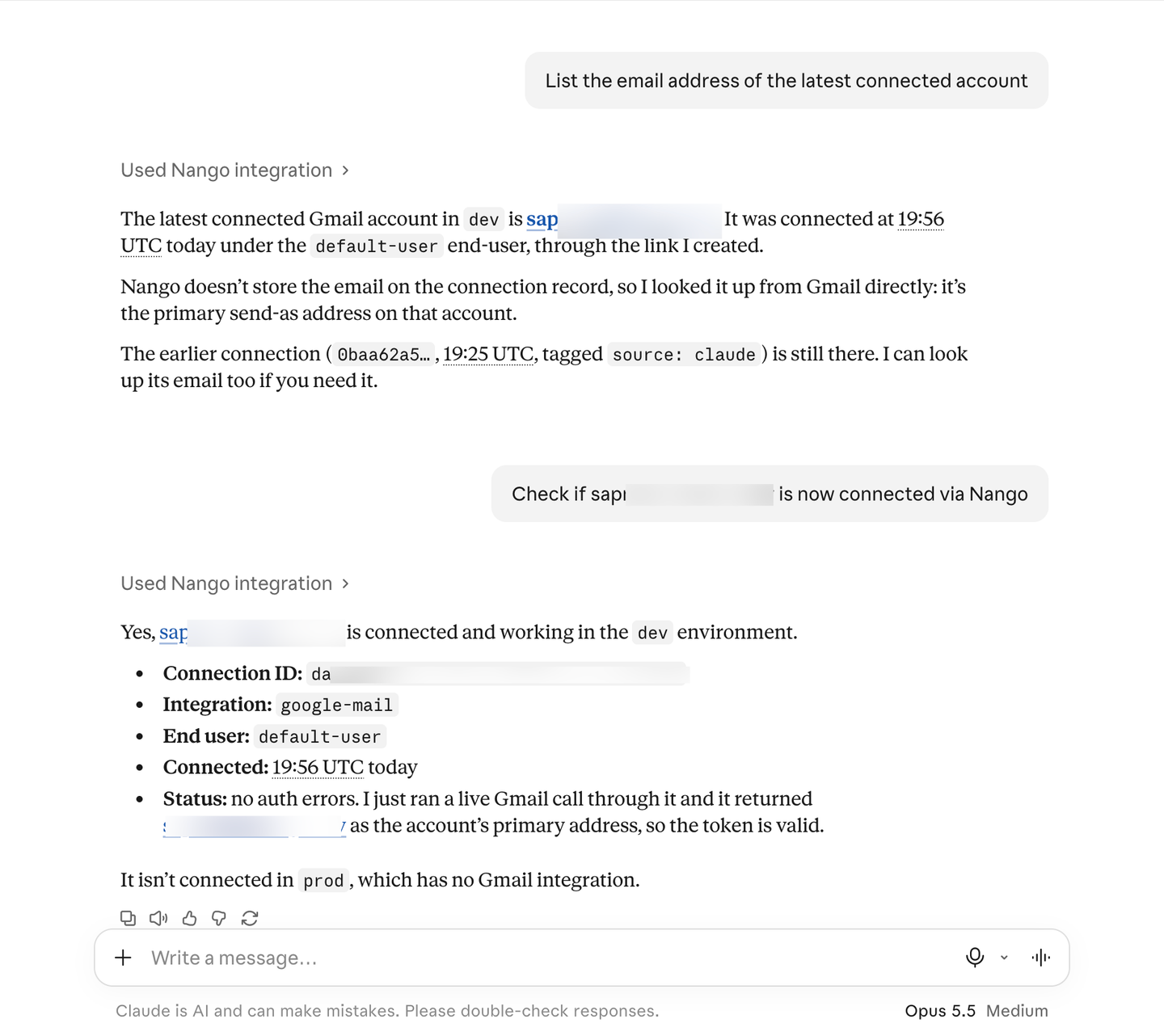
List the email address of the latest connected account
If you already have other accounts connected, check the address directly. Replace the example with your family member’s address:
Check if family@example.com is now connected via Nango
What happened behind the scenes
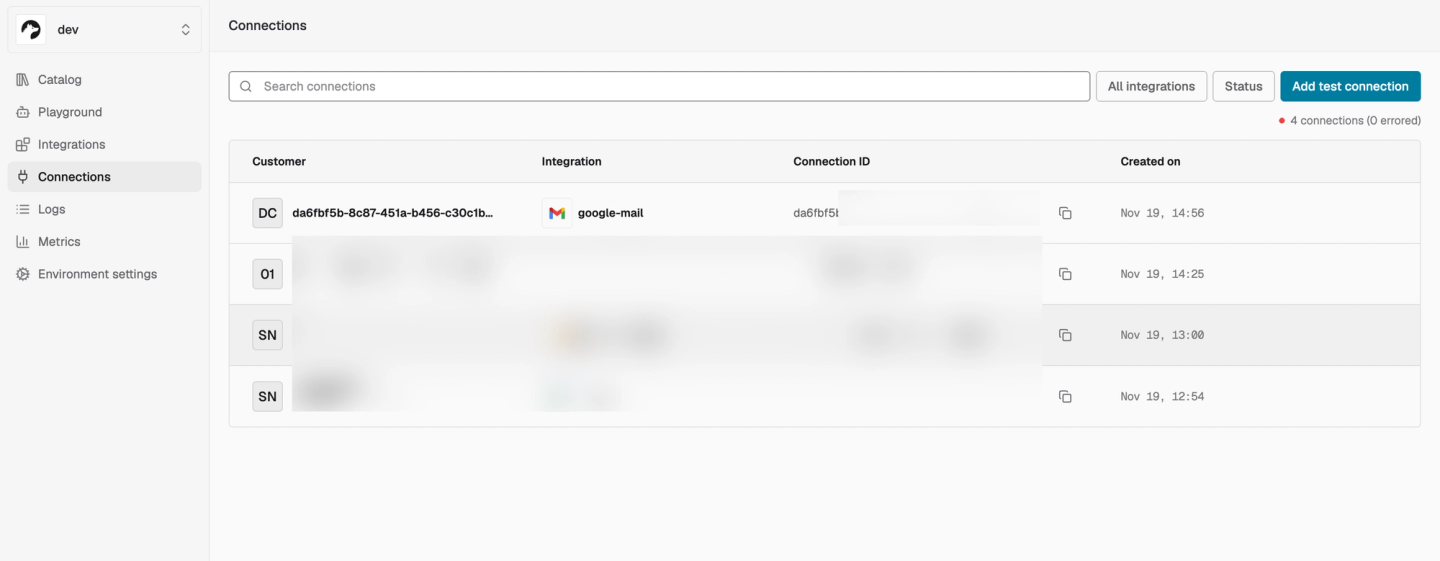
When your family member signed in, a new Gmail entry was added under Connections in Nango.
Repeat the process for each additional Gmail account you want to connect. Each account uses one of the ten connections included in Nango’s free plan.
Step 4: Find a receipt or draft a reply in the connected inbox
Use the address you just verified so your assistant searches the right inbox. For example, if your family member needs an order number, try:
Use Nango to find last month’s receipt for headphones in family@example.com. Which store sent it, and what was the order number?
Or ask for help with an upcoming appointment:
In family@example.com, find the confirmation for next week’s appointment and draft a reply asking what to bring. Leave it in Gmail Drafts so my family member can review it.
If needed, your family member can revoke access from their Google Account.
Related reading

