
This article explains why the INVALID_SESSION_ID error appears during Salesforce API integration, how to diagnose it, and the specific steps required to resolve it.
Identifying the INVALID_SESSION_ID error
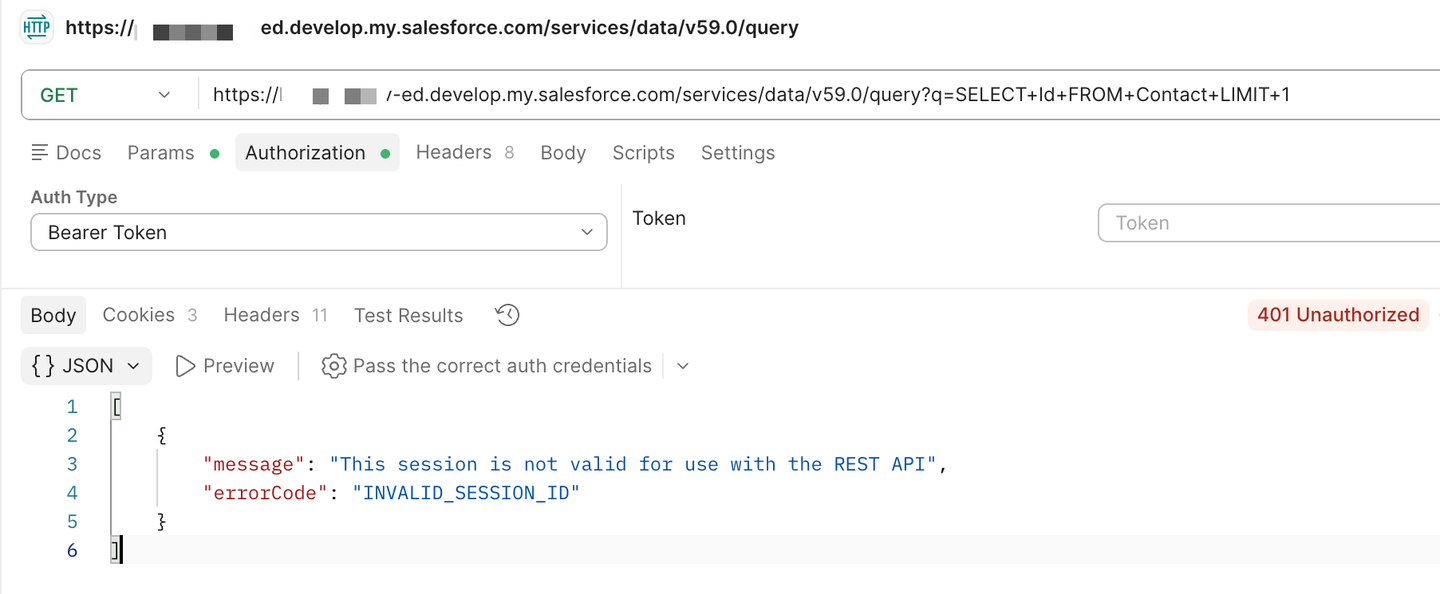
A Salesforce REST API call that fails with this error returns a 401 Unauthorized and a body that looks like this:
[
  {
    "errorCode": "INVALID_SESSION_ID",
    "message": "This session is not valid for use with the REST API"
  }
]
Note: If you’re seeing this error instead: Invalid Session ID found in SessionHeader: Illegal Session. See Salesforce’s official help article for details on how to fix.
How Salesforce authenticates REST APIs
Under the hood, a Salesforce REST request needs three things to succeed:
- A live session (the access token).
- A REST endpoint that your session is actually allowed to call.
- A network and policy environment for which the session is valid.
Anything that breaks one of those returns an INVALID_SESSION_ID error. Salesforce does not differentiate between an expired token, a token used against the wrong instance, an IP-locked session, or a session blocked by API Client Control. They all look identical to the calling app.
Many users first try to “just refresh the token and retry,” but that is not always enough. If the root cause is configuration, refreshing produces a new access token that fails the same way.
Root causes for INVALID_SESSION_ID and how to fix them
1. The access token (session) has expired
This is by far the most common cause.
Salesforce sessions have a finite lifetime. The default session timeout for most orgs is 2 hours, configurable up to 24 hours under Setup > Session Settings. See Salesforce’s Session Settings documentation for more details. In addition to the org-level timeout, Connected App admins can override timeouts per app under Manage Connected Apps > OAuth Policies (docs).
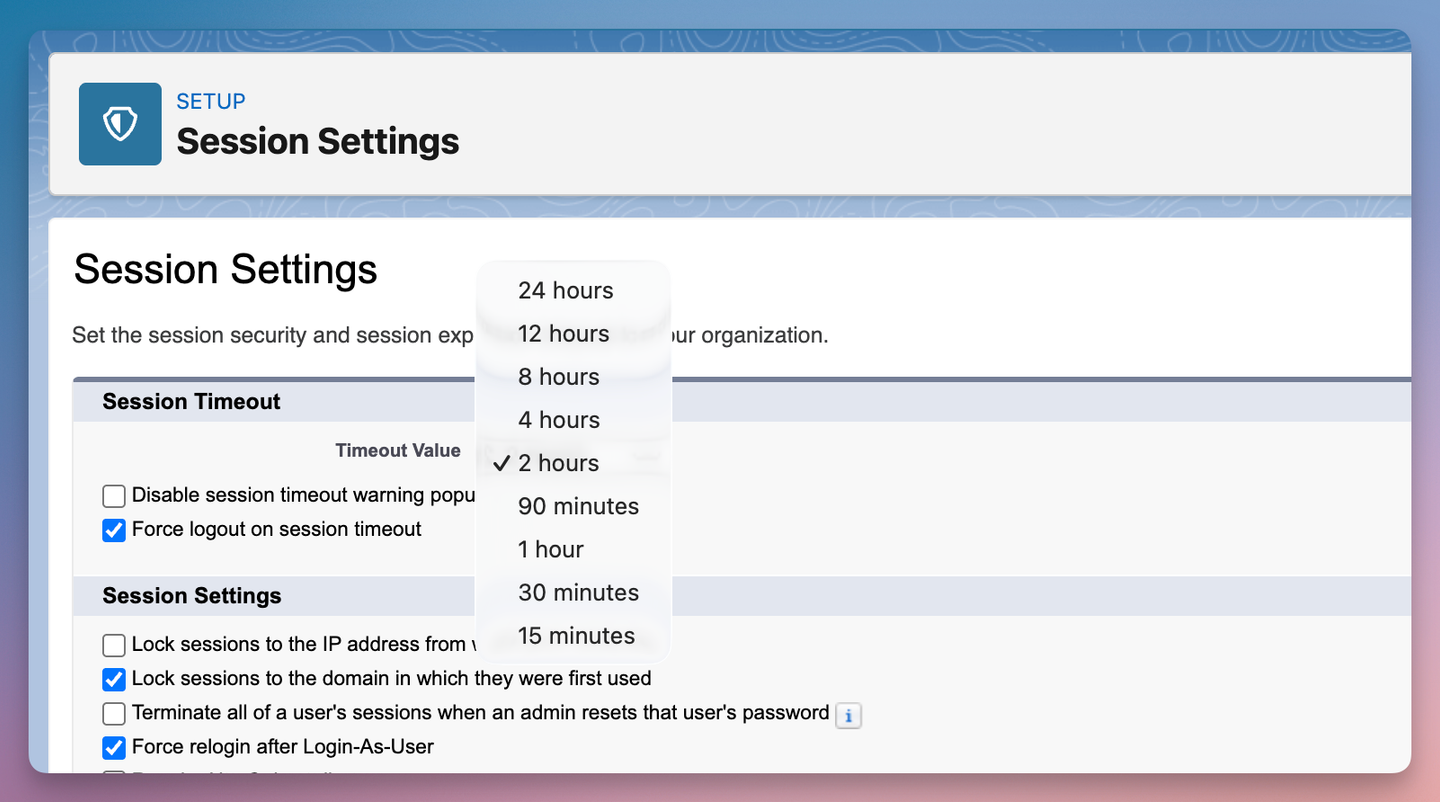
Once the timeout passes, every REST call with that access token returns INVALID_SESSION_ID.
Salesforce makes this harder than other APIs because the token endpoint does not return expires_in or expires_at. So your app has no easy way to know when the session will expire. We have a full post on how to get the access token’s expires_at from Salesforce.
The fix:
Use the refresh token from the original OAuth response to get a new access token, then retry the failed REST request once. The refresh request looks like this:
curl -X POST https://login.salesforce.com/services/oauth2/token \
  -H "Content-Type: application/x-www-form-urlencoded" \
  -d "grant_type=refresh_token" \
  -d "client_id=<CONSUMER_KEY>" \
  -d "client_secret=<CONSUMER_SECRET>" \
  -d "refresh_token=<REFRESH_TOKEN>"
A successful response includes a new access_token and instance_url. Replace the old credentials and retry the original API request.
If the refresh returns an invalid_grant error, the refresh token is dead too. See our Salesforce OAuth refresh token invalid_grant post for the causes (5 concurrent-token limit per user, refresh token rotation, immediate-expire policy, password change).
If multiple workers refresh the same connection simultaneously, only one of them receives a new token. We wrote about this in concurrency issues with OAuth token refreshes.
If the refresh succeeds but the retry still fails with INVALID_SESSION_ID, the cause is not token expiry. Move down this list.
Tip: Implementing all of this correctly across every API in your product is a lot of code to write and maintain. Nango handles token refresh, concurrency-safe refresh, and the full session lifecycle for Salesforce and 1,000+ other APIs, across OAuth, JWT, API keys, basic auth, and MCP auth.
2. You are calling the wrong instance URL
When Salesforce returns an access token, it also returns an instance_url. That instance_url is the only correct base for REST API calls. It looks like one of these:
https://yourcompany.my.salesforce.com
https://yourcompany--sandbox.sandbox.my.salesforce.com
If you use any other host (a different org’s instance_url, the wrong sandbox host, or a stale value cached from a previous token), every request returns INVALID_SESSION_ID. The token is fine. It just is not valid against that host.
Note: Hitting https://login.salesforce.com/services/data/... directly returns a different but related error, URL_NOT_RESET (“Destination URL not reset. The URL returned from login must be set”). That one signals the login domain is not a data endpoint at all.
The fix:
Read instance_url from the token response and use it as the base for every REST call:
# Token response
{
    "access_token": "00Dak...",
    "signature": "XJuePYyv...",
    "scope": "refresh_token",
    "instance_url": "https://yourcompany.my.salesforce.com",
    "id": "https://login.salesforce.com/id/00Dak.../005ak...",
    "token_type": "Bearer",
    "issued_at": "1779461039475"
}

# REST call using instance_url
curl "https://yourcompany.my.salesforce.com/services/data/v59.0/query?q=SELECT+Id+FROM+Contact+LIMIT+1" \
  -H "Authorization: Bearer 00D..."
If you support sandboxes, do not assume the sandbox host pattern. Always read it from instance_url because Salesforce changed the format from *.salesforce.com to *.my.salesforce.com.
3. The session is locked to an originating IP
Salesforce has an org-level session setting called Lock sessions to the IP address from which they originated, under Setup > Session Settings. When enabled, the session is bound to the IP that authenticated, and any request from a different IP returns INVALID_SESSION_ID.
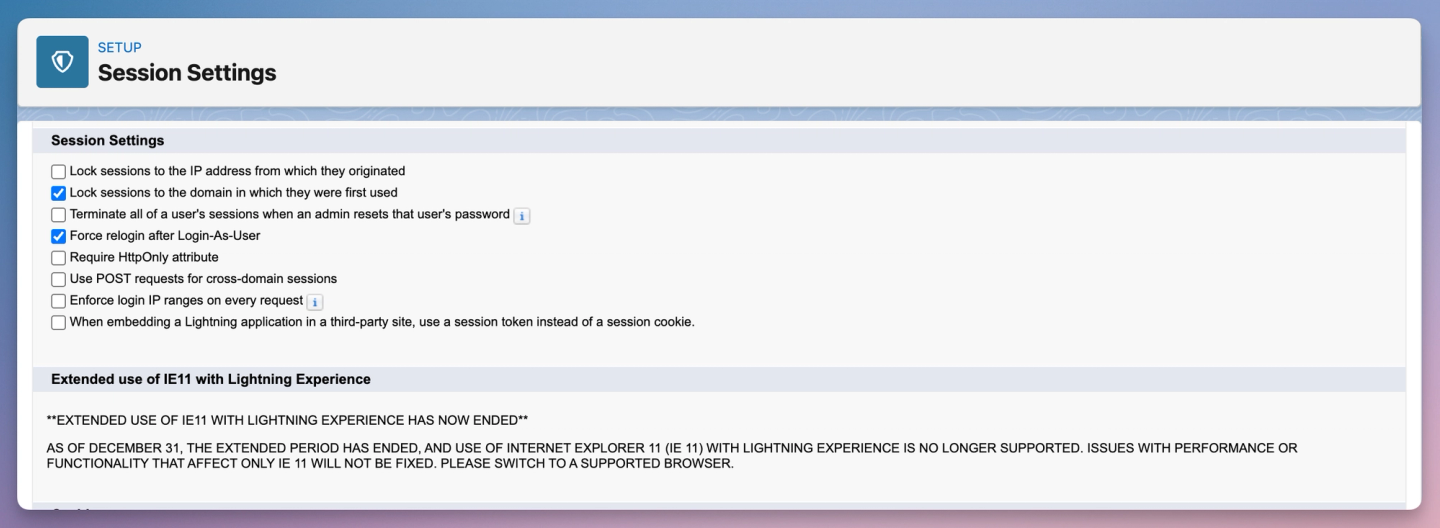
This is fine for an interactive browser session. It is a problem for any backend integration that:
- Runs on a Kubernetes cluster or autoscaled container fleet (egress IP changes per pod).
- Sits behind a NAT or load balancer with multiple egress IPs.
- Uses a cloud provider where outbound IPs are not stable.
Salesforce’s own knowledge article on this setting calls out the dynamic-IP failure mode.
The fix:
You have two paths:
- Turn off the org-level IP lock (recommended for backend integrations): A Salesforce admin unchecks the “Lock sessions to the IP address from which they originated” option in Session Settings. This only affects new sessions; existing locked sessions stay locked until they expire.
- Pin your integration to a stable egress IP: Use a NAT gateway, an outbound proxy, or a dedicated egress so all your traffic leaves from one IP, and ask the admin to allowlist that IP under Setup > Network Access.
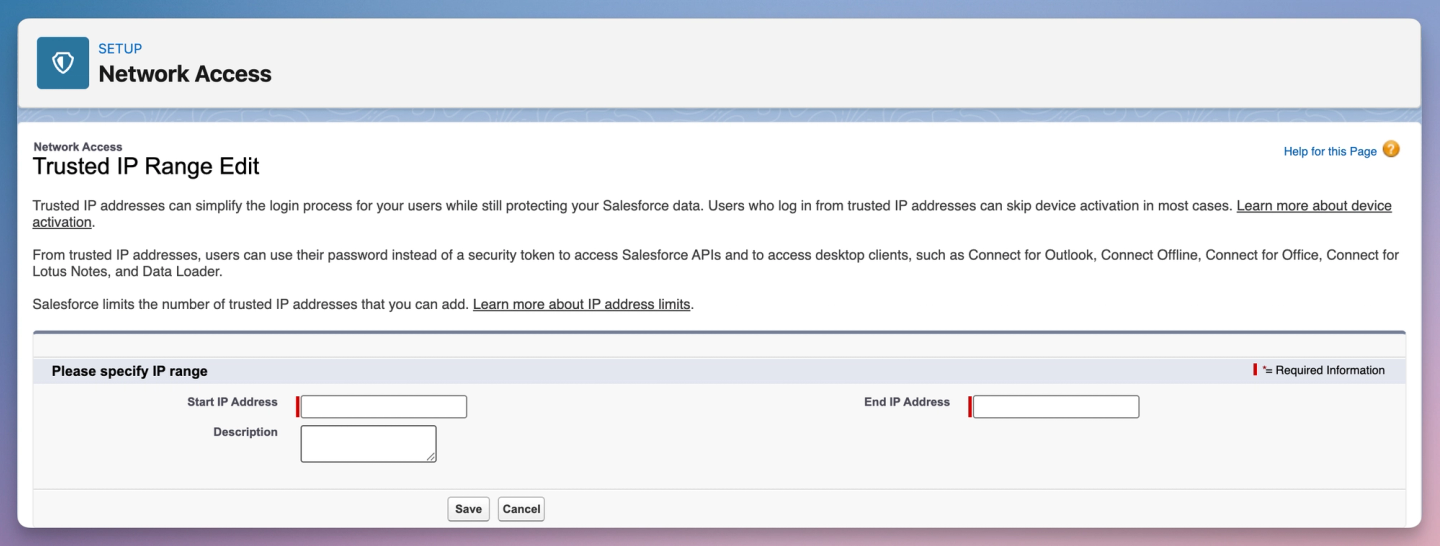
If you do not control the customer’s Salesforce org, the admin has to make the change. There is no way to bypass this from the API side.
4. API Client Control restricts access to allowlisted Connected Apps
Some Salesforce orgs (especially regulated industries and customers running the Salesforce Shield security pack) enable the For admin-approved users, limit API access to only allowlisted connected apps setting under Setup > Connected Apps OAuth Usage > API Access Control.
When that setting is on, every REST API call from a Connected App that has not been explicitly allowlisted returns INVALID_SESSION_ID, regardless of how fresh the access token is. The official Salesforce knowledge article on this error confirms the behavior is by design.
This one is easy to misdiagnose because OAuth works fine. The user completes the consent flow, your app gets back a valid token, and then every single REST call fails.
The fix:
You have two options, in order of preference:
- Install the Connected App at the org level: A Salesforce admin goes to Setup > Connected Apps OAuth Usage, finds your app, and clicks Install. They then set Permitted Users to “Admin approved users are pre-authorized” (or “All users may self-authorize”, if the org permits it). After install, REST calls succeed.
- Grant individual users the Use Any API Client profile permission: A workaround when org-level install is not feasible. Salesforce’s own guidance recommends the install route because Use Any API Client also grants access to every other Connected App.
PKCE-enforced orgs need an extra step here. We cover the related approval flow error in how to fix Salesforce OAuth error OAUTH_APPROVAL_ERROR_GENERIC, which is related to this error during the initial OAuth handshake.
5. The session was revoked
Salesforce silently revokes sessions in several situations:
- The user changed their password. All access and refresh tokens for that user are revoked. No notification, no warning. The next REST call returns
INVALID_SESSION_IDand the refresh fails withinvalid_grantandauthentication failure. - The user was deactivated in their Salesforce org.
- The user (or an admin) revoked the Connected App under Personal Settings > Connections or Setup > OAuth Connected Apps Usage.
- The 5-concurrent-token cap kicked in. Each Connected App can have at most 5 concurrent access and refresh token pairs per user. The oldest gets revoked when a sixth is issued.
In every case, the refresh token is also dead. There is no automated recovery.
The fix:
Detect the condition (refresh returns invalid_grant) and prompt the affected user to reauthenticate. In Nango this comes through as a webhook event you can plug into your re-auth flow. We cover the underlying mechanics in detail in Salesforce OAuth refresh token invalid_grant.
6. The org is in Read-Only Application Test Mode or maintenance
Salesforce admins can put a sandbox into Read-Only Application Test Mode to test how their integrations behave during a production maintenance window (docs). During that window, write operations start returning INSERT_UPDATE_DELETE_NOT_ALLOWED_DURING_MAINTENANCE, and active sessions can flip to INVALID_SESSION_ID on the next REST call.
The same thing happens, much more rarely, during a real Salesforce instance maintenance event.
The fix:
You cannot fix this from the integration side. The right behavior is:
- Detect the condition (an unexpected spike in
INVALID_SESSION_IDplusINSERT_UPDATE_DELETE_NOT_ALLOWED_DURING_MAINTENANCEerrors clustered on one org). - Back off and pause writes for that org.
- Resume once the org exits read-only mode.
The Salesforce SDK team documented the exact pattern in a GitHub issue that walks through how the read-only flip surfaces.
Summary of root causes for INVALID_SESSION_ID
| # | Root cause | What it looks like | Fix |
|---|---|---|---|
| 1 | Access token expired | Random `INVALID_SESSION_ID` ~2h after auth | Refresh and retry once |
| 2 | Wrong base URL | 100% of calls fail from day one | Use `instance_url` from the token response |
| 3 | Session locked to IP | Works locally, fails from cloud workers | Disable IP lock or pin to a stable egress IP |
| 4 | API Client Control restricts the app | OAuth works, every REST call fails | Admin installs the Connected App org-wide |
| 5 | Session revoked (password change, deactivation, 5-token limit) | Refresh also fails with `invalid_grant` | Prompt the user to re-auth |
| 6 | Read-Only Application Test Mode | Spike on one org, paired with `INSERT_UPDATE_DELETE_NOT_ALLOWED_DURING_MAINTENANCE` | Back off, resume when the org exits read-only |
How to prevent the INVALID_SESSION_ID error
You cannot avoid every cause (an admin can always revoke a token), but a few practices remove most of the surface area:
- Refresh proactively, not reactively. Salesforce does not return
expires_at, so your app has to either call the introspect endpoint or schedule refreshes well before the 2-hour mark. - Read
instance_urlonce per token, never hardcode it. Including across sandbox refreshes, where the host changes. - Document the IP-lock requirement up front. If you sell to enterprises, expect at least one customer to have Lock sessions to the IP address from which they originated on, and either ship a stable egress IP or get the admin to disable it during onboarding.
- Treat
invalid_grantfrom the refresh endpoint as a re-auth signal. Surface it to the affected user, do not retry silently. - Lock down the refresh path against concurrency. One refresh in flight per connection at a time. See concurrency with OAuth token refreshes.
- Monitor
INVALID_SESSION_IDrate per org. A sudden spike on one tenant usually means cause 4, 5, or 6, not 1.
Let Nango handle Salesforce API auth for you
Nango is a code-first API integration platform where coding agents build integrations. Engineers, or coding agents like Claude Code, Cursor, and Codex, write integrations as code in your repo. Nango’s cloud runtime runs them securely and at scale across 1,000+ APIs, including full Salesforce support (OAuth, JWT, Sandbox, Data Cloud).
Beyond auth, Nango covers: data syncs, actions, AI tool calls, MCP, and webhooks from external APIs, on the same platform.
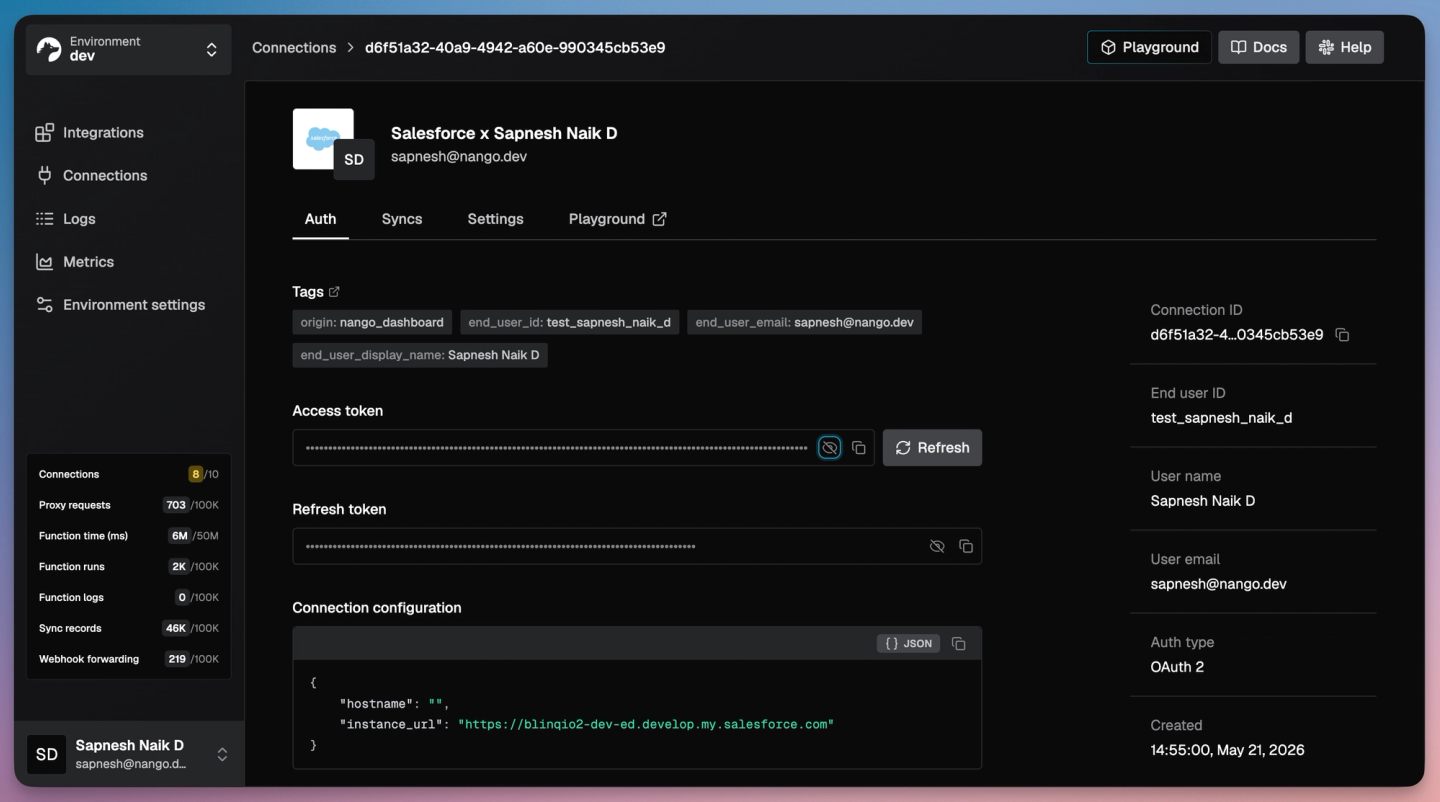
For the INVALID_SESSION_ID family of problems specifically, Nango handles:
- Proactive token refresh: Nango observes the Salesforce session, tracks the real
expires_at, and refreshes automatically before the token expires. - Concurrency-safe refresh: One refresh in flight per connection, so a burst of workers cannot race and corrupt the live token.
instance_urlenforcement: The Nango proxy uses the per-connectioninstance_urlautomatically, so you cannot accidentally hitlogin.salesforce.comfor REST calls.- Revocation webhooks: When Salesforce kills the session (password change/5-token cap/admin revoke), Nango emits a webhook so you can prompt the user to reconnect.
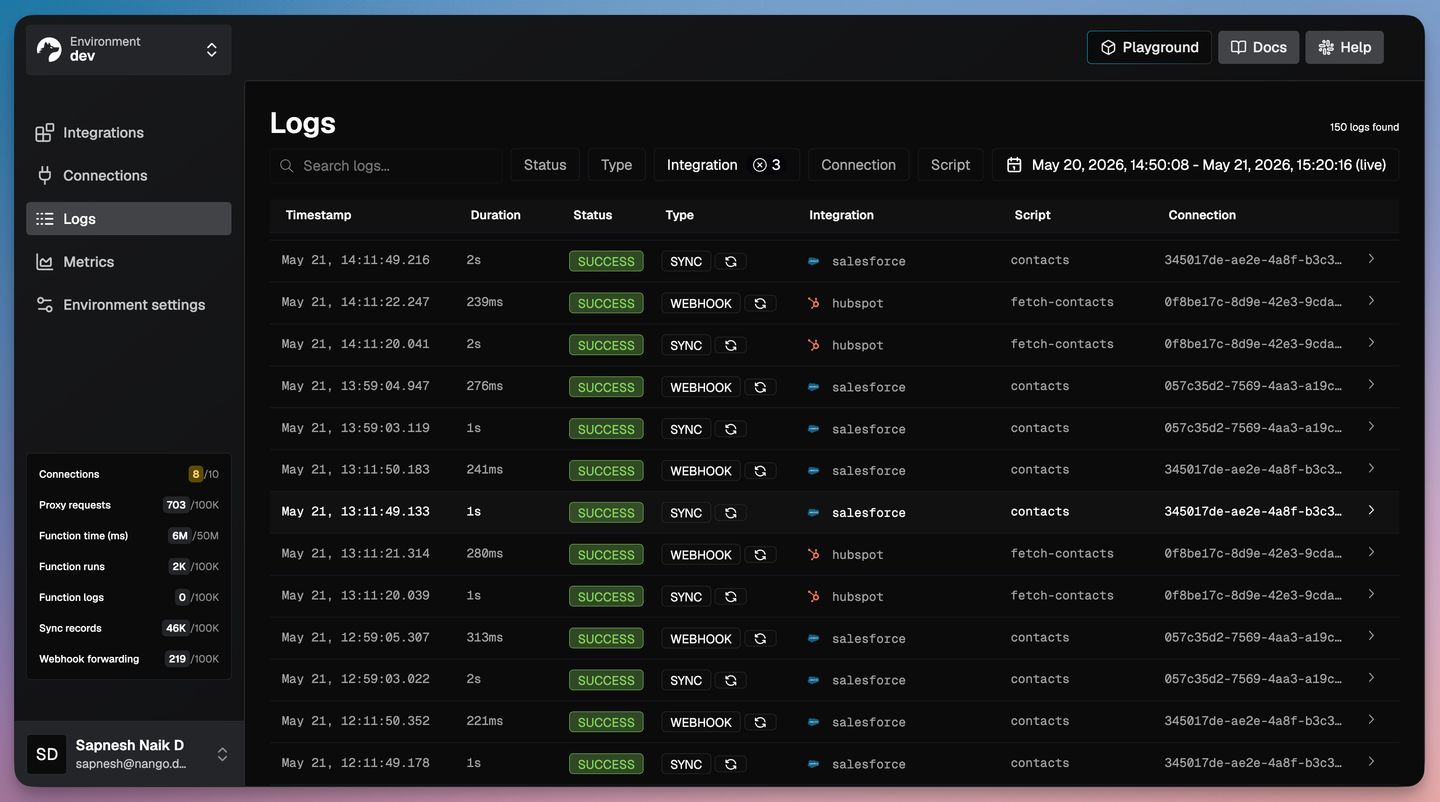
- Observability: Every refresh and every API call is logged with the org, user, status, and payload, so an
INVALID_SESSION_IDspike is one query away.
Building a new Salesforce action or sync that follows all of these patterns is a single skill install plus a prompt:
npx skills add NangoHQ/skills -s building-nango-functions-locally
# Then, in your coding agent:
# /building-nango-functions-locally Create a sync that fetches modified Salesforce Opportunities every 5 minutes
The agent reads the Salesforce API docs, writes the sync, dry-runs it against a real connection, and iterates on real errors before you deploy. The full pattern is in the function builder skill docs.
Related Salesforce OAuth errors
OAUTH_APPROVAL_ERROR_GENERIC: blocks the initial OAuth approval screen rather than REST calls.invalid_grant: the refresh-token sibling ofINVALID_SESSION_ID, returned when the refresh itself is dead.- Salesforce access token
expires_at: the introspect-endpoint trick that lets you refresh before the session times out. - Concurrency with OAuth token refreshes: the race condition that turns one stale refresh into a fleet-wide
INVALID_SESSION_IDstorm. - Why is OAuth still hard in 2026: the bigger picture on why every major API surface has a session error like this one.

